

Turn recordings into transcripts and summaries in minutes
Upload audio or video for multilingual transcription, AI notes, and action items
Tested 3 Alternatives When Google Meet Screen Share Fails in 2026: Tinrec Audio Recording to Meeting Minutes Is Most Useful
Having a meeting and suddenly can't share your screen? Your whole presentation is stuck? Don't worry. We tested 3 emergency alternatives. Using Tinrec to record audio and transcribe it to text while automatically generating meeting minutes not only helps but also saves you post-meeting organization time. A must-read for office workers.
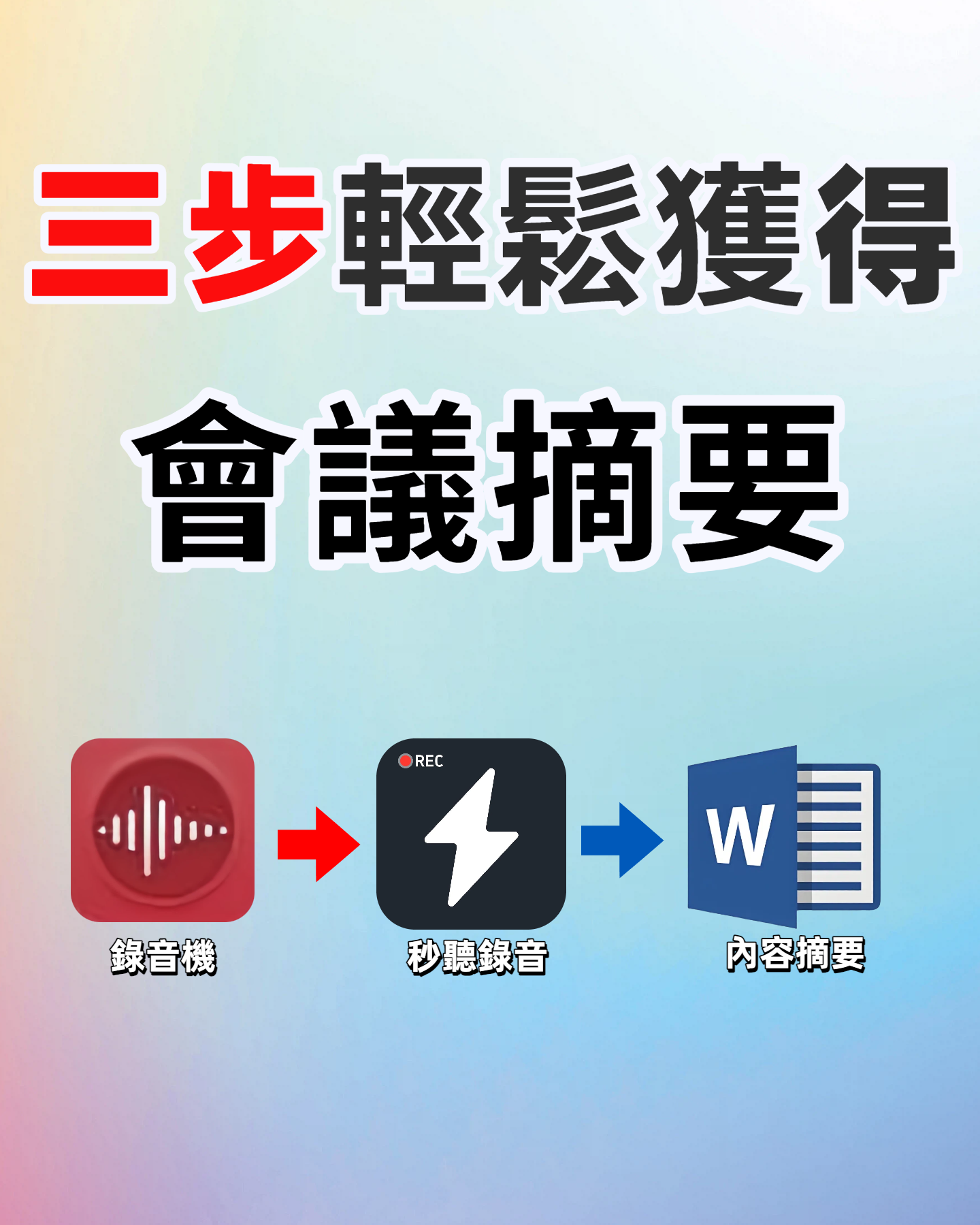
Before You Start | What You Need to Prepare
Using Tinrec to solve Google Meet screen share problems requires very simple preparation:
- A computer (Windows or Mac, because Tinrec has a desktop app that can capture system audio directly)
- Download the Tinrec desktop app (free download from the official website; register with Google or Apple ID)
- A Google Meet link (specifically the one you're about to join)
- A stable internet connection (real-time transcription requires internet; if you want to use it offline, download the language pack in advance)
Once ready, you can start using Tinrec to replace screen sharing and record the meeting content completely.
(Illustration: A computer screen showing a Google Meet meeting, with a phone next to it displaying the Tinrec App ready to record, creating an efficient working atmosphere)
Step 1: Record Google Meet Audio with Tinrec
The purpose of this step is to record the entire meeting's audio completely, so even if colleagues can't see your screen, they can later retrieve the full content.
Open the Tinrec desktop app, click the "Record" button. It will automatically detect system audio and microphone—make sure to enable both "System Audio" and "Microphone." This way, you'll capture not only the Google Meet sound but also your own voice. Keep the environment quiet during recording; if you're in an office, it's best to wear headphones to avoid echo affecting transcription accuracy.
Why do this? Because AI transcription accuracy heavily depends on audio quality—background noise or echo can cause numerous errors in the transcript. It's better to spend a few extra seconds confirming settings during recording than spending time correcting later.
After completion, you'll see the recording in the Tinrec main screen, with duration and file size displayed, and transcription progress will appear immediately.
(Illustration: A person wearing headphones facing a computer, with a Google Meet meeting interface on screen and the Tinrec icon lit up in the lower right corner, indicating recording is in progress)
Step 2: AI Transcribes the Recording into a Verbatim Transcript
After recording, Tinrec will automatically start transcription without any extra steps. Usually within a few minutes, you'll see the full transcript, and it automatically identifies different speakers (Speaker A, Speaker B...).
At this point, you can do two things: First, quickly scroll through to check for any obvious typos. Second, use the built-in "Search" function to directly look for keywords like "budget" or "deadline" to instantly locate relevant sections.
Why highlight the search function? Because when you lose the visual aid of screen sharing, text search becomes the fastest way to backtrack—it's several times faster than listening back to the recording by typing keywords directly.
(Illustration: Tinrec interface showing a transcript with different speaker labels, and a search bar highlighting the word "budget")
Step 3: Quick Proofreading and Organizing Key Points
Although AI is smart, it can still make mistakes, especially with professional jargon or colloquial language. In this step, you can proofread while listening to the recording, or use Tinrec's "Mark as Important" feature to highlight key passages.
How to do it: Click on any sentence in the transcript, and you can choose "Mark as Important" or "Add a Note." Later, in the "Notes" interface, you can view all highlights at once, saving time scrolling through long texts.
Stop organizing recordings by hand
Upload audio or video and automatically get a transcript, summary, and action items
Why do this? Because when you need to share meeting content with colleagues, nobody wants to read thousands of words of transcript—providing a concise summary or list of key points is the most practical alternative to screen sharing.
(Illustration: A person using a mouse to highlight key passages in the transcript, with a note window popping up)
Step 4: AI Automatically Generates Meeting Minutes and Action Items
This is Tinrec's most time-saving feature, directly converting the transcript into structured meeting minutes.
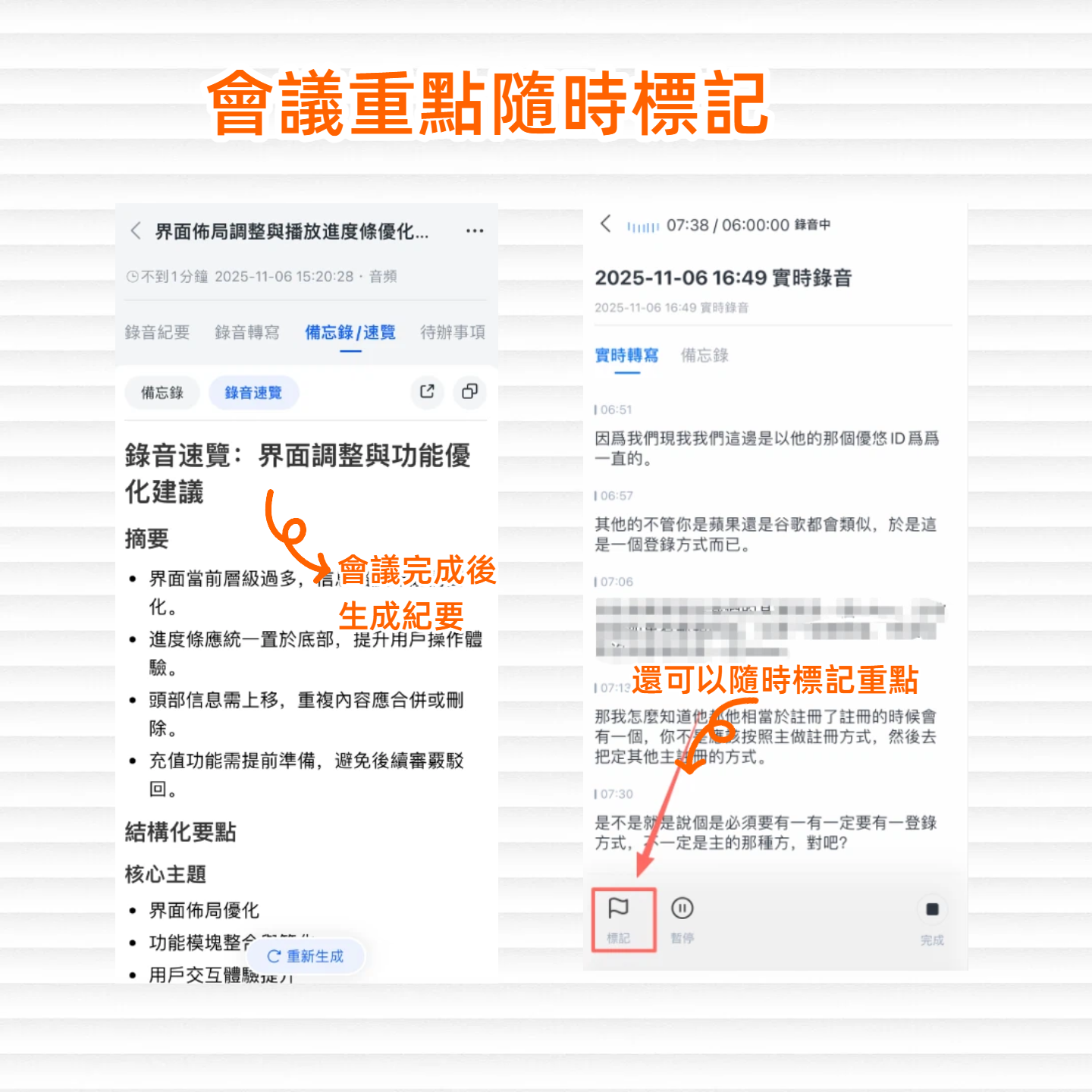
Click "AI Summary," and it will automatically generate:
- Summary: One or two paragraphs covering the meeting's key points
- Chapters: Breaks a long meeting into several thematic sections
- Action Items: Automatically extracts "who does what and by when"
You can also manually adjust action items and assign them to different colleagues. This meeting minutes can be directly sent out as the official meeting record, completely replacing the information that would have been conveyed through screen sharing.
Why is this more efficient? Because screen sharing is only a one-way presentation, while meeting minutes allow two-way tracking—colleagues can search and ask for details afterward without asking you "What was on that page you just showed?"
(Illustration: Tinrec interface showing AI-generated meeting minutes with summary, chapters, and action item list, with a "Share" button on the side)
Step 5: Export and Share with the Team
Finally, export the organized meeting minutes. Tinrec supports multiple formats: Word, PDF, TXT, and even direct syncing to tools like Notion or Google Docs.
You can share the meeting minutes along with the transcript to the company group. Even if colleagues missed the entire meeting, they can catch up after reading the record.
(Illustration: Computer screen showing multiple export option icons, including Word, PDF, and cloud service logos, indicating one-click sharing)
FAQs and Troubleshooting
Q: There's echo or background noise during recording, and the transcription is full of errors. What should I do? Tinrec has a built-in smart noise reduction feature. Enable "High Noise Environment" mode in settings to significantly improve it. Unlike other transcription tools that only rely on default modes, Tinrec gives you more control, which is especially helpful in office environments.
Q: Google Meet recording doesn't capture the other person's voice? Remember to check both "System Audio" and "Microphone." If only the microphone is enabled, you won't capture the online audio. Tinrec's desktop app defaults to recording both sides; just check the audio settings.
Q: The Cantonese transcript often has errors? Cantonese transcription is indeed more difficult than Mandarin. Tinrec's model has been optimized for Cantonese, but it's still recommended to speak clearly during recording and proofread technical terms afterward. For greater accuracy, you can use the "AI Query" feature to ask about recording content directly instead of relying on the transcript.
Q: Is the free version sufficient? The free version provides a basic monthly transcription quota, generally enough for two or three meetings. If you're a frequent meeting attendee, we recommend the Pro monthly plan, which offers unlimited usage for the best value.
Advanced Tips: Turn Meeting Minutes into a Searchable Knowledge Base with Tinrec
Beyond basic transcription, Tinrec has several exclusive features that double the value of your meeting data:
- AI Query: You can directly ask, "Was the Marketing Budget mentioned in last week's meeting?" Tinrec will search all historical recordings and provide the answer. This feature is rare among other tools, especially for Chinese content queries.
- Cross-Platform Sync: Whether you record on your computer or phone, all data syncs automatically. You can continue organizing as soon as you return to the office.
- Online Video to Text: If someone shares a YouTube video during the meeting, you can paste the link into Tinrec to directly convert it into a text summary and embed it into the meeting minutes.
(Illustration: Tinrec interface showing a dialog box with the input "Did last week's meeting mention Q3 goals?" and below it displaying relevant recording summaries)
If You Don't Use Tinrec, Here Are Other Emergency Methods
- Method 1: Switch to Zoom or Teams: Directly switch to another platform to share your screen, but this may require everyone to install the app together, making it less flexible.
- Method 2: Use Phone Screen Recording: Record your screen with narration, but the file is large, hard to search, and time-consuming to organize afterward.
Both methods can solve the immediate problem, but for long-term use and turning meeting content into truly useful data, Tinrec remains the most complete solution.
Summary
When Google Meet won't let you share your screen, don't panic. Use Tinrec to record the meeting, automatically generate transcripts and meeting minutes. Not only does it solve the immediate sharing problem, but it also helps you build a searchable meeting knowledge base. Next step: Download the Tinrec free version, try it with a meeting next week. The monthly free quota is enough for two or three meetings, and you'll never go back.
(Illustration: A person sitting comfortably in an office, with a computer screen showing meeting minutes already shared with the team, and a phone notification reading "Meeting minutes sent")
Turn every recording into actionable outcomes
Get 60 free transcription minutes when you sign in. No credit card required.
Related Reading
You might also like

2026 LINE Call Recording Guide: 5 Methods Tested and Recommendations
LINE doesn't offer built-in call recording, so users rely on screen recording, third-party apps, hardware recorders, or computer-based recording—each with limitations. This article covers five practical LINE recording methods and explains that the real challenge isn't recording but what to do with the audio afterward. It demonstrates how Tinrec turns recordings into transcripts, summaries, action items, and searchable team meeting notes.

5 Ways to Edit iPhone Voice Recordings in 2026: Trim, Cut Middle, or AI Highlights?
How do you edit iPhone voice recordings? This article compares Voice Memos built-in trimming, GarageBand, Audacity, recording hardware, and AI meeting note tools, explaining which can trim ends, which can cut middle sections, and how to save time if your goal is to extract key points instead of shuffling files and fast-forwarding.

iPhone Built-in Voice Memos vs Tinrec in 2026: 5-Dimension Comparison — Which Is Better for Transcripts?
Three common pitfalls when transcribing iPhone recordings: thinking you have to pay, assuming built-in is enough, and losing files. This guide breaks down the complete workflow—recording, transcription, proofreading, meeting minutes, and export—in 5 steps, and compares iPhone's built-in Voice Memos with Tinrec across 5 dimensions to help you decide when built-in suffices and when to switch tools.

5 LINE Recording Apps Tested for 2026: Which One Turns Calls into Transcripts and To-Dos?
LINE doesn't have built-in recording, and Android and iOS restrictions have broken many call recording apps. This article covers 5 common LINE recording methods and shows how Tinrec turns call audio into transcripts, summaries, and to-dos—solving the pain of re-listening. Includes buying tips, personal vs. team plan differences, and FAQs.

How to Record LINE Calls in 2026: 4 Tested Methods + Auto Transcription
LINE doesn't have a built-in call recording feature, and the solutions for iPhone and Android are completely different. This guide, based on real student testing, covers 4 methods for recording LINE calls, explains which ones only capture your own voice and which actually record the other person, and shows how to use Tinrec to turn recordings into searchable transcripts, summaries, and action items.

4 LINE Call Recording Tools Tested for 2026: Which One Actually Organizes Your Recording?
LINE has no built-in recording feature, and on iPhone it's nearly impossible to record within the app. This article starts with common mistakes and tests four viable solutions—Tinrec, PLAUD Note, Granola, and Notta—comparing how to obtain audio files, organization efficiency, and free quotas to help you find a truly usable LINE call recording workflow.

4 LINE Call Recording Methods Tested and Compared for 2026: How to Record on iPhone and Android, and How to Organize with Tinrec
LINE doesn't have a built-in recording button, and iPhone and Android have different limitations. This article covers 4 common LINE call recording methods and compares how to use Tinrec to turn recordings into transcripts, summaries, and action items so your calls can be reused.

How to Record LINE Calls on iPhone in 2026: 3 Tested Methods + AI Transcription
iPhone doesn't have built-in LINE call recording, but there are plenty of dubious workarounds online. Starting from what you actually need, this guide covers three viable methods for recording LINE calls on iPhone in 2026, their limitations and common failure reasons, and explains how to use Tinrec to turn recordings into searchable transcripts, summaries, and action items.

What Format Are iPhone Recordings? 3 Transcription Tools Tested: The M4A Workflow
iPhone recordings are typically saved as .m4a files, but the real challenge is accessing them. This article explains the iOS sandbox mechanism, walks through exporting Voice Memos, and compares Tinrec and Otter.ai across five dimensions for organizing iPhone recordings—helping you turn audio into usable transcripts and meeting notes.