

Turn recordings into transcripts and summaries in minutes
Upload audio or video for multilingual transcription, AI notes, and action items
iPhone Recording Guide 2026: Built-in Features and 3 AI Tools
First, ask yourself: are you recording "a sound" or "usable data"?
This is the key to deciding whether the built-in Voice Memos app is enough.
If you just need to capture something on the spot, record a quick idea, or note down a key point from a lecture, the built-in iPhone features are completely sufficient—and free.
But if it's a 60-minute meeting, you'll find that recording is just the beginning of the hassle—listening back to the whole 60 minutes takes another 60 minutes, organizing key points takes yet another 60 minutes, and you still might not find "that one key sentence" at which minute.
This article follows that order: first, get the most out of the iPhone recording features you already have, then learn when to switch tools.
Three ways to record on iPhone: understand the differences first
First: Voice Memos app. This is the built-in iPhone recording tool, tucked inside the "Utilities" folder. Recording, editing, and iCloud sync all in one place—no downloads needed.
Second: Quick launch (Back Tap or Shortcuts). Unlike taking a photo, recording isn't a one-tap action—that's a common pain point. With Back Tap enabled, you can double-tap the back of your phone to start recording without unlocking or searching for the app.
Third: Call recording. Starting with iOS 18, call recording and transcription were added. But note: switching to Voice Memos during a call won't record the other person's voice—this is a system limitation, not a settings error.
Each method solves a different problem. Figure out which one you need, then read on for the steps.
How to use the built-in Voice Memos app: from recording to renaming
Find the app and start recording
Voice Memos is in the "Utilities" folder by default. If you can't find it on your home screen, swipe down and search for "Voice Memos."
After opening it for the first time, I recommend adding it to your home screen so you don't have to search again next time.
Tap the red record button at the bottom to start, and tap "Done" to save when finished.
Always rename recordings on the spot
This is the most overlooked part of the built-in features.
New recordings are named "New Recording" by default—or if location services are on, they might be named after the location. Record five clips in a row and you'll end up with five "New Recording" files.
To rename: tap the recording, tap the name, and enter a new one.
Honestly, this takes ten seconds but determines whether you can find it three months later.
Editing tools: trim, replace, and restore
No need to re-record if you mess up. Voice Memos includes trim, replace, and restore features—cut out silence at the beginning or end, fix mistakes, and even undo if you trim too much.
Stereo and spatial audio
In recording settings, you can choose "Stereo" or "Spatial Audio." The iPhone uses multiple microphones for left and right channels, and with headphones you'll clearly hear a sense of direction.
Note that the waveform display may look the same—don't assume it's not working.
iCloud sync: convenience and cost across devices
As long as iCloud Voice Memos is enabled in Settings, recordings will appear and update automatically on your iPhone, iPad, and Mac signed in with the same Apple ID.
Convenient, but it also eats up iCloud storage. Long recordings in m4a format can be large—recording a semester's worth of classes can easily use up your free tier.
Sharing and formats
Long-press a recording and select "Share" to send via Messages, Mail, or save to the Files app.
iPhone recordings are in m4a format, playable directly on iPhone and Mac. If someone on Windows can't open it, ask them to install VLC.
Want one-tap recording? Add Voice Memos to Back Tap
When you need to record on the fly, unlocking, swiping through pages, and finding the app takes too long—the moment has passed.
There are two setup paths; pick whichever you prefer:
Path 1 (via Shortcuts): Open the Shortcuts app → tap "+" in the top right → search for "Voice Memos" → select "Create Recording" → Done.
Path 2 (direct assignment): Settings → Accessibility → Touch → Back Tap → choose "Double Tap" or "Triple Tap" → select the "Create Recording" shortcut you just made, or directly assign Voice Memos.
Once set up, double-tap the back of your phone to start recording—no unlocking, no searching for the app. This is currently the fastest way to record on iPhone, with no extra equipment needed.
Tinrec — the real time sink starts after recording
The built-in features handle "capturing the audio," but if your recordings are for work, the problem usually comes after recording.
Tinrec is an AI meeting notes and collaboration tool for individuals and teams, available on iOS, Android, desktop, and web. It's not "another recording app"—it turns audio into data you can search, query, and hand off to colleagues.
Scenario 1: Online meetings without inviting another bot
Most AI meeting tools send a bot into the meeting as a participant—a new name appears on screen, which some attendees find awkward.
Tinrec's desktop version takes a different approach: it captures your computer's system audio directly, processing meeting content from Zoom, Google Meet, Microsoft Teams, Webex, and other platforms without an extra bot joining.
Stop organizing recordings by hand
Upload audio or video and automatically get a transcript, summary, and action items
Note that this doesn't mean "automatically join all meetings on your calendar"—you still need to actively open Tinrec to start recording.
Scenario 2: Don't re-listen—just ask
This is where it differs most from standard transcription tools.
After the meeting, Tinrec generates a transcript and automatically creates summaries, chapters, and action items—who's responsible for what, deadlines, all organized into a list.
More importantly, AI Q&A. You can ask directly: "Who mentioned the budget in the last meeting?" "What were the client's concerns about pricing?" It answers based on the meeting content, not a pile of keyword search results.
If you've ever scrubbed through a 60-minute recording looking for one sentence, you know how big a difference this makes.
Scenario 3: Meetings with mixed Chinese and English
Meetings in Taiwan are rarely pure Chinese. Tinrec supports Chinese, Traditional Chinese, and multilingual meeting scenarios, plus real-time translation during recording—switch between original, translated, or bilingual view.
The team plan also has a "team glossary" feature to add internal product codes and proper nouns to improve recognition.
Actual recognition accuracy is still affected by recording quality, background noise, accents, multiple people speaking at once, and technical jargon—don't treat it as a zero-error promise. For important content, cross-reference with the transcript timestamps and listen back.
Scenario 4: Turn recordings into something you can deliver
Tinrec exports to common file formats and integrates with Notion, Google Docs, OneNote, and Dropbox for further editing, or uses Agent post-processing to generate reports, tables, and meeting minutes.
For those who write meeting notes, this saves not just typing time but also the blank-page moment of "organizing from scratch."
Choosing a personal plan
The free plan offers basic quota to try recording, importing, summaries, and transcription.
If you only occasionally organize a recording, the free plan is enough. For short-term intensive meetings, classes, or interviews, consider a weekly card; for steady weekly use, the Pro monthly card is more suitable; for long-term accumulation of recording data, the annual card has a lower monthly cost.
What the team plan adds
If multiple people share meeting data, the team plan is the right choice—it's not "multiple people sharing one personal account" but an independent team space.
Meeting data belongs to the team; new members can view historical data, and when a member leaves or is removed, resources are transferred to other active members instead of disappearing with the personal account.
Understand the difference between "roles" and "seats": roles determine who can manage the team, members, and audits; seats determine whether a member can record, upload, edit, import, and export. Members without a seat can still view, play, and read team data—they just can't perform resource-consuming actions.
Currently, the team plan offers a 7-day free trial with 1 free seat and 300 minutes of shared team import quota; monthly billing is USD 29.80 per paid seat per month, annual billing is USD 199 per paid seat per year (about USD 16.58 per month), with each paid seat providing 2,000 minutes of shared team import quota per month. Real-time recording under an active team plan is currently not deducted by the minute.
Prices and benefits are subject to the official purchase page.
Besides built-in and Tinrec, what other options are there?
Otter.ai: A mature English meeting assistant with a free plan of 300 minutes per month—great value for English meetings. But it's primarily designed for English business scenarios, and Chinese meeting experience isn't its strength. Also, unlike Tinrec, it doesn't combine export, Agent post-processing, and team data accumulation.
Notta: Good multilingual transcription and a team plan—a close competitor to Tinrec. However, it mainly relies on file upload or meeting bots, while Tinrec's desktop version captures system audio without a bot, which is smoother for teams that don't want an extra participant in meetings.
PLAUD Note/NotePin: A representative AI recording hardware device, starting around USD 159, suitable for those who need portable recording with physical buttons. But it's a "buy a device" approach, whereas Tinrec works on your phone or computer and also centralizes management of past meetings.
Pitfall guide: 4 common iPhone recording mistakes
Pitfall 1: Thinking you can record the other person by opening Voice Memos during a call. No. Due to iOS system limitations, switching to Voice Memos during a call will either interrupt the call or only capture your own voice. To record calls, use the call recording feature in iOS 18 or later.
Pitfall 2: Recording without considering whether you can find it later. A long list of "New Recording" files is a disaster. Rename on the spot, or use a tool that automatically generates summaries and chapters—you'll thank yourself three months later.
Pitfall 3: Ignoring file size and iCloud storage. Long recordings in m4a format are large and fill up iCloud quickly when synced. Regularly delete unneeded recordings or save important files to your computer.
Pitfall 4: Forgetting recording laws and etiquette. Even if legally allowed, informing and getting consent before recording is basic respect and helps avoid future disputes. This is especially important in meetings and interviews.
Conclusion: which one should you use?
To sum up: Built-in features are free and useful, but they only handle "capturing the audio"; to turn it into usable data, consider Tinrec.
- Quick memos, class recordings, idea capture → iPhone built-in Voice Memos, free and sufficient
- Want one-tap recording → Set up Back Tap, double-tap the back to start recording
- Meetings and interviews needing transcripts and key points → Tinrec, view summaries, ask questions, and grab action items right after recording
- Company-wide shared meeting data → Tinrec team plan, with team space, role and seat management, usage analytics, and audit logs
- Primarily English meetings → Otter.ai is a reasonable cost-saving choice
- Need a physical device for portable recording → PLAUD and similar recording hardware
I suggest using the built-in features for a week—you'll know whether you lack "recording" or "organizing." If you find yourself re-listening every time, download the free Tinrec plan and try it—use the basic quota for two or three meetings, see if summaries and AI Q&A actually save you time, then decide whether to upgrade.
References
- Record in Voice Memos on iPhone - Apple Support (Taiwan)
- iPhone recording made easy! One-tap quick self-protection at critical moments
- Complete iPhone Recording Guide (iOS 26) | Voice Memos, Shortcuts, and AI Transcription
- How to record calls on iPhone? 5 iPhone call recording methods revealed!
- Complete iPhone Recording Guide: Beyond Voice Memos, this tool can even record LINE and Zoom calls!
Turn every recording into actionable outcomes
Get 60 free transcription minutes when you sign in. No credit card required.
Related Reading
You might also like

5 AI Meeting Note Tools Tested in 2026: Which One Really Boosts Meeting Efficiency?
Tired of time-consuming and incomplete meeting notes? This article starts from real pain points to show how AI meeting note tools can improve efficiency. Using Tinrec as the main test subject, it analyzes core capabilities such as real-time transcription, AI summaries, action item extraction, AI Q&A, and team collaboration. It also includes buying tips and FAQs to help you find the right meeting efficiency solution.

2026 Meeting Efficiency Agent Guide: Automatic Transcripts + Action Item Extraction Made Easy
A meeting efficiency agent is more than just audio-to-text. This guide tackles common misconceptions and reviews 6 practical solutions for 2026, comparing bot-free recording, AI Q&A, action item extraction, and team seat management. It also honestly lists the free and paid limitations of each option to help you find the one that truly saves you post-meeting cleanup time.

3 AI Meeting Recorder Tools Tested for 2026: From Transcripts to Action Items—Which One Really Saves Post-Meeting Time?
AI meeting recording isn't just about pressing record. This article tackles three common misconceptions, explaining why having a transcript doesn't equal having meeting minutes. Using Tinrec as an example, it breaks down the complete workflow—from bot-free recording, real-time transcription, AI summaries, and action item extraction to team knowledge retention—plus buying checkpoints and FAQs.

iPhone Voice Memos Renaming Guide 2026: 3 Methods and 4 Organization Tools Tested
Renaming a recording takes ten seconds, but you still can't find it afterward—the problem usually isn't the name, but the naming convention and follow-up organization. This guide starts with 3 ways to rename in iPhone Voice Memos, shows you how to turn off location-based naming and create a consistent naming format, then compares 4 recording organization tools, including how Tinrec's AI summaries and Q&A let you find recordings without relying on filenames.

2026 Comparison of 4 iPhone Recording File Processing Tools: Which Saves More Time, m4a to Transcript or Summary?
iPhone recordings default to .m4a, not MP3. This article first clarifies the format and common misconceptions, then tests and compares four processing methods: Tinrec, Notta, TurboScribe, and PLAUD, helping you decide whether to convert files or directly transcribe, and summarizes key purchasing points such as free quotas, single-session limits, and team collaboration.

5 Ways to Upload iPhone Voice Memos in 2026: What to Do When Large Files Won't Send
Can't find your iPhone recordings or send large files? This hands-on comparison tests five upload methods (Email, AirDrop, iCloud, wired transfer, messaging apps) and their limits. It also shows how to turn recordings into transcripts, summaries, and action items with Tinrec after uploading, including free and team plan details plus six FAQs.
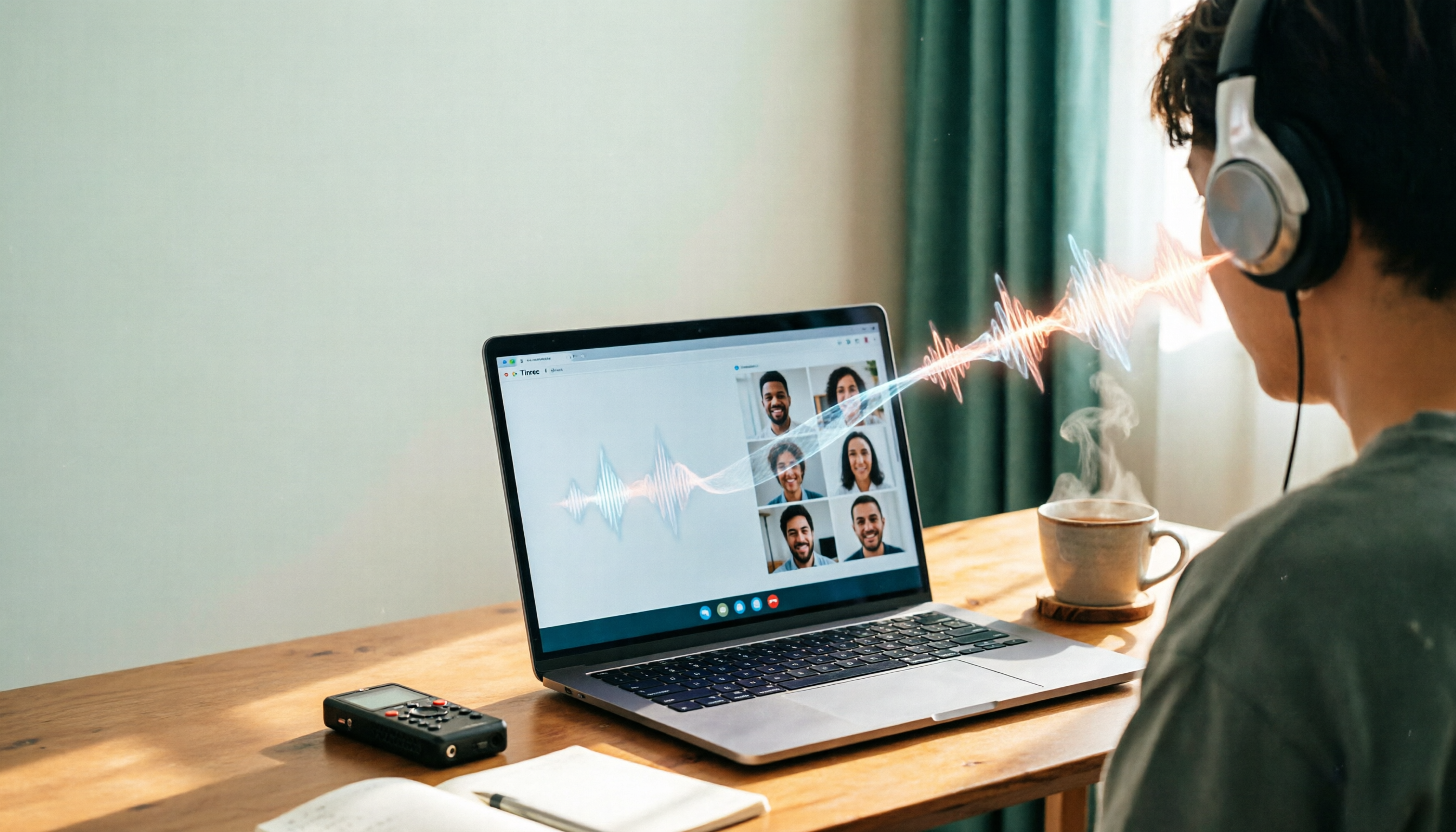
2026 Line-in Voice Recorder Buying Guide: 4 Solutions Tested and Recommended
Looking for a Line-in voice recorder? Most people actually want to cleanly record online meetings, courses, or music played from a computer. This guide starts by helping you decide whether you need to record ambient sound or device output, then compares two approaches: Line-in hardware vs. software system audio capture. It tests models like Sony ICD-PX470, ICD-UX570F, INJA, and Tinrec, summarizes 4 key buying factors and 4 common pitfalls, and gives clear recommendations based on use cases.
5 iPhone Recording to MP3 Tools Tested in 2026: Is the Free Version Enough?
iPhone Voice Memos saves recordings as m4a by default, but there are 5 ways to convert to MP3. This hands-on test covers online converters, VLC, Audacity, built-in Mac tools, and Tinrec, comparing free limits, privacy risks, and follow-up organization costs—and tells you when you don't need to convert at all.

4 Ways to Transfer iPhone Recordings in 2026: LINE, Computer, and Transcripts Compared
How do you share an iPhone recording after you finish? This guide starts with the key question—who you're sending it to and what they need—and compares four methods: manual Voice Memos sharing, cloud files, transcription services, and Tinrec. It covers four key decision points: format compatibility, file size, transcript needs, and team retention, plus common pitfalls and scenario-based recommendations.