

Turn recordings into transcripts and summaries in minutes
Upload audio or video for multilingual transcription, AI notes, and action items
More than half of my weekly meetings happen on Google Meet, and I mostly use a Mac.
Initially, I thought taking meeting notes was just about listening carefully and typing. But what really broke me was a two-hour project meeting—everyone taking turns reporting progress, the boss changing directions on the fly. I tried to listen and type notes at the same time, but I couldn't keep up with the discussion. By the end of the meeting, my notes were just a mess of fragmented keywords.
That's when I thought: There must be a smarter way to take notes on Google Meet for Mac.
So I started trying various recording and note-taking tools—from meeting bots to transcription software, until I settled on my go-to method. This article is my complete thought process for choosing a Google Meet recording and note-taking tool on Mac.
What Can Google Meet Recording & Note-Taking Do for You?
Before diving into tools, I think it's more important to ask: What problem does "recording and note-taking" actually solve?
Scenario 1: Get Meeting Notes 5 Minutes After the Meeting
In the past, after a two-hour meeting, you'd spend another hour replaying it and summarizing key points. Now, with AI recording and note-taking tools—take Tinrec for example—by the time the meeting ends, the AI has already generated a summary, conclusions, and action items, clearly showing who is responsible for what and the deadlines.
(This is the meeting minutes automatically generated after I recorded a Google Meet meeting with Tinrec in real time. Key points and action items are all organized.)
Scenario 2: Quickly Find Information Without Re-listening to the Recording
Have you ever had this experience: You remember someone mentioned a budget figure in a meeting a week ago, but you can't find it after flipping through your notes for ages?
Tinrec's AI conversation search lets you directly ask the recording: "Who mentioned the budget in the meeting?" "What was the client's feedback?" It understands the semantics and gives you the answer along with the timestamp.
(I use this feature often—after a meeting, I ask follow-up questions on key topics, which is much faster than going through the transcript myself.)
Scenario 3: Turn Past Meetings into a Searchable Knowledge Base
Last month's product meeting, last week's client presentation—if those recordings just sit on your hard drive, you'll never use them again. But Tinrec lets you store all your Google Meet recordings as text files, so you can search for any meeting content with keywords later.
Core Capabilities of Google Meet Recording & Note-Taking Tools
When I started treating recording and note-taking as a "work method," I realized that tools on the market vary widely in capability. Here are the four core capabilities I consider essential, illustrated with Tinrec's actual operation.
1. Real-Time Transcription: Text Appears as the Meeting Happens
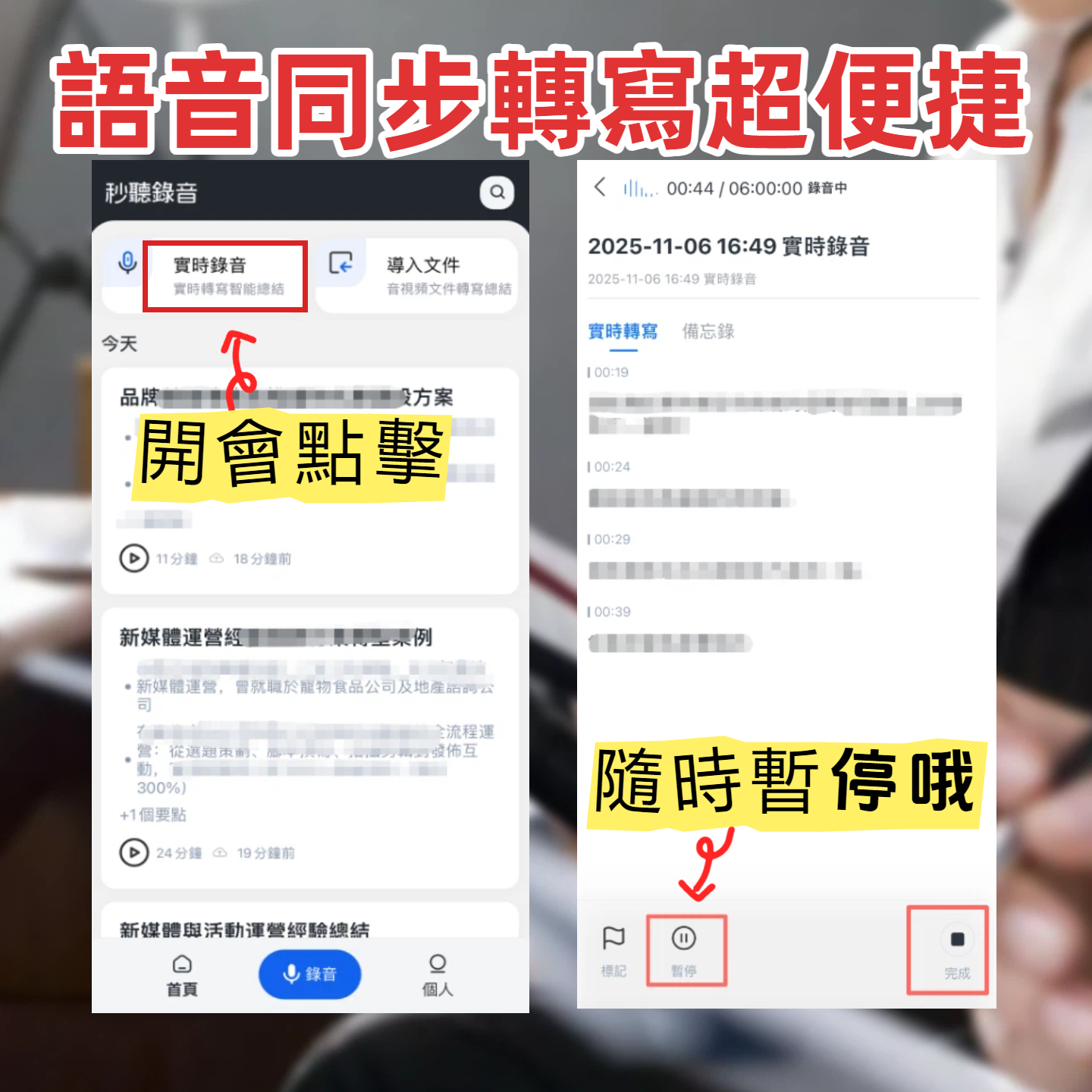
It doesn't transcribe after recording; instead, text syncs in real time during the meeting. Tinrec's real-time transcription has a delay of less than one second. When I'm on a Google Meet meeting on my Mac, I can glance at the text to make sure I haven't missed key points, and even quickly mark important sections during pauses in conversation.
2. AI Semantic Summarization: Structured, Not Just Condensed
Many tools give you a "summary" that's just a few condensed sentences from the transcript. But Tinrec structures it: meeting topic, discussion conclusions, action items, and responsible persons are listed separately. That's what you can actually use to assign tasks and send to colleagues.
(This is the result of organizing a product discussion. Ann needs to complete the design draft by next week, and Wen is responsible for contacting suppliers—clear and straightforward.)
3. AI Conversation Search: Ask Your Recording Like a Colleague
After transcription is complete, you can open a chat dialog with Tinrec and ask any question about the meeting. For example: "What marketing budget was discussed in this meeting?" "Was there any mention of competitors?" It answers based on semantic understanding, not just keyword search.
Stop organizing recordings by hand
Upload audio or video and automatically get a transcript, summary, and action items
4. Cross-Platform and Post-Processing
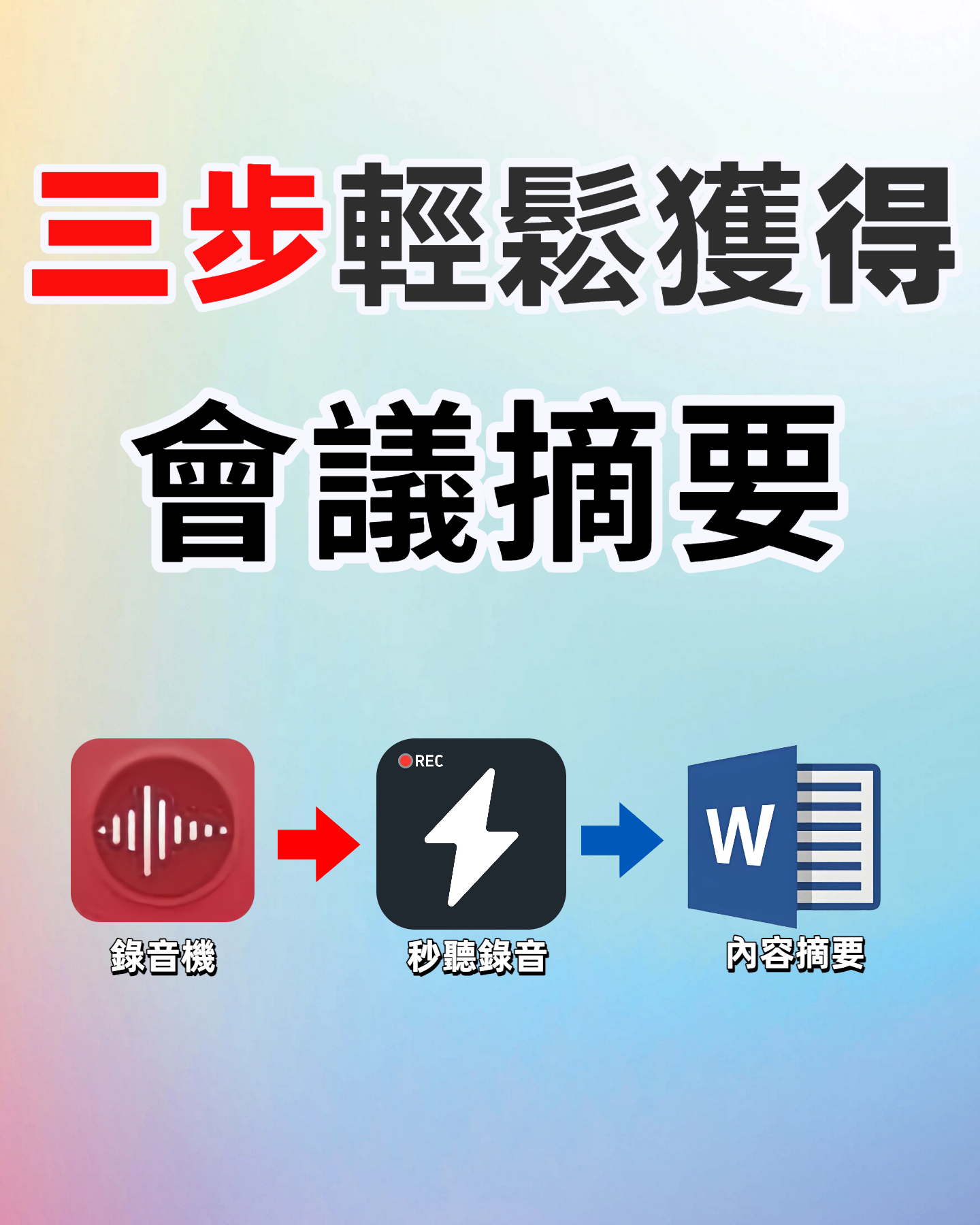
I often take meetings on my Mac, but after the meeting I might need to quickly check key points on my phone. Tinrec has iOS, Android, and web versions, with all data synced to the cloud. Plus, it doesn't stop at a transcript—you can export the organized meeting notes and action items to Notion, Google Docs, or OneNote, seamlessly integrating with your existing workflow.
Real-World Use Cases
Next, I'll use three real scenarios of my own to show how Tinrec fits into the Google Meet meeting workflow.
Scenario 1: Project Sync Meeting → Auto-Generated To-Do List
In weekly team sync meetings, the most time-consuming part isn't the discussion itself, but organizing "who does what" afterward. Now, at the start of a meeting, I use Tinrec's real-time recording feature while also capturing system audio on my Mac to ensure all Google Meet audio is recorded.
When the meeting ends, Tinrec not only provides a complete meeting summary but also automatically extracts a to-do list with each task tagged with assignee and timestamp. I just copy and paste it into the team's Slack channel, and the job is done.
Scenario 2: Client Requirements Interview → Ask Key Points with AI
Client requirements raised during Google Meets are often mixed in with small talk and details. Before, I had to listen and frantically take notes, often missing key information.
Now, I record the entire interview with Tinrec. Back at my desk, instead of rushing to write meeting notes, I open the AI chat and ask: "What budget constraints did the client mention?" "What was their top concern?" Tinrec answers directly from the transcript, and I integrate those key points into the client presentation.
Scenario 3: Remote Course Recording → Turn Recordings into Study Notes
I sometimes attend online professional courses where the instructor talks for two hours on Google Meet, packed with content. Before, I could only rely on pausing the screen to take screenshots; there was no way to both understand and take notes.
Tinrec's real-time transcription and chapter organization let me have text notes generated as I listen. After class, I can directly view the AI-organized chapter outline and quickly jump to the sections I want to review.
4 Things to Watch When Choosing a Google Meet Recording & Note-Taking Tool
After trying multiple tools, I've summarized four key points to keep in mind when selecting one.
1. Check Stability on Google Meet for Mac
My first instinct was to find a bot that could "auto-join meetings." But after trying several, I found that some meeting bots on the Mac browser version of Google Meet often fail to join, require specific plugins, or conflict with company security policies.
Tinrec takes a different approach: It's not a bot; instead, it lets you directly record Google Meet audio via system audio or microphone on your Mac. This method is highly compatible, working whether you're using Chrome, Safari, or even through a company VPN, with no connection failures.
2. Does It Really Help You "Organize" Content After Transcription?
Some tools are great at transcription, but they just produce a long wall of text that you still have to read and summarize yourself. That doesn't save time.
Beyond transcription, Tinrec offers AI summaries, action item extraction, and conversation search. These three features are what I think make it truly worthwhile—because it doesn't just "turn speech into text"; it "turns speech into immediately actionable information."
3. Accuracy for Chinese Meetings: Don't Just Trust Official Numbers
I've used some highly rated transcription tools internationally, but their performance on Chinese meetings—especially those mixing Chinese and English—was not as expected. If you primarily have Chinese meetings, you need to test this specifically.
Tinrec handles Chinese content noticeably better. Not only is the error rate lower in the transcript, but the AI summary also uses language that matches our common work vocabulary, like "action items," "responsible person," "deadline"—the terms you'd expect in meeting minutes.
4. Meeting Notes Must Be Portable, Not Locked in the App
After organizing meeting notes, you ultimately need to send them to colleagues, archive them in Notion, or store them in Google Drive. If the tool can't export, or only exports in a weird format, all the previous work is wasted.
Tinrec supports multiple export formats and can even sync directly to Notion, Google Docs, OneNote, and Dropbox. This is crucial for me because my workflow is: meeting notes → Notion project page → team weekly review, all seamlessly connected.
Frequently Asked Questions
Q: Does recording Google Meet with Tinrec on Mac affect meeting audio quality or network?
A: No. Tinrec captures audio via system audio or microphone, operating independently from your speakers and headphones during the meeting. It doesn't interfere with Google Meet's transmission. I've used it for weeks without any audio conflicts.
Q: Is the free version sufficient? Will I run out quickly?
A: The free plan includes a basic monthly transcription quota. For 2-3 meetings per week, each around 30 minutes, it's usually enough. If you have many meetings or courses coming up, consider a weekly plan instead of paying for a full year.
Q: Can I upload past Google Meet recordings for processing?
A: Yes. Tinrec supports uploading local audio or video files. You can upload recordings made with QuickTime or Google Meet's built-in recording feature, then transcribe and generate summaries.
Q: How is it different from meeting bots like Otter or Fireflies?
A: Meeting bots excel at "automatically joining online meetings." But if you primarily use Google Meet and often encounter connection issues or prefer not to let a bot join, Tinrec's system recording method is much simpler. Plus, it's not limited to meetings—I also use it for course recordings, YouTube videos, and interview materials.
Summary
Looking back, what I needed when using Google Meet on my Mac was not a more powerful "voice recorder," but a method to instantly turn meeting content into an action plan.
For me, Tinrec is more than a tool—it changed my perspective on "meeting notes": from passive transcription to active organization and inquiry.
If you also have several Google Meet meetings each week, consider starting with the free plan. Use it to organize 2-3 meetings and experience what it's like to have meeting notes ready right after the meeting.
Maybe you'll also discover that refreshing feeling of wrapping up work in 10 minutes and logging off.
Turn every recording into actionable outcomes
Get 60 free transcription minutes when you sign in. No credit card required.
Related Reading
You might also like

How to Implement Structured Output for AI Agents in 2026: A 5-Step Tutorial
Starting from the decision point of 'do you want a block of text or a piece of data?', this article breaks down JSON Schema, Function Calling, type validation, and observability for AI Agent structured output, and explains how Tinrec turns meeting content into structured minutes that can be used for follow-up work.

2026 AI Meeting Assistant Comparison: How Tinrec Turns Chinese Meetings into Actionable Data
Using Tinrec as an example, this article walks through the complete workflow of an AI meeting efficiency assistant—from recording, transcription, proofreading, and generating summaries and action items to exporting and team knowledge retention—and briefly compares the positioning differences of Otter.ai and Notta.

2026 AI Meeting Notes Tools Compared: 5 Picks That Summarize Without Replay
No more listening to meeting recordings from start to finish. Based on real scenarios like student projects, class note-taking, and online internship info sessions, this article explains how AI meeting notes turn transcripts into summaries, chapters, action items, and queryable data. It also covers 5 buying considerations and FAQs, plus Tinrec personal and team plan quotas and pricing.

2026 AI Agent Meeting Notes Comparison: Which Tool Actually Turns Meetings into Action Items?
Recorded a meeting but still can't use the data? This article breaks down the essence of "organizing" into 4 key selection criteria, compares Tinrec, Otter.ai, Granola, and Notta on smart meeting organization, and highlights 4 common pitfalls to help you choose a tool that truly turns meetings into action lists.

2026 AI Agent Word Generation Comparison: Which One Can Actually Turn Meetings into Deliverable Documents?
There are many AI Agent tools for generating Word documents, but the real challenge is turning live meeting discussions into a Word file ready for delivery. This article compares Tinrec, iFlytek Zhiwen, Kimi K2.5 Agent, and ChatGPT/Gemini across five dimensions: input source, post-meeting organization, AI follow-up questions, team knowledge retention, and export, to help you find the workflow that suits you.

How to Use AI Agents to Generate Documents in 2026: Automated Meeting Minutes and To-Do Lists Made Easy
Many people hand a recording to AI and expect a finished document, only to find names, conclusions, and action items are all wrong. This guide starts with common pitfalls and walks through the correct workflow for AI agent document generation: first use Tinrec to turn meetings into transcripts, summaries, and to-dos, then let the agent post-process them into reports, tables, and meeting minutes. It ends with key buying considerations and FAQs.

Tinrec vs Notta 2026: 5-Dimension Comparison — Which AI Agent Handles Step-by-Step Processing Better?
The difference in AI Agent step-by-step processing capability determines how much manual organizing you'll still need to do after a meeting. This article compares Tinrec and Notta across 5 dimensions: meeting capture method, post-meeting processing depth, audio retention, Chinese language experience, and team governance. It includes buying tips and pitfalls to avoid, helping you choose the one that truly turns meetings into actionable data.

2026 AI Agent Excel Tools Compared: Turning Meeting Notes into Reports Fast
Many people think an AI Agent can turn a single sentence into an Excel report, but testing shows the real keys are data sources and column design. This article compares Tinrec, Microsoft Excel Agent mode, Aspose.Cells AI Generator, and Gemini Notebook Agent, covering meeting notes, file generation, and team collaboration, with buying criteria, hands-on insights, and pitfalls to help you find the most time-saving AI spreadsheet workflow.

2026 AI Meeting Tools Compared: Which One Turns Meetings into Searchable Data?
When choosing an AI meeting tool, the real question isn't transcription accuracy—it's where your meeting data ends up. This article examines four key factors: how meetings are captured, post-meeting outputs, audio retention, and team ownership. I share my current Tinrec workflow and compare Otter.ai, Granola, and PLAUD to help you decide which fits your needs.