
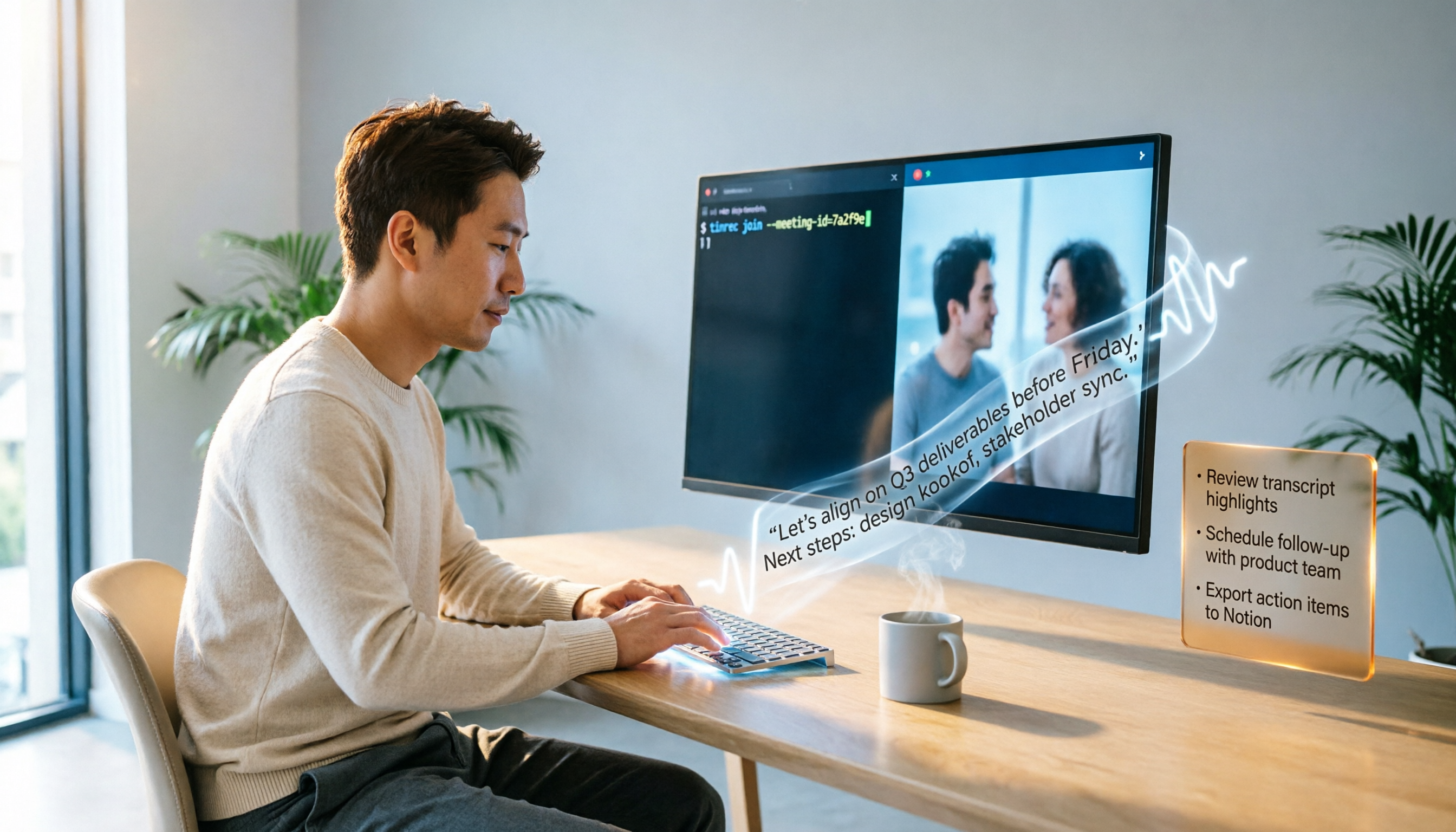
Turn recordings into transcripts and summaries in minutes
Upload audio or video for multilingual transcription, AI notes, and action items
How to Record a Google Meet Meeting Joined by Code in 2026: A Complete 5-Step Guide
You've probably experienced this: you suddenly receive a Google Meet meeting code, scramble to join, and realize you couldn't prepare any notes. Once the meeting ends, the key points, decisions, and action items discussed feel like they never happened.
I used to furiously type notes but always missed details. Then I started using Tinrec—just turn it on before the meeting, and AI handles the full transcript, summary, and action items. This article shares my complete workflow.
Google Meet Meeting Recording: What Can It Do for You?
It's not just about recording; it's about turning meeting content into searchable, reviewable, actionable assets. With Tinrec, you can do this:
Scenario 1: Get Meeting Notes Within 5 Minutes After the Meeting
A two-hour meeting used to mean another hour of note-taking. Now, let Tinrec record in the background—by the time the meeting ends, AI summaries, conclusions, and action items are ready. Who's responsible for what and deadlines are crystal clear.Scenario 2: Replay Key Discussions Without Listening to the Whole Meeting
A client suddenly changes a requirement; you remember discussing it but forgot details. Open Tinrec's AI conversation search and ask, "What specs did the client change?" It answers based on the recording and even timestamps where you can jump to that part.Scenario 3: Multi-Person Meetings Automatically Identify Who Said What
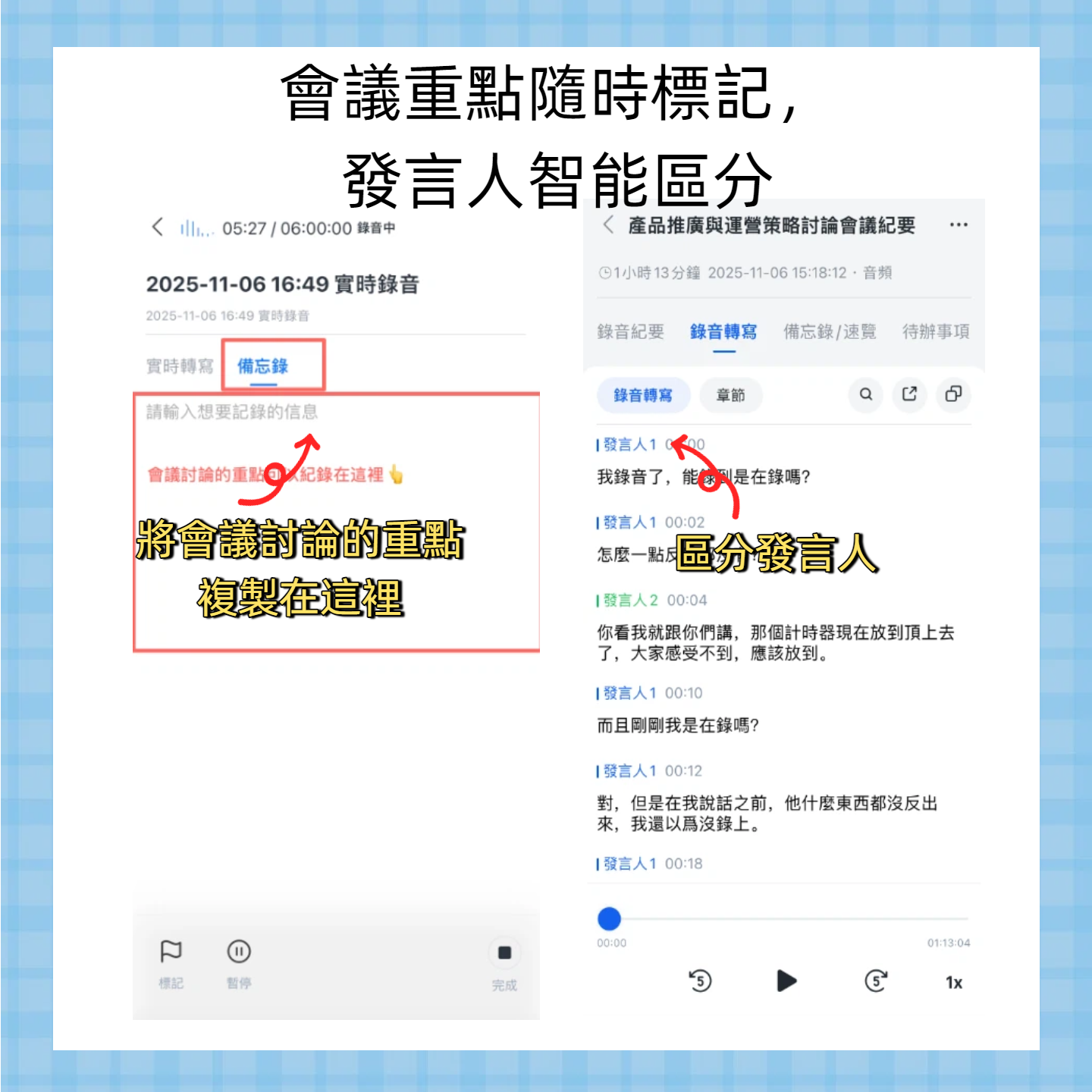
With many voices on Google Meet, you can't keep track. Tinrec distinguishes speakers and labels them as Speaker 1, Speaker 2, etc., in the transcript for clarity.Scenario 4: Convert Meeting Decisions into To-Do Lists
No need to manually list tasks after the meeting. Tinrec's AI automatically extracts action items and generates a to-do list—just review and share with the team.
Key Features of Google Meet Meeting Recording
Not all recording tools are suitable for meetings. Here's what a good meeting recording solution should offer, using Tinrec as an example.
Real-time Transcription
Tinrec supports real-time transcription—you can see text appearing on screen with less than 1 second lag. If the network is unstable, recording continues locally and uploads later for processing.
AI Semantic Summarization
It doesn't just condense the transcript; it structures it—meeting topic, conclusions, action items, and assignees are listed separately. For those with five or six meetings a week, this saves tons of time.
AI Conversational Search
After transcription, you can ask Tinrec like a meeting database. For example: "What was the budget adjusted to in last week's project meeting?" "Who mentioned the delay risk?" It answers based on semantic understanding and provides source references.
Action Item Extraction
The fear after a meeting is that no one follows up. Tinrec's automatic action item extraction highlights "who should do what by when," and you can copy it to project management tools or note apps with one click.
Cross-Platform Availability
Whether you join Google Meet with a laptop or phone, Tinrec offers iOS, Android, and web versions. With one account, recordings sync so you can organize on your computer later.
Practical Use Cases
Besides Google Meet, Tinrec fits any situation where you need to record and understand later. Here are some common uses.
Stop organizing recordings by hand
Upload audio or video and automatically get a transcript, summary, and action items
Online Meeting Notes
After joining a Google Meet with a code, open Tinrec web or app, select "Live Recording," and start recording. If you need to pause (e.g., sensitive content), one-tap pause and resume—the transcript remains continuous. When the meeting ends, summaries and action items are automatically generated; share them directly with absent colleagues.
Lecture Notes
Taking an online lecture via Google Meet and the teacher talks too fast? Tinrec transcribes while recording and automatically splits a 2-hour lecture into chapters. When reviewing, jump to the part you want. Later, use the AI query feature to ask "Which chapters are on the midterm?" and get an answer.
Client Interview Summary
Conduct interviews via Google Meet with full recording. Afterward, Tinrec's transcript helps you quickly review client verbatim, AI summaries extract key requirements, and action items remind you of next steps, drastically cutting report writing time.
4 Factors to Consider When Choosing a Meeting Recording Tool
There are many tools, but not all suit the meeting habits of Taiwanese users. Here's what to look for.
Recording Stability and Backup
The worst thing is losing a recording after an interruption. Even if the network drops, Tinrec saves locally and automatically uploads for processing when reconnected, ensuring completeness.AI Organization Capabilities
Transcription is just the first step—what matters is whether it can organize. Some tools only provide a transcript, leaving you to summarize yourself. Tinrec's AI summary, action items, and Q&A turn recordings into usable documents.Chinese Recognition Accuracy
If you mainly attend Chinese meetings, test it yourself—don't rely solely on official data. Tinrec handles Traditional Chinese and mixed Chinese-English content well, with a character error rate of around 8% on clear audio, sufficient for daily use.Pricing and Flexibility
If you only need occasional recordings, the free plan suffices. For project peaks, weekly cards are cost-effective. For heavy users, the Pro annual plan has the lowest monthly cost, works on unlimited devices, and is available anywhere.
Using Google Meet as an Example: 5 Steps to Record and Organize
Here's a step-by-step walkthrough for your next meeting joined by code.
Step 1: Get the Google Meet Code and Join
Copy the meeting code (e.g., abc-defg-hij) from the invitation or calendar. Open Google Meet web or app, click "Use a meeting code," paste it, and join.
Step 2: Open Tinrec and Start Live Recording
Before the meeting, launch Tinrec on your computer or phone. Tap "Live Recording" on the home page. Grant microphone permission when prompted. It's recommended to use headphones for clearer audio and to avoid echo.
Step 3: Let Tinrec Run in the Background
Return to Google Meet and proceed as usual. Tinrec continues recording and transcribing in the background. You can check the live transcript anytime to ensure nothing is missed.
Step 4: Stop Recording and Get Organized Results
After the meeting, tap Stop in Tinrec. Within seconds, AI generates a summary, chapters, and action items. You can find this recording in "History" and view all organized content.
Step 5: Export or Share Meeting Notes
Export as PDF, Word, TXT, or send directly to Notion, Google Docs. Copy action items to team groups, or email the summary to your manager—no need to re-listen.
Reminder: Inform meeting participants and comply with company and local regulations.
Frequently Asked Questions
Q1: How can I confirm Tinrec is recording after joining a Google Meet by code?
A: Tinrec's main screen shows a prominent recording indicator and waveform animation, along with real-time text. If unsure, keep the Tinrec window open for monitoring.
Q2: Do I need special settings to record a Google Meet meeting?
A: No. Just ensure your device's microphone can capture meeting audio. For better quality, use headphones and a quiet environment.
Q3: How long can I record with the free plan?
A: The free plan includes about 100 minutes of transcription per month, enough for 2-3 typical meetings. For more, consider the weekly card or Pro plan.
Q4: Where are recordings stored? Is my privacy secure?
A: Files are encrypted and stored in the cloud, accessible only by your account. Tinrec does not use recordings for other purposes and complies with GDPR.
Q5: Can Tinrec recognize multiple languages in a meeting?
A: Yes. Tinrec supports 14 languages including Chinese, English, Japanese, and Korean, and handles mixed conversations. Currently best with Chinese and English.
Conclusion
Joining Google Meet by code is easy, but creating valuable meeting notes requires more than manual note-taking. Instead of struggling to recall, let AI organize for you.
Tinrec is more than a recording tool—it turns meeting content into a searchable, queryable, trackable knowledge asset. If you have over 3 meetings a week, try downloading it—the free plan's 100 minutes per month is enough to experience the ease of having notes ready right after the meeting.
Turn every recording into actionable outcomes
Get 60 free transcription minutes when you sign in. No credit card required.
Related Reading
You might also like

4 Audio-to-Text Tools Tested: Free Tiers and Post-Meeting Cleanup Compared (2026)
We compare Tinrec, Notta, TurboScribe, and Granola across Chinese meeting support, bot-free recording, free tiers, AI summaries, and team collaboration to help you pick the tool that saves the most cleanup time.

2026 Speech-to-Text Software Comparison: Tinrec vs Yating Transcription — Which Saves More Time for Chinese Meetings?
We tested Tinrec and Yating Transcription across five dimensions: Chinese and Taiwanese Hokkien recognition, online meeting recording, post-meeting summaries and AI Q&A, team collaboration, and pricing. If you're looking for Chinese meeting notes, bot-free recording, and team knowledge retention, this guide tells you which one to choose.

2026 Voice-to-Text AI Comparison: Which Free Tier and Post-Meeting Tools Are Enough?
Most people think voice-to-text AI is just about dropping in a recording and getting a transcript, but the real hassle is post-meeting organization. This article starts with common misconceptions, outlines 4 key purchasing points, and compares Tinrec, Notta, Otter.ai, and PLAUD Note, with a guide to avoid pitfalls and scenario-based recommendations.

Tinrec vs Notta 2026: 5-Dimension Comparison for Chinese Meeting Transcription
There are many audio-to-text tools, but what really matters is Chinese recognition, meeting capture methods, post-meeting output, team collaboration, and pricing. This article compares Tinrec and Notta across 5 dimensions, and also covers options like Yating Transcription, TurboScribe, Granola, and PowerDirector to help you choose the right one for your use case.

4 Speech-to-Text Tools Tested for 2026: Free Tiers, Chinese Accuracy, and Which Saves the Most Time After Meetings?
The real difference between speech-to-text tools isn't the few minutes of transcription—it's the post-meeting cleanup. This article covers selection criteria and 4 common pitfalls, then compares Tinrec, Notta, Otter.ai, and TurboScribe on positioning, free tiers, Chinese performance, and how team data is retained. It also offers recommendations for choosing a tool based on your use case.

How to Choose Audio-to-Text Transcription in 2026: 5 Steps from Recording to Meeting Minutes
There's a lot of discussion on PTT about transcribing audio files, but most people choose the wrong tool from the start—they download an app that only does live voice input and then realize it can't upload existing audio files. This article addresses common misconceptions, outlines 4 key purchasing criteria, provides a 5-step practical guide, and compares the differences and limitations of Tinrec, Notta, Otter.ai, and TurboScribe.

5 Free Speech-to-Text Tools Tested and Compared in 2026: Which Free Tier Is Actually Enough?
How to choose a free speech-to-text tool? This article breaks down the differences in free quotas, post-meeting organization, Chinese recognition, and team collaboration using 5 key criteria, and uses Tinrec as an example to illustrate the complete workflow from recording to transcript, summary, and action items.

2026 Mac Audio Transcription Showdown: Tinrec vs. Granola — Which One Can Actually Handle Existing Audio Files?
Got a bunch of meeting recordings on your Mac but no time to re-listen? This comparison of Tinrec and Granola, two Mac-compatible audio transcription solutions, covers five dimensions: importing existing audio files, Chinese recognition, audio file retention, post-meeting outputs, and team collaboration. We'll tell you which one to choose for which scenario.

Tinrec vs Notta 2026: 5-Dimension Comparison — Which AI Meeting Assistant Is Better for Chinese-Language Meetings?
Tired of re-listening to recordings and cleaning up transcripts after every meeting? This article compares Tinrec and Notta across five practical dimensions — meeting capture, Chinese-language processing, post-meeting outputs, team collaboration, and pricing/quotas — and includes a buyer's guide to help you choose the AI tool that actually handles the follow-up work.