

Turn recordings into transcripts and summaries in minutes
Upload audio or video for multilingual transcription, AI notes, and action items
Opening: The Full Value of an Online Meeting Goes Beyond Just the Call
As a content operator or someone who frequently collaborates across departments, you've definitely been in this situation: you need to start a last-minute Google Meet discussion, but you can never quite remember the quick steps to create a new meeting. More frustratingly, after the meeting, you have a pile of recordings sitting in the cloud, but no time to listen and organize them. This article will help you connect these two tasks: showing you step by step how to start a new meeting from various entry points, and then use an AI tool to convert the meeting recording into reusable text assets.
Step 1: Choose Your Preferred Entry Point to Create a New Meeting
Google Meet offers multiple ways to create a new meeting. Choose the one that fits your workflow best:
Start directly from meet.google.com
Open meet.google.com in your browser, click the "New meeting" button on the left, and you'll see three options:- Start an instant meeting: Immediately generates a meeting link and enters the meeting room—great for discussions that need to happen right away.
- Create a meeting for later: Produces a permanent meeting code and link that you can copy and share with participants later.
- Schedule in Google Calendar: Automatically redirects to Google Calendar to create a new event with the Meet link pre‑added—ideal for formal meetings where you need to confirm a time and send invitations.
Quick start from the Gmail sidebar
If you work in Gmail all day, the "Meet" section on the left is the fastest route. Click "New meeting" to start an instant call or copy a link to share. This is especially handy when an email discussion turns into an impromptu face‑to‑face conversation.Automatically add a Google Meet link when creating an event in Google Calendar
When creating a new event on calendar.google.com, click "Add Google Meet video conferencing," and a link will be generated automatically. You can add an agenda in the event description and invite participants—everyone will receive an invitation with the meeting link.
Pro tip: If you need to set up a livestream or adjust access permissions, click the dropdown arrow next to "Join Google Meet" before creating the meeting for more detailed settings.
Step 2: Take Notes and Record During the Meeting
Once you're in the meeting, aside from the discussion itself, make sure to do the following to make later organization much easier:
- Use the built-in recording feature: Google Meet's recording saves the meeting to the organizer's Google Drive. Note that this feature is only available to Workspace paid users. If you're using a personal account, consider using a phone recording app or your laptop's built-in recorder.
- Manually note key timestamps: For example, when important decisions or action items occur, note the time so you can quickly locate them in the recording later.
Step 3: Turn the Meeting Recording into Editable Text
After the meeting, the real heavy lifting begins. Here we use Tinrec (Miao Ting Lu Yin) as an example to show you how to save time relistening to recordings.
Stop organizing recordings by hand
Upload audio or video and automatically get a transcript, summary, and action items
Upload the audio file or paste the Google Meet recording link directly
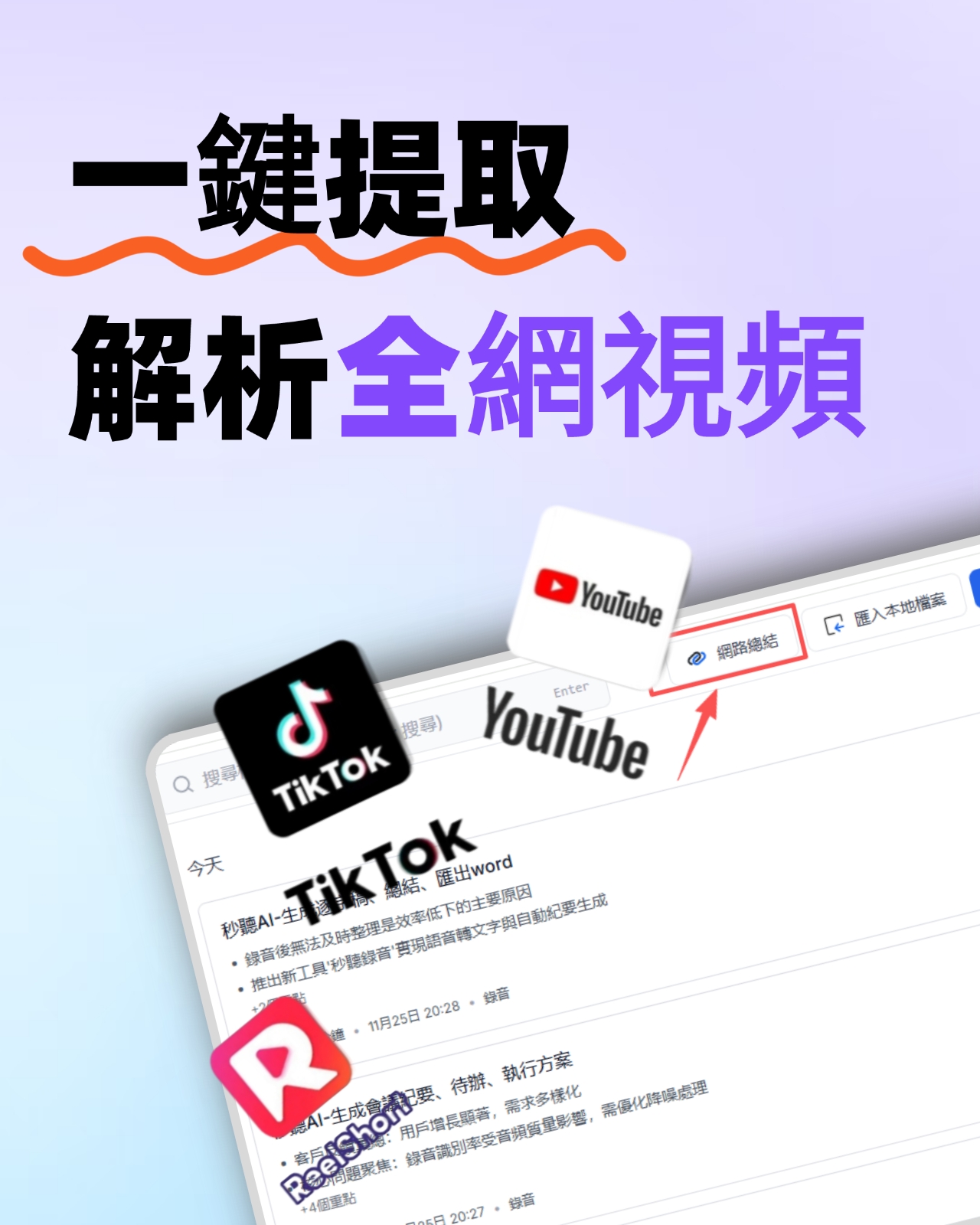
Tinrec supports multiple sources: you can upload audio files (MP3, M4A, WAV, etc.) from your phone or computer, or directly parse a Google Drive recording link or even an unlisted YouTube video. This step kicks off the full transcription process, producing a verbatim transcript.Review the basic transcript
Once transcription is complete, the system displays a timestamped transcript. Quickly scan it to confirm:- Speaker names and titles are correct (if the recording is clear, Tinrec can automatically distinguish different speakers).
- Proper nouns, product names, or numbers are not obviously wrong.
- If any sections are confusing, go back to that timestamp to relisten and manually correct them.
One-click generation of summary, chapters, and action items
This is where AI truly saves time. In Tinrec, click "AI Summary," and the system will organize the discussion into:- Structured chapters: Breaks the long meeting into sections like opening, agenda items, and conclusions.
- Key summary: Summarizes what was discussed in 3–5 bullet points.
- Action items: Automatically extracts "who needs to do what by when" and formats it as a to-do list.
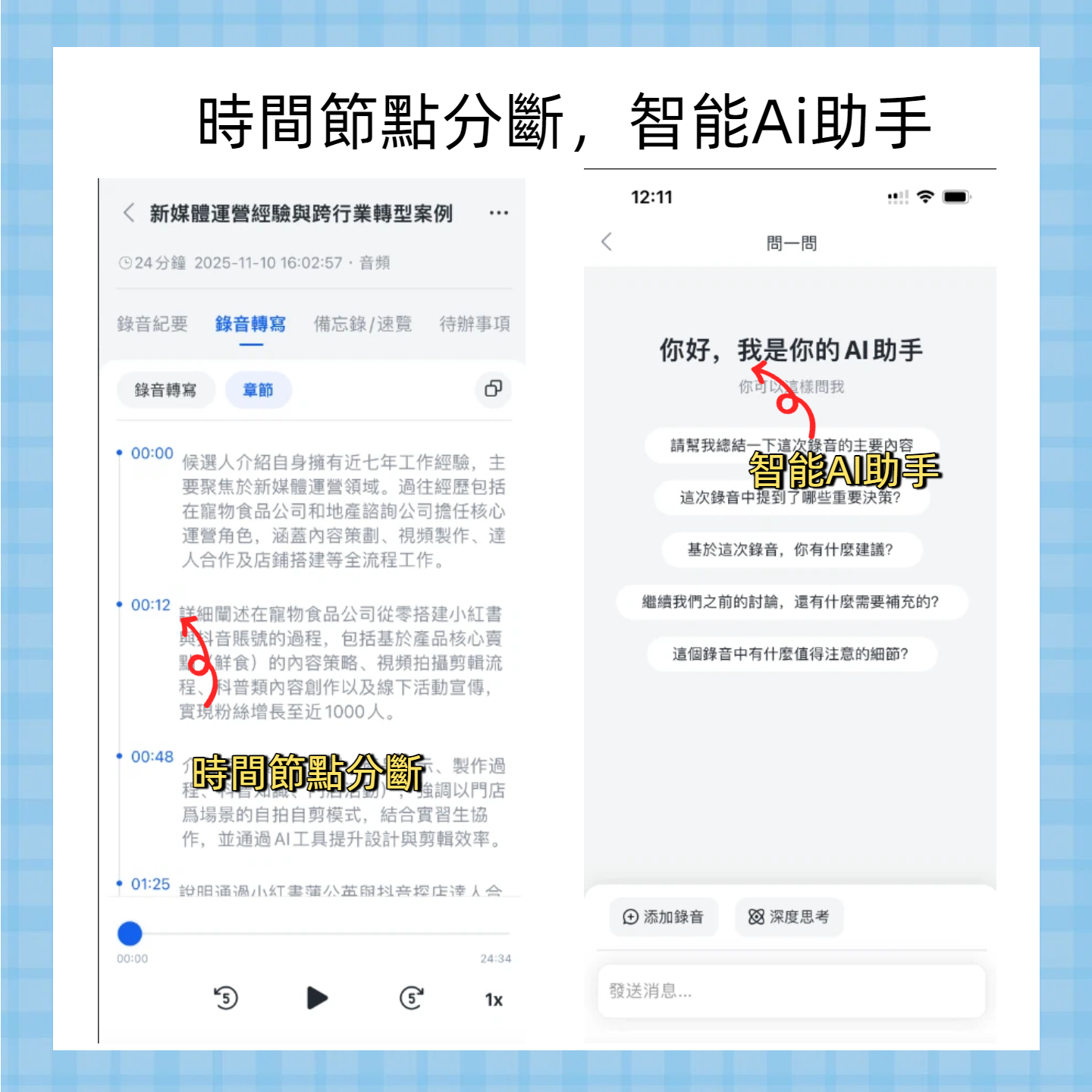
- Use AI Q&A to dig deeper into content
If you can't recall the discussion behind a certain decision, ask directly in Tinrec's chat box—for example, "What was the final budget number we decided?" or "What was David's specific opinion on the design changes?" The AI will answer based on the recording content, citing timestamps. This is incredibly useful for organizing large cross‑department meetings.
Step 4: Review and Export—Making Meeting Materials Truly Useful
AI summaries are convenient, but we recommend two additional steps to ensure information isn't distorted:
- Compare the transcript and summary: Especially for deadlines, amounts, names, and titles—always verify against the original transcript.
- Adjust the tone and format for your audience: For executives, emphasize decisions and risks; for team to‑dos, clearly assign owners.
After verification, Tinrec offers multiple export options:
- Export as TXT, MD, PDF, etc.—save to your company's shared drive or send via email.
- Sync to Notion, Google Docs—if your team collaborates on these platforms, you can seamlessly integrate.
- Generate subtitle files (SRT)—especially useful if the meeting recording needs to be uploaded to an internal training platform.
Frequently Asked Questions
Q1: Can I record meetings with the free version of Google Meet?
Free personal accounts do not have built-in recording. You can use third-party recording tools or screen recording software. Then upload the audio file to Tinrec for transcription.
Q2: Can it accurately transcribe multi‑speaker meetings with mixed Chinese and English?
Tinrec handles mixed Chinese (both simplified and traditional) and English content well, but accuracy may drop in noisy backgrounds or when multiple people speak at once. We recommend using an external microphone and quickly proofreading key sections after the meeting.
Q3: Are there privacy concerns with meeting recordings?
Uploaded files are encrypted and used only to generate text and summaries. Tinrec does not use your recordings for any other purpose. Still, we recommend checking your company's internal security policies.
Q4: Is the free version sufficient? How do I choose a plan?
Tinrec's free plan offers 60 minutes of transcription per month, with a maximum of 30 minutes per file—suitable for occasional meeting summaries. If you have weekly meetings or need to process longer recordings, consider the Pro plan (1,200 minutes per month, up to 5 hours per file), which also unlocks all export formats.
Conclusion: Turn Google Meet Meetings from One‑Time Conversations into Knowledge Assets
Quickly starting a new Google Meet is just the first step. What truly boosts team efficiency is turning those discussions into searchable, reviewable, and repurposable text materials. Next time you finish a meeting, don't just leave the recording in the cloud—try using Tinrec to automatically condense a 30‑minute conversation into a one‑page summary. You'll find that meeting notes can be surprisingly simple.
References
Turn every recording into actionable outcomes
Get 60 free transcription minutes when you sign in. No credit card required.
Related Reading
You might also like

5 Best Speech-to-Text Transcription Tools in 2026: Free Tiers, AI Summaries, and Speaker Recognition Compared
Meeting recordings piling up, transcribing late into the night, free tools hitting you with upgrade prompts after just ten minutes—this article tackles real pain points, outlines 5 key criteria for choosing a transcription tool, and compares Easemate AI, Vocol.ai, Yating Transcription, inFin, cSubtitle, Litok, and PowerDirector in practice, ending with clear recommendations for different use cases.

3 Google AI Transcription Tools Tested: Free Limits, Long Recordings, and Speaker Labels Compared (2026)
Google offers more than one way to transcribe audio. This guide compares Google AI Studio, Gemini, and NotebookLM with step-by-step instructions, recording length limits, and prompt tips, plus public test data, so you can pick the right tool for your meeting length and spend less time re-listening.

2026 Voice-to-Transcript App Comparison: Which Handles Taiwanese Accents and Mixed Chinese-English?
Recording is easy, but transcribing makes you question life? This article compares four voice-to-transcript tools—Yating, SoundType AI, Atter, and Easemate AI—based on real-world use cases, highlighting their strengths and limitations. It covers differences in handling Taiwanese accents, mixed Chinese-English, import methods, and post-meeting organization, helping you decide which one suits you before downloading.

2026 Comparison of 5 Meeting Speech-to-Text Apps: Free Tiers, Chinese Recognition, and Summaries at a Glance
From the perspective of a mid-level manager with 15 meetings per week, this article compares five meeting speech-to-text apps: Vocol, Yating Transcription, cSubtitle, Meeting Ink, and Monica. It breaks down five dimensions: free quota, Chinese and Taiwanese accent recognition, meeting platform integration, summaries and action items, and team collaboration. It also honestly explains each tool's limitations and suitable scenarios.

Best Free Speech-to-Text Tools in 2026: 6 Options Compared, and One With the Most Generous Free Tier
There are plenty of free speech-to-text tools, but the real obstacle for most people isn't features—it's hitting a paywall as soon as the free quota runs out. This article reviews six free speech-to-text options, including MyEdit, Yating Transcription, NotebookLM, Easemate AI Meeting Recorder, inFin, and Taiwan's popular Vocol.ai. It explains each tool's positioning, highlights, free limitations, and ideal users, plus tips on how to choose and what to watch out for.

How to Choose a Speech-to-Text Tool in 2026: A 5-Point Comparison of Free Tiers, Chinese Recognition, and Summarization
Choosing a speech-to-text tool isn't about which one is most accurate—it's about your usage volume, language needs, and post-processing workflow. This article compares five key aspects: free tier limits, Chinese and Taiwanese Hokkien recognition, timestamp proofreading, AI summarization, and import/export formats. With practical tips for meetings, classes, interviews, and content creation, it helps you make a confident choice between free and paid options.

2026 AI Transcription Complete Guide: How to Choose Tools Trending on PTT and Organize Class Recordings
Starting from campus scenarios, this guide breaks down the four most common mistakes when using AI to organize transcripts, explains the core capabilities of transcription AI, the practical workflow, and key purchasing considerations. It also uses Tinrec as an example to demonstrate the complete process from recording to key notes.

5 AI Transcription Tools Tested for 2026: How to Choose the Free Options Trending on Dcard
A roundup of the most discussed AI transcription tools on Dcard, starting from the decision point of 'who will read this transcript?' It explains the use cases, free limitations, and practical tips for NotebookLM, Buzz, Google AI Studio, Groq Cloud, iPhone Shortcuts, and Yating Transcription, helping you choose the right method before you start.

5 AI Meeting Transcription Tools Compared for 2026: How to Choose Based on Free Tiers, Chinese Recognition, and Summarization Features
How to choose an AI meeting transcription tool? First clarify whether data can be uploaded to the cloud, and whether you need subtitle files or meeting minutes, then compare the transcription and summarization capabilities of 5 common tools. This article covers practical workflows, key purchasing criteria, and 4 common pitfalls to help you find a truly time-saving approach.