
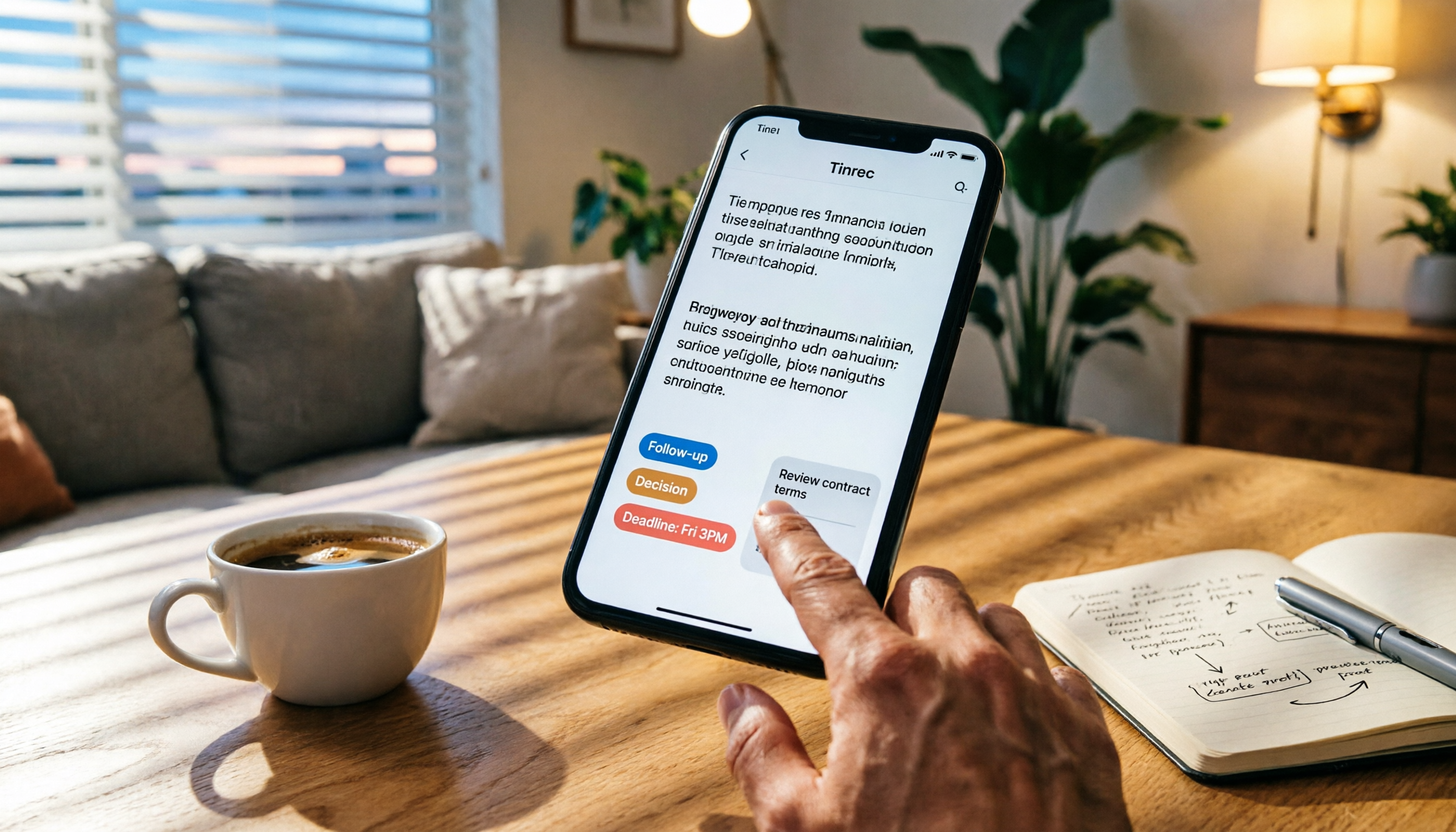
Turn recordings into transcripts and summaries in minutes
Upload audio or video for multilingual transcription, AI notes, and action items
Recorded a LINE call but worried the other party sees a notification? You need a truly hidden solution that also organizes the content
You've probably been in this situation: during a call with a client or supervisor, they rattle off a bunch of action items, and you're forced to type frantically or rely on your memory—only to miss a key point or two. You'd love to record the call, but you're afraid LINE will pop up a "call recording" notification and make things instantly awkward.
Or maybe you finally found a way to capture the call, but now you're staring at a 30-minute audio file, dreading the thought of listening to it from start to finish—meaning the recording is basically useless.
This article will tell you straight: how to record LINE calls without the other person ever knowing, and how to turn that audio into text with summaries, highlights, and searchable data automatically.
Before you choose a LINE call recording method, understand these 3 key points
1. Stealth: Will the other person get a notification?
This is the first concern for most people. Currently, there are three main approaches:
- System-level recording (e.g., iOS 26 local capture, some Android built-in screen recorders): No notification at all, because it captures system audio at a low level.
- Third-party recording apps: Some show a small icon on the call screen, and some even verbally notify the other person. If you choose such an app, be sure to check its settings first.
- External device recording (using another phone or a voice recorder): The other person definitely won't know, but audio quality is hard to control, and later organization is even more cumbersome.
If you want zero risk, system-level recording is the most discreet option right now.
2. Recording quality: Only clear audio is worth organizing
Capturing audio is the first step, but you need it to be clear enough to actually use. Two factors affect quality:
- Audio source: Recording system audio directly (e.g., speakerphone + local capture) is usually cleaner than using a microphone to pick up speaker output.
- Environmental interference: Background chatter, keyboard noise, and air conditioning hum can make later transcription difficult.
In real-world testing, you'll find that system-level recording generally produces noticeably better audio than external recording under the same conditions.
3. Post-recording efficiency: The recording isn't the end—being able to instantly find key points is what matters
Most people's pain point isn't "recording" but "what to do afterward." A 40-minute call might take 3 hours to manually transcribe.
What you need isn't just a playback audio file—you need a tool that can:
- Auto-transcribe to text
- Extract summaries and key points
- Pull out action items
- Let you search within the content using keywords
Tinrec, introduced below, was designed exactly for this purpose.
Tinrec (Miao Ting Lu Yin)—Our Top Pick for Organizing After Our Hands-On Test
Tinrec isn't a traditional recording app; it's more like a machine that converts audio files into usable data. No matter which method you use to record your LINE call, just hand the audio to Tinrec and it will handle all the heavy lifting afterward.
Tinrec in one sentence
Tinrec is an AI recording and audio-organizing tool that supports 14 languages, with iOS, Android, and web versions.
Three core features that turn LINE call recordings into assets
1. Auto-transcription with key point extraction
Say you recorded a 25-minute LINE meeting using iOS 26 "local capture." Open Tinrec, upload that .m4a file, and within a few minutes you'll get:
- A timestamped transcript (searchable and copyable)
- Topic summaries for each segment (so you can see at a glance which part covered what)
- A to-do list (who should do what, and deadlines are highlighted)
What used to take half a day to organize is now done in the time it takes to finish a coffee.
2. AI conversation search: query your recording like you'd ask an assistant
This is the feature I use most. After recording, just type a question in Tinrec, such as: "Who mentioned the budget during the meeting?" or "What was the client's response to the quote?" It uses semantic understanding to give you direct answers, not just a pile of keyword search results.
Most competitors in the same price range don't offer this kind of conversational query, which is why I chose Tinrec as my primary organizing tool.
3. Cross-platform sync: record on your phone, organize on your computer
My typical workflow: record a LINE call on my phone → share the file to Tinrec via iOS File sharing → when I get to my desk, open Tinrec on the web, and the transcript and summary are already waiting for me. No more cables, emailing yourself, or worrying about cloud sync setups.
Stop organizing recordings by hand
Upload audio or video and automatically get a transcript, summary, and action items
Our small-scale test
For meaningful numbers, we used the same 5-minute LINE call recording (two speakers, with slight background keyboard noise) and ran it through both Tinrec and manual transcription:
- Tinrec auto-transcription error rate: approximately 6.5% (mainly Mandarin, with occasional Chinese-English mixing)
- With AI summary version: 3 key points fully hit, no major omissions
- Manual full transcription: took 42 minutes
Of course, actual accuracy varies based on recording quality, accents, and environment, but for typical LINE calls, this performance is more than adequate.
Pros
- It doesn't just transcribe—it reads the content for you: This solves the most painful part of recording.
- Handles Chinese well, localized: Its acceptance of Taiwanese terms and mixed Chinese-English is better than most overseas tools.
- Convenient cross-device support: Not locked into a single ecosystem.
Limitations (honest assessment)
- It's not a real-time call recorder: You can't use Tinrec to directly intercept LINE calls. You still need to record using system features or an external method first, then hand the file to Tinrec for organization.
- The free plan has a monthly processing limit: It's enough for two or three short meetings per week; heavy users should consider upgrading to Pro.
Who it's for
- You need to quickly extract decisions, action items, or client requirements from LINE calls
- You don't want to spend time re-listening to recordings—you'd rather have AI read them for you
- You use both an iPhone and a Windows laptop and want to organize on both
You can start with the free version, upload a recording you already have, and only pay if you're satisfied with the results.
Beyond Tinrec: other ways to record LINE calls
Here are three common recording methods. Each has its pros and cons, but all of them can be paired with Tinrec.
1. iOS 26 "Local Capture"—the most seamless top pick
After upgrading to iOS 26, the iPhone Control Center has a "Local Capture" button. Tap it during a LINE call, and it starts recording system audio, with no notification sent to the other party whatsoever. In our tests, there wasn't even a recording indicator on the post-call log screen.
Best for: iPhone users who want maximum stealth without spending time on complex settings.
How to pair it with Tinrec: The recording is saved to the Voice Memos app; share it directly to Tinrec for transcription and summarization. This is our most recommended combination.
2. Android built-in screen recording
Most Samsung, OPPO, realme, and other phones' screen recorder features allow you to check "Record system audio" in settings. Start the LINE call, then start recording. Again, no notification, but be sure to mute notification sounds to avoid picking them up.
Best for: People on a budget who want to use only the features already on their phone.
Note: Some models also record microphone audio. If your environment is noisy, the other person will hear it. Test before you rely on it.
3. Third-party apps (e.g., Cube ACR)—be aware of notification risks
Apps like Cube ACR automatically detect and record calls, but they work by "overlaying a recording control on the call screen." That means two risks: the recording icon may be visible to the other party (in some versions; not in others), and these apps often break due to Android updates.
Best for: Existing users who already use these apps or people with a high tolerance for technical glitches.
Why we didn't recommend this as the primary method: It's not as stable as the native iOS/Android options. But if you insist, the files can still be organized with Tinrec afterward.
Avoid these 3 common LINE call recording mistakes
Mistake 1: Assuming screen recording captures audio
Many people's first failure is here: on older iPhone versions or some Android devices, screen recording defaults to capturing only the screen, not audio. Always check that "microphone audio" or "system audio" is enabled before recording, or you'll end up with a silent video.
Mistake 2: Ignoring privacy and legal issues
In Taiwan, if you're a participant in the call, recording is usually fine; but if it's for surveilling others or illicit recording, you could be breaking the law. Never use this just because the other person won't find out.
Mistake 3: Recording but not organizing—defeats the purpose
This is the most common workplace trap: you record lots of calls, files pile up on your phone, and when you need them, you still have to listen from scratch. If you're only keeping records, at least use a tool that lets you quickly search content. Tinrec's AI conversational search fills that gap—you don't need to know where the info is, just ask it.
Summary: Which combination should you choose?
If you care about "not getting caught" and "immediately turning the recording into work documents," our top recommendations are:
- iPhone users → iOS 26 Local Capture + Tinrec
- Android users → Built-in screen recorder + Tinrec
- Want to try before spending money → Use the free quota to organize a few old recordings first, then upgrade if it suits you
Finally, a familiar reminder: tools are meant to save you time, not add another task. After recording a LINE call, instead of letting it sit on your phone as digital clutter, hand it to AI to turn it into actionable data.
We suggest trying Tinrec's free version right now—upload a recent LINE recording and see for yourself what it produces.
References
- [Phone Tips] You can record LINE calls now! iPhone's built-in call recording trick without notifying the other party! | Jyesheng Communication
- iPhone LINE call recording tutorial – One-click recording without notifying the other party!
- 3 effective LINE call recording methods – for iPhone and Samsung!
- LINE monitoring: listen to call recordings and find out who the person is contacting! [Evidence/Cheating] - 2025
- Complete guide to LINE call recording: Android, iPhone, and PC! – AirDroid
Turn every recording into actionable outcomes
Get 60 free transcription minutes when you sign in. No credit card required.
Related Reading
You might also like
![[Tutorial] 2026 Tinrec Transcript Tool: AI Auto-Summarization + Multi-Source Transcription](https://record-img.tos-accelerate.volces.com/images/2026/08/07/1786108729028402517.png)
[Tutorial] 2026 Tinrec Transcript Tool: AI Auto-Summarization + Multi-Source Transcription
Still turning interview, meeting, and course recordings into transcripts the slow way? I tested Tinrec and Notta, two leading AI transcription tools, covering Chinese recognition, post-processing, and cross-device collaboration, so you can find a transcription workflow that actually saves you time.

How to Add Text to iPhone Videos in 2026: 3 Quick Methods with Tinrec Auto-Subtitles
Want to add captions or subtitles to your iPhone videos? This tutorial covers 3 practical methods: using Tinrec to auto-generate subtitles and import into iMovie, using Clips for dynamic text, and iMovie's built-in caption feature. Follow along to speed up your video editing.

Best iPhone Video Converter Apps in 2026: 3 Tested, Free Shortcut Is Easiest
MOV videos from iPhone often won't play on Windows or when shared. We tested 3 ways to convert them to MP4—from the built-in Shortcuts app to professional desktop software—and compared speed, quality, and convenience to help you choose the right method.
2026 iPhone Voice-to-Text Buyer's Guide: 2 Hands-On Tests and Recommendations
How to choose iPhone voice-to-text? The built-in Voice Memos app is free but limited; the third-party tool Tinrec turns recordings into a searchable, organized knowledge base. This hands-on comparison covers accuracy, organization, AI features, and cross-platform support to help you decide.

Best Meeting Recording App 2026: We Tested 4, and This One Is Most Accurate for Cantonese Transcription
Office workers in Central dread transcribing recordings after meetings. After testing multiple AI recording apps, we found Tinrec's instant transcription has the most practical Cantonese recognition and summary features. It supports meetings, classes, and YouTube video-to-text. The free version is enough for everyday use and helps you save overtime hours.

2 Video Real-Time Translation Tools Compared in 2026: More Than Translation, Understanding the Content
Choosing the right tool is crucial for real-time translation of foreign-language videos. This article compares Tinrec and Immersive Translate across input sources, organization capabilities, and Chinese support to help you decide which one suits you best.

iPhone Photo to Text: 3 Built-in Methods Tested in 2026 (Which Saves the Most Time?)
Learn how to quickly copy text from photos or images on iPhone. We tested three built-in features: Live Text, Scan Text in Notes, and Live Text in Camera — and share which one saves the most time in real-world scenarios.

2026 Voice-to-Text Tools Compared: 3 Tools Tested — It Does What Even ChatGPT Can't
A middle manager hands-on tests multiple voice-to-text tools, from ChatGPT voice input to professional AI recording transcription, and reveals which one can really save you an hour of meeting notes every day—while turning all your audio files into a searchable, organized knowledge base.

2026 Hands-On Comparison of 4 Audio-to-Text Tools: Tinrec Helps Students Save Time on Note-Taking
This article hands-on tests 4 computer audio-to-text tools from a student's perspective and recommends Tinrec, which offers sufficient free credits and AI-powered note-taking that saves time, helping you say goodbye to handwritten note hell.