
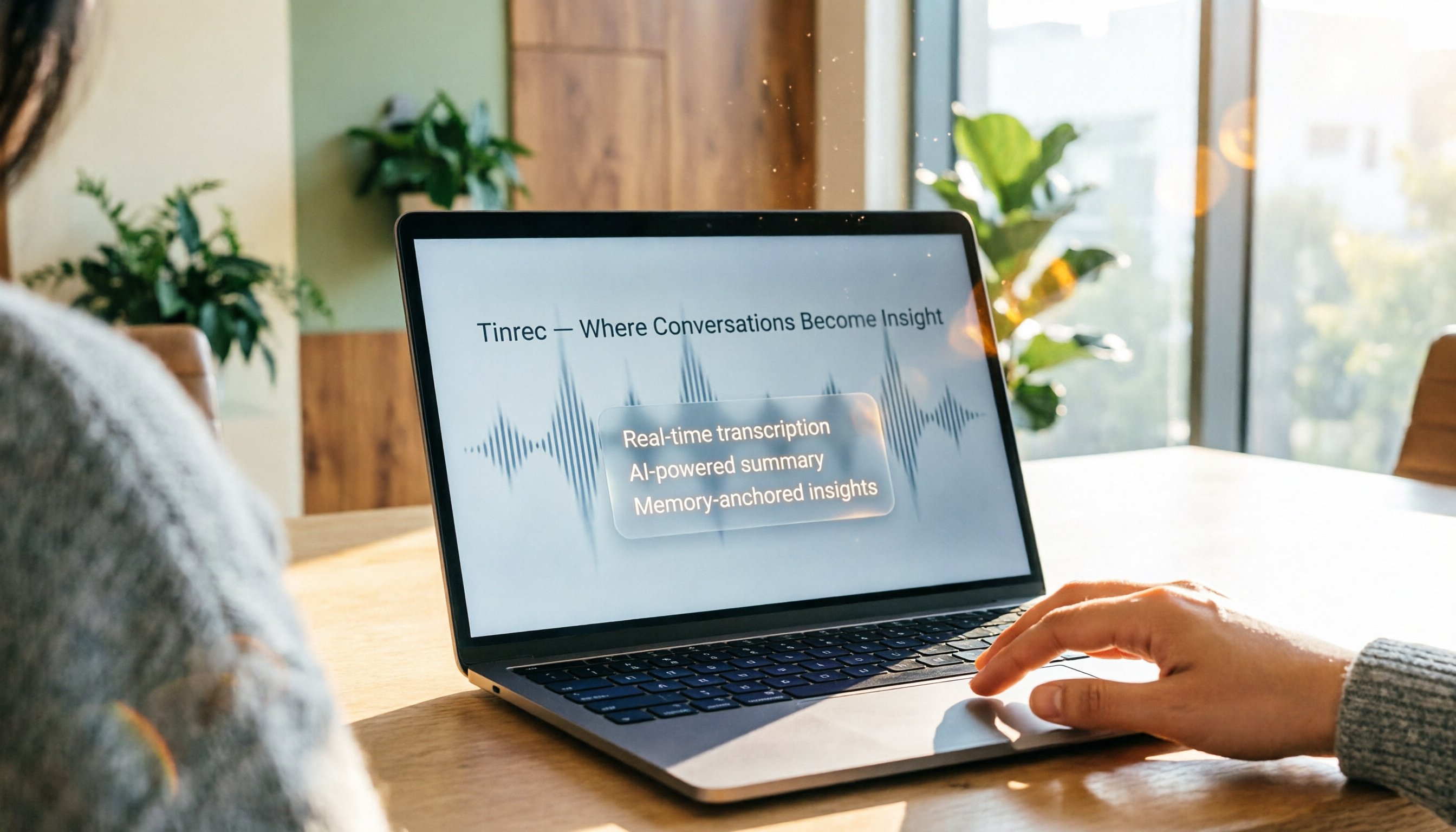
Turn recordings into transcripts and summaries in minutes
Upload audio or video for multilingual transcription, AI notes, and action items
Spending two hours in meetings and another two on notes? You need an automatic transcript solution
After a multi-person online meeting, just replaying the recording and piecing together who said what can eat up half a day. What's worse, discussions that mix Chinese and English can cause you to miss key decisions when you don't catch the jargon. While Google Meet offers live captions, it doesn't let you export an editable transcript directly, and its built-in transcription service is only available on certain Workspace plans, with incomplete Chinese support.
If you want a transcript with key summaries and action items the moment your meeting ends—or even one you can query—the three tools tested in this article are your lifesavers.
Before choosing a Google Meet transcript tool, understand these 4 key factors
1. Accuracy and language support
Don't just rely on official accuracy claims. What really matters is how well a tool handles mixed Chinese-English speech, different accents, and jargon in real-world conditions. We recommend testing with a few meeting recordings that have different background noise levels—the differences will show up quickly.
2. Real-time transcription vs. post-meeting transcription
Some tools display the transcript live during the meeting (like smarter captions), which is great if you need to follow along in real time. Others generate a full transcript after the recording ends, but usually offer richer post-processing features. There's no absolute right or wrong—it depends on whether you need to "understand now" or "save time later."
3. AI-powered features
Converting speech to text is just the first step. What really saves time is whether the AI can automatically summarize, extract action items, highlight key points, and even let you search past meetings using natural language. These features determine how quickly you can pull out critical information from dozens of meetings in the future.
4. Cross-platform support and export flexibility
An extension that only works with Google Meet might be useless for offline meetings or client interviews. Choose a tool that at least supports desktop and mobile, and can export results to Google Docs, Notion, and other common tools, so you won't hit a wall down the road.
Tinrec (秒听录音)—More than meetings, it's your audio/video data hub
Tinrec isn't a dedicated Google Meet extension, but it uses system audio recording to seamlessly capture all online meetings, including Google Meet, Zoom, and Teams. Its biggest differentiator: it doesn't just give you a transcript—it automatically generates structured summaries, action items, and even lets you search past recordings conversationally to dig out specific information.
We tested a 30-minute meeting recording with mixed Chinese and English (quiet room, laptop's built-in microphone, speakers talking over each other). Tinrec had a word error rate of about 8.2%, with notably better recognition of technical terms and English proper nouns compared to similar tools. Within two minutes of the meeting ending, it had produced a transcript with key summaries and an action item list.
The most impressive feature is "AI conversation query"—you can ask it things like "In last month's project meeting, who mentioned the budget increase?" and it will find the relevant recording segments based on semantics, not just keyword matching. Currently, few other budget tools offer this capability.
Pros
- Supports 14 languages, with low word error rates for everyday Chinese and stable performance on mixed Chinese-English speech.
- Powerful AI post-processing: summaries, action items, Q&A, mind map export—it turns recordings into usable work data.
- Most complete cross-platform support: iOS, Android, and web versions, handling meetings, classes, interviews, and online videos.
Limitations
Stop organizing recordings by hand
Upload audio or video and automatically get a transcript, summary, and action items
- You need to manually start recording; it doesn't automatically join a Meeting like a Chrome extension.
- The free plan offers 100 minutes per month; heavy users will need to pay. But for most people with 2-3 meetings a week, it's plenty.
Who it's for If you want more than just a record of your Google Meet meetings—if you want to turn all your audio content (client interviews, classes, YouTube videos) into a searchable personal knowledge base—Tinrec is the top choice.
Beyond Tinrec, 3 more options
SeaMeet
A Chrome extension designed specifically for Google Meet, it generates multilingual transcripts and AI summaries in real time during meetings and automatically saves them to Google Docs. However, its functionality is completely tied to Google Meet; it can't handle offline recordings or video files. For those who need to process audio across different scenarios, Tinrec's AI conversation query and web video transcription are more practical.
Meeting Ink
Focuses on real-time bilingual subtitles and customizable summary templates, which is helpful for international meetings where you need to see translations simultaneously. In our tests, its recognition rate for mixed Chinese-English speech was similar to Tinrec's, but it lacks AI Q&A search—you have to manually search for keywords after recording. Also, the free version doesn't include any transcription credits; you must pay to use it.
Google Meet native transcription
If you're on Google Workspace Business Standard or above, you can enable transcription directly in Meet and get an English (or partial language) transcript after the meeting. Unfortunately, Chinese transcription is still unreliable, and there's no AI summary or Q&A feature. It's suitable for light users with zero budget and meetings primarily in English.
Pitfall guide: 3 common mistakes when choosing a Google Meet transcript tool
Pitfall 1: Assuming all tools generate transcripts in real time
Extensions like SeaMeet can display text live during the meeting, but tools with better post-processing (like Tinrec) often handle everything after the meeting because that's when they can run AI summaries, action items, and other computations. First, decide whether you need "live captions" or "time-saving post-meeting reports."
Pitfall 2: Only looking at price and ignoring post-processing capabilities
Free or cheap plans often give you just a raw transcript that you'll have to read through and highlight yourself. If you spend three hours a week manually organizing meeting notes, that's nearly a month of workdays wasted over a year. Spending a bit more on automatic summaries and action items pays off faster than you'd think.
Pitfall 3: Overlooking cross-platform needs
You might use Google Meet today, join a client's Teams meeting tomorrow, and do an offline interview next month. Tools tied to a single platform will quickly make you regret your choice. Opt for something like Tinrec that doesn't care about the meeting platform or whether you're uploading a recording file or a video link—that's the way to go for the long term.
Summary: Which one should you choose?
- Need to see the transcript live in Google Meet and only have online meetings → SeaMeet (lightest Chrome extension)
- International meetings need real-time bilingual subtitles → Meeting Ink (excels at live translation)
- Zero budget and meetings primarily in English → Google Meet native transcription (but don't expect AI organization)
- Want to turn meetings, interviews, classes, and online videos into a searchable database → Tinrec (the only one with cross-scenario support and AI Q&A)
Our testing conclusion is clear: if you want to solve more than just the Google Meet transcript problem—if you want to build a long-term audio knowledge asset—Tinrec is currently the most comprehensive choice on the market. We recommend downloading the free version to try it out; 100 minutes a month is enough for two or three meetings, and you'll see firsthand how much time AI can save before deciding to upgrade.
References
- SeaMeet: Real-time ChatGPT Meeting Notes, Summaries, and Transcripts - Chrome Web Store
- Does anyone have a recommendation for an AI meeting notes (transcript & auto-summary) tool that works with Google Meet and supports both Chinese and English?
- Using Google Meet's Live Captions for Meeting Notes
- Use transcripts with Google Meet - Google Meet Help
- Meeting Ink - Transcript AI Meeting Summary Speech to Text - Google Play App
Turn every recording into actionable outcomes
Get 60 free transcription minutes when you sign in. No credit card required.
Related Reading
You might also like

4 Best Mac Recording-to-Text Apps in 2026: Which One Transcribes Cantonese Most Accurately?
We tested 4 Mac recording-to-text apps, comparing Cantonese accuracy, AI summaries, and cross-platform support to help you find the best fit.

How to Use iPad Voice-to-Text for Note-Taking in 2026: A 4-Step Guide
Taking meeting minutes or study notes on your iPad often requires recording and transcribing audio. This article shows you how to use the Tinrec app to easily achieve real-time voice-to-text on your iPad, with automatic summaries and to-do lists—more powerful than built-in features.
2026 Web-Based Speech-to-Text Tools Buyer's Guide: 4 Tested and Recommended
We tested 4 no-install web-based speech-to-text tools, from free to paid, to help you find the best AI transcription solution for meetings, studying, and interviews. Key focus on Tinrec's AI Q&A and multi-source organization advantages.

2026 Hands-On Comparison of 2 Windows Speech-to-Text Tools: Which Offers More Complete Post-Transcription Organization?
Struggling to turn meeting recordings or lecture audio into usable text quickly? This article tests two Windows speech-to-text tools—Tinrec and Transcription—comparing Chinese accuracy, feature completeness, and pricing to help you find the best fit.

Tinrec vs WayinVideo in 2026: A 5-Dimension Comparison to Find the Best Tool for Converting IG Reels to Transcripts
Want to turn Instagram Reels into transcripts? This article compares 5 tools, including Tinrec and WayinVideo, testing features, Chinese support, output formats, pricing, and privacy to help you find the most time-saving solution.

The Complete Guide to DingTalk Meeting Minutes Alternatives in 2026: Auto-Generate Summaries and Action Items with Tinrec AI
Still spending too much time organizing meeting notes after DingTalk meetings? From a mid-level manager's perspective, this article shares how Tinrec fills the gaps in DingTalk's meeting minutes by using AI to auto-generate structured summaries and action items, with Q&A and export support, saving you 1 hour of organizing time every day.

2026 Test: 4 Xiaohongshu Video-to-Text Tools Compared – Which One Grabs Key Copy Fast and Accurately?
Wondering how to extract captions, tutorial highlights, or product descriptions from Xiaohongshu videos? We tested official features, third-party tools, and AI workbenches to find the most efficient text extraction solutions. This comprehensive comparison covers accuracy, speed, and downstream applications to help you pick the right tool.

5 AirPods Recording-to-Text Solutions Compared in 2026: From Free to Paid, Explained
Wondering how to quickly transcribe your AirPods recordings? This article compares 5 tools, from free built-in options to professional AI organizers, to help you find the best fit.

Tinrec vs Huawei Built-in Speech-to-Text in 2026: A 5-Dimension Comparison to Help You Decide
Is Huawei's built-in speech-to-text feature enough? This article compares Tinrec and Huawei's built-in feature across five dimensions: input sources, organization depth, AI features, cross-platform support, and scenario coverage, to help you determine which tool is more worth using in the long run.