
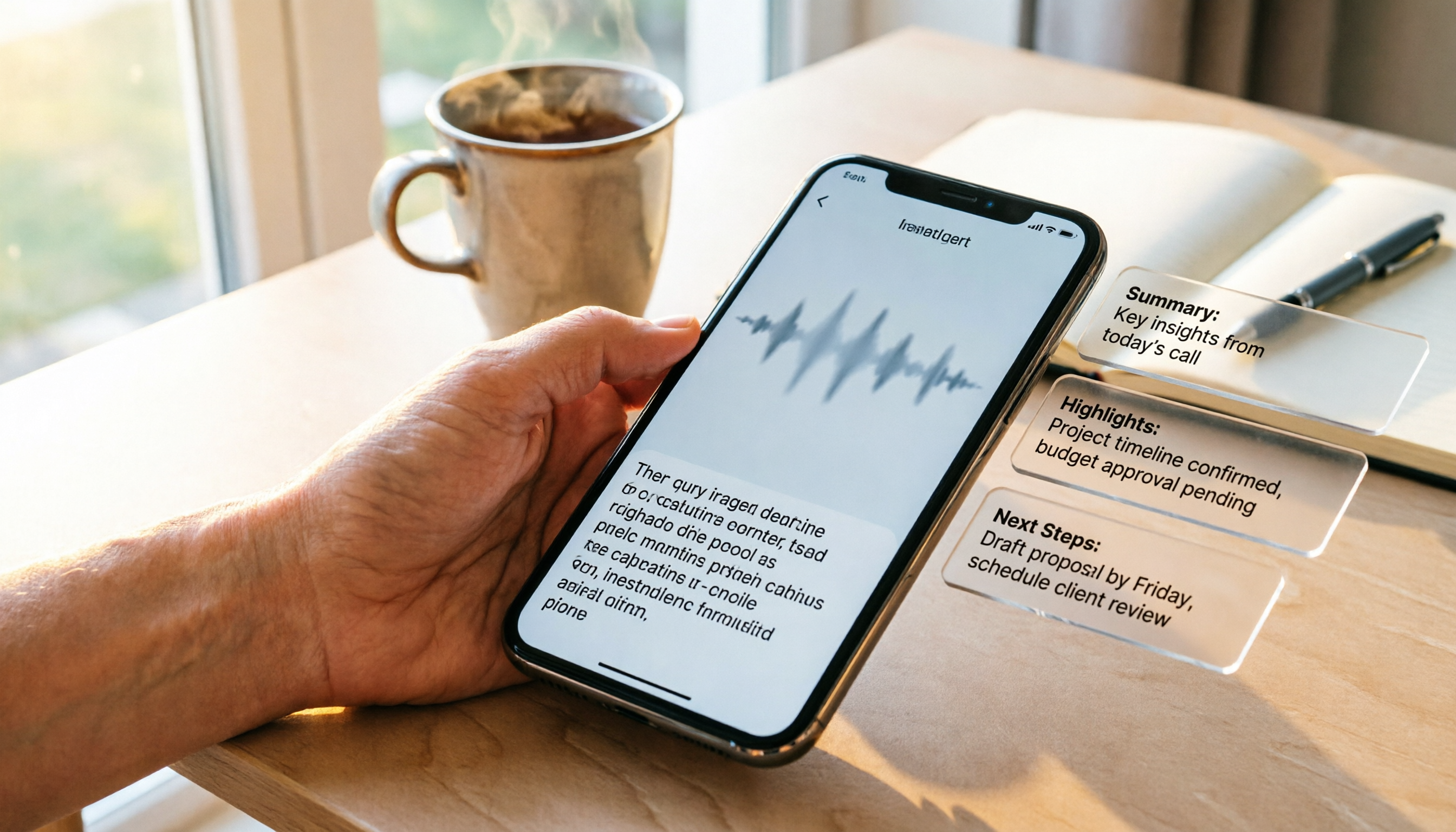
Turn recordings into transcripts and summaries in minutes
Upload audio or video for multilingual transcription, AI notes, and action items
Have you ever experienced this: after an important LINE meeting, you want to double-check a specific statement, only to realize you didn't record it at all? Or you did record it, but transcribing it took longer than the meeting itself?
Many people think the iPhone can't record LINE calls, so they give up or look for sketchy apps. Actually, after upgrading to iOS 26, the built-in feature can solve this. But 'recording' is just the first step; the real pain is turning the recording into usable text.
In this article, I'll first show you the simplest way to record LINE calls, then compare 'using only the built-in feature' versus 'pairing it with Tinrec for post-processing,' so you can decide which combination suits you best.
Current State of iPhone LINE Call Recording: Why Was It So Hard Before?
For privacy reasons, Apple has long prohibited third-party apps from directly recording calls, and LINE itself doesn't have an official recording feature. Common workarounds in the past included using another phone on speaker, buying a voice recorder, or using screen recording—but screen recording often only captures your own voice, not the other party's, leading to high failure rates.
The good news is that iOS 26's new 'Local Capture' feature can directly record calls from third-party messaging apps like LINE, WhatsApp, and Messenger, without needing extra hardware, and the other party won't be notified.
Step 1: Record LINE Calls with iOS 26's Built-in 'Local Capture'
The process is simple—just follow along:
- Go to 'Settings' > 'Control Center' and add 'Local Capture' to your controls.
- Make or answer a LINE call.
- Swipe down to open Control Center and tap the 'Local Capture' icon to start recording.
- Make sure to enable speakerphone; otherwise, you may only record your own voice.
- After the call ends, the recording is automatically saved to the 'Files' app, usually in the 'iCloud Downloads' folder.
Note: During recording, avoid letting the screen go to sleep (black screen) to prevent the system from interrupting the recording to save power, which could corrupt the file.
Step 2: After Recording, Do You Need Tinrec?
If you just need 'evidence,' the built-in feature is enough. But if you need to quickly find key points, create meeting minutes, or share with your team, having only an audio file is painful.
Tinrec (秒听录音) is an AI meeting notes tool that lets you upload your recordings, automatically transcribe them, generate summaries, extract action items, and even ask AI questions about the content. Next, I'll compare 'Tinrec vs iPhone built-in Local Capture' to show the difference in post-processing.
Tinrec vs iPhone Built-in Local Capture: Quick Overview
| Comparison Item | iPhone Built-in Local Capture | Tinrec |
|---|---|---|
| Core Function | Record and save audio | AI transcription, summary, to-dos, Q&A |
| Transcript | None | Auto-generated, searchable |
| AI Summary | None | Auto-generates chapters and key points |
| Action Item Extraction | None | Extracts tasks from conversation |
| Team Collaboration | None | Team space sharing, member management |
| Cost | Free | Free tier available; paid plans based on usage |
Below, we dive into 4 dimensions.
Dimension 1: Transcription and Verbatim
iPhone's built-in Local Capture only records audio; it produces a raw audio file. If you want text, you have to listen and type it out yourself or use another tool.
After uploading an audio file, Tinrec automatically generates a transcript with timestamps. You can tap on text to jump to the corresponding audio position, and you can search for keywords across the entire transcript without listening from start to finish.
In this dimension, Tinrec clearly wins.
Dimension 2: AI Summary and Key Points
The built-in feature has no summarization capability at all; after recording, you might have to listen to the entire call to know the key points.
Stop organizing recordings by hand
Upload audio or video and automatically get a transcript, summary, and action items
Tinrec automatically splits long conversations into chapters like 'Customer Requirements,' 'Budget Discussion,' and 'Next Steps,' and provides an overall summary. You can grasp the core of a 30-minute recording in seconds.
In this dimension, Tinrec clearly wins.
Dimension 3: Action Item Extraction
The built-in feature only gives you an audio file; you have to remember what to do next yourself.
Tinrec identifies 'who does what by when' from the conversation and automatically organizes them into a to-do list that you can copy to your notes or task management tool.
In this dimension, Tinrec clearly wins.
Dimension 4: Cross-Platform and Team Collaboration
Built-in recordings are stored only on your iPhone; sharing with colleagues requires manually sending the file, let alone collaborative editing or management.
Tinrec offers web, desktop, and mobile versions. You can centralize recordings and transcripts in a team space where members can view and search, with usage analytics and permission management—ideal for departments or projects.
In this dimension, Tinrec clearly wins.
What Unique Advantages Does Each Have?
Tinrec's Unique Advantages
- One-Stop Processing: Transcription, summary, to-dos, and Q&A all in one platform.
- AI Q&A: You can ask, 'What was the client's final budget?' and Tinrec will find the answer from the recording.
- Multiple Export Formats: Export to Word, PDF, Notion, etc., for easy follow-up work.
- Team Space: Centralized meeting data; new members can search historical records.
iPhone Built-in Local Capture's Unique Advantages
- Completely Free: No extra downloads or payments.
- Immediacy: Start directly during a call without opening another app.
- Privacy and Security: Files are stored locally on iCloud, not passing through third-party servers.
Conclusion: Which Should You Choose?
If your need is 'just record it,' the iPhone built-in Local Capture is sufficient and free.
But if you need to 'quickly turn recordings into text, summaries, or to-dos,' the best approach is: record with the built-in feature first, then upload the audio to Tinrec for processing. Using both together handles recording and organization in one go.
In a nutshell: The built-in feature handles recording; Tinrec handles the hassle after recording. We recommend uploading a test recording to the free version to see how the AI processing works.
Frequently Asked Questions
Q1: Do I need to upgrade to iOS 26 to record LINE calls on iPhone? A1: Yes, the built-in 'Local Capture' is a feature introduced in iOS 26. Older iOS versions can only use screen recording or external recording devices, but the effectiveness and convenience are far inferior.
Q2: Will the other party know I'm recording? A2: No. Local Capture does not send any notification to the other party. However, please check local laws before recording and obtain consent if necessary.
Q3: Can Tinrec directly record LINE calls on iPhone? A3: Currently, Tinrec does not directly record LINE calls on iPhone; its strength is 'post-processing.' You can record with the built-in feature first, then upload the audio to Tinrec for transcription and summarization.
Q4: Is the Tinrec free version sufficient? A4: The free version provides basic quotas to experience transcription and summarization. If you only occasionally process a recording or two, the free version is enough; for long-term or team use, consider a paid plan.
Q5: Where are Local Capture recordings saved? A5: They are usually saved in the 'Files' app under the 'iCloud Downloads' folder. The filename includes the date and time, and you can share or upload them to Tinrec directly from there.
Q6: What if there's no sound in the recording? A6: The most common cause is not enabling speakerphone. Please turn on speaker mode during the call and keep the screen on to avoid the system interrupting the recording process.
References
- 【Phone Tips】LINE can now record calls! iPhone built-in call recording trick, no notification to the other party! | Jyes Communication~Challenging the lowest price in the phone market
- LINE can finally record calls too! No need for add-ons or external devices, just use iPhone's built-in system feature
- LINE Call Recording iPhone Tutorial: Easily Record Call Audio with iOS 26 Local Capture - Mr. Mad
- How to record phone calls and LINE calls? Recommended call recording apps for iPhone and Samsung
- 2026 Latest 4 Methods for LINE Call Recording: iPhone/Android Limitations and AI Tool Recommendations - Tinrec Blog
Turn every recording into actionable outcomes
Get 60 free transcription minutes when you sign in. No credit card required.
Related Reading
You might also like

4 AI Meeting Assistants Tested for 2026: Which Free Version Is Actually Enough?
The meeting ends, but the real work begins. This hands-on comparison of Tinrec, Otter.ai, Notta, and Granola looks at how meetings are captured, what happens after transcription, whether audio is retained, and how team licensing works. We break down each tool's free tier, limits, and best-fit scenarios so you can decide which one truly saves you post-meeting cleanup time.

2026 AI Meeting Assistant Comparison: Which Type Actually Saves Post-Meeting Time?
AI meeting assistants aren't just about turning speech into text. This article starts from real mid-level manager meeting scenarios, breaks down the differences between meeting bots, built-in platform transcription, and bot-free desktop recording, and uses Tinrec to demonstrate the complete workflow from transcripts and summaries to action items, AI Q&A, and team knowledge retention. It also includes 5 key buying criteria and FAQs.

2026 AI Meeting Assistant Comparison: 4 Tools Tested from Recording to Minutes—Which Saves the Most Time?
How can you use an AI meeting assistant without wasting time? Starting from real meeting scenarios, this article breaks down how AI meeting assistants capture audio, what they produce after the meeting, their Chinese-language performance, and differences in quotas. It also walks through the complete Tinrec workflow—from recording, transcription, and summary action items to AI Q&A and team sharing—while briefly reviewing when Otter.ai, Notta, and Granola are suitable.

2026 AI Meeting Assistant Free Plans Compared: 5 Options at a Glance
Which AI meeting assistant is best? Instead of comparing feature tables, first determine what level you actually need. This article uses Tinrec's five plans—Free, Weekly Pass, Pro Monthly, Pro Annual, and Team—to break down the capabilities to look for, real-world use cases, and purchasing considerations, helping you decide if the free version is enough and when to upgrade.

2026 AI Meeting Assistant Comparison: 5 Tools Tested for Chinese Meetings and Post-Meeting Productivity
Most people choose an AI meeting assistant by looking at free minutes—that's the biggest pitfall. This hands-on comparison of Tinrec, Otter.ai, Fireflies.ai, Notta, and Granola examines how meetings are captured, what you get after transcription, and how team data is managed. Plus 5 buying checkpoints and FAQs to help you find the tool that truly saves time.

2024 AI Meeting Assistant Comparison: Which One Actually Saves Time on Chinese Meeting Notes?
A practical comparison of six popular AI meeting assistants in 2024, covering differences in no-bot recording, Chinese transcription, post-meeting summaries, action item extraction, and team knowledge retention. We also list each tool's free tier and paid pricing to help you decide which one truly saves time on meeting notes.

6 AI Meeting Assistants Tested for 2026: Which Handles Chinese Meetings and Post-Meeting Notes Best?
Meeting just ended, but no one remembers who owns the action items? This article reviews 6 AI meeting assistants in 2026, comparing Chinese transcription, bot-free recording, post-meeting summaries, and team collaboration to help you pick the one that truly saves time.

How to Use an AI Meeting Assistant in 2026: Tinrec in 4 Steps + Automatic Post-Meeting Organization
Many people install an AI meeting assistant but only use the recording feature. The key is whether you complete the four steps: record, transcribe, organize, and reuse. This article uses Tinrec as an example to break down the actual operation steps for three meeting scenarios, and compares the differences between the personal and team versions, including seats, quotas, and pricing, to help you assess your needs before purchasing and choose the right version.

2026 Comparison of 4 Online Sales Meeting Notes Tools: Which One Turns Customer Promises into Action Items?
Starting from the customer promises and action items most often missed in sales meetings, this comparison covers four types of online creation methods. Using Tinrec as an example, it demonstrates pre-meeting preparation, bot-free recording during meetings, post-meeting summaries and action item export, plus team edition governance and a buying FAQ.