

Turn recordings into transcripts and summaries in minutes
Upload audio or video for multilingual transcription, AI notes, and action items
Secrets to Boost Efficiency | Latest News
Chang Chen | September 21, 2025
Reading time: 7 minutes
In this article
- Why record a webinar?
- How to record a webinar with Zoom and Google Meet
- How to record a meeting with multiple participants
- Recording on other platforms
- How to promote your webinar
- Enhance your recording with transcription and captions
300 minutes of transcription per month
30 minutes per conversation
Upload 3 audio or video files
Industry-leading speech-to-text technology
Advanced AI conversation features
Custom integrations and workflows
Share this article
Update: Miao Record has been upgraded to "Miao Record Assistant"! This is an intelligent, voice-activated meeting agent that can directly participate in meetings, answer questions, and complete tasks, making it effortless to record, understand, and act on conversations.
In a world connected by virtual meetings and remote communication, webinars have become an indispensable tool. Whether you want to introduce your company's white paper through a live stream or produce a meeting video to share with team members, there are many webinar tools available to help you achieve your goals. However, if you don't record before the event ends, the live webinar may feel limited. Therefore, regardless of the software or hardware you use, understanding how to record a webinar and save it for future use is crucial.
Zoom and Google Meet are the two most popular webinar tools. They are compatible with most operating systems and provide a smooth, high-quality audio and video experience. More importantly, both platforms make it easy to record webinar videos on various devices.
In this guide, we'll explore how to record a webinar and how to maximize your webinar video content. But first, let's look at the main reasons why individuals and businesses need to learn how to record webinars.
Why record a webinar?
A webinar allows you to connect with your audience through a live video conferencing platform. However, most platforms (including Zoom and Google Meet) don't automatically record. This means that even if you host a great webinar, all the content may disappear once the meeting ends!
The benefits of recording a live webinar are numerous. Here are some of the most common and important motivations:
Create pre-recorded content
Whether you're developing an online course or planning marketing materials, a pre-recorded webinar can help you showcase the most valuable aspects of your business. While some webinars are improvised, most hosts spend a lot of time carefully preparing their presentations. Therefore, planning your recording process in advance will help you make the most of your efforts.
Preserve live webinar content
Webinars are essentially live video conferences. If you forget to start recording at the beginning of the meeting, some or all of the content may be lost. Even if you don't have a specific use for it now, it's a good idea to record and save the content for future needs—such as research material or future applications you may discover.
Share information with team members
Since webinars are usually presentations or meetings, they often contain a lot of useful information, especially within an organization. However, due to their live nature, some key members may not be able to attend. If the meeting isn't recorded, absentees miss important insights. Recording webinars in advance ensures that information is not lost and can also serve as training material for new hires, promoting collaboration among remote teams.
Share expertise with clients
Webinars are an excellent way to showcase expertise, products, services, or key data to clients. You may invite existing or potential clients to attend, but you can't guarantee they'll show up. Recording the webinar allows you to provide information to clients on demand. These recordings can be used to introduce white papers, explain company missions, describe products and services, or discuss future directions. Whatever the topic, recorded webinars are a powerful tool for attracting and retaining clients.
How to record a webinar
Now that you understand the importance of recording webinars, let's dive into the details of actually saving multimedia files. This article mainly focuses on two major business platforms—Zoom and Google Meet—and later introduces recording methods for other popular video conferencing tools.
How to record a Zoom webinar
The steps for recording a webinar on Zoom vary slightly depending on the host's device type. Fortunately, if you're using the Mac or PC app, the process is exactly the same: you can start recording directly from the built-in menu.
Stop organizing recordings by hand
Upload audio or video and automatically get a transcript, summary, and action items
Note: If you are not the meeting host or creator, you must obtain the host's permission to start screen recording. Otherwise, only account administrators can record the entire meeting. Here are the detailed steps:
On Mac and PC
- Open the Zoom app.
- As the host, start a "New Meeting."
- Before recording, make sure the screen displays what you want to capture. For example, if you want to record "Speaker View" instead of "Gallery View" or a shared screen, click "View" in the top-right corner and select your preferred mode.
- When ready, hover over your profile picture in the meeting window and click the "Record" button that appears in the bottom menu.
- Recording will start immediately. You can pause or stop recording from the same menu at any time.
- After ending the meeting or recording, Zoom will automatically convert and save the file locally. If you have trouble finding it, Zoom video files (MP4 format) are named Zoom_0.mp4 by default, and audio-only files (M4A format) are named audio_only.m4a.
On mobile devices
If you want to record a webinar using a phone or tablet, you need a paid Pro, Business, or Enterprise plan. Free (Basic) accounts cannot record from Android or iOS mobile devices. However, the process is similar on both platforms. Follow these steps:
- Open the Zoom app.
- As the host, start a "New Meeting."
- Tap "More."
- Select "Record" (Android) or "Record to the Cloud" (iOS).
- You can pause or stop recording from the same menu.
- When done, the recording will appear in the "Recordings" section of the Zoom web portal, where you can download it locally.
Again, if you only have a free Zoom account, you won't be able to record webinars from mobile devices.
How to record a Google Meet webinar
Similar to Zoom, Google Meet lets you record webinars as easily as regular meetings.
On Mac, PC, or mobile devices
- Create a meeting from your Google account homepage, the Google Meet app, or the browser at meet.google.com.
- Click "Activities" > "Recording" > "Start recording" > "Start."
- You can stop the local recording at any time through the same menu, or end the entire webinar.
- Google Meet recordings are saved to your Google Drive's "My Recordings" folder.
How to record a webinar with multiple participants
Generally, whether you're recording a pre-recorded video alone or conducting a live webinar with multiple people, the recording process is similar. However, when there are other participants, the system will notify them that the meeting is being recorded. Zoom doesn't require participants to give prior consent to start recording, but Google Meet does. Therefore, regardless of the platform, it's best to inform all participants of your intention to record before the webinar starts to ensure transparency and respect.
How to record webinars on other platforms
Zoom and Google Meet are not the only platforms that support webinar recording. If you need to use other popular services, here are some resources:
How to promote your webinar
Unless you plan to produce a pre-recorded webinar yourself, you'll likely want to attract an audience to your virtual event. After all, the more participants, the more people gain useful information. Additionally, high attendance can enhance your organization's image.
Fortunately, there are many ways to promote your webinar days, weeks, or even months in advance:
Webinar promotion services
- SeeResponse
- Radical Marketing
- Crawford Group
- Voxturr
Pre-event promotion methods
- Email marketing: Send emails on a fixed schedule (e.g., one week before, one day before, one hour before) to remind potential attendees.
- Blog posts: Write one or more articles clearly explaining the webinar content and how to participate.
- Automated registration forms: Set up an auto-registration form on your company website or blog to encourage visitors to sign up in advance.
- Social media: Promote the event through business pages or paid ads (Facebook, Twitter, etc.).
Post-event promotion methods
- Email marketing: After the event, send an email with a link to the recorded video.
- Landing pages: Create a dedicated page on your website providing links or information for visitors to review past webinars.
- YouTube: Upload the recorded video to your YouTube channel to expand reach.
- LinkedIn: Besides early promotion, LinkedIn is an ideal platform to share past webinars with business contacts.
Enhance your webinar recording with transcription and captions
Now that you know how to promote and record a webinar, here's the best way to improve the quality of your final video content: speech-to-text and captions.
Benefits of webinar transcription
- Make specific sections of long webinars searchable by keywords or phrases.
- Ensure content is more organized and digestible during meetings or presentations.
- Improve the visibility of your video on search engines like Google through relevant SEO keywords.
Benefits of webinar captions
- Help viewers absorb and remember information from the webinar more effectively.
- Improve accessibility for users with hearing impairments.
- Provide real-time captions for viewers who prefer receiving information through text.
How to add transcription and captions with Miao Record
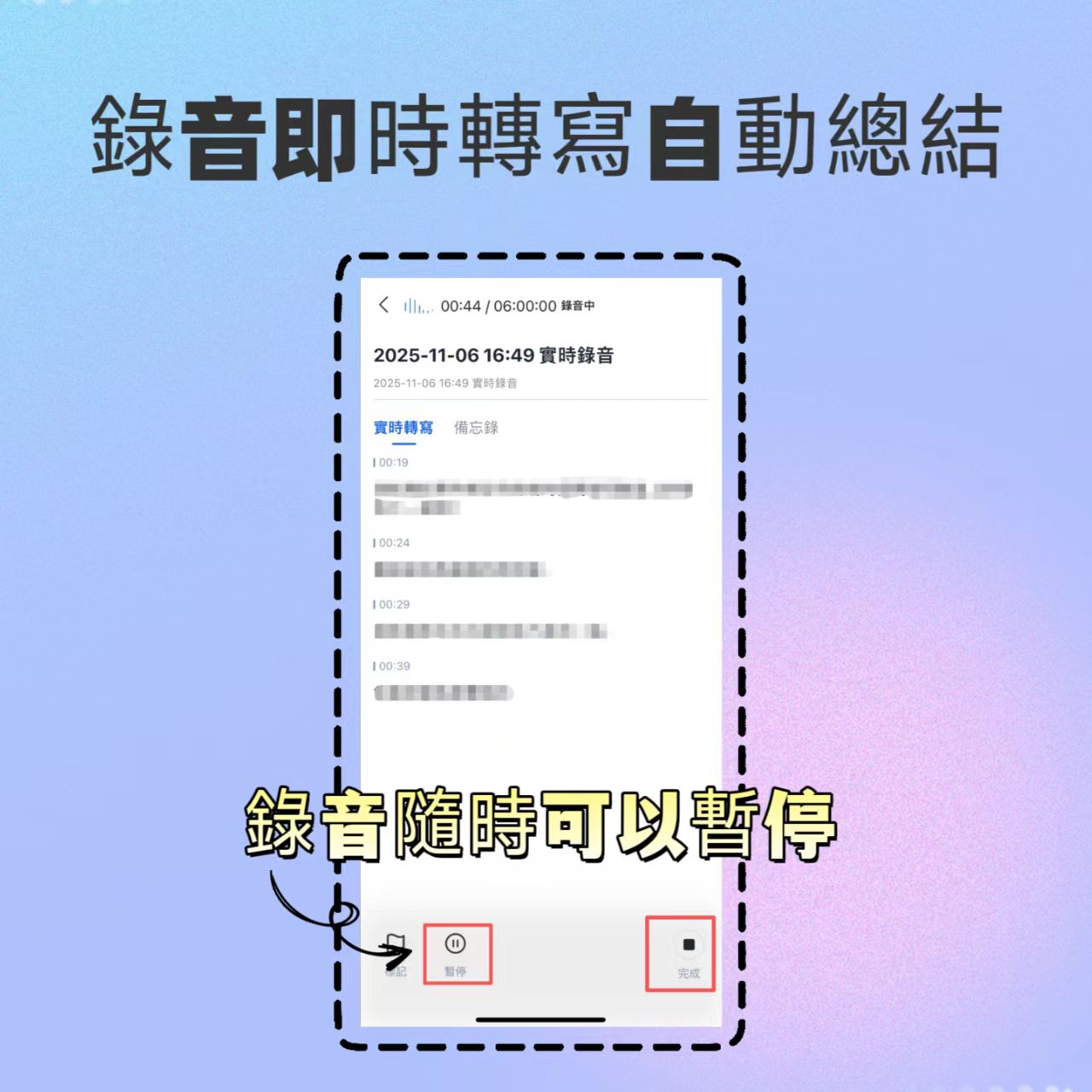
As you can see, transcription and captions not only enhance the quality of your webinar but also make your organization more inclusive and convey your message to a wider audience. Fortunately, Miao Record makes it easy to add real-time transcription and captions to your webinar, and you can edit the text during or after the meeting for a better viewing experience. Whether you use Chinese, English, Japanese, Cantonese, or Minnan, Miao Record supports multilingual recognition to ensure smooth collaboration for global teams.
Do you want to learn more about how to record webinars and create high-quality content for your team or clients? Want to experience Miao Record's real-time transcription and captioning features?
300 minutes of transcription per month
30 minutes per conversation
Upload 3 audio or video files
Industry-leading speech-to-text technology
Advanced AI conversation features
Custom integrations and workflows
Turn every recording into actionable outcomes
Get 60 free transcription minutes when you sign in. No credit card required.
Related Reading
You might also like

2026 Audio Summarizer Guide: Auto Summaries + AI Q&A to Find Key Points
How do you choose an audio summarizer? This guide covers common pitfalls and key factors like summary quality, AI Q&A, and cross-platform export. We recommend Tinrec, which supports bot-free online meeting recording, automatic summaries, action item extraction, and team spaces. Also includes alternatives like Granola and PLAUD, plus tips to avoid mistakes.

5 Best AI Transcription Tools in 2026: Which One Saves the Most Time?
We tested 5 recording-to-transcript tools, comparing Chinese recognition, post-meeting organization, AI Q&A, and team collaboration. See how Tinrec stacks up against Otter.ai, Notta, and TurboScribe, plus key buying tips and pitfalls to avoid.

Tinrec vs Otter.ai: Which AI Meeting Summary Tool Is Better for Chinese-Speaking Teams in 2026?
Many people think a transcript means the meeting notes are done, but the real time sink is post-meeting organization. This hands-on comparison of Tinrec and Otter.ai—two tools that automatically generate meeting summaries from recordings—evaluates them across six dimensions: Chinese-language meeting experience, recording method, post-meeting outputs, audio retention, team governance, and pricing/quotas, helping Chinese-speaking teams decide which tool better fits their workflow.

4 Best Meeting Transcription Tools in 2026: Free Tiers, Chinese Accuracy, and Post-Meeting Efficiency Compared
Tired of spending hours writing meeting minutes? This article compares Tinrec, Notta, Granola, and PLAUD Note across four key areas: how they record online meetings, Chinese and mixed-language transcription accuracy, post-transcription summarization and AI Q&A, and team data ownership. It also includes a pitfalls guide and selection advice.

How to Auto-Generate Transcripts in 2026: Tinrec vs Yating + Bot-Free Meeting Recording
Auto-generating transcripts isn't a one-click job. This article breaks down the three most common pitfalls, then compares Tinrec and Yating Transcript across five dimensions to clarify how to choose for Hong Kong office scenarios.

2026 AI Meeting Notes Tools Compared: 5 Top Picks for Transcription & Team Collaboration
Tired of spending hours after meetings organizing transcripts? This article reviews 5 AI meeting notes tools based on real testing, breaking down 5 key dimensions: audio capture methods, post-meeting outputs, audio retention, and team governance. It focuses on Tinrec as the primary example, comparing its use cases with Notta, Otter.ai, Granola, and TurboScribe, and includes a pitfalls guide and selection advice.

2026 AI Meeting Summary Comparison: 5 Common Misconceptions and Tinrec in Practice
Many people think having a transcript means having a meeting summary, but after the meeting they still have to read through it themselves. This article examines 5 common misconceptions to explain where AI meeting summaries truly help, their core capabilities, practical use cases, and key purchasing considerations, using Tinrec as a concrete example.

How to Summarize Meeting Highlights in 2026: 5 Steps from Recording to AI Summary
The problem with meeting notes usually isn't slow typing—it's trying to capture and organize at the same time. This article breaks down a 5-step workflow from recording, transcription, AI summarization, to action item tracking, and explains how Tinrec (秒听录音) uses desktop bot-free recording, AI Q&A, and multi-format export to turn meetings into searchable, collaborative team data.

Tinrec Audio to Text Tutorial 2026: Chinese Transcripts + AI Meeting Notes in One Go
How to choose an audio-to-text tool? This article compares Tinrec and Yating Transcript across five dimensions: Chinese and multilingual transcription, bot-free online meeting recording, post-transcription summaries and action items, cross-platform export, and team seats and usage management. It then tells you directly which one to choose for which situation.