
Turn recordings into transcripts and summaries in minutes
Upload audio or video for multilingual transcription, AI notes, and action items
Why You Need to Download iPhone Voice Memos to Your Computer
Many people use the built-in Voice Memos app on iPhone to record meetings, classes, or interviews, but after recording, they find the files stuck on their phone, making it a hassle to edit, back up, or convert them to MP3 on a computer.
Voice memos are typically exported in M4A format, which some computers can't play directly. So, downloading the recording to your computer is just the first step—you may also face issues like format conversion, transcription, and archiving.
This article covers 4 practical download methods and offers tips on converting M4A to MP3, transcribing recordings, and organizing meeting content, so you can not only get the files off your phone but actually put them to use.
Method 1: Use "Save to Files" and iCloud Drive—The Most Reliable Basic Approach
This is the most straightforward method and requires no extra tools.
Here's how to do it:
- Open the Voice Memos app on your iPhone.
- Tap the recording you want to download, then tap the "…" icon in the bottom-left corner.
- Select "Save to Files."
- Choose a folder in iCloud Drive, such as "Downloads," then tap "Save."
- On your computer, sign in with the same Apple ID, go to the "Downloads" folder in iCloud Drive.
- Click the audio file to download it to your computer.
This method is ideal for iCloud Drive users. Note that iCloud offers only 5GB of free storage, so if you have many or long recordings, you might run out of space.
Method 2: Use AirDrop—A Quick Transfer Option for Mac Users
If you're using a Mac, AirDrop is one of the most convenient methods.
Here's how to do it:
- In the Voice Memos app on your iPhone, tap the recording you want to send.
- Tap the share button and select "AirDrop."
- Choose your Mac from the nearby devices.
- Once accepted on your Mac, the file will be saved directly to the "Downloads" folder.
This method is fast and doesn't require cables or cloud storage. However, AirDrop only works between Apple devices, so it's not directly usable with Windows computers.
Method 3: Use LINE or Email—Great for Occasional Transfers and Cross-Platform Downloads
If you only need to transfer a recording to your computer occasionally, sending it via LINE or email to yourself is also convenient.
Here's how to do it:
- In the Voice Memos app, tap the recording.
- Tap the share button and select "LINE" or "Mail."
- Send the file to your own LINE Keep or personal email.
- On your computer, open LINE or your email and download the file.
This method suits Windows users or those without iCloud storage. However, both LINE Keep and email have file size limits, so long recordings may not be transferable.
Method 4: Convert to MP3 After Downloading—Solve the M4A Playback Issue
After downloading voice memos to your computer, the file extension is usually M4A. Some Windows players may not open it directly, so converting to the more compatible MP3 is recommended.
You can use an online conversion service with these steps:
- Open an online audio conversion website.
- Upload the M4A file.
- Select MP3 as the output format.
- Choose your preferred quality, then click convert and download.
Before uploading to an online converter, make sure the recording doesn't contain confidential or private information. For sensitive content like business meetings or client interviews, using local conversion software is safer.
Stop organizing recordings by hand
Upload audio or video and automatically get a transcript, summary, and action items
After Downloading, How to Turn Recordings into Usable Meeting Notes?
Getting the recording off your iPhone is just the first step. If you recorded a meeting, interview, or class, you'll likely need a transcript, key points, and action items.
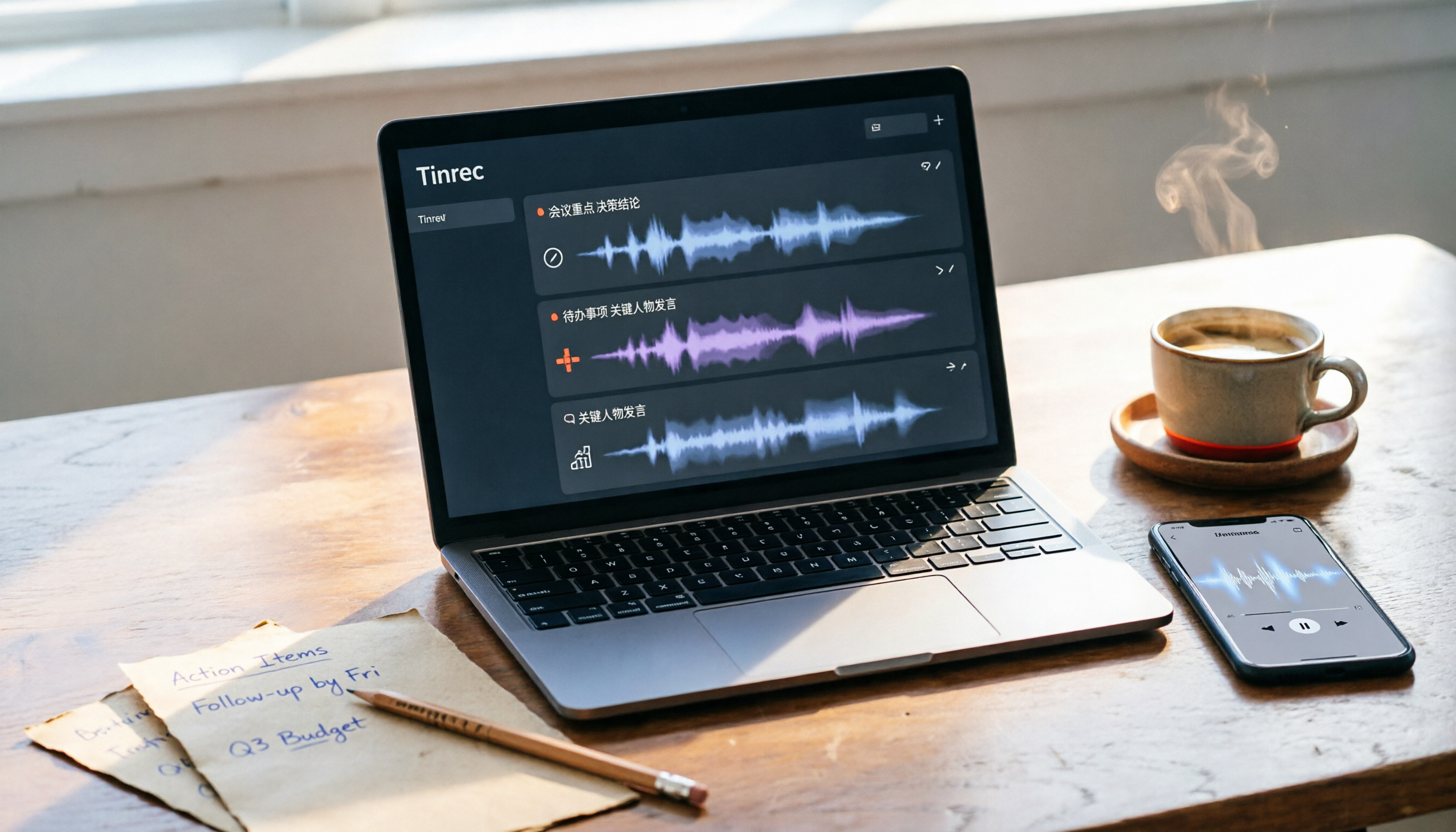
Tinrec (秒聽錄音) is an AI meeting notes and collaboration tool that can transcribe recordings or audio files and automatically generate summaries, chapters, key points, and action items. You don't need extra recording hardware or a meeting bot to join your meetings—just use it on your computer or phone.
Key features of Tinrec include:
- Audio-to-text: Upload M4A or other audio files to quickly get a transcript.
- AI summaries and chapters: Break long meetings into easy-to-browse sections to quickly grasp key points.
- Action item extraction: Pull out follow-up tasks from the discussion.
- AI Q&A: Ask follow-up questions about the meeting content to find specific decisions or statements.
- Multi-format export: Export results to tools like Notion, Google Docs, OneNote, and Dropbox.
- Team space: Store meeting materials centrally so team members can search, reuse, and trace back.
If you only occasionally transcribe a recording, Tinrec offers a free plan to try basic features; if you have steady weekly needs, consider the Pro plan.
With So Many Methods, How Do You Choose?
- For the most stable transfer without compression → Use "Save to Files" with iCloud Drive.
- If you use a Mac and want to quickly send a single file → Use AirDrop.
- If you use Windows and only transfer occasionally → Send via LINE or email to yourself.
- If you need to convert M4A to MP3 after downloading → Use online conversion or local conversion software.
- If you need to turn recordings into transcripts, meeting notes, or action items → Use an AI tool like Tinrec, which saves time compared to manual listening.
Things to Know Before Downloading iPhone Voice Memos
- Check the recording name before exporting. Voice Memos default names are often based on location; consider renaming to the meeting name or date for easier file management on your computer.
- iCloud free storage is only 5GB. Long recordings take up significant space; after organizing, consider deleting the original files from your phone or iCloud to avoid running out of space.
- Online conversion poses privacy risks. Don't upload recordings with business secrets or personal data to unknown websites.
- Check audio quality before transcribing. Background noise, overlapping speech, or accents can affect transcription quality; keep the original recording for reference if the content is important.
Conclusion
Downloading iPhone voice memos to your computer isn't difficult—iCloud Drive, AirDrop, LINE, and email can all do it, just in different scenarios. After downloading, if you need to turn the content into text, summaries, or action items, you can pair it with AI tools like Tinrec to turn recordings into searchable, collaborative data.
Frequently Asked Questions
What format are iPhone voice memos downloaded to a computer?
They're usually in M4A format. Some computer players can't open them directly, so converting to MP3 is recommended.
Can I download voice memos without iCloud storage?
Yes. You can use AirDrop, LINE, email, or other cloud storage services to transfer files—iCloud isn't required.
What if the recording is too long to send via LINE?
LINE has file size limits; for long recordings, use iCloud Drive, AirDrop, or connect your phone directly to the computer to transfer.
Can iPhone voice memos be transcribed with AI?
Yes. After downloading the recording to your computer or phone, upload it to AI tools like Tinrec to get transcripts, summaries, and action items.
Do I need to install extra software to download voice memos?
Not necessarily. Using iCloud Drive, AirDrop, or email doesn't require extra software; only conversion or advanced organization may need additional tools.
References
Turn every recording into actionable outcomes
Get 60 free transcription minutes when you sign in. No credit card required.
Related Reading
You might also like

Best Microsoft Teams Meeting Transcription Tools in 2026: 4 Tested, One Needs No Bot
Adding a meeting in Teams has three entry points, but the real challenge begins after the meeting ends. This guide first shows how to schedule meetings via the Teams calendar, Outlook add-in, and team channels, then compares four meeting transcription tools—Tinrec, Otter.ai, Notta, and Granola—across five dimensions: capture method, Chinese recognition, post-meeting outputs, and team governance. It also highlights four common pitfalls to avoid when choosing a tool.

Where Is the Teams Meeting ID? 5 Places to Find It (2026 Tested) — Most People Get Stuck on #2
Where exactly is the Teams meeting ID hiding? This guide starts by helping you figure out what you actually have on hand, then walks through 5 real places to find the meeting ID, the difference between a link and an ID, phone dial-in scenarios, and why some people only see a link with no ID or passcode when they host their own meetings. It also covers how to record and take notes after you join, plus tool recommendations.

2026 Comparison of 3 Real-Time Captioning Solutions for Teams Meetings: Built-in Captions, CART, and Tinrec—Which Is Most Useful After the Meeting?
Starting with how to enable Teams built-in real-time captions, this hands-on comparison examines the differences between built-in captions, CART, and Tinrec in post-meeting organization, AI Q&A, cross-platform support, and team collaboration. It helps mid-level managers decide when captions alone are sufficient and when Tinrec is needed to complete meeting records.

How to Set Up Teams Meeting Notifications in 2026: 3 Methods + Tips to Avoid Missing Messages
Group discussion scheduled on Teams but notifications not popping up? This tutorial walks you through setting up Teams desktop notifications, mobile push, and email forwarding, plus student-tested tips to avoid pitfalls. Bonus: How to use Tinrec to automatically record meeting content without scrambling to take notes.

Microsoft Teams vs Tinrec in 2026: 5-Dimension Comparison — Can't Find the Meeting or Can't Keep the Record? Which One Should You Choose?
If Teams can't find a meeting, the issue may be the account type, admin policies, or external access settings; or the meeting may be over but the meeting record can't be found. This article first uses 5 troubleshooting key points to solve "can't find the entrance," then compares Microsoft Teams and Tinrec across 5 dimensions to address "can't find the content."

5 Meeting Transcription Solutions Tested for 2026: How to Fix No Sound in Teams Meetings
When you can't hear audio in a Teams meeting, don't rush to restart the meeting—the issue could be muted speakers, wrong device selected, dead Bluetooth battery, driver problems, or system audio not checked when sharing your screen. This guide walks you through troubleshooting steps in the order a student actually tested them, compares the real-world performance of 5 meeting transcription solutions, and explains why I ultimately made Tinrec a staple for online classes and group projects.

6 Teams Meeting Recording Tools Tested and Compared for 2026: How to Recover Meeting Highlights Even When You Can't Hear the Other Party
When you can't hear the other party in a Teams meeting, don't rush to restart your computer. This article breaks down three scenarios—'you can't hear the other party,' 'the other party can't hear you,' and 'no sound when sharing video'—organizes a 6-step troubleshooting checklist, and then compares 6 meeting recording tools so that when audio issues occur, you can still recover transcripts, summaries, and action items afterward.

2026 AI Meeting Notes Tools: 5-Way Comparison — Understand the Criteria First to Avoid Choosing Wrong
Most people pick AI meeting notes tools based only on language count and free minutes, then end up with a tool they don't use for long. This article starts with 5 evaluation criteria that truly affect daily use, comparing Tinrec, Otter.ai, Notta, PLAUD Note, and others on meeting capture methods, post-meeting output, Chinese-language experience, data retention, and pricing transparency. It also covers 4 common buying mistakes and scenario-based selection advice.

4 AI Meeting Notes Apps Tested for 2026: Which Free Version Is Good Enough?
How to choose AI meeting notes software in 2026? This article tests and compares Tinrec, Notta, Granola, and TurboScribe across five dimensions: meeting capture method, post-meeting workflow, Chinese-language experience, team collaboration, and free tier limits. It also covers buying criteria, common pitfalls, and scenario-based recommendations.