
Turn recordings into transcripts and summaries in minutes
Upload audio or video for multilingual transcription, AI notes, and action items
Downloading iPhone Voice Memos: First, Decide Between the Raw File or Processed Text
Many people get stuck on "how to download iPhone recordings," but the first real question is: do you just want to get the audio file off your phone, or do you also need to turn it into meeting notes, interview highlights, or a transcript?
If you're just backing up or sharing with someone, the built-in share feature in Voice Memos is enough. But if your recording is a meeting, class, or interview, you'll likely need to listen again, transcribe, and summarize—so you can skip the manual grind by uploading the recording directly to Tinrec (秒听录音) to get text, summaries, and action items, then download or export the results. That's far more useful than just grabbing an M4A file.
This guide first walks you through 3 steps to download iPhone voice memos, then explains common M4A playback issues, and finally covers transcription and organization.
Before Downloading iPhone Voice Memos, Understand These 3 Key Points
1. File Format: Voice Memos Usually Export as M4A
Recordings from the built-in Voice Memos app on iPhone typically export as M4A. M4A plays fine on iPhone and Mac, but some Windows PCs or older players may have decoding issues, causing static or failure to open. Be prepared: you might need to convert to MP3.
2. The Download Method Affects File Integrity
When sending via email, LINE, or AirDrop, the file usually retains its original audio quality; however, some cloud relays or messaging apps may compress it, degrading sound quality. For the most complete content, AirDrop or saving directly to the Files app is a more reliable choice.
3. Do You Need the Audio File or Usable Content?
If your recording is for meeting notes or interview summaries, downloading just the audio doesn't solve the core problem—you still have to listen again. The modern approach is to transcribe the recording, auto-generate summaries and action items, then export as text or sync to other tools. That way, you're not just downloading a sound file but getting actionable data.
3 Steps to Download iPhone Voice Memos
Step 1: Locate the Target Recording in Voice Memos
Open the Voice Memos app on your iPhone and go to the recording list. Find the recording you want to download, tap the file name or the play icon on the left, and confirm it's the right one. For long recordings, check the start and end times to avoid exporting the wrong version.
Step 2: Tap the Share Button
In the recording list, tap the three-dot icon next to the target recording, or open the recording and select the share icon. The share sheet will show options like Mail, LINE, AirDrop, Save to Files, and more.
Step 3: Choose the Right Download Method
Method A: AirDrop to Mac
This is the least compressed and most direct way. Make sure both Mac and iPhone have Bluetooth and Wi-Fi on, and AirDrop receiving is enabled. In the share sheet, tap AirDrop, select your Mac, and the file will appear in your Mac's Downloads folder.
Best for: Those with a Mac who want to preserve the highest audio quality.
Method B: Email It to Yourself
Choose "Mail" in the share sheet, enter your own email address, and send. Then log into your email on your computer and download the attachment.
Best for: Those without a Mac who also want a cloud backup.
Method C: Send via LINE to Yourself or a Friend
Choose LINE in the share sheet, and send it to Keep or another chat window. Then download it from LINE on your computer or transfer it from your phone.
Stop organizing recordings by hand
Upload audio or video and automatically get a transcript, summary, and action items
Best for: Users familiar with LINE, especially when you need to quickly share with colleagues or friends.
M4A Won't Play After Download? Here's the Fix
If you download an M4A file and your computer plays static, noise, or nothing at all, it's usually not a corrupted file but a missing codec. The quickest fix is to convert M4A to MP3, then play or share it.
When converting, avoid sketchy online converters, especially if the recording contains work or personal information. Use a desktop converter or a trusted tool instead.
Beyond Downloading: Turn iPhone Recordings into Meeting Notes and Action Items with Tinrec
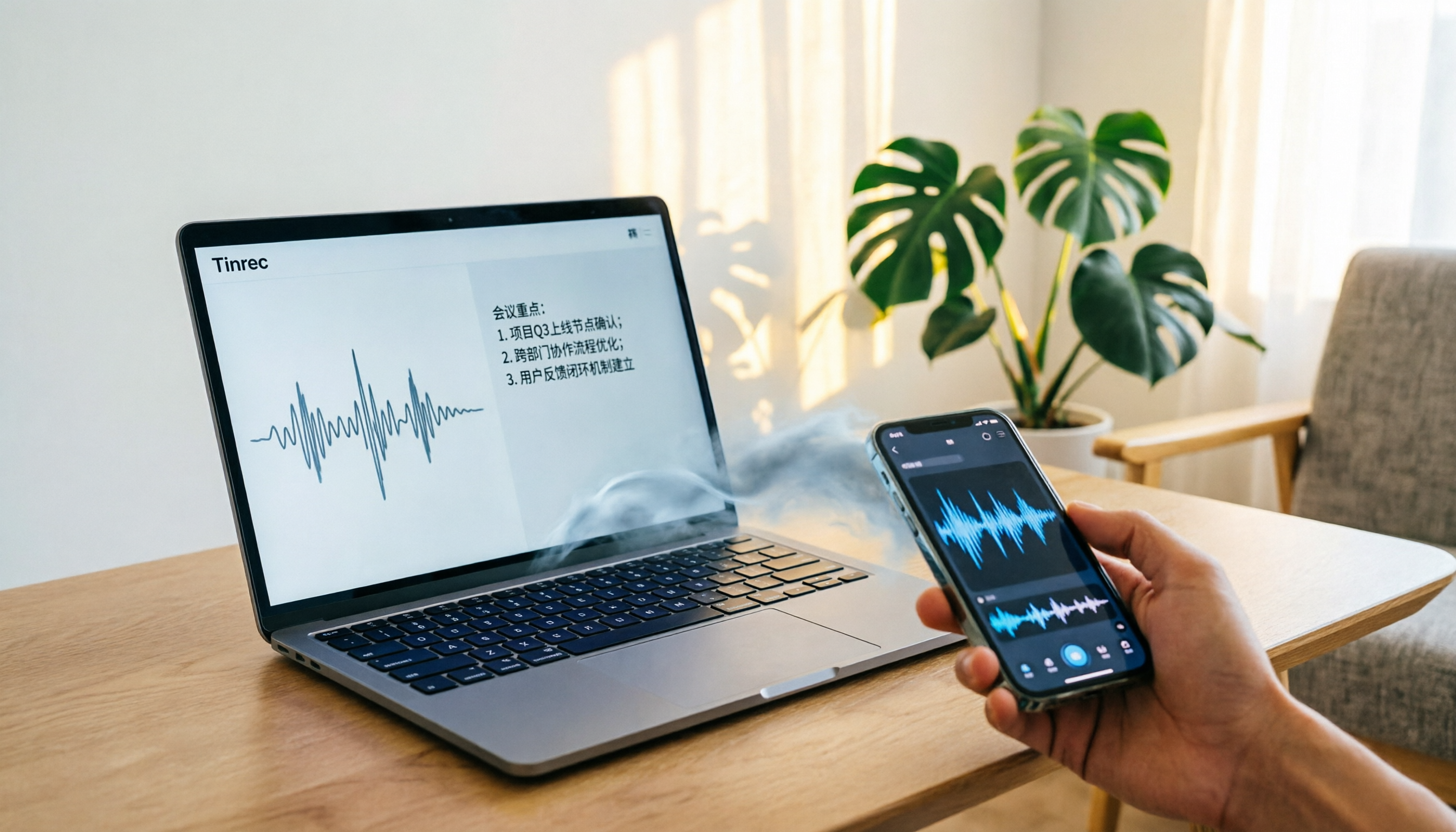
If your recording is a meeting, interview, or class, Tinrec (秒听录音) is more practical than just exporting an M4A. Tinrec is an AI meeting notes and collaboration tool. Upload your iPhone recording, and it transcribes the audio, then auto-generates summaries, chapters, key points, and action items.
For example, upload a 40-minute client interview, and Tinrec not only gives you a transcript but also organizes the client's needs, objections, and next steps. After recording, you can ask Tinrec directly: "What are the client's concerns about pricing?" It uses semantic understanding to answer, not just keyword search.
More importantly, Tinrec's output can be exported as text, reports, or tables, and synced to tools like Notion, Google Docs, OneNote, and Dropbox. Unlike typical recording apps that only let you download audio, Tinrec turns recordings into workable data.
Beyond Voice Memos: Other iPhone Recording App Options
Recorder Pro
Recorder Pro is a feature-rich mobile recording app that supports MP3, M4A, AAC, WAV, and more. It also allows mixing with music, recording via Bluetooth headphones, and scheduled recordings. It's suitable for users who need format flexibility and advanced recording controls. However, it focuses on recording and audio processing—it won't auto-generate summaries, action items, or let you ask questions about the content like Tinrec does.
Voice Memos
Voice Memos is the built-in, zero-barrier option on iPhone. It supports basic recording, trimming, replacing, and transcription, making it great for quick notes and short interviews. The downside is limited post-processing; you'll still need to handle transcripts and highlights yourself. If you need "recording straight to meeting notes," Voice Memos only covers the first half.
Pitfall Guide: 3 Common Mistakes When Downloading iPhone Voice Memos
Pitfall 1: Keeping Only One Copy on Your Phone.
iPhone storage is limited, and many people record and forget, only to find the file deleted or the phone malfunctioning when they need it. Regularly back up recordings via AirDrop or the Files app to your computer or cloud.
Pitfall 2: Thinking Downloading the Audio Equals Done.
Getting the M4A is just the first step. If it's a meeting or interview, you'll still need to listen, transcribe, and summarize. Instead of manual work, upload the recording to Tinrec right after recording to auto-generate summaries and action items, then export in your preferred format.
Pitfall 3: Ignoring Privacy and Consent Issues.
Before recording and downloading, especially for meetings, interviews, or classes, ensure participants are informed and consent. Also, check the privacy policy and data handling of any transcription or cloud tool before uploading.
Summary: Which Method Should You Use to Download iPhone Recordings?
If you just need to back up or share the audio: use AirDrop if you have a Mac—it's fast and uncompressed; otherwise, use email or LINE for the lowest barrier.
If you need to organize meeting, interview, or class content: don't just download the M4A. Upload the recording to Tinrec to get text, summaries, and action items. Tinrec supports Chinese and multilingual content, and you can export results to Notion, Google Docs, and other tools—far more efficient than manual listening.
Try Tinrec with a meeting recording to test its transcription and summary quality before committing long-term; you don't need to pay upfront.
References
Turn every recording into actionable outcomes
Get 60 free transcription minutes when you sign in. No credit card required.
Related Reading
You might also like

5 Meeting Transcription Solutions Tested for 2026: How to Fix No Sound in Teams Meetings
When you can't hear audio in a Teams meeting, don't rush to restart the meeting—the issue could be muted speakers, wrong device selected, dead Bluetooth battery, driver problems, or system audio not checked when sharing your screen. This guide walks you through troubleshooting steps in the order a student actually tested them, compares the real-world performance of 5 meeting transcription solutions, and explains why I ultimately made Tinrec a staple for online classes and group projects.

6 Teams Meeting Recording Tools Tested and Compared for 2026: How to Recover Meeting Highlights Even When You Can't Hear the Other Party
When you can't hear the other party in a Teams meeting, don't rush to restart your computer. This article breaks down three scenarios—'you can't hear the other party,' 'the other party can't hear you,' and 'no sound when sharing video'—organizes a 6-step troubleshooting checklist, and then compares 6 meeting recording tools so that when audio issues occur, you can still recover transcripts, summaries, and action items afterward.

2026 AI Meeting Notes Tools: 5-Way Comparison — Understand the Criteria First to Avoid Choosing Wrong
Most people pick AI meeting notes tools based only on language count and free minutes, then end up with a tool they don't use for long. This article starts with 5 evaluation criteria that truly affect daily use, comparing Tinrec, Otter.ai, Notta, PLAUD Note, and others on meeting capture methods, post-meeting output, Chinese-language experience, data retention, and pricing transparency. It also covers 4 common buying mistakes and scenario-based selection advice.

4 AI Meeting Notes Apps Tested for 2026: Which Free Version Is Good Enough?
How to choose AI meeting notes software in 2026? This article tests and compares Tinrec, Notta, Granola, and TurboScribe across five dimensions: meeting capture method, post-meeting workflow, Chinese-language experience, team collaboration, and free tier limits. It also covers buying criteria, common pitfalls, and scenario-based recommendations.

2026 AI Meeting Notes Free Plans Compared: 4 Tools Side by Side
A 2026 comparison of free plans for 4 AI meeting notes tools: from hidden limits on free quotas, meeting audio sources, post-meeting outputs, to team roles and seats, clarifying the differences and use cases of Tinrec, Otter.ai, Notta, and Granola—helping you pick the one that truly fits without overspending.

2026 AI Meeting Notes Software: 5 Top Picks Tested and Compared — Is the Free Version Enough? Post-Meeting Organization Is Key
From free usage limits, Chinese transcription, bot-free recording, to team seat management, here are the key factors to consider when choosing AI meeting notes software in 2026. We also demonstrate Tinrec's complete workflow for post-meeting summaries, action items, AI Q&A, and team knowledge retention.

Best AI Meeting Notes Platforms in 2024: Testing 4 Options, Tinrec Excels for Chinese Meetings and Team Knowledge Retention
Many people treat AI meeting note platforms as simple audio-to-text converters, only to find themselves re-listening and catching up on action items afterward. This article covers selection criteria, pitfalls to avoid, and the positioning of Tinrec, Otter.ai, Notta, and Granola to help you determine which platform suits Chinese meetings, bot-free recording, and team knowledge retention.

2026 Free AI Meeting Notes Generators Compared: 5 Tools to Try
The meeting ends, and the overtime begins. This article examines five AI meeting notes generators from four angles: how free quotas work, how meetings are recorded, what you can do after the meeting, and how teams can take over later. It breaks down who Tinrec, Notta, Otter.ai, Granola, and TurboScribe are each best for, so you can verify—without spending money—whether a tool actually understands your meetings.

2026 AI Meeting Notes Comparison: 5 Tools Tested Without Bots — Which Handles Chinese Summaries Best?
For small-team leaders choosing an AI meeting notes tool, the real questions are where your meeting audio comes from and what you need after the meeting. This article tests 5 tools — Tinrec, Notta, Otter.ai, Granola, and PLAUD — across 4 key criteria: bot-free recording, post-meeting outputs, quotas, and team governance, to help you find the right fit for your meeting style.