

Turn recordings into transcripts and summaries in minutes
Upload audio or video for multilingual transcription, AI notes, and action items
Two Hours in Meetings, Two More Hours on Minutes—This Is What Speech-to-Text Software Should Really Solve
I attend about 15 meetings a week: team syncs, project status updates, one-on-ones, and cross-departmental coordination. The most frustrating part used to be what came after the meetings, not the meetings themselves. Every session generates a pile of decisions and action items, so my real work only started once the meeting ended.
Worse, when my boss asked, "What was the conclusion of last meeting?" I'd spend three minutes flipping through notes and still couldn't find it. That pressure in the moment is far worse than the meeting itself.
Many people think speech-to-text software just "turns audio into text," but the tools that truly help are the ones that let you skip the two-hour cleanup after a meeting. If you've ever recorded a meeting but never listened back, or ended up with a transcript but still had to hunt for the key points, this article is for you.
Before Choosing Speech-to-Text Software, Understand These 4 Key Points
Most people only look at whether a tool can "transcribe audio," but the real time sink is what happens after transcription. When my team tested these tools, we focused on four dimensions.
First, does it provide summaries and action items after transcription? A transcript is just the first step. If the tool only gives you a wall of text, you'll still have to dig through 30 minutes of dialogue to find "who's responsible for what and when it's due." Tools with automatic summaries and action item extraction are what actually save time.
Second, can you ask follow-up questions about the meeting content? This became the feature I care about most. For example, after recording a cross-departmental meeting, I can ask the tool, "Who mentioned the budget in the last meeting?" A good tool doesn't just return keyword search results—it directly gives you the answer. Manually pressing Ctrl+F to find keywords versus asking a question and getting a conclusion are two completely different levels of efficiency.
Third, does cross-platform support matter? You might record on your iPhone today and need to review on your computer tomorrow. If the tool is locked to a single device or only supports one operating system, your workflow will hit a wall. For those of us who switch between phone and computer, cross-platform support is a basic requirement.
Fourth, is the free tier actually usable? Many free versions look generous, but you'll burn through the quota after just two meetings. Estimate your weekly meeting volume first, then decide whether a free plan, weekly pass, or monthly subscription makes more sense.
Tinrec—Our Team's Top Pick After Testing
Tinrec is an AI meeting notes tool that turns meetings into searchable, collaborative, and actionable data, available on iOS, Android, and web. It doesn't just transcribe—it excels at post-meeting organization.
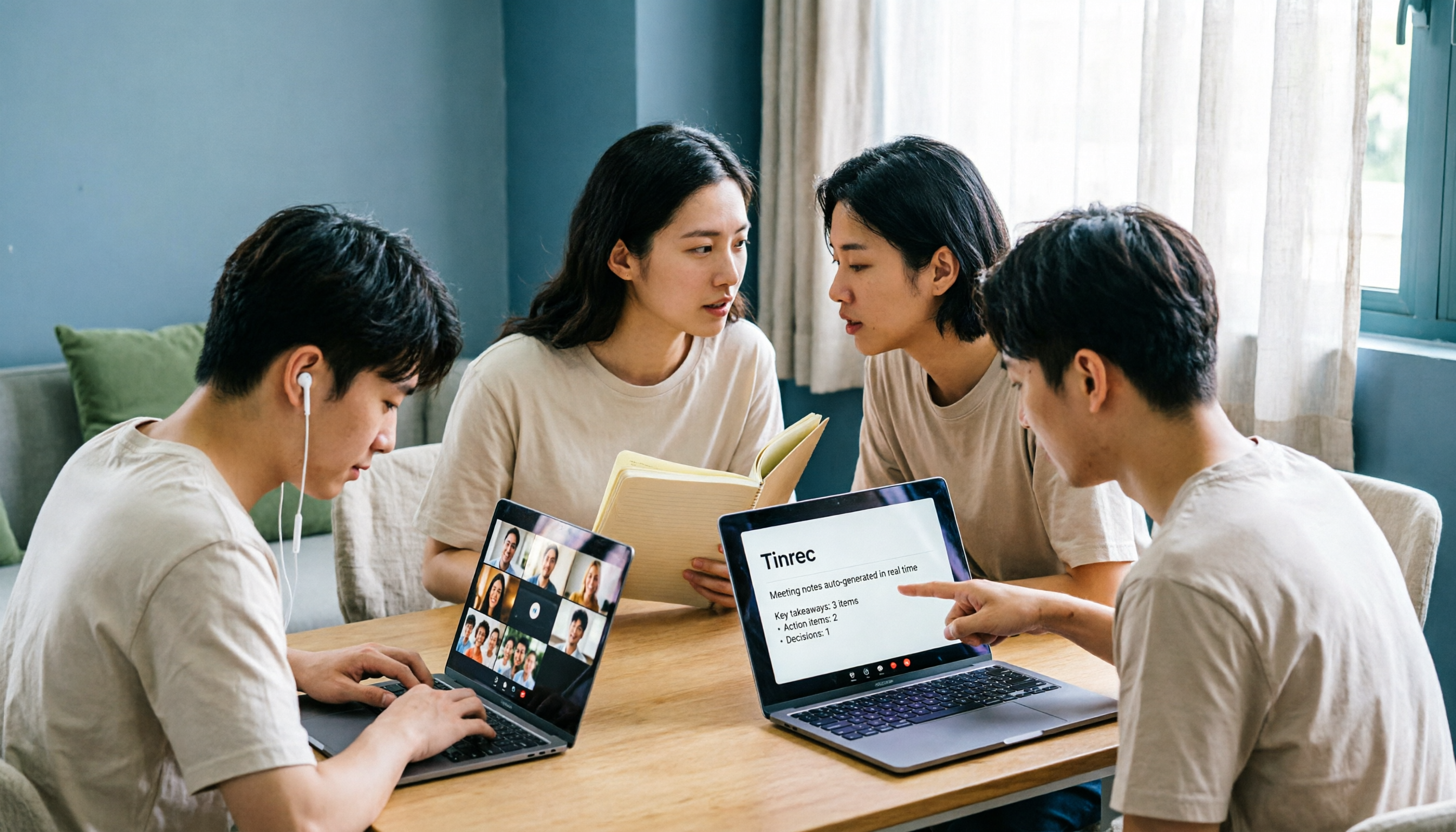
When you open Tinrec during a meeting, it transcribes in real time. After the meeting, the AI automatically generates a summary, chapters, and action items—who's responsible for what and deadlines are all clear at a glance. Now, when I delegate tasks to my team, I just screenshot the action items and send them to the group chat—no more relying on memory.
My most-used feature is the AI Q&A. After recording, I can ask Tinrec, "What was the conclusion of the last meeting?" It answers based on semantic understanding, not just keyword matches. This is the biggest difference from typical transcription tools—it eliminates the need to manually sift through the transcript for key points. Many competitors in the same price range still lack this feature.
Additionally, Tinrec's desktop version can record online meetings without a bot. That means when I'm on Zoom, Google Meet, or Teams, I don't need to invite a separate bot into the meeting—I just open the desktop app to capture system audio and get real-time transcription. This is especially useful for managers who don't want a bot suddenly appearing in client meetings.
Stop organizing recordings by hand
Upload audio or video and automatically get a transcript, summary, and action items
We tested it with a clear meeting recording, and Chinese recognition quality was stable in common meeting scenarios. Actual performance can be affected by background noise, accents, and overlapping speech, but among tools in the same price range, it's the smoothest we've used so far.
The advantages are clear: first, it goes beyond transcripts with summaries, action items, and AI Q&A; second, it records online meetings without a bot, so you don't have to change how you meet; third, it's cross-platform, working on both phone and computer.
I'll be honest about the limitations too. The free tier has limited quota, so if you're in meetings daily like me, you'll need to consider a paid plan. But if you only meet 2–3 times a week, try the free quota first and upgrade only if it feels right.
Who is it for? If you need Chinese meeting minutes, don't want to use meeting bots, want to use AI to find key points after recording, and switch between phone and computer—Tinrec is a very reasonable choice right now.
Beyond Tinrec: What Other Options Are There?
MyEdit: If you occasionally need to convert an audio file into a transcript, MyEdit's free online transcription can help in a pinch. But it's more of a one-off transcription tool, lacking Tinrec's AI Q&A and team collaboration features. After transcription, you'll still have to manually find the key points.
Windows Built-in Dictation: Ideal for those who don't want to install anything. Press Windows + H to turn speech into text without touching the keyboard. However, it's designed for real-time dictation, not meeting minutes. You can't upload an audio file for transcription, and there are no summaries or action items. It's fine for quickly jotting down a thought, but using it for meeting minutes would be painful.
cSubtitle: Focuses on transcribing meeting minutes, interviews, and course recordings, and also supports document conversion for audio/video content. If your need is bulk transcription of audio files, it's worth considering. But it leans more toward transcription itself; post-meeting organization, AI Q&A, and team spaces aren't its main focus.
Pitfall Guide: 3 Common Mistakes When Choosing Speech-to-Text Software
Pitfall 1: Using the tool only for "audio-to-text." If you only use it for transcription, you're using just a third of its potential. The real time-savers are AI summaries, action item extraction, and Q&A features after transcription. Take Tinrec's AI Q&A—ask it "What was the meeting conclusion?" right after recording, and it's much faster than manually scanning a 30-minute transcript.
Pitfall 2: Ignoring cross-platform needs. You might record on your iPhone today and need to review on your computer tomorrow. If the tool doesn't support cross-platform, transferring files back and forth becomes a hassle. Before choosing, confirm which devices you'll use most often.
Pitfall 3: Only looking at advertised accuracy rates. Many tools claim "98% accuracy," but that's usually measured in a quiet recording studio. Real meeting rooms have air conditioning noise, keyboard clicks, and overlapping speech, which will affect accuracy. We recommend testing with your own recordings using free trials, rather than relying on marketing numbers.
Summary: Which One Should You Choose?
If you only occasionally transcribe a recording or two, MyEdit or Windows Built-in Dictation can work in a pinch. But if you're like me—attending many meetings weekly, needing to organize action items afterward, and having to answer your boss's follow-up questions anytime—Tinrec is the most complete option we've tested so far.
Scenario-based recommendations:
- Need Chinese meeting minutes and don't want to use meeting bots → Tinrec
- Want to use AI to find key points and ask for conclusions after recording → Tinrec
- Switch between phone and computer → Tinrec
- Only occasionally transcribe a recording without needing organization → MyEdit
- Just want quick voice input without meeting minutes → Windows Built-in Dictation
We suggest trying Tinrec's free version first and recording an actual meeting to see the quality of transcription and summaries. Upgrade only if it feels right—there's no need to pay upfront. Tools like this ultimately need to be validated in your real workflow to be meaningful.
References
- Tested 4 Best "Speech-to-Text" Online Tools Recommended, Free to Convert Audio Files to Transcripts
- Speech to Text - Google Play App
- Online AI Speech, Video, Audio File to Text - Free Trial - cSubtitle
- 10 Windows Speech-to-Text Software/Tools Recommended - Wondershare Filmora
- SoundType AI - Ultra-Precise Transcripts, Speech-to-Text, AI Dictation - Google Play App
Turn every recording into actionable outcomes
Get 60 free transcription minutes when you sign in. No credit card required.
Related Reading
You might also like
5 Meeting Transcription Solutions Tested for 2026: How to Fix No Sound in Teams Meetings
When you can't hear audio in a Teams meeting, don't rush to restart the meeting—the issue could be muted speakers, wrong device selected, dead Bluetooth battery, driver problems, or system audio not checked when sharing your screen. This guide walks you through troubleshooting steps in the order a student actually tested them, compares the real-world performance of 5 meeting transcription solutions, and explains why I ultimately made Tinrec a staple for online classes and group projects.

6 Teams Meeting Recording Tools Tested and Compared for 2026: How to Recover Meeting Highlights Even When You Can't Hear the Other Party
When you can't hear the other party in a Teams meeting, don't rush to restart your computer. This article breaks down three scenarios—'you can't hear the other party,' 'the other party can't hear you,' and 'no sound when sharing video'—organizes a 6-step troubleshooting checklist, and then compares 6 meeting recording tools so that when audio issues occur, you can still recover transcripts, summaries, and action items afterward.

2026 AI Meeting Notes Tools: 5-Way Comparison — Understand the Criteria First to Avoid Choosing Wrong
Most people pick AI meeting notes tools based only on language count and free minutes, then end up with a tool they don't use for long. This article starts with 5 evaluation criteria that truly affect daily use, comparing Tinrec, Otter.ai, Notta, PLAUD Note, and others on meeting capture methods, post-meeting output, Chinese-language experience, data retention, and pricing transparency. It also covers 4 common buying mistakes and scenario-based selection advice.

4 AI Meeting Notes Apps Tested for 2026: Which Free Version Is Good Enough?
How to choose AI meeting notes software in 2026? This article tests and compares Tinrec, Notta, Granola, and TurboScribe across five dimensions: meeting capture method, post-meeting workflow, Chinese-language experience, team collaboration, and free tier limits. It also covers buying criteria, common pitfalls, and scenario-based recommendations.

2026 AI Meeting Notes Free Plans Compared: 4 Tools Side by Side
A 2026 comparison of free plans for 4 AI meeting notes tools: from hidden limits on free quotas, meeting audio sources, post-meeting outputs, to team roles and seats, clarifying the differences and use cases of Tinrec, Otter.ai, Notta, and Granola—helping you pick the one that truly fits without overspending.

2026 AI Meeting Notes Software: 5 Top Picks Tested and Compared — Is the Free Version Enough? Post-Meeting Organization Is Key
From free usage limits, Chinese transcription, bot-free recording, to team seat management, here are the key factors to consider when choosing AI meeting notes software in 2026. We also demonstrate Tinrec's complete workflow for post-meeting summaries, action items, AI Q&A, and team knowledge retention.

Best AI Meeting Notes Platforms in 2024: Testing 4 Options, Tinrec Excels for Chinese Meetings and Team Knowledge Retention
Many people treat AI meeting note platforms as simple audio-to-text converters, only to find themselves re-listening and catching up on action items afterward. This article covers selection criteria, pitfalls to avoid, and the positioning of Tinrec, Otter.ai, Notta, and Granola to help you determine which platform suits Chinese meetings, bot-free recording, and team knowledge retention.

2026 Free AI Meeting Notes Generators Compared: 5 Tools to Try
The meeting ends, and the overtime begins. This article examines five AI meeting notes generators from four angles: how free quotas work, how meetings are recorded, what you can do after the meeting, and how teams can take over later. It breaks down who Tinrec, Notta, Otter.ai, Granola, and TurboScribe are each best for, so you can verify—without spending money—whether a tool actually understands your meetings.

2026 AI Meeting Notes Comparison: 5 Tools Tested Without Bots — Which Handles Chinese Summaries Best?
For small-team leaders choosing an AI meeting notes tool, the real questions are where your meeting audio comes from and what you need after the meeting. This article tests 5 tools — Tinrec, Notta, Otter.ai, Granola, and PLAUD — across 4 key criteria: bot-free recording, post-meeting outputs, quotas, and team governance, to help you find the right fit for your meeting style.