

Turn recordings into transcripts and summaries in minutes
Upload audio or video for multilingual transcription, AI notes, and action items
What is Meeting Ink?
Meeting Ink is an AI meeting notes assistant that uses generative AI to automatically produce transcripts and smart summaries from platforms like Zoom, Google Meet, Teams, and Webex. It also supports recording in-person meetings. Features include real-time captions, multi-language translation, one-click meeting share links, and customizable summary templates.
In short, it separates "attending meetings" from "writing meeting notes"—you focus on the discussion, and the AI handles the transcript and key takeaways.
Common Pitfalls: What Most People Get Wrong When Choosing a Meeting Notes Tool
Pitfall 1: Only Checking "Can It Transcribe?" and Ignoring "What Happens After Transcription?"
Many people ask just one question: "Can it turn audio into text?" But getting a transcript is only the first step. The real time sink comes later—you have to dig through thousands of words to find conclusions, action items, and owners.
Meeting Ink's AI summaries automatically organize key points and support custom summary templates. You can upload project codes, technical terms, client names, company names, and other frequently used vocabulary to help the AI understand meeting content more accurately. This is especially useful for cross-department communication, as the AI automatically aligns and corrects industry-specific terminology, reducing misinterpretation.
Pitfall 2: Assuming One Workflow Fits All Meeting Scenarios
Online meetings, in-person meetings, and offline recordings have very different needs. Some tools only support online meetings and fall short when it comes to in-person discussions.
Meeting Ink is designed to handle all three: online meetings use a meeting bot that automatically joins and records, in-person meetings can be recorded directly via the mobile app or browser, and offline audio files can be uploaded for transcription. All three paths work, so you don't need different tools for different scenarios.
Pitfall 3: Overlooking the Value of a Meeting Bot for Recurring Meetings
If you have weekly recurring meetings, the manual steps of starting a recording, saving, and converting files add up quickly. Even worse, it's common to realize 10 minutes into a meeting that you forgot to hit record.
Meeting Ink integrates with Google Calendar, allowing you to pre-schedule a bot to automatically join online meetings. After the meeting ends, the transcript and AI summary are automatically sent to you and other attendees' email. This is ideal for recurring meetings, large cross-department discussions, or scenarios where the host simply doesn't have time to manage the recording.
Pitfall 4: Confusing "Supports Many Languages" with "Accurate in Every Language"
Supporting 20 languages is not the same as "Traditional Chinese is accurate enough." For users in Taiwan, the pain points are usually mixed Chinese-English, local Taiwanese terminology, and even Taiwanese Hokkien mixed in.
Meeting Ink continuously optimizes for Traditional Chinese and Taiwanese colloquial usage, and also offers Taiwanese Hokkien and Hakka speech recognition. If your team has meetings in Taiwanese Hokkien or frequently mixes Chinese and English, this capability is more practical than just "supporting many languages."
Pitfall 5: Comparing Only Monthly Fees and Ignoring Actual Usage Costs
A $10/month plan versus a $15/month plan might seem like a big difference. But if you meet for 6 hours a week, that's 24 hours of transcription per month. If a cheaper plan only includes 10 hours, you might have to pay extra for overage, making the actual cost higher.
Meeting Ink's PRO+ plan costs $549 TWD per month and includes 40 hours of transcription, which works out to about NT$13.7 per hour. Comparing on a "per-hour actual cost" basis is more accurate than just looking at the monthly fee.
Core Features and Highlights
Real-Time Captions and Multi-Language Translation
Real-time captions appear during meetings, and translation can be enabled. This is suitable for international meetings, overseas client presentations, or scenarios that require simultaneous note-taking.
Stop organizing recordings by hand
Upload audio or video and automatically get a transcript, summary, and action items
AI Speaker Diarization
Speaker identification is accurate in multi-person meetings, and summaries are well-structured. This is particularly helpful for tracking "who said what, and who is responsible for what."
Multi-Platform Support
Works on browser, iOS, and Android. The mobile app is great for client visits, business trips, or one-on-one discussions at a coffee shop; the desktop version is ideal for online meetings. All content syncs across devices, so you don't need to manually transfer files.
External Audio Upload
Audio files recorded on a voice recorder, camera, or other devices can be uploaded directly and converted into transcripts and summaries. This is suitable for offline scenarios without internet access.
Pricing
Meeting Ink offers both free and paid plans. Recently, the Pro and Pro+ plans have seen a price reduction.
The PRO+ plan costs $549 TWD per month and includes 40 hours of transcription, which works out to about NT$13.7 per hour. Considering the feature set and price, it's a very reasonable option on the market right now.
The free plan is a good way to test transcript quality and summary effectiveness before deciding to upgrade. We recommend uploading one of your own meeting recordings to the free version and checking the transcription results before evaluating.
How to Use
Step 1: Sign Up and Log In
Open your browser and go to the Meeting Ink official website. It supports Microsoft account login, and the process is quick. No plugins or additional software are required.
Step 2: Choose Your Recording Method
Online meetings: Connect Google Calendar, or manually send the meeting bot to join the meeting room. The bot will attend on time and record the entire session.
In-person meetings: Open the mobile app and start recording with one tap. You can enable real-time captions during recording.
Offline audio: Upload the audio file directly, and the AI will automatically transcribe and generate a summary.
Step 3: Upload Professional Terms (Recommended)
In settings, upload project codes, technical terms, client names, company names, and other frequently used vocabulary. This step significantly improves the accuracy of transcripts and summaries, especially for technical discussions or meetings with many internal terms.
Step 4: Get Transcript and Summary
After the meeting, the transcript and AI summary are automatically generated. You can create a share link with one click and send it to your team and clients.
Step 5: Customize Summary Templates
If you need a fixed summary format for every meeting (e.g., conclusions, action items, owners, deadlines), you can customize a template so the AI outputs in that format.
FAQ
Which meeting platforms does Meeting Ink support?
It supports major online meeting platforms like Zoom, Google Meet, Teams, and Webex. It also integrates with Google Calendar so the bot can automatically join meetings.
Is the free plan enough?
We recommend testing transcript quality and summary effectiveness with the free plan first. If you don't have many meeting hours per week, the free plan might be sufficient; for higher meeting volumes or full features, consider the PRO or PRO+ plans.
Can it really recognize Taiwanese Hokkien?
Meeting Ink offers Taiwanese Hokkien and Hakka speech recognition, suitable for teams that mix these languages. If your meetings often include Taiwanese Hokkien, this is a more practical advantage than other tools.
Will data sync between mobile and desktop?
Yes. Content recorded on the mobile app syncs completely with the desktop version, so you don't need to manually transfer files.
Can offline recordings be transcribed?
Yes. Audio files recorded on a voice recorder or other devices can be uploaded directly to Meeting Ink, and the AI will automatically transcribe and generate a summary.
Is Meeting Ink's AI summary accurate?
Meeting Ink collaborates with OpenAI to integrate natural language processing technology and uses NVIDIA's AI computing technology to accelerate processing. Actual accuracy depends on recording quality and speaker clarity, so we recommend testing with your own meeting recordings for the most accurate assessment.
References
- Meeting Ink - AI Meeting Notes Assistant | Automatic Transcription and Meeting Summaries
- Meeting Ink - 2026 AI Meeting Notes Tool Test: Comparing 7 Speech-to-Text and Summary Speeds | Meeting Ink - AI Meeting Notes Assistant
- Meeting Ink - Transcript AI Meeting Summary Speech to Text - Google Play App
- Zoom/Meet/Teams/Webex Meeting Notes and In-Person Recording to Text | Meeting Ink - AI Meeting Notes Assistant
- Meeting Ink - Transcript AI Meeting Summary Speech to Text - App Store
Turn every recording into actionable outcomes
Get 60 free transcription minutes when you sign in. No credit card required.
Related Reading
You might also like

2026 AI Meeting Notes Showdown: Tinrec vs Granola on Context Understanding and Post-Meeting Workflows
Nobody wants to re-listen to a meeting recording—that's the biggest pain point of AI meeting tools. This article focuses on context understanding and compares Tinrec and Granola across five dimensions: audio retention, input sources, Chinese language and translation, post-meeting outputs, and team governance, helping you decide which tool better fits your meeting scenarios.

Tinrec vs Microsoft Word Copilot (2026): 5-Dimension Comparison for AI Meeting Minutes in Word
Discover how Tinrec and Microsoft Word Copilot compare in generating AI meeting minutes for Word across 5 key dimensions: audio capture, Chinese transcription, post-meeting organization, Word delivery, and team collaboration. Find the most time-saving workflow for your meetings.

2026 AI Agent Meeting Tools Compared: Which Is Fastest for Chinese Meeting Notes and Action Items?
We tested four AI Agent meeting tools—Tinrec, Otter.ai, Notta, and Granola—comparing bot-free recording, Chinese transcription, post-meeting summaries and action items, AI Q&A, and team knowledge retention to help you choose the most time-saving solution for meeting notes.

2026 AI Meeting Productivity Tools: Bot-Free Recording + Auto Summaries & Action Items
Many people treat AI meeting tools as simple transcript generators, but what really impacts efficiency is post-meeting organization and follow-up. This article uses Tinrec to demonstrate how to go from bot-free recording, real-time transcription, AI summaries, and action item extraction to team workspace retention, and also covers purchasing checkpoints and FAQs.
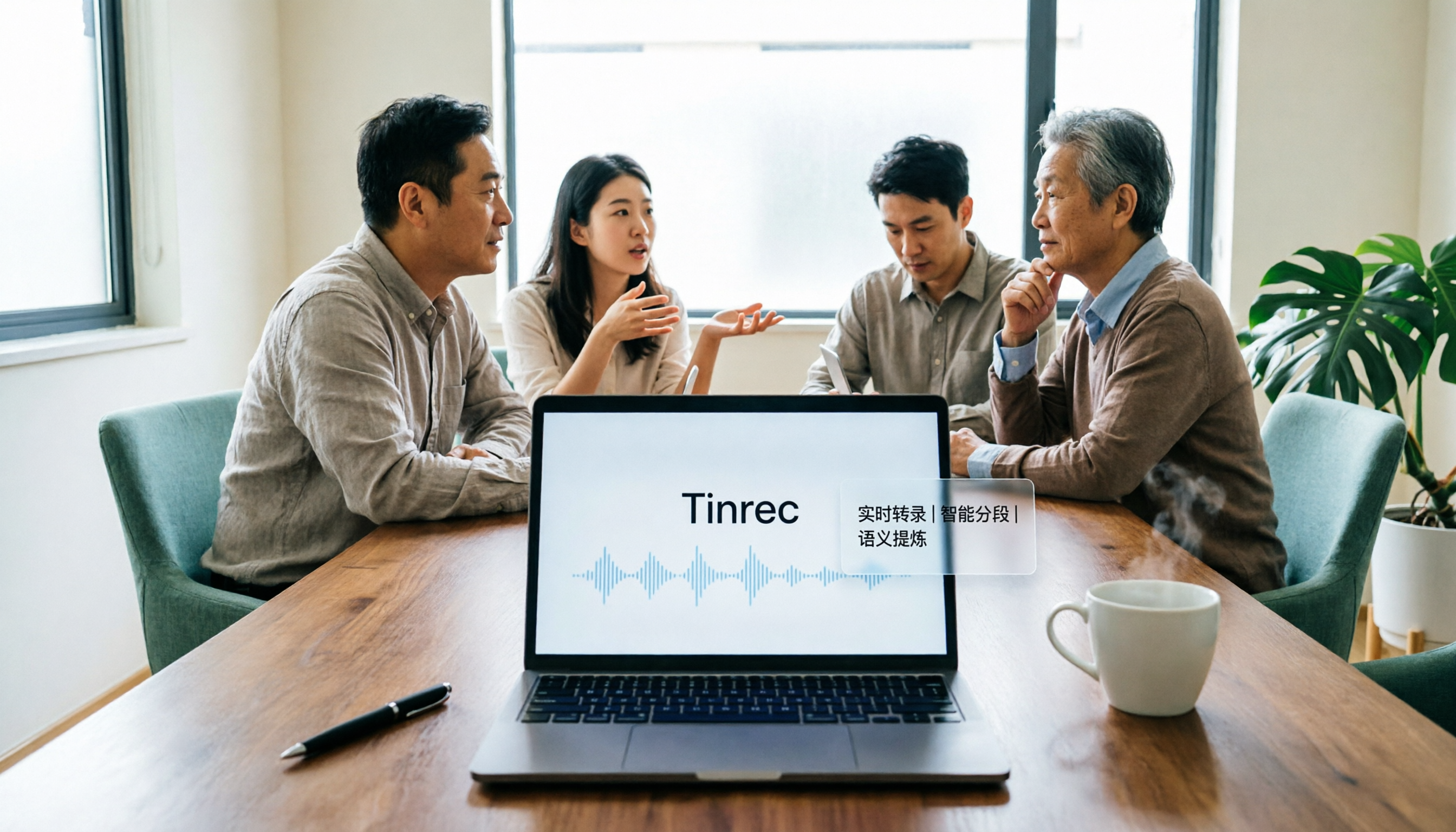
2026 AI Meeting Assistant Comparison: Tinrec vs. Granola — Which Is Better for Chinese-Speaking Teams?
Starting from the most common misconception about AI meeting assistants, this comparison tests Tinrec and Granola across five dimensions: Chinese-language meeting experience, audio retention, post-meeting outputs, team governance, and cross-device use—helping you decide which workflow truly fits your team.

2026 Comparison of 4 Meeting Productivity Agents: Which One Actually Saves Post-Meeting Time?
The real work starts after the meeting ends. This article uses the same Chinese meeting recording to test the post-meeting workflows of Tinrec, Otter.ai, Fireflies.ai, and Notta—covering bot-free recording, summary and action items, AI Q&A, and team knowledge retention—to help you decide which meeting productivity agent truly saves time.

2026 AI Meeting Notes Tools Compared: Tinrec vs Otter.ai vs Notta vs Granola — Which Turns Meetings into Usable Data?
Stop taking notes yourself: a hands-on comparison of Tinrec, Otter.ai, Notta, and Granola covering transcripts, summaries, action items, and AI Q&A, plus buying criteria, team seat and pricing details, and pitfalls to avoid.

4 AI Agents That Generate Excel Files Tested: Which One Actually Produces a Usable .xlsx?
After a meeting, turning notes into an Excel file often means replaying the entire recording. This article starts from "where does the data come from" and compares four approaches: Tinrec, Excel's built-in Agent mode, Gemini Notebook Agent, and Aspose.Cells AI Generator. It also covers 5 key selection criteria, 4 common mistakes, and practical recommendations.

2026 Free AI Agent PPT Generation Options: 5 Tools Compared
AI Agent PPT generation tools are proliferating, but the real question is where the content comes from. This article reviews five available options in 2026, including Microsoft Copilot, MiniMax Agent, ChatPPT, and two self-hostable open-source projects. It also explains how to use Tinrec to turn meeting recordings into usable presentation material, with a pitfalls guide and selection advice.