
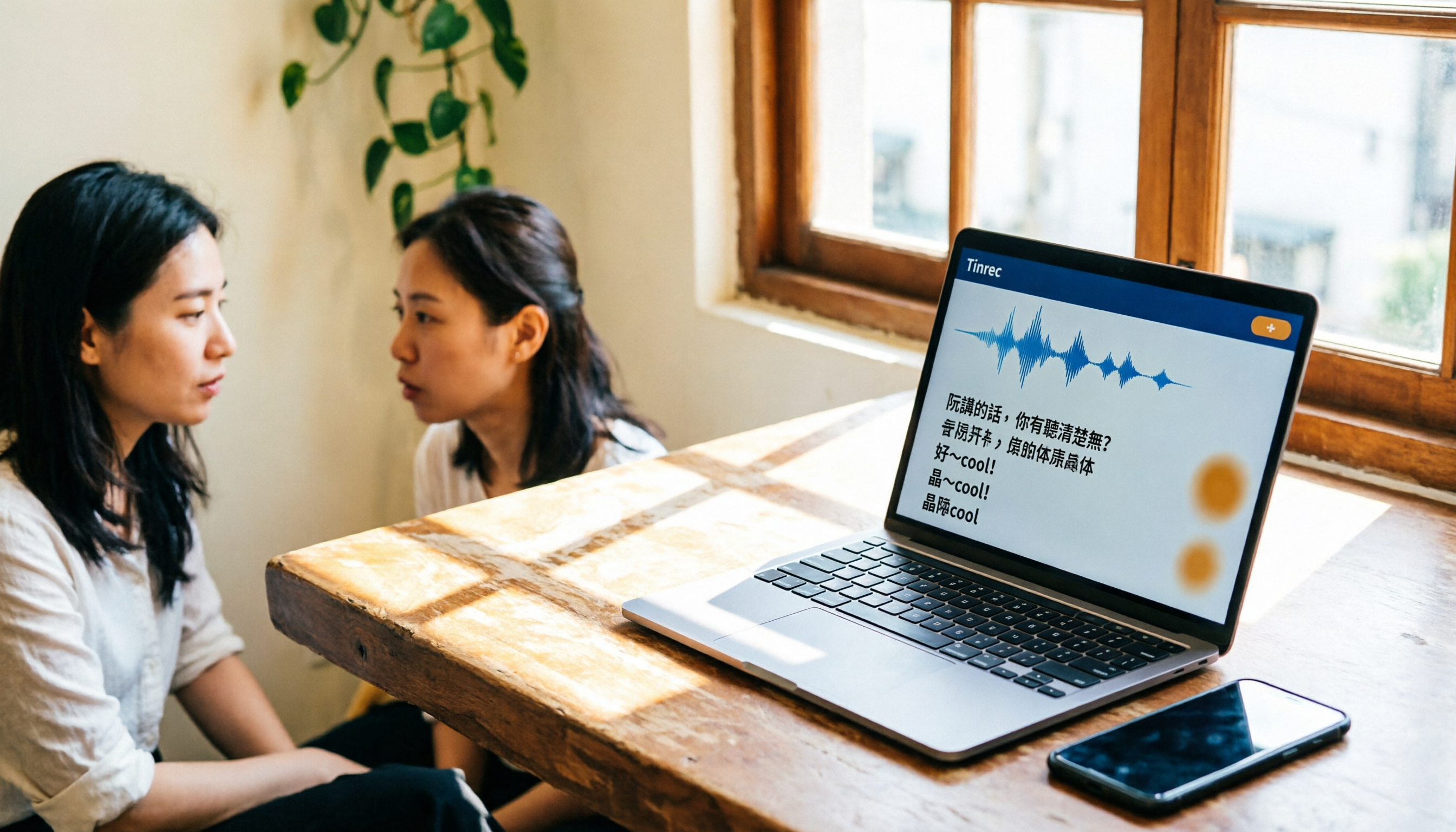
Turn recordings into transcripts and summaries in minutes
Upload audio or video for multilingual transcription, AI notes, and action items
Don't rush to download: Most people get stuck with Yating Transcriber not because the tool is hard, but because they get the steps wrong
Many people open Yating Transcriber for the first time, thinking they can just hit record like a voice recorder. But then they can't find the file after recording, the progress gets stuck at 99% and they think it's frozen, or they realize the format is wrong after exporting. These issues are mostly not flaws in the tool itself, but rather a lack of familiarity with the "record → transcribe → edit → export" workflow.
The core value of Yating Transcriber is clear: it's an AI speech-to-text service developed by a Taiwanese team, specifically optimized for Taiwanese accents, Taiwanese Hokkien, and the mix of Chinese and English known as "晶晶體" (Jingjing-style). For those who need to organize meeting minutes, interview transcripts, or class notes, it saves not recording time, but the time spent replaying audio and typing manually afterward.
But to use it smoothly, there are a few key points to grasp first. This guide walks you through the entire process in 5 steps, from installation to export, including free tier limits and how to choose a paid plan.
Before using Yating Transcriber, understand these 4 key points
1. Free tier limits and payment options
Yating Transcriber's paid plans are based on duration, with options of 1 hour, 3 hours, and 10 hours, which can be stacked. There's a limit on free usage; if you only occasionally organize meeting minutes or interviews, the free tier is usually sufficient. But if you have multiple long meetings each week, you'll need to estimate your monthly transcription hours in advance to avoid running out of quota mid-recording.
2. Language support scope
Yating Transcriber's strengths lie in Taiwanese accents, Taiwanese Hokkien, Cantonese, Japanese, and the code-switching of Chinese and English (晶晶體). If your content is primarily Taiwanese Mandarin with occasional English technical terms, its recognition performance will be more stable than tools optimized only for standard Mandarin. However, if your main need is long English meetings, you should evaluate other English transcription tools.
3. Platform and device limitations
Yating Transcriber offers an app version that allows real-time recording and transcription via your phone, and you can also import audio files from other apps for transcription. Note that one account cannot be used on multiple devices simultaneously, which is a limitation to confirm if you frequently switch between your phone and computer.
4. Editing capabilities after transcription
After transcription, you can play the audio and edit the transcript within the app, making it easy to correct error-prone sections. This feature is crucial for those who need high-accuracy transcripts, as AI transcription inevitably has errors. Being able to listen and correct in the same interface saves significant time compared to exporting and editing in a separate file.
5-step guide to using Yating Transcriber: complete workflow from recording to export
Step 1: Download and open the app
Search for "Yating Transcriber" in your phone's app store, download, and install it. On first use, you'll need to log in to your account, as transcripts are tied to your account for easy file management and export.
Step 2: Choose to record or import an audio file
After opening the app, tap the record icon at the bottom to start real-time recording with automatic transcription. If you already have an audio file, you can use the Share-in or Universal Link feature to transfer audio from other apps into Yating Transcriber for transcription. The choice depends on your scenario: recording directly at a meeting suits real-time transcription, while post-event organization is better for importing existing audio files.
Stop organizing recordings by hand
Upload audio or video and automatically get a transcript, summary, and action items
Step 3: Wait for transcription to complete
During transcription, the progress bar may stay at 99% for a while. This doesn't mean it's frozen; it indicates that speech recognition is complete, and the system is performing post-processing like speaker segmentation and key point summarization. In this case, just wait patiently. Once done, you'll find the file in the "All Transcripts" list.
Step 4: Listen and correct the transcript
After transcription, it's recommended to spend a few minutes playing the audio and correcting error-prone sections against the transcript. Yating Transcriber's playback feature allows you to listen and edit without switching between an audio player and a text editor. This is especially important for transcripts that need to be archived or shared externally.
Step 5: Export the file
Once you've confirmed the transcript is accurate, tap "Export" in the top-right corner of the transcript screen to save the file to your device. Before exporting, confirm the format and intended use to avoid having to make adjustments after export.
Who is Yating Transcriber suitable for? Who isn't?
Suitable for:
If your content is primarily in a Taiwanese accent, such as meetings, interviews, or class recordings in Taiwan, Yating Transcriber's localization optimization will provide more stable transcription accuracy than general tools. Particularly for college and graduate students organizing online course content or thesis discussions, as well as lawyers handling recorded evidence, it's a scenario where it clearly saves effort.
Not suitable for:
If your primary need is transcribing large volumes of English meetings, or you need to use the same account across multiple devices simultaneously, Yating Transcriber may not be the first choice. Additionally, heavy users should calculate their monthly transcription hours in advance, as paid plans are priced by duration, and costs increase with usage.
Avoid these pitfalls: 4 common mistakes with Yating Transcriber
Pitfall 1: Thinking it's frozen when progress is stuck at 99%
99% means speech recognition is complete, and the system is performing speaker segmentation and key point summarization. Closing the app or re-uploading at this point may cause duplicate processing. The right approach is to wait for the system to finish, then check the "All Transcripts" list.
Pitfall 2: Exporting without correcting after recording
AI transcription will inevitably have errors in real-world environments, especially with background noise or overlapping speech. If you export directly as an official document, errors will be magnified. It's recommended to spend a few minutes listening and correcting, especially for proper nouns, numbers, and names.
Pitfall 3: Ignoring version updates
After February 28, 2026, Yating Transcriber no longer supports version 2.2.0 or earlier. If the app hasn't been updated for a long time, you may not be able to use newer features like Universal Link, and transcription stability could be affected.
Pitfall 4: Not estimating usage before heavy recording
Paid plans are priced by duration. If you don't estimate your monthly meeting or interview hours in advance, you might run out of quota mid-recording. It's recommended to try the free version first, track your weekly usage, and then decide whether to purchase a duration plan.
Summary: Is Yating Transcriber worth using?
If you need a speech-to-text tool that prioritizes Taiwanese accents, Yating Transcriber is currently one of the more stable localized options. Its core advantages lie in being developed by a Taiwanese team, its recognition capabilities for Taiwanese Hokkien and code-switching (晶晶體), and the editing workflow that lets you listen and correct after recording.
Here's how to decide: download the free version first, test it with an actual meeting or interview recording, and see if the transcription accuracy meets your acceptable standard. If the free tier is sufficient, there's no need to rush into paying. If your weekly usage consistently exceeds the free limit, then purchase the 1-hour, 3-hour, or 10-hour plan based on your actual needs.
References
Turn every recording into actionable outcomes
Get 60 free transcription minutes when you sign in. No credit card required.
Related Reading
You might also like

2026 AI Meeting Notes Showdown: Tinrec vs Granola on Context Understanding and Post-Meeting Workflows
Nobody wants to re-listen to a meeting recording—that's the biggest pain point of AI meeting tools. This article focuses on context understanding and compares Tinrec and Granola across five dimensions: audio retention, input sources, Chinese language and translation, post-meeting outputs, and team governance, helping you decide which tool better fits your meeting scenarios.

Tinrec vs Microsoft Word Copilot (2026): 5-Dimension Comparison for AI Meeting Minutes in Word
Discover how Tinrec and Microsoft Word Copilot compare in generating AI meeting minutes for Word across 5 key dimensions: audio capture, Chinese transcription, post-meeting organization, Word delivery, and team collaboration. Find the most time-saving workflow for your meetings.

2026 AI Agent Meeting Tools Compared: Which Is Fastest for Chinese Meeting Notes and Action Items?
We tested four AI Agent meeting tools—Tinrec, Otter.ai, Notta, and Granola—comparing bot-free recording, Chinese transcription, post-meeting summaries and action items, AI Q&A, and team knowledge retention to help you choose the most time-saving solution for meeting notes.

2026 AI Meeting Productivity Tools: Bot-Free Recording + Auto Summaries & Action Items
Many people treat AI meeting tools as simple transcript generators, but what really impacts efficiency is post-meeting organization and follow-up. This article uses Tinrec to demonstrate how to go from bot-free recording, real-time transcription, AI summaries, and action item extraction to team workspace retention, and also covers purchasing checkpoints and FAQs.

2026 AI Meeting Assistant Comparison: Tinrec vs. Granola — Which Is Better for Chinese-Speaking Teams?
Starting from the most common misconception about AI meeting assistants, this comparison tests Tinrec and Granola across five dimensions: Chinese-language meeting experience, audio retention, post-meeting outputs, team governance, and cross-device use—helping you decide which workflow truly fits your team.

2026 Comparison of 4 Meeting Productivity Agents: Which One Actually Saves Post-Meeting Time?
The real work starts after the meeting ends. This article uses the same Chinese meeting recording to test the post-meeting workflows of Tinrec, Otter.ai, Fireflies.ai, and Notta—covering bot-free recording, summary and action items, AI Q&A, and team knowledge retention—to help you decide which meeting productivity agent truly saves time.

2026 AI Meeting Notes Tools Compared: Tinrec vs Otter.ai vs Notta vs Granola — Which Turns Meetings into Usable Data?
Stop taking notes yourself: a hands-on comparison of Tinrec, Otter.ai, Notta, and Granola covering transcripts, summaries, action items, and AI Q&A, plus buying criteria, team seat and pricing details, and pitfalls to avoid.

4 AI Agents That Generate Excel Files Tested: Which One Actually Produces a Usable .xlsx?
After a meeting, turning notes into an Excel file often means replaying the entire recording. This article starts from "where does the data come from" and compares four approaches: Tinrec, Excel's built-in Agent mode, Gemini Notebook Agent, and Aspose.Cells AI Generator. It also covers 5 key selection criteria, 4 common mistakes, and practical recommendations.

2026 Free AI Agent PPT Generation Options: 5 Tools Compared
AI Agent PPT generation tools are proliferating, but the real question is where the content comes from. This article reviews five available options in 2026, including Microsoft Copilot, MiniMax Agent, ChatPPT, and two self-hostable open-source projects. It also explains how to use Tinrec to turn meeting recordings into usable presentation material, with a pitfalls guide and selection advice.