

Turn recordings into transcripts and summaries in minutes
Upload audio or video for multilingual transcription, AI notes, and action items
Can You Really Join Meet Without a Google Account?
Yes, but it depends on how the meeting host has configured the meeting.
In early 2024, Google updated the guest join flow on mobile devices, allowing people without a Google account to "knock" and request to join a meeting. In practice, once the host or co-host approves your request, you can enter the meeting without signing in to a personal or corporate Google account, and without needing to create a new one on the spot.
However, this doesn't mean you can join every Meet meeting directly.
Admins can disable guest access at the domain level, and hosts can set the meeting access type to "Open" so anyone with the link can join directly—no knocking required. So in practice, there are three scenarios:
- The host sets the meeting to "Open," and you join by clicking the link.
- The meeting requires knocking, and the host or co-host approves your entry.
- The admin has disabled guest access, so you can only join with a Google account.
Three Ways to Join Without Signing In
Method 1: Click the Meeting Link to Join Directly
This is the most common path. Organizers typically send the Google Meet link via message, email, or calendar invite, formatted like meet.google.com/xxx-xxxx-xxx.
You don't need to open the Meet homepage first or sign in. Just click the link in your browser, and the system will ask if you want to join with a Google account, but the screen usually retains the option to join as a guest.
In my experience, most Meet links from schools or clubs are set to "Open" or "Knock." After clicking, you enter the name you want to display and wait for the host to let you in.
Method 2: Knock as a Guest from the Google Meet App
Guest access is also supported on mobile devices. You don't need to sign in to the app first; after opening the meeting link, if the meeting isn't open, the system will guide you to send a join request.
The host will see someone knocking, and once approved, you'll enter the meeting directly. This flow is especially convenient for those without a Google account or those borrowing a family member's phone to join.
Method 3: Ask the Host to Change the Meeting Access Type to "Open"
If you find the link stuck on the knocking screen or the system requires sign-in, the most direct solution is to ask the host to check the meeting settings.
The host can select "Open" in the meeting's access type, allowing anyone with the link to join directly—no knocking or Google account needed.
4 Common Questions Students Face
1. Why Am I Stuck on the Sign-In Screen After Clicking the Link?
This is usually due to meeting settings or admin policies that don't allow guest access.
If the meeting is hosted by a school or corporate account, the admin may have disabled guest features at the domain level. In that case, you can't join without a Google account. Ask the host to use a personal account for the meeting or confirm whether the admin allows guests.
2. Can Guests Use the Camera and Microphone?
Yes. Basic meeting features like camera, microphone, screen sharing, and chat are typically available to guests.
Stop organizing recordings by hand
Upload audio or video and automatically get a transcript, summary, and action items
However, guests won't have content automatically saved to their own Google Drive after the meeting, unlike signed-in users. If you need recordings or transcripts, you'll need to handle that separately.
3. Does Not Signing In Affect Meeting Recording?
Recording is usually controlled by the host or meeting organizer; whether guests can record depends on the meeting settings.
If you're a guest and need to preserve the discussion, relying on Meet's built-in features may not be reliable. A more stable approach is to use an external tool to capture the content.
4. What Should I Prepare Before a Meeting Without a Google Account?
Three things:
- Confirm whether the link allows guest access.
- Prepare the name you want to display.
- If you need to keep a record, plan how you'll capture it.
Organize Meeting Content Without Signing In
To be honest, the guest experience in Meet is basically "you can get in," but post-meeting organization features are limited.
My own approach is to use an AI meeting recorder like Tinrec. Tinrec's desktop version can capture system audio directly, so you don't need to add a bot to the Meet meeting or get extra permissions from the host.
During the meeting, Tinrec transcribes speech in real time and automatically generates summaries, chapters, and action items afterward. When our study group discusses, I often join as a guest while running Tinrec to record, so I don't have to rely on memory to recreate meeting notes later.
For students, this is much more practical than manual note-taking. Especially when professors speak quickly or group discussions get chaotic, using AI Q&A afterward to confirm "who said they'd handle which part" is much faster than scrolling through chat logs.
If You're Choosing a Tool, Watch Out for These 4 Points
1. Can It Work Without Signing In or Adding a Bot?
If you often join Meet as a guest, the tool shouldn't require the host to accept a bot into the meeting. Tinrec's desktop version records the computer's audio output directly, so there's no "bot participant" in the meeting.
2. Does It Offer Post-Transcription Organization?
A raw transcript isn't enough. The real time-saver is whether it can automatically generate summaries, extract action items, or even let you ask "What were the key points of this meeting?" afterward.
3. How Well Does It Handle Chinese Content?
If you often have meetings in Chinese or mixed Chinese-English classes, choose a tool that's friendly to Chinese and mixed-language content. Tinrec performs better in Chinese transcription and real-time translation compared to tools primarily designed for English business meetings.
4. Can You Keep the Files?
Some tools don't retain the original audio or only keep it for a limited time. If you want to listen back later, make sure the tool supports audio file retention. Tinrec supports keeping audio files and can export meeting data to tools like Notion and Google Docs, which is handy for end-of-semester organization.
Summary
You can join Google Meet without signing in, but only if the host or admin allows it.
If you're just joining a one-off meeting, clicking the link and knocking is enough. But if you need to retain content, organize key points, or track group tasks, Meet's guest mode alone isn't sufficient—pairing it with an AI meeting recorder like Tinrec is more practical.
Before your next meeting, check the link's permissions and have your recording and transcription tools ready, so you won't have to rely on handwritten notes to keep up.
References
- Google Workspace Updates: Join meetings as a guest without a Google account on mobile devices
- How to join meet without google account - Google Meet Community
- Join Google Meet Without App In 2026
- Google Meet Hacks: How to Join a Meeting | Cloudfresh
- Invite people to meeting without them signing in their google account - Google Meet Community
Turn every recording into actionable outcomes
Get 60 free transcription minutes when you sign in. No credit card required.
Related Reading
You might also like

How to Choose a Voice Recorder Capacity in 2026: 5 Steps from Large-Capacity Recording to AI Meeting Notes
Bought a voice recorder advertised with large capacity, only to find you can store the files but can't organize them? This article examines whether large-capacity voice recorders are truly sufficient from four angles: capacity, battery life, file management, and post-meeting organization. It walks through 5 steps to turn recordings into searchable, queryable meeting notes. It also compares Tinrec with PLAUD, Otter, Notta, and other tools.

2026 Comparison of 3 Hakka Speech Recognition and Post-Meeting Tools: How to Match Six-Accent Support with Meeting Follow-Up?
How to choose Hakka speech recognition? This article examines four key criteria: accent support, audio file upload, post-meeting processing, and team data. It compares Gohakka, a Taiwan Hakka-specific tool; the Council of Hakka Affairs' Taiwan Hakka Speech Database online real-time translation; and Tinrec, which handles post-meeting organization and team follow-up. It also summarizes three common pitfalls and offers scenario-based selection advice.

2026 Comparison of 3 Taiwanese Speech-to-Text Tools: Which Is Easier from Transcript to Meeting Minutes?
How to choose a Taiwanese speech-to-text tool? This article compares Tinrec, Yating Transcript, and AI Taiwanese Voice Notes from two scenarios: pure Taiwanese interviews and Mandarin-Taiwanese mixed meetings. It examines language processing, recording sources, post-meeting organization, team collaboration, and pricing to help you decide which tool suits your recordings, with free tier details and testing advice.

2026 Real-World Test of 5 Chinese-Korean Live Translation Tools: Beyond Travel—Which One Can Capture Your Meetings?
Live translation solves the problem of understanding in the moment, but often leaves you with nothing after the meeting. Based on real cross-language meeting and business communication scenarios, this article outlines 4 key factors for choosing a Chinese-Korean live translation tool, tests Tinrec's bilingual transcript, summary, and action item workflow, and compares the suitable scenarios for Papago, GenieTalk, and Google Translate.

Best English Meeting Minutes Tools in 2026: 7 Tested, This One Handles Mixed Chinese-English Meetings Best
English meeting minutes aren't just about handing over a transcript. This article reviews 7 AI meeting minutes and transcription tools, covering bot-free recording, mixed Chinese-English, post-meeting summaries, action items, AI Q&A, and team management, to help you choose the right solution for English meetings and team collaboration.
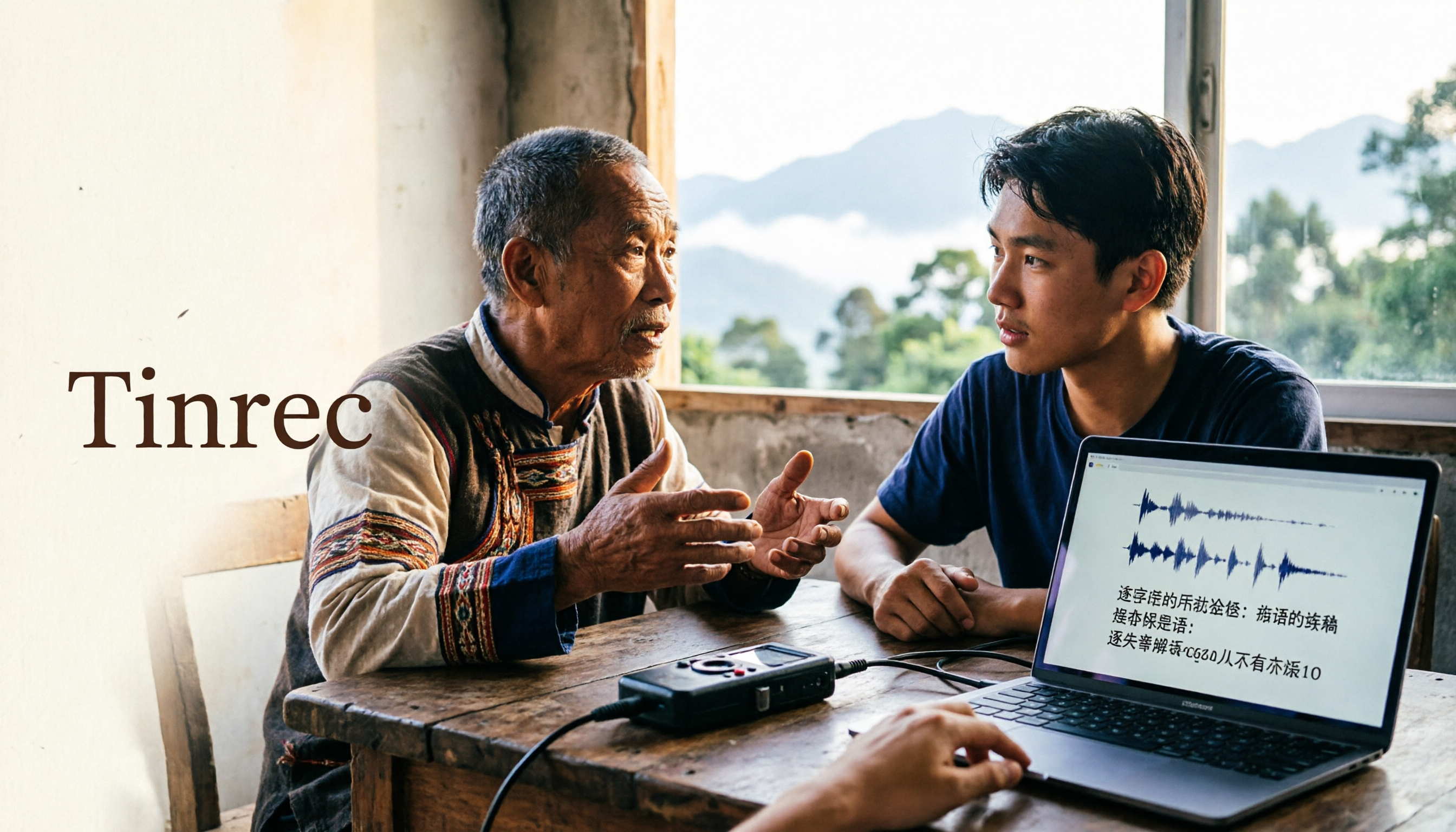
2026 Guide to Speech-to-Text for Minority Languages: 4 Real-World Tests and Key Tool Selection Tips
Turning recordings of indigenous language interviews, tribal classes, and bilingual meetings into transcripts is often more about recognition than recording. This article starts from real usage scenarios to explain 4 practical limitations of speech-to-text for minority languages, feasible workflows, and how Tinrec can help with Chinese and mixed-language segments—and where human effort is still required.

5 Best Dialect Speech-to-Text Tools in 2026: Cantonese & Taiwanese Transcripts Compared
Cantonese interviews and Taiwanese fieldwork recordings often turn into gibberish with generic speech-to-text. This article compares Tinrec, Subanana, Taption, CantoSub, and Google Cloud Speech-to-Text based on real-world dialect transcription workflows, and explains what Tinrec can do after transcription—summaries, action items, AI Q&A, and team knowledge retention—plus team pricing and buying considerations.

2026 Chinese-Japanese Real-Time Translation Guide: How to Choose for Meetings, Travel, and Streaming
How to choose a Chinese-Japanese real-time translation tool? After hands-on testing, I found the key difference lies in whether you need to 'understand in the moment' or 'keep a record afterward.' This guide covers three scenarios—meetings, business trips, and content research—and outlines 5 purchase decision points, with Tinrec demonstrating bilingual transcripts, bot-free meeting recording, summary to-dos, and team spaces in action.

Tinrec vs Plaud Note in 2026: 5-Factor Comparison — Which Is Better for Your Recording and Transcription Needs?
In 2026, voice recorders fall into two categories: AI recording hardware and AI meeting transcription software. This article compares Tinrec and Plaud Note/NotePin across five purchasing factors — meeting capture, input sources, post-meeting output, team governance, and Chinese-language experience — to help you decide which solution fits your budget and meetings.