

Turn recordings into transcripts and summaries in minutes
Upload audio or video for multilingual transcription, AI notes, and action items
Before You Pay: You Might Be Looking at This Wrong
When people search for "purchase google meet," they usually mean: "I want a tool that can record and transcribe my meetings."
But Google Meet isn't sold as a standalone product.
It's bundled with Google Workspace, and the built-in transcription and recording features have some clear drawbacks for many users: transcription accuracy can be inconsistent, recordings need to be stored somewhere, and meeting notes scattered across Google Drive are hard to search.
If what you really want is "to not spend two hours after every meeting organizing notes," then what you need isn't Google Meet itself—it's a tool that works with Meet to turn your meetings into usable data.
In this article, I'll compare 5 tools based on hands-on testing, from free to paid, so you can see the full picture at a glance.
4 Key Things to Consider Before Choosing a Meeting Transcription Tool
First, how does it record online meetings?
This is the most overlooked point. Some tools require you to invite a bot into your meeting, while others record your computer's audio directly. If you're in a client meeting or an interview, having an extra bot in the room can feel awkward. Bot-free recording is usually cleaner.
Second, what can you do after transcription?
A transcript is just the starting point. What you really need is: automatic summaries, action items, and the ability to ask AI questions like "Who mentioned the budget in the last meeting?" If a tool only gives you a wall of text, you'll still have to dig through it yourself.
Third, how well does it handle Chinese?
Meetings in many teams often mix Chinese and English, and sometimes even dialects. If you pick a tool based only on English reviews, you'll likely be frustrated in practice. Always test the free version with your own meeting recordings.
Fourth, who owns the data—you or the tool?
There's a big difference between personal and team use. If your company is buying, you need to consider whether meeting data can be stored centrally, whether data disappears when a member leaves, and whether admins can see usage.
These four points are the core criteria for my evaluation.
Tinrec—Our Top Pick After Testing
Tinrec is an AI meeting transcription and collaboration tool for individuals and teams, supporting live recording, online meeting transcription, audio file import, and real-time translation.
What I appreciate most is that it doesn't require inviting a bot to your meetings. The desktop app captures your computer's system audio directly, so it works with Google Meet, Zoom, Teams, and Webex calls. In the meeting room, it's just you and the other party—no unfamiliar "meeting assistant" joining.
Real Meeting Test:
I tested it with a 5-minute recording of a meeting that mixed Chinese and English (in an office environment with air conditioning background noise). Tinrec delivered the best Chinese transcription quality among the 5 tools in this review. English terms like "budget review" and "Q3 roadmap" were correctly recognized, with no awkward phonetic translations.
The AI features after recording are where it stands out:
After transcription, Tinrec automatically generates summaries, chapters, and action items. Even better, you can ask it in Chinese: "What was the conclusion of this meeting?" or "Who's responsible for following up with the client?" It answers based on the meeting content, not just keyword search results.
For teams, the most impactful feature is real-time translation and bilingual transcripts. During international meetings, you can view the original and translated text side by side, which is very helpful for colleagues who aren't fluent in English.
Stop organizing recordings by hand
Upload audio or video and automatically get a transcript, summary, and action items
Team Features:
If your company needs a unified solution, Tinrec's team plan offers a dedicated team space where meeting data belongs to the team and doesn't disappear when a member leaves. Admins can allocate seats, view usage analytics and audit logs, and there's an audio recycle bin to recover accidentally deleted files.
Honest Limitations:
The free plan has limited credits, so heavy users will need to upgrade. Also, the desktop app requires you to manually open Tinrec to start recording—it won't automatically join every meeting on your calendar. But on the flip side, this means you have full control, and no tool is secretly recording in the background.
Who It's For:
If you frequently have Google Meet meetings, need Chinese transcription and AI summaries, don't want to invite meeting bots, or your company wants a team space to centrally manage meeting data, Tinrec is the most worthwhile option to try first.
Beyond Tinrec: Other Options to Consider
Otter.ai: A Mature Choice for English Meetings
Otter is well-known in English business meetings, and its free plan offers a generous 300 minutes per month. However, its Chinese transcription isn't as strong as Tinrec's, and its main strength lies in English scenarios. If 90% or more of your meetings are in English, Otter is worth considering; for mixed Chinese-English workplaces, Tinrec offers a smoother experience.
Granola: Another Bot-Free Meeting Notes Option
Granola also doesn't invite bots and captures device audio directly. But note: it doesn't support uploading pre-recorded audio files, and it doesn't retain meeting audio. If you have a lot of historical recordings to organize, Granola won't help. Tinrec supports audio import and retention, which is crucial for teams that need to revisit original meeting content.
Notta: A Direct Competitor in Multilingual Transcription
Notta's features overlap significantly with Tinrec, and it also supports Chinese and team plans. However, Notta's free plan limits each session to 3 minutes, making it harder to trial. Tinrec's free plan lets you fully experience the recording and summarization process, which is more user-friendly for those new to AI meeting tools.
Pitfall Guide: 3 Common Mistakes When Buying Meeting Transcription Tools
Pitfall 1: Assuming Google Meet's Built-in Transcription Is Enough
Google Workspace's transcription works well in English, but accuracy for Chinese meetings is inconsistent, and managing transcripts and recordings isn't intuitive for most users. If you still spend time organizing after meetings, you haven't saved any time.
Pitfall 2: Only Looking at Price, Not "What Happens After Recording"
Cheap tools might only give you a transcript. You'd have to read 30 minutes of text, find the key points yourself, and write the meeting notes. When you factor in that time, free or low-cost plans can end up costing more. Choose tools based on "AI features after transcription," like summaries, action items, and Q&A.
Pitfall 3: Confusing Personal and Team Plans
If you're evaluating for a company, make sure to confirm data ownership. With personal plans, meeting data can get scattered across personal clouds when accounts change or members leave. Only team plans can turn meeting content into a company asset.
Conclusion: Which One Should You Choose?
If your goal in searching "purchase google meet" is to solve meeting transcription, the answer is: Use Google Meet for the meeting itself, and let a dedicated tool handle the transcription.
- Need Chinese transcription + don't want to invite bots → Tinrec
- Want to ask AI about meeting highlights after recording → Tinrec (AI Q&A is the key differentiator)
- Company needs centralized meeting data and member permissions → Tinrec Team Plan
- English-only meetings, zero budget → Otter.ai free plan
- Just need recording without transcription, no new software → Google Meet built-in recording
I recommend downloading Tinrec's free version to try it out. Record your most recent Google Meet session, experience the transcription quality and AI summaries firsthand, and then decide whether to upgrade. The best judge is your own meeting recording.
References
- Google Meet: Online Web and Video Conferencing Calls | Google Workspace
- I want to purchase google meet premium - Google Workspace Admin Community
- Google Meet Pricing in 2026: Plans and Costs Compared
- Is it possible to purchase a google meet subscription? - Google Meet Community
- Premium Meet features for Google Workspace - Google Meet Help
Turn every recording into actionable outcomes
Get 60 free transcription minutes when you sign in. No credit card required.
Related Reading
You might also like

2025 Best 3 Audio-to-Text Tools Compared: Tinrec vs. Notta vs. Otter for Chinese Meeting Notes
How to choose an audio-to-text tool in 2025? This guide compares Tinrec, Notta, and Otter based on real meeting workflows—input sources, post-meeting organization, Chinese language experience, and team collaboration. It highlights Tinrec's bot-free recording, AI Q&A, action item extraction, and team workspace, while honestly covering free and paid plan limits to help you avoid the common mistake of choosing based only on free minutes.
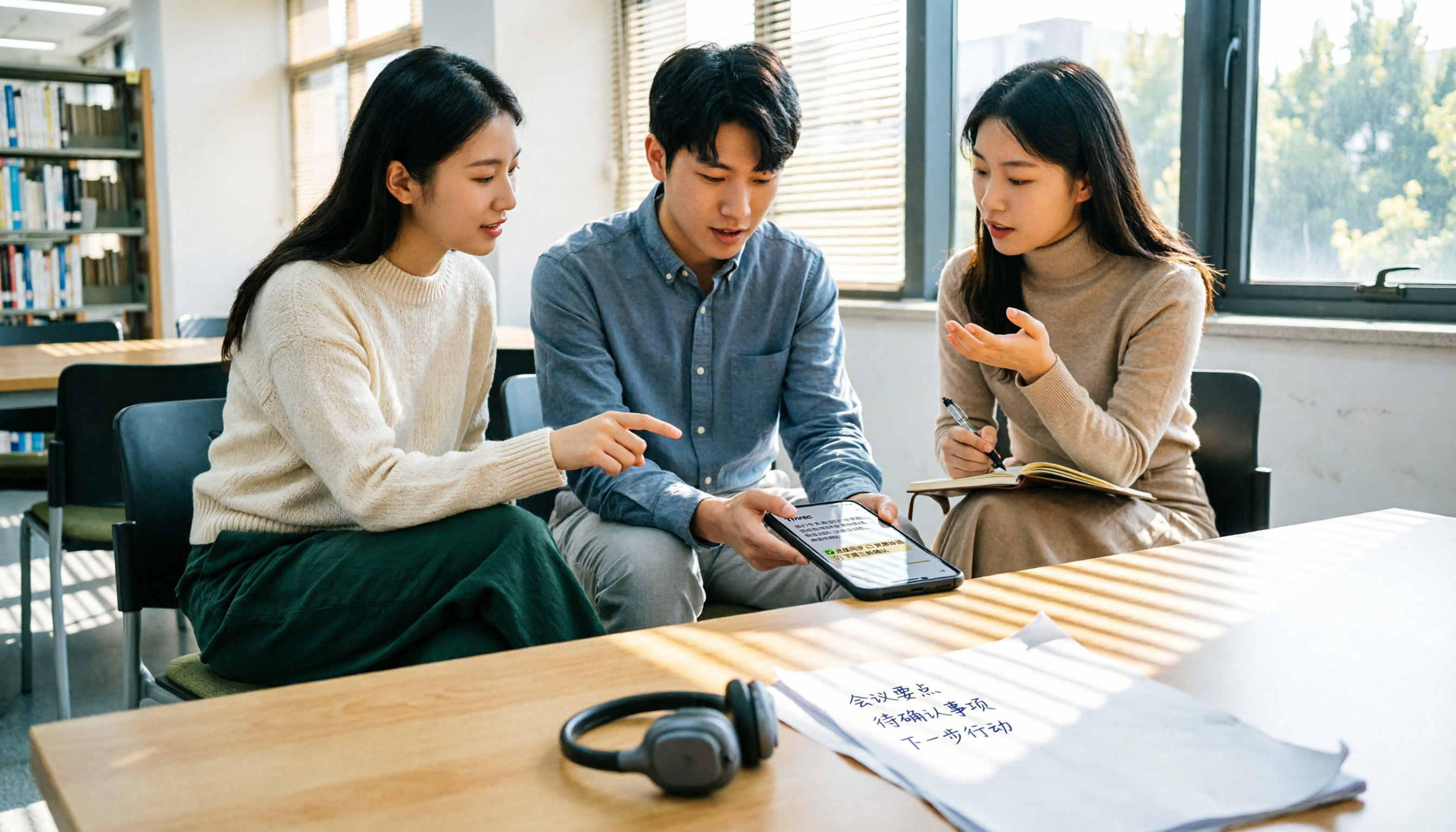
2026 Comparison of 4 Audio-to-Text Tools: Free Tiers and Chinese Recognition Tested
How to choose an audio-to-text tool in 2026? This article tests and compares Tinrec, Notta, Granola, and TurboScribe for Chinese recognition, free tiers, post-meeting organization, and cross-platform experience from the perspective of student lectures, group discussions, and final exam review. It summarizes key buying factors and pitfalls to help you find a transcription tool that lasts through a semester.
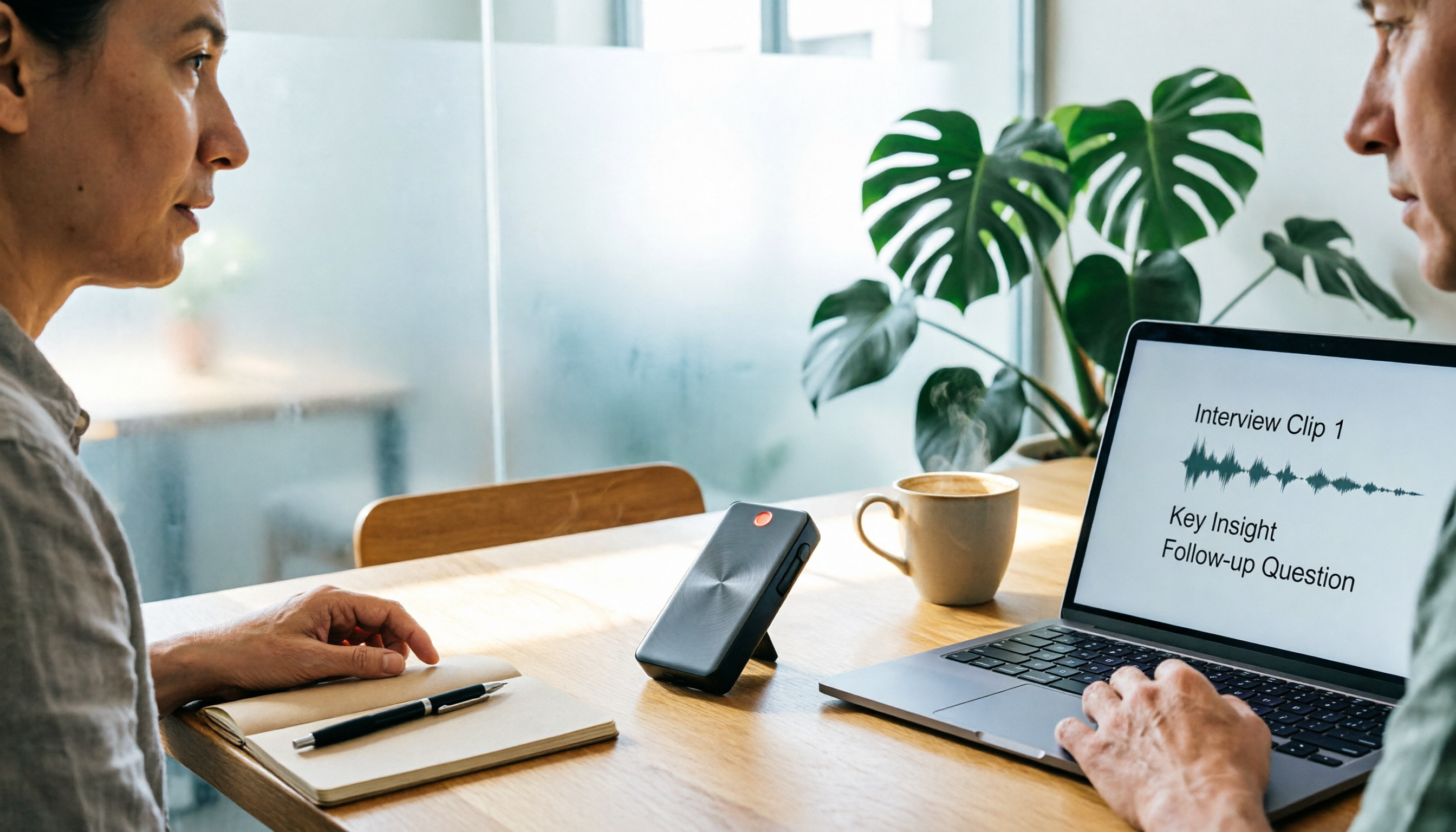
4 Free Speech-to-Text Tools Tested for 2026: How to Use Free Tiers Without Hitting a Wall
A bigger free quota doesn't mean better usability. I ran my own meeting and interview audio through the free workflows of Tinrec, Notta, Otter, and TurboScribe to break down the most overlooked quota rules, post-meeting organization, meeting capture methods, and team data ownership—so you can find a free speech-to-text tool that truly works for ongoing use.

2026 Audio-to-Text Tool Comparison: Tinrec vs. Notta for Chinese Meetings
How well does audio-to-text really work? I break down three common misconceptions that explain why accuracy alone can't answer this question, and share my testing method using three audio samples and one key question. The article compares Tinrec and Notta on meeting capture, post-meeting outputs, Chinese bilingual support, and team knowledge retention to help you decide which workflow fits your meeting scenarios.

2026 Comparison of 3 Free Audio-to-Text Tools: Which One Offers the Most Unlimited Usage?
Before finals, I opened my voice memos and realized I had accumulated over 20 hours of recordings across 18 files this semester. Searching for 'free unlimited audio-to-text' shows every tool claims to be free, but the definitions of free vary widely. This article uses real student scenarios to compare Tinrec, Atter, and iPhone Notes: the true limits of free tiers, Chinese recognition, post-meeting organization, online meetings, and team sharing, ending with a buying guide.
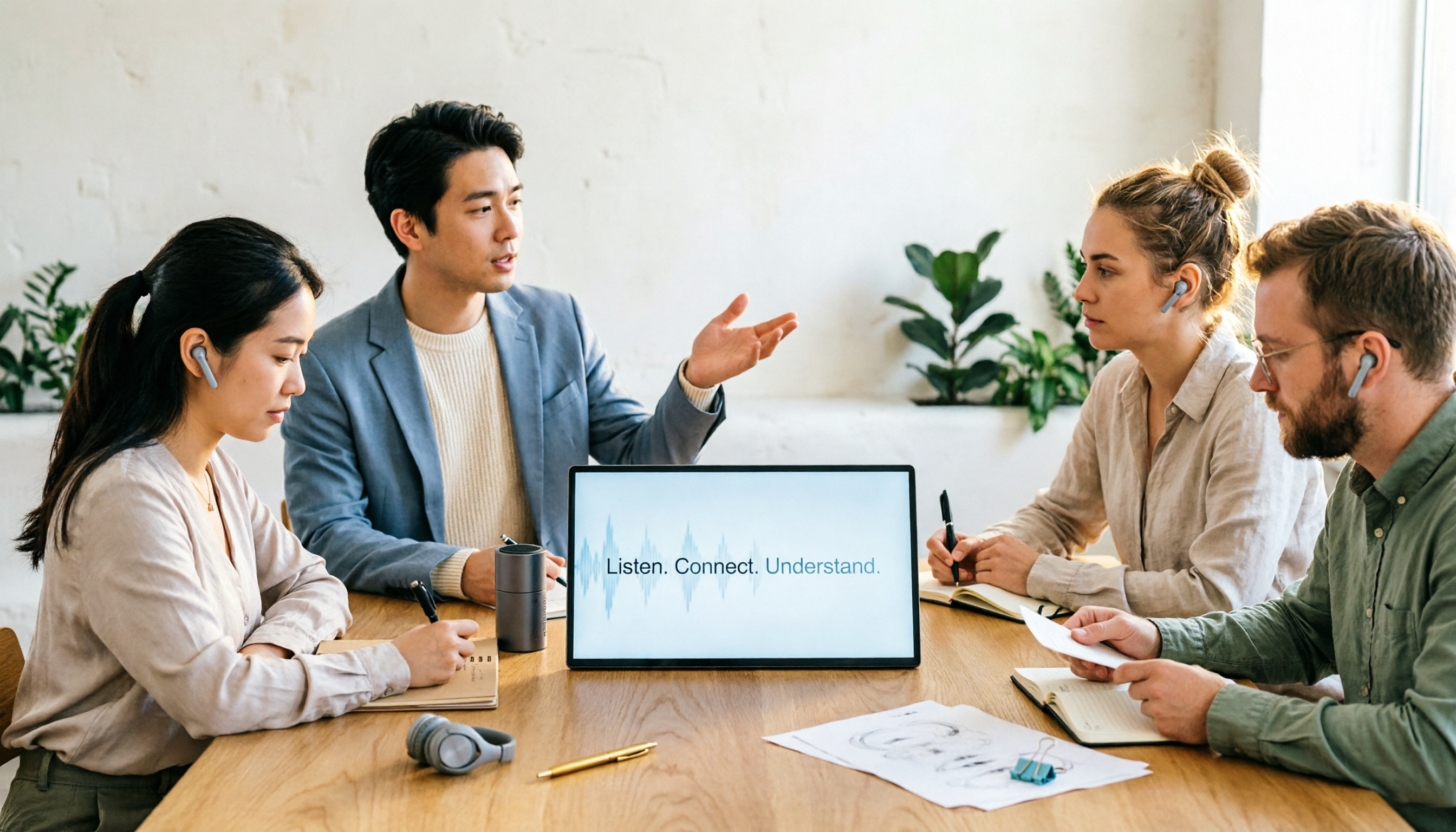
2026 Comparison of 4 Audio-to-Text Tools: Which One Actually Saves Time on Post-Meeting Cleanup?
From meeting notes and interview organization to team knowledge retention, compare Tinrec, Notta, Otter.ai, and Granola on capture methods, Chinese recognition, post-meeting processing, team governance, and pricing rules to help you choose the right tool for your budget and scenario.

2026 Comparison of 2 Audio-to-Text Tools: Tinrec vs. iPhone — Which Saves More Time on Cleanup?
Starting with iOS 18.4, iPhone Voice Memos supports Chinese transcripts, leaving many users wondering whether they still need a separate tool. This article compares Tinrec and iPhone's built-in feature across 5 dimensions—from recording online meetings and post-meeting cleanup to operation steps and team data ownership—to help you decide which approach fits your meeting scenario.
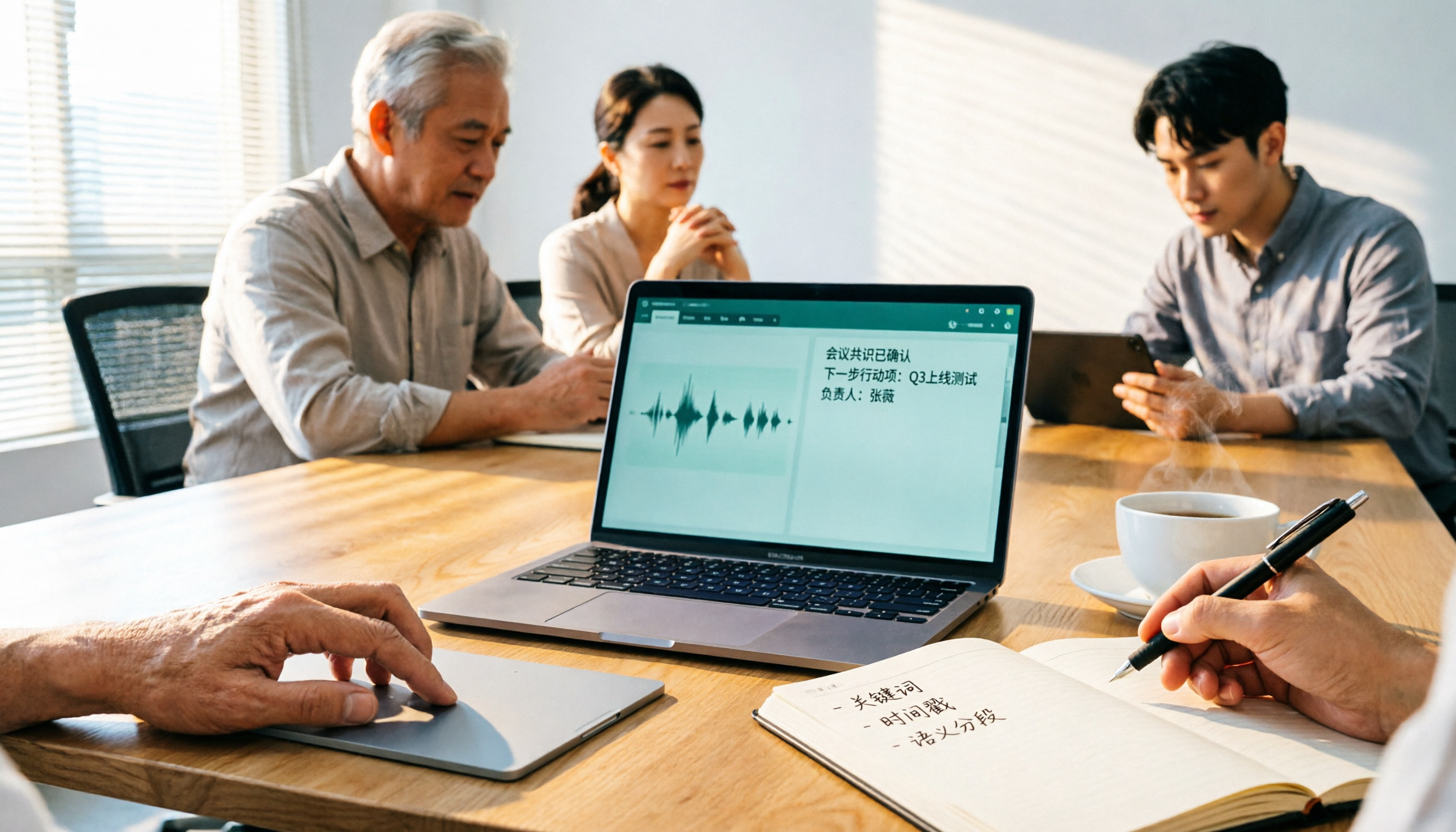
2026 Comparison of 3 Free Audio-to-Text Tools: Which Is Best for Chinese Meetings and Post-Meeting Organization?
There are many free online audio-to-text tools, but free versions often hit limits at the worst possible moment. This article compares two no-bot options, Tinrec and Granola, point by point, covering free-tier thresholds, Chinese recognition, audio retention, post-meeting organization, and team governance, to help you decide which one truly fits your needs.

2026 Free Audio-to-Text App Buying Guide: 4 Hands-On Tests and Selection Tips
There are plenty of free audio-to-text apps, but most are just one-time trials rather than long-term free. This guide looks at four key points—free quota, post-meeting organization, input sources, and team data ownership—and hands-on tests the free plans and limits of Tinrec, iPhone Notes, Atter, and Notta. It also covers the three most common buying pitfalls to help you pick the one that truly works for you.