

Turn recordings into transcripts and summaries in minutes
Upload audio or video for multilingual transcription, AI notes, and action items
Why "Buying Google Meet Premium Directly" Is Often the Wrong Starting Point
Many managers searching for "purchase google meet premium" assume that Google Meet, like Spotify or Dropbox, offers a standalone paid plan—swipe your card and unlock recording, longer meetings, translated captions, and advanced security features.
But that's not how it works. Google Meet's premium features are spread across different Google subscriptions; there's no single product called "Google Meet Premium." If you look for a plan that only sells Meet, you'll likely end up with incomplete benefits or pay for features you don't need.
An even more common misconception is treating "being able to record meetings" as the end goal. In practice, teams usually aren't stuck on whether they can record—they're stuck on what happens after: transcripts, action items, and decision logs scattered across personal computers and chat threads, impossible to find when you need them the following week.
So this guide won't just tell you which plan to subscribe to. Instead, it breaks down three purchasing paths—Google Workspace, Google One AI Premium, and third-party AI meeting notes tools—so you can clarify before signing up whether you're buying "meeting features" or "post-meeting workflow."
Google Meet Premium Features Aren't a Standalone Product
According to Google Meet's official documentation, so-called premium features include:
- Real-time speech translation, letting participants in different languages see translated captions instantly
- Enhanced audio and video effects like Studio sound, Studio look, and Studio light
- Meeting watermarks that display the meeting code and viewer email, improving confidentiality and traceability
- Longer meeting durations, higher participant limits, and the ability to save recordings to the cloud
These features require an eligible Google Workspace edition or a specific Google One AI Premium plan. Google also explicitly states that only the Google One Premium plan with 2 TB of storage qualifies for Google Meet premium features.
In other words, you're not "buying Google Meet Premium"—you're "buying a Google subscription that includes Meet premium features." This distinction matters because it directly affects how you evaluate costs: a large portion of what you pay goes toward Gmail, Drive, Gemini, or other Workspace capabilities, with Meet being just one piece.
Path 1: Google Workspace—Best for Teams Already Using Gmail and Drive
If your company already uses Gmail for work email and Google Drive for file storage, Google Workspace is usually the smoothest purchasing path. Meet's paid capabilities come bundled with your Workspace edition, so you don't need to buy a separate meeting tool.
Based on common market pricing, Google Workspace paid plans start at around $7 per user per month, with higher tiers unlocking more Meet features, such as larger meeting sizes, cloud recording to Drive, and advanced security and admin controls. For SMBs that need unified account, email, and file permission management, this is often the lowest overall IT cost.
However, note that Google Workspace primarily addresses limitations of the meeting platform itself. It gives you longer meetings, recording, and captions, but it doesn't necessarily handle what happens after the meeting. Transcripts, action items, and cross-department follow-ups usually still require manual effort or additional tools.
If your pain point is "spending 30 minutes after every meeting to organize notes," Workspace alone might only solve the first 10%—the remaining 90% of organization costs are still on you.
Path 2: Google One AI Premium—Best for Individual Users and Light Meeting Needs
If you're a solo professional, freelancer, or only occasionally meet with overseas clients, Google One AI Premium is a lighter option. It includes 2 TB of storage and qualifies for some Google Meet premium features, such as real-time translation and certain enhanced audio/video effects.
The advantage here: you don't need to maintain an entire Workspace account just for Meet. As long as you have a Google account, upgrading to Google One unlocks some features.
But it has clear limitations. Google One AI Premium is more of a "personal subscription," not designed for team governance. When meeting data needs to be shared across members, centrally stored, and tracked for action items, Google One can't provide role-based permissions, seat management, usage analytics, or audit logs.
Stop organizing recordings by hand
Upload audio or video and automatically get a transcript, summary, and action items
So Google One AI Premium is best for scenarios where an individual needs longer Meet sessions, occasional real-time translation, and handles post-meeting follow-up themselves. If meetings are part of daily team operations, this path quickly hits a collaboration ceiling.
Path 3: Third-Party AI Meeting Notes Tools—Best for Teams That Need to Track Progress and Make Decisions After Meetings
The third path many people overlook when searching for "Google Meet Premium" is: instead of upgrading Meet itself, use a third-party AI meeting notes tool to fill the post-meeting workflow gap.
Take Tinrec, for example. Its desktop app can capture your computer's system audio directly, so you don't need to add a meeting bot to Google Meet. Once you open the desktop app, it can transcribe Meet meetings in real time and automatically generate summaries, chapters, highlights, and action items after the meeting.
The key difference from Google Workspace's built-in recording: Tinrec doesn't just record the meeting—it turns the meeting content into actionable data. You can ask follow-up questions about the meeting, generate reports or tables, and store transcripts, summaries, and to-dos centrally in a team space.
For SMBs, this combination is often more cost-effective than upgrading Workspace alone. The reason: Meet's feature limitations may not be the main bottleneck—post-meeting organization and cross-member follow-up are. Third-party tools fill the gap where Google's native offerings are relatively weak: the "post-meeting workflow."
One caveat: third-party tools are not official Google partners. Make sure to comply with local recording and privacy laws, and obtain participant consent when necessary.
How to Choose Among the Three Paths? Start with Where Your Meeting Pain Points Lie
| Purchasing Path | Primary Problem Solved | Best For | Watch Out For |
|---|---|---|---|
| Google Workspace | Meeting duration, recording, captions, account & cloud management | Teams already using Gmail and Drive | Post-meeting organization still relies heavily on manual work |
| Google One AI Premium | Personal meeting duration, some translation & enhanced audio/video | Solo professionals, light users | Lacks team collaboration and governance capabilities |
| Third-Party AI Meeting Notes Tools | Transcripts, summaries, action items, post-meeting tracking & team knowledge retention | Teams with frequent meetings and cross-member follow-ups | Need to evaluate transcription quality and data compliance separately |
If your meetings are infrequent, small, and don't require formal records afterward, Google One AI Premium or a basic Workspace plan is sufficient.
If meetings are part of daily team operations—weekly client interviews, project syncs, or cross-department discussions—then what you really need to evaluate isn't "can Meet record?" but "who organizes the notes, who follows up, and how do we find them next week?" This need typically leads to a combination of Workspace plus a third-party AI meeting notes tool.
Avoid Three Common Misjudgments Before Buying
Misjudgment 1: Assuming Meet Premium equals meeting notes. Meet's recording feature gives you video files, not organized decisions and action items. If your team needs the latter, upgrading Workspace won't automatically solve it.
Misjudgment 2: Stretching a personal plan to cover team needs. Google One AI Premium is cheaper, but it lacks role and seat management. When meeting data needs to be shared across members and centrally stored, a personal plan quickly leads to permission chaos and scattered data.
Misjudgment 3: Only looking at price, not post-meeting time costs. Paying a few extra dollars a month for Workspace might seem cheap, but if you spend 30 minutes manually organizing notes after every meeting, a five-person team with two meetings per week adds up to 20 hours of labor per month. When you factor in "organization time," the value of third-party AI meeting tools becomes clear.
Summary: You're Not Buying Meet Premium—You're Buying the Complete Meeting Workflow
If you only need longer meetings and recording, Google Workspace or Google One AI Premium is the most direct path.
If you need "transcripts, highlights, action items, and decisions that can be found, tracked, and handed off after the meeting," then you should include a third-party AI meeting notes tool in your evaluation. Tools like Tinrec don't replace Meet's features—they fill the gap where Google's native offerings are weak: post-meeting organization and team knowledge retention.
The most practical purchasing sequence: first, assess how much time your team spends organizing meetings each week; then decide which Google plan to upgrade; finally, evaluate whether a third-party tool is needed to complete the workflow. Don't start with "which Premium to buy"—start with "where is the meeting cost bottleneck."
References
- Google Meet Premium Account - Buy Google Meet Premium
- Premium Meet features for Google Workspace - Google Meet Help
- How To Purchase Google Meet Premium 2026 (FULL GUIDE) - YouTube
- I want to purchase google meet premium - Google Workspace Admin Community
- Google Meet Pricing in 2026: Plans and Costs Compared
Turn every recording into actionable outcomes
Get 60 free transcription minutes when you sign in. No credit card required.
Related Reading
You might also like

How to Download Teams Meetings in 2026: 5 Steps from Recording to AI Organization
Finished a meeting only to find recordings, transcripts, and action items scattered across three places? This guide starts from the real pain point of "Teams meeting download"—first clarifying whether you need the app or the meeting content—then walks through 5 steps to turn Teams meetings into searchable, queryable team data, and compares Tinrec, Otter.ai, Notta, and Granola for different use cases.

Complete Guide to Downloading Microsoft Teams Meeting Recordings in 2026: Permissions, Time Limits, and Turning Recordings into Transcripts
If you can't get a meeting recording, it's usually because permissions and storage locations aren't clear. This practical guide explains who can download Teams meeting recordings, where the files are stored, the time limits on accessing them from chat, and how captions aren't included in the file. It also covers how to turn meeting content into transcripts and action items after the meeting ends.

2026 Comparison of 2 Teams Meeting Transcription Tools: Tinrec vs. Teams Built-in Transcription
Downloading Teams meeting transcripts often gets stuck on two issues: 'who has download permission' and 'only .docx/.vtt files available.' This article compares Microsoft Teams built-in transcription and Tinrec across 5 dimensions, explaining how non-organizers can obtain transcripts, how to process and retain them after meetings, and clarifies team plan seats and pricing.

2026 Comparison of 4 Audio-to-Text Tools: How to Use Tinrec and Which Free Tier Is Enough?
Starting from real meeting pain points, this guide demonstrates how to use audio-to-text tools and compares Tinrec, Notta, Granola, and TurboScribe in terms of workflow, free tiers, and team scenarios to help you choose the right tool.

6 Best Audio-to-Text AI Tools Tested in 2026: Which Free Tier and AI Summary Actually Covers Your Needs?
A breakdown of free tiers, paid plans, and best-fit use cases for 6 audio-to-text AI tools, comparing Tinrec, Otter, Notta, Granola, TurboScribe, and cSubtitle to help you find the right option for meetings, interviews, and class notes.

2025 Best 3 Audio-to-Text Tools Compared: Tinrec vs. Notta vs. Otter for Chinese Meeting Notes
How to choose an audio-to-text tool in 2025? This guide compares Tinrec, Notta, and Otter based on real meeting workflows—input sources, post-meeting organization, Chinese language experience, and team collaboration. It highlights Tinrec's bot-free recording, AI Q&A, action item extraction, and team workspace, while honestly covering free and paid plan limits to help you avoid the common mistake of choosing based only on free minutes.

2026 Comparison of 4 Audio-to-Text Tools: Free Tiers and Chinese Recognition Tested
How to choose an audio-to-text tool in 2026? This article tests and compares Tinrec, Notta, Granola, and TurboScribe for Chinese recognition, free tiers, post-meeting organization, and cross-platform experience from the perspective of student lectures, group discussions, and final exam review. It summarizes key buying factors and pitfalls to help you find a transcription tool that lasts through a semester.
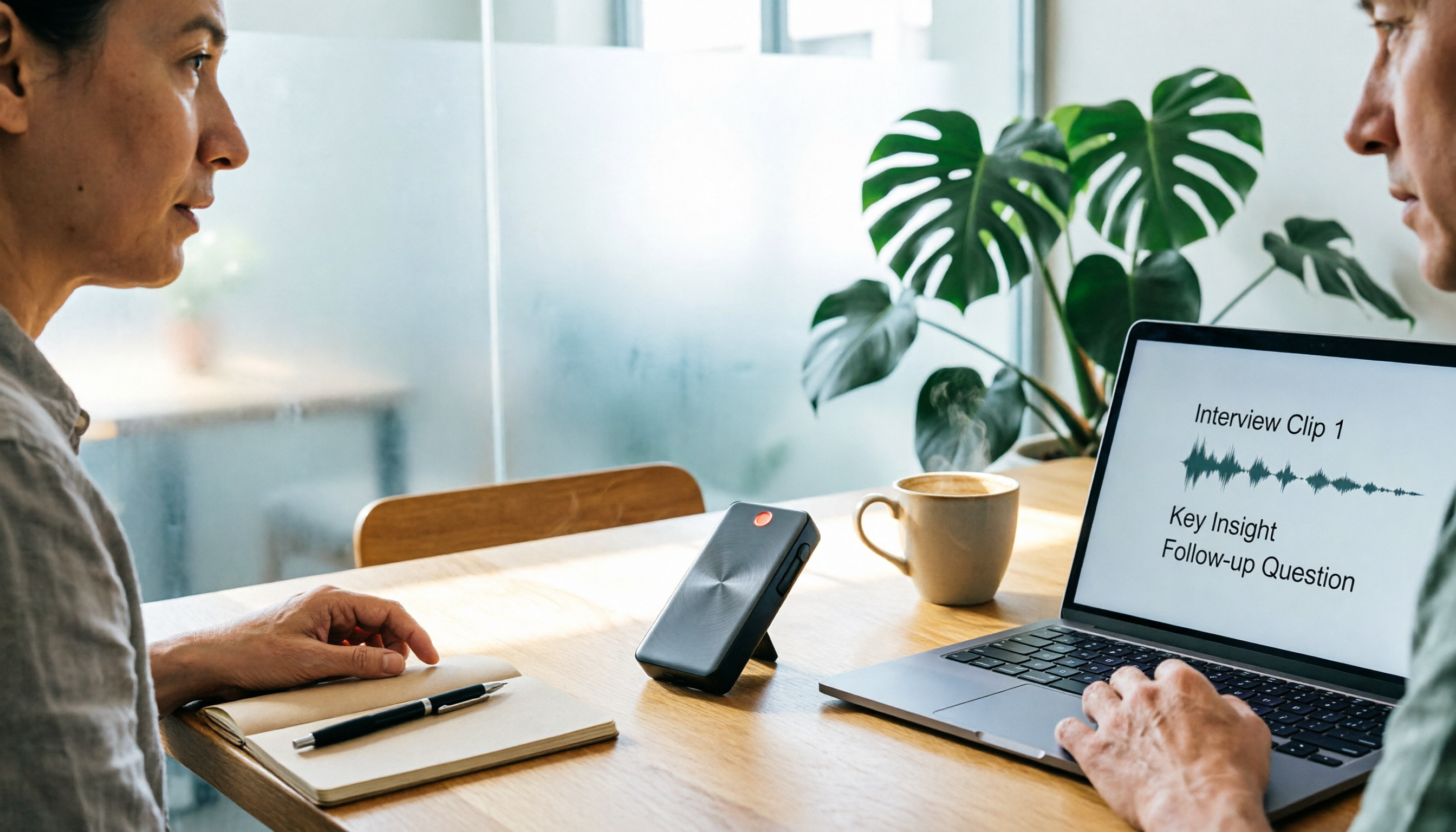
4 Free Speech-to-Text Tools Tested for 2026: How to Use Free Tiers Without Hitting a Wall
A bigger free quota doesn't mean better usability. I ran my own meeting and interview audio through the free workflows of Tinrec, Notta, Otter, and TurboScribe to break down the most overlooked quota rules, post-meeting organization, meeting capture methods, and team data ownership—so you can find a free speech-to-text tool that truly works for ongoing use.

2026 Audio-to-Text Tool Comparison: Tinrec vs. Notta for Chinese Meetings
How well does audio-to-text really work? I break down three common misconceptions that explain why accuracy alone can't answer this question, and share my testing method using three audio samples and one key question. The article compares Tinrec and Notta on meeting capture, post-meeting outputs, Chinese bilingual support, and team knowledge retention to help you decide which workflow fits your meeting scenarios.