

Turn recordings into transcripts and summaries in minutes
Upload audio or video for multilingual transcription, AI notes, and action items
Why Is Google Meet Free? The Money You Save Might Cost You in Interrupted Meetings
When your boss asks, "Why is Google Meet free?" your gut reaction might be, "Because Google has money." But the real answer is that Google uses Meet's free tier as a gateway to get users into Google Workspace.
The free plan is designed to give you just enough to try it, but not enough to rely on it long-term. One-on-one calls can last up to 24 hours, but any group meeting with three or more participants is forcibly cut off at the 60-minute mark. If you're presenting to a client, running a weekly team sync, or leading a cross-departmental project discussion, that interruption isn't just a matter of "starting another call." It disrupts the meeting flow, forces participants to rejoin, and derails the momentum of decisions you were just about to finalize.
The free plan also has three limitations that are easy to overlook: no native meeting recording, limited admin controls, and virtually no visibility for IT teams. For individuals using it occasionally, that's fine. But for teams that need to keep meeting records, track decisions, and manage members, the "free" label on the free plan simply shifts those costs onto your time and manpower.
Before Deciding Whether to Upgrade, Understand These 4 Key Differences
1. Meeting Duration Cap: 60 Minutes on Free, Longer on Paid
The 60-minute limit on the free plan applies only to group meetings with three or more participants. Before time runs out, participants get a warning, and at the 60-minute mark, the meeting ends immediately. You can restart with the same link, but that's a workaround, not a solution.
Paid Google Workspace plans, starting with Business Starter, relax the meeting duration limit, depending on the specific plan you choose. If you regularly host long meetings, this is the most direct reason to upgrade.
2. Participant Limit: 100 on Free, Up to 250 or Even 1,000 Depending on Plan
The free plan caps each meeting at 100 participants, which is sufficient for small teams. But if you're hosting an all-hands meeting, a webinar, or a large training session, you'll quickly hit that 100-person ceiling. Different Workspace editions support anywhere from 150 to 1,000 participants, so make sure you confirm your actual needs before choosing a plan.
3. Recording and Data Retention: No Native Recording on Free
Free personal accounts don't include native meeting recording, so once the meeting ends, the content is gone. This is a major drawback for teams that need to keep records of client communications, project decisions, or training materials. Paid plans include meeting recording and storage, which is why many people upgrade in the first place.
4. Management and Governance: Virtually None on Free
The free plan lacks admin controls, usage analytics, and IT visibility. As your team grows beyond 10 people, administrators will find they can't track who hosted which meeting, where data is stored, or whether content remains accessible after a member leaves. The free plan simply can't meet these governance needs.
Stop organizing recordings by hand
Upload audio or video and automatically get a transcript, summary, and action items
Beyond the Free Plan: How to Choose a Google Workspace Tier
If you've decided to upgrade, Google Workspace subscriptions start at around $7 per user per month, with different tiers offering varying participant limits, storage, and management features. Don't just look at the price—ask yourself these three questions first:
- How long do your meetings typically run? How often do they exceed 60 minutes?
- Do you need meeting recordings and the ability to review them later?
- Do you need to manage members, monitor usage, or centrally control data?
If you answered yes to all three, the free plan isn't for you. If you only use video calls occasionally to chat with friends or catch up with family, the free plan is more than enough—there's no need to upgrade just for the sake of upgrading.
Pitfall Guide: 3 Common Mistakes When Choosing a Video Conferencing Tool
Pitfall 1: Choosing Based on "Free" Alone, Ignoring the Hidden Cost of Interrupted Meetings.
The 60-minute cap is a major disruption for business meetings. If you're in the middle of negotiating a contract with a client and the meeting suddenly cuts off, your professionalism and the negotiation flow both take a hit. Assess your meeting patterns first, then decide whether you can live with this limitation.
Pitfall 2: Treating Google Meet as Your Only Meeting Record Tool.
The free plan has no native recording, so many people assume "Meet is enough," only to find nothing is left after the meeting ends. Even if you upgrade to Workspace, Meet's recording and transcription features are fairly basic. For scenarios that require full transcripts, AI summaries, action-item tracking, and team knowledge management, you'll still need to pair it with other tools.
Pitfall 3: Upgrading Only to Realize Your Team Needs "Meeting Data Management," Not "Longer Meeting Time."
Many people upgrade to Workspace to solve the 60-minute limit, but after upgrading, they discover the real pain point is that meeting content is scattered, unsearchable, and action items can't be tracked. If what you actually need is to turn meeting content into searchable, collaborative team knowledge, Google Meet alone isn't enough—you'll also need to evaluate additional meeting note-taking and organization tools.
Conclusion: Should You Stick with the Free Plan or Upgrade?
If your use case is "occasional video calls with friends and family, or quick progress check-ins with colleagues," the Google Meet free plan is sufficient—no need to spend money.
But if your situation is "meeting with clients, leading project meetings, and needing to keep records and track action items," the free plan's 60-minute limit and lack of recording will directly impact your work output. In that case, upgrading to Google Workspace is a reasonable choice—but before you upgrade, make sure you know whether you need longer meeting time or more comprehensive meeting data management.
Start by clarifying your meeting patterns. If you have more than three meetings a week and need to retain and track meeting content, the money you save with the free plan may not be worth the time you'll spend on damage control later.
References
Turn every recording into actionable outcomes
Get 60 free transcription minutes when you sign in. No credit card required.
Related Reading
You might also like

2026 Transcription Tools Guide: AI Transcription Selection Tips + Tinrec Workflow
There are countless transcription tools, but the real challenge isn't transcription—it's what to do after. This guide covers selection criteria, hands-on testing, and pitfalls to avoid, rounding up transcription tools worth considering in 2026, and demonstrates how Tinrec turns meeting recordings into searchable, queryable, and shareable team knowledge.

4 AI Meeting Recorders Tested for 2026: Which Free Tier Works Best for Students?
A student's hands-on comparison of AI meeting note tools—Tinrec, Notta, Granola, and Otter.ai—covering free tiers, per-recording limits, post-transcript organization, and cross-platform use, with recommendations for class recordings, group projects, and final exam review.

How to Write Meeting Minutes in 2026: 5-Step Template Tutorial
Struggling to produce meeting minutes after the meeting ends? This article provides a ready-to-use meeting minutes template with fields and a 5-step process, and compares "template-only handwriting" vs. "template plus AI workflow" across recording, organizing, tracking, and team knowledge retention, helping you choose the right meeting minutes approach for your team.

2026 Tested: 4 AI Meeting Minutes Generators Compared — Which One Actually Saves You That Hour After the Meeting?
AI meeting minutes generation isn't just about uploading a recording. From the perspective of a mid-level manager who holds 15 meetings a week, I break down the most common misconceptions, 4 key purchasing criteria, and hands-on comparisons of Tinrec, Notta, Otter.ai, and Granola across Chinese-language meetings, bot-free recording, post-meeting Q&A, and team knowledge retention — with final recommendations by scenario.

Tinrec vs Granola 2026: 5-Dimension Comparison — Which Is Better for Chinese Meeting Notes?
Both avoid meeting bots, but how do Tinrec and Granola differ in meeting notes organization? This article compares them across 5 dimensions: meeting capture, Chinese-language experience, post-meeting outputs, input sources, and team governance, providing a side-by-side reference for your choice.
2026 Comparison of 4 Meeting Notes Tools: Which Free Version Is Good Enough?
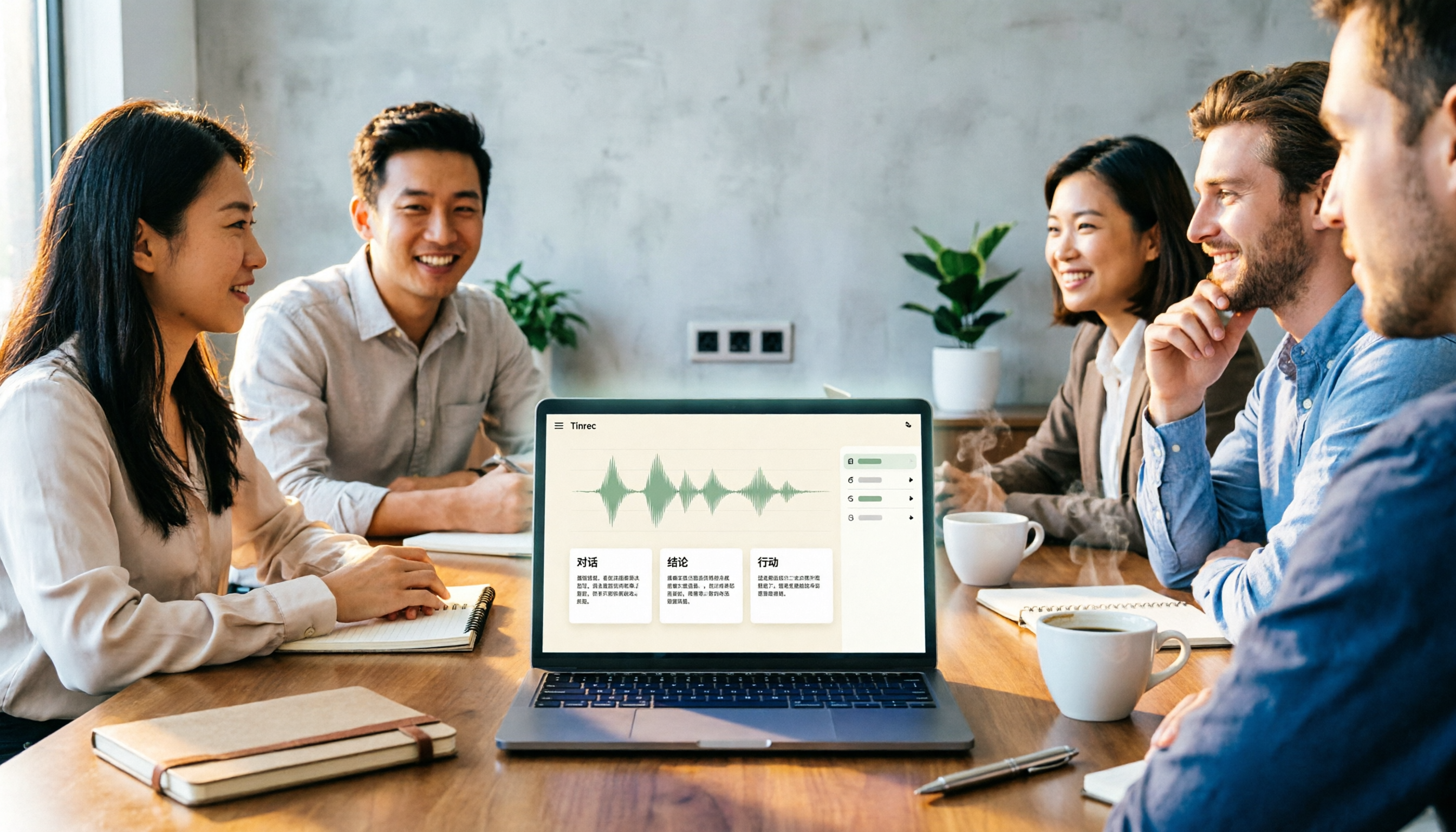
There are countless meeting notes tools, but what really matters is whether they can turn recordings into trackable conclusions and action items. This article breaks down the selection criteria using 4 common tool approaches and demonstrates Tinrec's practical use for real-time transcription, AI summaries, action item extraction, AI Q&A, and team knowledge retention, along with buying tips and FAQs.

Teams Meeting Creation: 3 Methods Tested in 2026, Tinrec Makes Post-Meeting Cleanup Easier
A comparison of three common ways to create Teams meetings: Teams calendar, Outlook calendar, and channel meetings. Covers attendee invitations, external participants, recording storage, and post-meeting data management, plus how Tinrec fits into transcription, summaries, action items, and team knowledge retention.
4 LINE Call Recording Methods Compared for 2026: How to Choose Between iPhone, Android, and Desktop
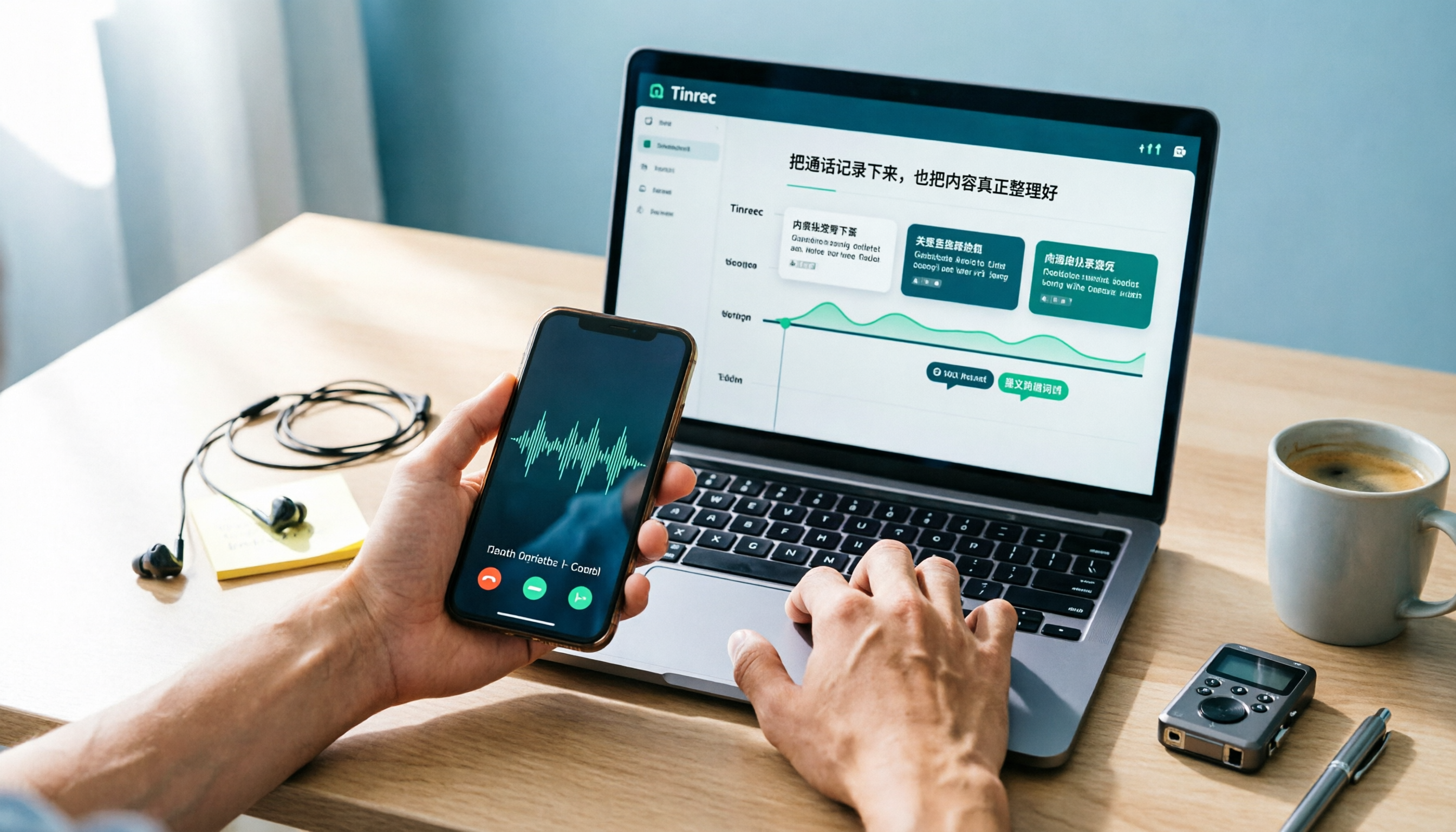
LINE doesn't have built-in call recording, but the methods fall into two layers: capturing the audio and then using it. This guide starts with the system limitations on iPhone and Android, compares screen recording, third-party call recording apps, external recording devices, and Tinrec's post-recording workflow, helping you choose the method that truly saves time.

4 Ways to Start a New Meeting in Microsoft Teams: Instant Meeting, Calendar, Channel, or Outlook — Which Is Fastest?
A comparison of four ways to start a new meeting in Microsoft Teams: Calendar Instant Meeting, Calendar New Meeting, Team Channel Instant Meeting, and the Outlook add-in. It also covers how to use Tinrec to transcribe, summarize, and capture action items after the meeting.