
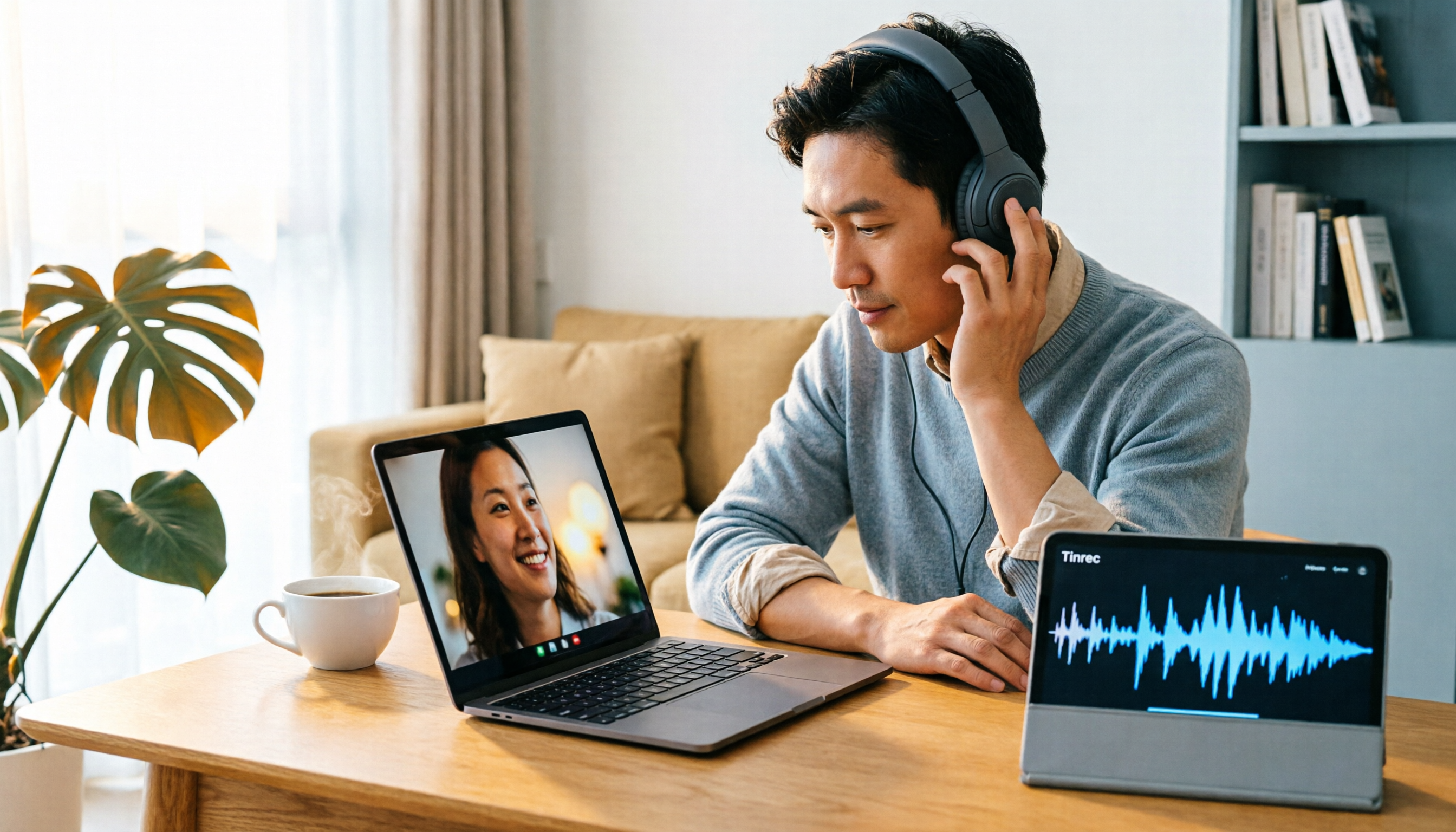
Turn recordings into transcripts and summaries in minutes
Upload audio or video for multilingual transcription, AI notes, and action items
No Sound in a Meeting: The Real Fear Isn't the Awkwardness—It's the Aftermath
Google Meet audio issues usually don't happen when you're prepared—they happen the second your boss asks, "Did you catch what was just said?" You think you're on mute, but actually your speakers are dead. You assume everyone can hear you, but the whole meeting was just you talking to yourself.
If you're someone who attends a dozen meetings a week, not fixing this audio problem quickly means more than just awkward moments—it's the time you waste after every meeting trying to figure out "what was actually said."
This article won't make you memorize a bunch of settings. I'll show you the most straightforward way to troubleshoot Google Meet audio issues step by step.
Start with 3 Quick 10-Second Checks
Often, Google Meet audio problems aren't complex technical issues—they're just three basic things you overlooked.
First, make sure you didn't accidentally mute yourself. The microphone and speaker icons at the bottom of the Meet screen show a red slash when they're off. This mistake sounds basic, but it happens more often than you'd think, especially when you're rushing into a meeting.
Second, check that your computer isn't sending audio elsewhere. If you usually connect Bluetooth headphones or external speakers, your computer might automatically route audio to a device that isn't currently with you. To check, click the audio settings icon in the bottom-right corner of the Meet screen and see if the selected speaker and microphone match the devices you're actually using.
Third, make sure you're not in Companion mode. Google Meet's Companion mode is designed for interacting with your phone or laptop during an in-room meeting, but it automatically disables the microphone and speakers. If you accidentally enter this mode, you'll see the meeting but won't hear anything or be able to speak.
These three checks usually solve more than half the issues. If you still have no sound, let's keep going.
Browser Permissions: The Most Common Cause of Google Meet Audio Problems
If you're using Chrome, Edge, or Safari to open Google Meet, whether the browser has permission to use your microphone and speakers directly determines if you can join meetings normally.
How to Check in Chrome
- In the Meet meeting screen, click the lock or permissions icon on the left side of the address bar.
- Find the "Microphone" and "Sound" items.
- Make sure they're not set to "Blocked." If they are, change them to "Allow."
- Refresh the Meet page to apply the permission changes.
If you previously clicked "Block" and chose "Always block," Meet won't be able to access the microphone, resulting in "no sound."
Also Check Your Browser Tabs
If you're like me and have a dozen tabs open at once, some of those tabs might be playing videos or using the audio device. When Google Meet has no sound, close other tabs first—especially YouTube, Spotify, or any site that makes noise.
Clearing your browser cache is also worth doing. Cache doesn't directly cause audio issues, but it can occasionally leave Meet settings stuck in an old state. After clearing it and restarting the browser, the problem often disappears.
Windows Sound Settings: Choose the Right Default Device
Google Meet typically uses the system's default audio device. If your default device is a pair of headphones you've unplugged or an external microphone that's not connected, Meet won't produce sound.
Set the Correct Device as Default
- Right-click the speaker icon in the bottom-right corner of the Windows taskbar.
- Select "Sound settings" or "Open Sound settings."
- Under "Output" and "Input," select the speaker and microphone you're actually using.
- After that, it's recommended to click "More sound settings" to ensure no other device is mistakenly set as the default communication device.
Stop organizing recordings by hand
Upload audio or video and automatically get a transcript, summary, and action items
There's also a Windows feature you might not know about: when the system detects communication activity, it automatically lowers the volume of other audio sources. This is meant to help you hear the meeting clearly, but sometimes it makes Meet audio unusually quiet—so quiet it seems like there's no sound at all.
Disable Automatic Volume Reduction for Communications
- Open "Control Panel" → "Sound" → "Communications" tab.
- Change the option to "Do nothing."
- Click OK, then test Meet again.
This setting is especially effective for cases where you can hear audio but it's very faint.
Bluetooth Devices: The Invisible Interference Source
Bluetooth headphones are convenient, but they're also a common source of Google Meet audio issues.
If you've used Bluetooth headphones for meetings before, and now they're off or back in their charging case, but your computer's Bluetooth is still on, the system might still try to send audio to that now-offline device. The result: the Meet screen looks normal, others can see you, but you can't hear anything.
The fix is simple:
- Go into Meet's audio settings and make sure the speaker and microphone aren't set to a Bluetooth device.
- If you don't need Bluetooth right now, just turn off Bluetooth on your computer.
- Refresh the Meet page to reinitialize the audio.
If you must use Bluetooth headphones for meetings, play a video or music before joining to confirm the sound is actually coming through the headphones, then join Meet.
Audio Drivers: The Hidden Reason Sound Won't Come Out
If you've done all the previous steps and Google Meet is still silent, the issue might be with your audio drivers.
Drivers are the bridge between the operating system and your sound card. Outdated, corrupted, or problematic driver versions can prevent Meet from detecting the correct audio device.
Update Audio Drivers
- Type "Device Manager" in the Windows search bar.
- Expand "Sound, video and game controllers."
- Right-click on your audio device and select "Update driver."
- Choose "Search automatically for drivers" and let Windows find the update.
If automatic search doesn't find an update, go to your computer manufacturer's website or the sound card manufacturer's site to download the latest driver for your specific model. This is more reliable than using third-party driver update tools and less likely to install an incompatible version.
After updating the driver, restart your computer before testing Meet again. Don't rush to reconnect in the same meeting.
If You Can't Fix It in Time: At Least Don't Lose the Meeting Content
The most annoying part of audio issues isn't the lack of sound at the moment—it's that the meeting content might be lost forever. Especially if you're the meeting host or the one responsible for taking notes, a sudden audio failure in Google Meet means the entire information flow of the meeting is cut off.
My approach: for important meetings, don't rely solely on Meet's built-in audio. I also open a desktop tool that records and transcribes audio directly from the system sound and microphone simultaneously. This way, even if Meet's audio fails, I still have a transcript and summary to fall back on.
For example, the desktop version of Tinrec 秒听录音 I currently use can capture system audio directly without needing to add a meeting bot to Meet. I open it before the meeting, it records and generates a transcript in real time, and after the meeting, it automatically creates a summary and action items. Even if Meet loses sound midway, I won't have a completely blank meeting—at least the recorded parts can be reviewed later.
This isn't about being paranoid in every meeting—it's about having a basic safety net for audio issues.
Conclusion: Start with the Simplest Checks, Don't Rush to Reinstall
There are many reasons why Google Meet might have no sound, but most cases don't require complex settings.
Follow this order:
- First, confirm you're not on mute and that the speaker and microphone are set to the correct devices.
- Then, check that browser permissions haven't blocked the microphone and that other tabs aren't using the audio.
- Next, check Windows default devices and the automatic volume reduction for communications.
- Then, rule out Bluetooth device interference.
- Finally, update audio drivers and restart your computer.
If you have frequent meetings and often need to organize meeting notes, instead of struggling with audio issues every time, develop a habit: for important online meetings, use a separate tool that records system audio as a backup. That way, even if Meet has issues, you won't have wasted the entire meeting.
References
Turn every recording into actionable outcomes
Get 60 free transcription minutes when you sign in. No credit card required.
Related Reading
You might also like

for mac google meet: Audio Permissions, Recording, and Transcript Handoff for Google Meet on Mac
Recording Google Meet on a Mac usually gets stuck not because you cannot find the record button, but because macOS separates 'capture system audio' and 'use microphone' into two independent authorizations. This article proceeds in three parts—permission setup, recording, and post-meeting organization—explaining how to determine which layer is causing meeting audio not to be recorded, and how to organize the recording into a transcript, summary, and to-dos and hand it off to a colleague.

How to Change Your Google Meet Background on Mobile: Check Account and Version Requirements First, Then Follow the Pre-Meeting or In-Meeting Path
When you're told to join a client-facing meeting and only have your phone on hand, the last thing you want is to discover five minutes before the call that you can't find the background option. This article first explains what's required to use backgrounds on mobile (account type, app version, device permissions), then walks through two paths step by step—one before you join the meeting and one during it—and closes with a pre-meeting checklist and alternatives if you can't find the option.
Google Meet 2026 APK Installed: Choosing a Meeting Notes Tool on Android — First Look at the Mobile vs. Desktop Organization Gap
Installing the Google Meet 2026 APK is just the first step. This article uses four dimensions to narrow down meeting notes tools that claim to 'support Google Meet' to two or three options, focusing on the real-world gap between Android mobile and desktop post-meeting organization. Each dimension includes specific questions you should confirm with the product page or vendor.

Google Meet 2026 Meeting Notes Capability Review: Where Built-in Transcription Ends and How to Split Post-Meeting Action Items and Deliverables
A practical mid-level manager's review of Google Meet 2026 recording and transcription coverage, explaining the responsibility boundaries for post-meeting summaries, action items, and deliverables, with recommendations for Chinese and mixed Chinese-English meetings, data storage, and team handoffs.

Which Google Meet 2026 APK Should You Install? Android Install Source Guide, Meeting Prerequisites, and Backup Recording Handoff Order When Nothing Was Recorded
When you're assigned to join a Google Meet on an Android phone and handle post-meeting notes, first clarify whether you're attending, hosting, or responsible for organizing. Then decide whether to install from the official app store or a third-party APK source, what prerequisites are needed to sign in, and how to use audio recording and transcription in order to fill in the transcript and action items and hand them off when the meeting wasn't recorded.

Google Meet 2026 Meeting Notes Capabilities: Where Built-In Transcription Ends and How to Split Post-Meeting To-Dos and Deliverables
Google Meet 2026 recording and transcription are not automatically enabled by default, and post-meeting summaries, to-dos, and deliverables still have coverage boundaries. This article walks through the actual workflow to assess built-in platform capabilities, explains the differences in organizing Chinese and mixed Chinese-English meetings, the distinction between data storage and team spaces, and offers recommendations for dividing post-meeting to-dos, deliverables, and data storage.
How to Choose a Google Meet Note-Taking Tool for Windows: Four Dimensions to Narrow Down from Cross-Device Gaps to Two or Three Options
Meetings happen on Google Meet on a Windows PC, but organizing often gets picked up on a phone or another device. This article uses four dimensions (how audio gets in, how far post-meeting output goes, the organizing gap between Windows and phone, and whether data stays in a personal or team space) to narrow down candidate tools to two or three, with specific questions to ask product pages or vendors for each dimension.
How to Choose a Google Meet Meeting Notes Tool for PC: Narrow a Dozen Options to Two or Three with Four Dimensions, and What to Confirm with Vendors for Each
After a Google Meet call on a Windows PC, what you actually need to deliver is decisions, owners, deadlines, and an archivable record. This article uses four dimensions to help you narrow a dozen tools that claim Google Meet support down to two or three, with specific questions to confirm on product pages or with vendors for each dimension.

What You Need for Google Meet: Pre-Meeting Role Checklist and Post-Meeting Handoff
From the perspective of administrative assistants and project coordinators, this guide breaks down the prerequisites for joining or hosting a Google Meet by role, including account requirements, organizational settings, recording permissions, and extra conditions for external attendees. It also provides a pre-meeting checklist and a post-meeting handoff sequence for transcripts, decisions, and action items.