
Turn recordings into transcripts and summaries in minutes
Upload audio or video for multilingual transcription, AI notes, and action items
Why You Need to Understand Google Meet Hardware Licenses
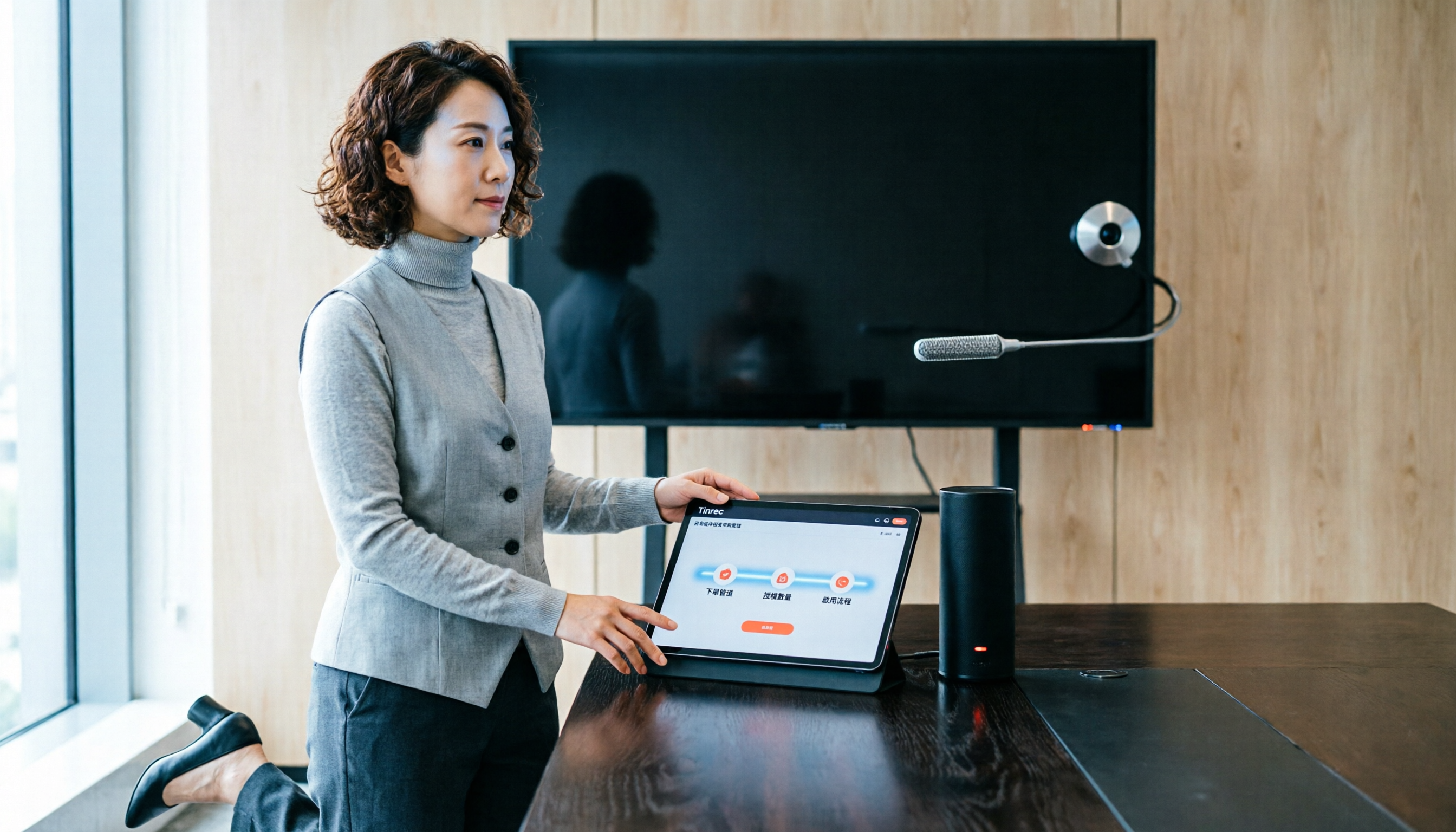
Many SMBs focus on hardware specs when purchasing meeting room equipment, but overlook a critical point: each Google Meet hardware device requires its own Meet hardware license to function. Without a license, devices cannot sync with Google Workspace or be managed via the Admin console.
A common pitfall: you think you can buy 20 licenses at once in the Google admin console, only to find that orders over 10 must go through a reseller. This article outlines 3 main purchasing channels, quantity limits, and the activation process, so you can get it right before ordering.
Option 1: Direct Purchase via Google Admin Console – Best for Small Quantities
If you need 10 or fewer Meet hardware licenses and don't manage your Google Workspace subscription through a reseller, you can order directly in the Google Admin console.
Here's the path:
- Sign in to the Google Admin console.
- Go to "Menu" → "Billing" → "Purchase or upgrade".
- Click "Devices and browsers".
- Find the "Google Meet hardware" section and click "Get started".
This process requires billing administrator privileges; if you're not an admin, you won't see the purchase option.
Best for: Organizations that need only a few licenses and purchase Google Workspace directly from Google.
Option 2: Purchase Through a Google Workspace Reseller – Best for Over 10 Licenses or Auto-Renewal Needs
When you need more than 10 licenses, or if your existing Google Workspace subscription is already through a reseller, Google recommends ordering via the reseller.
Going through a reseller offers several practical benefits:
- You can purchase more than 10 licenses at once.
- Licenses can be managed alongside your existing Google Workspace subscription.
- Resellers can handle auto-renewal for you.
Best for: Teams needing 10+ licenses, those with an existing reseller relationship, or those who prefer unified billing through a reseller.
Option 3: Buying Hardware and Licenses Separately – Maximum Flexibility but Requires Coordination
Google allows you to buy Meet hardware from Reseller A and licenses from Reseller B. This option suits situations where you have more hardware brand choices or your current hardware supplier doesn't offer licenses.
Two things to watch out for:
- After hardware arrives, you must wait for the reseller to send the license activation email and confirm the new license count is added to your organization before activating devices.
- If you later want to transfer licenses to your original Google Workspace reseller, Google supports the transfer, but it requires additional processing.
Stop organizing recordings by hand
Upload audio or video and automatically get a transcript, summary, and action items
Best for: Organizations with different hardware and license suppliers, or teams that want to stagger purchases and retain transfer flexibility.
Option 4: Annual Licenses Directly from Google Partners – Best for Full Management and Support
Some Google partners offer annual Meet hardware licenses, like Cloudfresh, bundling licenses with ongoing management.
Typical features of such plans include:
- License terms aligned with the earliest expiration date in your organization to avoid mismatched renewal dates.
- Hardware performance reports and device status monitoring.
- Diagnostics and troubleshooting via the admin console.
- License transfer from faulty devices to new ones.
Best for: Organizations that want a single partner to handle licensing, device management, and technical support.
How to Choose Among These Channels?
- Need 10 or fewer licenses and buy Workspace directly from Google → Use the Admin console for the fastest process.
- Need 10+ licenses or already have a Workspace reseller → Order through the reseller to avoid quantity limits and fragmented billing.
- Hardware and license suppliers differ → You can buy separately, but confirm the license activation email is received before activating devices.
- Want long-term management and technical support → Look for Google partners offering annual licenses and device management services.
4 Things to Know Before Buying Google Meet Hardware Licenses
- Each device needs a license: Don't just count meeting rooms; count the actual devices you'll activate.
- 10 is the key threshold: For more than 10 licenses, Google recommends going through a reseller—don't try to place multiple orders in the console.
- Check billing admin privileges first: If you can't see the purchase option, it's likely a permissions issue—ask a super admin to grant access.
- Wait for the license activation email before setting up: Hardware arrival doesn't mean immediate use; confirm the license count is added to your organization first.
Summary
The key to buying Google Meet hardware licenses isn't finding the cheapest channel—it's first determining your license quantity, Workspace subscription source, and ongoing management needs. For 10 or fewer licenses, you can buy directly in the Admin console; for more than 10 or with a reseller relationship, going through a reseller is smoother. Before ordering, inventory your device count and billing permissions to avoid the most common roadblocks.
References
Turn every recording into actionable outcomes
Get 60 free transcription minutes when you sign in. No credit card required.
Related Reading
You might also like
![[Tutorial] Tinrec Live Recording Translation in 2026: Bilingual Transcripts + Post-Meeting Organization](https://record-img.tos-accelerate.volces.com/images/2026/11/04/1793793287175032755.png)
[Tutorial] Tinrec Live Recording Translation in 2026: Bilingual Transcripts + Post-Meeting Organization
From multilingual meetings to interview organization, learn how to choose live recording translation tools, Tinrec's real-time bilingual transcripts, summary to-dos, team spaces, and plan budgets to help you pick the right tool.
4 Auto Subtitle Software Compared (2026): Chinese Recognition, Free Tiers, and Export Formats
Avoid common pitfalls when choosing auto subtitle software. We compare Chinese recognition, free tiers, export formats, and team collaboration, and explain when Tinrec fits meeting transcripts, AI summaries, action items, and team knowledge retention.

5 Free AI Subtitle Generators in 2026: A Complete Comparison
Too many AI subtitle generators? Is the free version enough? This guide starts with the key decision: do you need subtitles or a transcript? We review 5 free options, comparing Chinese recognition, free quotas, output formats, and post-meeting organization, and honestly list each tool's limitations and paid thresholds.

4 Free AI Subtitle Tools Tested: Which Free Version Actually Delivers in 2026?
There are plenty of free AI subtitle tools, but most people get stuck not because they can't find a tool, but because they treat subtitles as the end goal. This article starts with common misconceptions, breaks down the real shape of free quotas, privacy risks, and post-subtitle workflows, and tests four tools—Tinrec, OpenSubs, Wayin, and cSubtitle—to compare their suitable use cases.

5 Recording Translation Apps Tested: Tinrec vs Notta vs Otter — Which Is Best for Chinese Meetings in 2026?
There are countless recording translation apps, but most people get stuck not on transcription itself, but on what comes after: re-listening, translating, and organizing. This article compares Tinrec, Notta, Otter, Google Translate, and Granola in real meeting and interview scenarios, covering recording methods, live translation, post-meeting organization, and team collaboration, and honestly lists pricing and quota limits to help you pick the one that truly saves time.

4 Automatic Video Subtitle Generators Tested: Which Saves the Most Time on Chinese Recognition and Post-Meeting Organization?
There are many automatic subtitle tools, but your needs actually fall into two categories: burning subtitles into the video, or turning video content into searchable, queryable data. This article covers selection criteria, hands-on differences, and pitfalls to avoid, summarizing the positioning and limitations of Tinrec, CapCut, VEED, and FlexClip to help you choose the right one at a glance.
4 Subtitle Generators Compared in 2026: Free vs. Paid and Where the Efficiency Gaps Are
A side-by-side comparison of Tinrec, Yating Transcript, Adobe Express, and pyTranscriber from three angles—source material, timeline handling, and team collaboration—plus the three most common subtitle mistakes and practical selection advice.

Tinrec vs CapCut 2026: 5-Dimension Comparison — Which Is Better for Meeting Notes and Subtitle Generation?
Given the same one-hour meeting recording, should you use CapCut to generate subtitles or Tinrec to organize a transcript and meeting minutes? This article compares them across 5 dimensions: Chinese speech recognition, post-meeting organization, AI Q&A, export workflows, and team collaboration, to help you choose the right subtitle generation app.
2026 Live Meeting Translation Showdown: Tinrec vs Otter.ai vs Built-in Captions — Which One Should You Choose for Multilingual Meetings?
Should you rely on built-in captions or invest in a dedicated live translation tool for multilingual meetings? This article compares Tinrec and Otter.ai across key dimensions—how meeting audio is captured, Chinese and mixed Chinese-English translation, bilingual display, post-meeting data retention, and pricing/usage quotas—to help you decide which solution fits your meeting scenario.