
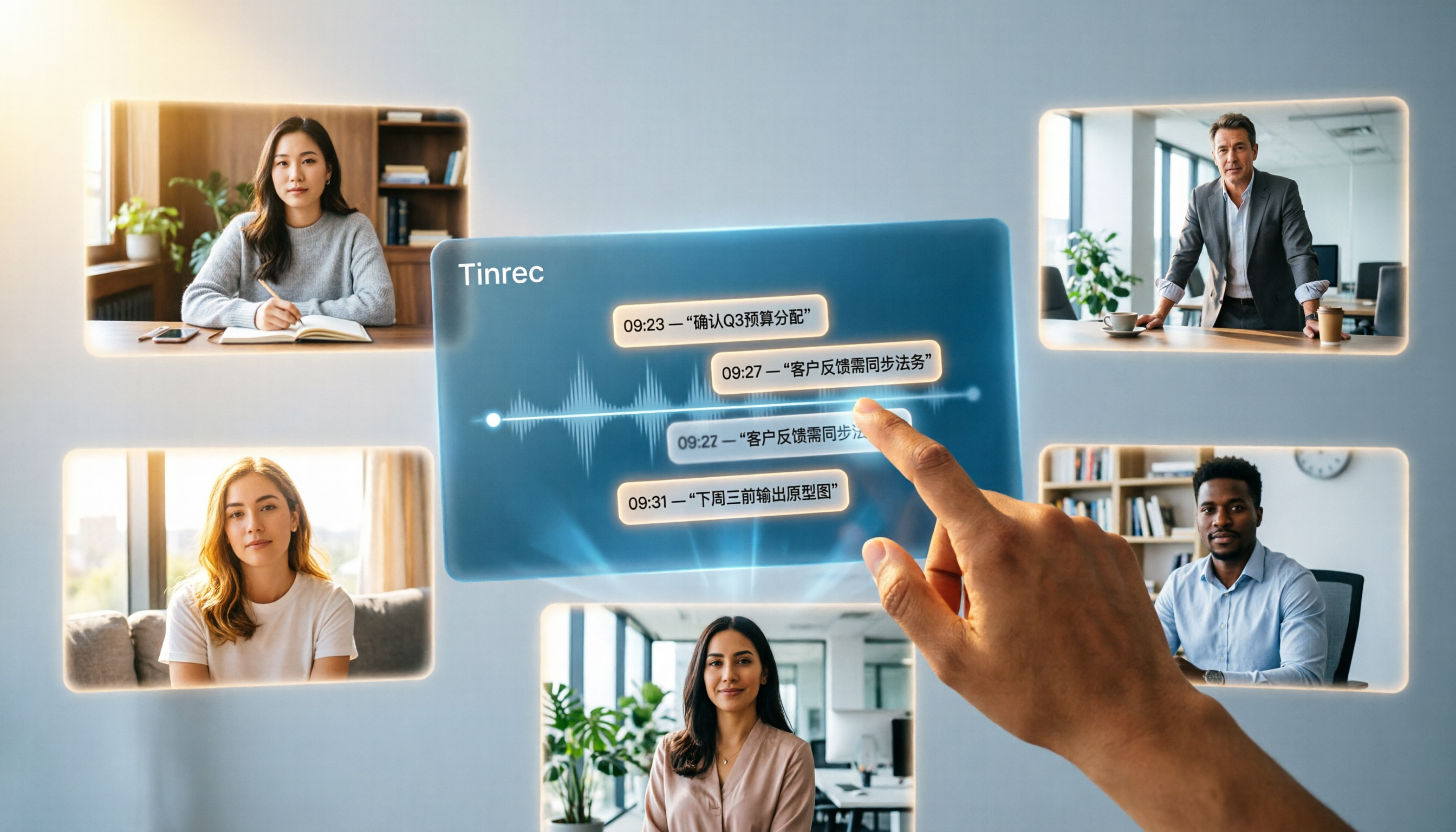
Turn recordings into transcripts and summaries in minutes
Upload audio or video for multilingual transcription, AI notes, and action items
I recently spoke with a project manager who attends eight Google Meet sessions a week. His biggest headache isn't the meetings themselves—it's the follow-up work afterward.
The meeting ends, decisions are made, but three days later, when he needs to find "what exactly the client said," he can't locate it anywhere.
He tried Google Meet's built-in recording. The files sit in Google Drive, and two months later, he forgets even the file names.
He also tried having a bot join his meetings. The moment clients saw an unfamiliar participant, their first question was, "Who's this?"
So the real issue isn't "can you record"—it's "after recording, can you actually use that content?"
In this article, I'll share my hands-on testing journey to help you figure out how to choose a Google Meet recorder.
First, Clarify: Do You Want a "Video File" or "Usable Meeting Data"?
Many people searching for a Google Meet recorder think, "I just need to capture the screen."
But if you only need an MP4 file, Google Meet's built-in recording already does that.
The real question is: What happens after recording?
Do you want to spend 40 minutes rewatching the video to find key points? Or would you rather open a transcript and search directly for that client quote?
So during my testing, I categorized the tools into three types:
- Type 1: Gives you only a video file; you handle everything else.
- Type 2: Provides a transcript, but you still organize it yourself.
- Type 3: Goes beyond transcripts—offers summaries, action items, and even lets you ask follow-up questions.
Your choice will differ completely depending on which type you need.
Type 1: If You Just Need the Footage, Google Meet's Built-in Recording Is the Most Direct
If your needs are simple—just keeping a record—Google Meet's built-in recording is the easiest option.
Just note that you need a paid Google Workspace plan.
Recordings are automatically saved to Google Drive and available after the meeting ends.
But during my testing, I ran into a few frustrations.
First, it records the "entire session." To find a specific discussion segment later, you have to manually scrub through the timeline.
Second, there's no transcript, so keyword search is completely out of the question.
Third, if 20 people take turns speaking, you still have to listen and jot down notes yourself.
So built-in recording works for "archiving," not for "organizing."
Type 2: For Transcripts, Tactiq Is a Lightweight Option
Next, I tried Tactiq.
Its approach is clever: a Chrome extension captures Google Meet's live captions, and the transcript appears in the dashboard after the meeting.
No bot joins the meeting, which I really liked.
The free plan has limits on transcript exports, but it's sufficient for occasional text records.
However, I found one issue: Tactiq focuses on "text records," not video footage.
If you need to review slides, see who made a certain expression at a specific time, or check screen shares, Tactiq won't help.
It suits light users who need text only, not video.
Type 3: For Full Video Plus Transcripts, Jumpshare Covers Both
Then I tested Jumpshare.
It's positioned as a screen recorder, capturing both video and audio of the entire Google Meet session.
The upside: no participant limits, so even meetings with dozens of people can be recorded.
After recording, you can upload, share, and even set password protection.
But I noticed its boundaries: Jumpshare focuses on "recording and sharing," not "organizing meeting content."
It gives you the video, but it won't automatically tell you the meeting's conclusions or action items.
Summaries and key takeaways afterward are still on you.
If You Want "Ready-to-Use" Results, I Ultimately Chose Tinrec
The tools above each have their strengths, but my core need wasn't fully met.
Stop organizing recordings by hand
Upload audio or video and automatically get a transcript, summary, and action items
I didn't just want recording or just a transcript.
I wanted: after the meeting, I can immediately see key points, find action items, and even ask follow-up questions.
Tinrec's approach is a desktop app that captures system audio directly—no bot needs to join Google Meet.
This solved my biggest pain point: clients no longer see unfamiliar participants.
During the meeting, the transcript generates in real time.
After the meeting, AI summaries, chapters, key points, and action items are automatically organized.
I can search the transcript directly in Tinrec to find that client quote.
I can also ask follow-up questions about the meeting content, like "What concerns did the client raise in this meeting?"
That's the complete workflow I didn't experience with other tools.
Another Key Factor: Can Meeting Data Be Preserved Over Time?
At first, I thought a recording tool just needed to handle "single meetings."
But I soon realized the real pain point hits "a week after the meeting."
A client asks, "What was the conclusion on that proposal we discussed last time?"
If meeting data is scattered across different tools and computers, you simply can't find it.
Tinrec's team space solves this.
Meeting recordings, transcripts, summaries, and action items are all centralized in one place, where team members can search, ask questions, and keep using them.
When a member leaves the team, the data doesn't disappear—it's handed over to other active members.
This turns meetings from "one-off events" into "accumulating team assets."
That's the fundamental difference I see between Tinrec and other recording tools.
Side-by-Side Comparison: Which of the 5 Tools Fits Whom
| Tool | Capture Method | Core Output | Best For |
|---|---|---|---|
| Google Meet Built-in Recording | Native platform recording | Video file saved to Google Drive | Those who just need an archive and already have a paid Workspace plan |
| Tactiq | Chrome extension captures live captions | Transcript | Those who need text records only, no video |
| Jumpshare | Screen recording | Video plus sharing features | Those who need full footage and value sharing with password protection |
| tl;dv | Extension with optional no-bot or bot mode | Transcript, summary, AI notes | Those who want lightweight AI meeting notes without full video |
| Tinrec | Desktop app, no-bot, captures system audio | Transcript, summary, action items, AI Q&A, team space | Those who need a complete organization workflow and team data retention |
My Selection Method: Ask Yourself Three Questions First
I don't recommend picking a tool just by looking at feature lists.
Instead, I ask three questions.
Question 1: Do you just need an archive, or do you need organization?
If you only need an archive, Google Meet's built-in recording or Jumpshare is enough.
If you need organization, then consider AI transcription and summarization tools.
Question 2: Do you care about bots joining your meetings?
If you do, prioritize no-bot solutions.
Tinrec and Tactiq both take this route, but Tinrec's desktop app captures full audio, while Tactiq relies on captions.
Question 3: Is the meeting data for personal use or team sharing?
If it's for team sharing, you need team spaces, member management, and data handover capabilities.
That's the key dividing line between personal tools and team tools.
Quick Start: 6 Steps to Find the Right Google Meet Recording Solution
- Check if you have a paid Google Workspace plan to determine if built-in recording is available.
- List how many meetings you record per week to gauge usage frequency.
- Ask yourself: Do I need video, transcripts, or organized meeting data?
- If you're concerned about unfamiliar participants, rule out bot-based solutions first.
- If meeting data needs to be shared across a team, confirm the tool has team spaces and member management.
- Start with a free or trial version and test the full workflow on a real meeting.
Don't rush into a purchase.
Test with your own meetings to see which tool truly fits into your workflow.
By testing step by step, you'll gradually find the method that works best for you.
References
- Record, Transcribe & ChatGPT/Claude for Google Meet - Chrome Web Store
- Google Meet Recorder: Record Videos of Meetings | Jumpshare
- Best Google Meet Recorders & Note Takers | MeetGrade
- Best Meeting Recorder for Google Meet in 2026 | RecordMeeting Blog
- The 12 Best Google Meet Recording Software Options for 2026 | Speechyou Blog - Speechyou
Turn every recording into actionable outcomes
Get 60 free transcription minutes when you sign in. No credit card required.
Related Reading
You might also like

5 Best Google Meet AI Meeting Recorders Tested in 2026: No Bots Needed for Automatic Summaries
Is Google Meet's built-in note-taking feature enough? This article tests five AI meeting recorders—Tinrec, Otter.ai, Fireflies.ai, Granola, and Notta—covering bot-free recording, Chinese transcription, summary to-dos, and team spaces to help you find the best fit.

Google Meet Premium Buying Guide 2026: Free, Google One, and Workspace Plans Compared
Thinking about buying Google Meet Premium but don't know where to start? This guide breaks down the pricing, feature limits, and ideal users for Google Meet's free version, Google One Premium, and Workspace plans, plus smarter ways to save and organize meeting content.
Can Google Meet Be Used in China in 2026? 5-Step Guide and Alternatives
Google Meet is essentially blocked across mainland China, but works normally in Hong Kong, Macau, and Taiwan. This article provides a 5-step guide to determine your location and the best way to access Google Meet, along with practical alternatives like Zoom, Microsoft Teams, and Tinrec, so you're prepared before business travel to China.
2026 Google Meet Headset Guide: 5 Wireless Headsets with Clear Mics
With over a dozen Google Meet calls a week, the biggest fear isn't the meeting itself—it's the other person not being able to hear you clearly. This article, based on a mid-level manager's hands-on testing, rounds up the best wireless headsets for Google Meet in 2026, covering noise cancellation, battery life, comfort, and budget, to help you find the one that stops the endless 'Could you repeat that?'
Which Google Meet Hardware Is Best? 2026 Hands-On Review of 4 Options—This One Is Most Reliable for Small to Medium Meeting Rooms
Thinking about buying Google Meet hardware but not sure where to start? This article draws on real purchasing and deployment experience to help you understand the differences between Series One, Logitech, ASUS, and other key options, plus how to handle licensing, displays, and peripherals.
Before Buying a Google Meet Account in 2026: A Hands-On Comparison of 3 Legitimate Options
Thinking about buying a Google Meet account but unsure which plan to choose? This article breaks down the differences between the free version, Google Workspace, and third-party upgrade services, and highlights potential pitfalls to help you find the best fit for your meeting needs.
The Complete Guide to Buying Google Meet Hardware Licenses in 2026: From Admin Console to Reseller Process
Want to purchase Google Meet hardware licenses for your conference room devices but don't know where to start? This article covers the complete process of buying through the Admin console, ordering via resellers, license transfers, and renewal management, plus how to handle situations like more than 10 licenses or auto-renewal.

Google Meet Screen Recording Detection in 2026: Will External Recording Be Notified, and How to Legally Record Meetings
Can Google Meet detect if you're recording with OBS, your phone's built-in recorder, or third-party tools? This guide addresses student and meeting-recording needs, explaining official recording notifications, the real limitations of external recording, and compliance and privacy considerations when using Tinrec to record online meetings without a bot.

Google Meet Plans in 2026: 3 Key Questions to Choose the Right Workspace Subscription
Thinking about upgrading Google Meet but not sure where to start? This guide skips the spec sheets and uses a simple decision framework to help you find the right Google Workspace plan based on meeting duration, participant count, and collaboration needs.