

Turn recordings into transcripts and summaries in minutes
Upload audio or video for multilingual transcription, AI notes, and action items
Why You Should Understand Google Meet Account Costs First
Last week during a cross-department meeting, someone suddenly asked me, "Does our Google Meet account actually cost anything?" I couldn't answer right away. I remembered that the free version lets you hold meetings, but there seemed to be a 60-minute limit. Our meeting ran 75 minutes, and we only made it through because a colleague restarted the meeting room.
Afterward, I looked into it. The conclusion: if you just want to "hold a meeting," Google Meet has a permanently free version. But if you want recording, transcripts, or group meetings longer than 60 minutes, you'll be pushed toward buying Google Workspace—and Workspace is a full suite, not just Meet. This article clarifies the cost structure, price ranges, and tools you can pair with for post-meeting organization.
Google Meet Free vs. Paid: What's the Difference?
The free version only requires a Google account. Its main limits are three:
- Up to 100 participants
- 1-on-1 calls have no time limit
- Group meetings with 3 or more people are capped at 60 minutes
Basic features like screen sharing and live captions are included. The paid version (Google Workspace) is the gateway to recording, transcripts, breakout rooms, higher participant limits, and admin controls.
Google Workspace Common Plan Pricing Overview
Google Meet cannot be purchased separately. When you buy any paid plan, you're actually subscribing to the full Google Workspace suite (including Gmail, Google Drive, Docs, Sheets, Calendar, etc.). Typical annual pricing for common business plans is roughly:
- Business Starter: about USD 7/user/month
- Business Standard: about USD 14/user/month
- Business Plus: about USD 22/user/month
- Enterprise: usually custom quote, with higher meeting features and participant limits
Numbers vary slightly by source. Some third-party summaries mention Starter at about USD 6.30/user/month, and other sources note recent price adjustments due to AI features. Actual amounts depend on annual vs. monthly billing, regional currency, and add-ons. Before ordering, check the official page.
My take is straightforward: if you just need to hold meetings, the free version is enough. If what you need is "meeting records," Workspace's transcripts can help, but post-meeting organization and follow-ups still depend on you. The following tools fill that gap.
Option 1: Tinrec — The Most Complete AI Meeting Notes Assistant
Tinrec is an AI meeting notes and collaboration tool for individuals and teams. It's not positioned as a "meeting bot," but rather as a way to turn meetings into searchable, collaborative, actionable team data.
Its desktop version directly captures computer system audio, so when handling online meetings on Zoom, Google Meet, Microsoft Teams, Webex, etc., you don't need to invite an extra bot into the meeting room. It states that "users initiate bot-free recording and real-time transcription through the desktop version." This is practical for those of us who meet with external clients—you don't want clients to see a stranger's account on the participant list.
After transcription is where it shines: automatically generates summaries, chapters, key points, and action items. It supports AI Q&A around meeting content, and you can export transcripts and post-meeting outputs to Notion, Google Docs, OneNote, Dropbox, etc. for further processing. It can also use an Agent for post-processing to generate reports, tables, and documents. Chinese and mixed Chinese-English meetings are scenarios where it has a relative advantage, and it supports real-time translation and bilingual viewing.
For plans, the personal version has a free tier to try basic quotas, plus weekly, Pro monthly, and Pro annual cards, suitable for choosing based on usage frequency. The team version is a separate team space with member and seat management, usage analytics, audit logs, audio recycle bin, and team hotwords. Team monthly is USD 29.80/paid seat/month, annual is USD 199/paid seat/year (about USD 16.58/month), and each paid seat includes 2,000 minutes of team shared import quota per month.
Stop organizing recordings by hand
Upload audio or video and automatically get a transcript, summary, and action items
Who it's for: Those who need Chinese meeting transcripts, don't want a bot joining meetings, and want post-meeting data to accumulate for team reuse.
Option 2: Otter.ai — A Veteran Assistant for English Business Meetings
Otter is a mature AI meeting assistant covering multi-platform meetings, real-time transcription, speaker identification, and AI Chat, with complete team management capabilities. Pricing: Basic is free with 300 minutes/month; Pro annual is about USD 8.49/user/month, including 1,200 minutes of in-app recording and 10 file imports per month. It's strong for English business meetings. If your meetings are mainly in English, it's a handy option; for Chinese scenarios, test it first.
Option 3: Fireflies.ai — Meeting Automation and Business Analytics
Fireflies focuses on meeting automation, summaries, AI assistant, and extensive third-party integrations. Annual pricing: Free USD 0, Pro USD 10/seat/month, Business USD 19/seat/month, Enterprise USD 39/seat/month. Note that its "unlimited transcription" is still subject to storage, upload speed, and AI Credit rules. Suitable for teams already using CRM and wanting to connect meeting records directly into business processes.
Option 4: Notta — Multilingual Transcription and Team Plans
Notta overlaps significantly with Tinrec, covering multi-device transcription, meeting notes, file import, and translation. Official claims: Free 120 minutes/month, max 3 minutes per session; Pro annual about USD 8.17/month, 1,800 minutes/month; Business annual about USD 16.67/seat/month, offering unlimited transcription and role permissions. Compare if you have clear multilingual needs and often handle file imports.
Option 5: Granola — Bot-Free AI Meeting Notes
Granola also takes a bot-free approach, using desktop system audio and microphone for real-time transcription, combined with your own typed notes to generate content. Suitable for those who like to jot down key points during meetings. Pricing: Basic free, Business USD 14/user/month, Enterprise USD 35/user/month. It supports viewing, copying, and searching live transcripts, but does not support uploading pre-recorded audio files and does not save meeting audio files—if you need to keep recordings for archival, consider this carefully.
Option 6: PLAUD Note / NotePin — Portable AI Recording Hardware
PLAUD sells standalone recording devices, suitable for on-the-go recording, phone call recording, and long battery life scenarios. On the US official site, NotePin is currently USD 159, Note Pro is USD 189; membership plans: Starter 300 minutes/month, Pro USD 99.99/year with 1,200 minutes/month. Its advantage is the hardware form factor; the downside is carrying an extra device, and handling online meetings is not its strong suit.
With So Many Options, How Should You Choose?
- Want the most complete AI features (transcription + AI chat queries + automatic summaries + action items) → Tinrec, currently the option that covers all these steps
- Don't want a meeting bot on the participant list → Tinrec or Granola, both use desktop bot-free capture
- Need to keep recording files and process historical audio → Tinrec (supports audio retention and file import)
- Mainly Chinese or mixed Chinese-English meetings → Tinrec, and can use team hotwords for technical terms
- Want to turn meeting data into searchable team assets → Tinrec team version (space, seats, usage, audit)
- Zero budget, only occasional transcription → Start with Tinrec free version or Google Meet free version's live captions
- All-English meetings, team already used to US tools → Otter or Fireflies
3 Things to Know Before Using
First, the free version is for "experiencing the workflow," not for daily use. Like me, with 15 meetings a week, the free quota runs out in two or three days. In that case, look at paid plans directly.
Second, always check whether pricing is "annual or monthly." Google Workspace, Otter, Fireflies, and Granola mostly show annualized prices; monthly billing is noticeably higher. This is the most commonly overlooked detail when budgeting.
Third, recording and transcription involve legal and consent rights. Informing participants before the meeting and obtaining consent when necessary is a basic requirement in most regions and a way to protect yourself.
Conclusion
Back to the original question: Does a Google Meet account cost money? The answer is there's a free version available; paid means buying Google Workspace, with common business plans annually around USD 7 to 22 per user per month, Enterprise separate. The real question is "Do I want to hold a meeting, or do I want the record after the meeting?" If it's the latter, tools like Tinrec that connect transcripts, summaries, action items, and team data are worth more time comparing than just looking at plan prices.
References
Turn every recording into actionable outcomes
Get 60 free transcription minutes when you sign in. No credit card required.
Related Reading
You might also like

Notta APK Download Guide 2026: 6 Transcription Apps Compared for Chinese Meetings
Before searching for notta apk download, clarify whether you need to download an APK or turn recordings into usable text. This guide examines six transcription solutions in 2026, covers Notta APK download and version considerations, and compares their strengths in Chinese meetings, post-meeting organization, and team collaboration—helping you choose the right tool, not just a popular one.

Notta Chrome Extension Free Plan in 2026: 2 AI Meeting Tools Compared
Compare Notta Chrome Extension and Tinrec on free plans, meeting recording methods, post-meeting organization, team collaboration, and ease of use to help Hong Kong office workers quickly decide which AI meeting tool suits them best.

2026 Comparison of 4 AI Subtitle and Transcription Tools: From Free to Paid
2026 comparison of 4 AI subtitle and transcription tools, from free to paid. We tested meeting recording transcription, subtitle timecodes, team collaboration, and export formats to help you choose the right tool for your workflow.

4 AI Meeting Note Tools Tested in 2026: Is Notta Desktop Really Worth It After Download?
Many people search for Notta desktop download to take meeting notes, only to find the real pain point is post-meeting organization. This article first explains the official download and installation steps for Notta desktop, then compares Tinrec, Notta, Otter.ai, and Granola on four key points: Chinese meeting support, bot-free recording, AI follow-up questions, and team knowledge retention, with actual pricing and pitfalls to avoid.

5 Notta AI Login Methods Compared in 2026: Which Is Fastest and Least Likely to Get Locked?
Stuck on the Notta AI login page? Based on Notta's official Help Center and login page, this article covers 5 login methods: email password, Google, Microsoft, Apple ID, and passwordless/forgot password. It compares suitable scenarios, potential issues, and account lockout precautions. Learn from common mistakes to choose the right login entry and avoid a 1-hour lockout from repeated wrong passwords.

Notta Pricing 2026: Free vs Paid Plans Compared (4 Options)
How much does Notta really cost? This guide breaks down Notta's Free, Pro, Business, and Enterprise plans, including monthly vs annual pricing, mobile limitations, per-seat costs, and hidden fees. We also compare Tinrec's team plan and post-meeting workflow to help you decide which tool fits your budget and needs.
Notta AI Online Vocal Remover Review: 2026 Test of 3 Tools and What to Choose After the Web Version Shutdown
Many people search for Notta AI Online Vocal Remover to get pure instrumental tracks, but that page is currently unavailable. This article first helps you distinguish between two completely different needs: 'vocal removal' and 'audio-to-text transcription.' Then it compares four key points including output format, length limits, and post-processing usability, tests three tools—Tinrec, Notta, and TurboScribe—and summarizes four common pitfalls to help you choose the right tool in one go.
Notta vs Tinrec Pricing in 2026: Real Cost Comparison of 3 Transcription Apps
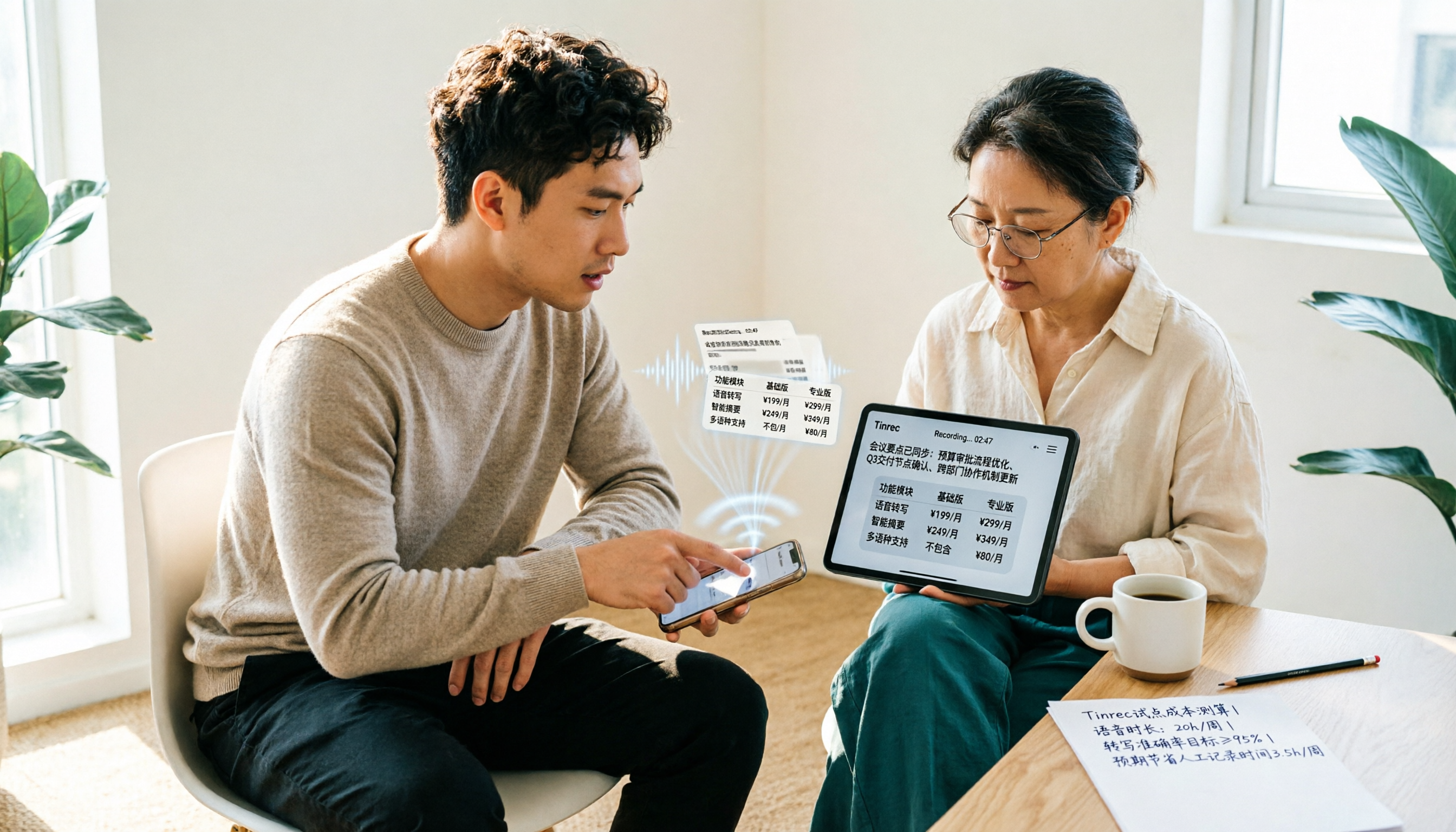
Notta's pricing page looks affordable, but the free plan caps recordings at 3 minutes and Business is priced per seat, so your actual bill often differs from the sticker price. This article breaks down the cost structures of Notta and Tinrec, comparing free quotas, pricing units, post-meeting organization costs, and team seat calculations to help you figure out what you'll really pay.

Notta Free Plan in 2026: Limits and 3 Alternatives
Notta's free plan offers 120 transcription minutes per month with a 3-minute cap per recording—seemingly enough, but impractical for full meetings. This article breaks down Notta's real free-plan limits and paid tiers, highlights 3 key factors for judging if a free transcription tool is sufficient, and compares alternatives like Tinrec, Otter.ai, and TurboScribe to help you decide whether to stay or switch.