

Turn recordings into transcripts and summaries in minutes
Upload audio or video for multilingual transcription, AI notes, and action items
Why Should You Pay Attention to Google Meet Conference Solutions?
Walking into a meeting room and spending five minutes hunting for an HDMI cable, adjusting the microphone, and asking remote colleagues if they can hear you—that's a daily routine for many office workers.
Once the meeting finally ends, the real work begins: re-listening to recordings, typing up transcripts, and trying to remember who agreed to what.
In recent years, Google Meet has turned both "hardware" and "post-meeting organization" into options you can choose from. This article compiles six common setups, covering both conference room equipment and tools for capturing content after the meeting.
What Is Google Meet Hardware?
Simply put, Google Meet hardware is a video conferencing hardware solution from Google Workspace that brings Google Meet into meeting rooms of all sizes.
Its goal is "walk in and start meeting": no pre-meeting anxiety, no last-minute cable hunting—the devices themselves are designed for video conferencing.
Here are some capabilities often mentioned in practice:
- The Google Meet Series One lineup offers options for different rooms and use cases, from small spaces to large conference rooms.
- For rooms registered in Google Calendar, scheduled meetings appear directly on the touch controller, and you can join with one tap.
- Google AI balances how people and content are displayed, using dynamic layouts, face detection, and portrait tiles to improve the experience for both in-room and remote participants.
- Companion mode lets in-room participants fully engage using their personal devices without causing audio interference.
- Built-in interoperability means the hardware can also be used to join Zoom, Microsoft Teams, and Webex meetings.
Note that Google Workspace administrators need to purchase and assign room licenses in the Admin Console to unlock remote device management and device health monitoring. Room licenses are billed annually per device, not as a one-time purchase.
Solution 1 | Tinrec — The Most Complete AI Meeting Notes and Team Collaboration Tool
Hardware solves "getting into the meeting," while Tinrec solves "how to use the content afterward." It's an AI meeting notes and collaboration tool for individuals and teams.
Record online meetings without a meeting bot. Tinrec's desktop app captures your computer's system audio directly, handling Google Meet, Zoom, Microsoft Teams, Webex, and other online meetings without inviting an extra bot as a participant.
More than a transcript. After the meeting, it automatically generates summaries, chapters, key points, and action items. You can also continue asking questions with AI about the meeting content, or further produce reports, tables, and meeting minutes.
Multilingual and real-time translation. During recording, you can view the original text, translation, or bilingual content. It handles mixed Chinese-English meetings and supports team glossaries for technical terms.
Turn meeting data into team assets. The team plan provides independent team spaces where you can create and switch between multiple spaces, invite members via link, assign owners/admins/regular members, and centrally store Audio, Folder, TODO, and other data. It also includes usage analytics, audit logs, and an audio recycle bin.
For pricing, the personal plan offers a free version, weekly pass, Pro monthly, and Pro annual. The team plan offers a 7-day trial for first-time eligible users, including 1 free seat and 300 minutes of shared team import quota. After that, it's USD 29.80 per paid seat per month, or USD 199 per paid seat per year (about USD 16.58/month), with each paid seat providing 2,000 minutes of shared team import quota per month. Prices and promotions are subject to the official purchase page.
Who it's for: Individuals and departments who frequently use Google Meet, need Chinese transcripts and post-meeting organization, or want to turn meeting notes into team knowledge.
Solution 2 | Google Meet Series One — First-Party All-in-One Devices
Google Meet Series One is Google's own video conferencing lineup, focusing on an all-in-one device experience, with options for every room, space, and use case.
Its advantage lies in deep integration with Google Workspace: meeting scheduling, touch controller, and room calendar are all part of the same flow. The hardware also emphasizes reliability, ease of joining, and built-in interoperability.
Pricing varies by configuration and reseller channel, so you'll need to request a quote. It also requires an annually billed room license per device.
Who it's for: Enterprises with many meeting rooms that want unified management through the Google ecosystem.
Solution 3 | Compatible Hardware from Google Partners — Keep Your Brand Options Open
In addition to its first-party lineup, Google offers compatible hardware from major partners, giving businesses more choices and flexibility in cameras, microphones, and conference room equipment.
It also provides a reliable, easy-to-join meeting experience and can accommodate different room sizes and use cases.
Pricing varies by brand and configuration, so you'll need to request a quote. A room license is also required to unlock remote management.
Who it's for: Teams that already prefer a specific hardware brand or want to keep existing equipment and just add Meet compatibility.
Stop organizing recordings by hand
Upload audio or video and automatically get a transcript, summary, and action items
Solution 4 | Bring Your Own Device (BYOD) + Touch Controller and Room License
If budget is limited, employees can bring their own laptops into the meeting room, connect to a display and room audio equipment, and the room can still be registered in Google Calendar.
This approach still gives you the "meeting appears on the controller, join with one tap" flow. With a room license, you also get remote device management and device health status.
The cost structure is existing laptops plus an annual room license fee, which is relatively practical for small meeting rooms.
Who it's for: Small teams with few meeting rooms and budget sensitivity, but who still want a unified room booking process.
Solution 5 | Built-in Platform Transcription — The Easiest Option with No Extra Tools
Platforms like Google Meet, Zoom, and Microsoft Teams all offer in-meeting transcription or captioning. The advantage is that no additional tools are needed.
However, the limitations are clear: records are usually tied to a single platform, cross-platform meetings are hard to consolidate, and they mostly stop at the transcript level, lacking post-meeting Q&A, action item organization, and a unified team database.
The cost is included in your existing platform subscription, depending on the plan.
Who it's for: Individual users who only need basic text records and don't plan to organize across platforms.
Solution 6 | Companion Mode — A Free Second-Screen Meeting Experience
Companion mode is a capability used with Google Meet hardware that lets in-room participants join the meeting on their personal devices, fully using chat, raise hand, and other interactions without causing audio interference.
In rooms equipped with Google Meet hardware, it essentially provides a second-screen meeting room experience.
This capability requires no extra payment and is one of the most overlooked yet practical features in hybrid meetings.
Who it's for: Teams where multiple people in the room need to interact simultaneously, or that often have hybrid work scenarios.
With So Many Solutions, How Should You Choose?
- Want automatic post-meeting summaries, action items, AI Q&A, and to turn meetings into searchable team knowledge → Tinrec (includes transcription, AI Q&A, action items, and team spaces).
- Need Chinese or mixed Chinese-English meeting transcripts and bilingual content → Tinrec, with team glossaries for technical terms.
- Don't want to invite a meeting bot to Google Meet, Zoom, or Teams → Tinrec desktop app records system audio.
- Have multiple meeting rooms and want unified management through Google Workspace → Google Meet Series One or partner hardware, with room licenses.
- Have a preferred hardware brand or existing equipment → Compatible hardware from Google partners.
- Limited budget and few meeting rooms → BYOD plus touch controller and room license.
- Only want basic text records → Built-in platform transcription, starting with free capabilities.
- Multiple people in the room need to interact → Companion mode.
4 Things to Know Before Using Google Meet Conference Solutions
First, hardware and post-meeting records are two different layers. Hardware lets you meet smoothly; post-meeting organization requires a separate tool. Evaluate them separately so your budget isn't wasted.
Second, Room licenses are billed annually. They are paid yearly per device, not a one-time purchase. Factor in the yearly cost when planning the number of meeting rooms.
Third, interoperability means "can join" meetings. Google Meet hardware can join Zoom, Teams, and Webex, but this means it supports the meeting audio played from these platforms on a computer—it does not imply an official partnership.
Fourth, pay attention to regulations and consent for recording and transcription. Before recording a meeting, it's best to inform participants and obtain consent, and handle it according to local regulations. For important content, it's recommended to cross-check with transcript timestamps and recordings rather than relying entirely on AI summaries.
Conclusion
Google Meet hardware solves "is the meeting room easy to use," while Tinrec solves "is the post-meeting content easy to use."
If your pain point is meeting notes scattered everywhere and handoffs breaking down, we suggest starting with Tinrec's free version or team trial, putting transcripts, summaries, action items, and follow-up questions in one space.
Hardware can be upgraded gradually, but how post-meeting data is captured is what truly eats up time every day.
FAQ
Does Google Meet hardware require extra payment?
The hardware itself is quoted based on configuration and channel. Additionally, Google Workspace administrators need to purchase a room license in the Admin Console to unlock remote device management and device health monitoring. Room licenses are billed annually per device.
Can Tinrec record Google Meet online meetings?
Yes. Tinrec's desktop app captures computer system audio to handle Google Meet, Zoom, Microsoft Teams, Webex, and other online meetings without a meeting bot joining. Recording must be actively initiated by the user; it does not automatically join all calendar meetings.
If a team member doesn't have a seat, can they still view meeting data?
Active members can still view, play, and read team data even without a seat. However, operations like recording, uploading, editing, and import/export require a seat. Roles handle management and governance, while seats determine usage eligibility.
Can deleted team audio files be recovered?
After audio enters the team recycle bin, it can be restored before permanent deletion begins. The current retention period is 30 days. TODO items are not included in the recycle bin.
Is Tinrec suitable for Chinese meetings?
Tinrec covers Chinese, Traditional Chinese, and multilingual meeting scenarios, and supports real-time translation and team glossaries. Actual performance is affected by recording quality, accents, background noise, overlapping speech, and technical terms. It's not recommended to expect a fixed accuracy rate.
Can accuracy be guaranteed when using these solutions?
It's not advisable to expect that. A more practical statement: these tools can significantly reduce the time spent on manual note-taking and organization, but for important decisions and numbers, it's still recommended to cross-check with transcripts and recordings.
References
Turn every recording into actionable outcomes
Get 60 free transcription minutes when you sign in. No credit card required.
Related Reading
You might also like

2026 Free Audio-to-Text Solutions Compared: Notta, Tinrec, and 3 More
How does Notta's free audio-to-text work? This guide covers 5 free online transcription options in 2026, including Notta's free plan limits (120 minutes per month, 3 minutes per file) and step-by-step instructions. It also compares free tiers and best-use cases for Tinrec, TurboScribe, Otter.ai, and Granola to help you avoid length and quota traps.

Notta Free Plan 2026: Complete Guide to Limits, Use Cases & Alternatives
Evaluating Notta's free plan? This guide looks at weekly meeting volume and post-meeting needs to help you judge if the free tier fits. It also introduces Tinrec's bot-free recording, transcripts, AI summaries, action item extraction, AI Q&A, and team workspace as a workflow better suited for mid-level managers and teams.

2026 Comparison of 2 Audio-to-Text Tools: Tinrec vs Notta — Differences and Which Is Better for Teams
Starting from the search intent behind 'notta hawkeye,' this article first clarifies that Hawkeye is unrelated to audio recording tools, then from the practical perspective of a mid-level manager compares Notta and Tinrec in terms of meeting capture, post-meeting organization, Chinese-language experience, team governance, and data ownership. It also explains Tinrec's bot-free recording, AI Q&A, action item extraction, and team spaces, and what management scenarios they suit.
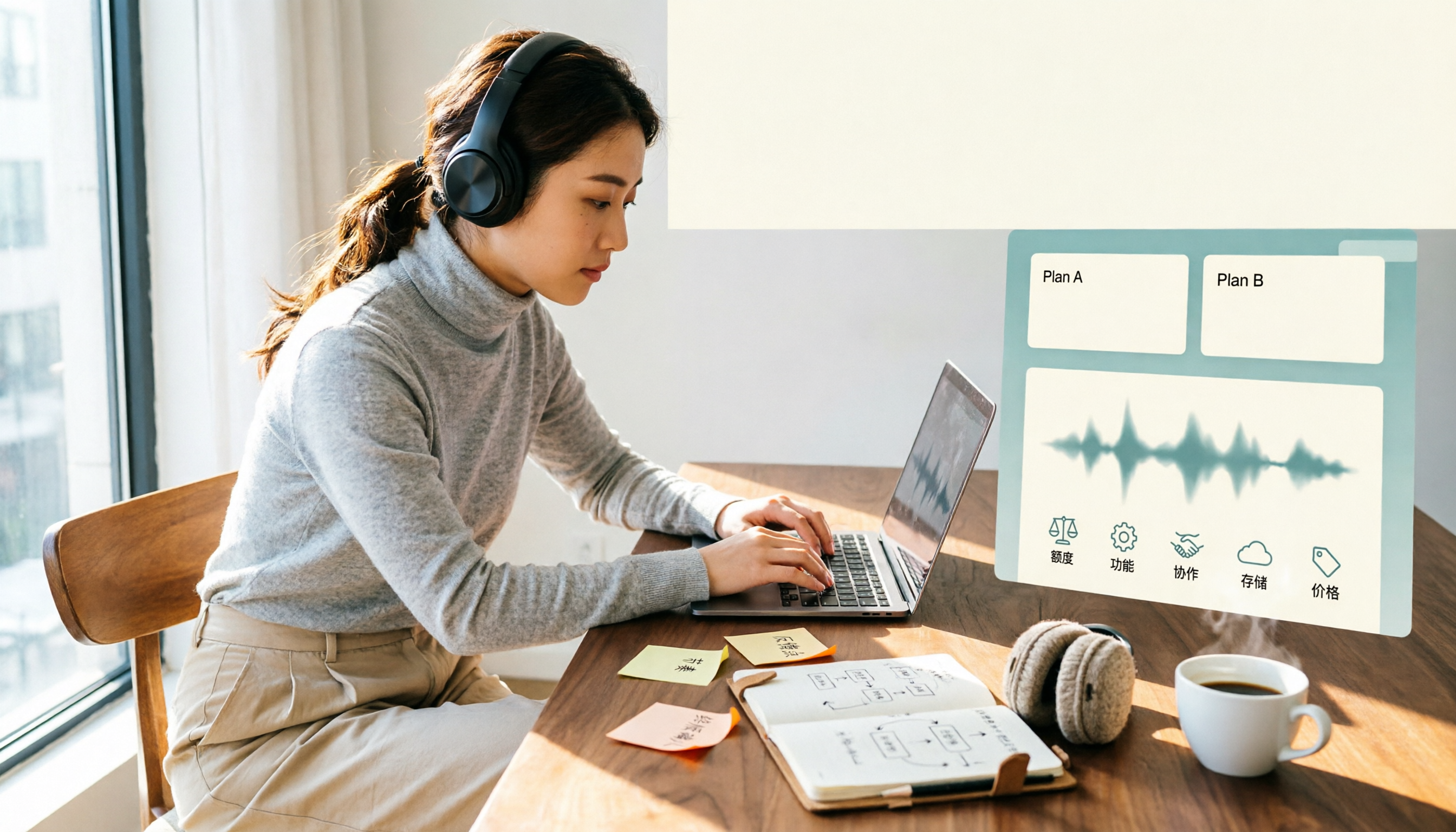
Notta Free vs Paid in 2026: 5-Factor Comparison to Find Your Best Plan
Notta's free plan offers 120 minutes per month with a 3-minute cap per recording—is that enough? This comparison of Notta Free vs Paid covers transcription limits, features, team collaboration, storage experience, and pricing across 5 factors to help you decide whether to upgrade.

How to Use Notta for Mac in 2026: 5 Steps to Meeting Notes & Transcripts
Should you install Notta for Mac as a desktop app, web app, or App Store version? This guide walks through the actual process in 5 steps, from macOS permissions and version selection to transcript proofreading and export, and compares Tinrec (秒聽錄音) on bot-free recording, post-meeting organization, and team collaboration to help you decide which fits your meeting scenario.

Notta Freemium in 2026: Free Plan Limits, Minutes, and Alternatives
Notta's free plan offers 120 minutes per month, but caps each file at 3 minutes and doesn't allow exports or translation. This guide breaks down the real limits of the free version based on actual use cases and outlines a workflow to make meeting recordings truly useful, including 5 checkpoints for choosing a tool and answers to common questions.

Notta Free Account 2026: Sign-Up Steps, 120-Minute Quota, and the 3-Minute Limit Workaround
Notta's free account gives you 120 transcription minutes per month, but each upload is capped at 3 minutes. This guide walks through the sign-up process, explains what the free tier is really good for, and shows how to adjust your workflow for longer meetings.
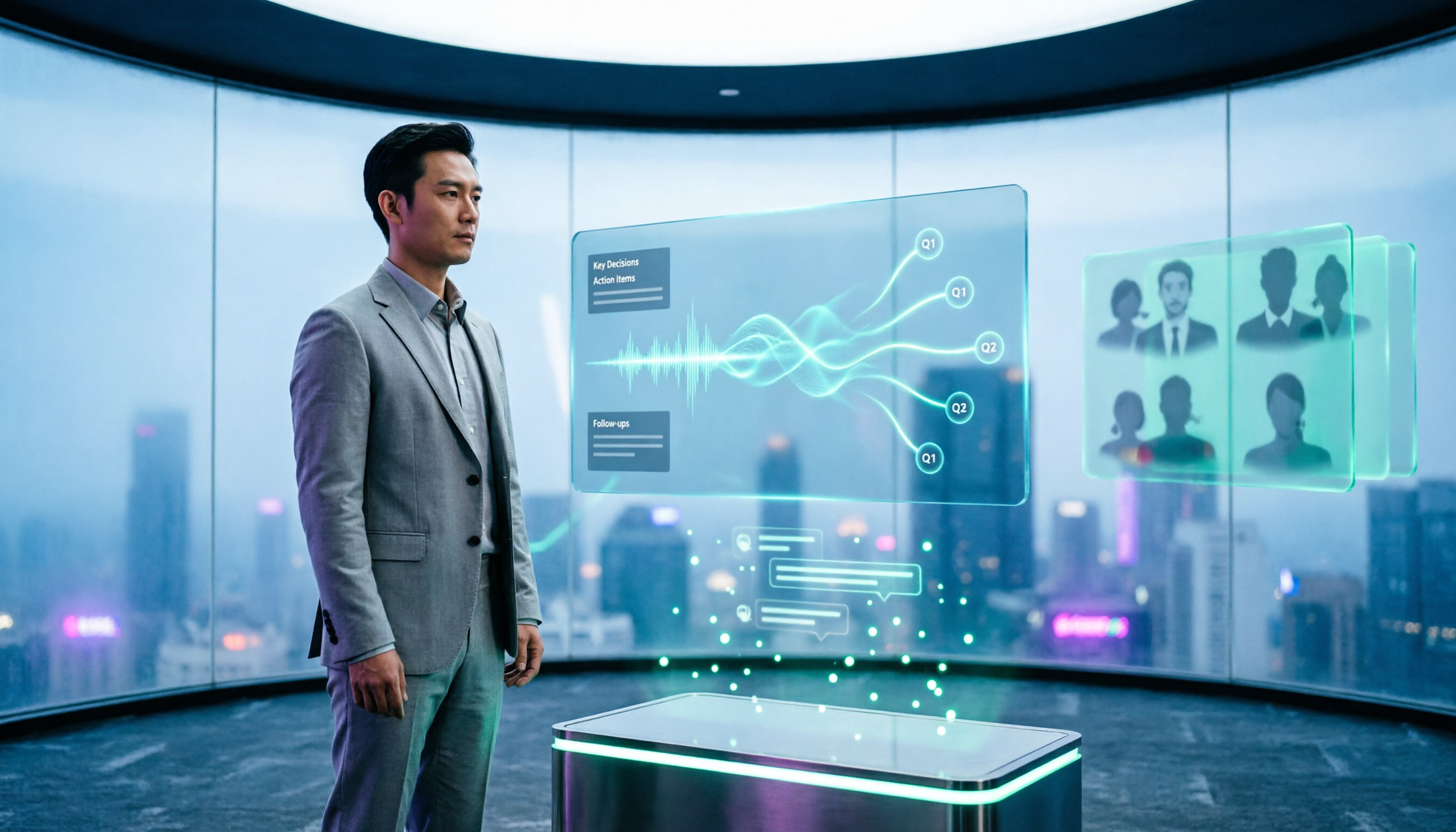
Notta Customer Support Guide 2026: Contact Channels, Reporting Tips & Alternative Tools
A roundup of Notta's publicly available customer support channels, self-service checks to do before emailing, and how to write a report. Plus, when the real issue is your meeting notes workflow, how Tinrec's bot-free recording, AI summary Q&A, and team spaces can reduce how often you need to ask for help.
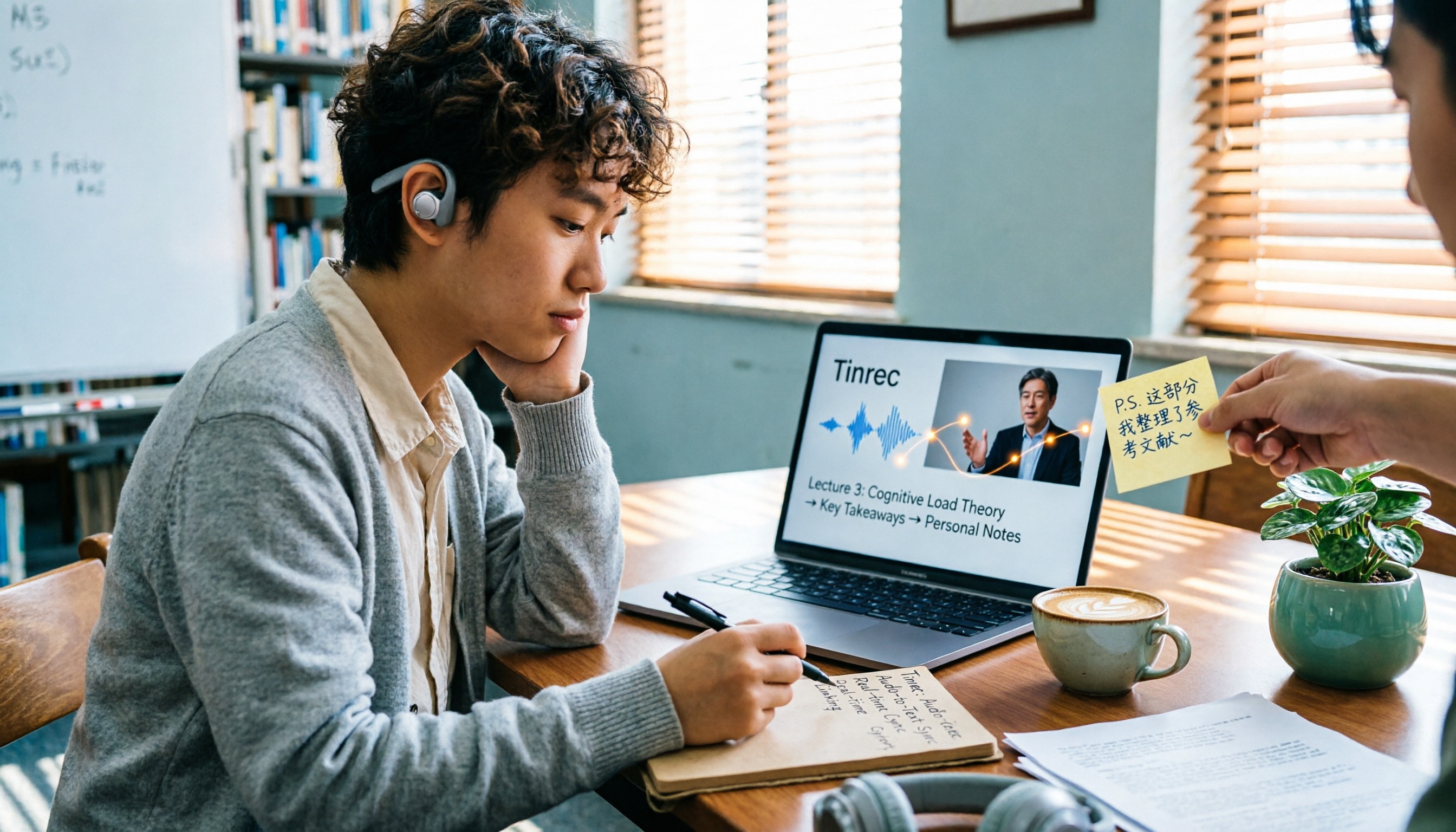
Best Lecture Recording to Text Tools for Students in 2026: 6 Tested, Notta's 50% Education Discount Wins
A roundup of 6 popular lecture recording and note-taking tools for students, covering Notta's 50% education discount eligibility and free plan limits, Tinrec's no-bot online class recording with AI Q&A, and the quotas and pricing of Otter, TurboScribe, Granola, and PLAUD—helping you choose based on class format and budget.