

Turn recordings into transcripts and summaries in minutes
Upload audio or video for multilingual transcription, AI notes, and action items
How to Use Notta for Mac in 2026: 5 Steps to Meeting Notes & Transcripts
"Which version of Notta for Mac should I install?" This question comes up often, but most tutorials just say "download it from the official website" and never address the real pain points.
Before you start, think through three things that will directly determine whether you'll need to switch tools later.
First, do you want "transcribe and go" or "usable after the meeting"? If you just need to turn a recording into text, most transcription tools can do that. But if meeting notes need to be used for follow-ups, shared with colleagues, and referenced three months later, you need more than just transcription.
Second, where does your meeting audio come from? In-person meetings rely on microphones, while online meetings rely on system audio output from your computer. On macOS, these are two completely different permission models, and this is where Mac users most often get stuck.
Third, who will ultimately see these notes? If it's just for yourself, a personal plan is enough. If you need to share with a team and manage members and usage, you'll need to look at team plan roles and seat rules.
The following 5 steps explain the actual situation with Notta on Mac, while comparing another option, Tinrec (秒聽錄音), so you can decide which one suits you.
Before You Start | What You Need for Meeting Notes on Mac
- A macOS computer: Check your version first, because macOS 14.4 and later versus 13.0–14.3 use two different system audio permission models.
- System permissions set up: Microphone is basic; for online meetings, you also need to handle system audio capture permissions.
- Decide on your recording source: Is it in-person audio, an online meeting played on your computer, or importing an existing audio/video file?
- Know where the output goes: Plain text transcript, meeting minutes with summary, or integration into workflows like Notion or Google Docs?
- A test recording: For first-time use, try a 5-minute short meeting rather than using a two-hour quarterly review as your guinea pig.
Step 1 | Check Your macOS Version First — This Determines Which Permission You Need
Purpose of this step: Ensure you can record "the other side of the meeting," not just your own microphone.
How to do it: According to Notta's official documentation, macOS 14.4 and later use ProcessTap to capture system audio, requiring only audio capture permission and not screen recording permission. macOS 13.0 to 14.3 requires screen recording permission to capture system audio. Open "System Settings → Privacy & Security" and confirm the corresponding items are authorized.
Why this matters: Online meeting audio comes from your computer output to headphones or speakers, not from the microphone. If permissions aren't enabled, you'll record a file with only your own voice — and you usually won't discover this until you play it back after the meeting, meaning the entire recording is wasted.
Result: The meeting recording contains both the other party's and your own voice, making the transcript meaningful.
Tinrec's desktop version follows the same approach: it directly captures computer system audio without pulling an extra meeting bot into the meeting room, and no extra name appears in the participant list.
Step 2 | Choose the Right Version: Desktop App, Web Version, or App Store Version
Purpose of this step: Avoid the most frustrating waste of time — "installed but unstable."
How to do it: Notta's official Help Center is clear in its recommendation for Mac users — use the web version or Desktop App, as these two are more stable. The version on the Mac App Store is based on the iPad version, and the official documentation notes it has not been officially tested on macOS.
Another point Mac users often misunderstand: on macOS, closing the Notta main window does not quit the program — it stays in the menu bar and continues running. To fully quit, right-click the menu bar icon and select Quit. During recording, minimize the window rather than closing it directly.
Why: The desktop version can handle system audio, the web version is more flexible, and the App Store version is not recommended by the official team as a primary option. Choose the wrong version and all subsequent troubleshooting is wasted.
Result: You know which one to install and understand that closing the window doesn't quit the program.
Step 3 | Record the Meeting or Import an Existing File
Purpose of this step: Get a clean, complete audio file — the foundation for all subsequent steps.
How to do it: Notta for Mac supports live recording and can also import audio or video files stored on your Mac. The official documentation states that the desktop version will prompt you to record when it detects a meeting starting, covering platforms like Zoom, Google Meet, Microsoft Teams, and Webex. For in-person meetings, place your phone or computer in the center of the table to shorten the recording distance.
Why: Transcription accuracy depends heavily on audio quality. Rather than spending time proofreading later, spend 30 extra seconds before recording to confirm placement and permissions.
Result: A complete, playable, transcribable audio file enters your workspace.
Stop organizing recordings by hand
Upload audio or video and automatically get a transcript, summary, and action items
Reminder: Before recording, inform participants in accordance with local regulations and company policy. The tool won't make this judgment for you.
Step 4 | Transcribe and Spend 3 Minutes Proofreading
Purpose of this step: Turn audio into searchable, quotable text.
How to do it: Notta transcribes in real time and generates a transcript, supports multiple languages and bilingual display, and can identify different speakers. After the transcript is generated, you can use adjustable playback speed with quick editing to listen and correct simultaneously.
Why: AI transcription is not foolproof. Names, product codes, technical terms, and overlapping speakers are common error points. Spending 3 minutes fixing these types of errors will significantly improve the quality of subsequent summaries.
Result: A searchable, copyable, quotable transcript.
Tinrec adds another layer at this step: in addition to the transcript, it simultaneously produces summaries, chapters, and key points, so you don't have to manually re-segment what each participant said and which section discussed what.
Step 5 | Organize into Minutes, Export, and Move to the Next Workflow
Purpose of this step: Make meeting notes actually used, rather than sitting in some folder.
How to do it: Notta uses AI to generate meeting summaries to help you quickly grasp key points. After organizing the summary and transcript into your desired format, bring them into your team's usual tools.
Why: Most people's problem isn't "no notes" — it's "can't find the notes, no one reads them." Exporting to existing workflows is the last mile in turning meetings into assets.
Result: Meeting minutes you can send directly, paste into projects, or add to your knowledge base.
Tinrec supports multi-format export to tools like Notion, Google Docs, OneNote, and Dropbox, and can also use Agent post-processing to generate reports, tables, and documents from meeting content, reducing post-meeting retyping time.
FAQ & Troubleshooting
Q: Can I use Notta from the Mac App Store? The official statement is that this version is based on the iPad version and has not been officially tested on macOS; the web version or Desktop App is recommended. This is not a feature issue — it's a stability issue.
Q: Why can't I record the other side of the meeting? Nine times out of ten, it's a mismatch between macOS version and permissions. macOS 14.4 and later only need audio capture permission; 13.0–14.3 need screen recording permission. First confirm which range you're in.
Q: Is the free version enough? Notta's free version offers 120 minutes per month with a maximum of 3 minutes per recording; if it's a 45-minute weekly meeting, the free version basically can't handle it. Tinrec's free version provides a basic quota — try it with a real recording first, then decide whether to upgrade.
Q: For team use, which fields should I look at? Notta Business annual billing works out to about USD 16.67/seat/month. Tinrec team plan is USD 29.80/paid seat/month, or USD 199/paid seat/year (about USD 16.58/month) for annual billing. Eligible teams get 7 days, 1 free seat, and 300 minutes of shared team import quota on first signup; paid seats provide 2,000 minutes of shared import quota per month; under an active plan and seat, live recording is currently not deducted by the minute. Actual prices and benefits are subject to the official purchase page.
Q: Will a bot join the meeting? Notta Desktop and Tinrec desktop version both capture system audio locally, so no extra participant appears. But "no visible bot" doesn't mean "no need to inform" — legal responsibility still rests with the person recording.
Advanced Tips | Turn Meeting Notes from "Text" into "Trackable Data"
1. Use team hotwords to solve recurring transcription errors on technical terms Every industry has terms AI doesn't understand: product codes, client abbreviations, internal acronyms. Tinrec's team plan lets you maintain team hotwords — set once, benefit the whole team; most personal transcription tools require manual correction every time.
2. Use AI Q&A to follow up across meetings Questions like "When was the delivery time the client mentioned last time?" would require searching through multiple transcript files with keyword search. Tinrec supports asking questions directly about meeting content, turning historical meetings into a queryable database.
3. Manage roles and seats separately A common misunderstanding about team plans is "adding someone to the team means they can edit." Tinrec's design is: roles determine who can manage the team and members, seats determine who can record, upload, edit, and export; members without seats can still view, play, and read team materials. When a member leaves, team data belongs to the team and needs to be handed over to other active members — it doesn't disappear with the individual account.
If You Don't Use Notta, Here Are Other Options
Tinrec (秒聽錄音): Desktop version offers bot-free recording, produces summaries, chapters, action items, and AI Q&A after meetings, and can export to common tools. Suitable for those who need Chinese meeting notes and team knowledge retention.
Otter.ai: Mature for English business meetings, with complete meeting assistant and workflow features; Chinese meeting experience is not its strong suit.
Granola: Also bot-free desktop recording, emphasizing "your notes + AI enhancement"; but does not support uploading pre-recorded audio files and does not retain meeting audio.
One-line selection guide: If you need Chinese, want to keep recordings, and need post-meeting workflows, the Tinrec path is smoother.
Summary
By now, you should know: the key to using Notta on Mac isn't "whether it installs" — it's the permissions corresponding to your macOS version, which version to use, and the post-transcription organization work that no one wants to do manually.
5-step recap: Confirm version and permissions → Choose the right version → Record or import → Transcribe and proofread → Organize minutes and export. The first two steps determine whether you can capture audio; the last three determine whether the notes are useful.
If what you want is "turning meetings into searchable, collaborative, traceable data" rather than just a transcript, then your evaluation should focus on post-meeting output and team governance: Can summaries and action items be generated automatically? Can historical meetings be queried? Can members and seats be managed? Will data remain after personnel changes?
Try running it once with a recording of your own meeting from last week — that's more accurate than reading ten comparison articles.
References
Turn every recording into actionable outcomes
Get 60 free transcription minutes when you sign in. No credit card required.
Related Reading
You might also like

2026 Free Audio-to-Text Solutions Compared: Notta, Tinrec, and 3 More
How does Notta's free audio-to-text work? This guide covers 5 free online transcription options in 2026, including Notta's free plan limits (120 minutes per month, 3 minutes per file) and step-by-step instructions. It also compares free tiers and best-use cases for Tinrec, TurboScribe, Otter.ai, and Granola to help you avoid length and quota traps.

Notta Free Plan 2026: Complete Guide to Limits, Use Cases & Alternatives
Evaluating Notta's free plan? This guide looks at weekly meeting volume and post-meeting needs to help you judge if the free tier fits. It also introduces Tinrec's bot-free recording, transcripts, AI summaries, action item extraction, AI Q&A, and team workspace as a workflow better suited for mid-level managers and teams.

2026 Comparison of 2 Audio-to-Text Tools: Tinrec vs Notta — Differences and Which Is Better for Teams
Starting from the search intent behind 'notta hawkeye,' this article first clarifies that Hawkeye is unrelated to audio recording tools, then from the practical perspective of a mid-level manager compares Notta and Tinrec in terms of meeting capture, post-meeting organization, Chinese-language experience, team governance, and data ownership. It also explains Tinrec's bot-free recording, AI Q&A, action item extraction, and team spaces, and what management scenarios they suit.
Notta Free vs Paid in 2026: 5-Factor Comparison to Find Your Best Plan
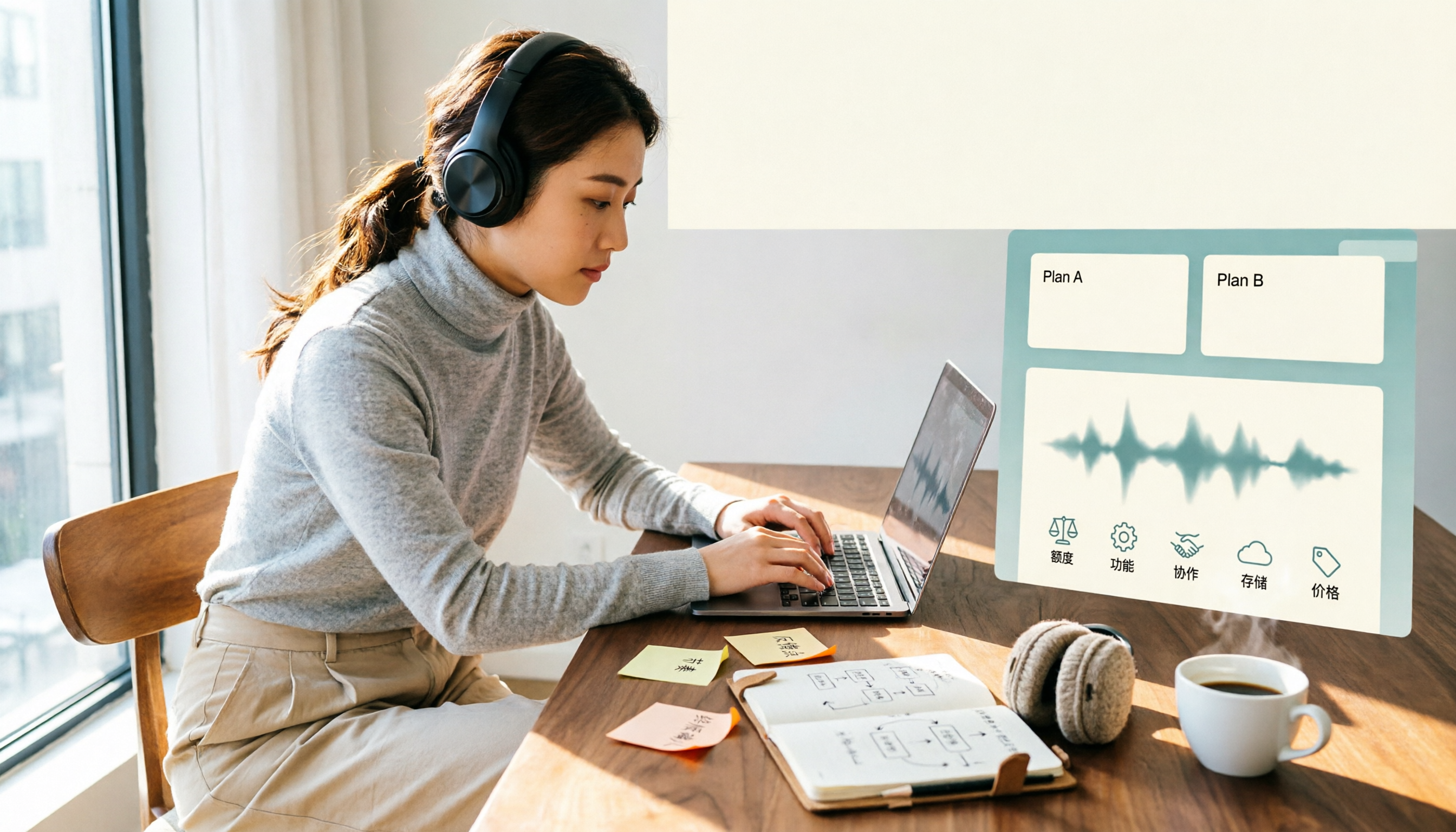
Notta's free plan offers 120 minutes per month with a 3-minute cap per recording—is that enough? This comparison of Notta Free vs Paid covers transcription limits, features, team collaboration, storage experience, and pricing across 5 factors to help you decide whether to upgrade.

Notta Freemium in 2026: Free Plan Limits, Minutes, and Alternatives
Notta's free plan offers 120 minutes per month, but caps each file at 3 minutes and doesn't allow exports or translation. This guide breaks down the real limits of the free version based on actual use cases and outlines a workflow to make meeting recordings truly useful, including 5 checkpoints for choosing a tool and answers to common questions.

Notta Free Account 2026: Sign-Up Steps, 120-Minute Quota, and the 3-Minute Limit Workaround
Notta's free account gives you 120 transcription minutes per month, but each upload is capped at 3 minutes. This guide walks through the sign-up process, explains what the free tier is really good for, and shows how to adjust your workflow for longer meetings.

Notta Customer Support Guide 2026: Contact Channels, Reporting Tips & Alternative Tools
A roundup of Notta's publicly available customer support channels, self-service checks to do before emailing, and how to write a report. Plus, when the real issue is your meeting notes workflow, how Tinrec's bot-free recording, AI summary Q&A, and team spaces can reduce how often you need to ask for help.

Best Lecture Recording to Text Tools for Students in 2026: 6 Tested, Notta's 50% Education Discount Wins
A roundup of 6 popular lecture recording and note-taking tools for students, covering Notta's 50% education discount eligibility and free plan limits, Tinrec's no-bot online class recording with AI Q&A, and the quotas and pricing of Otter, TurboScribe, Granola, and PLAUD—helping you choose based on class format and budget.

2026 Comparison of 2 Audio-to-Text Tools: Notta Pricing Structure vs. Tinrec — How to Choose
Notta's pricing page looks clear, but the actual bill often includes add-on translation features and per-seat fees. This article starts from the real-world usage scenarios of mid-level managers, breaks down Notta's cost structure, free plan limitations, and team pricing, and compares Tinrec's differences in bot-free meeting recording, post-meeting summary and action items, AI Q&A, and team workspace governance, helping you calculate this cost before your next purchase.