
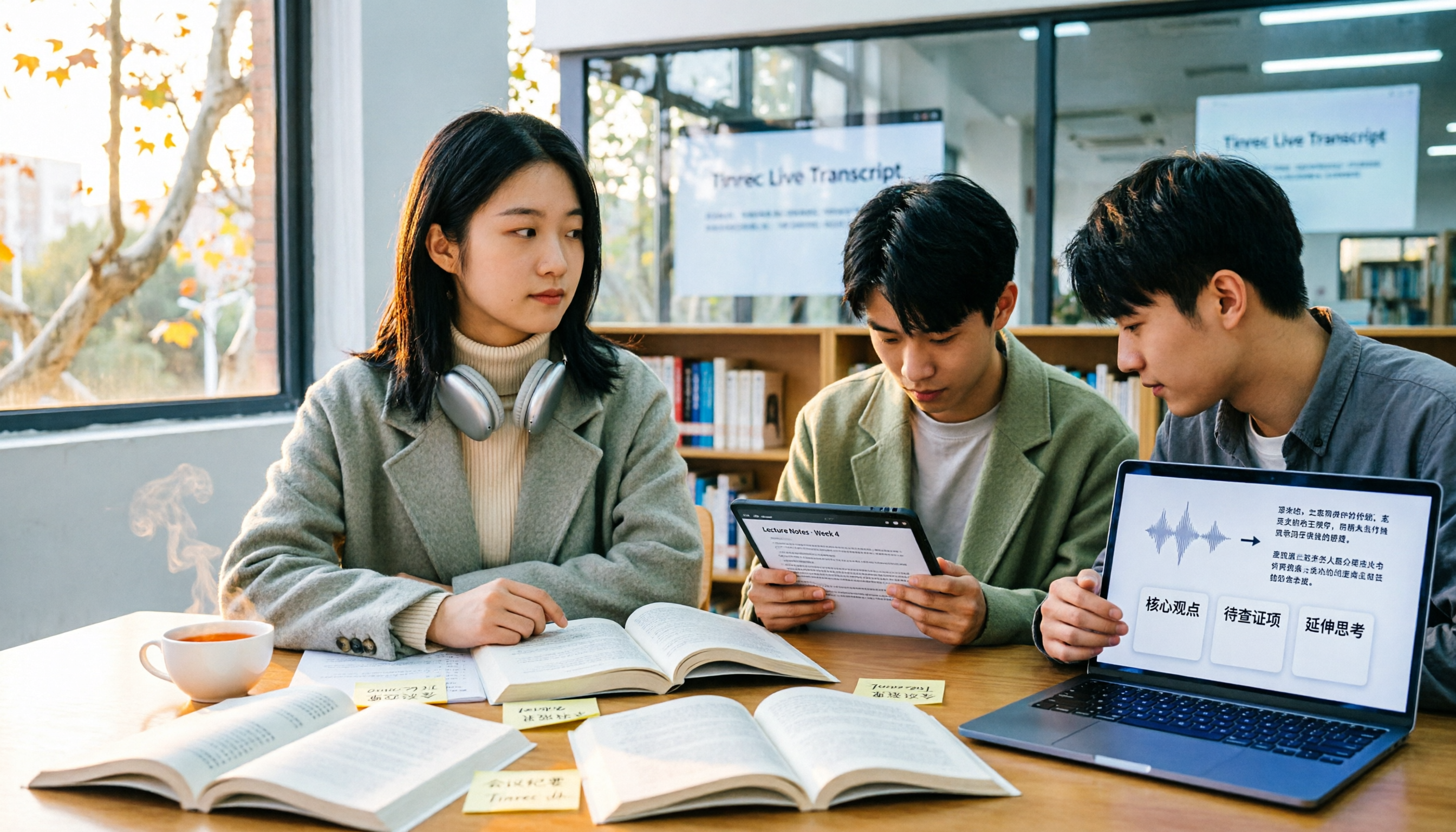
Turn recordings into transcripts and summaries in minutes
Upload audio or video for multilingual transcription, AI notes, and action items
Free Audio-to-Text Options in 2026: A Look at 4 Solutions
As a freshman, I really thought "recording the lecture" meant "taking notes." I'd hit record on my phone for two hours, then open the file before finals, listen for 30 minutes, and give up—not because the audio was unclear, but because I'd never open that recording a second time.
Later I realized I'd fallen into three traps:
- Thinking "recorded" equals "organized": A recording sitting on your phone is the same as not recording at all.
- Assuming the free version must be unusable: I never even checked how much free quota was offered before giving up.
- Believing you need a voice recorder to get clear audio: Actually, phone apps can show real-time volume, so you know right away if the recording is good.
What really matters isn't "which app records the cleanest audio," but "which tool can turn my two-hour recording into something I can read, find, and submit."
I started with the Good Tape app—open it, record directly, and it automatically syncs to your account and converts to a transcript. The app is free to download, and the free account works. It does its job well, but I got stuck later: what I lacked wasn't a transcript, but the organization after the transcript. I couldn't possibly re-listen to a whole semester of lectures before finals.
So in this article, I've compiled free and paid options for audio-to-text tools in 2026, and I'll also share how I later used Tinrec to turn recordings from classes, group meetings, and graduation project interviews into notes I actually use.
What Can Audio-to-Text Tools Do for You?
Scenario 1: Two-hour class, transcript ready after class Tinrec's real-time audio-to-text converts as you record, with text appearing as the professor speaks. You can check the text during class to see what you missed, without waiting until after class to run the conversion.
Scenario 2: After a heated group discussion, conclusions automatically become to-dos In a 90-minute discussion, no one ever remembers "who's responsible for what." Tinrec extracts to-dos from the transcript, listing the person responsible and deadlines in a checklist.
Scenario 3: Before finals, don't re-listen—just ask the recording Tinrec supports AI Q&A around meetings and recording content. You can directly ask "What's the final exam scope the professor mentioned in this class?" and it will find the relevant section based on semantics, rather than making you drag the timeline yourself.
Scenario 4: Online classes and Meet group meetings included Tinrec's desktop version captures computer system audio to handle Zoom, Google Meet, Microsoft Teams, Webex, and other online meetings, without inviting a meeting bot. The most direct benefit for students: no awkward extra account in the meeting, and no worry about forgetting to hit record.
What Are the Core Capabilities of Audio-to-Text Tools?
1. Real-time audio-to-text Not converting after recording, but generating text as you record. Tinrec lets you see the transcript on the spot, so during interviews or classes, if there's an issue with the recording (mic covered, volume too low), you can fix it immediately, instead of discovering the whole thing was wasted back in your dorm.
2. AI summary and chapters No one wants to watch a two-hour class from start to finish. Tinrec automatically breaks long recordings into chapters and generates summaries, letting you grasp the key points in three minutes, then decide whether to dive into details.
3. To-do and key point extraction The most common tragedy in project meetings and group presentations is "the meeting ended, but no one knows the next step." Tinrec organizes action items from the discussion, so to-dos are based on evidence, not someone's memory.
4. AI Q&A After transcription, you can directly ask the recording: "Which questions did the senior say to revise in the interview outline?" "What report format did the professor mention?" Tinrec answers based on semantic understanding and can search across multiple recordings.
5. Real-time translation and multilingual support View original, translation, or bilingual side-by-side, which is very helpful for following foreign online courses or English lectures. Actual recognition accuracy is affected by recording quality, accent, background noise, and multiple people speaking simultaneously—this is the same for every tool.
6. Export and further processing If a transcript isn't exported, it just sits in the tool. Tinrec supports multiple file formats and can bring content to Notion, Google Docs, OneNote, Dropbox, and other tools for continued use; Agent post-processing can also generate reports, tables, or documents based on meeting content, saving a lot of hassle for those who need to submit reports.
7. Team space (for multi-person projects) If a club, project group, or internship team needs to share records, Tinrec's team version is a separate team space: you can create multiple teams, invite members via link, set owners/admins/regular members, and distinguish "roles" from "seats"—members without seats can still view, play, and read team data, but need a seat to record, upload, or edit. Team resources belong to the team; when a member leaves or is removed, resources need to be transferred to other valid members, and won't disappear with the individual.
Stop organizing recordings by hand
Upload audio or video and automatically get a transcript, summary, and action items
Practical Use Cases
Class Notes
Works for general education and required courses. Start Tinrec's real-time transcription in class, and you'll have a transcript and summary after class; before exams, use AI Q&A to grab key points without re-listening to the whole semester. To find the part where the professor discussed a certain theory, searching keywords is much faster than dragging the timeline.
Group Presentations and Project Meetings
For online discussions, use the desktop version for bot-free recording, and after the meeting, directly view the summary and to-dos. Who submits what, what to complete before the next meeting—written clearly line by line, saving the back-and-forth in the group chat of "so what did we actually decide?"
Graduation Projects and Research Interviews
The biggest fear in interviews is missing the interviewee's exact words. Tinrec's transcript is searchable and you can review timestamps; when writing a thesis and looking for citations, just search keywords. Remember to get the interviewee's consent before recording.
Online Lectures and Cross-Language Courses
For English lectures, you can enable real-time translation and view content bilingually. Tinrec's desktop version directly captures computer system audio, so you don't need to turn the speakers up to max for your phone to pick up sound.
5 Things to Note When Choosing an Audio-to-Text Tool
1. Check the free quota: "monthly allowance" and "per-file limit" Many tools say "free," but hide a single-session length limit or monthly minute cap. Tinrec's free version offers a basic quota, so you can try recording, importing, summarizing, and transcribing; if your needs are concentrated in certain weeks, you can also evaluate a weekly card, which is more cost-effective for short-term intensive use; if you have steady weekly needs, Pro is suitable, and for long-term data accumulation, consider an annual card. Actual numbers are subject to the official page.
2. Chinese and mixed Chinese-English recognition Taiwanese classrooms often mix Chinese and English; a professor saying "this case's ROI" won't automatically split into two sentences. Before choosing a tool, it's recommended to test with a recording from your own class, not just rely on official marketing. Tinrec covers Chinese, Traditional Chinese, and multilingual meeting scenarios, and the team version has team hotwords to maintain department or lab terminology.
3. What can you do after transcription Tools that only provide a transcript are essentially throwing the organization work back to you. Tinrec offers summaries, chapters, to-dos, AI Q&A, translation, and Agent post-processing after transcription—that latter part is what really saves time.
4. How to record online meetings Some tools can only record within their own app, so online classes need separate handling. Tinrec's desktop version records directly from system audio, without inviting a bot; but note: this is not "automatically joining all meetings on your calendar," but rather you opening the desktop version to initiate recording yourself.
5. Can data be taken away, and who owns team data Transcripts must be exportable. Tinrec supports multi-format export and third-party tool integration; for team use, the team version also has management capabilities like members, seats, usage analytics, audit logs, and audio recycle bin (retained for 30 days).
Frequently Asked Questions
Is Tinrec's free version enough for students? For students who "only record key subjects and occasionally organize interviews," the free version's basic quota is a good way to test the waters; if you have steady weekly recording needs, the Pro monthly card is more suitable, and for long-term data accumulation, consider an annual card. Actual quotas and prices are subject to the official page.
Does it support Chinese? What about mixed Chinese-English? Yes. Tinrec covers Chinese, Traditional Chinese, and multilingual meeting scenarios, and also supports real-time translation and bilingual viewing. Recognition accuracy is affected by recording quality, accent, background noise, and overlapping speakers; for important content, it's recommended to replay and verify with timestamps.
Do I need to invite a bot for online meetings? No. Tinrec's desktop version directly captures computer system audio to handle Zoom, Google Meet, Microsoft Teams, Webex, and other meetings, with the user initiating recording.
Can transcripts be exported to Notion or Google Docs? Yes. Tinrec supports multiple export formats and can bring content to Notion, Google Docs, OneNote, Dropbox, and other tools for further editing; it can also generate reports, tables, and documents based on meeting content.
What's the difference between the team version and the personal version? Personal version data belongs to the individual account; the team version is a separate space where data belongs to the team, with additional members and roles, seat allocation, shared quota, usage analytics, audit logs, and audio recycle bin. First-time eligible teams can try 7 days, 1 free seat, 300 minutes of team shared import quota; paid seats provide 2,000 minutes of team shared import quota per month, at USD 29.80 per paid seat monthly, or USD 199 per paid seat annually. Real-time recording is currently not deducted by minutes under valid plans and seats; prices and promotions are subject to the official purchase page.
Do I need consent to record? Yes. Recording and transcription involve personal data; please comply with local regulations and obtain participant consent before recording.
Conclusion
The real value of audio-to-text tools isn't "turning sound into text," but making the two hours you painstakingly recorded actually useful before exams, when submitting reports, or writing a thesis. If your current approach is still "record and leave it," that's the same as not recording at all.
My own workflow is simple: start Tinrec's real-time audio-to-text in class or meetings, review the summary and to-dos afterward, use AI Q&A to grab key points before exams, and export what needs to be submitted to Notion. Try the free version for a semester, and you'll know whether you need to upgrade to a paid plan.
References
Turn every recording into actionable outcomes
Get 60 free transcription minutes when you sign in. No credit card required.
Related Reading
You might also like

2026 AI Meeting Notes Showdown: Tinrec vs Granola on Context Understanding and Post-Meeting Workflows
Nobody wants to re-listen to a meeting recording—that's the biggest pain point of AI meeting tools. This article focuses on context understanding and compares Tinrec and Granola across five dimensions: audio retention, input sources, Chinese language and translation, post-meeting outputs, and team governance, helping you decide which tool better fits your meeting scenarios.
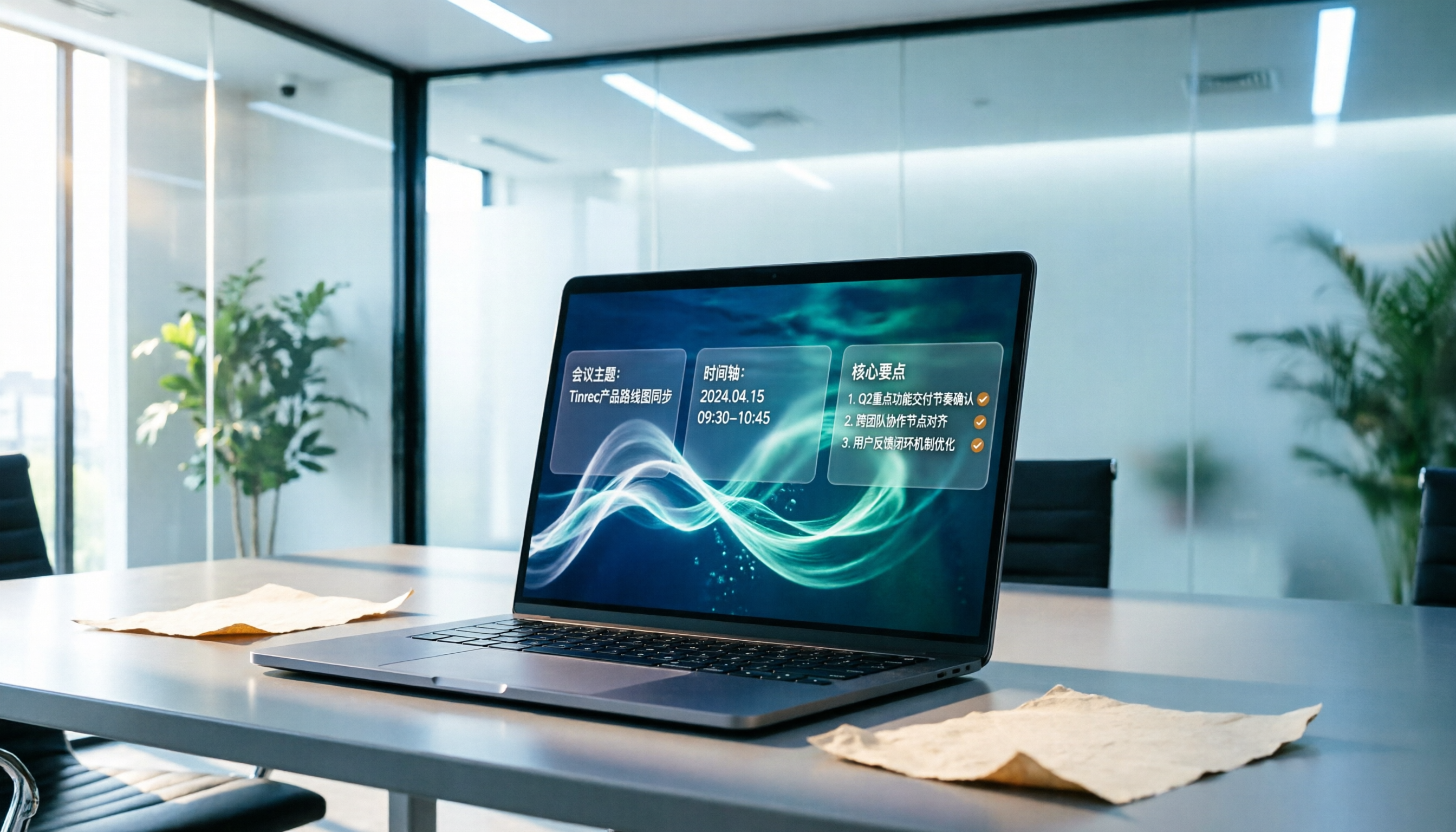
Tinrec vs Microsoft Word Copilot (2026): 5-Dimension Comparison for AI Meeting Minutes in Word
Discover how Tinrec and Microsoft Word Copilot compare in generating AI meeting minutes for Word across 5 key dimensions: audio capture, Chinese transcription, post-meeting organization, Word delivery, and team collaboration. Find the most time-saving workflow for your meetings.

2026 AI Agent Meeting Tools Compared: Which Is Fastest for Chinese Meeting Notes and Action Items?
We tested four AI Agent meeting tools—Tinrec, Otter.ai, Notta, and Granola—comparing bot-free recording, Chinese transcription, post-meeting summaries and action items, AI Q&A, and team knowledge retention to help you choose the most time-saving solution for meeting notes.

2026 AI Meeting Productivity Tools: Bot-Free Recording + Auto Summaries & Action Items
Many people treat AI meeting tools as simple transcript generators, but what really impacts efficiency is post-meeting organization and follow-up. This article uses Tinrec to demonstrate how to go from bot-free recording, real-time transcription, AI summaries, and action item extraction to team workspace retention, and also covers purchasing checkpoints and FAQs.
2026 AI Meeting Assistant Comparison: Tinrec vs. Granola — Which Is Better for Chinese-Speaking Teams?
Starting from the most common misconception about AI meeting assistants, this comparison tests Tinrec and Granola across five dimensions: Chinese-language meeting experience, audio retention, post-meeting outputs, team governance, and cross-device use—helping you decide which workflow truly fits your team.

2026 Comparison of 4 Meeting Productivity Agents: Which One Actually Saves Post-Meeting Time?
The real work starts after the meeting ends. This article uses the same Chinese meeting recording to test the post-meeting workflows of Tinrec, Otter.ai, Fireflies.ai, and Notta—covering bot-free recording, summary and action items, AI Q&A, and team knowledge retention—to help you decide which meeting productivity agent truly saves time.

2026 AI Meeting Notes Tools Compared: Tinrec vs Otter.ai vs Notta vs Granola — Which Turns Meetings into Usable Data?
Stop taking notes yourself: a hands-on comparison of Tinrec, Otter.ai, Notta, and Granola covering transcripts, summaries, action items, and AI Q&A, plus buying criteria, team seat and pricing details, and pitfalls to avoid.

4 AI Agents That Generate Excel Files Tested: Which One Actually Produces a Usable .xlsx?
After a meeting, turning notes into an Excel file often means replaying the entire recording. This article starts from "where does the data come from" and compares four approaches: Tinrec, Excel's built-in Agent mode, Gemini Notebook Agent, and Aspose.Cells AI Generator. It also covers 5 key selection criteria, 4 common mistakes, and practical recommendations.
2026 Free AI Agent PPT Generation Options: 5 Tools Compared
AI Agent PPT generation tools are proliferating, but the real question is where the content comes from. This article reviews five available options in 2026, including Microsoft Copilot, MiniMax Agent, ChatPPT, and two self-hostable open-source projects. It also explains how to use Tinrec to turn meeting recordings into usable presentation material, with a pitfalls guide and selection advice.