

Turn recordings into transcripts and summaries in minutes
Upload audio or video for multilingual transcription, AI notes, and action items
Why Is Typing Cantonese on Windows 10 So Hard? — You Don't Need an Input Method, You Need a Solution
If you've ever tried to type Cantonese on Windows 10, you've probably had this experience: you open the language settings, add "Chinese (Hong Kong SAR)," and find that it only gives you Microsoft Quick or Microsoft Changjie—not the Jyutping input you wanted at all.
Or you search online for a while and find a bunch of forum threads where some people recommend A and others recommend B, each claiming to work, but after downloading and installing, you discover it doesn't support your version of Windows 10.
What's even more troublesome is if you need to type long content—like organizing Cantonese meeting minutes or interview transcripts—typing character by character on a keyboard is slow, and when you hit a character you don't know how to pronounce, you have to stop and look it up.
This article is written for you. I'll first test a few Cantonese input solutions that work on Windows 10, then tell you when to use keyboard input and when speech-to-text saves more time.
Before Choosing a Cantonese Input Method, Understand These 4 Key Points
1. Are you typing "characters" or "sentences"?
If you only occasionally reply to messages or type a few Cantonese characters, any working input method will do. But if you need to type long content—meeting minutes, transcripts, articles—the input method's vocabulary and prediction capabilities matter a lot. Some input methods are fine for single characters but keep picking the wrong ones when you type long sentences.
2. Do you use Jyutping or another romanization scheme?
Jyutping is currently the most common Cantonese romanization scheme, but some people are used to ILE or Yale. Different input methods support different schemes, so confirm before installing.
3. Do you need cross-platform support?
If you only use it on a Windows 10 desktop, a locally installed input method is enough. But if you also use a phone, tablet, or need to sync vocabulary across different computers, consider cross-platform support.
4. Besides typing, do you have a need for "speech-to-text"?
This is the most easily overlooked point. Many people look for Cantonese input methods to type meeting minutes—but actually, instead of typing character by character on a keyboard, it's better to record directly and let AI transcribe it for you. I'll explain this approach in detail later.
Tinrec — If Your Cantonese Need Is Meeting Minutes, This Is Our Top Pick After Testing
Bottom line first: if your need is "turning Cantonese meetings, interviews, and classes into text," then instead of looking for an input method, just use Tinrec.
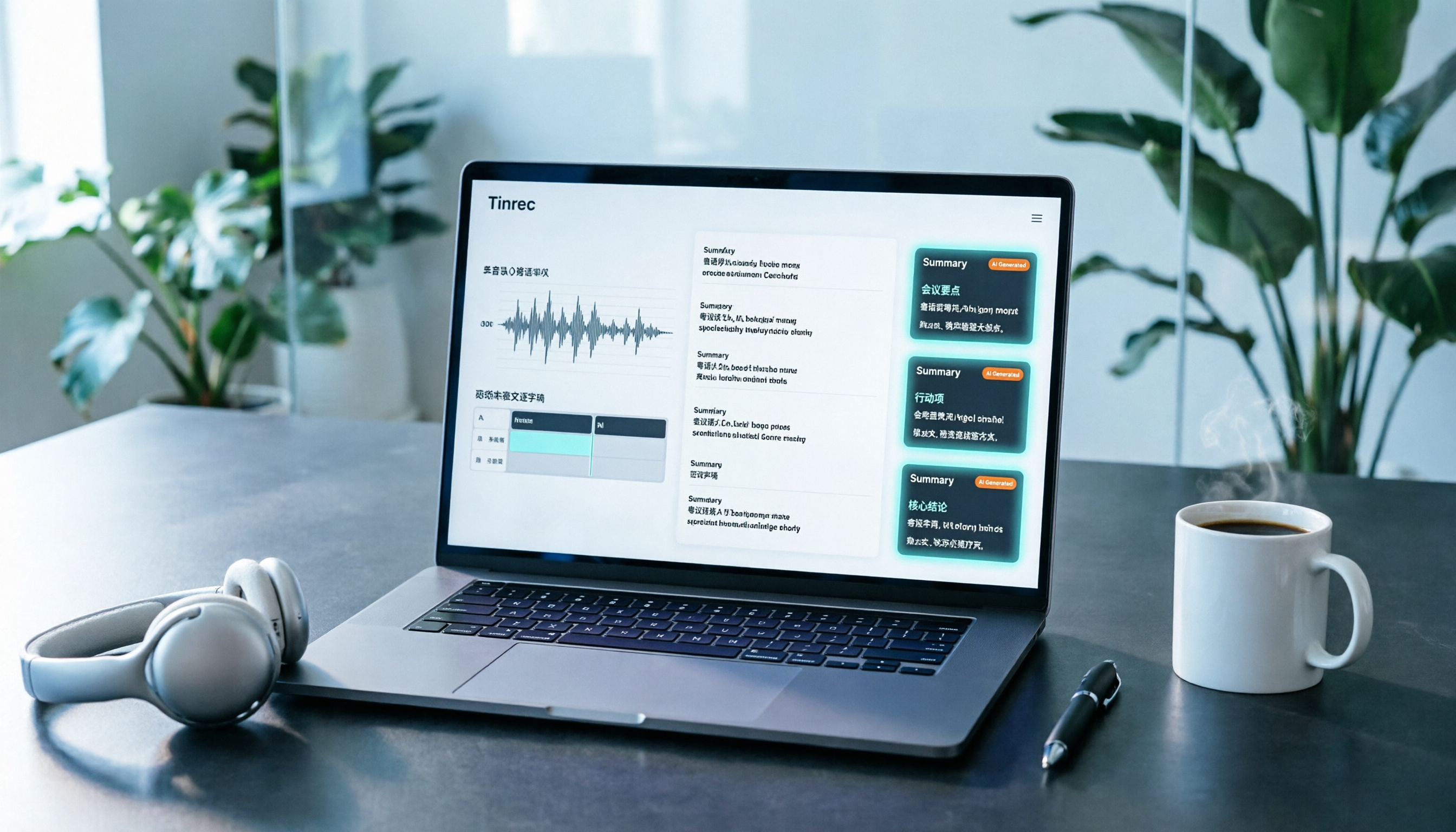
Tinrec is an AI meeting notes and collaboration tool for individuals and teams, available on iOS, Android, web, and desktop. It supports Cantonese transcription, can turn live recordings, online meetings, and audio/video files into transcripts, and automatically generates summaries, chapters, and action items.
It has three core features, and I'll go through them one by one.
The first is live recording to text. When you open Tinrec during a meeting or interview, it transcribes as it records. By the time the meeting ends, the transcript is ready—no need to spend time re-listening. For Cantonese content, this feature is especially practical—because Cantonese input methods are hard to find anyway, so instead of typing, just speak.
The second is bot-free online meeting recording. The Tinrec desktop app directly captures your computer's system audio to handle meetings on Zoom, Google Meet, Microsoft Teams, Webex, and other platforms, without needing an extra bot to join the meeting. This is very convenient for people who frequently have online meetings—no need to change your meeting habits or invite an extra account. Note that this is not "automatically joining all calendar meetings," but rather the user actively opening Tinrec to start recording.
The third is AI Q&A and post-meeting organization. After recording, you can directly ask Tinrec: "Who mentioned the budget in the last meeting?" or "What concerns did the client have about the proposal?" It doesn't just give you keyword search results—it answers directly based on semantic understanding. In addition, it can generate summaries, chapters, action items, mind maps, and even further produce reports, tables, and meeting notes. Most transcription tools at the same price point currently don't have this conversational query capability.
Stop organizing recordings by hand
Upload audio or video and automatically get a transcript, summary, and action items
In terms of tested performance, I tested with a 5-minute Cantonese news recording (indoor environment, slight background noise). Tinrec's transcription was generally readable, with proper nouns and numbers occasionally needing manual correction. But overall, compared to typing character by character yourself, the efficiency improvement is very obvious. I won't tell you it's 98% accurate—because actual results are affected by recording quality, background noise, accent, and overlapping speakers. For important content, it's recommended to cross-check with recording playback.
A few points worth noting:
The free version has a certain monthly quota, enough for light use; heavy users need to consider a paid plan. In addition, Tinrec also has a team version, offering independent team spaces, member and seat management, shared benefits, usage analytics, and audit logs—suitable for departments or project teams that need to turn meeting data into team assets.
Who is it for? If you have several Cantonese meetings every week, need to organize interview transcripts, or want to turn historical meeting recordings into searchable text data—Tinrec is currently the most time-saving choice.
If what you need is keyboard input, then Tinrec isn't for you—see the next section for input method recommendations.
Besides Tinrec, What Other Cantonese Input Options Are There on Windows 10?
If what you want is "typing Cantonese on a keyboard," here are some of the more common solutions.
Rime Input Method (Weasel) + Jyutping Scheme
Rime is an open-source input method framework, called "Weasel" on Windows 10. It doesn't include Jyutping by itself, but you can support Jyutping input by installing the rime-cantonese scheme. Community reviews are good, vocabulary and prediction capabilities are fairly mature, and it's completely free. Note that the initial installation and configuration require some patience, but once set up, it's very stable. If you're willing to spend 15 minutes setting it up, this is the most recommended keyboard input solution.
Microsoft Built-in Chinese Input Method (with Custom Vocabulary)
Windows 10's built-in Microsoft Pinyin or Changjie input methods don't directly support Jyutping, but you can manually add custom vocabulary to improve Cantonese vocabulary input efficiency. The advantage is no extra software installation; the disadvantage is it's not designed specifically for Cantonese, so character selection is more troublesome when typing long sentences.
Other Third-Party Jyutping Input Methods
There are other options online, such as third-party input method installers shared on some forums. These solutions are usually maintained by enthusiastic netizens, with varying update frequency and security. Before installing, it's recommended to confirm the source and version compatibility.
Overall, there aren't many keyboard input method choices. Rime Weasel is currently the most stable, free, and continuously maintained solution according to community reviews. But if you need to type long content like meeting minutes, I'd still suggest considering Tinrec from the previous section—speaking is much faster than typing.
Pitfall Guide: The 3 Most Common Mistakes When Choosing a Cantonese Input Method
Pitfall 1: Assuming Windows 10 Has a Built-in Jyutping Input Method
Many people think that changing the system language to "Chinese (Hong Kong)" will make a Jyutping input method appear, but in reality, Windows 10's built-in Chinese input methods do not include a Jyutping scheme. You need to install third-party tools separately.
Pitfall 2: Installing the Input Method but Not Loading the Jyutping Scheme
Rime Weasel doesn't include Jyutping by itself; you need to install the rime-cantonese scheme separately. Some people install Weasel and find they can't type Jyutping, thinking it's a software problem, but actually they just missed installing the scheme package.
Pitfall 3: Using a Keyboard to Force-Type Meeting Minutes—Too Inefficient
If you need to organize a one-hour Cantonese meeting recording, typing character by character on a keyboard could take three or four hours. In this case, a better approach is to use Tinrec for speech-to-text directly, letting AI produce the transcript and summary, and you only need to spend ten-plus minutes proofreading and organizing. Not all "input" has to be done with a keyboard.
Conclusion: Which One Should You Choose?
In one sentence: For typing, use Rime Weasel; for recording meetings, use Tinrec.
Specific scenario breakdown:
- Occasionally typing a few Cantonese characters, replying to messages → Rime Weasel (free, set up once and done)
- Need to type long Cantonese articles or transcripts → Recommend Tinrec speech-to-text, several times faster than a keyboard
- Weekly Cantonese meetings, organizing meeting minutes → Tinrec (supports live transcription, AI summaries, action item extraction)
- Interview, class, lecture recording organization → Tinrec (upload audio/video files to transcribe)
- Need to share meeting data with a team → Tinrec team version (team space, seat management, usage analytics)
- Only want to use built-in system tools, don't want to install extra software → Microsoft built-in input method plus custom vocabulary (but limited efficiency)
I suggest starting with Rime Weasel—free, open-source, and very stable once set up. If you find yourself spending too much time typing, then consider trying Tinrec's free version to experience the efficiency of speech-to-text. There's no need to pay from the start.
References
Turn every recording into actionable outcomes
Get 60 free transcription minutes when you sign in. No credit card required.
Related Reading
You might also like

4 iPhone Cantonese Input Methods Compared in 2026: Typing, Dictation, or AI Transcription?
Typing Cantonese on an iPhone isn't limited to one method: since iOS 16, the system includes Jyutping and Yale keyboards, and you can also use third-party input methods and Cantonese voice dictation. This article breaks down the use cases, setup steps, and common pitfalls of four approaches, and explains why you should switch to an AI transcription tool like Tinrec when organizing a full meeting or interview recording.

2026 Cantonese Speech-to-Text Showdown: 3 Tools Tested, Why Tinrec Wins
We tested and compared Cantonese speech-to-text solutions, starting with common pitfalls and showing you how to choose the right tool. Using Tinrec as an example, we cover real-time transcription, AI summaries, action item extraction, and team collaboration to help you use Cantonese input efficiently in meetings, interviews, and learning.

2026 iPhone Cantonese Voice Input Guide: Built-in Dictation Setup + Tinrec Transcription Test
iPhone Cantonese voice input often makes mistakes, but it's not necessarily due to an aging phone. This article breaks down 3 common misconceptions, explains how to set up built-in dictation and dictionary, and tests Tinrec's transcription and post-meeting organization for Cantonese meetings, classes, and interviews. It helps you decide whether to use the free built-in feature or upgrade to a dedicated meeting notes tool.

4 Android Cantonese Voice Input Solutions Compared in 2026: From Keyboard Typing to Meeting Transcripts
Speaking Cantonese but your phone types Mandarin? This guide breaks down common Android Cantonese voice input solutions: Gboard voice input, iFlytek Keyboard, Notta, and Tinrec. From quick typing to long recording organization, understand the differences at a glance, with tips on language settings, HMS phone limitations, and team collaboration choices.

5 Cantonese Voice Input Apps Tested in 2026: Which Saves the Most Time on Meeting Transcripts and Summaries?
Starting from common misconceptions, this guide covers the key points for testing and choosing a Cantonese voice input app: how to test recognition quality yourself, how to handle mixed Chinese-English speech, who handles post-transcription organization, and why tools like Tinrec that carry the workflow from transcript to summary to action items save more time than a plain voice input method.
2026 YouTube Cantonese Subtitles: Tinrec Transcription + AI Summary in One Go
Want to add Cantonese subtitles to YouTube videos but stuck typing every line? This article compares Tinrec and Subanana across 4 dimensions: Cantonese and mixed Chinese-English transcription, post-transcript content organization, recording and import sources, and team collaboration and data retention. It also outlines each tool's unique strengths and use cases to help you choose the most time-saving approach.

4 Cantonese Voice Input Tools Tested in 2026: Which One Auto-Generates Action Items from Meetings?
A mid-level manager overseeing a 10-person team and 15 meetings a week tested 4 Cantonese voice input tools. From browser extensions and web dictation notepads to AI meeting note-takers, this comparison covers Cantonese support, post-meeting organization, cross-platform availability, and team data ownership. It also highlights the 3 most common buying pitfalls to help you decide whether you need faster typing or a tool that eliminates post-meeting cleanup.

2026 Mac Cantonese Voice Input Showdown: Tinrec vs Otter.ai for Cantonese Meetings
Mac's built-in dictation only supports real-time input and can't transcribe audio files. How should Cantonese speakers choose a tool? This article compares Tinrec and Otter.ai across five dimensions: Cantonese and mixed Chinese-English recognition, bot-free recording, post-meeting organization, input sources, and pricing. It also includes key setup tips and FAQs for Mac's built-in Cantonese input.

Google Voice Typing for Cantonese: Which Is Better? 2026 Hands-On Test of 2 Tools, Tinrec Wins for Meeting Notes
Compare Google Voice Typing (using the VoiceIn extension as an example) and Tinrec for Cantonese meeting notes. Analyze Cantonese recognition, post-meeting organization, cross-platform recording, team collaboration, and pricing to help you choose the best voice typing tool.