
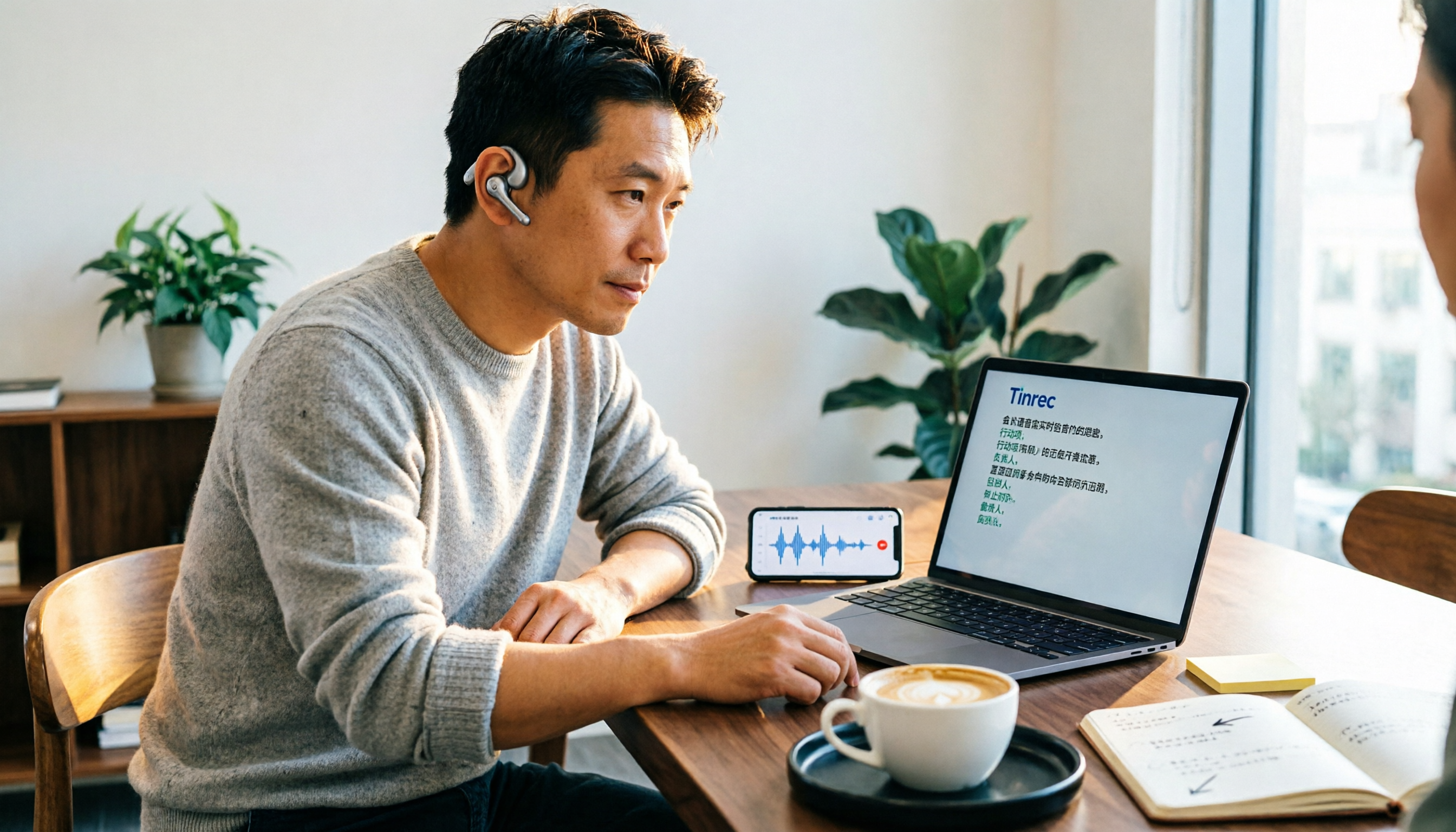
Turn recordings into transcripts and summaries in minutes
Upload audio or video for multilingual transcription, AI notes, and action items
Let me ask you a question: How did that 40-minute meeting recording on your computer finally become text?
If you're searching for "audio to text Google Docs," what's really holding you back isn't whether Google Docs has this feature—it's a more practical decision: Should I type it out myself, force Google Docs to do it, or just find an AI tool? These three paths can take up to 10 times longer than each other.
I manage a team of 10 and have about 15 meetings a week. I've tried all these methods, and here's the workflow I finally kept, and why I replaced the earlier ones.
What you're missing isn't a transcription tool—it's a workflow from audio to action
You've probably experienced at least one of these three scenarios:
Scenario 1: The weekly meeting ends, and the nightmare begins. After a 40-minute meeting, you return to your desk wanting to turn the recording into meeting notes. Listening and typing, an hour and a half passes, and you've only transcribed 20 minutes. And as you type, you wonder: should I keep this part?
Scenario 2: That cross-department reconciliation call. Two weeks later, the other party says, "That's not what was said." You only have an audio file, and you have to listen from the beginning to find that key conversation. You search for 3 minutes, can't find it, and finally say, "Let me double-check."
Scenario 3: Customer interview recordings sitting on your phone. A month later, when writing a proposal, you don't remember the budget range and the three concerns the customer mentioned, so you have to listen again.
See? What these three scenarios need isn't just "turning sound into text"—it's turning sound into something usable: searchable, highlightable, actionable, and reviewable. That's what you should really look for when choosing a tool.
Before choosing an audio-to-text tool, understand these 5 key points
1. Does it accept existing audio files? This is where most people stumble. Some tools are for "live recording"—they transcribe as you speak into the microphone. But when you need to organize a file recorded yesterday, they're useless. Tools that can directly upload audio or video files are the real solution for the file you have.
2. What do you get after transcription? If it's only a transcript, you still have to read through 8,000 words yourself. What really saves time is having summaries, chapters, key points, and to-do lists in addition to the transcript. The difference: do you spend 30 minutes reading an organized summary, or 90 minutes reading the transcript?
3. Where does the meeting audio come from? Online meetings (Zoom, Google Meet, Microsoft Teams, Webex) and offline meetings are handled differently. Some tools rely on a "meeting bot" that joins as a participant. When clients see an unfamiliar account on the list, they usually ask who that is.
4. Whose account does the data end up in? Personal account data follows the person. What teams need is: data belongs to the team, new members can access past meetings, and it can be handed over when someone leaves. This is often overlooked in teams of fewer than 5 people, and it only hurts when someone resigns.
5. How is pricing calculated? Free quota, import minutes, and number of seats—these three should be looked at separately. Many tools' "free" is truly free, but the quota is only enough for a trial; some have team-shared quotas, which is a different logic from personal quotas. First figure out whether you use it occasionally, intensively for a short period, or every day.
Tinrec – The one I kept after testing
One-sentence positioning: Tinrec is an AI meeting notes and collaboration tool for individuals and teams, available on iOS, Android, web, and desktop. It doesn't just convert sound to text; it organizes meeting recordings into searchable, summarizable, queryable, exportable, and further processable data.
Scenario 1: You already have an audio file. Every Monday morning, the first thing I do is throw the meeting recordings and video files that piled up in my folder last week into Tinrec. It transcribes them, then automatically generates summaries, chapters, key points, and to-dos. This used to take me a whole morning; now it's the time it takes to get a cup of coffee.
Scenario 2: Online meetings. The Tinrec desktop version directly captures the computer's system audio, handling Zoom, Google Meet, Microsoft Teams, and Webex without inviting a meeting bot. This is especially important for client meetings—you don't want a recording bot hanging on the participant list in front of a client. During the meeting, it transcribes in real time, and when the meeting ends, the summary and to-dos are already there: who is responsible for what and when it's due. If you need cross-language support, it offers real-time translation, allowing you to view the original, translation, or bilingual comparison.
Scenario 3: Finding that one sentence after the meeting. This is where it differs most from ordinary transcription tools. You can directly ask it: "Who mentioned the budget in the last meeting?" It doesn't give you a bunch of keyword search results; it answers directly based on semantic understanding. My test was simple: I took a project meeting from last month and asked who proposed the launch date decided at that time. It answered correctly.
Scenario 4: Taking the results with you. The organized content can be exported to Google Docs, Notion, OneNote, Dropbox, etc., for further use. You can also use the Agent for post-processing to generate reports, tables, and documents for reporting or archiving.
Stop organizing recordings by hand
Upload audio or video and automatically get a transcript, summary, and action items
Team version: For teams of 10 or more. I later enabled the team version for a simple reason—meeting data shouldn't be tied to my personal account. The team version isn't "multiple people sharing one personal account"; it's an independent team space: meeting data belongs to the team, new members can directly access past meetings, admins can assign roles and seats, view usage trends and member details, query and export audit logs, and there's an audio recycle bin (retained for 30 days). Note that roles determine governance permissions, and seats determine whether one can record, upload, edit, and export; members without seats can still view, play, and read team data. For pricing, the first eligible team trial is 7 days, 1 free seat, 300 minutes of team-shared import quota; monthly USD 29.80 per paid seat per month, annual USD 199 per paid seat per year (about USD 16.58 per month), each paid seat provides 2,000 minutes of team-shared import quota per month. Under an active team plan, real-time recording currently does not deduct minutes; file and web imports consume team-shared import minutes. Actual prices and benefits are subject to the official purchase page.
Three advantages I find most practical: First, it's a workflow, not a feature—from audio in to to-dos out, you don't have to move between three tools. Second, bot-free recording of online meetings avoids awkwardness in client meetings. Third, the experience of organizing Chinese and mixed Chinese-English meetings is complete, and data can settle in the team space, not on someone's hard drive.
Honest limitations: It doesn't promise a fixed accuracy rate; actual results are affected by recording quality, background noise, accents, and overlapping speech. For important content, I still go back to the transcript and recording to verify. Also, bot-free recording on the desktop version requires you to actively open Tinrec to start recording; it's not a bot that automatically joins all your calendar meetings. The free version is a basic quota, more of a trial; if you have meetings every day like me, you'll need to choose a weekly, monthly, or annual plan based on your usage pace.
Who it's for: People who already have a pile of audio and video files to organize, whose meetings are mainly in Chinese or mixed Chinese-English, who want to ask AI directly for key points after recording, and who need data to settle in a team space.
Besides Tinrec, what other options are there?
My sequence over the years has been roughly: initially used Google Docs voice typing to slowly type, then tried Otter.ai, but since most of my meetings are in Chinese, I finally settled on Tinrec. Here are a few I think are worth your time to learn about.
Google Docs voice typing Open Google Docs, click "Tools" → "Voice typing," and with the microphone on, it transcribes in real time. It supports Chinese, English, Japanese, and Korean, is free, and has no time limit—this is the most commonly used method. But note: it relies on microphone input and doesn't accept audio files. To transcribe an audio file, you need to install a virtual audio cable to route system sound into the microphone, and it's mainly for desktop web; on mobile, you need the Android "Live Transcribe" app, which has different integration. It also lacks AI summaries, to-dos, and team space—these are built into Tinrec.
Google Cloud Speech-to-Text This is an API for developers, not an interface for manually transcribing files. It supports over 85 languages and dialects, automatically adds punctuation, and predicts speakers, suitable for embedding speech recognition into your own system. If you just want to organize a meeting recording, you need to write code, connect to the API, and handle keys and billing. Tinrec requires no coding—out of the box, it transcribes, summarizes, answers questions, and exports.
Otter.ai A veteran choice for English meetings. The Basic free version offers 300 minutes per month, and Pro annual billing is about USD 8.49 per user per month. Its strength is English business meetings, and its team and workflow features are mature. But if your meetings are mainly in Chinese or mixed Chinese-English, Tinrec is more aligned with your needs in Chinese transcription, real-time translation, bot-free desktop recording, and post-meeting organization—that's why I didn't continue with Otter.
Pitfall guide: The 4 most common traps in audio-to-text
Pitfall 1: Thinking Google Docs can directly accept audio files. Many people open Google Docs voice typing for the first time, find it only recognizes the microphone, and think they've set it up wrong. No, it's designed for microphone input. To process existing audio files, you must install a virtual audio cable, route the played sound as microphone input, and ensure no other voices interfere during the meeting. It's doable, but it's "possible" rather than "smooth."
Pitfall 2: Only looking at "free," not quota and pricing logic. Free quotas are almost always trial-like. You should ask: How many minutes will I use per month? How is it calculated after exceeding? Is it a personal quota or a team-shared quota? For example, Tinrec's team version uses team-shared import minutes, calculated separately from the personal version. Figure it out before deciding to buy.
Pitfall 3: Stopping once you get the transcript. If you only use such tools as "audio to text," you're only using one-third of their capability. What really saves time is the next part: turning 8,000 words into 10 to-dos, and then directly asking "What was the conclusion of the last meeting?" when a problem arises.
Pitfall 4: Leaving team data in personal accounts. This is the most easily overlooked point for managers. If meeting data is in a colleague's personal account, the day they leave, you can't even hand it over. When choosing a tool, confirm: does the data belong to the individual or the team, and are there seats and roles for management?
One last serious note: Recording and transcription must comply with local laws and regulations. Obtain consent from participants when necessary. This isn't a formality; it's protecting yourself.
Summary: Which one should you use?
- You have existing audio or video files to transcribe and want summaries and to-dos → Tinrec, just upload directly, no virtual audio cable needed.
- Meetings run on Zoom, Meet, Teams, Webex, and you don't want a bot on the list → Tinrec desktop version bot-free recording.
- Meetings are in Chinese or mixed Chinese-English, and you need real-time translation → Tinrec.
- You need team sharing, seat management, usage and audit → Tinrec team version (first confirm the actual benefits of trial and seats).
- You just want to type out "what is being said" in real time, and the content is not sensitive and doesn't need post-meeting organization → Google Docs voice typing, the only scenario recommended in this article.
- You want to develop your own product and embed speech recognition into a system → Google Cloud Speech-to-Text, the developer route.
My advice: Start with the free version's basic quota and try it on the most troublesome recording you have. If it turns an hour and a half of organizing into 15 minutes, the answer is clear; if not, you've only spent the time of one recording.
References
Turn every recording into actionable outcomes
Get 60 free transcription minutes when you sign in. No credit card required.
Related Reading
You might also like

Where Is iPhone Voice Memo Transcription in 2026? 4 Steps to Find It and Turn It Into Meeting Notes
iPhone's built-in Voice Memos app can already generate transcripts, but many first-time users can't find where they're hidden, which models support them, or whether they need to update for Chinese. This article walks you through 4 steps to find and copy transcripts, and compares built-in features with AI meeting tools like Tinrec to help you decide whether to use the built-in option or switch tools.

2026 AI Speech-to-Text Comparison: Tinrec vs Otter.ai for Chinese Meetings
How to choose an AI speech-to-text tool? This in-depth comparison of Tinrec and Otter.ai covers Chinese recognition, meeting recording methods, post-meeting organization, team collaboration, and pricing to help you find the best fit for Chinese meetings and team knowledge retention.

4 MP3 Transcription Tools Tested in 2026: Which Free Version Is Good Enough?
Looking for an MP3 transcription tool? We tested 4 popular options, comparing Chinese recognition, summary and to-do extraction, AI Q&A, free quotas, and team collaboration, with Tinrec as the main test subject, to help you avoid common pitfalls like focusing only on free versions or settling for raw transcripts.

Best Transcription Tools in 2026: We Tested 4, and This One Handles Chinese Meetings Best
What is a transcript, and why do most people no longer type them out by hand? This article first explains what a transcript is and how it differs from meeting minutes, then outlines 4 key factors for choosing a transcription tool. We tested and compared 4 options—Tinrec, Otter.ai, Notta, and PLAUD Note—and provide clear recommendations based on budget and use case.
2026 Comparison of 3 Online MP3-to-Text Tools: Which Offers the Best Free Tier, Chinese Recognition, and Team Collaboration?
There are countless online MP3-to-text tools, but are the free ones enough? This article focuses on Tinrec and Notta, comparing them across five dimensions: online meeting recording methods, Chinese and mixed Chinese-English recognition, post-transcription summaries and action items, export and audio retention, and team spaces and governance. It honestly lists free quotas and paid prices to help you decide which approach suits your meetings, interviews, and team scenarios.

How to Record iPhone Calls in 2026: Built-in Feature Steps + Transcript Guide
How do you record calls on iPhone? This guide covers iOS 18.1's built-in call recording, including system requirements, regional restrictions, the 3-second alert tone, and consent rules. It then walks through the steps and compares PLAUD hardware, Notta, Otter.ai, and Tinrec for post-call organization, AI Q&A, and team knowledge retention to help you choose the best approach.

5 Best AI Speech-to-Text Tools in 2026: Which One Handles Chinese Meeting Notes and Post-Meeting Organization Best?
We tested and compared 5 AI speech-to-text tools, analyzing Tinrec, Otter.ai, Notta, Granola, and TurboScribe across Chinese recognition, meeting recording methods, post-meeting organization, and team collaboration to help you find the best speech-to-text solution for your workflow.

Gemini Audio to Transcript in 2026: Common Limitations & Tinrec Alternative
Can you just drop an audio file into AI and get a transcript? This article breaks down the three most common misconceptions about using Gemini for transcription, then demonstrates a complete workflow with Tinrec—from recording and transcription to meeting minutes, action items, and team collaboration. It also covers 5 key factors to consider when choosing a tool and answers frequently asked questions.

Which iPhone Recording to MP3 Converter Is Best? Comparing 5 Methods in 2026 — No-Install Online Conversion Is the Easiest
iPhone Voice Memos are saved as m4a by default. To convert them to MP3, you can use online converters, apps, or desktop software. This article compares 5 methods, covering differences, batch processing, audio quality settings, and the 3 most common conversion mistakes. It also explains that if the recording is actually a meeting or interview, generating a transcript, summary, and action items directly is usually more time-saving than just converting the format.