
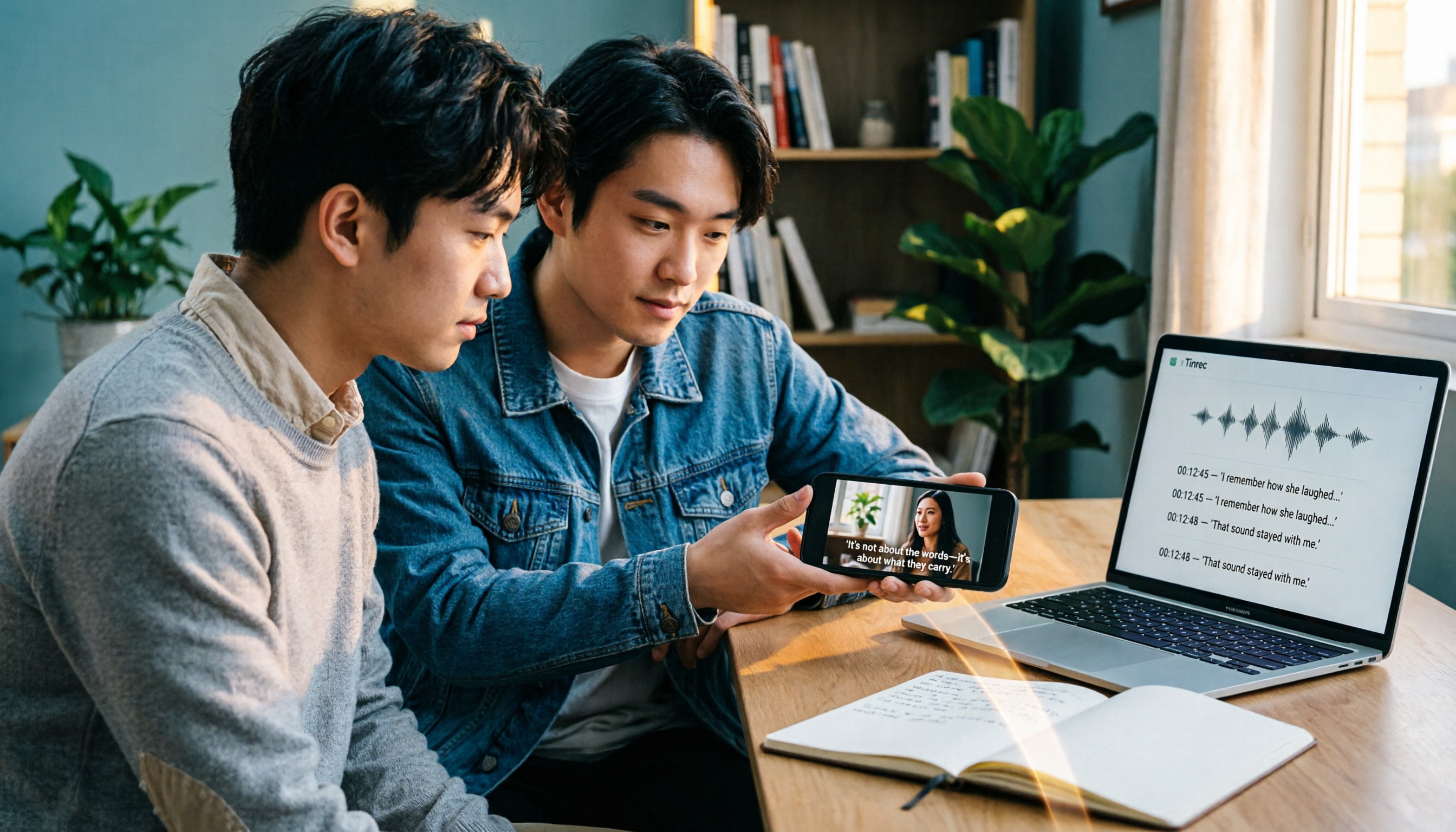
Turn recordings into transcripts and summaries in minutes
Upload audio or video for multilingual transcription, AI notes, and action items
3 iPhone Video Text Methods Compared: Built-in Free Tools vs AI Transcription in 2026
Before Adding Text, Clarify Which Type of "Text" You Need
Many people search for "how to add text to iPhone videos," but this phrase actually hides two completely different needs. Clarifying this first can save you a lot of wasted effort.
The first type is "text that appears on screen": adding location cards to travel videos, feature titles to product videos, or subtitles to social media clips. This text is exported with the video and is seen directly by viewers.
The second type is "converting audio from videos into text files": transcribing interviews, turning meeting recordings into meeting minutes, or converting course videos into notes. This text is mainly for you, your colleagues, or your team.
The way to decide is simple: is your final deliverable a "video" or a "document"? If it's the former, focus on subtitle styles in editing tools; if it's the latter, focus on transcription and organization efficiency. Confusing these two often leads to spending two hours typing subtitles in a built-in editor only to realize you actually needed a searchable transcript.
Before Choosing a Method, Understand These 3 Key Points
1. Do you need text cards, subtitles, or a transcript? Text cards and subtitles are part of video editing, requiring dragging styles, adjusting timing, and aligning with the footage. Transcripts and meeting minutes are part of content organization, focusing on text accuracy, searchability, and further processing.
2. How long are your videos and how many are there? For a 30-second clip, typing a few subtitles manually is manageable; for a 40-minute meeting recording, typing every word is a different scale of work. Video length directly determines whether you should use "manual" or "automatic transcription."
3. Do you need to continue working outside your phone? Videos recorded on iPhone might eventually be edited on a computer, organized on the web, or shared in a team space. If a tool is tied to only one device, it will cause bottlenecks later.
Tinrec – The Step That Turns Audio into Text After Filming
Let's clarify its positioning first: Tinrec is not a video editing app; it won't overlay text cards on your screen. It handles the other half of "adding text to video" that takes the most time—converting the audio in your video into usable text.
Tinrec is an AI meeting notes and collaboration tool for individuals and teams, supporting iOS, Android, and web. The core workflow: convert audio or video files into transcripts, then automatically generate summaries, chapters, and action items, and let you continue asking questions about the content and export to needed formats.
Here's a real scenario: you record a 40-minute client interview or team meeting on your iPhone, with lots of dialogue. Typing it out line by line in a built-in editor would take at least an hour. Drop the same video file into Tinrec, and you first get a complete transcript, then an automatically organized summary and key points, and then action items. After confirming the text, go back to iMovie or Clips to paste subtitles—clear division of labor, much faster.
Three real time-savers:
You can keep asking questions after transcription. After recording, you can directly ask Tinrec: "What was the conclusion of this meeting?" "What was the budget limit the client mentioned?" It doesn't just give you a bunch of keyword search results; it answers directly based on the content. This is the biggest difference from simple transcription tools.
Export directly into your workflow. Transcripts and organized results can be exported to Notion, Google Docs, OneNote, Dropbox, etc., and can further generate reports, tables, and meeting minutes. Rather than leaving text in an editing app, make it reusable data.
Stop organizing recordings by hand
Upload audio or video and automatically get a transcript, summary, and action items
Team data doesn't leave with people. Tinrec's team plan provides an independent team space where meeting recordings, transcripts, and action items belong to the team. When members leave, are removed, or lose their seat, data is not taken away and can be handed over to other members. Admins can also manage roles and seats, view usage and audit logs.
Limitations to be clear about: First, Tinrec does not do video editing; subtitle styles, animations, and font positions still need to be handled in editing tools. Second, the effectiveness of such tools is affected by recording quality; background noise, multiple people speaking at once, and technical jargon can all impact recognition results. For important content, it's recommended to verify with playback. Third, the free version offers basic quota, suitable for trying the workflow; if you have weekly meetings or interviews to organize, consider Pro or team plans.
Who it's for: people whose video content contains lots of dialogue, who need transcripts or meeting minutes, and who frequently switch between phone and computer. If you just need to add a line of text to a 15-second clip, built-in tools are enough.
Besides Tinrec, What Other Methods Are There for Adding Text on iPhone?
iMovie (Apple built-in) Drag subtitle styles into the timeline to add text, adjust position, size, and duration, and it supports text shadows and animated titles. Suitable for those who want text directly on screen. But you have to type each line yourself, and you can't overlay multiple text groups on the same screen. It gives you subtitles, not transcripts—turning an entire meeting video into searchable text still requires tools like Tinrec.
Clips (Apple built-in) Also built into iPhone, featuring animated text, filters, and dynamic music, intuitive to use, great for social media short videos. The downside is it's designed for short videos; longer lengths become unwieldy, and it lacks transcription and summarization. If you want to turn video content into text records, Clips can't help.
FlexClip (online editing tool) Operates in the browser, with many subtitle style options, suitable for those who don't want to install extra apps. But online tools require uploading the video first, with file size and processing time limitations, and it can't solve "turning audio into text." Tinrec's advantage is that after transcription, you can ask questions, summarize, export, and share with your team.
Pitfall Guide: 4 Most Common Mistakes When Adding Text to iPhone Videos
Pitfall 1: Assuming iPhone built-in tools can automatically add subtitles. iMovie and Clips both require manual text input. To automatically generate subtitles or transcripts, you need transcription tools. Understand this difference first so you don't realize you're going the wrong way halfway through editing.
Pitfall 2: Treating subtitles and transcripts as the same thing. Subtitles are for viewers, considering停留时间 and reading pace; transcripts are for yourself or your team, focusing on completeness and searchability. Different needs, different tools.
Pitfall 3: Manually typing long videos. For interviews or meetings over 10 minutes, the time cost of manually typing transcripts becomes unreasonably high. In such cases, use a transcription tool to produce a draft first, then manually proofread—the efficiency difference is very obvious.
Pitfall 4: Ignoring recording quality. No matter which tool you use, poor audio pickup or a noisy environment will degrade recognition results. When recording, try to stay close to the speaker and avoid fans and air conditioning vents; subsequent organization will be much easier.
Conclusion: Which One Should You Use?
Just adding text cards or subtitles to short clips → iMovie or Clips is enough, free, built-in, no extra installation. Many subtitle styles, precise timing adjustments → iMovie, most flexible. 40-minute meeting or interview videos to turn into text and meeting minutes → Tinrec, transcribe first then organize, saves the most time. Want to directly ask "what was this meeting about" after recording → Tinrec, supports AI Q&A around content. Record on iPhone, organize on computer, team sharing → Tinrec, multi-device use plus team space. Only occasionally organizing a recording → Try Tinrec's free version basic quota first to test the workflow, then consider upgrading if it meets your needs.
Choosing a tool is really choosing a workflow: if text goes on screen, take the editing route; if text is for use, search, and handover, take the transcription and organization route. Clarify this first, and adding text to iPhone videos won't be a chore anymore.
References
- iPhone Video Add Text Tutorial, 2 Built-in Methods to Add Text Effects to Videos! - Tech Girlz
- Add Text to iMovie Projects - Apple Support (Taiwan)
- iPhone Video Add Subtitles Tutorial, 3 Methods to Automatically Add Subtitles to iPhone Videos! - Tech Girlz
- iMovie Subtitles: How to Add Subtitles and Text to iPhone Videos with iMovie - iPhone/iPad/Mac
- Add Titles to Videos in iMovie on iPhone - Apple Support (Taiwan)
Turn every recording into actionable outcomes
Get 60 free transcription minutes when you sign in. No credit card required.
Related Reading
You might also like
4 Video-to-Text Tools Compared in 2026: First, Figure Out If You Need Audio or Visual Text
Video-to-text extraction often gets confusing from the start: what a speaker says requires speech-to-text, while on-screen slides, subtitles, and code require optical character recognition (OCR). These are completely different tools. This article first helps you choose the right path, then compares Tinrec, Notta, TurboScribe, and Granola across file import, Chinese recognition, post-meeting organization, and team collaboration, and summarizes the 4 most common pitfalls.
Tinrec vs Granola: 2 Audio-to-Transcript Tools Compared for Chinese Meetings in 2026
Turning audio into transcripts can be done manually, with online transcription services, or with AI meeting tools. This comparison of Tinrec and Granola across 5 dimensions—handling existing audio files, Chinese transcription experience, recording retention, post-meeting organization, and team governance—helps you decide which fits your meeting and interview needs.

4 Free Audio-to-Text Tools Tested and Compared in 2026: Which Free Tier Is Actually Enough?
There seem to be plenty of free audio-to-text tools, but very few are truly usable for free. This article starts with the real limits of free tiers, outlines 5 key points to consider when choosing, and compares Tinrec, Otter.ai, Notta, and cSubtitle to help you find the one whose free version is enough.

3 Audio-to-Text Tools Tested and Compared in 2026: Beyond ChatGPT, Which One Turns Transcripts into Usable Data?
Can ChatGPT transcribe audio? The answer is conditional, with many limitations. This article starts from real-world use cases, explains 5 key points to consider when choosing an audio-to-text tool, and uses Tinrec as an example to demonstrate the complete workflow from recording to transcript, summary, to-dos, and team collaboration.

How to Get YouTube Transcripts in 2026: 3 Methods + AI Summarization
There are three ways to get a YouTube video transcript: YouTube's built-in transcript, free online extraction tools, and AI tools that support link import. This tutorial compares the differences between the three methods, explains which one to use in which situation, and tests how Tinrec turns transcripts into summaries, Q&A, and reusable data.

4 iPhone Video Conversion Methods Tested for 2026: MOV to MP4, Audio, or Direct Transcription?
iPhone records video in MOV by default, which often needs conversion to MP4 for sharing or editing. This article compares four common approaches and tests a workflow that skips conversion and extracts video content directly—using Tinrec as an example, you can upload a video and get a transcript, summary, and action items, ideal for meetings, classes, and interviews.

5 Video Real-Time Translation Tools Tested and Compared in 2026: Which One Lets You Understand While Watching and Organize Key Points?
Can you translate videos in real time? This article starts from actual usage scenarios to help you understand what real-time video translation can do, how Tinrec uses real-time transcription, bilingual subtitles, AI summaries, and Q&A to help you overcome language barriers, and lists 5 key points to consider when choosing a tool.

2026 Live Voice Translation Comparison: Can Gemini Really Interpret in Real Time?
Bottom line first: Gemini can do live voice translation. Google's Gemini 3.5 Live Translate provides near real-time speech-to-speech translation across 70+ languages and is integrated into the Google Translate app, Google Meet, and the Gemini Live API. This article explains the difference between live interpretation, meeting notes, and team knowledge retention, and compares Gemini, Tinrec, Otter.ai, and Notta for different use cases.

3 iPhone Call Recording Solutions Compared for 2026: Why Tinrec Is Better for Post-Call Work
Given the limitations of built-in iPhone call recording and the need for post-call organization, this article compares built-in iPhone recording, Tinrec, and manual note-taking, explaining how to record compliantly and use Tinrec to turn recordings into transcripts, summaries, action items, and team knowledge.