

Turn recordings into transcripts and summaries in minutes
Upload audio or video for multilingual transcription, AI notes, and action items
Word Video Recording Tested in 2026: How to Take Meeting Notes When Word Can't Record
Many people misunderstand Word: they assume that because it has built-in "Dictate," it must also record audio. So during a meeting they keep Word open, talk and type, thinking that at least there will be an audio file to listen back to afterward.
But when the meeting ends, they discover that Word only turned their speech into text—it never saved any audio at all.
This is the most common misconception around "Can Word record video?" Simply put: Word itself has no screen recording feature and is not a recording tool. Its built-in "Dictate" is real-time voice input; its job is to turn your speech into text, not to save the sound.
Some versions of Word do add speech transcription capabilities. For example, Word for iOS can record and organize audio into a transcript via Copilot; Microsoft 365 Word for Windows business tenants also has a "Transcribe" feature that can record on a canvas and transcribe in the background. Note that these features are usually tied to a subscription and have monthly minute limits—they aren't available on every version or every account.
If your real need is to "fully capture a meeting and later turn it into minutes," the more sensible approach isn't to force Word to do it, but to use a dedicated AI meeting notes tool. Below, we use Tinrec as an example to show what these tools can actually do for you.
What Can Tinrec Do for You?
Tinrec is an AI meeting notes and collaboration tool for individuals and teams. It doesn't just turn audio into text—it turns meeting recordings into data you can search, summarize, query, export, and keep working with.
Scenario 1: The meeting ends and the minutes are already done In the past, after a two-hour meeting you'd spend another hour writing up notes. With Tinrec, a transcript is generated in sync while recording, and after the meeting it automatically creates a summary, chapters, and action items—who's responsible for what and what's next, listed directly. You just review it instead of starting from scratch.
Scenario 2: No need to add a bot to online meetings Tinrec's desktop version captures your computer's system audio directly. When handling online meetings on Zoom, Google Meet, Microsoft Teams, Webex, and others, it doesn't need an extra meeting bot to join as a participant. Note that this doesn't mean it "automatically joins every meeting on your calendar"—you still need to actively open Tinrec and start recording.
Scenario 3: Old recordings and videos you already have can be organized too Besides live recording, Tinrec supports uploading existing audio and video files, turning past meetings, interviews, and class recordings into text data, then summarizing and querying them. Some public web link content can also be processed as an additional source.
Scenario 4: Keep up with cross-language meetings During recording you can view the original text, translation, or bilingual content. For mixed Chinese-English or multilingual meetings, this reduces back-and-forth guessing and post-meeting translation costs.
What Are Tinrec's Core Capabilities?
Real-time recording to text: Transcribes while recording, so meeting content is captured instantly—great for in-person meetings, interviews, and on-site notes. No waiting after recording; the text is already there.
Bot-free online meeting recording: The desktop version captures device system audio without adding a participant, so the meeting flow isn't disrupted. This is the biggest difference from "meeting bot" type tools.
AI summary and chapters: It doesn't just condense the transcript into one big paragraph—it structures it: meeting topic, discussion highlights, and conclusions presented in sections, so even long meetings can be reviewed quickly.
Action item extraction: Pulls follow-up action items from the discussion. Especially useful for project meetings and client meetings, avoiding the "meeting ended but no one remembers what to do" problem.
AI Q&A: After transcription, you can ask questions directly about the meeting content, such as "What was the budget mentioned in this meeting?" or "What was the client concerned about?" It answers based on semantic understanding, so you don't have to dig through the whole transcript yourself.
Real-time translation and bilingual view: During recording you can switch between original text, translation, or bilingual display, making cross-language communication smoother.
Agent post-processing and multi-format export: Generate reports, tables, and documents based on meeting content, and export to Notion, Google Docs, OneNote, Dropbox, and other tools to fit back into your existing workflow.
Stop organizing recordings by hand
Upload audio or video and automatically get a transcript, summary, and action items
Team space and governance: The team version centralizes meeting data in a separate space, including members, roles, seats, usage analytics, audit logs, and an audio recycle bin, turning meeting content into a team asset instead of scattering it across personal devices.
Practical Use Cases
Online and in-person meetings: Weekly meetings, project discussions, cross-department meetings. Record with Tinrec and get transcripts, summaries, and action items all at once, with decision rationale preserved.
Classes and lectures: Record while listening, then use summaries to grasp key points and Q&A to look up specific sections—saving time compared to re-listening to the whole recording afterward.
Interviews and research: The most tedious part of user interviews and expert interviews is organizing transcripts. Tinrec can quickly produce text and extract viewpoints, making it easy to cite or compare later.
Client communication and content creation: Turn interviews and meeting recordings into reusable material, or organize client needs and commitments to reduce omissions from handwritten notes.
5 Things to Consider When Choosing a Meeting Notes Tool
1. Recording method: Check whether the tool "requires a bot to join the meeting" or "records from your device." Tinrec's desktop version uses the latter, so it doesn't affect the participant list.
2. Can you use it after transcription?: A transcript is just the starting point. Tinrec further provides summaries, chapters, action items, AI Q&A, and Agent post-processing, turning content into directly usable output.
3. Language and Chinese experience: If your meetings are mainly in Chinese, pay special attention to performance with Chinese, Traditional Chinese, and mixed Chinese-English. Tinrec covers Chinese, Traditional Chinese, and multilingual scenarios, and supports real-time translation and team hotwords. Actual results are affected by recording quality, noise, accents, overlapping speakers, and technical terminology—we recommend testing with your own recordings.
4. Cross-platform and input sources: Confirm it supports the devices and scenarios you commonly use. Tinrec offers iOS, Android, web, and desktop versions, and supports live recording, online meetings, audio and video files, and other sources.
5. Team governance capabilities: If a team will use it, don't just look at whether it can transcribe. Tinrec's team version distinguishes roles and seats—roles are needed to manage the team and settings, while seats are needed to record, upload, edit, and export; active members without seats can still view, play, and read team data.
Frequently Asked Questions
Q1: Can Word actually record video or audio? Word itself has no screen recording feature and is not a recording tool. Its "Dictate" turns speech into text in real time and doesn't save an audio file. Some versions (such as Word for iOS and Microsoft 365 Word for Windows business tenants) have speech transcription or transcription capabilities, but they usually require the corresponding subscription and have monthly minute limits.
Q2: What if I need to record screen activity? Screen recording and meeting notes are two different things. Most operating systems have built-in screen recording you can use; but if what you want is "turning meeting content into an organized record," that's the job of an AI meeting notes tool like Tinrec.
Q3: Does Tinrec need a meeting bot to join? No. Tinrec's desktop version captures computer system audio directly to record online meetings, without adding an extra participant. However, it won't automatically join all meetings on your calendar—you need to start recording yourself.
Q4: Is the free version enough? Tinrec's free version lets you try recording, importing, summarizing, and transcribing with a basic quota. If you only occasionally organize a recording, starting with the free version makes sense; for a short period of intensive meetings or interviews, consider a weekly pass; for regular weekly use, Pro is more suitable; if you need to accumulate recording data long-term, the annual plan is more cost-effective.
Q5: What should a team pay attention to when using it together? Tinrec's team version is a separate team space, not multiple people sharing one account. Meeting data belongs to the team, and it provides members, roles, seats, usage analytics, audit logs, and more. The first eligible team trial is 7 days, 1 free seat, and 300 minutes of shared team import quota; paid seats are USD 29.80/seat/month, or USD 199/seat/year (about USD 16.58/month), with each paid seat providing 2,000 minutes of shared team import quota per month. Actual prices and benefits are subject to the official purchase page.
Q6: Can transcription accuracy be guaranteed? It's not recommended to expect that. Accuracy is affected by recording quality, ambient noise, accents, and technical terminology. A more practical approach: use Tinrec to greatly reduce manual note-taking and organizing costs, and verify important content with transcript timestamps and recording playback.
Conclusion
Back to the original question: Can Word record video? The answer is no—it has no screen recording and isn't a recording tool; dictation just turns speech into text. If what you want is to "properly capture meetings and be able to organize and search them afterward," forcing Word to do it is actually a detour.
Take Tinrec as an example: its value is turning "recording" into "usable data"—live transcripts, AI summaries, action items, Q&A, translation, export, plus a team space that accumulates every meeting. We suggest starting with the free version and trying it on one of your own meeting recordings to see whether the AI-generated minutes really save you that hour.
References
- Can Word record video? Clarifying the difference between voice input and recording-to-text, 5 efficient tools recommended - Tinrec Blog
- Still taking notes manually? Word for iOS launches speech transcription to make notes more efficient - SOGI Mobile King
- Transcribe your recordings - Microsoft Support
- How to use Windows built-in screen recording? Free screen recording tools
- Office record your teaching videos--free recording Add-In -- Community Clips | topcat's extreme cohesion - dotblogs
Turn every recording into actionable outcomes
Get 60 free transcription minutes when you sign in. No credit card required.
Related Reading
You might also like
Is Vocal AI Worth It in 2026? 4 Steps to Choose the Right Recording Tool
Is Vocal AI worth it? First, determine whether you need a meeting transcription tool or an AI cover/voice cloning tool. This article breaks down the criteria with 4 key buying factors, compares Tinrec, Notta, Granola, and Otter.ai, and highlights common pitfalls to help you choose the one that truly saves time.
4 Best Audio-to-Text Tools of 2026: Which Saves More Time on Chinese Transcripts and Meeting Notes?
Turning audio recordings into text by listening and typing takes several times the recording length. This article compares 4 audio transcription tools hands-on, covering Chinese recognition, file limits, post-meeting organization, and pricing, plus 4 key points and common pitfalls to consider before choosing a tool.

4 iPhone Photo-to-Text Methods Tested in 2026: Is Built-in Live Text Enough?
Your iPhone can turn photos into text without any extra apps. This article puts four methods to the test—Live Text, Notes scan text, the Google app, and Shortcuts automation—with full steps, iOS version requirements, and common pitfalls. It also covers what to do when your source isn't a photo but a meeting recording or class video.
How to Convert Video to Text in 2026: 3 Steps to a Transcript + AI Q&A (Tinrec Tutorial)
How do you convert video to text? This guide first explains the 4 key factors to consider, then hands-on tests Tinrec's video/audio transcription, bot-free online meeting recording, AI summaries, and AI Q&A. It also compares Granola, TurboScribe, and Otter.ai for their best-fit scenarios, and wraps up with the 4 most common pitfalls to avoid.
4 Video-to-Text Tools Compared in 2026: First, Figure Out If You Need Audio or Visual Text
Video-to-text extraction often gets confusing from the start: what a speaker says requires speech-to-text, while on-screen slides, subtitles, and code require optical character recognition (OCR). These are completely different tools. This article first helps you choose the right path, then compares Tinrec, Notta, TurboScribe, and Granola across file import, Chinese recognition, post-meeting organization, and team collaboration, and summarizes the 4 most common pitfalls.
Tinrec vs Granola: 2 Audio-to-Transcript Tools Compared for Chinese Meetings in 2026
Turning audio into transcripts can be done manually, with online transcription services, or with AI meeting tools. This comparison of Tinrec and Granola across 5 dimensions—handling existing audio files, Chinese transcription experience, recording retention, post-meeting organization, and team governance—helps you decide which fits your meeting and interview needs.
4 Free Audio-to-Text Tools Tested and Compared in 2026: Which Free Tier Is Actually Enough?
There seem to be plenty of free audio-to-text tools, but very few are truly usable for free. This article starts with the real limits of free tiers, outlines 5 key points to consider when choosing, and compares Tinrec, Otter.ai, Notta, and cSubtitle to help you find the one whose free version is enough.
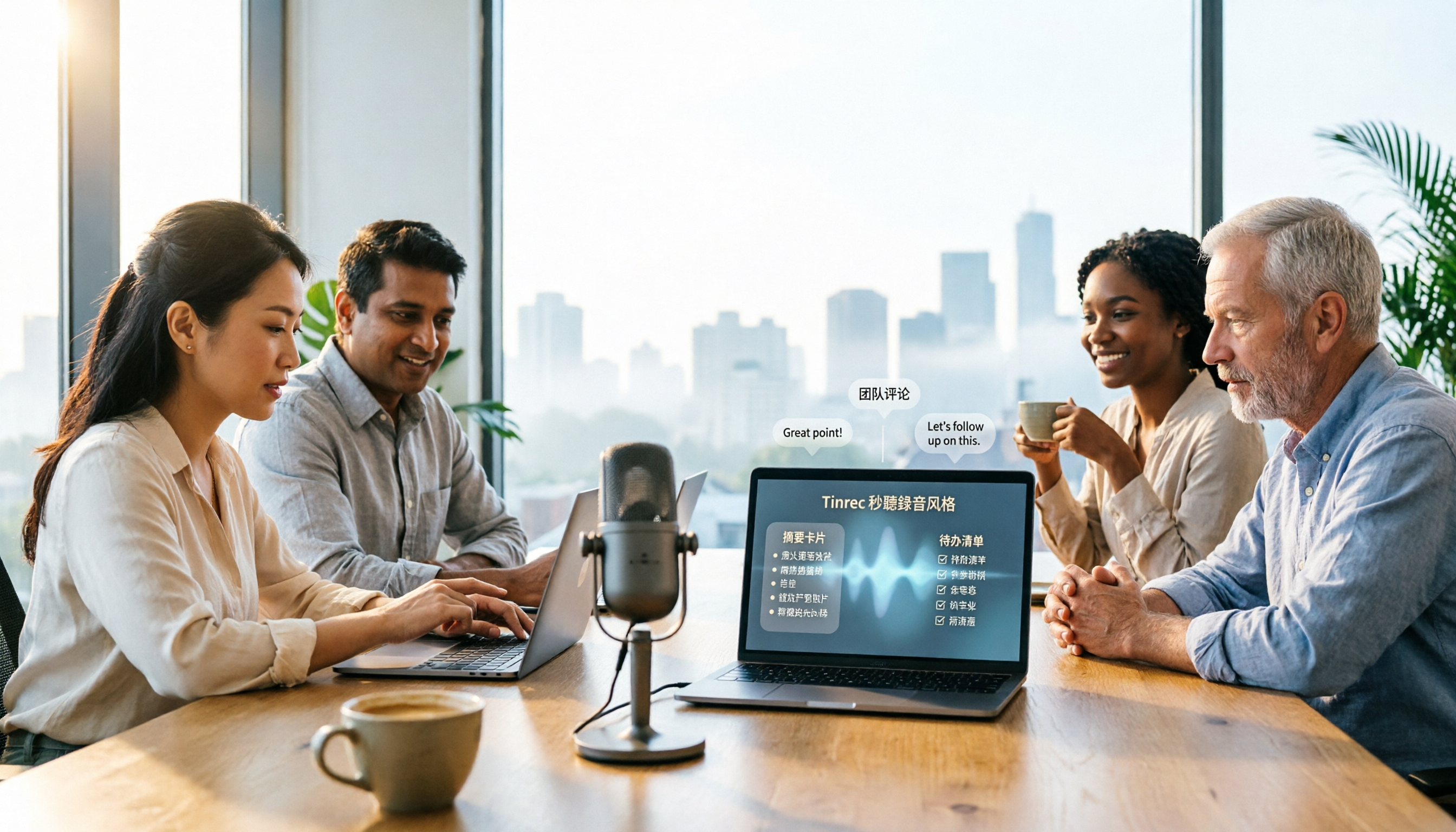
3 Audio-to-Text Tools Tested and Compared in 2026: Beyond ChatGPT, Which One Turns Transcripts into Usable Data?
Can ChatGPT transcribe audio? The answer is conditional, with many limitations. This article starts from real-world use cases, explains 5 key points to consider when choosing an audio-to-text tool, and uses Tinrec as an example to demonstrate the complete workflow from recording to transcript, summary, to-dos, and team collaboration.

How to Get YouTube Transcripts in 2026: 3 Methods + AI Summarization
There are three ways to get a YouTube video transcript: YouTube's built-in transcript, free online extraction tools, and AI tools that support link import. This tutorial compares the differences between the three methods, explains which one to use in which situation, and tests how Tinrec turns transcripts into summaries, Q&A, and reusable data.