
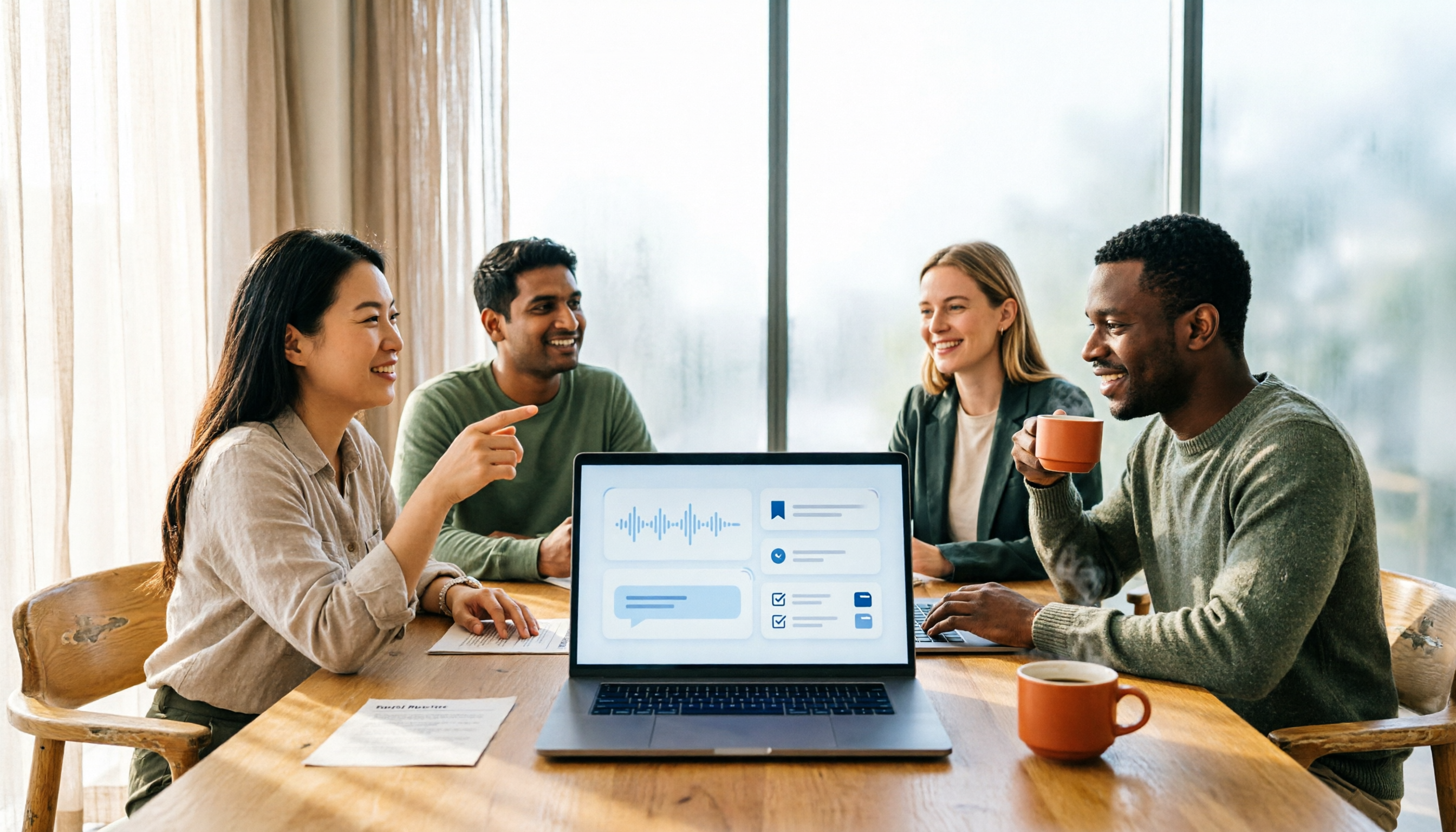
Turn recordings into transcripts and summaries in minutes
Upload audio or video for multilingual transcription, AI notes, and action items
Smart Meeting Collaboration in 2026: A Complete 5-Step Guide
Why Most Teams Only Do Half of Meeting Collaboration
Let me start with an observation I've had for a long time: many companies think they're already doing smart meeting collaboration because they "have recordings."
But what happens after the recording ends?
The video sits on the computer of whoever started the meeting. Meeting conclusions rely on a colleague who took notes to relay them verbally. Action items are scattered across group chats and emails. Two weeks later, when you need to confirm "what exactly did we decide back then," you have to fast-forward through a 50-minute video from the beginning.
This isn't a tool problem—it's that the process stops at "recording" and doesn't go further.
There's an even more common pitfall: to let AI record meetings, you invite a meeting bot to every single one. As a result, the participant list always has an extra unfamiliar account, and when meeting with external clients, you have to explain it first. You get the recording, but the collaboration experience actually gets worse.
This article is about the complete approach: from how audio gets in, to how content is understood, to how it ultimately becomes searchable team data.
Before Choosing a Meeting Collaboration Method, Understand These 3 Key Points
When I look at these tools, my order is usually: first, how it captures meeting audio; second, what's left after transcription; and finally, data ownership. If you reverse this order, you'll easily buy a tool that's "feature-rich but unusable."
Key Point 1: How is meeting audio recorded?
There are three mainstream methods: a meeting bot joining as a participant, desktop software directly capturing system audio, and standalone recording hardware. Bots are convenient but appear in the participant list. Hardware is good for portable scenarios but requires carrying an extra device. Desktop system audio capture is the approach that doesn't inconvenience others. None is absolutely better—it depends on whether you're in an online or in-person meeting.
Key Point 2: After transcription, what's left?
A transcript is the starting point, not the endpoint.
A 60-minute meeting transcript can easily be tens of thousands of words—no one wants to reread it. What really determines efficiency is what comes next: automatic summaries, chapters, and extracting "who needs to do what by when." A tool that only gives you a transcript is essentially handing the organizing work right back to you.
Key Point 3: Who ultimately owns the meeting data?
This is the most overlooked point. If meeting notes are stored in an individual account, then when that person leaves, changes devices, or simply forgets to share, the data is as good as gone. Teams need a shared space where new members can look up past meetings themselves, rather than asking "what was that conclusion again?" every time.
Tinrec — Our Top Pick After Testing, Here's How the 5 Steps Work
Tinrec is an AI meeting notes and collaboration tool for individuals and teams, supporting iOS, Android, web, and desktop. Its core value is turning meetings into searchable, collaborative, actionable team data.
After running through it myself, I think its smoothest workflow can be broken down into 5 steps.
Step 1: Start recording without inviting a bot
For online meetings, open the Tinrec desktop app. It directly captures your computer's system audio, handling meeting audio played on platforms like Zoom, Google Meet, Microsoft Teams, and Webex—no need to invite an extra bot. The participant list stays clean, and you don't have to explain anything when meeting with clients.
For in-person meetings or interviews, use your phone or device for real-time recording and transcription as you speak. For meetings that have already ended or historical recordings, you can also upload audio or video files to organize them later.
Step 2: Transcribe as you record, transcript appears in real time
Tinrec's real-time recording generates a transcript simultaneously, so you can see the text as the meeting progresses. For cross-language meetings, you can enable real-time translation and read in original, translated, or bilingual side-by-side mode. Mixed Chinese-English content can also be organized together.
Keep in mind that transcription quality is affected by the recording environment—air conditioning noise, multiple people talking over each other, and technical jargon all make a difference. That's why I recommend testing with a real meeting from your own company, rather than just looking at official numbers.
Step 3: As soon as the meeting ends, summaries and chapters are ready
This is where it stands out. After the meeting, AI automatically generates a summary and chapters, breaking the long meeting into browsable sections and highlighting key points. For a 60-minute meeting, you don't need to rewatch from the start—just scan the summary and chapters to get the full picture.
Step 4: Ask the meeting directly and extract action items
After recording, you can ask it questions directly, such as "Which option did we finally decide on?" or "What was the budget cap the client mentioned?" It doesn't just throw a bunch of keyword search results at you—it organizes answers based on the content.
Stop organizing recordings by hand
Upload audio or video and automatically get a transcript, summary, and action items
Action items are also extracted from the discussion—who's responsible for what and what needs to be delivered—which is far more reliable than manual recall. In addition, it can generate meeting minutes, reports, tables, and other follow-up work products.
Step 5: Export to your existing workflow or save to team space
Organized content can be exported to common tools like Notion, Google Docs, OneNote, and Dropbox, connecting back to your existing workflow.
For team use, Tinrec offers a dedicated team space: meeting data is stored centrally within the team. You can create and switch between multiple teams, invite members via link, and manage by role and seat. Admins can view team usage trends, member usage details, maintain team hotwords (to improve recognition of internal product names and project codes), and access audit logs and an audio recycle bin. When a member leaves or is removed from a seat, their team resources can be handed over to other active members, so data doesn't disappear with the person.
Pricing and Plans
The personal plan includes a free version, weekly pass, Pro monthly, and Pro annual. Light users who occasionally organize a recording can start with the free version. For short-term intensive meetings, interviews, or courses, the weekly pass is more suitable. For steady weekly use, consider Pro. For long-term accumulation of recording data, the annual plan has a lower monthly equivalent.
The team plan currently offers a 7-day trial (1 free seat, 300 minutes of team shared import quota). Monthly is USD 29.80 per paid seat per month; annual is USD 199 per paid seat per year (about USD 16.58 per month). Each paid seat has 2,000 minutes of team shared import quota per month. Under an active team plan and active seats, real-time recording is currently not deducted by minutes; file and web imports use the team shared quota. For actual prices and benefits, please refer to the official purchase page.
Things to Note
First, the free quota is suitable for trying it out, not for heavy users who meet daily.
Second, don't interpret it as "98% accuracy." Transcription performance varies with recording quality, accents, noise, and terminology. For important content, it's still recommended to cross-check with transcript timestamps and the recording.
Third, the team plan's current sharing logic is "team-level sharing": all active members can read team data. Whether they can record, upload, edit, import, or export depends on whether they have a seat. It's not a file-level granular permission system. If your company needs to set visibility per file, confirm this first.
Who It's For
People who frequently hold Chinese or mixed Chinese-English meetings, don't want a bot joining the meeting, want a ready-to-use summary and action items right after the meeting, and need data to stay with the team rather than in individual accounts. The team plan is also suitable for departments that need to manage seats, usage, and activity logs.
Besides Tinrec, What Other Options Are There?
Otter.ai: A veteran choice for English meetings. Basic is free with 300 minutes per month. Pro annual is about USD 8.49 per user per month, including 1,200 minutes of in-app recording and 10 file imports per month. It's cost-effective for teams with all-English meetings. But if you need Chinese and mixed Chinese-English transcripts, real-time bilingual translation, and meeting data saved to a team space, Tinrec is a better fit.
Notta: A competitor with high feature overlap. Free is 120 minutes per month with a 3-minute limit per recording. Pro annual is about USD 8.17 per month; Business is about USD 16.67 per seat per month. Multilingual transcription is decent. But Tinrec adds bot-free system audio capture on desktop and AI Q&A around meetings plus follow-up document generation.
PLAUD Note / NotePin: The hardware representative. NotePin is USD 159, Note Pro is USD 189. Membership Starter is 300 minutes per month; Pro is USD 99.99 per year. Suitable for portable and phone call recording, but you need to carry an extra device. Tinrec can handle online meetings and existing audio files via desktop, web, and mobile, and centralize them in a team space.
Pitfall Guide: The 4 Most Common Mistakes When Adopting Smart Meeting Collaboration
Pitfall 1: Thinking built-in video conferencing transcription equals meeting collaboration. Platform built-in transcription is convenient, but records are usually tied to that platform. Cross-platform, cross-device organization becomes a hassle. Think first about where the data should ultimately live.
Pitfall 2: Only looking at advertised accuracy numbers. Transcription performance is highly dependent on recording conditions. A quiet test environment is very different from a real meeting room. The most practical approach is to try it with a recording of your own meeting.
Pitfall 3: Treating the transcript as the endpoint. If you only use the tool for "audio to text," you're only using a small part of its capabilities. Summaries, chapters, action items, and AI Q&A are where the time savings really are.
Pitfall 4: Ignoring the difference between members and seats. When purchasing for a team, many people only count "how many accounts to buy," but actually you need to distinguish: who needs admin permissions (role) and who needs the ability to actually record and edit (seat). Buy too few, and members can only view but not act. Buy too many, and it's a waste.
Conclusion: Where Should Your Team Start?
If what you want is "open it and record, and have a summary and action items right after the meeting," Tinrec is the most recommended starting point in this article.
Need Chinese or mixed Chinese-English meetings and don't want a bot joining → Tinrec. Want to ask the meeting directly after recording and extract action items → Tinrec's AI Q&A and action item extraction. Meeting data should stay with the team and new hires can look it up themselves → Tinrec team space. Mainly all-English meetings, budget first → Otter.ai. Need portable hardware recording and phone call recording → PLAUD Note series.
You don't need to buy the most expensive plan right away. Start with the free version for two or three real meetings, see if the summary is accurate and action items are captured correctly, then decide whether to upgrade. That's more useful than reading a hundred spec comparison articles.
(Note: Please comply with local regulations when recording and transcribing, and obtain participant consent when necessary.)
References
- Smart meetings - Smart Meetings and Workspaces
- Collaborative AI: What It Is + Real Examples in Teams
- Video Conferencing, Meetings, Calling | Microsoft Teams
- Google Meet: Online Voice and Video Calls | Google Workspace
- AI Meeting Notes Tool | Real-time Recording, Summary Organization! 3 Tools to Help You Focus in Meetings
Turn every recording into actionable outcomes
Get 60 free transcription minutes when you sign in. No credit card required.
Related Reading
You might also like

Free Video to Text Options in 2026: 4 Tools Compared
Turning video into text isn't hard—the hard part is the cleanup afterward. This guide compares the free plans and paid pricing of 4 video-to-text tools in 2026, with hands-on testing of transcript quality, summary and action items, AI Q&A, and team collaboration, so you can decide which one truly fits your workflow.

4 Video-to-Text Tools Tested: Which Saves the Most Time on Chinese Transcripts and Meeting Follow-Ups?
We tested 4 video speech-to-text tools, covering Chinese meeting transcripts, bot-free online meeting recording, AI summaries and action items, team data ownership, and pricing. We explain common pitfalls and selection criteria, and provide recommendations for different use cases.

Does Google AI Studio Support Chinese in 2026? 5 Steps to Understand Chinese Support and Meeting Notes
Does Google AI Studio support Chinese? This article first clarifies the difference between 'Chinese input/output' and 'interface language,' then outlines 4 key criteria for choosing a Chinese AI tool, and compares Tinrec, Notta, Otter.ai, and TurboScribe on their actual performance in Chinese meeting transcription to help you pick the right tool.
3 Ways to Use the AI Reflect Tool in Illustrator (2026 Tested Comparison): How to Mirror with Precision
Struggling with asymmetrical shapes when drawing symmetrical designs? This guide breaks down three ways to use the Illustrator (AI) Reflect tool: dragging from the toolbar, holding Shift to lock to 45-degree increments, and double-clicking to open the Reflect dialog box. It also covers the three most common beginner mistakes and how to avoid them, so you can create precise symmetrical artwork in half the time.

2026 Smart Meeting Collaboration Platforms Compared: Which Is Best for Chinese-Language Meetings and Team Collaboration?
We tested four smart meeting collaboration platforms in 2026, comparing Tinrec, Otter.ai, Notta, and Granola across four dimensions: meeting capture, post-meeting organization, Chinese transcription, and team governance. We also break down free tiers, pricing, and common pitfalls to help you decide which one truly fits your meeting scenario.

3 Smart Meeting Collaboration Methods Tested in 2026: From Recording to To-Do, Which Saves the Most Time?
The real work begins after the meeting ends. This article compares three smart meeting collaboration approaches—manual note-taking, meeting bots, and desktop no-bot recording—and explains how Tinrec turns meetings into transcripts, summaries, chapters, and to-dos. It also covers team plan roles and seat differences, quota pricing, 5 key purchasing considerations, and FAQs.

Best Live Transcription Tools in 2026: 4 Tested, Tinrec Wins for Chinese Meetings
We tested 4 live transcription tools in 2026: Tinrec, Yating, Otter.ai, and PLAUD Note. From Cantonese and mixed Chinese-English recognition to live transcription, post-meeting AI Q&A, and team collaboration, we break down which one is best for Chinese meetings.

2026 Smart Meeting Collaboration Tools Comparison: Can You Keep Trackable Meeting Records Without a Meeting Bot?
Smart meeting collaboration isn't just about recording meetings—it's about making post-meeting data searchable, queryable, and a reusable team asset. This article compares Tinrec, Otter.ai, Notta, and Granola across four key areas: capture method, post-meeting organization, team governance, and Chinese language experience, with a guide to common pitfalls and selection advice.

6 Smart Meeting Collaboration Platforms Tested: Which Is Best for Chinese Meeting Notes and Team Knowledge Retention?
Meeting notes aren't just about recording. This article reviews 6 smart meeting collaboration platforms, breaking down how meeting audio is captured, post-meeting summaries and action items, Chinese transcription performance, team seats, and data ownership. It includes actual pricing and ideal use cases to help you choose the solution that best fits your team's workflow.