

Turn recordings into transcripts and summaries in minutes
Upload audio or video for multilingual transcription, AI notes, and action items
Free Video to Text Options in 2026: 4 Tools Compared
With video to text, the bottleneck usually isn't the conversion—it's the hour after
It's 10 p.m. on a Wednesday, and you've finally dropped a two-hour project meeting recording into a conversion tool. The file finishes, and the transcript is ready.
Then you stare at thirty pages of unsegmented, unfocused text with all the speaker names jumbled together, and realize you'll need to spend another hour rereading it just to write up the notes.
Another scenario: an online course. You've watched the video and want to find the part where the instructor mentioned a certain formula, but you can only drag the timeline back and forth guessing. If it's an interview or press conference, you also have to verify quotes line by line—if the tool doesn't provide timestamps, the transcription was pointless.
In other words, the real barrier with video to text isn't whether you have a transcript—it's whether you can use it immediately after conversion: find key points, extract action items, and when necessary, go back and verify the original words.
Before choosing a video-to-text tool, understand these 5 key points
1. Is the input source broad enough? A tool that only supports file uploads is useless for online meetings. Confirm whether it can handle live recording, meeting audio played on your computer, and casual phone recordings—not just mp4 files.
2. What does it give you after conversion? Getting only a transcript versus getting a summary, chapters, key points, action items, and AI Q&A are two completely different workloads. With the former, you still have to read it yourself; with the latter, you can use it directly for follow-up work.
3. Performance with Chinese and mixed Chinese-English. Meetings in Taiwan are rarely pure Chinese—they're usually sentences like "this campaign's KPI needs to be confirmed." Pure English tools lose points on this kind of content, and this is where most people get misled by official marketing.
4. The real limits of free tiers. Don't just look at the word "free"—look at monthly minutes, maximum file length, and daily file limits. Some tools' free versions only allow 3 minutes per file, which can't even handle a meeting recording.
5. Data ownership and team collaboration. If meeting data is meant to be shared across a department, ask: Is the data stored in individual accounts or a team space? Will data disappear when a member leaves? This is often overlooked in small teams of three or fewer, and it only hurts when someone leaves.
Tinrec—our top pick after hands-on testing
Tinrec is an AI meeting notes and collaboration tool for individuals and teams, supporting iOS, Android, desktop, and web. Its biggest difference from what people typically think of as a "video-to-text website" is that transcription is just the starting point—organization, follow-up questions, and knowledge retention come after.
Turn video and audio files into usable data. When you already have meeting recordings, online courses, or interview videos, upload the files directly, and Tinrec will produce a transcript and automatically organize summaries, chapters, key points, and action items. Where you used to dig through a two-hour video to find "who's responsible for what and when it's due," now these are listed directly. The transcript retains timestamps, so you can jump back to the corresponding section when you need to verify the original words.
No bot needed for online meetings. To record online meetings on Zoom, Google Meet, Microsoft Teams, or Webex, the Tinrec desktop app captures your computer's system audio directly—no need to send an extra meeting bot into the room. The transcript is generated in real time during the meeting, and the summary and action items are nearly ready when it ends. For cross-language meetings, you can enable real-time translation and view the original, translation, or bilingual side-by-side.
Ask follow-up questions after recording. This is where Tinrec most clearly differs from pure transcription tools. You can ask questions directly about the meeting content, such as "What was the budget cap the client mentioned?" It answers based on semantics rather than dumping a list of keyword search results. When you need deliverables, you can use Agent post-processing to turn the meeting into a report, table, or document, and export to Notion, Google Docs, OneNote, Dropbox, and other tools for further work.
The team version is about more than just "multi-person sharing." The team version provides an independent team space where meeting data belongs to the team. Roles determine who can manage the team, and seats determine who can record, upload, edit, and export; members without seats can still view, play, and read team data. Admins can view usage trends, member rankings, and details, query and export audit logs, recover accidentally deleted audio from the recycle bin (currently retained for 30 days), and maintain team hotwords to improve recognition of professional terminology. When a member leaves or loses their seat, team resources can be handed over to other active members, so data doesn't disappear with the individual account.
Stop organizing recordings by hand
Upload audio or video and automatically get a transcript, summary, and action items
Pricing. The team version is USD 29.80 per paid seat per month, or USD 199 per paid seat per year (about USD 16.58 per month). Eligible teams can try it for 7 days with 1 free seat and 300 minutes of shared team import quota; each paid seat provides 2,000 minutes of shared team import quota per month. Live recording currently does not deduct minutes under an active team plan and active seat; file and web imports use the shared team quota. The personal version has a free plan, weekly pass, Pro monthly, and Pro annual, so you can choose based on usage frequency. Actual prices and benefits are subject to the official purchase page.
Limitations to note. The free version provides a basic quota; if you process large volumes of long videos daily, you'll need to consider upgrading. Also, transcription quality is affected by recording environment, accents, overlapping speakers, and specialized terminology. We don't recommend treating any tool as 100% accurate—important content should still be verified by replaying with timestamps.
Who it's for. If you frequently hold meetings in Chinese, need to handle mixed Chinese-English content, want to use AI to find key points right after recording, or want to move meeting data from personal devices into a team space, Tinrec is currently the most well-rounded choice.
Besides Tinrec, what other options are there?
TurboScribe: a cost-effective choice for long files and batch transcription. The free version processes 3 files per day, up to 30 minutes each; the paid annual plan is USD 120 (about USD 10 per month), with a maximum of 10 hours or 5 GB per file and up to 50 files per upload. If you have a batch of pre-recorded long videos, it's a great deal. However, it doesn't handle live meetings and lacks AI Q&A and team seat governance—two things Tinrec has that TurboScribe doesn't.
Notta: the competitor with the most overlap. The free version offers 120 minutes per month, up to 3 minutes per session; Pro annual is about USD 8.17 per month (1,800 minutes per month), and Business annual is about USD 16.67 per seat per month. It also covers multi-platform transcription, translation, and team plans, making it the closest match to Tinrec. The difference is that Tinrec's desktop app can record online meetings without a bot and offers Agent post-processing to turn meetings directly into reports or tables.
Otter.ai: a mature choice for English meetings. The Basic free version offers 300 minutes per month, and Pro annual is about USD 8.49 per user per month (1,200 minutes per month). If almost all your recordings are English business meetings, Otter's free tier is generous and is one of the few exceptions we'd recommend in this article. But Chinese and mixed Chinese-English are not its strong suit, and it lacks team hotwords designed for Chinese terminology, nor does it match Tinrec in cross-platform knowledge retention.
Pitfall guide: the 4 most common mistakes when converting video to text
Pitfall 1: Looking only at "free" without checking the details. Some tools' free versions limit files to 3 minutes and 3 files per day, which can't handle a two-hour meeting recording. Test with your longest video, not what the ads say.
Pitfall 2: Thinking the transcript is the end. A transcript is just raw material. If your process still stops at "convert to text, then read it manually," you're only using a third of the tool's capability. With Tinrec's AI chat query, you can ask right after recording, "What was the conclusion of this meeting?"—far faster than manually flipping through a 30-minute transcript.
Pitfall 3: Ignoring mixed Chinese-English. Many tools' recognition rates are tested on pure English or pure Chinese. Meetings in Taiwan often switch between two languages within a sentence—that's the real scenario. When choosing a tool, test it with your own meeting recording.
Pitfall 4: Keeping team data in personal accounts. Recording meetings with a personal account is convenient, but once a member leaves, the data becomes personal property, and handover becomes problematic. If meeting content is shared by the team, start with a team space and clarify roles, seats, and data ownership from the beginning.
Final reminder. Recording and transcription involve personal data and communication privacy. Depending on local regulations, you may need to obtain participants' consent in advance—remember to inform them before recording.
Conclusion: Which one should you choose?
Overall, before choosing a tool, think clearly about one thing: do you want a transcript, or do you want data you can work with directly?
- Need video-to-text for Chinese and mixed Chinese-English, and want summaries and action items directly → Tinrec
- Need to record Zoom, Meet, Teams online meetings without adding a bot → Tinrec (desktop app captures system audio)
- Want to use AI to ask follow-up questions and turn content into reports or tables → Tinrec (AI Q&A + Agent post-processing)
- Department needs to share meeting data and manage seats, usage, and audits → Tinrec team version
- Only have a bunch of pre-recorded long videos and budget is the priority → TurboScribe
- Almost exclusively record English meetings → Otter.ai
We suggest starting with the free version, running one of your own meeting or course videos through it, and seeing whether the transcript quality and extracted key points work for you before deciding to upgrade. That's more accurate than reading ten reviews.
References
- Transcribe Video to Text - Real-time, 99.9% Accurate - VEED.IO
- Online AI Speech, Video, Audio Auto Transcription - Free Trial - cSubtitle
- Convert Video to Text | Transcribe App & Online Editor
- Video to Text - Free Online AI Video Transcriber, Unlimited and No Registration | Video Transcriber AI
- Transcribe YouTube Videos to Text | TurboScribe
Turn every recording into actionable outcomes
Get 60 free transcription minutes when you sign in. No credit card required.
Related Reading
You might also like

2026 Voice-to-Text Tools Compared: Which AI Best Handles Chinese Meetings and Saves Time?
Want to turn recordings, meetings, and interviews into transcripts quickly but don't know which tool to start with? I tested 4 voice-to-text tools, comparing Chinese recognition, bot-free meeting recording, AI summary Q&A, and team collaboration. Here are the criteria and selection methods I actually use.

How to Choose AI Tools in 2026: 5 Steps to Find the Best AI Right Now
Not sure which AI to use? This guide starts with your daily tasks, outlines 5 selection steps, and tests a meeting notes scenario to help you find the best AI right now. It also compares Tinrec, Granola, Notta, and PLAUD to help you avoid buying pitfalls.
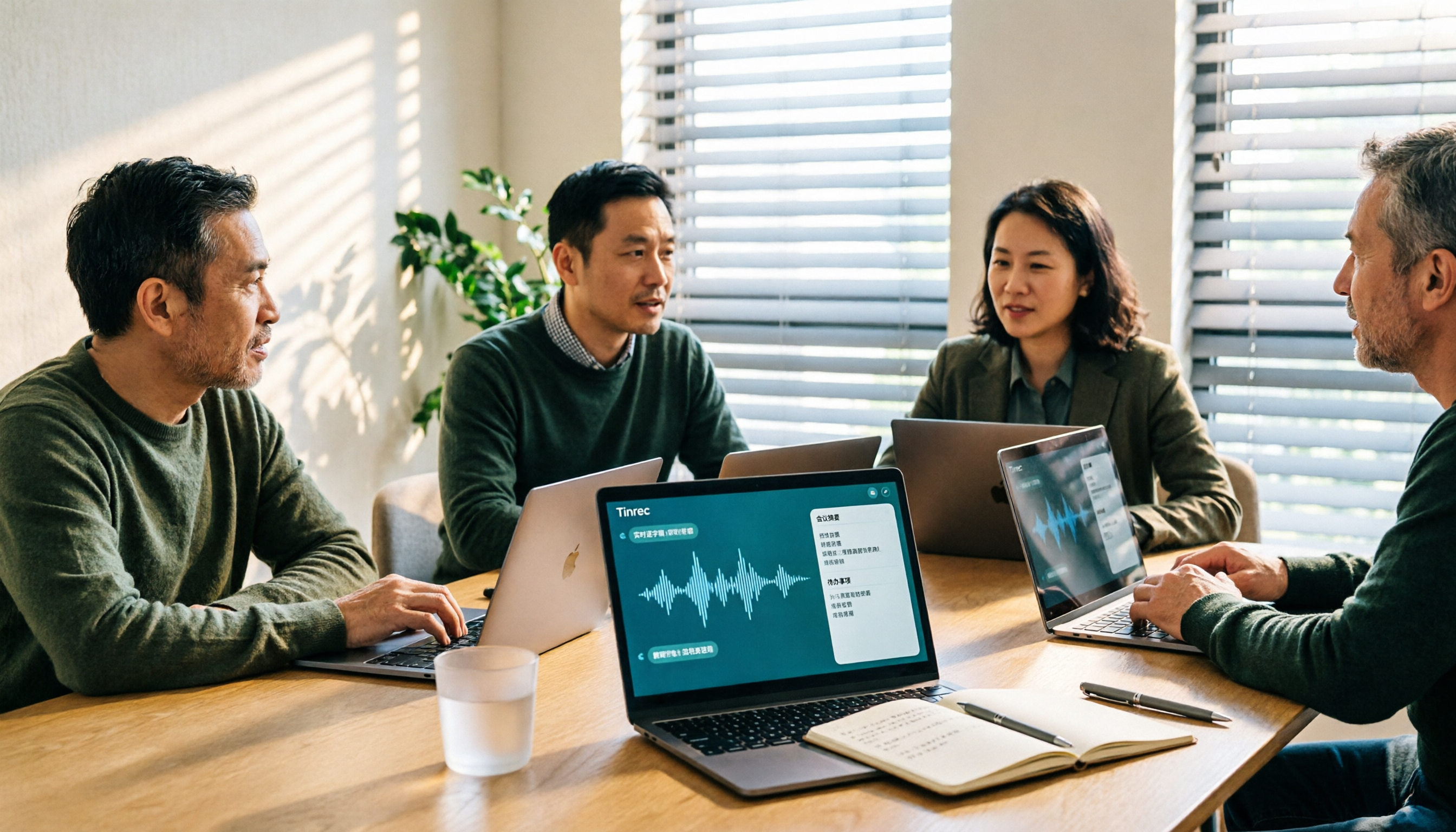
5 Best Audio-to-Text Tools for Chinese Meetings in 2026: Which Saves the Most Time?
Struggling to turn meeting recordings into transcripts? We tested and compared 5 audio-to-text tools—Tinrec, Otter, Notta, PLAUD, and TurboScribe—on Chinese recognition, meeting recording methods, post-meeting organization, and team collaboration to help you find the most time-saving option.
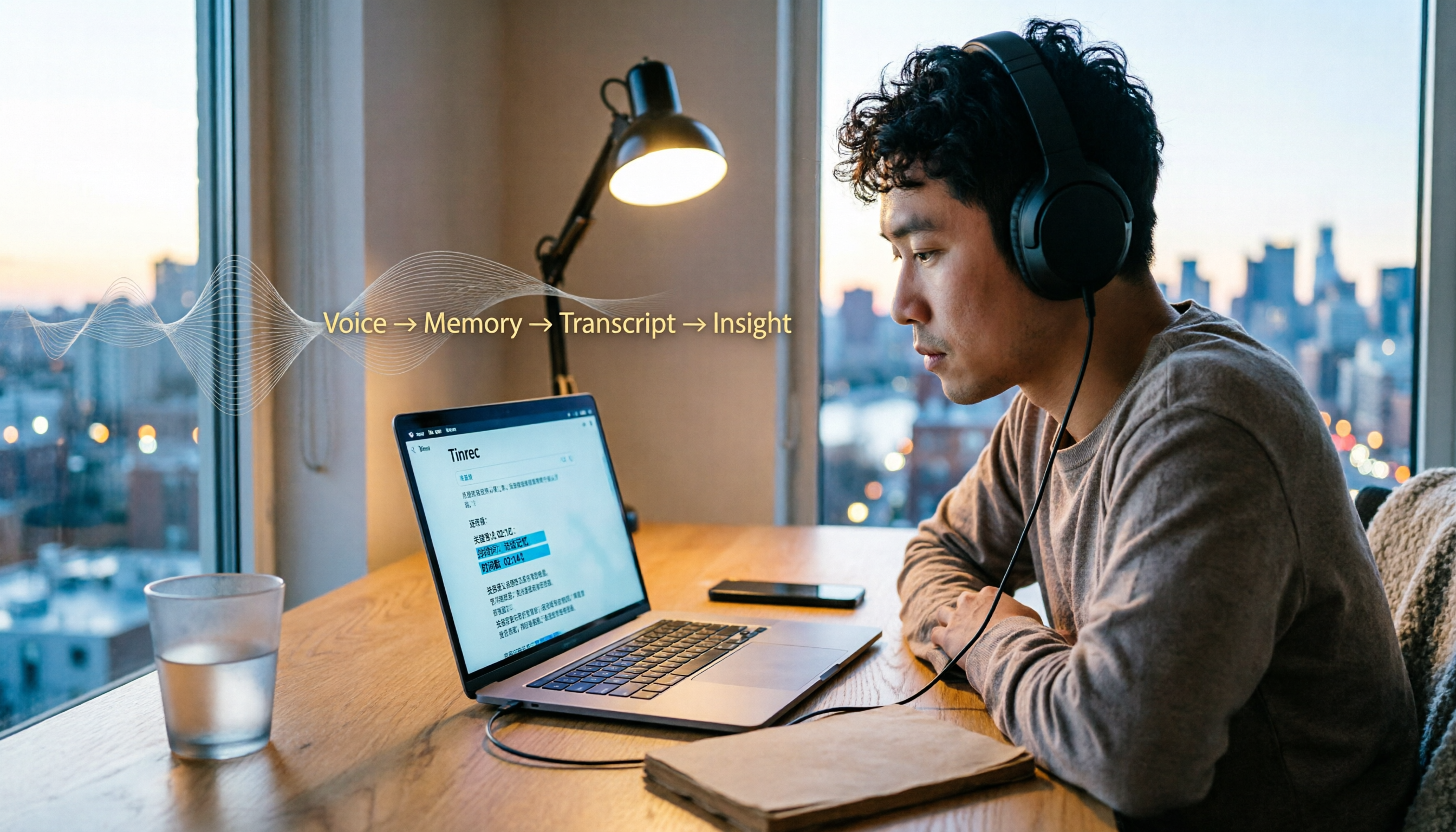
5 Best Video-to-Text Transcription Tools in 2026: Which AI Saves the Most Time?
Turning audio in videos into text is no longer just about converting sound to words. This article starts with common misconceptions, then walks you through post-transcription organization, search, follow-up questions, and export capabilities. We put Tinrec (秒聽錄音) through hands-on testing and compare it with Notta, TurboScribe, Otter.ai, and others to help you choose the video-to-text solution that truly saves time.

Tinrec vs Apple Voice-to-Text in 2026: A 5-Dimension Showdown for Chinese Meetings
After iOS 18.4, Apple added built-in transcription to iPhone Voice Memos. Do you still need a separate tool? This article compares Apple's built-in voice-to-text with Tinrec across five dimensions: Chinese recognition, recording preservation, post-meeting organization, cross-platform support, and team collaboration. It also includes practical tips and selection advice.

4 Video-to-Text Tools Tested: Which Saves the Most Time on Chinese Transcripts and Meeting Follow-Ups?
We tested 4 video speech-to-text tools, covering Chinese meeting transcripts, bot-free online meeting recording, AI summaries and action items, team data ownership, and pricing. We explain common pitfalls and selection criteria, and provide recommendations for different use cases.

Does Google AI Studio Support Chinese in 2026? 5 Steps to Understand Chinese Support and Meeting Notes
Does Google AI Studio support Chinese? This article first clarifies the difference between 'Chinese input/output' and 'interface language,' then outlines 4 key criteria for choosing a Chinese AI tool, and compares Tinrec, Notta, Otter.ai, and TurboScribe on their actual performance in Chinese meeting transcription to help you pick the right tool.
3 Ways to Use the AI Reflect Tool in Illustrator (2026 Tested Comparison): How to Mirror with Precision
Struggling with asymmetrical shapes when drawing symmetrical designs? This guide breaks down three ways to use the Illustrator (AI) Reflect tool: dragging from the toolbar, holding Shift to lock to 45-degree increments, and double-clicking to open the Reflect dialog box. It also covers the three most common beginner mistakes and how to avoid them, so you can create precise symmetrical artwork in half the time.

2026 Smart Meeting Collaboration Platforms Compared: Which Is Best for Chinese-Language Meetings and Team Collaboration?
We tested four smart meeting collaboration platforms in 2026, comparing Tinrec, Otter.ai, Notta, and Granola across four dimensions: meeting capture, post-meeting organization, Chinese transcription, and team governance. We also break down free tiers, pricing, and common pitfalls to help you decide which one truly fits your meeting scenario.