
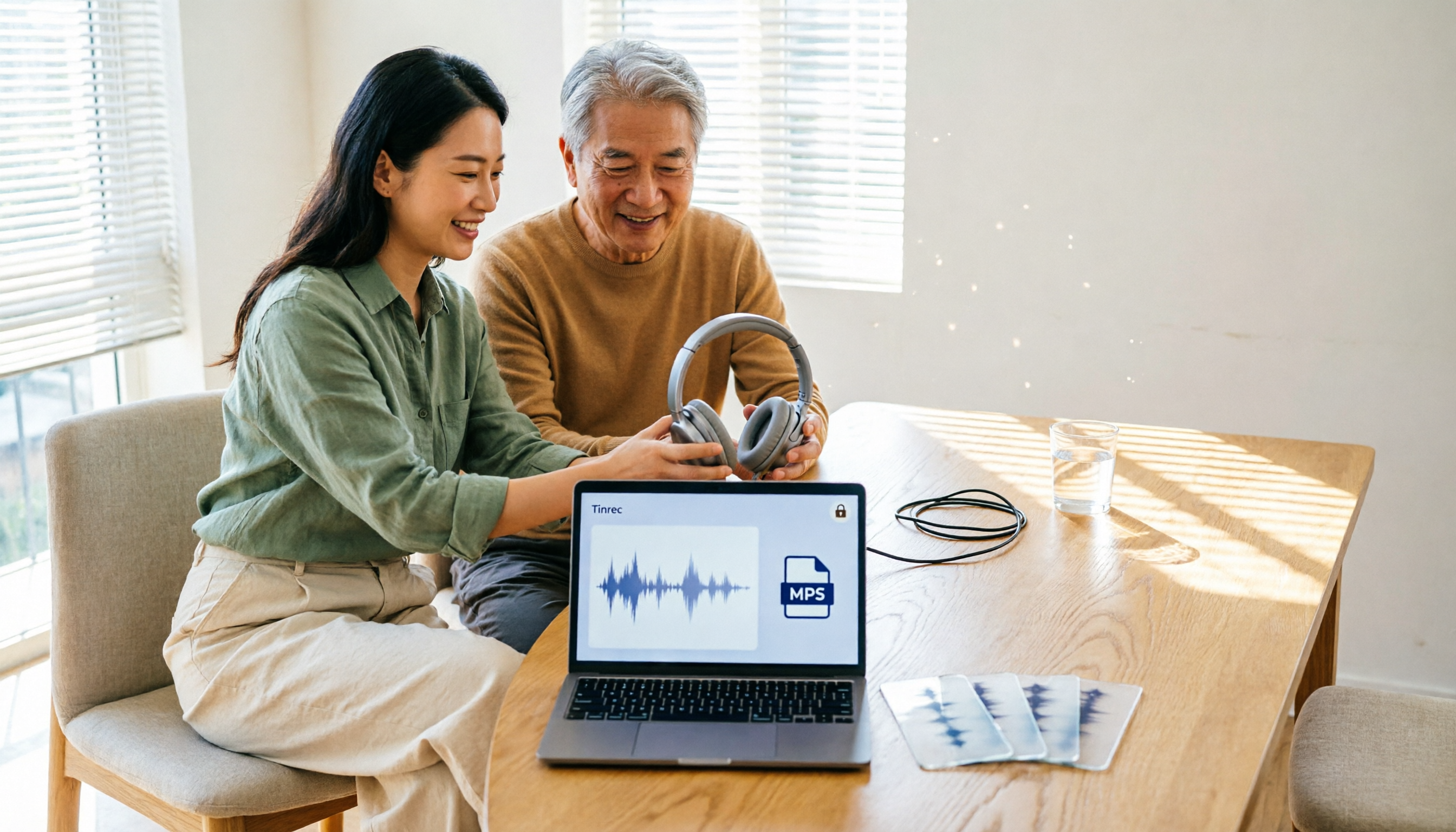
Turn recordings into transcripts and summaries in minutes
Upload audio or video for multilingual transcription, AI notes, and action items
Choosing an audio-to-MP3 converter isn't hard — the hard part is figuring out what you actually need first. Most people get stuck on the same question: does the file get uploaded? Uploading to someone else's server is convenient, but it can feel uneasy. Tools that advertise no-upload are reassuring, but their format support may not be as broad.
I've rounded up 5 common free online audio-to-MP3 tools and compared them across five dimensions: upload requirement, supported formats, batch processing, browser compatibility, and audio quality. That way you can match them to your situation and pick one that works for you.
How to Choose an Audio-to-MP3 Tool: Quick Overview
Bottom line first: all 5 are free online tools — no software to install, just open your browser. The main differences come down to whether files get uploaded and how many formats are supported.
| Tool | Positioning | File Upload | Batch Processing |
|---|---|---|---|
| Online Audio Converter | Widest format support online | Yes (auto-deleted after a few hours) | Yes, ZIP packaging available |
| FlexClip Free MP3 Converter | Simplest browser-based conversion | Yes | Not emphasized |
| Transcribe File to MP3 | Converts both audio and video | Yes | Not emphasized |
| Aconvert M4A to MP3 | Specific format conversion | Yes | Not emphasized |
| PiliApp Audio to MP3 | No upload, runs in browser | No | Yes |
Let's look at each of the five dimensions.
Dimension 1 | Upload or Not: Privacy vs. Convenience
Most online converters (Online Audio Converter, FlexClip, Transcribe, Aconvert) work by uploading your file to a server, converting it, then letting you download the result.
Online Audio Converter states that files are automatically deleted from the server a few hours after processing, and no one but you can access them.
PiliApp takes a different approach: the entire conversion happens in your browser, and files are never uploaded to a server. That's more reassuring for privacy-conscious users. Keep in mind that no-upload usually means conversion speed depends on your own device's performance.
→ For this dimension: choose PiliApp if privacy matters most; choose Online Audio Converter if you're okay with uploading and want more formats and settings.
Dimension 2 | Supported Input Formats and Output Settings
This is where Online Audio Converter shines. It claims to handle over 300 file formats, including video formats, with output options including mp3, wav, m4a, flac, ogg, amr, mp2, and m4r for iPhone ringtones.
It also lets you set quality, bitrate, frequency, and channels — even apply fade in/out, replace playback, or remove a specific sound from the audio track.
Transcribe focuses on converting any format, audio or video, with common formats like m4a, wav, m4v, mp4, mov, and avi supported. PiliApp lists WAV, M4A, AAC, OGG, FLAC, Opus, WMA, and more. Aconvert targets specific needs like M4A to MP3 conversion.
If you have video files and need to adjust bitrate, Online Audio Converter offers the most flexibility.
→ For this dimension: Online Audio Converter has the widest format support and finest settings.
Dimension 3 | Batch Processing and Multi-File Conversion
If you need to convert many files at once, batch processing is key.
Online Audio Converter can convert multiple files simultaneously and package them in a ZIP archive for easy downloading. PiliApp also lists batch processing support.
FlexClip, Transcribe, and Aconvert don't specifically emphasize batch processing in their official descriptions, so large batches would be more tedious.
→ For this dimension: for large batches, prioritize Online Audio Converter or PiliApp.
Dimension 4 | Browser and Platform Compatibility
This often gets overlooked, but it can be frustrating when you run into it.
Transcribe explicitly states that its MP3 converter only works on Chrome and Firefox, and currently cannot process on Safari. If your conversions keep failing, it might be the wrong browser — switching to Chrome usually solves it.
The other tools are browser-based online tools, primarily for desktop use, with no specific browser restrictions stated.
→ For this dimension: Safari users should avoid Transcribe; the other tools have fewer restrictions.
Stop organizing recordings by hand
Upload audio or video and automatically get a transcript, summary, and action items
Dimension 5 | WAV to MP3: Does Audio Quality Suffer?
Yes, but usually you won't notice.
Transcribe explains it plainly: converting WAV to MP3 reduces audio quality because MP3 is a compressed format and data gets compressed during conversion. However, the human ear typically can't detect such subtle changes.
The real value of MP3 is compatibility — it plays on almost any device: phones, car stereos, browsers, even old players. If your goal is "playable everywhere," MP3 is a reasonable choice. If you're archiving master recordings long-term, keep the original lossless files.
→ For this dimension: choose MP3 for compatibility, keep original files for audio quality.
What Makes Each Tool Stand Out?
Online Audio Converter: Widest format support (300+, including video), adjustable bitrate, frequency, and channels, batch support with ZIP packaging, auto-deletes files after processing.
PiliApp Audio to MP3: No upload, conversion happens in your browser, batch support, completely free, best for privacy.
Transcribe: Converts both audio and video, and can connect to transcription services; but only supports Chrome and Firefox.
Aconvert: Straightforward for specific conversions like M4A to MP3, simple page.
FlexClip: No registration, no installation, just open your browser and convert — good for occasional use.
How It Works: Online Conversion Usually Takes Just 3 Steps
- Upload your source file: Drag the audio or video file you want to convert onto the page, or click to select a file.
- Choose output format and quality: Specify MP3, and adjust bitrate, frequency, and channels if needed.
- Download the output file: Once converted, download it to your computer. For batch conversions, you can download a ZIP archive.
Most tools follow the same process. Online Audio Converter's official instructions also describe these three steps: upload the source file, choose format and quality, and download the output file to your computer.
After Converting to MP3: What If You Want to Organize the Content?
Some people convert to MP3 not for playback, but to organize content from meetings, interviews, or classes. In that case, simple format conversion won't help.
Tinrec is an AI meeting notes and collaboration tool for individuals and teams. It can upload audio or video files and turn them into transcripts, automatically generate summaries, chapters, and action items, support AI Q&A and real-time translation, and export to common formats or third-party tools.
It handles "the content inside the file," not "the file format" — ideal for those who need to turn recordings into usable data. The team version offers a separate team space to manage members, roles, and seats, and view usage and activity logs, keeping meeting data within the team.
Summary: Which One Should You Choose?
• Just want a no-install, open-and-convert online tool → Online Audio Converter (widest formats, finest settings)
• Care a lot about file privacy, don't want to upload → PiliApp Audio to MP3 (no upload, batch support)
• Have video files and want to extract audio → Online Audio Converter or Transcribe (both support video formats)
• Only use Safari and don't want to switch browsers → Avoid Transcribe, choose one of the others
• Need to turn recordings into transcripts, summaries, and action items → Tinrec (handles content, not just format)
In one sentence: if you just need to "turn audio into MP3," these free online tools are more than enough. Figure out whether you care more about privacy or format support, and the answer usually becomes clear.
FAQ
Q1: Does converting to MP3 reduce audio quality?
Yes. MP3 is a compressed format, and data gets compressed during conversion. Transcribe's explanation also notes that WAV to MP3 reduces audio quality, but the human ear typically can't detect it. If you're archiving masters long-term, keep the original WAV or FLAC.
Q2: Are online converters safe?
Most tools require uploading files to a server. Online Audio Converter states that files are automatically deleted a few hours after processing, and only you can access them. If you're more privacy-sensitive, choose PiliApp, which advertises no upload — conversion happens entirely in your browser.
Q3: Why do my conversions keep failing?
Check your browser first. Transcribe officially states it currently only supports Chrome and Firefox and cannot process on Safari. Switching to Chrome usually solves it.
Q4: What's the difference between MP3, WAV, and M4A?
MP3 and M4A are both compressed formats — smaller files, high compatibility. WAV is typically lossless, larger files, with more complete audio quality retention. For playing everywhere, MP3 is safest; for preserving original quality, keep lossless files.
Q5: Can I convert on my phone?
These are all browser-based online tools, and they work best on a computer. If you need to process on a phone, look for options with a mobile app or desktop assistance.
Q6: Do free tools have file size or usage limits?
Each tool has different rules, and they change. Check the official website's current instructions before uploading, especially for single-file size and daily limits.
Overall, these free tools each have their strengths. Think about whether you care most about privacy, format support, or batch efficiency, then pick one from the comparison above and give it a try.
References
- Online Audio Converter - Convert audio files to MP3, WAV, MP4, M4A, OGG, or iPhone ringtones
- Free MP3 Converter - Convert audio files to MP3 online | FlexClip
- Convert files to MP3 for free | Transcribe
- M4A to MP3 - Convert audio files online
- Audio to MP3 - Online format converter - No upload required
Turn every recording into actionable outcomes
Get 60 free transcription minutes when you sign in. No credit card required.
Related Reading
You might also like

5 Image-to-Text OCR Tools Tested and Compared in 2026: Which Free Version Is Good Enough?
A comparison of 5 image-to-text (OCR) tools, including Baimiao web version, Image to Text, Gaitubao online OCR, Chenghua OCR, and a mobile app. It covers Chinese recognition, free quotas, output formats, and privacy considerations to help you choose the best image-to-text solution.

Tinrec vs Notta 2026: 5-Dimension Comparison for Audio Transcription
Looking for an audio transcription tool? This article compares Tinrec and Notta across five dimensions: bot-free meeting recording, Chinese transcription, AI Q&A, post-meeting organization, team collaboration, and seat management. It also includes alternatives like Otter.ai and Granola to help you choose the right tool for meetings, interviews, courses, and team scenarios.

2026 Comparison of 4 YouTube Shorts Tools: Which Saves the Most Time from Script to Upload?
When making YouTube Shorts, what usually holds you back isn't editing—it's organizing your content before editing. This article compares 4 tools using the same workflow: Tinrec handles transcription, summaries, and AI-powered quote finding; Adobe Express and YouTube's built-in tools handle visuals and publishing. It also covers the 4 most common mistakes beginners make and offers selection advice.

2026 Smart Short Video Summarizer Free Plans: 5 Tools Compared
A student-tested review of free smart short video summarization plans in 2026, comparing 5 tools including Tinrec and Notta on single-session length limits, AI follow-up questions, Chinese language support, and export workflows. Find out if free versions are enough and how students should choose.

2026 AI Simultaneous Interpretation Showdown: Tinrec vs Otter.ai — Which Is Better for Chinese Meetings Across 5 Key Dimensions?
How do you choose an AI simultaneous interpretation tool in 2026? This article compares Tinrec and Otter.ai across five dimensions: meeting recording methods, Chinese and real-time translation performance, input sources and audio retention, post-meeting organization capabilities, and pricing and team seat governance. It also includes six FAQs to help you determine which tool better fits your work scenarios.

2026 YouTube Learning Video Note-Taking Free Plans Compared: 4 Tools at a Glance
Watching videos is fun, but taking notes is a pain. This article starts from the choice of whether to go manual, semi-automatic, or fully automatic, and compares the free plans of Tinrec, Notta, TurboScribe, and Granola, including per-file length limits, AI summaries and Q&A, export capabilities, team spaces, and the four most common pitfalls when choosing a video note-taking tool.

How to Extract YouTube Videos in 2026: 5 Steps from Clips to AI Summaries
From a student's perspective, we debunk the most common misconception about YouTube video extraction: do you need the video file or the content? This article walks you through 5 steps to choose the right tool, tests how Tinrec imports via web link to turn public videos into transcripts, AI summaries, and queryable notes, and compares when to use clipping tools like CutterTube and YT1s.

2026 Comparison of 5 Audio-to-Text Tools: Which Is Fastest for Chinese Meeting Transcripts?
A hands-on review of 5 audio-to-text tools, covering Chinese recognition, bot-free meeting notes, AI summary Q&A, and team collaboration, to help you choose the best fit for your meeting scenario.

4 Voice Announcers Compared in 2026: Hardware Alerts, System Announcements, TTS, and Tinrec — Which to Choose?
Voice announcers come in different forms: hardware alert devices provide on-site warnings and guidance, Siri announces calls and notifications, and Google's text-to-speech reads news aloud. But if you need to capture and reuse audio from meetings, interviews, and classes, none of these three suffice. This article compares four common voice solutions and explains how Tinrec fills the gap with transcripts, summaries, action items, and team collaboration.