
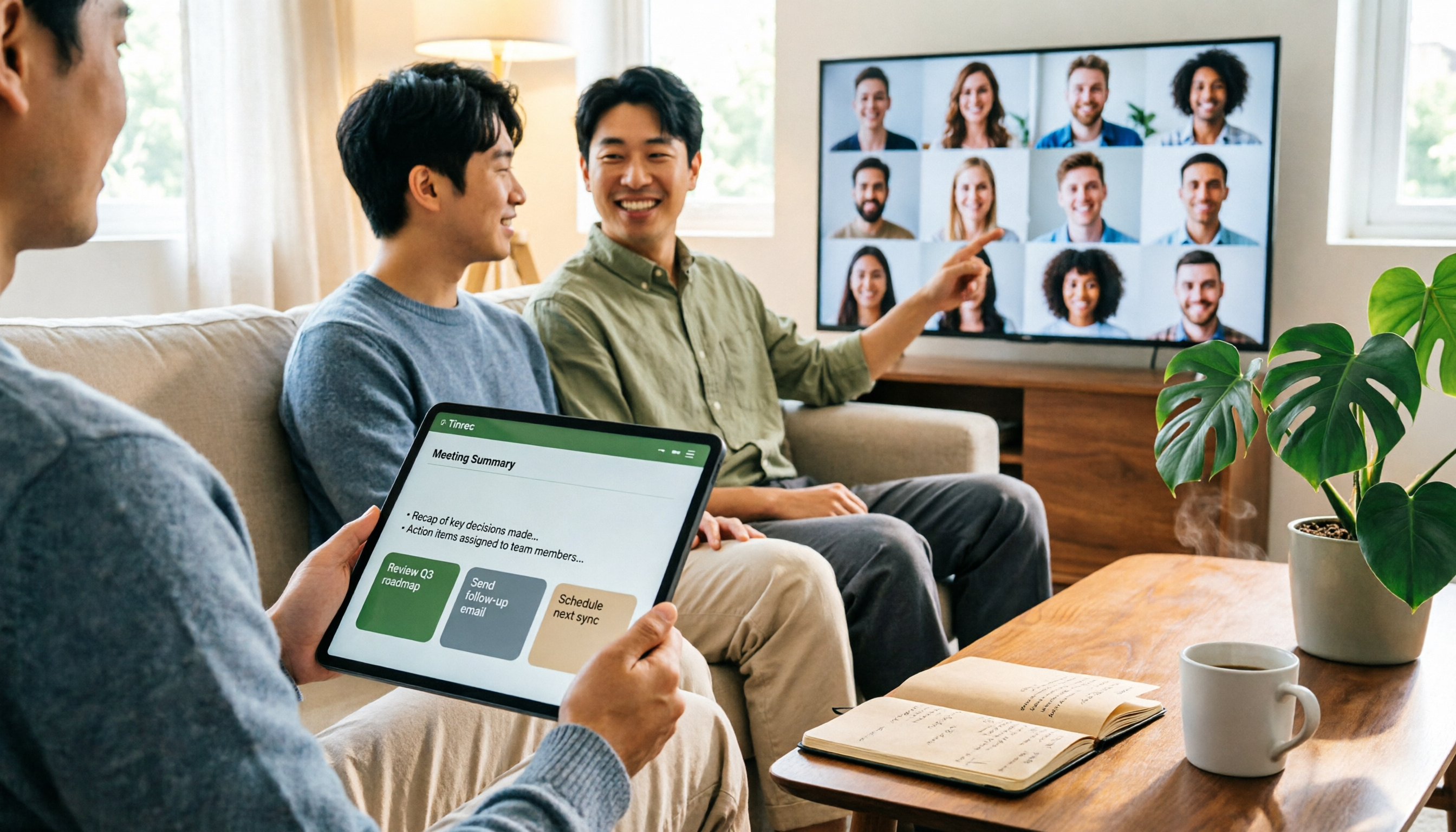
Turn recordings into transcripts and summaries in minutes
Upload audio or video for multilingual transcription, AI notes, and action items
AirPlay Mirroring vs Tinrec in 2026: 5-Dimension Comparison — Which Is Easier for Google Meet on Apple TV?
The 55-inch TV in the conference room is connected to an Apple TV, but your Google Meet is still stuck on your laptop screen. Three colleagues gather around, the screen is small, the sound is low, and no one can read the text on the slides.
So you search for "Google Meet" in the App Store and scroll through three pages — nothing. There really is no official Google Meet app for Apple TV.
This article clarifies three things: how to get the picture onto the big TV, how to handle audio and camera, and how to keep a record after the meeting.
Why Do People Want Google Meet on Apple TV? — You Don't Need an App, You Need to "See Clearly and Remember"
The first scenario is a team weekly meeting. The conference room has a TV and an Apple TV, but everyone still crowds around a laptop just because the meeting link is in your account.
The second is a client pitch. You want the other party to see your slides and your expressions, not stare at a 13-inch screen together.
The third is an online class or family video call. Elderly relatives can't operate devices, so putting the picture on the living room TV is the easiest.
From my experience testing tools, the bottleneck is never "how to start a meeting" but what happens after — recordings on the phone, notes on paper, conclusions in the group chat, and three days later no one can say for sure what was decided.
So this problem actually has two halves: one is the picture, the other is the record.
Before You Start, Understand These 5 Key Points
1. Is there a native app? There is no Google Meet or Chrome on Apple TV's tvOS. To hold a meeting on the TV, you can only rely on AirPlay screen mirroring or switch to a casting device like Chromecast or Google TV. Confirm this first so you don't waste time looking for an installer.
2. Mirroring quality and latency. AirPlay runs over the local network, so Wi-Fi quality directly determines smoothness. 5GHz is usually more stable than 2.4GHz; stop large downloads before the meeting.
3. Camera and microphone. Apple TV does not provide an interface for external cameras, so your video camera and microphone are still on your iPhone, iPad, or Mac. Where you place the phone and whether it's stable directly determines what others see.
4. What's left after the meeting. A big screen only solves "seeing clearly." Transcripts, summaries, and action items require another set of tools.
5. How the team shares. One person's meeting notes are easy to handle; ten people's meeting notes become another problem: where to store data, who can view it, and what happens when someone leaves.
Tinrec — Beyond the Screen, Our Most Recommended Recording Assistant After Testing
Tinrec is an AI meeting notes and collaboration tool for individuals and teams, available on web, desktop, and mobile. Let's be clear: it is not responsible for putting Google Meet on the TV; it handles the other half after the meeting ends.
Record Google Meet without a meeting bot. When the meeting starts, initiate recording with the Tinrec desktop app; it directly captures the computer's system audio without inviting any bot to join the meeting room. This is practical for external meetings — clients won't see a stranger's account in the participant list. It works with Zoom, Google Meet, Microsoft Teams, and Webex.
Transcribe while recording, with real-time translation. Transcripts are generated synchronously; for cross-language meetings, you can switch between original text, translation, or bilingual view. If you need to check a statement on the fly, you don't have to wait until the meeting ends.
Post-meeting organization is the key. As soon as the meeting ends, summaries, chapters, key points, and action items are ready. Even better is AI Q&A: you can directly ask "who mentioned the budget in the last meeting" and it returns an understood answer, not keyword search results. When you need to deliver, you can export to Notion, Google Docs, OneNote, Dropbox, or use Agent post-processing to generate reports, tables, and meeting documents.
The team version keeps data in the team's hands. Team spaces centrally store meeting recordings, transcripts, and action items, with separate management of members, roles, and seats; administrators can view usage trends and details, query and export audit logs, and recover accidentally deleted audio from a 30-day recycle bin. Currently, eligible teams can try 7 days with 1 free seat and 300 minutes of shared import quota; monthly team payment is USD 29.80 per paid seat per month, annual payment is USD 199 per paid seat (about USD 16.58 per month), each paid seat includes 2,000 minutes of shared import quota per month, and real-time recording under an active plan is currently not deducted by minutes. Prices and benefits are subject to the official purchase page.
Stop organizing recordings by hand
Upload audio or video and automatically get a transcript, summary, and action items
Things to note. Tinrec is not a casting tool and will not make Google Meet appear on Apple TV; the free version has only basic quota, so heavy meeting users need to pay; transcription performance is also affected by audio quality, accents, multiple people talking over each other, and technical terms, so for important content, cross-check with recordings and timestamps.
Who it's for. People who hold regular online meetings every week, need Chinese transcripts and post-meeting action items, and want the team to share one set of meeting materials.
AirPlay Mirroring: 5 Steps to Get Google Meet on Apple TV
This is something you can do today, and besides the Apple TV itself, you don't need to buy anything else.
Step 1: Confirm you're on the same network. Connect your iPhone, iPad, or Mac and Apple TV to the same Wi-Fi; if wired and wireless are mixed, confirm they are on the same subnet.
Step 2: Switch the TV to the correct HDMI. Use the TV remote to select the correct input source, and keep the Apple TV powered on.
Step 3: Start mirroring. On iPhone/iPad, tap "Screen Mirroring" in Control Center and select your Apple TV; on Mac, select the same device from "Screen Mirroring" in Control Center.
Step 4: Start Google Meet after mirroring succeeds. Use the Google Meet app on your phone or tablet, or open meet.google.com in a browser on Mac. Reversing the order can easily result in only the screen being cast without audio.
Step 5: Check the audio. Confirm the microphone and speaker settings in Meet, the audio output of Apple TV, and the TV volume. If audio doesn't come through, disconnect and reconnect mirroring once.
Three common issues:
Can't find Apple TV. Mostly a subnet issue, or the router's AP isolation separates devices; restarting Apple TV usually solves it too.
Picture stutters. Switch to 5GHz Wi-Fi, stop background downloads, and on Mac try not to mirror two screens at the same time.
Notifications keep popping up during phone mirroring. Because the entire screen is mirrored, remember to turn on Focus mode before the meeting and secure your phone on a stand — it is the camera.
Also note that Android phones cannot use AirPlay; switch to a casting device like Chromecast or Google TV.
Besides AirPlay and Tinrec, What Other Options Are There?
Chromecast/Google TV casting. Use the Chrome browser to cast the Google Meet tab to the TV; Android phone users will find it smoother, and picture quality and latency are good. However, it also only solves the "viewing" problem; post-meeting records still need another solution — transcripts, summaries, and action items won't save themselves.
Otter.ai. A mature English AI meeting assistant; Basic free version offers 300 minutes per month, Pro annual billing is about USD 8.49 per user per month. If you mainly hold English meetings and your team is in an English environment, it's a reasonable option. But Chinese transcripts are not its strength, and it mainly joins as a meeting bot; Tinrec's desktop bot-free recording and Chinese meeting experience are what it can't match.
Fireflies.ai. Its strengths are meeting automation, post-meeting analysis, and extensive third-party integrations; Pro annual billing is USD 10 per seat per month. Suitable for teams with mature processes that need to connect meetings to CRM. If you want Chinese transcripts, bilingual comparison, and team data retention, Tinrec is closer to your needs.
Pitfall Guide: These 4 Pitfalls Are the Most Common
Pitfall 1: Thinking Apple TV has a Google Meet app. It doesn't. Don't believe those "installation tutorials" online; the only correct solution is mirroring or casting.
Pitfall 2: Treating mirroring as meeting notes. A big screen lets everyone see clearly, but once the meeting ends and mirroring is turned off, nothing is left. Records need to be arranged separately.
Pitfall 3: Using only a meeting bot as the sole solution. A bot joining the meeting is not appropriate in some client situations; an extra account on the list may prompt questions. Directly capturing system audio on the desktop is another way.
Pitfall 4: Buying a tool but only using it for transcription. Transcripts are just the starting point. Summaries, action items, AI Q&A, and exporting to existing workflows are where time is saved. I usually first look at "what I can directly get after the meeting ends" rather than "how many languages it supports."
Conclusion: Which One Should You Choose for Your Situation?
Just want everyone to see the screen clearly → AirPlay screen mirroring. Free, set up in five minutes, the most direct answer for Apple TV users.
Want to hold meetings on the TV and also keep transcripts and action items → AirPlay handles the screen, Tinrec handles the record. Using both together doesn't conflict; this is the most effortless combination.
Often hold Chinese or mixed Chinese-English meetings → Tinrec. Real-time transcripts, bilingual comparison, and AI Q&A are relatively complete among similar tools currently.
Team needs to share meeting materials → Tinrec team version. Team spaces, roles and seats, usage and audit — data won't disappear when members leave.
Mainly hold English meetings with automated processes → Otter.ai or Fireflies.ai. These two are indeed mature in English business scenarios.
I suggest first trying the mirroring setup on Apple TV once to confirm the conference room network can handle it; for the recording part, you can use the Tinrec free version for two or three meetings to see if transcripts and summaries help you, then decide whether to upgrade.
References
- Screen Mirroring to an Apple TV - Google Meet Community
- 2026 Comparison: 3 Ways to Use Google Meet on Apple TV – Which Saves the Most Effort for Meeting Minutes? - Official Tinrec Blog
- r/appletv on Reddit: Features supported by Apple TV
- How to cast a Google Meet on your TV: A Brief Guide
- Screen Mirroring Google with Apple TV - Apple Community
Turn every recording into actionable outcomes
Get 60 free transcription minutes when you sign in. No credit card required.
Related Reading
You might also like

Free Cantonese Audio to Text in 2026: 3 Steps to a Transcript + AI Summary
What does free Cantonese audio-to-text really get you? This guide starts with the real limits of free tiers, then uses Tinrec to show how to turn a Cantonese recording into a searchable, editable transcript in 3 steps. It also covers 5 key checks before you buy and answers common questions.
2026 Best Cantonese Speech-to-Text Apps Compared: Which One Saves the Most Time on Cantonese Transcripts?
Turning Cantonese meeting, interview, and lecture recordings into transcripts—there are many options on the market, but Cantonese accuracy varies widely. This article uses real scenarios from Hong Kong office workers to break down 5 key purchasing points, compares tools like Tinrec, Subanana, cSubtitle, and SoundType AI through hands-on testing, and summarizes 4 common pitfalls to help you choose the right Cantonese speech-to-text solution in one go.
4 Cantonese Speech-to-Text Tools Tested for 2026: Which Free Online Version Is Actually Usable?
From a mid-level manager's practical perspective, this comparison of Tinrec, Subanana, cSubtitle, and Google AI Studio evaluates free quotas, recognition performance, and post-meeting organization capabilities for Cantonese audio transcription. It also outlines the three most common pitfalls of free online tools and key selection criteria.
2026 Best 4 Cantonese Speech-to-Text Tools Tested: Which Handles Chinese-English Mix Best?
Cantonese transcription often struggles with Chinese-English code-switching, colloquial speech, and export limits. We tested 4 tools with the same mixed-language Cantonese recording, comparing transcription quality, post-meeting organization, and free quotas, plus 4 key points to check before buying and 4 common mistakes.

3 Mac Meeting Transcription Tools Tested: Which Saves the Most Time After Google Meet? (2026)
Hosting a Google Meet on Mac is easy—the real challenge is post-meeting organization. This guide covers how to open Google Meet on Mac, install it as a PWA, and set up audio, then puts three meeting transcription solutions to the test: Tinrec, Google Meet's built-in transcription, Otter.ai, and Granola. Find out which one truly captures your meeting content.

How to Take Google Meet Meeting Notes in 2026: 5 Steps from Recording to AI Summary
Google Meet makes meetings fast, but writing up notes afterward is the real grind. This article first clears up common misconceptions like 'subscribing to Google One unlocks all Meet features,' then gives 4 key buying criteria, Tinrec's 5-step post-meeting workflow, and a quick review of Otter.ai, Fireflies.ai, and Notta's best-use scenarios—helping Hong Kong office workers save hours of transcription time every week.
How to Use Google Meet on Nest Hub in 2026: A 4-Step Guide
Can you still use Google Meet on Nest Hub Max? This guide covers device checks, voice commands, and answering/ending calls in 4 steps. It also explains why you should switch to a computer for formal meetings and how to capture transcripts, summaries, and action items afterward.

2026 Comparison of 3 Meeting Notes Solutions: Google Meet Built-in, Tinrec, Otter.ai
Google Meet now in Gmail makes meetings easier, but post-meeting organization remains a pain point. This article compares Google Meet's built-in Gemini notes, Tinrec, and Otter.ai, covering bot-free recording, Chinese transcription, AI Q&A, team data retention, and pricing limits to help you find the best meeting notes solution.
5 Google Meet Instant Link Methods Tested for 2026: Get a Link in 30 Seconds
Need to start a meeting on the fly? You need a Google Meet link you can paste to colleagues right away. This guide covers 5 ways to get a google meet now link: the meet.google.com homepage, Google Calendar, Gmail, the mobile app, and entering a meeting code. Each method explains how fast you get the link and when it's best used. It also covers post-meeting transcription, summaries, and action items with Tinrec, plus an FAQ.