
Turn recordings into transcripts and summaries in minutes
Upload audio or video for multilingual transcription, AI notes, and action items
When it comes to meetings, a big screen is always better than a phone or laptop for group discussions. But Google Meet doesn't have an official Apple TV app, so you need to take a detour to use it on a large TV. Even more troublesome, capturing key points, decisions, and action items during the meeting with manual notes is just too slow.
We tested 3 ways to use Google Meet on Apple TV, paired with Tinrec (秒聽錄音), an AI recording and organization tool, to see which combination truly saves effort on meeting minutes. If you have more than 3 meetings per week, this article is a must-read.
What Can Google Meet on Apple TV Do for You?
The biggest benefit of casting Google Meet to Apple TV is freeing your hands and enlarging the screen—ideal for these scenarios:
- Team regular meetings: Cast your laptop or phone screen to the conference room TV; everyone can see the presentation and participants' expressions clearly without crowding around a small screen.
- One-on-one client presentations: Use Apple TV to present proposals to clients while recording in the background; automatically generate meeting notes and action items afterward.
- Remote classes or lectures: Cast the online course to the TV, then review key sections with post-class recording and transcription.
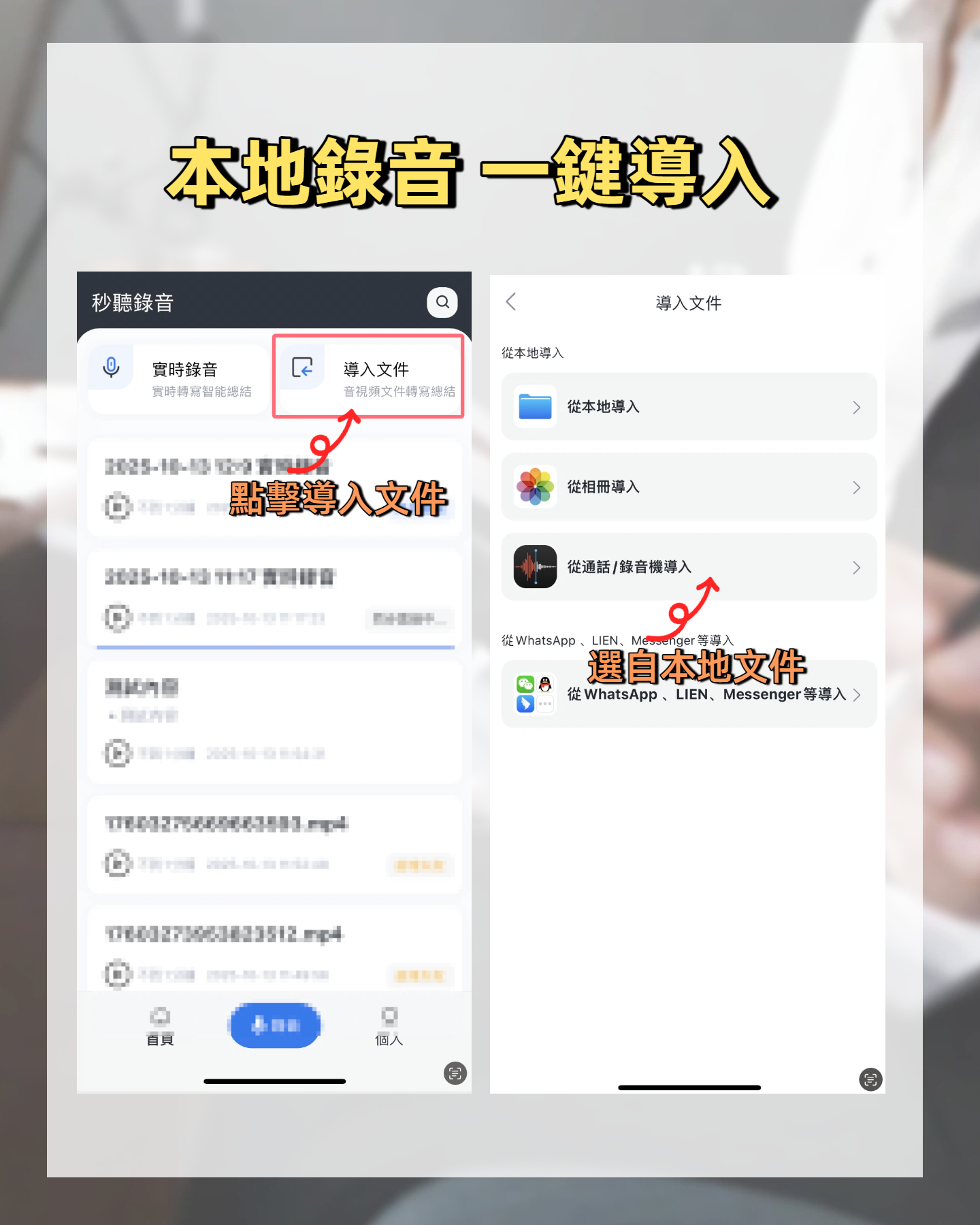
However, screen mirroring is just the first step; organizing meeting notes afterward is the real time sink. For example, Tinrec can record simultaneously on your phone or computer while you mirror the screen. Once the meeting ends, it automatically generates a summary, action items, and key sections—no manual sorting needed.
What Are the Core Capabilities of Google Meet on Apple TV?
To successfully use Google Meet on Apple TV and record it, you need two core aspects: mirroring stability and meeting note quality. Here we use Tinrec as the highlight to show how it fills the most critical recording gap.
Real-Time Speech-to-Text: Get a Transcript While You Meet
No matter which mirroring method you use, just enable Tinrec's "Real-Time Speech-to-Text" during the meeting. It will transcribe speech in the background with less than a second delay. You can see the live transcript on your phone and check if any key points are missed.
AI Summary and Action Items: Conclusions in 5 Minutes After the Meeting
A transcript alone isn't enough; Tinrec's AI automatically analyzes the meeting content and generates a structured summary: meeting topic, conclusions, responsible persons, and deadlines are all listed separately. You can even ask it questions like: "Who mentioned the budget?" or "What was the client's feedback?" It replies based on semantic understanding.
Cross-Platform Sync and Export: No Roadblocks for Notes
Tinrec supports iOS, Android, and web versions. You can record on your phone and view the organized results on your computer. Meeting notes can be exported as PDF, Word, or synced to Notion, Google Docs, and other tools, turning them directly into follow-up materials.
Real-World Scenarios: 3 Mirroring Methods × Tinrec Recording Test
We simulated the three most common methods of casting Google Meet to Apple TV, using Tinrec for recording and organization throughout. Here are the steps and results for each method.
Method 1: iPhone/iPad + AirPlay Mirroring
How to do it: Start a Google Meet from the Meet app on your iPhone or iPad, open Control Center, tap "Screen Mirroring," and select your Apple TV. The TV will display the meeting content while your phone continues to pick up audio.
Stop organizing recordings by hand
Upload audio or video and automatically get a transcript, summary, and action items
Pairing with Tinrec: Before the meeting starts, open Tinrec on the same iPhone and enable real-time recording. Tinrec will transcribe in the background without affecting the mirroring. In our test, a 2-hour meeting had high transcription accuracy and automatically detected speakers. The summary and action items were almost ready to use.
Method 2: Mac + AirPlay Mirroring
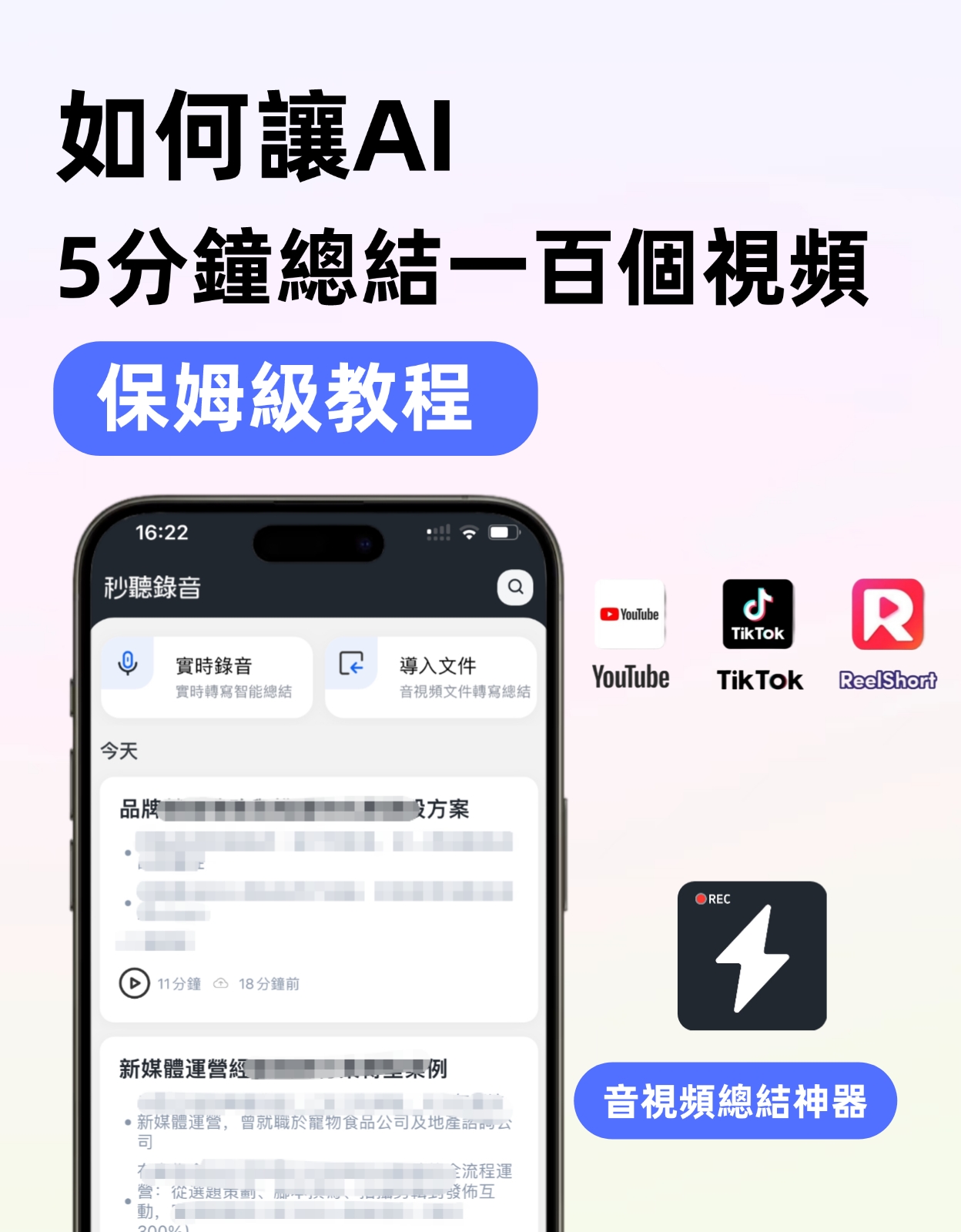
How to do it: Join a Google Meet on your Mac via Chrome or Safari, then open Control Center and select "Screen Mirroring" to your Apple TV. The advantage is smoother video and the ability to share your screen for presentations.
Pairing with Tinrec: Use the web version of Tinrec on your Mac for real-time recording, or use the mobile Tinrec app to capture the room audio. We tested with the Mac web version combined with Tinrec's meeting recording feature; transcription delay was extremely low and it supported mixed Chinese-English recognition. After the meeting, click "AI Summary" to get key points.
Method 3: Chromecast / Third-Party Mirroring Device (as a comparison)
How to do it: If you prefer not to use Apple TV, some users install the Google Meet Android TV app via Chromecast with Google TV, or use third-party mirroring apps. However, this method is less stable and often has lag.
Pairing with Tinrec: Regardless of the mirroring method, Tinrec can record independently. Just open Tinrec on your phone and capture the TV speaker or room audio. After transcription, the AI still generates summaries and action items. However, since it involves external devices, audio quality may be affected; we recommend using an external microphone.
Among the three methods, Tinrec's recording performance was consistently reliable, turning meeting notes from a time-consuming chore into an automated process.
4 Key Points When Choosing a Meeting Note Tool
If you're evaluating how to make Google Meet on Apple TV meeting notes more efficient, here are key selection criteria, along with Tinrec's performance.
- Accuracy and Multi-Language Support: Don't just look at official numbers; try it with your own meeting audio files. Tinrec performed excellently in mixed Chinese-English transcription in a typical meeting room environment and supports 14 languages, making it suitable for multinational or bilingual meetings.
- AI Organization Capability: Transcription is only the first step; the real time-saver is automatic summarization, chapter division, and action item extraction. Tinrec's AI summary distinguishes "Conclusions/Action Items/Questions," and you can query the recording content conversationally.
- Cross-Device and Export Flexibility: Make sure the tool supports all your device combinations. Tinrec offers iOS, Android, and web versions; notes can be exported to Notion, Google Docs, Dropbox, etc., so you're not locked into a single app.
- Cost and Flexible Plans: From free trial to annual plans, Tinrec offers various options. Occasional meeting-goers can use the free version's monthly base minutes; weekly regular meetings suggest the Pro monthly card; those building a long-term meeting database will find the annual card more cost-effective.
Frequently Asked Questions
Q: Can I install the Google Meet app on Apple TV? A: Not currently. The Apple TV App Store doesn't have Google Meet, but you can use AirPlay or mirroring methods described in this article to cast your iPhone/Mac screen to the TV.
Q: Will recording audio on my phone during a meeting affect call quality? A: No. Tinrec's real-time recording uses the device's built-in microphone and processes it separately from the call audio, so there's no feedback or interference. For best audio quality, place the phone in the center of the conference table or use an external microphone.
Q: Can Tinrec record both system audio and participant voices from Google Meet? A: On a Mac using the web version of Tinrec, you can record both system audio and microphone, ideal for capturing full remote meetings. The mobile version records ambient sound.
Q: Is the transcribed data secure? A: Tinrec uses encrypted transmission and storage. Audio files are only used for transcription and organization, and you can delete them anytime. For corporate or confidential meetings, refer to the official privacy policy.
Summary
Holding a Google Meet on Apple TV isn't hard; the real challenge is automating post-meeting organization. Instead of spending an hour typing up meeting minutes every time, let Tinrec handle everything while you meet.
No matter which mirroring method you choose, download Tinrec for free and try it on your next meeting. You'll experience the feeling of "getting key points right after the meeting"—with 100 free minutes every month, you can organize your next Google Meet crystal clear.
Turn every recording into actionable outcomes
Get 60 free transcription minutes when you sign in. No credit card required.
Related Reading
You might also like
3 Ways to Join Google Meet on iPhone Without the App in 2026: Browser, Invite Link, and Meeting Notes Compared
Can you join a Google Meet call on iPhone without the app or a Gmail account? This guide covers three methods: joining via Safari, entering your name without an account, and organizing meeting notes afterward. It also compares Tinrec, Otter.ai, Granola, and Notta in real-world scenarios and limitations.

Google Meet Instant Link: 5 Methods Tested and Compared for 2026 — Post-Meeting Organization Is the Real Key
Finding a Google Meet now link is easy; the hard part comes after the meeting. This article tests five ways to get a Google Meet link and compares Google Meet's built-in capabilities with Tinrec across four dimensions: transcripts, post-meeting output, recording storage, and team knowledge retention, helping you decide which to use when.

4 AI Meeting Recorders Tested in 2026: Is Google Meet's Gemini Enough?
Google Meet's built-in Gemini can automatically take notes, translate conversations, generate summaries and action items, but it has clear limitations in audio retention, cross-platform support, and team data accumulation. Based on a mid-level manager's practical experience, this article compares Google Meet Gemini, Tinrec, Otter.ai, and Granola, explaining selection criteria, key testing points, and pitfalls to avoid.
Google Meet Free in 2026: Online Meetings + Tinrec Auto-Recording Tutorial
Google Meet is now free for everyone, making online meetings more accessible, but post-meeting transcripts, summaries, and action items still take time. This guide covers the key points of Google Meet's free plan and tests how Tinrec (秒听录音) uses desktop audio capture—no bot—to record Google Meet, automatically generate Chinese transcripts, AI summaries, action items, and team meeting data.
How to Start a New Google Meet in 2026: 3 Fast Methods + Automated Meeting Notes
Starting a new Google Meet takes seconds, but organizing notes afterward is what really eats up time. This guide covers 3 ways to start a new Google Meet, key meeting code tips, and a hands-on test of how Tinrec can record online meetings without a bot, automatically generating transcripts, summaries, and action items.
6 Ways to Use Google Meet on Apple TV in 2026: Screen Mirroring, Streaming Devices, and Post-Meeting Tools Compared
Google Meet doesn't have an official Apple TV app. This guide covers 6 practical workarounds, from AirPlay screen mirroring and Mac mirroring to Google TV streaming devices, plus post-meeting tools like Notta, Granola, and Tinrec, with free and paid pricing to help you decide which is easiest.

How to Use Google Meet in Gmail (2026): Start a Meeting in 3 Steps & Auto-Organize Notes
Google Meet is built right into the Gmail sidebar, so you can start or join video meetings without switching to Calendar. This guide walks you through 3 steps, explains entry points for different account types, and tackles the part most people get stuck on—organizing transcripts, summaries, and action items after the meeting.

How to Record Google Meet Without a Bot and Auto-Generate Action Items with AI (2026 Guide)
Tired of forgetting key points after a Google Meet call? This guide explains the relationship between Google Meet and Google One plans, then hands-on tests Tinrec's bot-free desktop recording, AI summaries, and action item extraction. We also compare Otter.ai, Notta, and Granola, with key buying factors and pitfalls to avoid.

Google Meet Time Limit in 2026: Free 60-Minute Cap and Which Meeting Notes Tool to Choose
Google Meet free version limits group meetings with 3+ participants to 60 minutes, while 1-on-1 calls can last up to 24 hours. Paid Workspace plans allow up to 24 hours. This article breaks down how the limit actually works and compares Google Meet with Tinrec for meeting notes, cross-platform support, post-meeting output, and team data retention, helping you decide which to choose.