
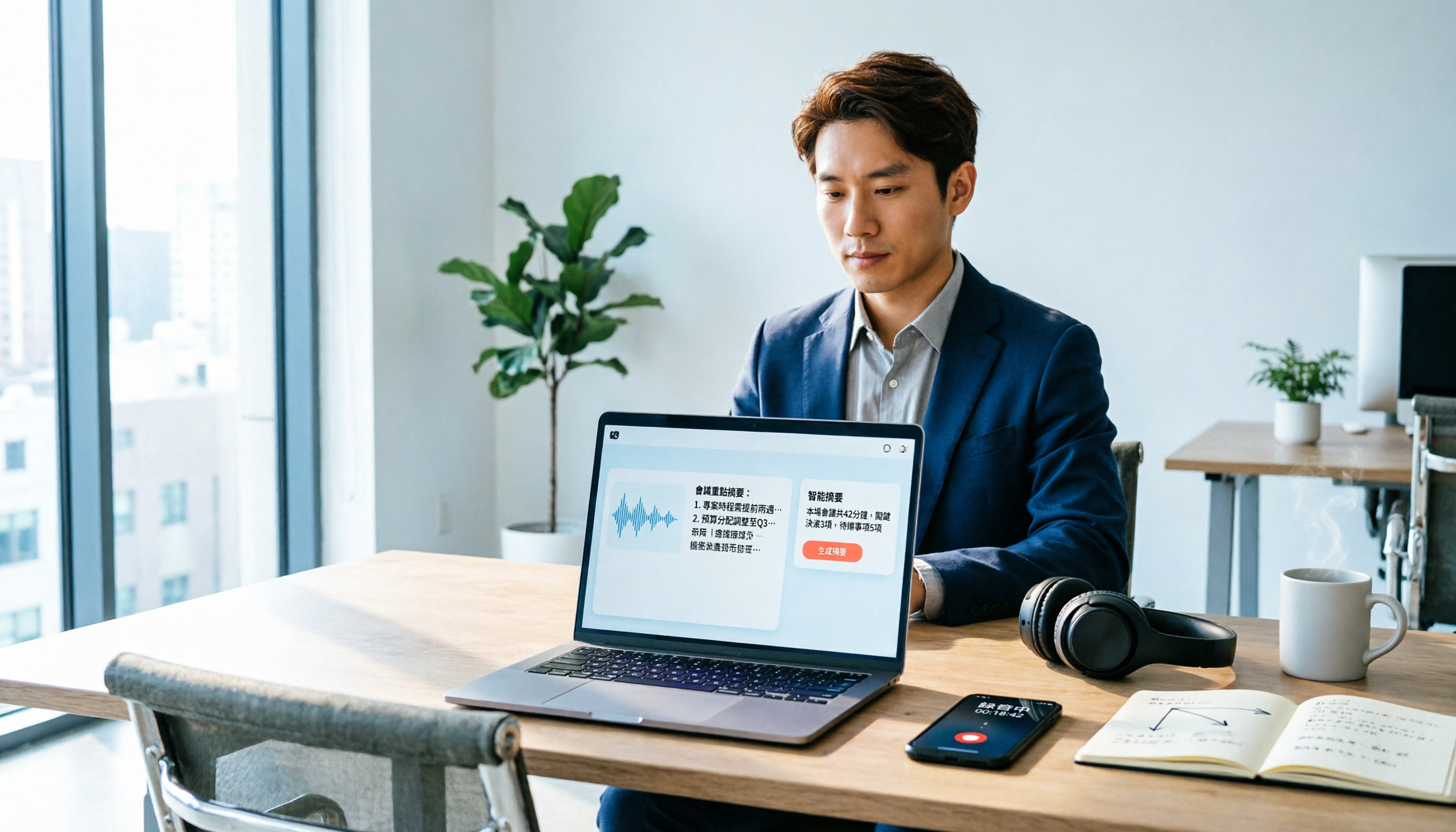
Turn recordings into transcripts and summaries in minutes
Upload audio or video for multilingual transcription, AI notes, and action items
Last month, after a 60-minute meeting with a client, the recording sat on my phone for three days, and I still didn't know where to start organizing it.
Honestly, over the past few years, I've tested at least ten speech-to-text tools. Notta is one of the few I've kept using, but it has a few limitations that you'll definitely run into if I don't spell them out first.
This article walks you through 5 steps from sign-up to export, and I'll point out what to watch for along the way.
Before You Start | What You Need to Prepare
- A Notta account: You can create one in the top right corner of the official website. Sign in directly with Google, Microsoft, or Apple account—no credit card required upfront.
- A recording you want to process: meetings, interviews, classes—any will do. The free plan allows a maximum of 3 minutes per recording, so I recommend cutting a short segment to test first.
- A stable internet connection: Both transcription and AI summaries require internet access.
- If you want to record online meetings, first confirm which platform you're using: Notta Bot supports Zoom, Google Meet, Microsoft Teams, and Webex.
Let me clarify the free plan limits upfront so you don't get stuck halfway through testing: 120 minutes of transcription per month, up to 50 file uploads per month, 10 AI summaries, and a maximum of 3 minutes per recording.
Step 1 | Sign Up First, Then Figure Out How Many Minutes You'll Use Per Month
The goal of this step is to set up your account and confirm which plan you need.
Signing up takes about 1 minute: Create a free account in the top right corner of the official website, choose a sign-up method, and after logging in, you'll see a guided screen—just follow the prompts.
Honestly, the most common mistake here is swiping your card before testing anything. My advice is simple: use the free plan to go through the 5 steps below once, confirm that the Traditional Chinese transcription quality is acceptable to you, and then decide whether to pay.
Plan reference: Free plan offers 120 minutes per month with a 3-minute limit per recording; Pro annual billing works out to about USD 8.17 per month for 1,800 minutes per month; Business annual billing is about USD 16.67 per seat per month, offering unlimited transcription, role permissions, and usage reports. Business has a 7-day trial with no credit card required.
Why think about this first? Because the 3-minute per recording limit means that for a 60-minute meeting, you'd have to manually split it into 20 segments. It's not unusable, just a hassle.
Step 2 | Record, Upload a File, or Let the Bot Join the Meeting
The goal of this step is to turn audio into a data entry in Notta.
There are three paths:
- Live recording: Record directly with the mobile app—fastest for interviews and in-person meetings.
- Upload a file: Drop in existing audio or video files—great for organizing historical data.
- Meeting Bot: Let Notta Bot join Zoom, Google Meet, Teams, or Webex as a participant to record for you.
A few practical tips: Place your phone as close to the center of the table and near the speakers as possible for much clearer audio; if using the Bot for online meetings, let it join 1–2 minutes early—some meeting rooms block external participants in the waiting room, and if it gets stuck there, nothing gets recorded.
Once done, the file appears in your list with its duration displayed next to it.
Step 3 | Wait for the Transcript, Then Definitely Proofread
Notta officially lists 58 monolingual transcription languages, including Traditional Chinese. Bilingual transcription supports 23 languages, allowing you to choose any two, such as Traditional Chinese plus English, or Traditional Chinese plus Japanese.
After transcription, open the transcript and click on text to jump to that segment while listening. Once you've used this feature, you can't go back—it's much faster than re-listening from the beginning. It also offers live captions, which are great for colleagues with hearing impairments participating in meetings or classes.
But let me be direct: Traditional Chinese transcripts are not 100% accurate. Names, company names, proper nouns, and segments mixing Taiwanese Hokkien with Mandarin are the most error-prone. If there's a lot of technical terminology, Pro and above have a custom vocabulary feature—add common terms in advance for better accuracy.
Stop organizing recordings by hand
Upload audio or video and automatically get a transcript, summary, and action items
My approach: After transcription, scan through once and only fix errors that affect understanding, leaving minor flaws alone. For a 60-minute meeting, proofreading takes about 10 minutes.
Step 4 | Use AI Summaries to Capture Key Points
After the transcript is ready, click AI Summary. The free plan allows 10 per month, which should be enough for normal use.
The summary breaks the meeting into several key segments—good for capturing the big picture. But for decision details, numbers, and who agreed to what, you still need to go back to the transcript.
Don't be lazy and send the summary out as meeting minutes. I did that once and got caught by a colleague missing an action item—it was embarrassing.
Step 5 | Translate, Export, Share
- Translation: After transcription, you can translate into 42 languages. When meeting with Japanese or Western clients, this feature really saves effort.
- Export: Text files, subtitle files—both work, and you can also generate shareable PPT files.
- Share: Give colleagues the link, or export as a document to integrate into your existing workflow.
Common Questions and Troubleshooting
Q: What about the free plan's 3-minute limit?
This is a hard limit, not a bug. There are only two solutions: manually split segments, or upgrade to Pro. If you're only occasionally organizing a 10-minute audio clip, splitting into 4 segments is manageable; if you have daily meetings, don't torture yourself.
Q: The Chinese transcription has many errors?
First check three things: recording distance, ambient noise, and whether multiple people are speaking at once. These three factors are the biggest variables for accuracy. Rather than spending half an hour fixing errors afterward, move your phone 20 cm closer when recording.
Q: Who do I contact if I have problems?
Notta is a Singapore-based company, and technical support is primarily in English, though the interface has Traditional Chinese. If you really need real-time Chinese customer service, be prepared for this.
Q: Is my data secure?
Notta has achieved SOC 2 Type II, ISO 27001, GDPR, CCPA, HIPAA, and other international privacy and information security certifications. However, regardless of which tool you use, informing meeting participants before recording and complying with local regulations is your own responsibility.
Q: Can it handle meetings with mixed Chinese and English?
Yes, choose bilingual transcription (e.g., Traditional Chinese plus English). For Taiwanese offices where a single sentence can contain three languages, this feature is basically essential.
Advanced Tips | 3 Ways to Make Notta Work Better
- Custom vocabulary (Pro and above): Add company names, product names, and colleague job titles to significantly improve proper noun recognition.
- Explicitly specify bilingual: Don't select auto-detect and expect it to be accurate—tell it Traditional Chinese plus English directly for much more stable results.
- Consistent naming convention: Date plus meeting name plus participants, e.g., "20260818_ClientA_Requirements Interview." If filenames are a mess, you'll never find them three months later.
If You Don't Use Notta, Here Are Other Options
I personally added a second tool, Tinrec, and here's why.
Tinrec's desktop version directly captures computer system audio without needing a bot to join the meeting, so it can record online meetings on Zoom, Google Meet, Microsoft Teams, and Webex. For those who "don't want an external Bot appearing in the client meeting participant list," this is very practical.
It handles the post-transcription workflow more completely: summaries, chapters, action items, AI Q&A, translation, export, plus team spaces to centrally manage meeting data, member seats, and usage. Team monthly billing is USD 29.80 per paid seat, annual billing is USD 199 per paid seat (about USD 16.58 per month), with each paid seat providing 2,000 minutes of shared team import quota per month.
Honestly, the two have different orientations. Notta's language support and file processing are mature, while Tinrec excels at bot-free recording and post-meeting team collaboration. Testing both with free plans before paying is the easiest way.
Summary
Recap of the 5 steps: Sign up → Record or import → Proofread transcript → AI summary → Translate and export.
Is Notta worth it? As an AI speech-to-text tool, its feature completeness and language support are top-tier. The free plan's 3-minute limit is indeed unfriendly for long meetings, but if you're willing to spend an afternoon testing, the time it saves is real.
My advice: Take one of your own recordings and run it through the free plan first. If transcription is accurate and summaries are useful, then consider Pro annual billing; if you care more about not having a Bot disturb your online meetings, or need team management of meeting data, add Tinrec to your comparison list.
One final reminder: Tools are aids—for important meeting minutes, still spend 10 minutes verifying.
References
- What is Notta? Free Plan Limits, Pricing, and Traditional Chinese Transcript Tutorial | Mason AI Lab
- Notta | Learn AI
- [Tutorial] 2026 Notta: Speech-to-Text + AI Summary and Multilingual Support - Tinrec Blog
- [2026 Notta Review and Tutorial] How Accurate is Traditional Chinese Meeting Transcription? Features, Pricing, and Operation Guide at a Glance! — Leading Age
- AI Notes | Free AI Meeting Transcription
Turn every recording into actionable outcomes
Get 60 free transcription minutes when you sign in. No credit card required.
Related Reading
You might also like

How to Use Notta in Chinese (2026): Traditional Chinese Settings + Tinrec 5-Step Walkthrough
The key to using Notta in Chinese comes down to three settings: choose Traditional Chinese for monolingual transcription, switch to bilingual transcription for mixed Chinese-English audio, and translate after transcription. This guide first explains Notta's Chinese settings and free plan limits, then walks through the same workflow with Tinrec across five steps—recording, transcription, proofreading, summarization, and export—plus troubleshooting tips and advanced techniques.

The Complete Guide to Chinese Subtitles in 2026: From Speech-to-Text to Bilingual Subtitles
Many people think they can just drop an audio file into a tool and get Chinese subtitles, but the real challenges are misrecognized names, missing timestamps, and misaligned bilingual text. This guide addresses common misconceptions and breaks down the 6 core capabilities needed for Chinese subtitles, 4 practical use cases, and 5 key considerations when choosing a tool. It also demonstrates a complete workflow using Tinrec, from recording to Chinese transcript to bilingual comparison.

Tinrec vs Notta 2026: 5-Dimension Comparison — Which Is Better for Chinese Meetings and Team Knowledge Retention?
Notta reviews on PTT are mixed, mostly due to different plans and use cases. This article compares Tinrec and Notta across 5 dimensions: post-transcription usability, Chinese and multilingual handling, team governance, quota and pricing structure, and data ownership. It honestly explains who each is suitable for and who it is not.

2026 Audio-to-Text Tool Comparison: Why Tinrec Is a Better Fit for Taiwanese Teams Than Notta
PTT discussions about Notta mostly focus on free quota, Chinese recognition, and export workflow. This article starts from real-world usage scenarios and puts Notta and Tinrec side by side: how to record online meetings, what you can do after transcription, and how to retain team data. It also honestly points out scenarios where Tinrec is not suitable, helping you make the right decision before spending time on trials.

Notta Tutorial & Pricing Guide 2026: How to Choose from 6 Speech-to-Text Tools
Finished the Notta tutorial but still unsure about paying? This decision-focused guide breaks down the differences between Notta's free, Pro, and Business plans, how to validate with a small sample before paying, and compares Tinrec, Otter, TurboScribe, Granola, PLAUD, and built-in platform transcription—so you spend money only where you'll actually use it.

2026 Recording-to-Text Tools Compared: Beyond Notta, Why Tinrec Fits Chinese Meetings Better
Many people choose recording-to-text tools based only on free quota, then find they can't record online meetings or locate key points afterward. This article compares Notta, Tinrec, and similar tools from a mid-level manager's practical perspective—covering meeting recording methods, Chinese-language experience, post-meeting organization, and team knowledge retention—and explains when upgrading to a paid plan makes sense.
2026 Notta and Free Audio Transcription Plans Compared: 5 Options at a Glance
Many people searching for Notta tutorials and pricing see the free 120 minutes per month and assume it's enough, overlooking the 3-minute-per-recording limit. This article reviews 5 audio transcription and meeting notes solutions, explains how to try Notta's free version and understand Pro pricing, and compares use cases for Tinrec, Otter.ai, TurboScribe, and Granola.

2026 Comparison of 2 Transcription Tools: Which AI Saves More Time on Meeting Notes?
Transcription is more than typing. This article compares Yating Transcription and Tinrec from a mid-level manager's meeting perspective, covering transcript readability, online meeting recording, post-meeting organization, team collaboration, and free quotas to help you decide when to use AI tools and when to hire human transcribers.

Tinrec vs Otter.ai 2026: Zoom Meeting Notes 5-Dimension Showdown — Which Is Better for Chinese-Language Scenarios?
Ending a Zoom meeting with only a meeting ID and no transcript is a daily reality for many office workers. This article compares Tinrec and Otter.ai across five dimensions—recording permissions, post-meeting organization, Chinese recognition, data ownership, and quota pricing—to evaluate their differences in Zoom meeting notes. It also covers Notta and Zoom's built-in recording to help you choose the tool that truly saves time.