

Turn recordings into transcripts and summaries in minutes
Upload audio or video for multilingual transcription, AI notes, and action items
Meeting's over, but the transcript is still stuck in the recording
The meeting ended, and the audio file has been sitting quietly on your phone for three days. You want to turn it into a transcript, but just typing out a 40-minute recording would take an entire afternoon.
Another scenario is interviews. The interviewee speaks quickly and throws in some Taiwanese here and there. You hit pause, rewind, and listen again—after listening to the same segment three times, you're still not sure.
And then there are online classes. The instructor talks fast, and in the two minutes you look down to take notes, you miss the most important concept.
These problems aren't because you're not diligent enough—it's because you haven't chosen the right tool. Below are several transcription software options I've personally used and that readers ask about most, including Yating, which many people search for.
Before choosing transcription software, understand these 4 key points
1. Accuracy depends on your recording conditions The accuracy rates stated on official pages are usually measured in quiet environments. Real conference rooms have air conditioning noise, keyboard clicks, and people talking over each other, so performance will be noticeably different. A more practical approach is to test with a recording that's most challenging for you.
2. Is a transcript alone enough? A transcript is a starting point, not the end goal. Most people really need to know "what was the conclusion of this meeting" and "who is responsible for what." So beyond converting speech to text, the ability to generate summaries, chapters, and action items is where the difference lies.
3. How does meeting audio get into the tool? Some tools send a bot to join the meeting, some capture system audio directly from the computer, and others require uploading the audio file afterward. These three methods differ in convenience for ad-hoc meetings and in how they appear to other participants. Think about which type you usually have.
4. Free quota and multi-user access Free versions almost always have time or file limits. If a team wants to use it together, you also need to consider whether it's "multiple people sharing one account" or "separate team spaces and seats"—the former is convenient but hard to manage, while the latter requires some setup time.
Tinrec – The one I use most often
Tinrec is an AI meeting notes and collaboration tool for individuals and teams, available on web, desktop, and mobile. Simply put, it connects "recording, transcription, organization, Q&A, and export" into one workflow.
During meetings, the desktop version captures your computer's system audio directly, so it can record content from Zoom, Google Meet, Microsoft Teams, and Webex without inviting a bot into the meeting room. Note that it doesn't automatically join every meeting on your calendar—you need to press record yourself.
After the meeting, the transcript generates summaries, chapters, and action items. Sometimes I'm too lazy to re-listen, so I just ask questions about the meeting content: "What was the final budget decision in this meeting?" It answers based on the meeting content, which is much faster than Ctrl+F searching through a 40-minute transcript.
When you need to deliver something, you can export results to Notion, Google Docs, OneNote, or Dropbox for further editing. For more formal outputs, you can use Agent post-processing to generate reports, tables, and meeting minutes. For cross-language meetings, there's real-time translation with options to switch between original text, translation, or bilingual view.
Three things I think are worth mentioning:
- No bot needed, so external meetings won't have an extra strange participant, and you can record directly even if you're pulled into an online meeting last minute.
- It can handle meetings with mixed Chinese and English, and teams can create custom vocabulary to input company product names and project codes in advance.
- The team version has independent team spaces, with separate management of members, roles, seats, usage, and audit logs. When a member leaves, data stays with the team and doesn't disappear with the account.
Stop organizing recordings by hand
Upload audio or video and automatically get a transcript, summary, and action items
Limitations should also be clear: the free version only provides basic quota, and heavy users need to upgrade; the quota rules for live recording and file import are different—currently, live recording within a team is not deducted by minute, while file imports consume shared quota; accuracy rates are not publicly guaranteed as fixed numbers, as recording quality, accents, and overlapping speech all affect results. For important content, it's still recommended to verify against the audio file.
Who it's for: people who frequently have online meetings, need post-meeting Q&A and action items, or want to turn meeting data into team assets.
Besides Tinrec, what other options are there?
Yating: A veteran speech recognition service developed by Taiwan AI Labs, launched in 2018, available as an app and web version. It supports multiple languages, mixed Chinese-English (Chinglish), and Taiwanese recognition, optimized for Taiwanese accents. Media reviews mention that its speaker recognition and punctuation are outstanding among tools of its time; Taiwanese recognition still has room for improvement overall, but individual vocabulary results are impressive. The free version allows most basic speech-to-text functions, including audio upload, live recording, and an editor. Paid plans and quotas are subject to the official website. Its positioning leans toward converting audio into transcripts themselves; if you want post-meeting AI Q&A, action item tracking, and team seat management, that's a different category of product. Reviews also mention some minor interface obstacles that require a short adaptation period.
Notta: A tool focused on multilingual transcription and file import. The free version offers 120 minutes per month, with a 3-minute limit per file; Pro annual billing is about USD 8.17/month for 1,800 minutes per month; Business annual billing is about USD 16.67/seat/month, including unlimited transcription and usage reports. If you mainly process large volumes of existing audio files, its batch flexibility is good; but for bot-free recording of online meetings and completing summaries, Q&A, and team management in one place, Tinrec's workflow is more complete.
Otter.ai: A mature choice for English business meetings. Basic is free with 300 minutes per month; Pro annual billing is about USD 8.49/user/month, including 1,200 minutes per month and 10 file imports. If 90% of your meetings are in English, it's more cost-effective than Tinrec; but for Chinese and Taiwanese-accented meetings, it's not its strong suit.
Pitfall guide: 4 most common mistakes when choosing transcription software
Pitfall 1: Only looking at official accuracy rates. Those numbers are mostly measured in quiet environments. Real meetings have air conditioning, keyboards, and people talking over each other, so the gap can be significant. It's advisable to test the free version with a recording that's most challenging for you before deciding to pay.
Pitfall 2: Using the tool only as "speech-to-text." If you only use it to produce transcripts, you're using only one-third of its value. The real cost of meetings is in post-meeting organization and follow-up—whether you can directly ask "who mentioned the budget in the last meeting" makes all the difference.
Pitfall 3: Team sharing one account. It's convenient short-term, but long-term you'll face unclear quota calculations, data taken away when someone leaves, and no one knowing who changed what. For multi-user use, choose a solution with independent team spaces, roles, and seat design; Tinrec's team version follows this logic, with paid seats providing 2,000 minutes of shared import quota per month. Monthly billing is USD 29.80 per paid seat, annual billing is USD 199 per paid seat (about USD 16.58/month), and eligible first-time users can try it for 7 days.
Pitfall 4: Ignoring whether audio files are retained. Some tools keep only text and not audio, making it troublesome to verify a specific sentence later. Before choosing, confirm whether audio files are saved and whether there's a recycle bin to recover deleted files.
Conclusion: Which one should you choose?
In short: first look at what kind of meetings you have, then decide on the tool.
- Many online meetings, need bot-free recording, post-meeting summaries and Q&A → Tinrec
- Need Chinese and Taiwanese transcripts, prefer services developed by Taiwanese teams → Yating, start with the free version
- Large volumes of existing audio files, mainly batch import → Notta
- 90% of meetings are in English → Otter.ai
If it's for team use, there are two more considerations: meeting data should stay with the team rather than individual accounts, and you need to manage who can record and who can only view. Tinrec's team version has corresponding seat and role designs for these two aspects.
Finally, a reminder: recording and transcription involve personal data and local regulations. Remember to obtain consent from participants before recording. It's recommended to first use the free quota to record one of your real meetings, and consider upgrading only if it suits you—no need to pay from the start.
References
Turn every recording into actionable outcomes
Get 60 free transcription minutes when you sign in. No credit card required.
Related Reading
You might also like
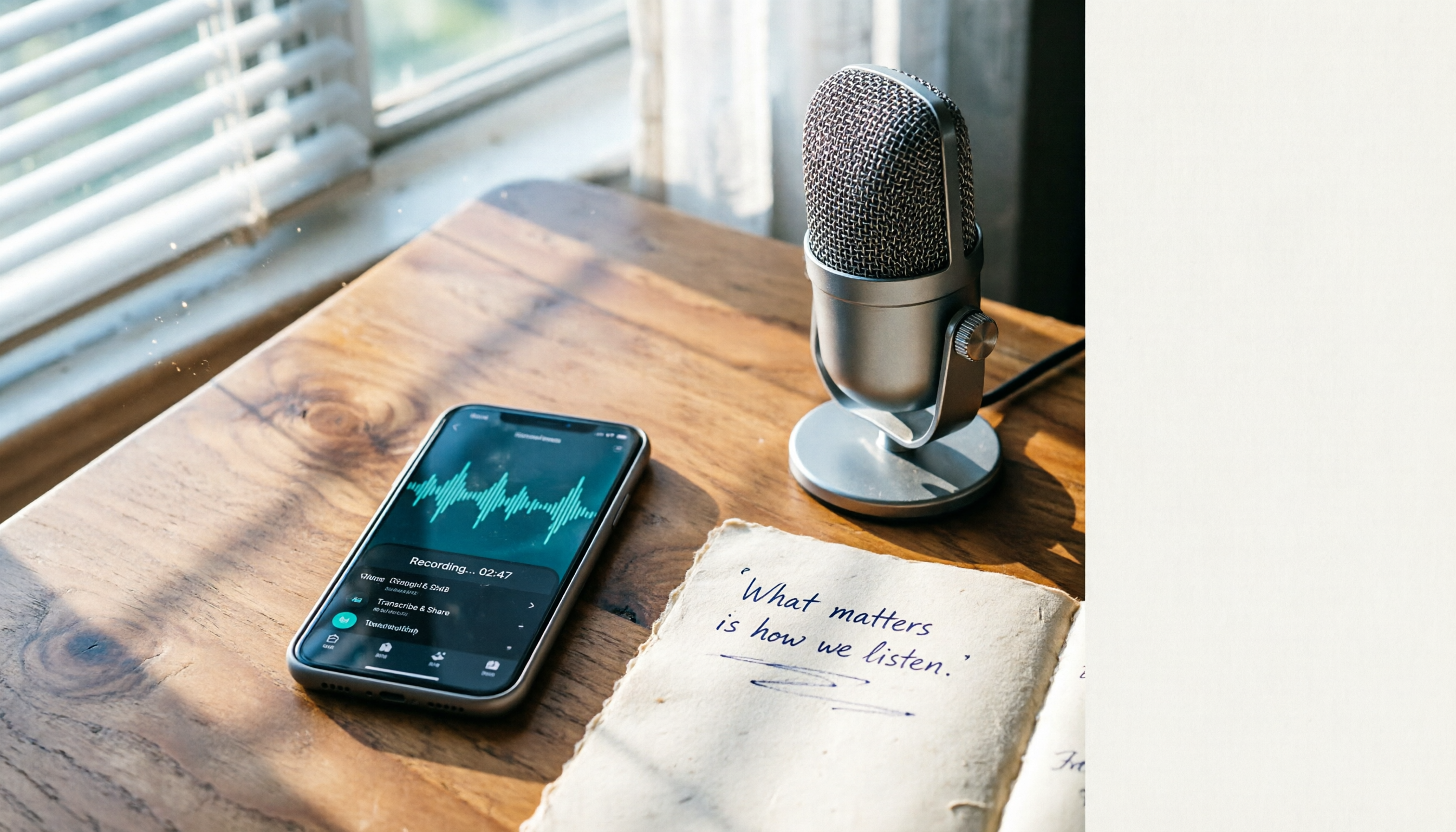
iPhone Built-in vs External Microphone in 2026: 5-Dimension Comparison — Know Where Your Mics Are Before You Record
Most people think an iPhone has only one microphone, but the body actually hides 3 to 4 of them, spread across the bottom, the earpiece, and next to the camera. This guide first explains exactly where the iPhone's recording microphones are and what each one does, then compares built-in audio capture, external microphones, and recording-organization tools, and finally uses 5 dimensions to help you choose the recording method that fits you.

5 iPhone Call Recording Methods Tested and Compared for 2026: Where Files Are Saved and Which One Is Enough
Where is the call recording button on iPhone, and where are recordings saved? This article first clarifies the entry point, regional restrictions, and file locations for iOS built-in call recording, then compares 5 recording and organization methods, and explains how Tinrec turns call and meeting recordings into searchable, queryable data that teams can use.

3 Ways to Organize iPhone Recordings in 2026: Where Voice Memos Are Stored and How Tinrec Compares
Where are iPhone recordings stored? First, we explain the file location of Voice Memos and how to export them to the Files app. Then, from a mid-level manager's hands-on perspective, we compare Voice Memos and Tinrec in terms of transcription, AI Q&A, online meeting recording, and team data retention.

iPhone Recording No Sound in 2026: 7 Fixes Tested & Compared — Why You Keep Recording Silence
iPhone recording with no sound doesn't always mean a broken microphone. This guide starts with common misconceptions, helps you distinguish between screen recording, camera recording, playback, and post-upload silence, then walks through microphone switch, Bluetooth, spatial audio, app permissions, and system issues in order, with an FAQ and guidance on when to use a meeting transcription tool.

2026 iPhone Recording App Comparison: Know Your Mic Locations First So You Don't Waste a Recording
Many people search for "where is the microphone on iPhone," but the real frustration is muffled audio and unclear playback after recording. This guide first explains the three microphone locations on iPhone and practical placement tips, then compares Tinrec, Otter.ai, Notta, and PLAUD Note across four dimensions—audio capture, transcription, post-meeting organization, and team collaboration—to help you choose the combination that truly saves you organizing time.

4 iPhone Recording Management Tools Compared (2026): Where Recordings Are Stored, How to Listen, and How to Transcribe
Can't find your recording after you finish? This article starts with the three actual storage locations for iPhone recordings, explains where to listen to Voice Memos, call recordings, and transcripts, then uses the same meeting recording to compare Tinrec, Notta, TurboScribe, and Otter.ai on their organization workflows, free tiers, and limitations—so you can decide which approach saves the most time.

4 iPhone Recording Solutions Tested for 2026: Where to Find Recording Features and Which Saves the Most Time After Recording?
The iPhone recording feature is hidden in the Voice Memos app inside the Utilities folder—most people can't find it the first time. This article first explains 4 ways to access it (including a quick shortcut without unlocking and iOS 18 call recording), then tests and compares four solutions: built-in Voice Memos, Tinrec, Notta, and PLAUD Note, to see which one truly saves you time organizing recordings.

Where Are iPhone Recordings in 2026? 5 Steps from Voice Memos to Files App
Pressed stop on a recording but can't find it in Photos or Files? iPhone recordings are saved only in the Voice Memos app by default—they won't become files unless you export them. This guide walks you through 5 steps to locate recordings, organize and name them, export to the Files app, and turn them into searchable transcripts and meeting notes.
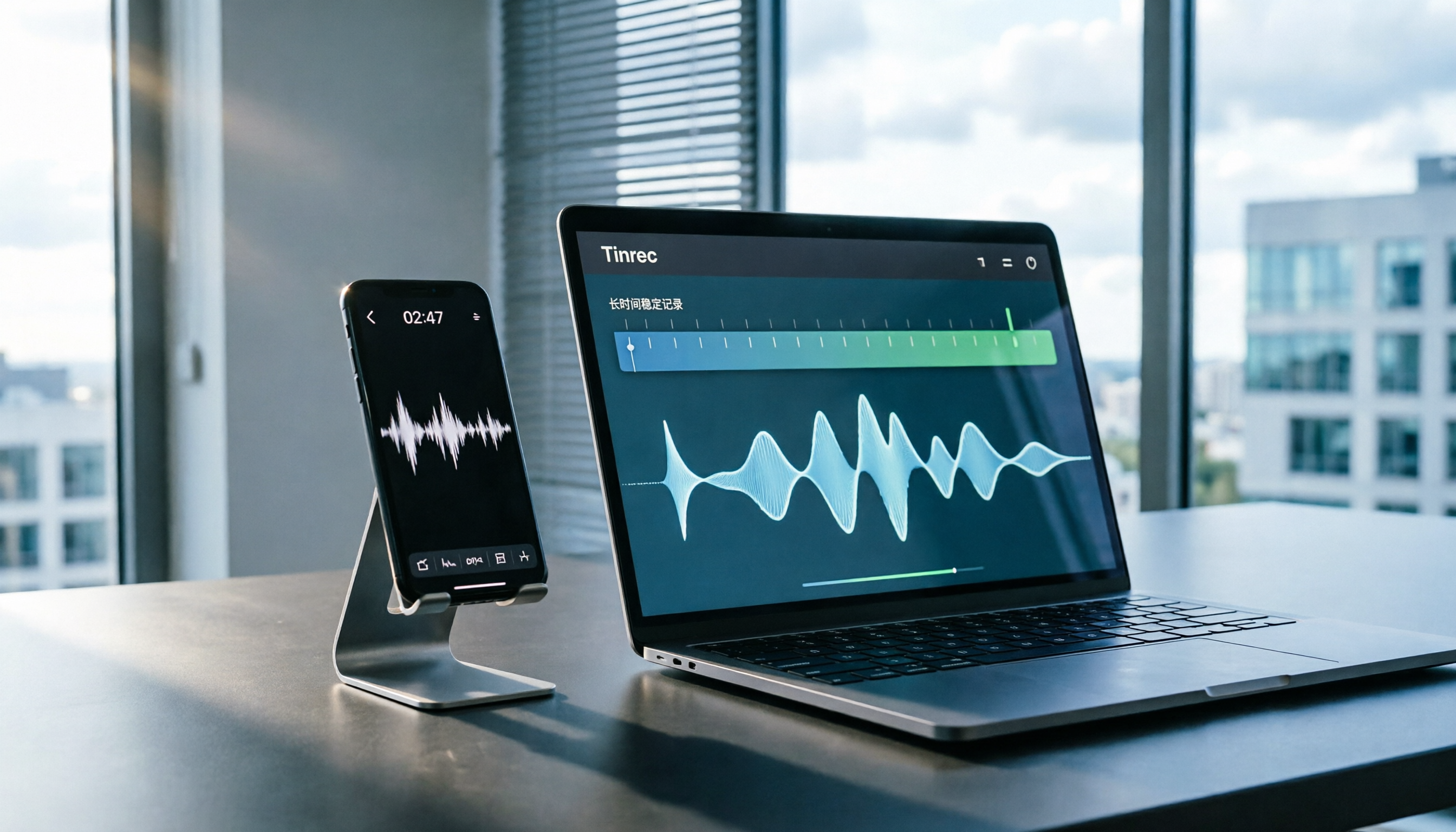
iPhone Recording Interruption Guide 2026: Troubleshooting Causes and Long-Recording Solutions
iPhone recording interruptions don't mean your phone is broken. This guide compiles real cases from PTT and Dcard to explain common causes of recording interruptions and file length loss, shows you how to troubleshoot, and shares my practical approach of moving long meeting recordings to Tinrec desktop. It also compares Notta, PLAUD, and Granola.