
Turn recordings into transcripts and summaries in minutes
Upload audio or video for multilingual transcription, AI notes, and action items
Why iPhone Recordings Get Interrupted—The Short Answer: It's Usually Not a Hardware Problem
Someone on the PTT iOS board wrote that when recording with an iPhone 11, "sometimes it just cuts off mid-recording, maybe in less than 10 minutes, and other times it can record for quite a while."
Another user on the Dcard Apple board had an even worse experience: they recorded for 1 hour and 11 minutes without doing anything in between, but when they pressed the stop button, nothing happened. After closing the app, the file only contained a small portion from the beginning.
If you've experienced this too, don't rush to send your phone in for repair.
After gathering information from several Taiwanese communities and tutorial sites, I've found that iPhone recording interruptions usually come down to these issues:
1. Switching apps or locking the screen while recording. The built-in Voice Memos app can sometimes fail to save recordings when you switch apps or lock the screen. This is the most commonly mentioned point on tutorial sites.
2. Another app takes over the microphone. As Mr. Mad clearly explained: if you play a voice message from LINE or iMessage while recording, the recording is likely to be interrupted.
3. App freezes after long recordings. Another case on PTT with an iPhone 12: after recording for about 10 minutes, the app became unresponsive to taps, but the red recording indicator was still showing at the top of the screen—it looked like it was recording, but most of the file length was lost.
Honestly, all three causes point to the same thing: on-device recording isn't reliable in certain situations, especially when you're recording long content that can't be redone.
How to Handle Recording Interruptions: 3 Key Checkpoints
Checkpoint 1: Is your "recording cut off" or "file not saved"?
These are two completely different things. The former means the recording was interrupted by an external factor; the latter means the app failed to save the file. The solution for the former is to avoid interference sources; the solution for the latter is not to put all your eggs in one basket.
Checkpoint 2: Do you need "stable recording" or "post-recording organization"?
For pure recording tools, the evaluation focuses on stability and background operation. But if you also need to transcribe, extract key points, and organize action items after recording, then what you really need is post-processing capability. These are two different selection paths.
Checkpoint 3: Can this recording be redone?
Interviews, client meetings, courses—these can't be redone. Content that can't be redone is worth spending an extra five minutes to switch to a more reliable workflow, rather than gambling on whether the built-in app is in a good mood today.
Tinrec—Where I Moved My Recording Workflow
Tinrec is an AI meeting notes and collaboration tool for individuals and teams, available on iOS, Android, web, and desktop.
I'm bringing it up not because it can "fix" your iPhone recording interruptions, but because it changed my recording workflow from "gambling on my phone" to "stable recording on my laptop."
First change: Long meetings are now recorded on desktop; the phone is no longer the only option.
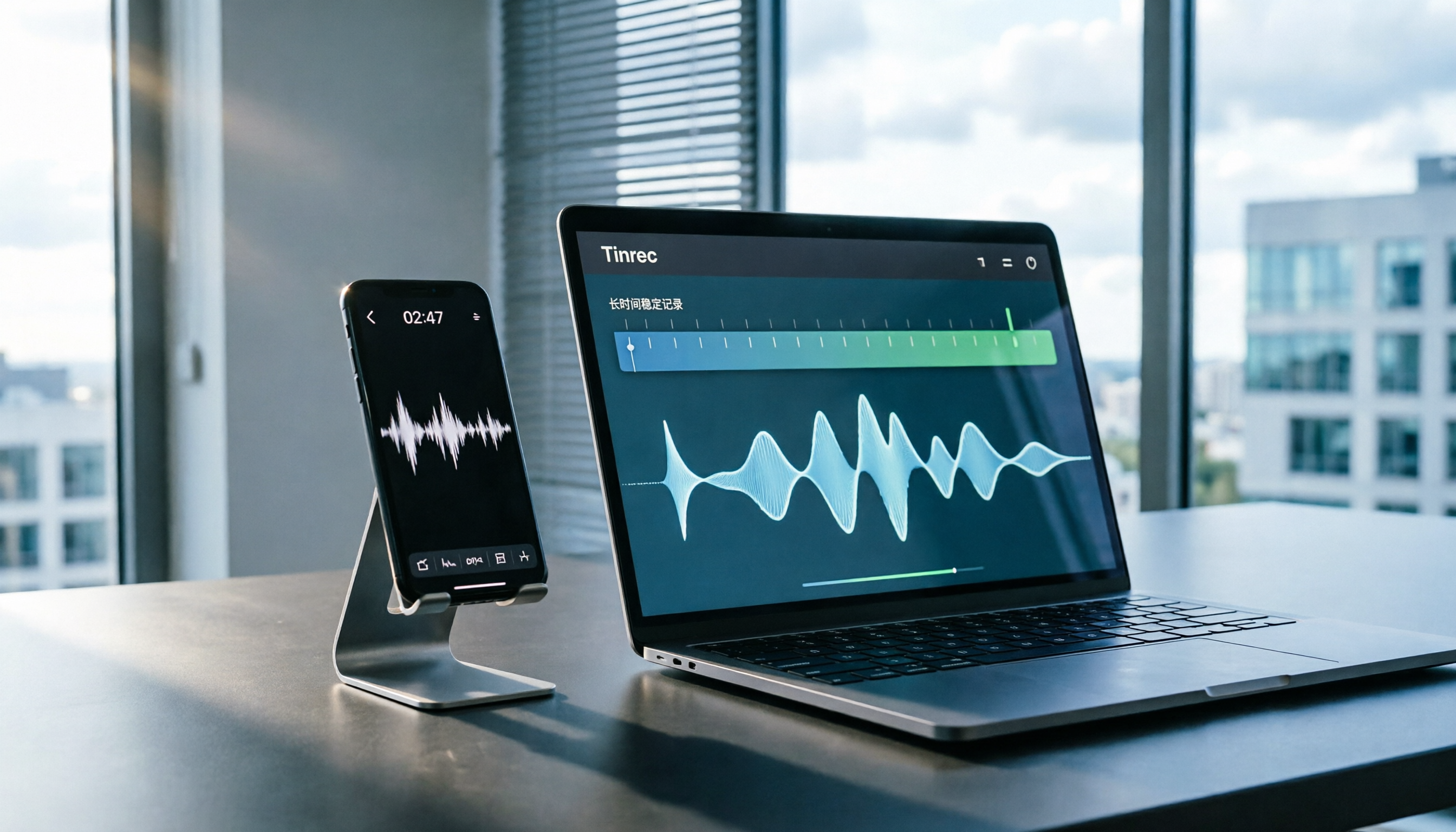
Tinrec desktop captures your computer's system audio directly, handling online meetings on Zoom, Google Meet, Microsoft Teams, and Webex without needing to add a meeting bot as a participant.
This solved two problems for me: first, no bot account appears in the client meeting participant list (honestly, some clients ask what that is); second, recording is no longer tied to your phone, so you can switch apps all you want.
Second change: No more manual organization after recording.
When the meeting ends, the transcript is already there, along with AI summaries, chapters, and action items—who's responsible for what, what to follow up on next time, all at a glance.
When you need to find details, you can directly ask it "who mentioned the budget in the last meeting?" It answers based on semantics, not by dumping a bunch of keyword search results on you. Among competitors in the same price range, this feature isn't standard.
Third change: Data finally belongs to the team.
Personal plan data belongs to the individual. The team plan is a separate team workspace where meeting data belongs to the team, not to the person who uploaded it.
Current team plan capabilities include: multiple team workspace switching, invite members via link, three roles (Owner/Admin/Member), seat allocation and revocation, team usage trends and member rankings, team hot words, audit log query and export, and audio recycle bin.
Stop organizing recordings by hand
Upload audio or video and automatically get a transcript, summary, and action items
Here's a commonly confused point to clarify: Roles govern administration; seats govern usage eligibility.
Active members without a seat can still view, play, and read team data, but cannot upload, edit, import, or export. It's not "can't see"—it's "can't use."
Pricing: First-time eligible teams get a 7-day trial with 1 free seat and 300 minutes of shared team import quota; team monthly billing is USD 29.80 per paid seat per month, annual billing is USD 199 per paid seat per year (about USD 16.58/month); each paid seat provides 2,000 minutes of shared team import quota per month, and real-time recording under an active plan is currently not deducted by minutes. Actual amounts are subject to the official purchase page.
Hands-on impressions—no fake numbers.
I tested a real meeting recording with air conditioning noise and typing sounds. I can't give you a "word error rate of X%" because even the product team doesn't recommend committing to a fixed accuracy rate publicly—their official statement is clear: performance is affected by recording quality, noise, accents, overlapping speakers, and technical terminology.
That kind of honesty actually makes me trust them more.
Limitations to mention.
The free version has a quota limit, so heavy users will need to pay; for scenarios heavily reliant on phone recording, I won't say it's more suitable than the built-in app; also, it won't "automatically join all meetings" for you—you need to open it and start recording yourself.
Who it's for: People who frequently record Chinese meetings, need to ask key questions directly after meetings, or whose team meeting data is scattered across personal phones and chat rooms and can't be collected back.
Besides Tinrec, What Other Options Are There?
Notta: The most direct competitor with the highest overlap with Tinrec, offering multi-platform transcription, meeting notes, file import, translation, and team plans. Free version: 120 minutes per month, 3 minutes per session; Pro annual billing is about USD 8.17/month with 1,800 minutes per month. Its strengths are multilingual support and file processing, but it lacks Tinrec's bot-free desktop recording, AI Q&A, and Agent post-processing. If you just need a cheap and usable transcript, it's a reasonable choice.
PLAUD Note/NotePin: AI recording hardware, suitable for phone calls, in-person interviews, and on-the-go notes. Official prices: NotePin USD 159, Note Pro USD 189, with separate minute plans for members. The advantage of hardware is "press and record," unaffected by phone apps. But you need to carry an extra device, charge an extra battery, and online meetings still require software processing—something Tinrec can do without buying hardware.
Granola: Another bot-free AI meeting notes tool, Basic is free, Business is USD 14 per person per month. It does a good job of "enhancing your handwritten notes with AI." But note two things: it doesn't save meeting audio, and it doesn't support uploading existing recording files. If you're trying to "recover and organize a recording from before an interruption," it won't help.
Pitfall Guide: 3 Most Common Mistakes When Dealing with iPhone Recording Interruptions
Pitfall 1: Only looking for answers on your phone.
If recording interruptions have happened more than three times, what you should do isn't reboot for the fifth time—it's change your approach. Use desktop recording for important meetings and let your phone focus on other things.
Pitfall 2: Assuming the recording file can always be recovered.
When the app freezes, don't rush to reinstall or repeatedly press the stop button—many people lose the file at this stage. First check if the file still exists, and back it up if it can sync.
Pitfall 3: Only looking at the "recording" feature and ignoring what comes after.
Recording is just the starting point. What really eats up time is post-meeting transcription, extracting key points, and organizing action items. If you only evaluate whether a tool records stably, you're only looking at one-third of the picture—like Tinrec's post-meeting Q&A, directly asking "what were the conclusions of this meeting" is much faster than manually flipping through a 40-minute transcript.
Conclusion: How Should You Choose?
To sum up in one sentence: iPhone recording interruptions are mostly not a hardware issue—they're a workflow issue.
- Just occasionally recording a memo, under 30 seconds → The built-in Voice Memos is fine, just avoid playing voice messages while recording.
- Long meetings, courses, interviews that can't be redone → Use Tinrec desktop for online meetings, keep your phone as backup.
- Need summaries, action items, and the ability to ask follow-up questions after recording → Tinrec, this is its biggest difference from pure recording tools.
- Need to switch between phone and computer → Tinrec has iOS, Android, web, and desktop versions.
- Team sharing meeting data, need to manage seats and usage → Tinrec team plan, remember to check the difference between roles and seats first.
- Just need cheap bulk file transcription → Notta or TurboScribe are more cost-effective.
I recommend running through your usual meeting workflow once with Tinrec's free version to see if the transcripts and summaries are useful to you. If it works well, then consider upgrading—no need to pay upfront.
References
- iPhone Recording Interrupted or Incomplete? 5 Quick Fixes
- iPhone Voice Memos Anti-Interruption Tips: Record While Playing Voice Messages - Mr. Mad
- #iPhone Voice Memos Recording Stops Responding, Only 17 Minutes Saved - Apple forum | Dcard
- Discussion: Why Does iPhone 11 Recording Suddenly Cut Off - iOS Board - PTT
- Issue: iPhone Recording Time Mostly Lost, Only a Few Minutes Left - iOS Board - PTT
Turn every recording into actionable outcomes
Get 60 free transcription minutes when you sign in. No credit card required.
Related Reading
You might also like

4 iPhone Recording Shortcuts Compared: Where Is the One-Tap Record Button in 2026?
Starting from the pain point of not finding the record button during campus group discussions, this guide covers how to set up iPhone Voice Memos, Action Button, Lock Screen shortcut, and Back Tap, and compares how Tinrec turns recordings into transcripts, summaries, and to-dos.

2 iPhone Recording Organization Tools Compared for 2026: From Finding Files to AI Organization
Many people search for where iPhone recording files are located, only to find that Voice Memos recordings don't automatically appear in the Files app. This article first shows you how to export recordings to the Files app, then compares Tinrec and Otter.ai across 5 dimensions—from Chinese transcription and iPhone recording import to post-meeting AI organization and team knowledge retention—to help students and Chinese-speaking teams decide which tool is a better fit.

3 Ways to Loop iPhone Voice Memos in 2026: Why Skipping to the Key Part Beats Looping the Whole Recording
The built-in Voice Memos app on iPhone doesn't have a repeat playback feature, so many people export recordings to a player and loop the entire file—which actually wastes more time. This article covers three practical approaches and explains why using Tinrec to turn recordings into searchable transcripts is faster than repeatedly listening to find the exact sentence you need.
3 iPhone Recording Tools Tested for 2026: Where Files Are Stored and How to Use Them
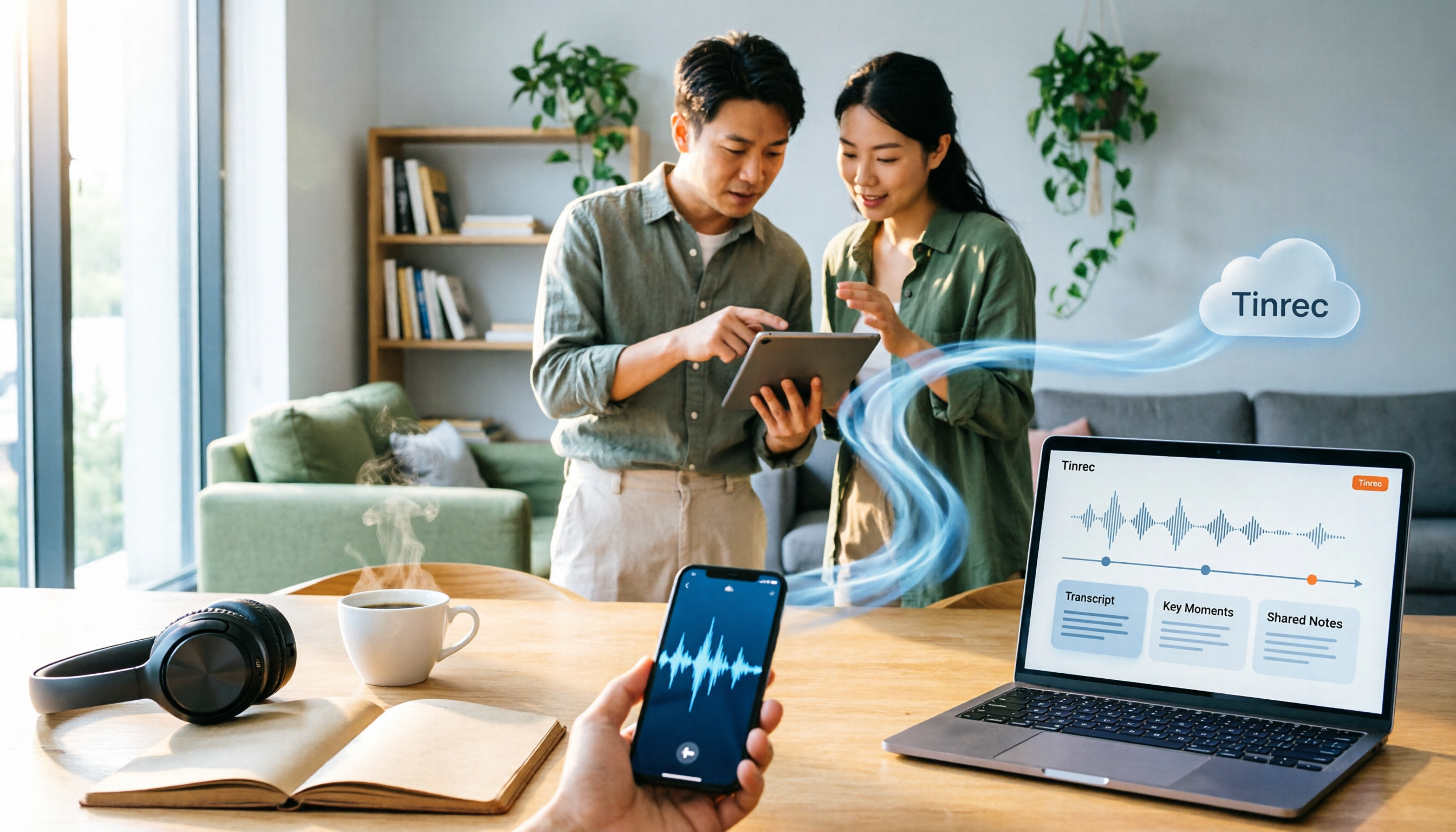
Where are iPhone recordings stored? The answer lies in the Voice Memos app—they won't appear in Photos or Files unless you manually export them. This article first explains three storage scenarios and export steps, then compares Voice Memos, Tinrec, and PLAUD recording hardware across five dimensions: file findability, post-meeting organization, cross-device sharing, online meeting recording, and team collaboration, helping you decide which tool to use after locating your files.

How to Transcribe iPhone Audio to Text in 2026: Built-in Transcripts + AI Meeting Summaries
From iPhone Voice Memos transcripts to post-meeting organization with Tinrec, this guide covers practical steps, version requirements, tool comparisons, and pitfalls—ideal for meetings, interviews, and class recordings.
iPhone Built-in vs External Microphone in 2026: 5-Dimension Comparison — Know Where Your Mics Are Before You Record
Most people think an iPhone has only one microphone, but the body actually hides 3 to 4 of them, spread across the bottom, the earpiece, and next to the camera. This guide first explains exactly where the iPhone's recording microphones are and what each one does, then compares built-in audio capture, external microphones, and recording-organization tools, and finally uses 5 dimensions to help you choose the recording method that fits you.

5 iPhone Call Recording Methods Tested and Compared for 2026: Where Files Are Saved and Which One Is Enough
Where is the call recording button on iPhone, and where are recordings saved? This article first clarifies the entry point, regional restrictions, and file locations for iOS built-in call recording, then compares 5 recording and organization methods, and explains how Tinrec turns call and meeting recordings into searchable, queryable data that teams can use.

3 Ways to Organize iPhone Recordings in 2026: Where Voice Memos Are Stored and How Tinrec Compares
Where are iPhone recordings stored? First, we explain the file location of Voice Memos and how to export them to the Files app. Then, from a mid-level manager's hands-on perspective, we compare Voice Memos and Tinrec in terms of transcription, AI Q&A, online meeting recording, and team data retention.
iPhone Recording No Sound in 2026: 7 Fixes Tested & Compared — Why You Keep Recording Silence
iPhone recording with no sound doesn't always mean a broken microphone. This guide starts with common misconceptions, helps you distinguish between screen recording, camera recording, playback, and post-upload silence, then walks through microphone switch, Bluetooth, spatial audio, app permissions, and system issues in order, with an FAQ and guidance on when to use a meeting transcription tool.