
Turn recordings into transcripts and summaries in minutes
Upload audio or video for multilingual transcription, AI notes, and action items
4 iPhone Recording Shortcuts Compared: Where Is the One-Tap Record Button in 2026?
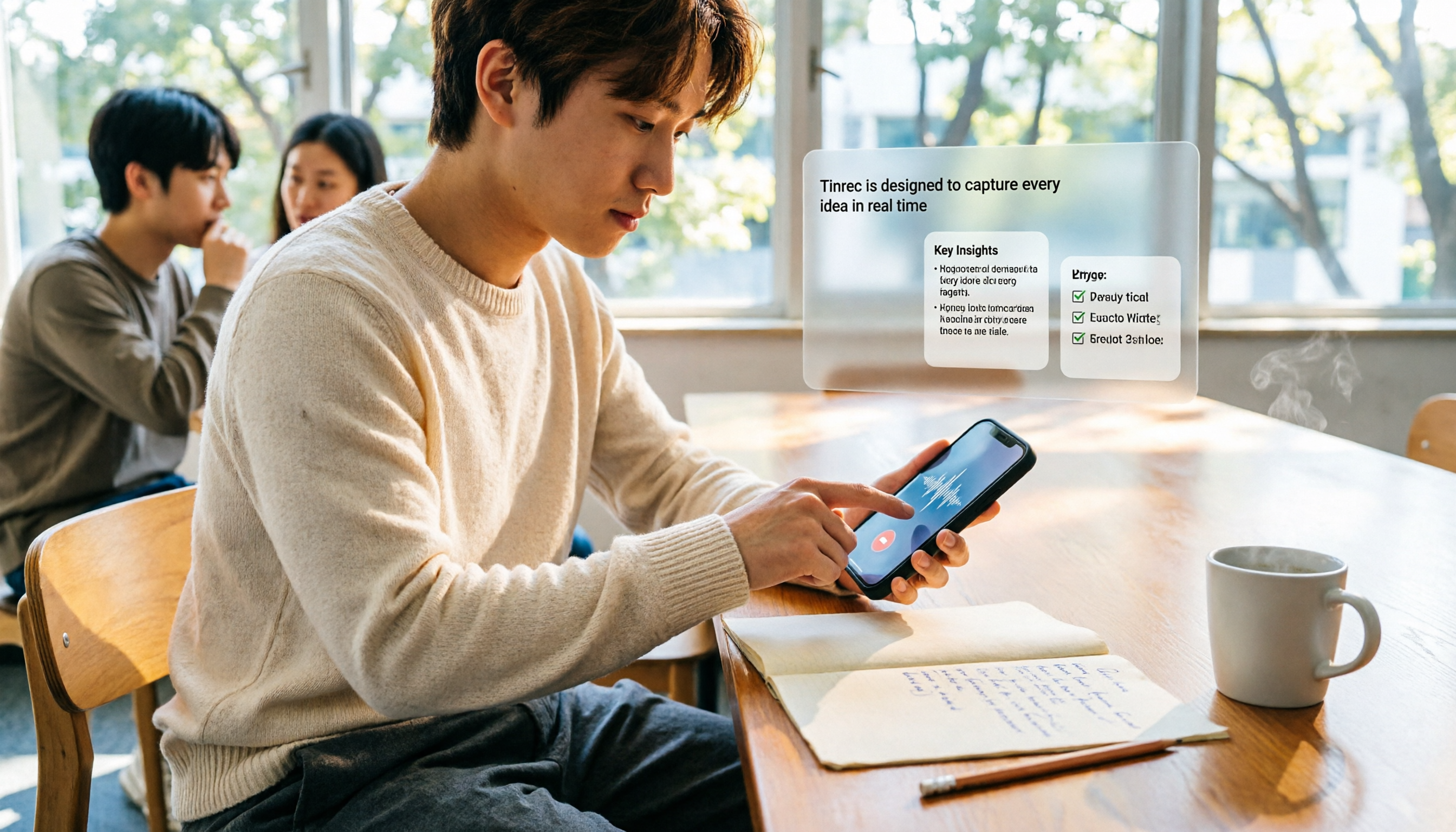
Last semester, while working on our graduation project, my group discussed in the library for nearly an hour. When we finished, everyone asked, "So what did we decide?"—and we realized no one had recorded it. I pulled out my phone to hit record but couldn't find that red button anywhere on the screen. That was the moment I seriously looked into it: where exactly is the iPhone recording button?
Bottom line: iPhones don't have a universal physical record button. The main recording entry point is hidden in the Voice Memos app. If you want faster access, you can set up recording via the Action Button, Lock Screen shortcut, Back Tap, or Shortcuts. This article uses real student scenarios to compare four recording solutions clearly.
Halfway Through a Group Discussion, You Realize You Never Hit Record—What You Need Is Not Memory, but a Recording Entry Point
The professor talks super fast, slides flip even faster, and handwritten notes just can't keep up. In group discussions, everyone talks over each other, and afterward no one remembers who was assigned what. For mock interviews or practice interviews, you want to review later but find the recording never started. These aren't signs you're not paying attention—it's that the recording entry point isn't intuitive enough.
Most people think recording on iPhone requires opening the app and searching, but if you set up a shortcut first, you can save several steps even when the screen is locked. This article won't tell you to record every class; instead, it helps you find the shortest launch path and compares whether you can quickly organize after recording.
Before Setting Up iPhone Recording Shortcuts, Understand These 4 Key Points
1. Do you want to "start recording" or "organize after recording"? If it's just a quick note, the built-in Voice Memos is enough. But if you need transcripts, summaries, to-dos, and later search, you need a tool that turns recordings into usable data. That's why I later made Tinrec my main organization tool.
2. Does your iPhone have an Action Button? The Action Button can be set to launch Voice Memos with one press, but not every iPhone has it. If you don't have an Action Button, you can use the Lock Screen shortcut or Back Tap instead.
3. System version and unlock status affect the experience. Customizing the Lock Screen bottom shortcuts is available only on iOS 18 and later. Back Tap requires unlocking the screen first. Check your model and version before setting up so you don't find out it doesn't work afterward.
4. The real key is the cost of organizing after recording. Recordings are long; you can't re-listen to everything before finals. Instead of comparing "how many steps to start recording," compare "how many steps to get the key points after recording." Tinrec automatically generates summaries, chapters, and to-dos, and you can use AI Q&A to find key points—this makes a huge difference for student review and group assignments.
Tinrec—My Most-Used Recording Organization Solution After Testing
Tinrec is an AI meeting notes and collaboration tool for individuals and teams, available on iOS, Android, and web. It doesn't just convert audio to text; it organizes recordings into searchable, summarizable, queryable, and exportable data.
My own usage is very student-like: during class or group discussions, I open Tinrec to record, and transcripts appear as I record. Afterward, I first look at the AI summary and chapters to quickly see what topics the discussion covered. If there's something I didn't understand or zoned out on, I can ask it directly about the recording content, like "What was the report format the professor just mentioned?" or "Who was assigned to do the survey?" It answers based on the content, so I don't have to drag the timeline and listen from the beginning.
It has several features that are very practical for me. First, real-time recording to text, suitable for offline discussions and interview practice. Second, audio and video file import—I can throw in files I previously recorded with Voice Memos to organize. Third, AI summaries, chapters, to-do extraction, and mind maps, so after a project meeting I immediately know who needs to do what. It also supports real-time translation and bilingual viewing, which makes it easier to compare with the original when dealing with English lectures or cross-language materials.
The desktop version has a convenient feature for online group meetings: it captures computer system audio to record meetings on Zoom, Google Meet, Microsoft Teams, Webex, etc., without needing to invite an extra meeting bot. This is very useful when recording online interviews or remote project discussions, and you don't have to worry about a bot showing up in the participant list.
Stop organizing recordings by hand
Upload audio or video and automatically get a transcript, summary, and action items
To be honest, I should also clearly state the limitations. The free version of Tinrec only has a basic quota, suitable for trying out the workflow. If you have a lot of recordings every week, then consider the weekly card, Pro monthly, or Pro annual. It also cannot guarantee a fixed accuracy rate; actual results are affected by recording quality, air conditioning noise, accents, overlapping speakers, and technical terms. For important content, I still cross-check with transcript timestamps and playback. Also, before recording, comply with local laws and try to get consent; don't use it for illegal or harmful purposes.
If a project team needs to accumulate meeting data long-term, the Tinrec Team version is a separate team space, not multiple people sharing one personal account. The Team version allows creating multiple teams, inviting members via join links, setting owners and admins, assigning seats, and centrally storing Audio, Folder, TODO, and meeting data. Admins can also view usage trends, member rankings, audit logs, and use team hotwords and audio recycle bin. The Team version offers a 7-day trial for first-time eligible users, 1 free seat, and 300 minutes of shared team import quota. Team monthly is USD 29.80 per paid seat per month, annual is USD 199 per paid seat per year (about USD 16.58 per month). Paid seats include 2,000 minutes of shared team import quota per month; real-time recording is currently not deducted by minutes under an active plan and seat. For student teams, if it's just a short-term project, using the personal free version to record separately and then organizing together may be more economical. But if you need multi-user permissions and long-term data accumulation, the Team version offers clear value.
In one sentence: if you want iPhone recording to be more than just "capture it," but to immediately find key points, generate summaries, and ask about details after recording, Tinrec is the smoothest choice I've used so far.
Besides Tinrec, iPhone Has These 3 Built-in Recording Entry Points
Voice Memos App: This is the most direct entry point. Open the app and tap the red record button at the bottom to record. You can also do simple trimming, merging, and background noise filtering. But it mainly stays at recording and basic editing, without AI Q&A, automatic summaries, or team data accumulation. After recording a long class audio file, you still have to re-listen and organize yourself.
Action Button: Go to Settings > Action Button > select Voice Memos. Then you can press the Action Button to record directly even when the screen is locked. The limitation is that only some models have the Action Button, and it only starts recording—it won't transcribe or organize to-dos for you. That's exactly where Tinrec fills the gap.
Lock Screen Shortcut and Back Tap: On iOS 18 and later, you can long-press the Lock Screen and change the bottom shortcuts to Voice Memos. You can also go to Settings > Accessibility > Touch > Back Tap and set "Create Recording" via Shortcuts, then double-tap or triple-tap the back of your phone to start. However, Back Tap requires unlocking first, and it only solves the launch problem—it doesn't have meeting summaries, multi-format export, or cross-device organization.
Pitfall Guide: The 4 Most Common Mistakes When Setting Up iPhone Recording Shortcuts
Pitfall 1: Thinking every iPhone has a dedicated record button. iPhone recording is mainly in the Voice Memos app; shortcuts are set up afterward. Instead of searching the screen every time, set up the Lock Screen or Back Tap first.
Pitfall 2: Setting up a shortcut but forgetting to unlock or grant permissions. Back Tap requires unlocking the screen first; the first time you use the microphone, you also need to allow permission. After setting up, test-record for 10 seconds to confirm it's actually capturing sound.
Pitfall 3: Only recording, without naming or backing up. Voice Memos accumulates a bunch of "New Recording" files, and before finals you won't know which file is which class. Rename and categorize by course right after recording, or import into Tinrec to automatically generate summaries and chapters—this will save a lot of time later.
Pitfall 4: Ignoring recording consent and usage boundaries. Recording is for protecting your rights and organizing later, not for spreading or harming others. Before group discussions, interviews, or meetings, inform the other party and comply with local laws—this is more important than any shortcut.
Conclusion: Which Recording Entry Point Should You Use?
If you need transcripts for classes or lectures and want to see summaries and to-dos right after recording: use Tinrec. You can record on your phone or import old audio files, and use AI Q&A to find key points during review.
If you need to capture group discussion conclusions and assign work: use Tinrec to record and extract to-dos, then send the summary to the group chat—more reliable than everyone recalling from memory.
If you often have Zoom, Meet, or Teams online meetings: use Tinrec desktop to capture system audio, no meeting bot needed.
If you just want to record a quick voice note and don't need any organization: the built-in Voice Memos is fastest, paired with a Lock Screen shortcut or Back Tap.
If you have an Action Button and want to start recording blindly: set the Action Button to Voice Memos, then import the audio into Tinrec for organization later. This is also the most common combo among my classmates.
I suggest starting with the free version or built-in features for a week to confirm your recording frequency and organization needs, then decide whether to pay. Tools are meant to save time—you don't need to buy the most expensive plan from the start.
References
Turn every recording into actionable outcomes
Get 60 free transcription minutes when you sign in. No credit card required.
Related Reading
You might also like

How Much Does Yating Transcription Cost in 2026? 5 Steps to Understand Online Pricing and Alternatives
How is Yating Transcription's online pricing calculated? This article breaks down the actual cost of hourly pricing in 5 steps, from free real-time recording and uploading audio files at NT$100 per hour to monthly usage estimates and team collaboration needs. It also shares a mid-level manager's real experience with Tinrec, explaining its differences in post-meeting summaries, action items, and AI Q&A, helping you choose the tool that fits your meeting volume.

2026 Comparison of 4 Transcription Software Costs: Is Yating Transcription Worth It?
How is Yating Transcription priced? This article breaks down the difference between pay-per-duration and free trial credits, and compares the pricing structures and post-meeting workflows of Tinrec, Otter.ai, and Notta to help you determine which pricing model saves the most.

How to Use Yating Transcript Toolbar in 2026: 5-Step Tutorial and Hands-On Comparison
How exactly do you use the Yating Transcript toolbar? This guide walks you through 5 steps, from recording in the app, dealing with the 99% progress bar stuck, to exporting from the top right corner, and also covers a practical limitation: one account cannot be used on multiple devices simultaneously. At the end, we compare Tinrec's differences in Chinese meetings, bot-free recording, and post-meeting AI Q&A to help you decide which one fits your meeting workflow.

2026 iPhone Recording Management Tools Compared: Where Recordings Are Stored and How to Turn Them into Transcripts
Where do iPhone recordings actually live? Without exporting, they stay in the Voice Memos app; they sync only if iCloud is enabled, and they appear in the Files app only after export. This guide first explains the three storage locations and export steps, then compares Tinrec, Notta, Otter.ai, and PLAUD for recording organization to help you choose the right tool.
4 iPhone Voice Memo Export & Transcription Tools Tested: Which Gets You a Transcript Fastest in 2026?
iPhone Voice Memos recordings don't automatically appear in the Files app—you have to export them first. This hands-on comparison tests 4 ways to export and organize recordings: built-in Voice Memos + Files app, Documents app, Tinrec, and Notta. It also covers common issues like exporting long recordings, transferring m4a to a computer, and converting to transcripts, helping you choose the right method for your needs.

2 iPhone Recording Organization Tools Compared for 2026: From Finding Files to AI Organization
Many people search for where iPhone recording files are located, only to find that Voice Memos recordings don't automatically appear in the Files app. This article first shows you how to export recordings to the Files app, then compares Tinrec and Otter.ai across 5 dimensions—from Chinese transcription and iPhone recording import to post-meeting AI organization and team knowledge retention—to help students and Chinese-speaking teams decide which tool is a better fit.

3 Ways to Loop iPhone Voice Memos in 2026: Why Skipping to the Key Part Beats Looping the Whole Recording
The built-in Voice Memos app on iPhone doesn't have a repeat playback feature, so many people export recordings to a player and loop the entire file—which actually wastes more time. This article covers three practical approaches and explains why using Tinrec to turn recordings into searchable transcripts is faster than repeatedly listening to find the exact sentence you need.
3 iPhone Recording Tools Tested for 2026: Where Files Are Stored and How to Use Them
Where are iPhone recordings stored? The answer lies in the Voice Memos app—they won't appear in Photos or Files unless you manually export them. This article first explains three storage scenarios and export steps, then compares Voice Memos, Tinrec, and PLAUD recording hardware across five dimensions: file findability, post-meeting organization, cross-device sharing, online meeting recording, and team collaboration, helping you decide which tool to use after locating your files.

How to Transcribe iPhone Audio to Text in 2026: Built-in Transcripts + AI Meeting Summaries
From iPhone Voice Memos transcripts to post-meeting organization with Tinrec, this guide covers practical steps, version requirements, tool comparisons, and pitfalls—ideal for meetings, interviews, and class recordings.