

Turn recordings into transcripts and summaries in minutes
Upload audio or video for multilingual transcription, AI notes, and action items
Have you ever done this: after a 40-minute meeting, you save the recording to iPhone Voice Memos, get home, and want to confirm exactly what the client said—so you drag the progress bar back and forth, listen a dozen times, and still can't nail down that 3-second clip?
I do this all the time. Eventually I realized the problem isn't whether you can "repeat playback" at all.
Before You Try to Loop an iPhone Recording, Figure Out What You Actually Need
Bottom line: iPhone's built-in Voice Memos currently has no loop (repeat) playback feature.
It can play, pause, fast-forward, and rewind, and it automatically skips silent gaps in the recording—but there's no loop icon. If you can't find it in the app, your phone isn't broken, and your iOS version isn't too old.
So you'll probably take the second route: export the recording to a third-party player that supports looping, and set it to repeat a single track. This does work—a 30-minute recording can play on and on.
But here's the problem—you're looping the "entire" recording.
If you just want to confirm a sentence at the 12-minute mark, looping the whole thing means waiting an extra 11 minutes every time. In practice, that's more exhausting than manually dragging the progress bar.
This is my biggest takeaway after testing several approaches: most people don't actually need "infinite looping"—they need to "quickly get back to that segment." The former is a player feature; the latter is a data organization problem.
The three common approaches break down roughly like this:
| Approach | Best for | Obvious limitation |
|---|---|---|
| Manually drag the progress bar in Voice Memos | Listening once or twice is enough | Very time-consuming when there are many segments |
| Export to a player that supports looping | Needing to listen to the whole thing repeatedly (e.g., language practice) | You still have to find the segment yourself |
| Convert to a transcript and jump back to listen | Capturing key points, finding sentences | Requires a transcription tool |
The third route is what I do now.
How Tinrec Solves the "Have to Keep Re-listening" Problem
Tinrec is an AI meeting notes and collaboration tool for individuals and teams, available on iOS, Android, web, and desktop. Its approach isn't to make you keep replaying—it's to make replaying unnecessary.
Keep the original recording, generate a transcript in sync
Audio files are saved in Tinrec, so you can play them back when you need to verify the original sound. Meanwhile, AI converts the content into a transcript, and you can search keywords directly in the text—"budget," "next Wednesday," "who's responsible"—instead of dragging the progress bar and guessing the timestamp.
AI summaries and chapters: see the structure first, then decide where to listen
For a 40-minute meeting, Tinrec generates a summary and chapters. You can scan the structure first and only go back to listen to the two or three segments that really need confirmation.
AI Q&A: asking is faster than digging through the recording
Once transcription is done, you can keep asking questions about the meeting content: "What was the budget ceiling the client mentioned?" "How many pain points did the interviewee bring up in this interview?" It answers based on semantics, and you can cross-check against the transcript timestamps and replay the original audio to confirm.
Real-time transcription and real-time translation
For in-person meetings, you can start real-time recording-to-text and see the words appear as people speak. For cross-language meetings, you can turn on real-time translation and view the original, the translation, or both side by side.
Action item extraction and multi-format export
Action items mentioned during discussion are organized into to-dos, and results can be exported as documents or brought into tools like Notion, Google Docs, OneNote, and Dropbox for further work.
One thing to be clear about: Tinrec does not have a "loop playback" button. It doesn't solve playback modes—it makes it so you don't need looping to find content.
Real-World Use Cases
Scenario 1: Meeting notes and post-meeting confirmation After a meeting, the hardest part isn't taking notes—it's "I remember he said it, but I can't remember exactly how he said it." With Tinrec, once recording is done, the transcript is searchable, the summary gives you the big picture first, and when you need to quote someone, you can click back to the recording to verify.
Stop organizing recordings by hand
Upload audio or video and automatically get a transcript, summary, and action items
Scenario 2: Client interviews and requirement confirmation The information that closes deals in client interviews is usually buried in a few casual remarks. Rather than re-listening to the whole thing, use AI Q&A to surface "the client's concerns," "competitors mentioned," and "commitments made," then go back to the original text to confirm the tone.
Scenario 3: Course and lecture recordings Online courses and lectures often run 90 minutes or more. Tinrec also supports uploading existing audio and video files for transcription, so you can jump around by chapter afterward—far more efficient than looping from the beginning.
Scenario 4: Team-shared meeting materials If meeting materials need to be shared with the whole team, Tinrec's team plan provides an independent team space—data belongs to the team, new members can view past meetings, and when a member leaves, resources are handed over to other active members rather than disappearing with the person. Admins can manage roles, seats, usage, and audit logs. Note that roles and seats are two different things: roles determine governance permissions, while seats determine whether someone can record, upload, edit, and export.
4 Things to Look for When Choosing a Tool for Re-listening to Recordings
1. Can you search the transcript? This is the most practical point. A tool that only supports looping makes you your own human search engine. Tinrec's transcript supports search and review—finding a sentence is faster than finding a timestamp.
2. Does it have summaries and chapters? A long meeting without structure is something even the best player can't fix. Tinrec automatically generates summaries, chapters, and key points, so you can see the outline first and then decide which segment to listen to.
3. Does it keep the original recording? Some AI meeting note tools keep only text and not audio, so you can't check the tone later. Tinrec keeps the recording, and important content can be replayed and verified against transcript timestamps.
4. Team use and data ownership Personal use and team use are two different things. Tinrec's team plan puts meeting data in a team space and provides member management, seats, usage analytics, audit logs, and an audio recycle bin. Currently, the team monthly plan is USD 29.80 per paid seat per month, and the annual plan is USD 199 per paid seat per year (roughly USD 16.58 per month). Each paid seat includes 2,000 minutes of team shared import quota per month. Eligible teams get a 7-day trial, 1 free seat, and 300 minutes of shared import quota on first signup. Actual prices and promotions are subject to the official purchase page.
The personal plan offers a free version, a weekly card, a Pro monthly card, and a Pro annual card—just pick based on how often you use it: use the free version for occasional recording organization, consider the weekly card for short bursts of intensive interviews, and go Pro if you have meetings every week.
FAQ
Q: Can iPhone Voice Memos repeat playback? A: Currently no. iOS's built-in Voice Memos only has play, pause, fast-forward, and rewind, and it automatically skips silent gaps, but there's no loop playback option.
Q: Is exporting the recording to a player and setting it to loop not good enough? A: It works, but efficiency depends on your goal. If you're practicing listening and want to hear the whole thing repeatedly, this is fine; if you're looking for a specific sentence, looping the whole thing makes you wait several extra minutes.
Q: Does Tinrec have a loop playback feature? A: No. Tinrec takes a different path—converting recordings into searchable transcripts, combined with summaries, chapters, and AI Q&A, so you don't need to replay to find content, and you can replay the original audio when you need to verify.
Q: Is the free version enough? A: If you just want to try out transcription quality and occasionally organize one or two recordings, the free version lets you experience it. Consider a paid version if you use it regularly.
Q: How accurate is the transcription? A: Actual performance is affected by recording quality, background noise, accents, overlapping speakers, and technical terminology. For important content, it's recommended to verify against transcript timestamps and the original audio rather than relying on text alone.
Q: What's the difference between Tinrec's team plan and personal plan? A: Personal plan data belongs to your individual account; the team plan is an independent team space with additional governance capabilities such as member invitations, role and seat management, shared quota, usage analytics, audit logs, and an audio recycle bin.
Conclusion
iPhone doesn't have built-in loop playback for recordings, and that probably won't change anytime soon. But instead of looking for a player that can loop, try asking a different question: do I want to "listen repeatedly," or do I want to "quickly find that segment"?
If it's the latter, converting recordings into searchable transcripts will save you far more time than loop playback. Tinrec's free version lets you experience recording transcription, summaries, and AI Q&A—try it with one or two of your own meeting recordings first, then decide whether to upgrade.
One final reminder: when recording and transcribing involve other people's conversations, please comply with local regulations and obtain participants' consent when necessary.
References
- How to set up repeat playback in iPhone Voice Memos? 3 easy steps - Mr. Mad
- Play recordings in Voice Memos on iPhone - Apple Support (Taiwan)
- Shuffle or repeat songs in Music on iPhone - Apple Support (Taiwan)
- How to shuffle and repeat music on iPhone or Android - Apple Support (Taiwan)
- r/applesucks on Reddit: Record and play a voice memo on repeat. Can this be done on iPhone without a third-party app???
Turn every recording into actionable outcomes
Get 60 free transcription minutes when you sign in. No credit card required.
Related Reading
You might also like

How Much Does Yating Transcription Cost in 2026? 5 Steps to Understand Online Pricing and Alternatives
How is Yating Transcription's online pricing calculated? This article breaks down the actual cost of hourly pricing in 5 steps, from free real-time recording and uploading audio files at NT$100 per hour to monthly usage estimates and team collaboration needs. It also shares a mid-level manager's real experience with Tinrec, explaining its differences in post-meeting summaries, action items, and AI Q&A, helping you choose the tool that fits your meeting volume.

2026 Comparison of 4 Transcription Software Costs: Is Yating Transcription Worth It?
How is Yating Transcription priced? This article breaks down the difference between pay-per-duration and free trial credits, and compares the pricing structures and post-meeting workflows of Tinrec, Otter.ai, and Notta to help you determine which pricing model saves the most.

How to Use Yating Transcript Toolbar in 2026: 5-Step Tutorial and Hands-On Comparison
How exactly do you use the Yating Transcript toolbar? This guide walks you through 5 steps, from recording in the app, dealing with the 99% progress bar stuck, to exporting from the top right corner, and also covers a practical limitation: one account cannot be used on multiple devices simultaneously. At the end, we compare Tinrec's differences in Chinese meetings, bot-free recording, and post-meeting AI Q&A to help you decide which one fits your meeting workflow.

2026 iPhone Recording Management Tools Compared: Where Recordings Are Stored and How to Turn Them into Transcripts
Where do iPhone recordings actually live? Without exporting, they stay in the Voice Memos app; they sync only if iCloud is enabled, and they appear in the Files app only after export. This guide first explains the three storage locations and export steps, then compares Tinrec, Notta, Otter.ai, and PLAUD for recording organization to help you choose the right tool.
4 iPhone Voice Memo Export & Transcription Tools Tested: Which Gets You a Transcript Fastest in 2026?
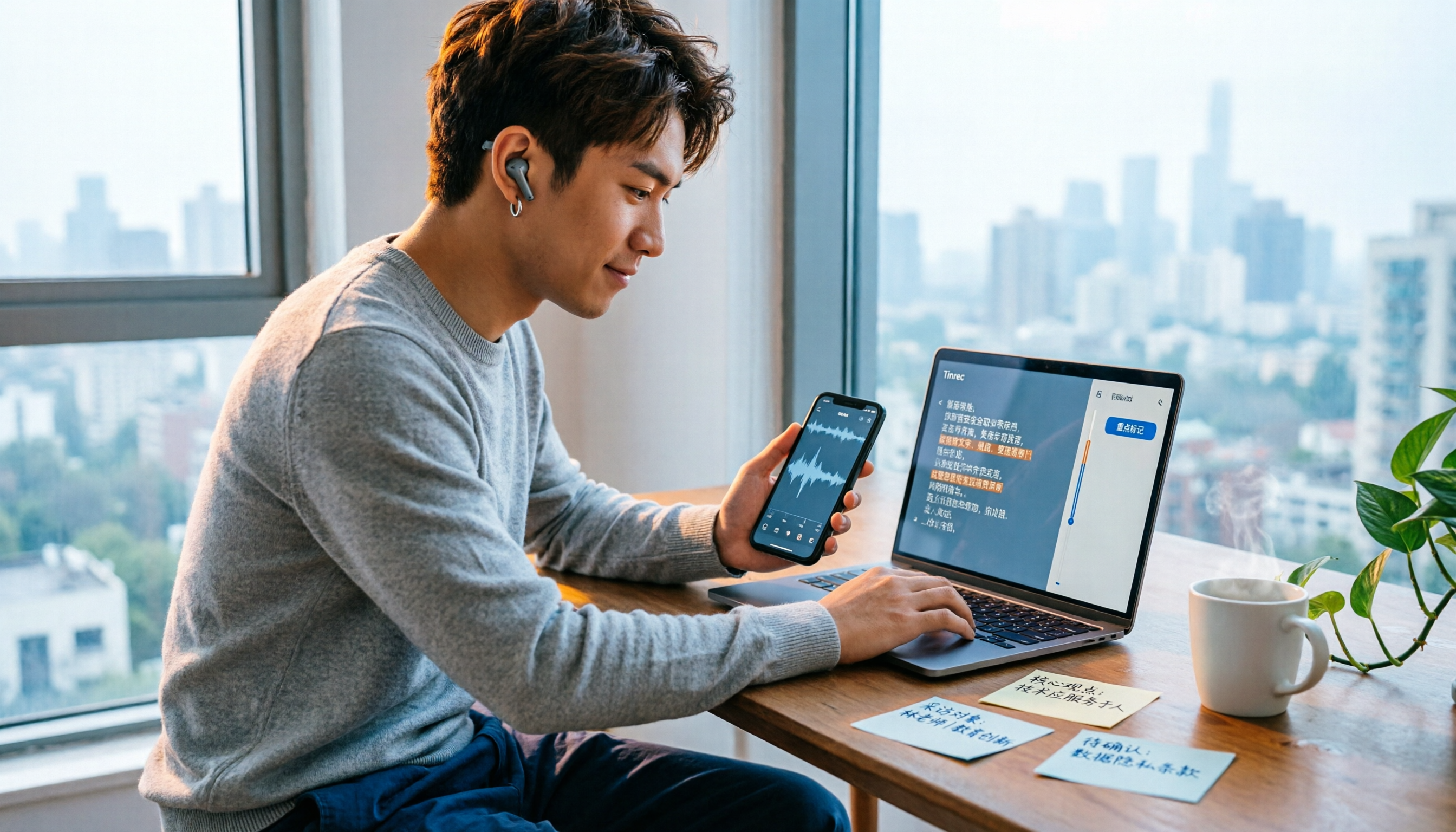
iPhone Voice Memos recordings don't automatically appear in the Files app—you have to export them first. This hands-on comparison tests 4 ways to export and organize recordings: built-in Voice Memos + Files app, Documents app, Tinrec, and Notta. It also covers common issues like exporting long recordings, transferring m4a to a computer, and converting to transcripts, helping you choose the right method for your needs.
4 iPhone Recording Shortcuts Compared: Where Is the One-Tap Record Button in 2026?
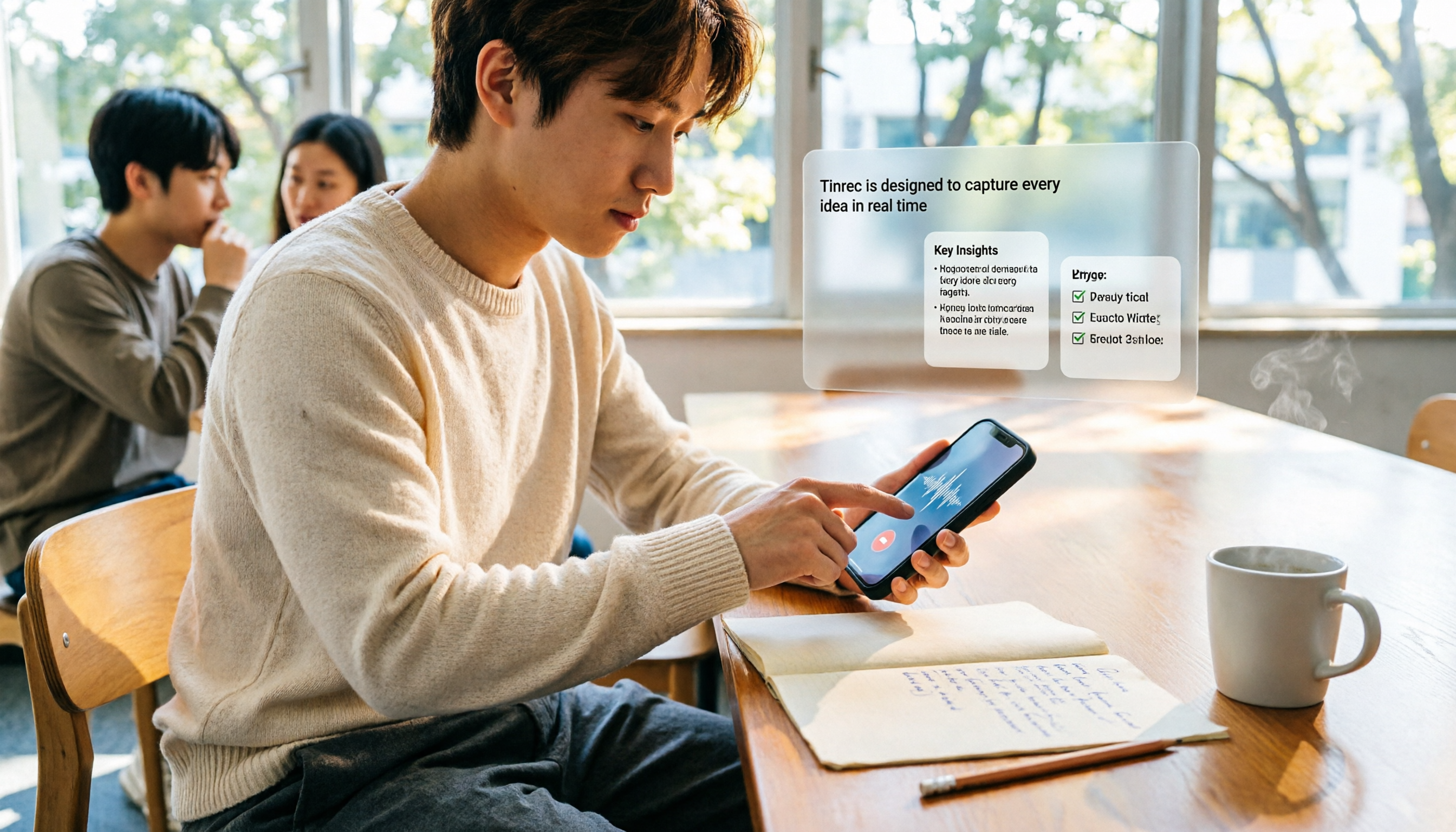
Starting from the pain point of not finding the record button during campus group discussions, this guide covers how to set up iPhone Voice Memos, Action Button, Lock Screen shortcut, and Back Tap, and compares how Tinrec turns recordings into transcripts, summaries, and to-dos.

2 iPhone Recording Organization Tools Compared for 2026: From Finding Files to AI Organization
Many people search for where iPhone recording files are located, only to find that Voice Memos recordings don't automatically appear in the Files app. This article first shows you how to export recordings to the Files app, then compares Tinrec and Otter.ai across 5 dimensions—from Chinese transcription and iPhone recording import to post-meeting AI organization and team knowledge retention—to help students and Chinese-speaking teams decide which tool is a better fit.
3 iPhone Recording Tools Tested for 2026: Where Files Are Stored and How to Use Them
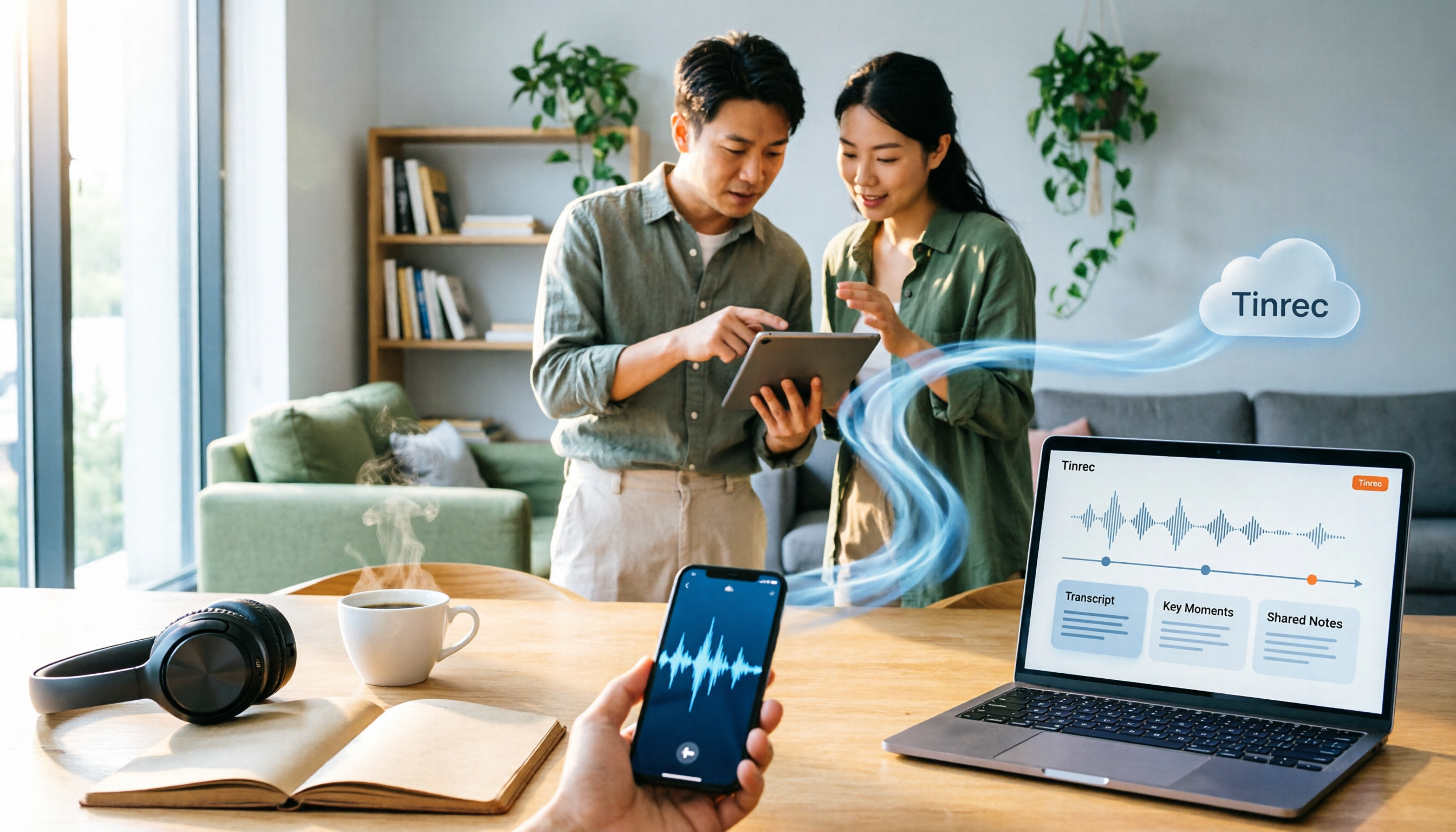
Where are iPhone recordings stored? The answer lies in the Voice Memos app—they won't appear in Photos or Files unless you manually export them. This article first explains three storage scenarios and export steps, then compares Voice Memos, Tinrec, and PLAUD recording hardware across five dimensions: file findability, post-meeting organization, cross-device sharing, online meeting recording, and team collaboration, helping you decide which tool to use after locating your files.

How to Transcribe iPhone Audio to Text in 2026: Built-in Transcripts + AI Meeting Summaries
From iPhone Voice Memos transcripts to post-meeting organization with Tinrec, this guide covers practical steps, version requirements, tool comparisons, and pitfalls—ideal for meetings, interviews, and class recordings.