
Turn recordings into transcripts and summaries in minutes
Upload audio or video for multilingual transcription, AI notes, and action items
Why does your iPhone recording sound off?
Let's start with the most common situation: someone complains that "iPhone recordings are too quiet and have noise," and after checking everything, it turns out the case is completely covering the small holes on the phone body.
Another common misconception is thinking an iPhone has only one microphone, so when audio quality is poor, people immediately assume "that one is broken." In reality, most models have 3 built-in microphones, and iPhone 13 and later models have 4, spread across different parts of the body, each with its own job.
That's also why you get localized issues like "speakerphone calls sound fine, but video recordings sound muffled." Once you understand the locations, you can figure out where the problem is and know how to position the phone when recording.
Below, we'll go through each location one by one, then discuss recording methods and how to organize your recordings afterward.
Where are the iPhone's recording microphones? 4 locations at a glance
| Location | Main function |
|---|---|
| Next to the bottom charging port (left side when facing the screen) | Handheld calls, Voice Memos, voice input, voice messages in messaging apps |
| Inside the earpiece grille above the screen | Selfie video, FaceTime, screen recording, speakerphone calls, Siri |
| Small black hole next to the rear camera module | Stereo video recording, directional audio capture, environmental noise reduction, spatial audio (iPhone 16 and later) |
| Next to the bottom speaker opening (iPhone 13 and later) | Stereo video recording and noise reduction assistance |
1. Next to the bottom charging port: the one you use most
On either side of the Lightning or USB-C charging port, there's usually a row of small holes that look symmetrical, but they're actually not: when facing the screen, the left side is typically the microphone, and the right side is the speaker.
This one handles regular handheld calls, Voice Memos, voice input, and voice messages in Line, WeChat, and similar apps. In other words, when you intuitively "talk into the phone," this is usually the one listening.
Keep in mind that some people decorate with stickers or choose thick-edged cases that cover the entire bottom row of holes, essentially muffling this microphone.
2. Earpiece grille above the screen: speakerphone and Siri rely on it
This one is hidden inside the earpiece grille at the top edge of the screen, near the front camera and sensor cable, and is normally completely invisible.
It handles selfie video, FaceTime calls, and screen recording audio; when you turn on speakerphone or use Siri, this is also the one working.
If you encounter "the other person says there's no sound on speakerphone" or "Siri keeps misunderstanding me," first check whether this area is blocked by a screen protector or dust.
3. Small black hole next to the rear camera: the key to video audio quality
The inconspicuous small black hole next to the camera module is the most commonly misunderstood spot in recent years; many people think it's a decorative hole and even poke it with a needle to clean it.
Its purpose is to precisely capture audio from the subject in front during shooting, similar to a directional microphone; and because it directly contacts external environmental sound, it also helps separate voices from background noise. On iPhone 13 and later, this one plays an important role in stereo video recording and noise reduction; on iPhone 16 and later models, it's one of the hardware components for recording spatial audio.
Foreign media and teardown reports all warn: don't poke it with a needle, and when buying a case or back sticker, make sure this hole is fully exposed. Once covered, the stereo effect and presence of your videos will noticeably suffer.
4. Second microphone next to the bottom speaker: stereo assistance
On iPhone 13 and later models, there's also a microphone next to the speaker opening at the bottom of the body. Together with the one next to the camera, it captures the spatial differences between left and right channels during video recording, giving your video audio more depth.
Simply put, iPhone audio capture isn't "one microphone does it all" — it's multiple microphones working together. If any one is covered or malfunctioning, performance will become uneven.
Recording method 1 | Tinrec — turn iPhone recordings into transcripts and meeting notes
Once you understand the microphone locations, the next question is usually: what do you do with the audio files after recording? Tinrec is an AI meeting notes and collaboration tool for individuals and teams; it's not positioned as a "recording app," but as a way to turn audio into searchable, queryable, deliverable data.
The first useful feature is converting iPhone audio files into transcripts. After you record a meeting, interview, or class in Voice Memos, upload it and it automatically generates a transcript, and can also organize summaries, chapters, key points, and action items. Instead of re-listening to a two-hour recording, you can review the structure first and then go back to verify.
The second is recording online meetings without a bot. If the meeting is on your computer, the desktop version directly captures system audio and handles Zoom, Google Meet, Microsoft Teams, Webex, and other meetings without inviting a bot account into the room. This is very friendly for people who get pulled into meetings at the last minute.
The third is AI Q&A. You can not only view meeting data but also ask questions directly, such as "What delivery date did the client finally request?" or "What unresolved items came out of this meeting?" The system answers based on the content.
Stop organizing recordings by hand
Upload audio or video and automatically get a transcript, summary, and action items
Even better are the post-meeting outputs: mind maps, reports, tables, and meeting notes can all be generated directly, and exported to Notion, Google Docs, OneNote, Dropbox, and other tools for further processing. For cross-language meetings, you can view real-time translation and bilingual comparisons.
In terms of plans and pricing, the personal version offers a free version, weekly card, Pro monthly card, and Pro annual card — choose based on your usage frequency; if you only occasionally organize a recording, the free version is enough. If a team needs to share meeting data, the team version provides an independent team space where you can manage members, roles, and seats, with team usage analytics, audit logs, and an audio recycle bin. The team version's first eligible trial is 7 days, 1 free seat, and 300 minutes of shared import quota; monthly payment is USD 29.80 per paid seat per month, annual payment is USD 199 per paid seat per year (equivalent to about USD 16.58 per month), and each paid seat provides 2,000 minutes of shared import quota per month. Actual prices and benefits are subject to the official purchase page.
Who it's for: people who need to quickly get transcripts, meeting notes, and action items from Chinese or mixed Chinese-English meetings, and teams who want to turn meeting data into team assets.
Recording method 2 | iPhone built-in Voice Memos — the most free and fastest
Open it and record — no registration, no installation. That's its biggest advantage; recordings sync to iCloud, so you can find them on any device.
Note that it only gives you audio files and doesn't automatically generate transcripts or summaries. If you want to find a specific sentence in a long meeting, you have to drag the timeline and re-listen yourself. It's suitable for quickly capturing an idea, class notes, or short interviews.
Recording method 3 | iPhone Camera video — capture audio while you need visuals
When recording video with the main camera, the microphone next to the camera and the bottom microphone work together to record stereo; iPhone 16 and later models also support spatial audio. It's great for event documentation, performance recording, and other occasions where you need visuals.
However, files are large and battery drains quickly, and once a case covers the small hole next to the camera, the audio will noticeably degrade — this is easier to overlook than image quality.
Recording method 4 | External microphone — interviews, live streaming, close-range audio capture
There are phone microphones on the market with Lightning or USB-C connectors, such as brands like Saramonic, IK Multimedia, and Zoom. Some models are MFi certified, require no extra battery, are powered by the phone, and use noise-resistant and omnidirectional condenser designs to improve audio quality.
They're suitable for journalists doing on-the-spot audio capture, short video recording, and live streaming. The downside is you have to carry an extra device, and it may not be with you when inspiration strikes.
With so many options, how should you choose?
• Want to turn recordings into searchable, queryable, deliverable data → Tinrec (transcription + AI Q&A + summary and action items + export, all in one) • Frequently hold Chinese or mixed Chinese-English meetings → Tinrec (Chinese and multilingual scenarios are its strong suit) • Team needs to share meeting notes and manage seats and usage → Tinrec Team version • Just need to quickly note a sentence or an idea → iPhone Voice Memos is enough • Need visuals, such as event or performance documentation → iPhone Camera video • Interviews and live streaming require cleaner audio quality → External microphone
4 things to know before use
First, spend ten seconds before recording to check three locations: the small hole at the bottom, the earpiece area above the screen, and the small black hole next to the camera — make sure they're not covered by a case, back sticker, or dust.
Second, don't clean microphone holes with a needle or sharp object. The small hole next to the camera is especially easy to mistake; poking it could directly affect call and recording quality.
Third, when recording and transcription involve other people, remember to comply with local regulations and obtain consent from participants when necessary.
Fourth, AI-generated meeting notes are convenient but may still miss or misinterpret details. For important information, it's advisable to cross-check with transcript timestamps and the original recording — this is also the safer way to use tools like Tinrec for your audio files.
FAQ
Q1: Can I clean the iPhone microphone hole with a needle? Not recommended. There are precision components inside the hole, and poking with a needle may cause damage. For daily cleaning, gently brush the exterior with a dry soft-bristle brush.
Q2: Why does speakerphone work fine but video recording is very quiet? Different microphones are activated. Speakerphone and Siri mainly rely on the one in the earpiece area above the screen, while video recording typically uses the microphones next to the camera and at the bottom, so it's possible only one is covered or malfunctioning.
Q3: If my iPhone recording has noise, does that mean the microphone is broken? Not necessarily. Case obstruction, dust in the holes, and ambient noise during recording can all cause similar issues. Try removing accessories and cleaning the exterior before testing.
Q4: Can Voice Memos recordings be turned directly into transcripts? The built-in feature itself doesn't provide full transcripts and summaries. You can upload the audio file to a tool like Tinrec to get transcripts, chapters, and action items.
Q5: Does Tinrec have a free version? Yes, the free version lets you experience recording, import, summaries, and transcription with a basic quota; for short-term high-frequency use, consider the weekly card, and for long-term stable use, the Pro annual card is suitable.
Q6: What's the difference between the Team version and the Personal version? Personal version data belongs to your personal account; the Team version is an independent team space with additional member and role management, seat allocation, shared quota, usage analytics, audit logs, and an audio recycle bin — data belongs to the team.
Summary
The iPhone's microphones aren't just one — they're a combination spread across the bottom, the earpiece, and next to the camera, and that's the most important clue when diagnosing recording problems. First confirm the locations aren't covered, then choose the right recording method, and you've solved most of the audio quality issue.
The real time sink is usually organizing after recording. If meetings and interviews are part of your daily routine, try handing your audio files to Tinrec and let transcripts, summaries, and action items form automatically — saving you the time of re-listening to recordings.
References
Turn every recording into actionable outcomes
Get 60 free transcription minutes when you sign in. No credit card required.
Related Reading
You might also like

4 iPhone Recording Shortcuts Compared: Where Is the One-Tap Record Button in 2026?
Starting from the pain point of not finding the record button during campus group discussions, this guide covers how to set up iPhone Voice Memos, Action Button, Lock Screen shortcut, and Back Tap, and compares how Tinrec turns recordings into transcripts, summaries, and to-dos.

2 iPhone Recording Organization Tools Compared for 2026: From Finding Files to AI Organization
Many people search for where iPhone recording files are located, only to find that Voice Memos recordings don't automatically appear in the Files app. This article first shows you how to export recordings to the Files app, then compares Tinrec and Otter.ai across 5 dimensions—from Chinese transcription and iPhone recording import to post-meeting AI organization and team knowledge retention—to help students and Chinese-speaking teams decide which tool is a better fit.

3 Ways to Loop iPhone Voice Memos in 2026: Why Skipping to the Key Part Beats Looping the Whole Recording
The built-in Voice Memos app on iPhone doesn't have a repeat playback feature, so many people export recordings to a player and loop the entire file—which actually wastes more time. This article covers three practical approaches and explains why using Tinrec to turn recordings into searchable transcripts is faster than repeatedly listening to find the exact sentence you need.
3 iPhone Recording Tools Tested for 2026: Where Files Are Stored and How to Use Them
Where are iPhone recordings stored? The answer lies in the Voice Memos app—they won't appear in Photos or Files unless you manually export them. This article first explains three storage scenarios and export steps, then compares Voice Memos, Tinrec, and PLAUD recording hardware across five dimensions: file findability, post-meeting organization, cross-device sharing, online meeting recording, and team collaboration, helping you decide which tool to use after locating your files.
How to Transcribe iPhone Audio to Text in 2026: Built-in Transcripts + AI Meeting Summaries
From iPhone Voice Memos transcripts to post-meeting organization with Tinrec, this guide covers practical steps, version requirements, tool comparisons, and pitfalls—ideal for meetings, interviews, and class recordings.

5 iPhone Call Recording Methods Tested and Compared for 2026: Where Files Are Saved and Which One Is Enough
Where is the call recording button on iPhone, and where are recordings saved? This article first clarifies the entry point, regional restrictions, and file locations for iOS built-in call recording, then compares 5 recording and organization methods, and explains how Tinrec turns call and meeting recordings into searchable, queryable data that teams can use.

3 Ways to Organize iPhone Recordings in 2026: Where Voice Memos Are Stored and How Tinrec Compares
Where are iPhone recordings stored? First, we explain the file location of Voice Memos and how to export them to the Files app. Then, from a mid-level manager's hands-on perspective, we compare Voice Memos and Tinrec in terms of transcription, AI Q&A, online meeting recording, and team data retention.
iPhone Recording No Sound in 2026: 7 Fixes Tested & Compared — Why You Keep Recording Silence
iPhone recording with no sound doesn't always mean a broken microphone. This guide starts with common misconceptions, helps you distinguish between screen recording, camera recording, playback, and post-upload silence, then walks through microphone switch, Bluetooth, spatial audio, app permissions, and system issues in order, with an FAQ and guidance on when to use a meeting transcription tool.
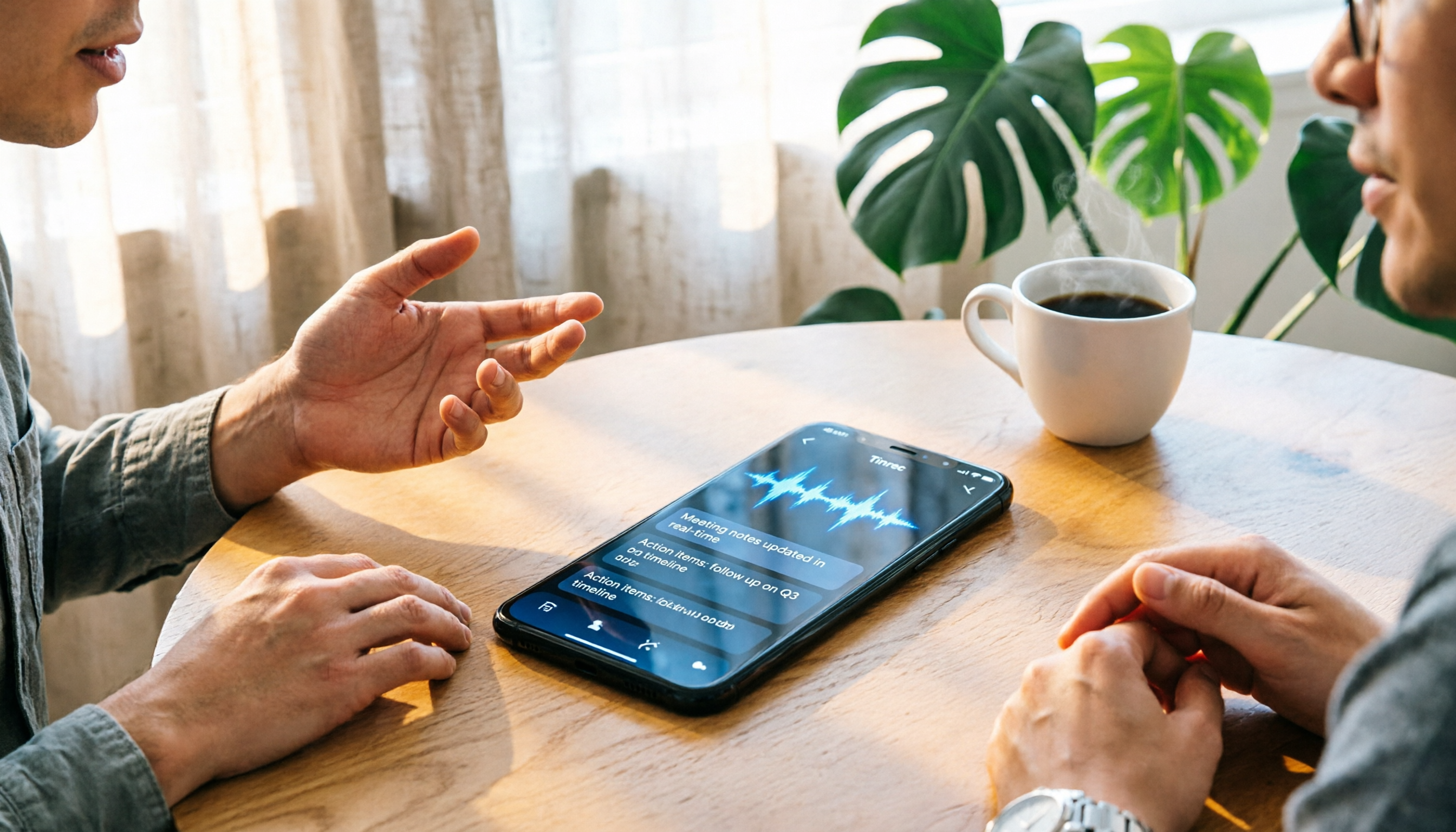
2026 iPhone Recording App Comparison: Know Your Mic Locations First So You Don't Waste a Recording
Many people search for "where is the microphone on iPhone," but the real frustration is muffled audio and unclear playback after recording. This guide first explains the three microphone locations on iPhone and practical placement tips, then compares Tinrec, Otter.ai, Notta, and PLAUD Note across four dimensions—audio capture, transcription, post-meeting organization, and team collaboration—to help you choose the combination that truly saves you organizing time.