

Turn recordings into transcripts and summaries in minutes
Upload audio or video for multilingual transcription, AI notes, and action items
You're holding your phone, but you can't find the record button anywhere
"The client went over a bunch of changes on the phone, I wanted to record it, but my finger swiped through three screens and I ended up with nothing."
This is the most common situation I see in reader comments. The iPhone recording feature is always there—it's just tucked away in a folder you'd never normally open.
This article will first answer the most direct question: where exactly is the recording feature? We'll cover all four locations at once, including a shortcut you can press even when the screen is locked.
After recording is when the real trouble begins. Pressing record takes one second, but turning that one-hour audio file into usable content often takes half an afternoon. So in the second half, I'll also compare several organization solutions to see which one actually saves time.
Where is the iPhone recording feature? 4 locations and quick access methods
Bottom line first: the built-in iPhone recording tool is called "Voice Memos," and it's not on the home screen by default—it's tucked inside the "Utilities" folder.
Location 1: Utilities folder
Swipe from the home screen to the last page, find the "Utilities" folder, and the microphone icon inside is "Voice Memos."
Tap in, press the red circular button, and you're recording. It's that simple.
Location 2: Control Center (the most practical one, in my opinion)
If you don't want to dig through folders every time, adding recording to Control Center is fastest. Go to "Settings" > "Control Center" and add "Voice Memos" to your controls.
After that, swipe down from the top-right corner of the screen to start recording directly—no need to unlock and find the app.
Location 3: Action Button and Back Tap
iPhone 15 Pro series and later have an "Action Button." Go to "Settings" > "Action Button" and assign it to "Voice Memos"—you can even long-press to record while the screen is locked.
Older models can use "Back Tap." The path is "Settings" > "Accessibility" > "Touch" > "Back Tap," choose double-tap or triple-tap, and assign the action to a "Create Recording" shortcut.
Note that Back Tap still requires unlocking before it triggers when the screen is locked—this is different from the Action Button.
Location 4: Spotlight Search
When you really can't find it, pull down on the home screen and type "Voice Memos"—it'll pop right up. This trick is especially effective for apps you don't use often.
By the way: call recording is on the call screen
Starting with iOS 18.1, iPhone finally supports built-in call recording. During a call, tap "Call Recording" on the screen, and the system will count down three seconds and play a notification sound—both parties will hear "This call will be recorded."
After the call ends, the recording is saved automatically. The location varies by iOS version—it may appear in Voice Memos or in the Notes app, so take a moment to find it after recording.
As for calls on apps like LINE or Zoom, the built-in feature can't help—that's a different matter.
After recording is the trouble: understand 3 key points before choosing an organization solution
Recording with the built-in feature is no problem—the problem is what comes after. Here are the three criteria I look at first when trying out tools myself.
First, do you want a file or usable content? Voice Memos gives you an audio file, and that's it. If you need a transcript, summary, or action items, you'll need another tool.
Second, recognition performance for Chinese meetings. Official accuracy claims have limited reference value because they're usually tested in quiet environments. Real meeting rooms have air conditioning noise, keyboard sounds, and people talking over each other—performance drops noticeably. Rather than looking at numbers, try it with your own recordings.
Third, will you be locked into a single device? Recording on your phone today and organizing on your computer tomorrow is a very common workflow. If a tool only works on one platform, you'll be miserable.
Tinrec—the easiest one after I drop in audio files
Tinrec is an AI meeting notes and collaboration tool for individuals and teams, available on web, desktop, and mobile. Its positioning isn't "recording app" but rather turning recordings into searchable, summarizable, and queryable data.
Three scenarios I use most
During online meetings. Tinrec desktop captures your computer's system audio directly, handling meeting audio from Zoom, Google Meet, Microsoft Teams, and Webex—no need to invite an extra meeting bot to join as a "fake attendee." The participant list stays clean.
Finding key points after meetings. After recording, it generates a transcript and automatically organizes summaries, chapters, and action items. Who's responsible for what and when it's due—no need to listen through from the beginning.
Looking up details later. This is where it differs most from similar tools: you can ask questions directly about the meeting content, such as "Who mentioned the budget in the last meeting?" It gives you answers based on semantics rather than dumping a bunch of keyword search results. This feature is especially useful for long meetings that run one or two hours.
Stop organizing recordings by hand
Upload audio or video and automatically get a transcript, summary, and action items
Other noteworthy features
- Supports Chinese, Traditional Chinese, and multilingual meetings, including mixed Chinese-English content, with real-time translation and bilingual comparison.
- Besides live recording, you can import existing audio and video files to organize past recordings together.
- Multiple export formats—export to Notion, Google Docs, OneNote, or Dropbox for further processing, and directly generate reports, tables, and meeting minutes.
- The team version is an independent collaboration space where meeting data belongs to the team and stays even when members leave. Admins can assign seats, view usage, and check audit logs.
Team version capabilities and pricing
The team version is not the same as the personal version. Personal version data belongs to the individual account, while the team version is an independent team space where you can create multiple teams, invite members via link, set owner and admin roles, and centrally store recordings and action items.
It's important to distinguish between "roles" and "seats": roles determine who can manage the team, while seats determine who can record, upload, and edit. Members without seats can still view and play team data but cannot upload or edit.
Currently, the team version trial is 7 days, 1 free seat, and 300 minutes of team shared import quota; monthly USD 29.80 per paid seat per month, annual USD 199 per paid seat per year, equivalent to about USD 16.58 per month. Paid seats provide 2,000 minutes of team shared import quota per seat per month, and live recording is currently not deducted by minutes under valid plans and seats. Prices and promotions are subject to the official purchase page.
The personal version has a free version, weekly card, Pro monthly card, and Pro annual card. The free version provides basic quota—try it before deciding.
Honest limitations
The free version has limited quota, and heavy users need to pay. Also, the team version currently focuses on team-level sharing rather than a granular file-level permission system—if you need to set individual access scopes for specific files, this can't do that.
Actual recognition performance is affected by recording quality, noise, accents, and overlapping speakers. For important content, it's recommended to cross-check with transcript timestamps during playback.
Who it's for
If you have meetings every week, need Chinese transcripts, want to ask AI directly for key points after recording, or need a shared meeting database for your team, Tinrec is currently the smoothest path.
Besides Tinrec, what other options are there?
Notta: A multi-platform transcription tool covering meeting notes, file import, and translation, with decent Chinese support. Free version offers 120 minutes per month with a 3-minute limit per item; Pro annual billing is about USD 8.17 per month. It leans more toward "quickly converting files to text," with less focus on post-meeting follow-up questions and team data accumulation.
PLAUD Note: A representative of AI recording hardware—you're buying a standalone device, and its value is portable recording and long battery life. Device starts at USD 159, with separate membership plans. If what you need is "another voice recorder in hand," it makes sense; but if you're dealing with online meetings on your computer, you'll still need a software solution.
Built-in Voice Memos: Completely free, zero installation—great for quick memos, class snippets, and verbal commitments, and it syncs to other Apple devices via iCloud. Its only problem is that it only gives you audio files—all the organization afterward is up to you.
Pitfall guide: 3 most common iPhone recording mistakes
Pitfall 1: Assuming recordings only exist on your phone. As long as iCloud "Voice Memos" is enabled, recordings automatically sync to devices signed in with the same Apple account. Conversely, if it's off, they stay on one device only—remember to check before switching phones.
Pitfall 2: Not noticing the call recording notification sound. Built-in call recording plays a notification that both parties can hear. Quiet recording isn't currently possible—be mentally prepared for this in business communications. Informing the other party and getting consent before recording is also basic respect.
Pitfall 3: Buying a tool but only using transcription. Many people treat recording organization tools as a way to "save typing time," which means using only a third of their capability. Summaries, action items, and AI follow-up questions after the transcript are where you truly save that half afternoon.
Conclusion: Which one should you actually use?
To sum up in one sentence: the iPhone recording feature is always there—the hard part is what to do after recording.
- Just casually recording a memo or note → Built-in Voice Memos, free and sufficient.
- Need transcripts plus summaries and action items → Tinrec, post-meeting organization in one step.
- Want to ask AI "What's the conclusion?" right after recording → Tinrec, AI follow-up questions are its strength among similar tools.
- Need to use on both phone and computer → Tinrec, available on web, desktop, and mobile.
- Need a standalone hardware device for portable recording → PLAUD Note, a hardware-oriented solution.
I recommend trying the free version with your own real recordings first to see if Chinese recognition and organization results meet your expectations. Upgrade only if it works for you—no need to pay upfront.
Finally, a few common reader questions: Where's the record button? It's in Voice Memos in the Utilities folder, or add it to Control Center for faster access. Can calls be recorded? Yes, starting with iOS 18.1, but there will be a notification sound. Will recordings disappear? If iCloud is on, they sync; if accidentally deleted, check "Recently Deleted."
Recording is for protecting your rights and improving efficiency—remember to check local regulations and the other party's consent before use.
References
- Record in Voice Memos on iPhone - Apple Support (Taiwan)
- Complete Guide to iPhone Recording: Beyond Voice Memos, This Tool Can Also Record LINE and Zoom Calls!
- iPhone Recording Made Easy! One-Tap Quick Self-Protection at Critical Moments
- How to Record Calls on iPhone: 5 Methods Revealed!
- iPhone Call Recording Tutorial: Step-by-Step Guide to Phone Recording
Turn every recording into actionable outcomes
Get 60 free transcription minutes when you sign in. No credit card required.
Related Reading
You might also like

4 iPhone Recording Shortcuts Compared: Where Is the One-Tap Record Button in 2026?
Starting from the pain point of not finding the record button during campus group discussions, this guide covers how to set up iPhone Voice Memos, Action Button, Lock Screen shortcut, and Back Tap, and compares how Tinrec turns recordings into transcripts, summaries, and to-dos.

2 iPhone Recording Organization Tools Compared for 2026: From Finding Files to AI Organization
Many people search for where iPhone recording files are located, only to find that Voice Memos recordings don't automatically appear in the Files app. This article first shows you how to export recordings to the Files app, then compares Tinrec and Otter.ai across 5 dimensions—from Chinese transcription and iPhone recording import to post-meeting AI organization and team knowledge retention—to help students and Chinese-speaking teams decide which tool is a better fit.

3 Ways to Loop iPhone Voice Memos in 2026: Why Skipping to the Key Part Beats Looping the Whole Recording
The built-in Voice Memos app on iPhone doesn't have a repeat playback feature, so many people export recordings to a player and loop the entire file—which actually wastes more time. This article covers three practical approaches and explains why using Tinrec to turn recordings into searchable transcripts is faster than repeatedly listening to find the exact sentence you need.
3 iPhone Recording Tools Tested for 2026: Where Files Are Stored and How to Use Them
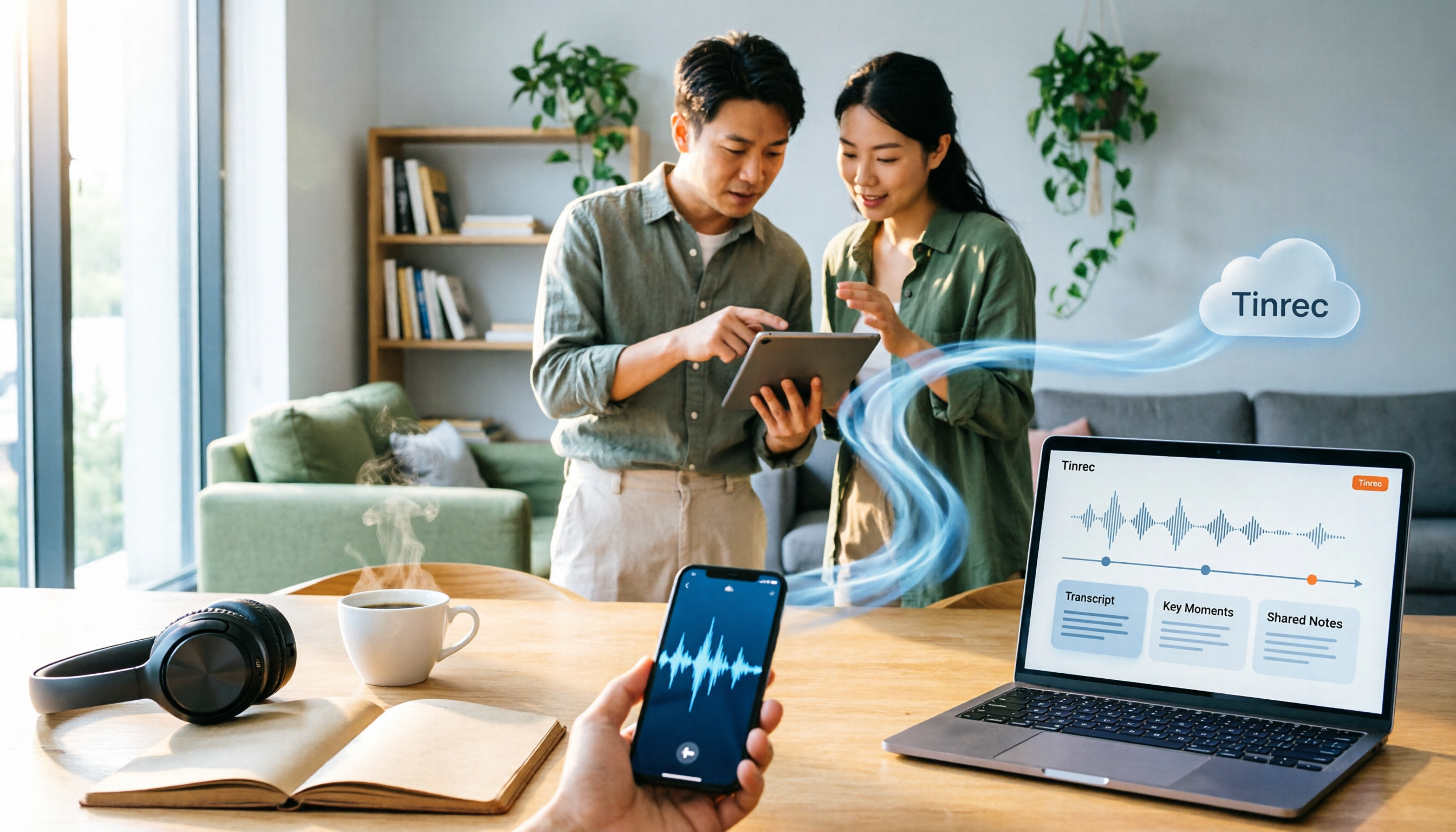
Where are iPhone recordings stored? The answer lies in the Voice Memos app—they won't appear in Photos or Files unless you manually export them. This article first explains three storage scenarios and export steps, then compares Voice Memos, Tinrec, and PLAUD recording hardware across five dimensions: file findability, post-meeting organization, cross-device sharing, online meeting recording, and team collaboration, helping you decide which tool to use after locating your files.

How to Transcribe iPhone Audio to Text in 2026: Built-in Transcripts + AI Meeting Summaries
From iPhone Voice Memos transcripts to post-meeting organization with Tinrec, this guide covers practical steps, version requirements, tool comparisons, and pitfalls—ideal for meetings, interviews, and class recordings.
iPhone Built-in vs External Microphone in 2026: 5-Dimension Comparison — Know Where Your Mics Are Before You Record
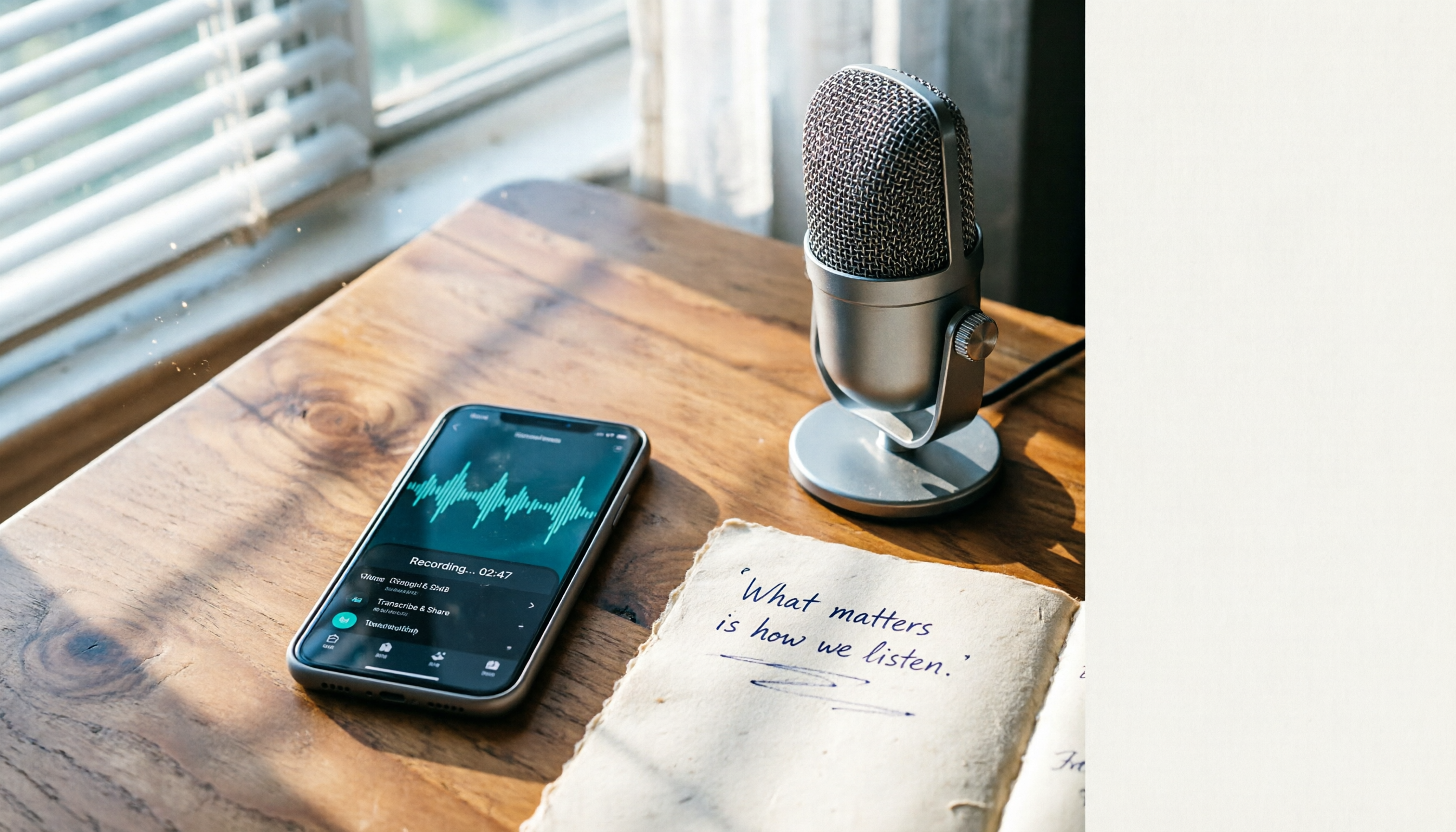
Most people think an iPhone has only one microphone, but the body actually hides 3 to 4 of them, spread across the bottom, the earpiece, and next to the camera. This guide first explains exactly where the iPhone's recording microphones are and what each one does, then compares built-in audio capture, external microphones, and recording-organization tools, and finally uses 5 dimensions to help you choose the recording method that fits you.

5 iPhone Call Recording Methods Tested and Compared for 2026: Where Files Are Saved and Which One Is Enough
Where is the call recording button on iPhone, and where are recordings saved? This article first clarifies the entry point, regional restrictions, and file locations for iOS built-in call recording, then compares 5 recording and organization methods, and explains how Tinrec turns call and meeting recordings into searchable, queryable data that teams can use.

3 Ways to Organize iPhone Recordings in 2026: Where Voice Memos Are Stored and How Tinrec Compares
Where are iPhone recordings stored? First, we explain the file location of Voice Memos and how to export them to the Files app. Then, from a mid-level manager's hands-on perspective, we compare Voice Memos and Tinrec in terms of transcription, AI Q&A, online meeting recording, and team data retention.

iPhone Recording No Sound in 2026: 7 Fixes Tested & Compared — Why You Keep Recording Silence
iPhone recording with no sound doesn't always mean a broken microphone. This guide starts with common misconceptions, helps you distinguish between screen recording, camera recording, playback, and post-upload silence, then walks through microphone switch, Bluetooth, spatial audio, app permissions, and system issues in order, with an FAQ and guidance on when to use a meeting transcription tool.