
Turn recordings into transcripts and summaries in minutes
Upload audio or video for multilingual transcription, AI notes, and action items
Meeting's over, but the file is stuck in the app
After a two-hour meeting, the recorder goes back in your pocket, and the real work begins: the audio needs to go to colleagues, be saved on your computer, and attached to the meeting notes. But when you open the app, you can't find the recording you just made in the list.
Another common scenario: the file plays on your phone, but when you need to organize it, you realize it's only on your phone, and getting it to your computer requires extra effort. Or you hit export only to find out you've already used up this month's transcription quota.
The common thread here isn't a missing download button—it's not understanding three things: where the audio is stored, when syncing is complete, and what your plan covers. Below, we'll clarify the rules first, then give you 5 practical steps, and finally explain alternative approaches if you don't want to go through this every time.
4 key things to understand before downloading recordings
1. The audio starts on the device, not in the cloud. The recorder has built-in storage; recordings are saved on the device first, then synced to the mobile app via Bluetooth. So the first step isn't finding a button—it's confirming the recording appears in the app.
2. Syncing and downloading are two different things. Syncing sends recordings from the device to the app; downloading saves files from the app to your computer or cloud. If syncing isn't done, downloading will be stuck—this is where beginners often get stuck.
3. Rules for downloading audio vs. transcripts and summaries are different. For example, based on the official plan at the time of writing, Starter includes 300 transcription minutes per month; exceeding that requires an upgrade. Downloading the original audio itself is usually not limited by transcription quota, but if you want to export transcripts or AI summaries, you need to check if your plan has enough minutes left.
| Plan | Price (official page at time of writing) | Monthly transcription quota |
|---|---|---|
| Starter | Included with device | 300 minutes |
| Pro | USD 99.99/year | 1,200 minutes |
| Unlimited | USD 239.99/year | See official page |
4. Where you want to take the file. Whether it's for long-term storage, sharing with colleagues, or integrating into existing workflows (documents, cloud drives, note apps) determines which export method to use and whether to process a batch at once.
5 steps to download Plaud recordings
Step 1: Check device status. Charge the device with a USB-C cable and confirm the recorder is paired with your phone. The serial number must match your device; if pairing fails, syncing won't happen.
Step 2: Open the app and confirm the recording appears in the list. Recordings are saved on the device first, then synced to the mobile app via Bluetooth. If you don't see the latest recording in the list, syncing isn't complete—tapping export now won't work.
Step 3: Export the original audio from the mobile app. Select export or share on the recording item, and save the file to local storage or cloud drive. For simple backup or sharing with colleagues, this step is enough.
Step 4: For batch processing, use the desktop app. If you prefer organizing files on your computer, install the Plaud App on your computer, log in with the same account, and export recordings from there. This is much easier than saving one by one on your phone.
Step 5: To include transcripts or AI summaries, check your quota first. Audio downloads are usually not limited by transcription quota, but transcripts and AI summaries consume plan minutes. Check before exporting, so you don't find your quota exhausted when you hit the button.
One last reminder: Before recording, inform the other party and obtain explicit consent—this is not just courtesy but also a legal requirement in many places.
Tinrec (秒聽錄音) — the top choice after testing for those who don't want to go through this every week
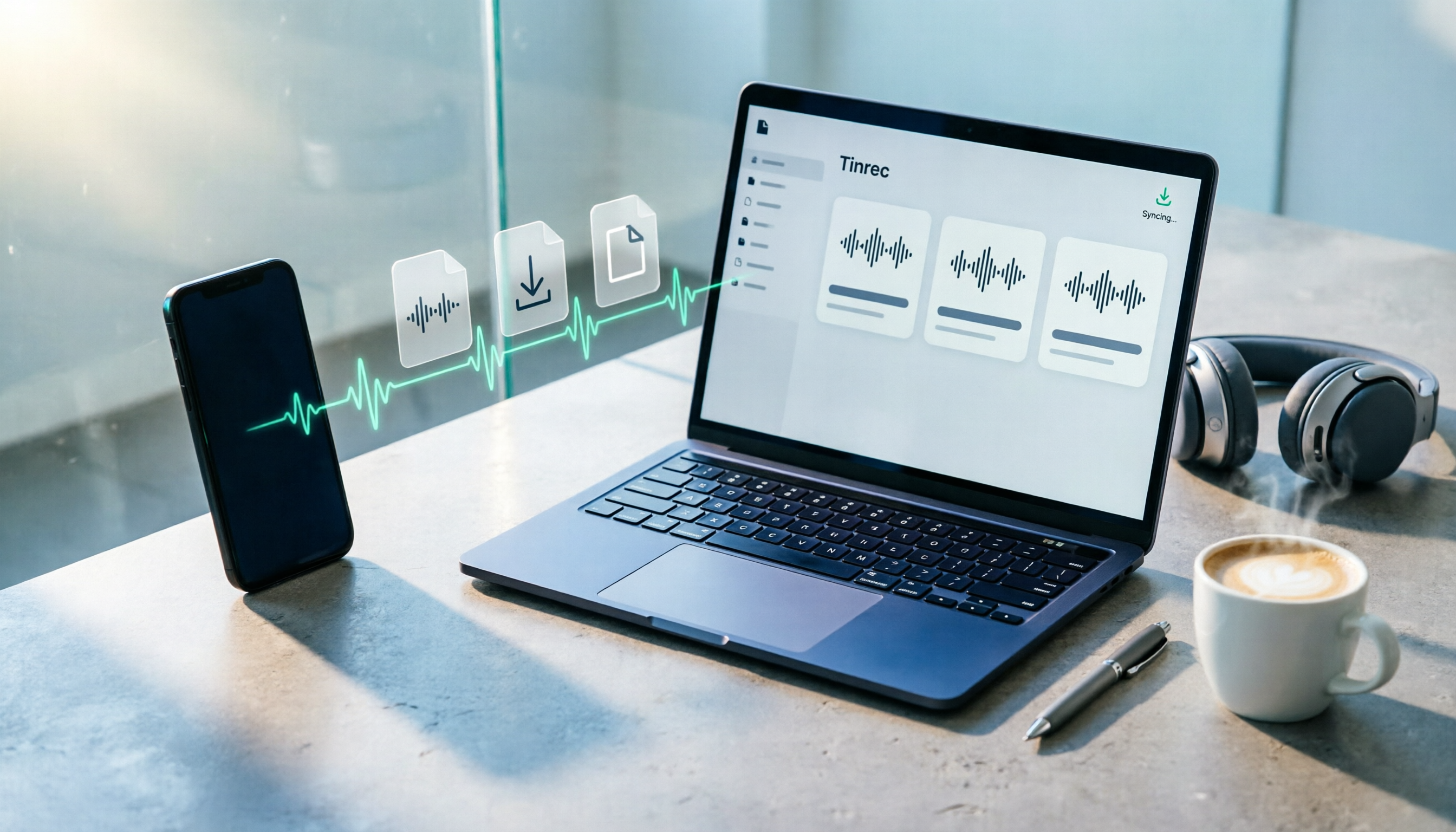
Tinrec (秒聽錄音) is an AI meeting notes and collaboration tool for individuals and teams, available on web, desktop, and mobile. It addresses the "record → sync → download → organize" workflow: instead of moving audio files layer by layer, recordings land where they can be used immediately.
Open Tinrec during a meeting, and it records while generating a transcript. When the meeting ends, summaries, chapters, and action items are ready—who's responsible for what, when to follow up—all visible in the notes without replaying a 40-minute audio. For online meetings, no bot is needed: the desktop version captures system audio directly, handling meetings on Zoom, Google Meet, Microsoft Teams, and Webex without adding an extra account to the participant list.
Stop organizing recordings by hand
Upload audio or video and automatically get a transcript, summary, and action items
When you really need to take things out, Tinrec supports multiple export formats and can send results to Notion, Google Docs, OneNote, Dropbox, and other tools for further processing. Whether you need to deliver transcripts, summaries, or reports and tables, it's all done in one place—no more moving files between app, computer, and cloud drive.
Post-recording queries are where it stands out from typical transcription tools. You can ask "What was decided in this meeting?" or "Who mentioned the budget?" and it finds answers semantically, rather than dumping keywords for you to Ctrl+F. For someone with a dozen meetings a month, this gap grows over time.
Testing conditions: We used a ~5-minute mixed Chinese-English meeting recording (desktop version, indoor environment, no external microphone) through the full workflow, from recording to summary and action items, without manual file transfers. Actual transcription performance varies with recording quality, ambient noise, accents, overlapping speech, and technical terms; for important content, cross-check with transcript timestamps and audio playback. The free version offers basic quota for recording, importing, summaries, and transcription; heavy users can choose weekly, Pro monthly, or annual plans based on actual usage.
For team use, Tinrec for Teams is a separate team space, not multiple people sharing a personal account: meeting data belongs to the team, members can be invited via link, roles include owner, admin, and regular member, and seats can be assigned. Members without seats can still view, play, and read team data, but need a seat to record, upload, edit, or export. Admins can view usage trends, member rankings, and details, and query and export audit logs; when a member leaves or loses a seat, team resources are transferred to other active members and don't disappear with the personal account—this is exactly the hard problem with storing audio on personal devices. Currently, team monthly is USD 29.80/paid seat/month, annual is USD 199/paid seat/year (about USD 16.58/month), each seat includes 2,000 minutes of team shared import quota per month, and real-time recording under active plans is currently not deducted by minutes; prices and benefits are subject to the official purchase page.
Who it's for: If you have meetings or interviews to document every week, need transcripts for Chinese and mixed Chinese-English content, want to use AI to find key points right after recording, or switch between phone and computer, Tinrec is the most aligned option.
Besides Tinrec, what other options are there?
Plaud (Note / Note Pro / NotePin): The hardware representative, strong in portable recording, phone call recording, and long battery life; device prices start around USD 159. Its value is "record without opening your phone," but team sharing, seat allocation, and usage auditing of meeting data are not its focus. If you need a team to collectively build meeting assets, this is where Tinrec clearly wins.
Notta: Good multilingual transcription and translation; free version offers 120 minutes per month with a 3-minute limit per session, suitable for occasional use. But a 3-minute limit per session is of limited help for hour-long meetings; and it lacks Tinrec's desktop workflow for recording online meetings without inviting a bot, by capturing system audio directly.
Otter.ai: A veteran choice for English meetings; free version offers 300 minutes per month, quite generous, annual plan about USD 8.49/user/month. If 90% of your meetings are in English, it's cost-effective. But for Chinese and mixed Chinese-English meetings, and management of technical terms like team hotwords, Tinrec is more aligned.
Pitfall guide: 4 most common mistakes in recording file management
Pitfall 1: Assuming that if you see it in the app, the file is in your hands. Recordings are saved on the device first, then synced to the app, and files in the app are still different from files on your computer. For long-term storage, you must actually perform an export—don't let audio live only on your phone.
Pitfall 2: Treating "download audio" and "download transcript" as the same thing. Audio is usually not limited by transcription quota, but transcripts and AI summaries consume minutes. Many people discover their quota is used up right when they need to submit meeting notes—this delay is the most damaging.
Pitfall 3: Using only one device. Record on phone, listen on phone, save on phone—by the time you need to organize, the screen is too small and files are scattered. If you prefer organizing on a computer, set up the desktop workflow from the start.
Pitfall 4: Storing meeting data in personal accounts but expecting team sharing. Files tied to personal devices and accounts scatter when someone changes roles or leaves. If meeting content is valuable to the team, put it in a team space with seats and permissions from the beginning, rather than remedying later.
Conclusion: Which one should you choose?
In one sentence: If you only occasionally need to save audio, just follow the 5 steps; if you repeat this process every month, switching to another approach is easier than optimizing the workflow.
- Only need to back up original audio, already have hardware → Follow the 5 steps in this article, use the desktop app for batch export first.
- Need Chinese transcript + summary + action items in one go → Tinrec, see results right after recording, no extra organizing.
- Need to record online meetings on computer without adding a bot → Tinrec desktop version, just capture system audio.
- Team needs to share meeting data, needs seat and usage management → Tinrec for Teams, data stays with the team when members change.
- 90% of meetings are in English, zero budget → Otter.ai's free quota is indeed cost-effective; this is one of the few exceptions worth considering.
If your pain point is "having to re-run sync, export, and organize after every meeting," we suggest starting with Tinrec's free version—run two or three meetings with the basic quota to see if transcript and summary quality fits your meeting style, then consider upgrading; no need to pay upfront.
References
- 2026 Plaud Recording Download Guide: 6 Export Methods and Tinrec Alternative Complete Tutorial - 秒聽錄音Blog
- Plaud Taiwan | Official Website | Leading AI Recording Device Brand
- Plaud App Download | Mobile and Desktop
- Plaud Tutorial: From Note Pro Recording, Template Selection to Ask Plaud Queries, How to Make Meeting Notes Easier | TheAI Academy
- Plaud Note │ The Smartest AI Voice Recorder Card │ Automatically Generates Transcripts and Summaries, Built for Phone Calls and Meeting Notes
Turn every recording into actionable outcomes
Get 60 free transcription minutes when you sign in. No credit card required.
Related Reading
You might also like

Tinrec vs Yating Transcription 2026: 5-Dimension Comparison for Hearing Accessibility and Post-Meeting Productivity
For users with hearing loss, the goal isn't just converting speech to text—it's eliminating the need to ask others to repeat and having a searchable record afterward. This article compares Tinrec (Miao Ting Recording) and Yating Transcription across five dimensions: live transcription, post-meeting organization, cross-device online meetings, multilingual support and real-time translation, and team collaboration. It also provides a starter checklist for choosing based on your scenario.

2026 Comparison of 2 Sales Call Recording Tools: Tinrec vs PLAUD Note — Which Better Turns Calls into Action Items?
This article starts from the pain point of organizing key points after sales call recordings, comparing Tinrec and PLAUD Note on recording acquisition, transcription summarization, post-meeting follow-up, team collaboration, and entry cost, to help you decide which is better suited for turning customer calls into actionable data.

2026 Comparison of 3 Thesis Defense Recording Tools: Which One Really Saves Time for Transcripts and Summaries?
After recording your thesis defense, do you spend twice as long re-listening? Based on real needs for thesis defenses, this article breaks down four key purchasing factors: Chinese and mixed Chinese-English recognition, audio file retention, AI Q&A, and quota limits. It compares Tinrec, Notta, Otter.ai, and Granola on defense transcripts, summaries, and post-meeting organization, with common pitfalls and selection advice.
3 AI Transcription Tools Tested in 2026: Vocol.ai Tutorial vs. Tinrec — Which Should You Choose?
Many people search for Vocol.ai tutorials but get stuck when it's time to organize recordings. This article uses Tinrec to demonstrate a complete workflow from recording to transcript, summary, action items, and team archiving, and compares Vocol.ai's positioning and key purchasing considerations to help you find the right AI transcription workflow.

How to Choose a Recording Capsule in 2026: 5 Steps to Understand PLAUD NotePin Reviews and Procurement Value
A clear breakdown of PLAUD NotePin recording capsule reviews: 16g body, 20 hours of continuous recording, 112-language transcription—who it suits and who it doesn't. This article walks you through 5 steps, from needs assessment and key buying points to cost payback, avoiding pitfalls, and final selection. It also compares Tinrec, Otter.ai, and Notta on online meetings, post-meeting organization, and team collaboration, so you can justify your choice in a budget meeting.

Tinrec vs Free Meeting Transcription in 2026: 5-Dimension Comparison, Which Should Students Choose for Meeting Notes?
Starting from common misconceptions students have about meeting audio transcription, this article explains 5 key purchasing considerations: free quota, meeting capture method, Chinese recognition, post-meeting organization, and team data ownership. It also demonstrates Tinrec's actual workflow for classes, group discussions, and interviews.

Tinrec vs Otter.ai in 2026: A 5-Dimension Comparison — Which Is Better for English Content Like 'vocal cord'?
'Vocal cord' in Chinese means '声带' (vocal cords), but most people who look up this term are actually struggling to understand and remember entire English passages. This article starts with the word's meaning, breaks down 4 key factors for choosing an English-to-Chinese content tool, compares Tinrec with Otter.ai, Notta, and TurboScribe through hands-on testing, and summarizes 4 common pitfalls and selection recommendations.

4 AI Voice Recorder Tools Tested and Compared for 2026: Is the NotePin Wearable Recorder Worth Buying?
Plaud NotePin reviews are sharply divided, and the problem is often mismatched expectations. Starting from real recording scenarios, this article breaks down the NotePin's specs, wearing experience, subscription costs, and pain points reported by forum users, then compares it with three different approaches—Tinrec, Notta, and Otter.ai—to help you decide whether you need a piece of hardware or a software workflow.

Can Otter.ai Handle Chinese in 2026? 5 Key Checks and Chinese Meeting Tool Options
Otter.ai's official language list only includes Chinese (Simplified), supporting spoken Mandarin with Simplified Chinese output. Traditional Chinese is not officially supported, and each meeting can only be set to one language. This article uses 5 key points to help you determine if it suits your Chinese meetings, and outlines Chinese meeting tools that work more smoothly in practice, along with pitfalls to avoid.