

Turn recordings into transcripts and summaries in minutes
Upload audio or video for multilingual transcription, AI notes, and action items
How to Record LINE Calls in 2026: 4 Tested Methods + Auto Transcription
"Last semester, during an online interview class, my professor called me on LINE and we talked for 40 minutes. I thought I'd just hit screen record and be set, but when I played it back, it only had my own voice—none of the professor's key points were captured."
If you've fallen into this trap too, here's the bottom line: LINE still doesn't have a built-in call recording feature. It uses VoIP, so both ends of the audio are processed within the app, and the system layer can't access a clean audio stream. That means you have to work around it from outside the system—and the workarounds for iPhone and Android are completely different. That's why so many tutorials online seem to work for only half the people who try them.
Why Your LINE Call Recording Only Captures Half the Conversation: 3 Common Misconceptions
Misconception 1: Thinking screen recording captures everything.
This is the biggest trap. iPhone's screen recording only captures the microphone (your voice), not the other person's audio coming from LINE. On Android, you have to manually select "Internal Audio" in the recording settings—many people don't even notice this option.
Misconception 2: Thinking a call recording app will solve everything.
On iOS, the system doesn't allow third-party apps to access the audio stream during VoIP calls, so almost all iPhone recording apps can't record LINE calls. It's not that the apps are bad—the system blocks it.
Misconception 3: Thinking recording is the end of the process.
The recording file just sits in your gallery, and before finals you won't want to listen to 40 minutes from the start. What makes a recording truly useful is the next step: turning it into searchable text you can scan at a glance.
4 Things to Understand Before You Record
1. Where your call takes place.
If you're talking on LINE for desktop, the solution is completely different from mobile. Desktop call audio comes from the system output, which is actually the easiest to handle.
2. Whether the system can capture the other person's voice.
The test is simple: play back the recording. If it only has your voice, the method doesn't work for you—don't try it a second time.
3. What you'll do with the recording afterward.
If you just want a backup, your phone's built-in tools are enough. But for group meetings, professor interviews, or internship interviews where you need to find key points later, you need a "recording + transcript" combo—otherwise recording is as good as not recording.
4. Legal and courtesy considerations.
Many people overlook this. In some countries or regions, recording a call without consent may be illegal. Always inform the other party and get consent before recording—that's the bare minimum.
Method 1: LINE Desktop + Tinrec Desktop App (My Current Go-To)
Tinrec is a multilingual AI meeting notes tool available on iOS, Android, desktop, and web. I originally used it to record online classes, and later realized its desktop app logic perfectly solves the LINE recording pain point.
It doesn't "hack" LINE—instead, the desktop app directly captures system audio output from your computer, so you don't need to invite any bot to the call or change any settings. As long as your LINE call is on desktop and the audio comes out of your computer, it can be recorded. Actual performance depends on your audio devices and environment, so I recommend doing a 2-minute test call first.
Here's my workflow:
- Open Tinrec desktop app on your computer, select "Record System Audio," and press start.
- Then make or answer the call on LINE desktop as usual.
- As you talk, the transcript appears line by line beside you.
- When the call ends, the AI has already organized the summary, chapters, and action items—who promised to deliver what, when the next discussion is—all at a glance.
- If something is unclear, just ask it directly, e.g., "What format did the professor say the report should be in?" It answers based on the content, so you don't have to scrub through the timeline.
- Finally, export to Google Docs or Notion to turn it into your group's meeting notes.
For LINE calls on mobile, I also use another workaround: upload the recorded audio file to Tinrec to generate a transcript. This works especially well for audio files from Android screen recording—record with a free method first, then organize with the tool.
What I find worthwhile so far:
First, it doesn't just give you a transcript. Summary, chapters, action items, and mind map all come out at once—a huge help for group projects where "no one remembers the conclusions after the meeting." Second, it keeps the original recording so you can always listen back to verify, unlike some tools that only keep text. Third, it's cross-device—record on mobile, organize on desktop, all data in one place.
Limitations I should be honest about:
The free version provides a basic quota, good for trying it out. If you have classes and group meetings every week like me, you'll need to upgrade. Also, transcription quality depends on your recording environment—if the microphone is too far or multiple people talk over each other, it affects accuracy. For important content, always listen back to the recording to verify.
Stop organizing recordings by hand
Upload audio or video and automatically get a transcript, summary, and action items
Who it's for:
Students who often talk on LINE desktop, need post-meeting transcripts and key point summaries, and don't want to buy extra hardware. For a 4-5 person capstone project team, Tinrec also has a Team plan: independent team workspace, roles and seats, and each paid seat gets 2,000 minutes of shared team import quota per month. Pricing is USD 29.80 per paid seat per month, or USD 199 per paid seat per year (about USD 16.58 per month). If eligible, there's a 7-day trial, 1 free seat, and 300 minutes of shared quota. Split among the team, it's not much per person, and it's more efficient than everyone recording and organizing separately. Actual pricing and benefits are subject to the official checkout page.
Method 2: Android Built-in Screen Recording (Free, but Choose the Right Audio Source)
This is the most budget-friendly path for Android users. Here's how: find "Screen Recording" in the quick settings panel, long-press to enter settings, change the audio source to "Internal Audio" or "Media Sounds," then start recording during your LINE call.
The advantage is it's completely free and requires no installation. The downside is it produces a video file that needs to be converted to audio before uploading for organization, and different phone brands use different option names—some even hide "Internal Audio" in a submenu. Always play back 10 seconds after recording to confirm the other person's voice was captured; if not, your model doesn't support it.
Method 3: Speakerphone + Second Phone or Voice Recorder (Most Primitive but Most Reliable)
Put your LINE call on speakerphone on the table, and place another phone or voice recorder nearby to record.
This sounds primitive, but it has an unbeatable advantage: it works regardless of system or phone model—even on iPhone. A classmate in my interview class used this method with two devices and always captured both sides. The downside is audio quality depends on ambient noise—recording in a library or café will sound terrible, so find a quiet space. One practical tip: before recording, say "I'm going to record this call"—which also informs the other party.
Method 4: Two Paths for iPhone Users
Path A: System capture feature.
Recent iOS versions let you add Screen Capture to Control Center; during a call, turn on speakerphone and select "Audio Only." However, in testing it captures your own voice more clearly, while the other person's voice is often too quiet or muffled—record a test segment first to confirm.
Path B: Integrate iPhone calling.
In LINE Settings under "Calls," enable "Integrate iPhone Calling." After the call connects, you can record using Voice Memos. This path has system version requirements, and the interface location changes with each version—I recommend finding it on your phone directly.
Honestly, neither iPhone path is reliable. I ultimately went back to handling it on desktop, which is less hassle.
Besides Tinrec, What Other Tools Are Worth Considering?
I started as a voice recorder person, then gradually switched. Here's the order of what I've actually tried:
PLAUD Note / NotePin: AI recording hardware. NotePin is USD 159, Note Pro is USD 189, plus membership fees. The appeal is clipping it to your phone and recording on the go—it looks cool—but it doesn't solve "LINE calls on desktop," and you have to carry an extra device. Tinrec requires no hardware purchase, captures system audio directly on your computer, and lets you create team workspaces—these are things PLAUD can't replace.
Notta: A mature multilingual transcription tool. Free version: 120 minutes per month, 3 minutes per session. I used it initially for class recordings and thought it was okay, but the 3-minute limit is very restrictive for 40-minute LINE calls. Also, it lacks Tinrec's combination of "bot-free desktop recording + post-meeting AI Q&A"—after recording, you still have to read through the transcript yourself.
Otter.ai: The top choice for English meetings. Free version offers 300 minutes per month, which is quite generous. If your LINE calls are mainly in English and you're the only user, it's more cost-effective than Tinrec—this is the only exception I genuinely recommend in this article. But for Chinese or mixed Chinese-English meetings, the experience isn't as smooth, and it doesn't have a team workspace design for accumulating meeting data.
Pitfall Guide: 4 Most Common Mistakes When Recording LINE Calls
Pitfall 1: Recording an important call without testing first.
This hurts the most. For interviews or other non-repeatable occasions, always do a 2-minute test call the day before to run through the entire process and confirm the other person's voice is captured.
Pitfall 2: Thinking recording the audio is the end.
You won't want to listen to a 40-minute recording a second time. Upload it to a transcription tool the same day and turn it into a transcript and summary. This takes 5 minutes and saves you an entire evening before finals.
Pitfall 3: Ignoring stereo and ambient noise.
Recording with phone speakerphone picks up air conditioning, keyboard sounds, and roommates talking—the transcription error rate will noticeably increase. A quiet space is more important than any tool.
Pitfall 4: Treating AI transcripts as 100% accurate.
Tools can greatly reduce your manual transcription time, but proper nouns, names, and numbers can still be wrong. For important information, go back to the recording and verify at the timestamp—especially things like report submission deadlines.
Conclusion: Which One Should You Choose?
- LINE calls on desktop, need transcript and key points afterward → Tinrec desktop app, records system audio directly, summary and action items all in one.
- Android user, just want to try for free → Built-in screen recording with "Internal Audio," then upload the audio file to Tinrec for transcription.
- iPhone user, need a one-time recording → Speakerphone plus a second phone is the safest bet—don't gamble on screen recording.
- Capstone project team needs shared meeting notes → Tinrec Team plan, with independent workspace, seat management, and shared quota—data doesn't leave with the person.
- Calls are all in English, only you use it → Otter.ai free version with 300 minutes—more cost-effective in this case.
Two final reminders: inform the other party and get consent before recording; and don't let your recording files collect dust in your gallery. The free version has a basic quota to try—run through the process with one class or one group meeting first, and consider upgrading only if it works for you. Students really don't need to pay from the start.
References
Turn every recording into actionable outcomes
Get 60 free transcription minutes when you sign in. No credit card required.
Related Reading
You might also like

5 Ways to Upload iPhone Voice Memos in 2026: What to Do When Large Files Won't Send
Can't find your iPhone recordings or send large files? This hands-on comparison tests five upload methods (Email, AirDrop, iCloud, wired transfer, messaging apps) and their limits. It also shows how to turn recordings into transcripts, summaries, and action items with Tinrec after uploading, including free and team plan details plus six FAQs.
2026 Line-in Voice Recorder Buying Guide: 4 Solutions Tested and Recommended
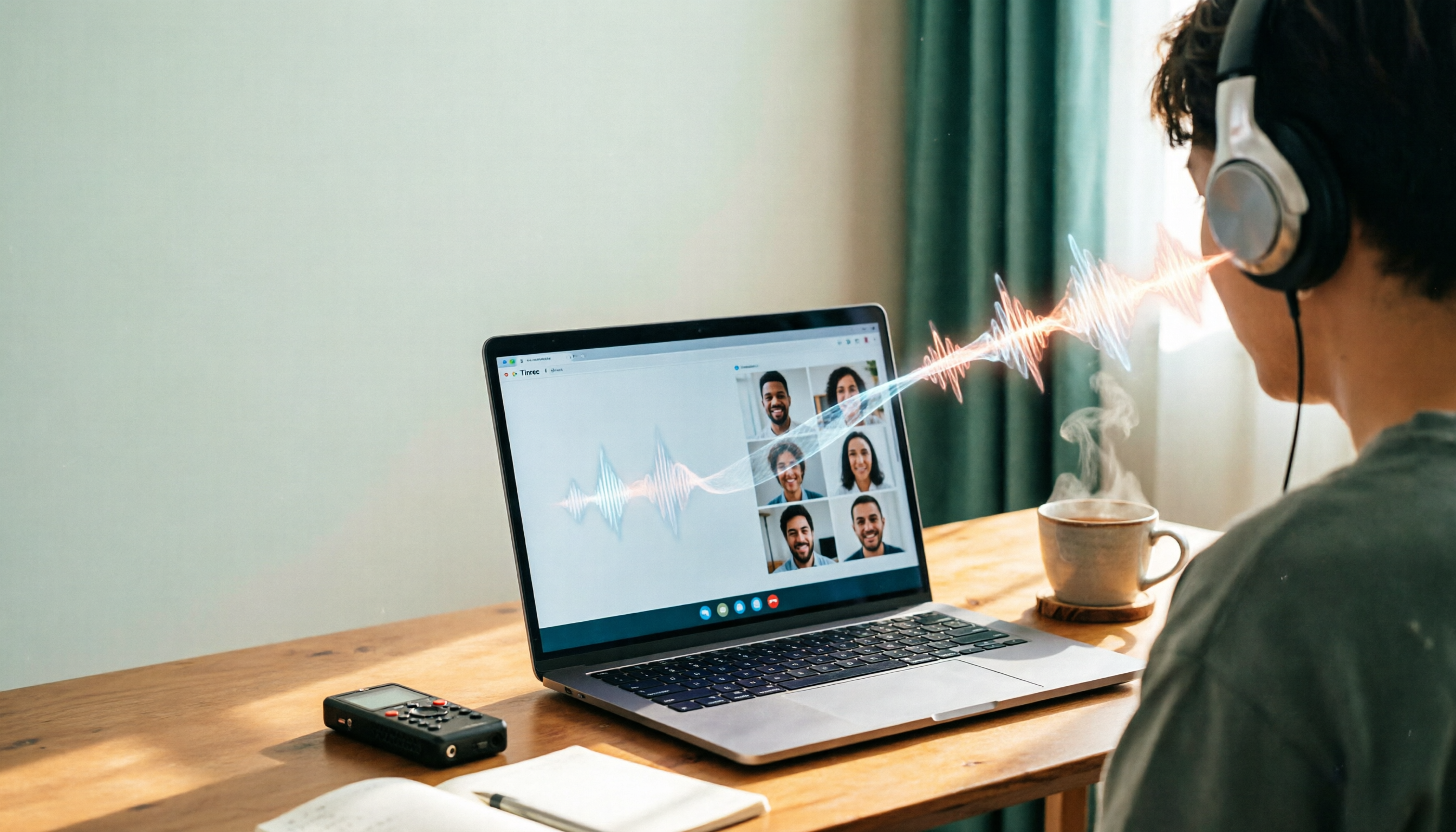
Looking for a Line-in voice recorder? Most people actually want to cleanly record online meetings, courses, or music played from a computer. This guide starts by helping you decide whether you need to record ambient sound or device output, then compares two approaches: Line-in hardware vs. software system audio capture. It tests models like Sony ICD-PX470, ICD-UX570F, INJA, and Tinrec, summarizes 4 key buying factors and 4 common pitfalls, and gives clear recommendations based on use cases.
5 iPhone Recording to MP3 Tools Tested in 2026: Is the Free Version Enough?
iPhone Voice Memos saves recordings as m4a by default, but there are 5 ways to convert to MP3. This hands-on test covers online converters, VLC, Audacity, built-in Mac tools, and Tinrec, comparing free limits, privacy risks, and follow-up organization costs—and tells you when you don't need to convert at all.

4 Ways to Transfer iPhone Recordings in 2026: LINE, Computer, and Transcripts Compared
How do you share an iPhone recording after you finish? This guide starts with the key question—who you're sending it to and what they need—and compares four methods: manual Voice Memos sharing, cloud files, transcription services, and Tinrec. It covers four key decision points: format compatibility, file size, transcript needs, and team retention, plus common pitfalls and scenario-based recommendations.

iPhone Recording Guide 2026: Built-in Features and 3 AI Tools
How do you record audio on iPhone? This guide starts with the key question: do you just need a voice memo, or do you need usable data? It covers Voice Memos recording, renaming, editing, iCloud sync, and Back Tap quick launch, then explains call recording limitations, file management, and when to switch to an AI meeting tool like Tinrec.

2026 LINE Call Recording Guide: 5 Methods Tested and Recommendations
LINE doesn't offer built-in call recording, so users rely on screen recording, third-party apps, hardware recorders, or computer-based recording—each with limitations. This article covers five practical LINE recording methods and explains that the real challenge isn't recording but what to do with the audio afterward. It demonstrates how Tinrec turns recordings into transcripts, summaries, action items, and searchable team meeting notes.

5 Ways to Edit iPhone Voice Recordings in 2026: Trim, Cut Middle, or AI Highlights?
How do you edit iPhone voice recordings? This article compares Voice Memos built-in trimming, GarageBand, Audacity, recording hardware, and AI meeting note tools, explaining which can trim ends, which can cut middle sections, and how to save time if your goal is to extract key points instead of shuffling files and fast-forwarding.

iPhone Built-in Voice Memos vs Tinrec in 2026: 5-Dimension Comparison — Which Is Better for Transcripts?
Three common pitfalls when transcribing iPhone recordings: thinking you have to pay, assuming built-in is enough, and losing files. This guide breaks down the complete workflow—recording, transcription, proofreading, meeting minutes, and export—in 5 steps, and compares iPhone's built-in Voice Memos with Tinrec across 5 dimensions to help you decide when built-in suffices and when to switch tools.

5 LINE Recording Apps Tested for 2026: Which One Turns Calls into Transcripts and To-Dos?
LINE doesn't have built-in recording, and Android and iOS restrictions have broken many call recording apps. This article covers 5 common LINE recording methods and shows how Tinrec turns call audio into transcripts, summaries, and to-dos—solving the pain of re-listening. Includes buying tips, personal vs. team plan differences, and FAQs.