
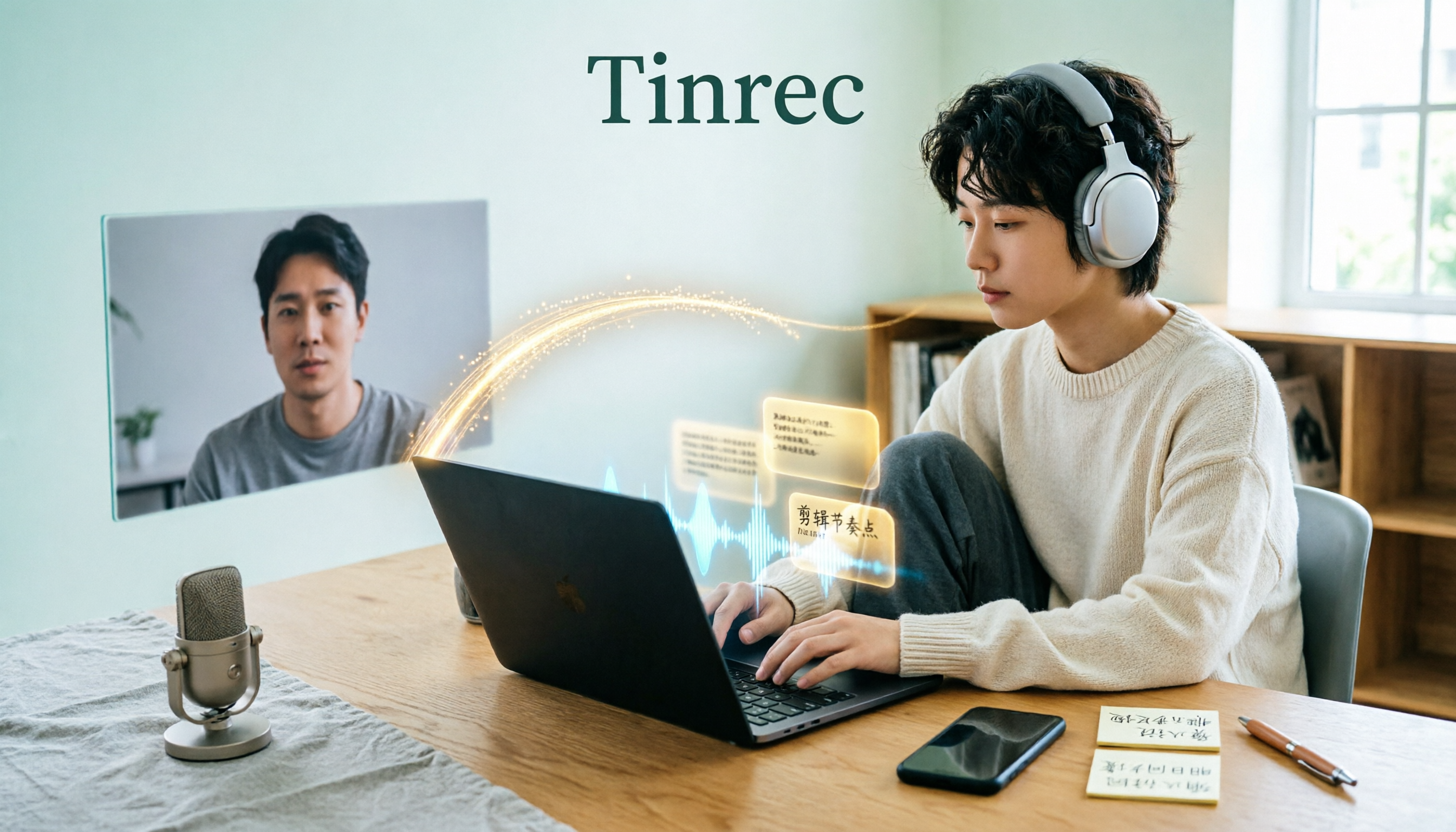
Turn recordings into transcripts and summaries in minutes
Upload audio or video for multilingual transcription, AI notes, and action items
Last week, while I was organizing an interview recording—headphones on, dragging the timeline back for the third time—a friend next to me asked:
"Isn't there Notta? Just press a button and the recording turns into text, right?"
I guess that's why most people search for a Notta tutorial. They've heard of the tool and know it can transcribe audio, but when they actually open the website, they get stuck at the first step: should I record live or upload a file? And after transcription, what do I do with that huge block of text?
My experience is that most people don't fail to use Notta—they mistake the "tool" for the "workflow."
Recording-to-text is never a single action; it's a process: capture, transcribe, proofread, summarize, export. Notta covers some of these stages, and Tinrec (Miaoting Recording) covers others. The difference lies in how smoothly each stage works for you.
In this article, I'll use Notta as a starting point and break down the five steps. Along the way, I'll compare it with Tinrec, which I currently use as my main tool, so you can see how the same task is handled differently and decide which approach suits you.
Before You Start: What You Need to Prepare
- A piece of content to process: a meeting, a class, or an interview. Beginners should start with a short 10- to 20-minute file for practice.
- An account. Both Notta and Tinrec support quick sign-up with Google or Apple accounts, and you can start right from the web version.
- A stable internet connection. Live transcription requires a connection; if you're uploading a file for later processing, wait for the upload to finish before leaving the page.
- Decide what output you want first. Is it a searchable transcript? A meeting summary for your boss? Or key points to put into your note-taking system? This will determine how you handle the later steps.
(Illustrative image: A cup of coffee on a desk, a laptop open to a transcription page, and a phone nearby—showing a typical scene of someone organizing an interview at home)
Step 1: First, Decide—Live Recording or Post-Processing?
Notta's entry page offers several options: record audio, import file, live meeting transcription, and record video. These four actually represent two logics—one is "content still happening" (live meetings, lectures), and the other is "content already exists" (recordings given to you, podcasts, online videos).
Why make this distinction first? Because the costs differ. Live recording gives you only one chance; if the audio quality is poor, there's no saving it. Post-processing a file lets you transcribe a short segment first to check quality before running the whole thing.
My own habit is: record live whenever possible, treat transcription as something done "along the way," and save yourself a second round of work later.
Tinrec's approach at this stage is to centralize entry around the record button: record directly on mobile, or on desktop capture system audio to handle online meetings like Zoom, Google Meet, Microsoft Teams, and Webex—without needing a separate meeting bot to join. For those who dislike having an extra bot account in meetings, this is a noticeable advantage.
(Illustrative image: A person sitting in a meeting room, phone placed in the center of the table recording, with transcript text appearing synchronously on the screen)
Step 2: Turn Audio into Text
In Notta, after choosing an entry point, you upload or start recording, and the system converts speech to text while keeping the timeline synced with the recording. Once recording or uploading is done, you get a transcript with time codes.
There's a point few people mention about this step: don't aim for zero errors from the start.
AI transcription will always have errors, especially with names, company names, product codes, and mixed-language sentences. Rather than listening and correcting line by line from top to bottom, let it finish first, then proofread using the next step.
Tinrec's corresponding approach is to transcribe while recording, so you can see text settling in as the meeting progresses; for existing files, you can upload audio or video directly for transcription. For cross-language situations, you can switch between original text, translation, or bilingual display during recording.
(Illustrative image: A computer screen showing an audio waveform alongside a transcript column on the right, with time codes scrolling down section by section)
Step 3: Proofread the Transcript—Only Fix What Really Matters
My own proofreading order is like this:
First round: look only at proper nouns. Correct names, titles, product names, and numbers; skip the rest for now.
Second round: look only at decision sentences. Things like "So we decided..." or "Let's discuss this next time"—these form the skeleton for writing the summary later.
Third round: leave the remaining typos as they are.
Why? Because the purpose of a transcript is to let you find and quote information, not to be a publication. Spending time making every sentence perfect is the least cost-effective investment.
Notta's transcript can be edited directly on screen, which is convenient for proofreading. Tinrec also keeps time codes, and for important content, I recommend listening back to the original audio to verify—AI can greatly reduce the cost of manual typing, but don't treat the transcript as a 100% accurate record.
(Illustrative image: A line highlighted in the transcript view, with the playback cursor stopped at the same time point on the right)
Stop organizing recordings by hand
Upload audio or video and automatically get a transcript, summary, and action items
Step 4: Let AI Generate Summaries and Action Items
This is where these tools truly differentiate themselves, and also why many people only use 30% of the features—they only take the transcript and not the summary.
A 40-minute meeting might produce a transcript of 7,000 to 8,000 words. What actually gets used are those ten lines of summary and five action items.
In Notta, you can use AI summary to quickly grasp the key discussion points. Tinrec goes a bit further at this step: besides summaries, it also breaks content into chapters, extracts key points and action items, and afterward you can continue asking questions about the meeting—for example, "Where did the client express concerns about pricing?" or "Were the commitments from the last meeting followed up this time?"
My advice: after the summary is generated, read it yourself first, fix what's wrong, and then move on. Don't send AI summaries directly to your boss—that's a risk to yourself.
(Illustrative image: A meeting summary page with three to five key points at the top and an action item list below, each with a small checkbox in front)
Step 5: Export and Share—Get the Content Out of the Tool
This last step is the least discussed, but it determines whether the whole workflow has value.
If the transcript stays only in the tool, it's just a file "for a rainy day." The truly useful approach is to send it to where you normally open things—note-taking software, shared documents, project management tools.
Notta lets you share transcripts with team members and also offers features like Showcase that turn content into shareable videos, suitable for teaching or external communication. Tinrec takes the "continue processing" route: multi-format export to Notion, Google Docs, OneNote, Dropbox, and post-processing with Agent to turn meeting content into reports, tables, or documents.
If your team uses it, the difference at this step becomes more obvious. Tinrec's team version stores data in a team space where members can share and view, and administrators manage seats, usage, and activity logs. This means when someone leaves, meeting data doesn't disappear with their account.
(Illustrative image: A transcript exported as a document appearing in a team shared folder, with other members' avatars nearby)
Common Questions and Troubleshooting
Q: There are many typos in the transcription. What should I do?
First check your audio capture. Too much distance, multiple people speaking at once, or loud air conditioning can significantly degrade transcription quality. Rather than fixing afterward, place your phone closer next time you record.
Q: Mixed Chinese-English content transcribes poorly?
This is a common weakness of most tools. My approach is to tell participants before recording, "We'll mention some English product names today," and then compile these terms into a list. Tinrec has a team hotword feature that lets you maintain commonly used terms so recognition better matches your actual language.
Q: Is the free version enough?
Notta's official current terms are 120 minutes per month for the free version, with a maximum of 3 minutes per item; Tinrec's free version offers a basic quota, suitable for trying one or two meetings first. Actual terms are subject to each official page.
Q: Do I need consent to record meetings?
Yes. Recording and transcription involve local regulations and participants' rights. For formal occasions, it's advisable to inform participants and obtain consent first.
Advanced Tips: Three Ways to Make This Workflow Easier
- Use cross-meeting questions instead of re-listening to recordings.
Rather than digging through file explorer to find a meeting from three months ago and re-listening, just ask a question. Tinrec supports continued questioning about meeting content—this is the most noticeable time-saver, especially when you only remember "someone seemed to mention a cost issue."
- Make bilingual transcripts standard for cross-language meetings.
When meeting with overseas teams, real-time translation and bilingual display let you avoid waiting for post-meeting translation. Tinrec can switch between original text, translation, or bilingual view during recording, and output directly afterward.
- Someone needs to maintain the team glossary.
This sounds trivial, but it directly affects recognition experience. Product codes, client abbreviations, internal project names—if these terms aren't maintained, they'll be wrong every time. Tinrec's team version manages hotwords at the team level, so they persist even when people change.
Beyond Notta: Other Options
Notta's strengths are multilingual transcription, file import, and translation, plus video/audio applications like Showcase—making it handy for students, content creators, and those processing large numbers of files. Current official terms are Pro annual billing at about USD 8.17/month for 1,800 minutes per month; Business annual billing at about USD 16.67/seat/month, including unlimited transcription, role permissions, and usage reports. Actual prices are subject to the official pricing page.
If you care more about "not wanting an extra bot in online meetings" and "continuing to ask questions after the meeting, and consolidating into team data," then Tinrec's approach may fit better—desktop captures system audio directly, post-meeting AI Q&A and action items, and the team version offers seat and usage management. Its team plan is currently USD 29.80/month per paid seat, or USD 199/year per paid seat, with each paid seat providing 2,000 minutes of team shared import quota per month. Actual prices are subject to the official purchase page.
If you just need to transcribe very long documents in one go and occasionally create subtitles, file-transcription-focused tools like TurboScribe are also worth a look.
Conclusion: Process First, Tools Second
Back to the original question: How do you use Notta?
The answer isn't "which button to click," but rather establishing a workflow first—decide live recording or post-processing, let AI transcribe, proofread only important sections, generate summaries and action items, and finally send it to where it will be opened.
Tools change, but the workflow can stay. This is my deepest realization over the years: what truly improves efficiency is never which app, but whether you're willing to break a repetitive task into fixed steps.
If you want to run through this workflow, here's how to start:
- Pick a 15-minute recording—a meeting, class, or interview will do
- Upload or record live to get a transcript
- Fix only proper nouns and decision sentences
- Generate summary and action items, read through and revise
- Export to where you normally work
- Repeat for the next meeting
Test step by step, and you'll gradually master this method.
References
Turn every recording into actionable outcomes
Get 60 free transcription minutes when you sign in. No credit card required.
Related Reading
You might also like
Free Vocal Remover Tools in 2026: A Buying Guide to 4 Options and Selection Tips
Want to remove vocals and keep only the instrumental? You don't need to install editing software first. This article covers four options: Notta Online Vocal Remover, Ultimate Vocal Remover, online Vocal Remover tools, and Tinrec. It explains format support, the 20-minute limit, free quotas, and practical limitations, with selection advice for practice singing, video scoring, interviews, and meeting notes.

Notta Sin Foods Review 2026: Sugar-Free Spread, Millet Snacks & Breakfast Cereal Compared
Notta Sin Foods review roundup: This Indian brand uses monk fruit and stevia instead of sugar to make palm oil-free chocolate almond spread, millet snacks, and breakfast cereals. We break down the specs, retailer ratings, and prices of three main products, plus four common pitfalls to watch out for before buying.

Tinrec vs Vocol.ai in 2026: 5-Dimension Comparison — Which Is Better for Chinese Meeting Notes?
Starting from a Dcard review of Vocol.ai, this comparison evaluates Tinrec and Vocol.ai across 5 dimensions: meeting capture, post-meeting organization, input sources, team governance, and pricing. It helps you decide which tool is better suited for Chinese meeting notes and team knowledge retention.

2026 Vocol Gubin Job Guide: 3 Meeting Recording Tools Tested – How to Choose for Interview Prep
What position does 'Vocol Gubin praca' refer to? This guide compiles public information about an office administrative job at a Gubin, Poland office (fixed-term contract, full-time, 40 hours/week, gross salary from 4,666 PLN). It also compares Tinrec, Otter.ai, Notta, and Granola from the perspective of a job seeker preparing for online and cross-language interviews and organizing notes afterward, highlighting differences and limitations, with a pitfalls guide and selection advice.

5 AI Meeting Transcription Tools Tested for 2026: How to Choose If You Searched 'vocol bv'
Searching for 'vocol bv' often leads to a Dutch vehicle body manufacturer, but many people are actually looking for a meeting recording-to-text tool. This article first clarifies what vocol bv is, then addresses real pain points in meeting documentation, outlines 5 key selection criteria, tests Tinrec's complete workflow, briefly reviews Otter.ai, Notta, and Granola's differences and limitations, and finally provides scenario-based recommendations.
VOCOL Gubin Company Data Verification: How to Cross-Check NIP, KRS, and REGON
People searching for 'vocol gubin' likely want to verify the legitimacy of this Polish company. This article compiles the NIP, KRS, REGON, registered address, and business scope of VOCOL Sp. z o.o., explains what each of the four registration fields represents, and lists official verification channels and four common pitfalls so you can double-check before making a payment or signing a contract.

What Is Notta in 2026? Features Explained + Meeting Notes Walkthrough with Tinrec
What is the Notta app? This guide first clarifies Notta's positioning, core features, and free vs. paid differences using official and third-party sources. Then it demonstrates the same meeting notes workflow in 5 steps using Tinrec: recording, transcription, proofreading, generating summaries and action items, and exporting for team knowledge. It also covers FAQs and advanced tips.

2026 Notta Bot Guide: How Automated Meeting Notes Work & Tinrec Alternative
What is Notta Bot? How does it automatically join meetings and transcribe? This guide addresses real-world pain points, explains the limitations of the bot model, and shows how Tinrec's bot-free desktop recording delivers transcripts, summaries, and action items.

VOCOL GmbH Kevelaer Guide 2026: Address, Products & Contact Info at a Glance
VOCOL GmbH is a manufacturer of tank semi-trailers and tank containers based in Kevelaer, Germany. This guide compiles information from the official website and German public records to help you verify the company address, phone number, registration details, product range, key ADR/EN certifications, and four things to clarify before contacting them for a quote.