
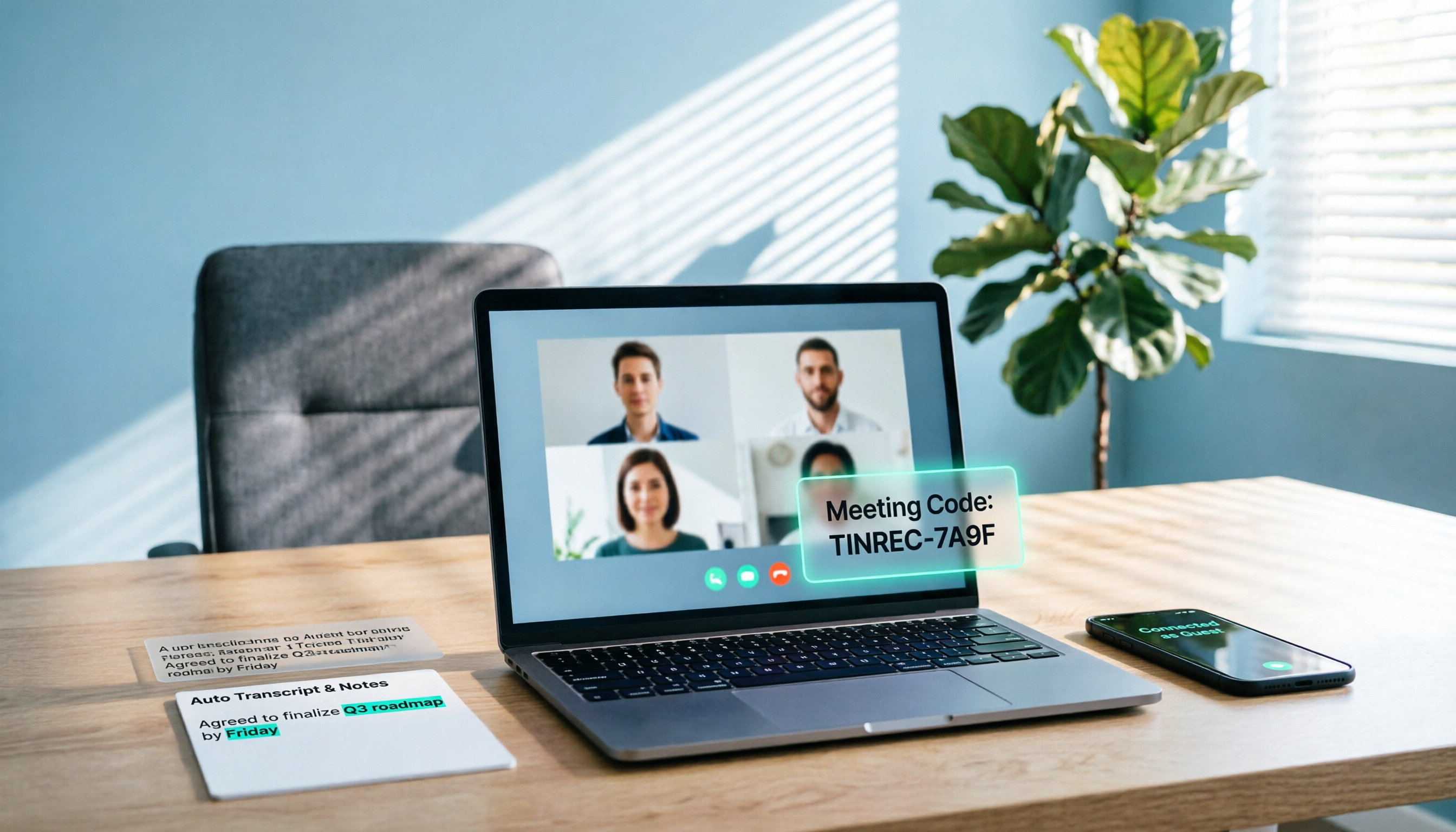
Turn recordings into transcripts and summaries in minutes
Upload audio or video for multilingual transcription, AI notes, and action items
Someone sends you a meeting link, you click it, and the screen stops at "Sign in to Google." The interviewer is waiting online while you're stuck on the login page; the first session of an online course requires you to enter the meeting room, but you don't have a Gmail account; a client suddenly switches to Google Meet, and you only have a work email. These aren't exaggerated scenarios—they happen every day.
The pain points of joining Google Meet without an account actually come down to three things
The first scenario is "being pulled into a meeting last minute." The other party just sends a link with no explanation or agenda. You click in and discover you need to sign in, then you have to knock and wait for the host to admit you, standing outside the meeting room the whole time.
The second is a "one-time meeting." An interview, a lecture, a parent-teacher conference, a client interview—something you might do only once in your life. Registering a Google account just for that means those credentials will sit there forever.
The third is the trickiest: "You can get in, but nothing is retained." The meeting goes smoothly, but the key points stay only in your memory—no transcript, no action items. When you need to recall who promised what afterward, you can only rely on impressions.
Whether you can get in smoothly actually depends on three things: whether the host has enabled guest access, what kind of entry information you have, and what device you're using. Once you understand these three, joining without an account is simpler than you think; and for the recording issue after you get in, there are corresponding solutions.
Before joining Google Meet without a Google account, understand these 4 key points
1. Whether the host's organization allows guests. This is a prerequisite many people overlook. Google Workspace administrators can disable "Allow meeting guests" entirely at the domain level. Once disabled, you can't get in even with a link. In other words, whether account-free access works is partly out of your control.
2. Whether you have a link, a meeting code, or a calendar invitation. These three types of entry information vary in difficulty. A link is fastest; a code must be pasted in yourself; a calendar invitation means you're already on the list and is usually the smoothest. If the other party only gives you a string of code, remember to check for missing characters.
3. Whether you use a browser or a mobile app. Since 2024, Google has gradually enabled mobile devices to join meetings as guests without signing in to a personal or work account. But in practice, some users still report that certain Android versions require sign-in—a typical "version difference." In such cases, switching to a browser usually works.
4. Whether you need to retain the content after joining. This is the most commonly overlooked point. If you're just attending, the need is low; but if you need to organize notes, write records, or follow up on action items after the meeting, then "how you join" and "how you record" need to be planned together.
Comparison of 4 account-free joining methods: Which is least likely to get stuck?
| Joining method | What you need to prepare | Suitable devices | Biggest obstacle |
|---|---|---|---|
| Paste meeting link (browser guest) | Meeting link from host | Computer, mobile browser | Requires host or co-host to admit |
| Enter meeting code | 10-character code | Browser | Typo in code means meeting not found |
| Join from calendar invitation | Already received invitation | Device with calendar signed in | No invitation means no access |
| Mobile app guest join | Newer version of Meet app | iOS, Android | Version and device policies vary; may require sign-in |
Method 1: Paste the meeting link and join as a guest in a browser (most recommended)
The steps are simple: open Chrome, Edge, or Safari and paste the meeting link; you'll be asked to enter a display name—use your real name; click "Ask to join" (the so-called "knock"); wait for the host or co-host to admit you; finally, allow microphone and camera permissions. Allow two or three minutes the first time—don't test at the moment the meeting starts.
Method 2: Join with a meeting code
Go to the Meet homepage, paste the code you received into the input box, and click Join. The rest of the process is the same as Method 1. This method suits situations where the other party only gave a code, not a full link. The downside is that one typo prevents entry, and host admission is still required.
Method 3: Click in from a calendar invitation
If you're already on the invitation list, entering directly from the link in the invitation email is the easiest and less likely to be blocked. In this case, the host usually already knows you'll attend.
Method 4: Join as a guest via mobile app
Google has gradually enabled mobile devices to join meetings without signing in, which is convenient for joining on the go. But if the app keeps asking you to sign in, don't waste time there—open your mobile browser and use Method 1 for a higher success rate.
After you get in, how do you retain the meeting content? Tinrec is the most practical choice
Joining without an account solves "getting in," but not "retaining." In most cases, whether a meeting is recorded and whether it can be recorded is decided by the host or their organization; guests may not have control. If you need your own usable record of the meeting, the more reliable approach is to handle it on your own computer.
Tinrec is an AI meeting notes and collaboration tool for individuals and teams, available on desktop, web, and mobile. Its core value isn't just "turning audio into text"—it's organizing meetings into searchable, summarizable, queryable, and exportable data.
Stop organizing recordings by hand
Upload audio or video and automatically get a transcript, summary, and action items
Record online meetings without a bot. Tinrec's desktop version directly captures your computer's system audio, handling meeting audio played on your computer from platforms like Zoom, Google Meet, Microsoft Teams, and Webex—no need to invite an extra meeting bot into the room. For people who "are just a guest and can't change meeting settings," this is especially practical: you can start recording on your end without waiting for the host to grant permission.
After the meeting, the transcript and action items are already there. A transcript is generated in real time while recording; after the meeting, summaries, chapters, and key points are automatically organized, and action items are extracted from the discussion. This is where weekly project meetings benefit most: who's responsible for what and when it's due—no need to re-listen to an hour of recording afterward.
You can even ask it questions after recording. This is where Tinrec stands out from most pure transcription tools. You can ask questions directly about the meeting content, such as "Who mentioned the budget in the last meeting?" or "Which proposal did the client have concerns about?" You get answers based on the content, not a pile of keywords to search through yourself. When you need to bring it into other workflows, you can export to document formats or send to Notion, Google Docs, OneNote, Dropbox, and other tools for further processing.
Limitations should also be clear. The free version is a basic quota suitable for light use; heavy meeting users need to look at plans. For short-term intensive use, a weekly card may be considered; for long-term data accumulation, an annual card is more cost-effective. Actual prices and benefits are subject to the official purchase page. In addition, transcription and summary quality can be affected by recording quality, noise, accents, overlapping speakers, and technical terminology. For important content, it's recommended to cross-check with transcript timestamps and recording playback; don't rely solely on AI output. If your needs involve multi-member sharing of meeting data, managing seats, and viewing usage, you'll need to look further at the team version—this is not a necessity for individual users.
Who it's for. If you frequently hold online meetings, need transcripts and action items immediately after, and want data centrally stored and queryable, Tinrec will save you a lot of time compared to "re-listening to the recording after the meeting." It also covers Chinese and multilingual meeting scenarios, supports real-time translation and bilingual viewing, and is especially useful for mixed Chinese-English meetings.
Besides Tinrec, what other post-meeting organization options are there?
Google Meet built-in meeting notes. If you use a Workspace account provided by your company or school, the host may be able to enable meeting transcription and notes—the least effort since no extra tool is needed. But it's tied to the organization and version of that meeting; it can't connect across Zoom or Teams meetings, and you can't continuously query historical meetings in the same database.
Otter.ai. A mature English business meeting assistant. Basic is free for 300 minutes per month; Pro annual billing is about USD 8.49 per user per month, focusing on English meeting summaries and team collaboration. It recently also offers desktop capabilities, not just a meeting bot. If your meetings are almost entirely in English and your team uses it, it's a reasonable choice; but if you need Chinese meeting transcripts, post-meeting AI queries, and centralized storage of meeting audio in your own space, Tinrec's setup is more fitting.
Notta. Good multilingual transcription and translation. Free version offers 120 minutes per month with a 3-minute limit per item; Pro annual billing is about USD 8.17 per month. It overlaps significantly with Tinrec; the difference is that Tinrec emphasizes desktop bot-free recording of online meetings and governance capabilities like team spaces, roles, and seats.
Pitfall guide: The 4 most common mistakes when joining Google Meet without an account
Pitfall 1: Assuming "a link guarantees entry." The meeting organization's administrator can disable guest access, in which case clicking won't help. The right approach is to confirm with the other party in advance: "Can external guests join?" Don't discover you're blocked two minutes before the meeting starts.
Pitfall 2: Fighting the login screen in the mobile app. Different versions behave differently. When the app asks you to sign in, switching to a browser usually solves it within five minutes—much faster than reinstalling there.
Pitfall 3: Entering with a strange nickname. You're knocking via "Ask to join"; if the host sees an unfamiliar name, their willingness to admit you is naturally lower. Use your real name and join a few minutes early—that's the most practical courtesy.
Pitfall 4: Assuming getting in means you can record. Meeting recording is usually decided by the host; guests may not have the option. When you need your own copy, rather than looking for a button in the meeting room, prepare recording and transcription tools on your computer in advance. Also note that recording involves personal data and local regulations—always obtain consent from participants first.
Summary: Which method should you choose based on your situation?
- Just need to attend a meeting without a Google account → Paste the meeting link in a browser, enter your real name, and knock early to wait for admission.
- On the go with only a phone → Try the Meet app's guest join first; if asked to sign in, switch to the mobile browser.
- Need transcripts, summaries, and action items after the meeting → Use Tinrec desktop to record meeting audio without inviting a bot into the meeting.
- Want to ask follow-up questions after recording and bring content into Notion or Google Docs → Tinrec's AI Q&A and multi-format export are a relatively complete combination among similar tools.
- Meetings entirely in English and team already uses Otter.ai → Stick with Otter.ai; at least the free quota is enough for light users.
- Main need is converting existing audio files to subtitles → File-processing-focused tools like Notta are more suitable.
Joining Google Meet without a Google account has long been technically feasible; the real difference is whether you've thought through "how to enter" and "how to record afterward" together. The former determines whether you can sit at the meeting table; the latter determines how much value remains after the meeting ends.
Data references
- Google Workspace Updates: Mobile devices can join meetings as guests without a Google account (https://workspaceupdates.googleblog.com/2024/01/join-a-meeting-without-a-google-account-on-mobile.html)
- Google Meet Help Community: How to join Meet without a Google account (https://support.google.com/meet/thread/336443552/how-to-join-meet-without-google-account?hl=en)
- Cloudfresh: 7 ways to access Google Meet (https://cloudfresh.com/en/blog/7-ways-to-access-google-meet/)
- Tinrec official product and pricing information (features, plans, and team version benefits are subject to the official purchase page)
Reference sources
- Google Workspace Updates: Join meetings as a guest without a Google account on mobile devices
- How to join meet without google account - Google Meet Community
- Can people without google accounts join my personal account meeting? - Google Meet Community
- Google Meet Hacks: How to Join a Meeting | Cloudfresh
- 4 Ways to Join Google Meet Without a Google Account in 2026: Quick Access Without Gmail - Official Tinrec Blog
Turn every recording into actionable outcomes
Get 60 free transcription minutes when you sign in. No credit card required.
Related Reading
You might also like

Google Meet Recording in 2026: 3 Methods Tested — Transcripts, AI Summaries, or Team Knowledge?
Google Meet is a mature video conferencing tool, but the real pain point is what happens after the meeting: re-listening to recordings, typing transcripts, and organizing action items. This article compares three meeting documentation approaches from the perspective of a busy professional, and shows how Tinrec's no-bot desktop recording, live transcription, AI summaries, and team spaces turn Google Meet sessions into searchable, queryable, and actionable data.

Google Meet vs FaceTime in 2026: Which Is Better? 5 Steps to Choose the Right Video Meeting Tool
The answer to Google Meet vs FaceTime depends on who you're meeting with. But what really causes overtime isn't call quality—it's that no one organizes notes after the meeting. This article uses 5 steps to guide you from cross-platform calling to post-meeting knowledge capture, and demonstrates with Tinrec how to turn meetings into searchable, queryable, and transferable team data.

Google Meet Subscriptions in 2026: Comparing 3 Routes — Personal vs. Team Plans and How to Buy Without Wasting Money
You can't buy a standalone Google Meet subscription. What you're really choosing is one of three routes: the free version, a Google One plan, or Google Workspace. This guide compares account types, plan verification, seat management, and post-meeting data organization so you can confirm what you're actually buying before you hit pay.

3 Ways to Share Screen with Audio on Google Meet in 2026: Tab, Window, or Phone
Sharing your screen in Google Meet but getting no sound? This guide compares 3 methods for sharing audio: Chrome tab, entire screen or window, and Android app. Includes step-by-step instructions, permission settings, and 4 common mistakes. Plus, learn how to use Tinrec to turn meetings into searchable records.

5 Ways to Create a Google Meet Link in 2026: Tested and Compared — Which Is Fastest and Won't Fail on You?
There are actually 5 ways to create a Google Meet link, each suited to a different scenario. Drawing from my own real-world mistakes, this guide walks through meet.new, the Meet homepage, Google Calendar, the mobile app, and copying during a meeting — explaining how and when to use each. Then it covers what to do after the link is created: how to capture the meeting content and turn it into reusable team knowledge.
3 Ways to Join Google Meet Without Login in 2026: Which Gets You Into the Meeting Room Fastest?
Can you join Google Meet without a Google account? This article breaks down the differences and limitations of three no-login methods: guest knocking via mobile app, opening a link in a browser, and host setting access to "Open." It also explains how to use Tinrec after joining to capture meeting content and turn it into searchable, queryable, and transferable meeting data.

Google Meet vs Zoom 2026: Real-World Comparison — Which Free Version Is Enough, and Which Saves Time on Meeting Notes?
Your company uses Google Workspace, but clients keep sending Zoom links — which one should you choose? This article compares Google Meet and Zoom across six dimensions: free version limits, workflow integration, advanced meeting features, recording and post-meeting materials, education and webinar scenarios, and paid costs. It also explains how to unify meeting notes if you have to use both platforms.

2026 Google Meet Note-Taking Tools Compared: 4 Options That Auto-Generate Action Items Without a Bot
Starting a Google Meet is easy—the hard part is what happens after the call. This guide walks through Google Meet basics (starting a meeting, joining with a code, scheduling via Calendar) and then compares four ways to capture meeting notes: Tinrec, Google Meet's built-in transcription, Otter.ai, and Notta. We explain who each is best for and where the free tiers fall short, so you can find a method that actually produces usable meeting minutes.

3 Ways to Join Google Meet Without Login in 2026: Guest Mode, Meeting Code, or Link — Which Is Least Likely to Get Stuck?
You can join Google Meet without a Google account, but success rates vary widely among the three methods. This hands-on test compares browser guest join, meeting code, and meeting link, outlining the pain points and fixes for each. It also compares Otter.ai, Notta, Granola, and Tinrec on how to capture meeting content once you're in, so you can choose the right approach at a glance.