
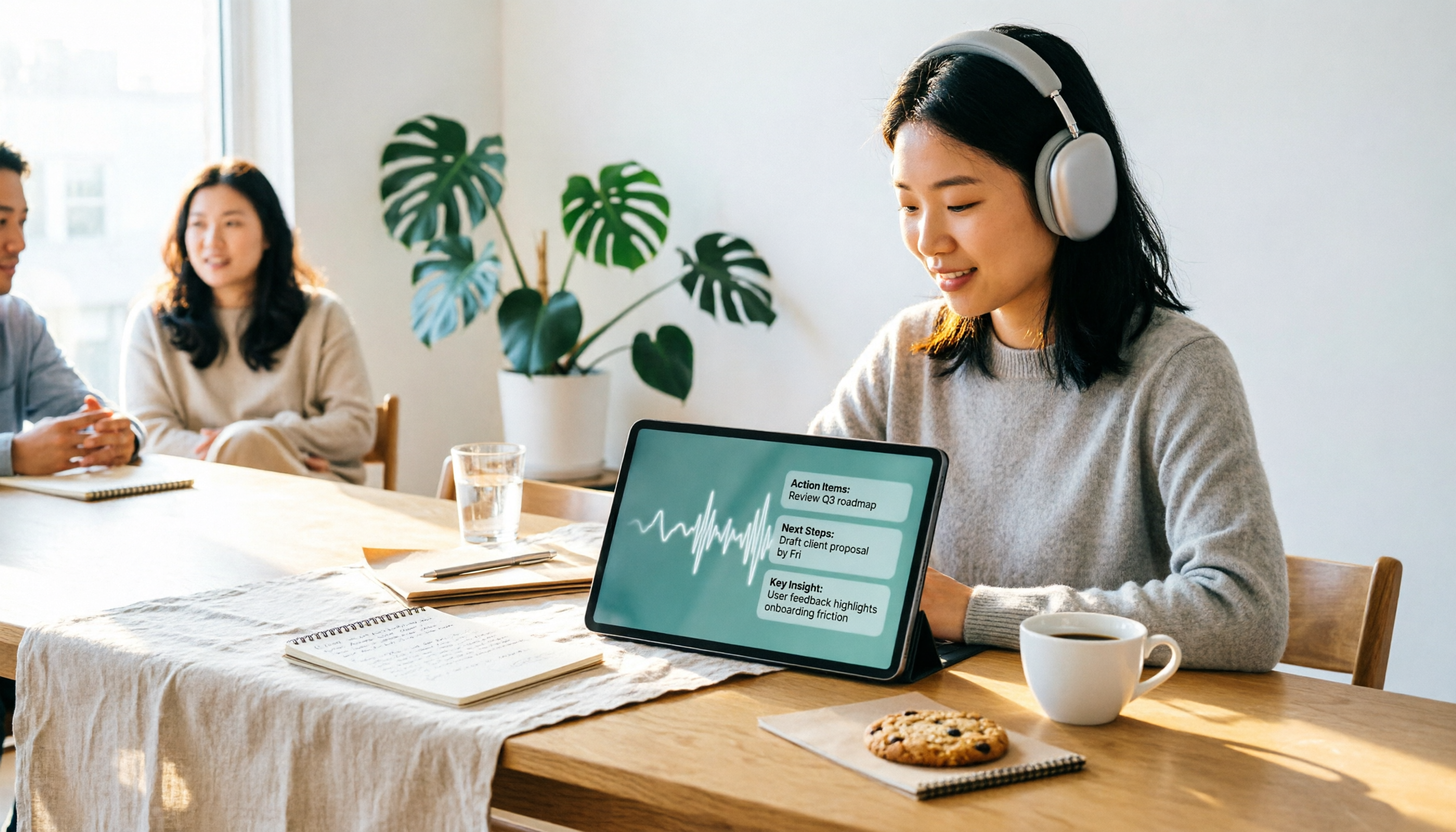
Turn recordings into transcripts and summaries in minutes
Upload audio or video for multilingual transcription, AI notes, and action items
4 Google Speech-to-Text Apps Tested: Live Transcribe, Pixel Recorder, and Tinrec Compared (2026)
Last week I saved a 40-minute client interview recording to my phone and realized the real problem wasn't "did I capture it."
It was "how much more time do I have to spend to turn this into something usable."
The question I get asked most often these days is: "Does Google have a speech-to-text app?"
Yes, and more than one. Google Live Transcribe, the built-in recorder on Pixel phones, Google Cloud's Speech-to-Text API, and even voice typing in Google Docs all count as speech-to-text.
But they actually solve different problems.
So this article isn't just a feature list. I want to walk you through my own decision process: first figure out which kind of "transcription" you need, then decide which tool to use—or whether you should look beyond Google.
(Screenshot: phone recording list, arrow pointing to a 40-minute recording, note: "How long did it take me to organize this one?")
Why speech-to-text feels inadequate: you don't actually want a verbatim transcript
Scenario one: online meeting.
The meeting is on your computer, but you're at your phone. You have Live Transcribe installed, but it records what your phone's microphone picks up, not each participant's clear speech in the meeting.
Scenario two: post-meeting follow-up.
Your boss asks: "In the last meeting, who mentioned the budget cap?" You remember someone said it, but you don't know who or at what minute. So you scrub through the timeline, listening segment by segment.
At this point, your tool has already done the "transcription," but it hasn't done the "make it findable" part.
Scenario three: data scattered everywhere.
One recording on your phone, one on your computer, another in the meeting software. Lots of recordings, nothing usable.
I later realized that most people get stuck not on accuracy, but on the part after transcription—nobody helps you finish that stretch.
Pick the right tool, and you can skip a lot of that.
Before choosing a speech-to-text app, I suggest looking at these 4 key points
First, do you want "live captions" or "post-meeting organization"?
These two have completely different technical requirements. Live captions are for the moment; post-meeting organization is for your future self. Get this clear and you'll eliminate half the options.
Second, can it handle online meetings on your computer?
Most meetings today happen on Zoom, Google Meet, or Microsoft Teams. If a tool can only record your phone's microphone, its usefulness in your workday is limited.
Third, does it offer post-processing after transcription?
A tool that only gives you a transcript is basically handing the organization work right back to you. Summaries, chapters, action items, and the ability to ask follow-up questions—that's the part that actually eats your overtime hours.
Fourth, where is the data stored, and can it persist?
For personal use, it doesn't matter much. But once you start collaborating with colleagues, you'll run into the question of "whose account is this recording in?"
(Screenshot: a handwritten sticky note with four words—"captions / meetings / post-processing / ownership"—with checkmarks and X marks next to them)
Tinrec: my current go-to for turning meeting recordings into usable data
In one sentence: Tinrec is an AI meeting notes and collaboration tool for individuals and teams, not just a recording-to-text app.
It covers iOS, Android, desktop, and web. That's why I initially replaced the built-in phone tool—my meetings happen on the computer, but I often organize on my phone or the web.
Scenario one: bot-free online meeting recording.
The desktop version directly captures your computer's system audio, handling meeting content played on Zoom, Google Meet, Teams, and Webex.
That means: no need to invite an extra meeting bot as a participant.
This is very practical for me. Some client meetings aren't convenient for an extra account to appear on the list, and "open the app, hit record" fits my habits better than setting up calendar auto-join.
Scenario two: live transcription while recording, structured output after the meeting.
When the meeting ends, I don't just have a transcript—I have summaries, chapters, and action items.
Who's responsible for what, when it's due—things that used to require an hour of re-listening become a list I can paste directly into a work document.
Scenario three: my most-used feature—asking questions directly about the meeting content.
After recording, I ask it: "What was the conclusion about the budget in this meeting?" "What were the three concerns the client mentioned?"
It doesn't give keyword search results; it gives answers organized from the content. The time saved here is more than I expected.
(Screenshot: meeting Q&A screen, left side is transcript timeline, right side is question box, arrow pointing to timestamp markers in the answer)
My testing method and what I observed.
I tested with a roughly 20-minute online meeting recording with 4 participants speaking mixed Chinese and English. The environment wasn't a studio—there was air conditioning noise, keyboard noise, and people talking over each other.
Stop organizing recordings by hand
Upload audio or video and automatically get a transcript, summary, and action items
Under these conditions, the transcript paragraphs and timestamps matched up, with occasional deviations in names and product terminology; checking back took only a few minutes.
I won't tell you a percentage accuracy, because that depends on your recording quality, accents, and terminology density. I still click back to the recording to verify important content.
Three reasons I'll keep it.
One, it preserves the original recording, so you can check timestamps in the transcript. Two, it puts "transcription" and "organization" in the same workflow, so I don't need a third tool. Three, it exports to Notion, Google Docs, and other places I already use—no data migration needed.
Two limitations I'll honestly point out.
The free version offers a basic quota; if your meeting volume is high, you'll need to consider upgrading. Also, it's not magic—if the meeting has lots of overlapping speech and terminology that hasn't been set up, recognition performance will suffer. That's a common limitation of all speech-to-text tools.
Who it's for.
If you have several online meetings a week, need to produce notes and action items afterward, and want the same data to flow seamlessly between phone and computer—it will fit your workflow better than a simple transcription app.
If you're a team.
Tinrec's team version is a separate team space, not multiple people sharing one account. It distinguishes "roles" and "seats": roles determine who can manage the team and view audits; seats determine whether members can record, upload, and edit.
Members without a seat can still view and play team data, just not edit. When a member leaves, team data belongs to the team and can be handed over to other members—it doesn't disappear with the individual account.
The team version currently offers a 7-day trial (1 free seat, 300 minutes of shared import quota). Paid seats provide 2,000 minutes of team shared import quota per month. Actual pricing and benefits are subject to the official purchase page.
A copy-paste post-meeting follow-up template.
Please answer three things based on this meeting content: 1. What decisions did we make? 2. What issues remain unresolved? 3. What are the owner and deadline for each action item? If the transcript doesn't explicitly mention it, please mark "not mentioned" and do not speculate.
(Screenshot: result screen after pasting the above into the Q&A box, arrow marking the "not mentioned" section)
Beyond Tinrec: what other speech-to-text options exist in the Google ecosystem?
Google Live Transcribe.
A live captioning tool on Android, originally designed for the deaf and hard of hearing, later adding automatic punctuation and paragraphing—it also works smoothly as a voice input method. Its strength is "visible right now"; you can bring it up on any screen quickly. But what it gives you is screen text that disappears—no summary, no action items, no meeting data you can query, and it doesn't save the recording for you.
Google Pixel built-in Recorder app.
Pixel 6 and later support multilingual transcription, with solid Traditional Chinese transcripts and the ability to switch between Chinese, English, and Japanese—a hidden perk for Pixel users. The limitation is that it's a phone tool: online meetings on your computer are out of its scope, and cross-device organization isn't convenient.
Google Cloud Speech-to-Text.
This is an API for developers, supporting many languages and dialects, with profanity filtering and specialized domain models to integrate speech recognition into your own applications. If you're "building a product," this is the right answer; if you just want to organize yesterday's meeting, it won't save you time.
By the way, if you just want to type a paragraph in Google Docs, the built-in voice typing is enough.
Pitfall guide: the 3 most common mistakes when choosing a speech-to-text app
Mistake one: only looking at advertised accuracy rates.
Numbers measured in a quiet environment are a different story from your conference room conditions. Air conditioning noise, keyboard noise, people talking at the same time—that's the real scenario. I suggest testing with your own recordings, not just ads.
Mistake two: ignoring "where the meeting happens."
Phone apps can't record audio from computer meetings—many people discover this pitfall only after buying. First confirm whether your meeting scenario is phone, computer, or both.
Mistake three: using the tool only as a typewriter.
If a tool can only turn sound into text, you're using only a third of its capability. The real difference is after the meeting: can you ask it "what was the conclusion," can you generate action items with one click, can you keep the data where you already work.
One more thing that isn't a mistake but is important: inform participants and get consent before recording. This is not just courtesy—it's a legal requirement.
(Screenshot: two transcripts side by side, left one full of noise and errors, right one with clear paragraphs, labeled "same recording, different tools")
Conclusion: which one should you actually use?
After the analysis above, here's a condensed set of decision paths:
- Want live captions during meetings → Google Live Transcribe, lowest setup cost.
- Only use a Pixel phone, recording in-person conversations → Pixel built-in Recorder app is enough.
- Want to integrate speech recognition into your own service → Google Cloud Speech-to-Text.
- Meetings on computer, need notes and action items afterward → Tinrec.
- Want to ask questions directly about the content after recording, without re-listening → Tinrec's meeting Q&A.
- Team needs to share meeting data, manage members and usage → Tinrec team version.
My advice is simple: don't rush to pay.
Use the free quota on a real meeting you have next week, then try asking it a question afterward and see if the answer saves you ten minutes of listening.
If yes, keep using it; if not, try the next one.
The tool is just a supporting actor—the "record and use" workflow you want is the main character. Test step by step, and you'll gradually find the one that fits you best.
(Screenshot: a note next to a meeting transcript that says "saved 40 minutes of listening this week")
References
- Speech-to-Text: AI speech input and transcription | Google Cloud
- Speech to Text - Google Play App
- Google Recorder app built-in AI transcribes Traditional Chinese speech to text, supports Chinese-English-Japanese switching
- Google Live Transcribe: highly accurate Chinese speech-to-text with automatic punctuation
- Convert speech to text | Gemini Enterprise Agent Platform | Google Cloud Documentation
Turn every recording into actionable outcomes
Get 60 free transcription minutes when you sign in. No credit card required.
Related Reading
You might also like
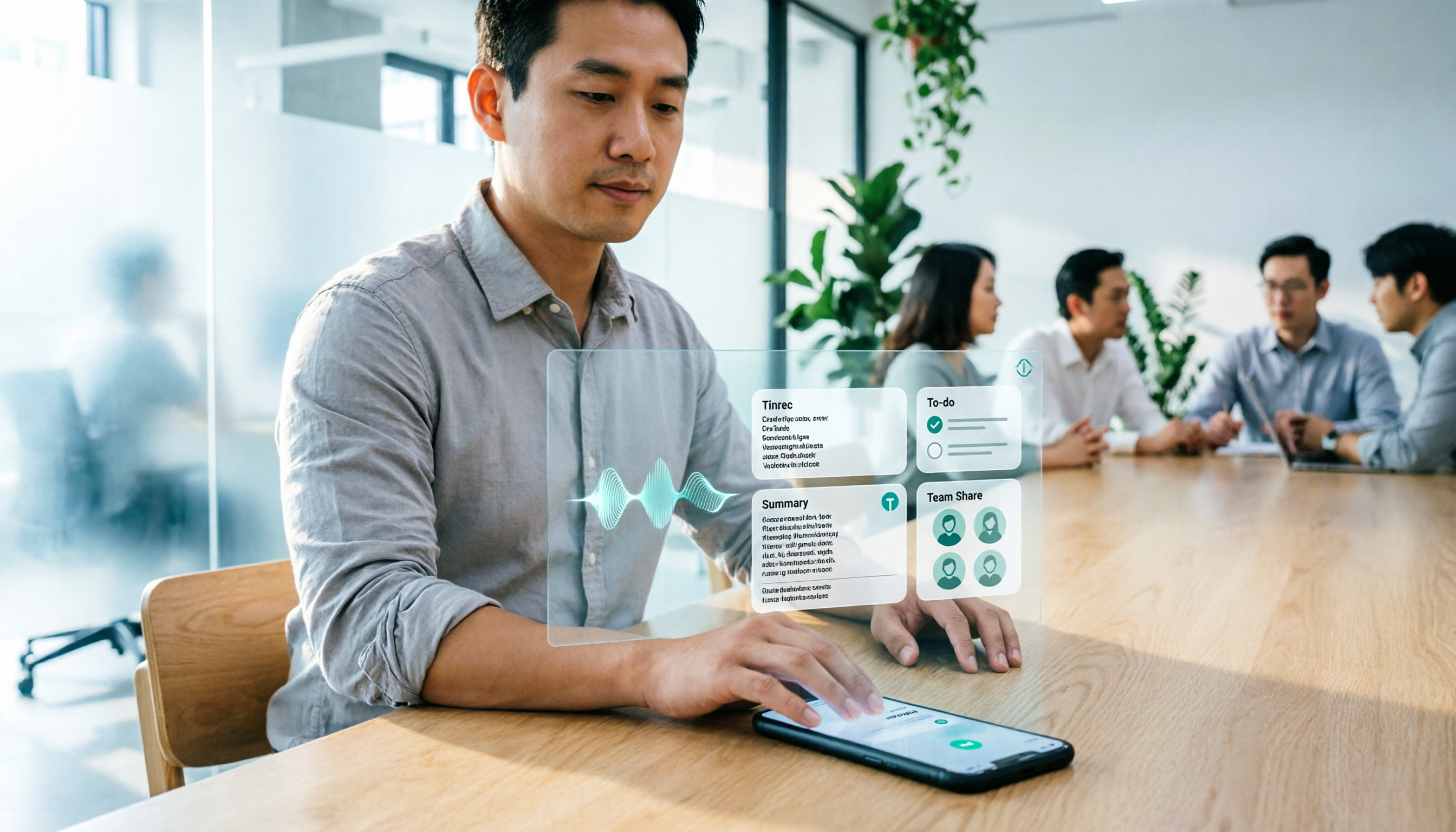
2026 iPhone Speech-to-Text Buying Guide: 3 Methods Tested and Recommended
Starting with the transcription limitations of iPhone Voice Memos, this guide outlines practical workflows for converting iPhone recordings into text files in 2026, and uses Tinrec to demonstrate how to build a sustainable meeting notes workflow from transcription and summarization to to-dos and team sharing.

4 Cantonese Speech-to-Text Tools Tested: Which Handles Mixed Chinese-English and Spoken-to-Written Conversion Best?
The real challenge of Cantonese speech-to-text isn't typing—it's converting spoken language to written form, handling mixed Chinese-English, and post-meeting organization all at once. Based on real workflows, this article breaks down 5 key purchasing criteria, compares Tinrec, Subanana, CantoSub, and Otter.ai for different scenarios, and lists 4 common pitfalls plus a 6-step starter checklist.
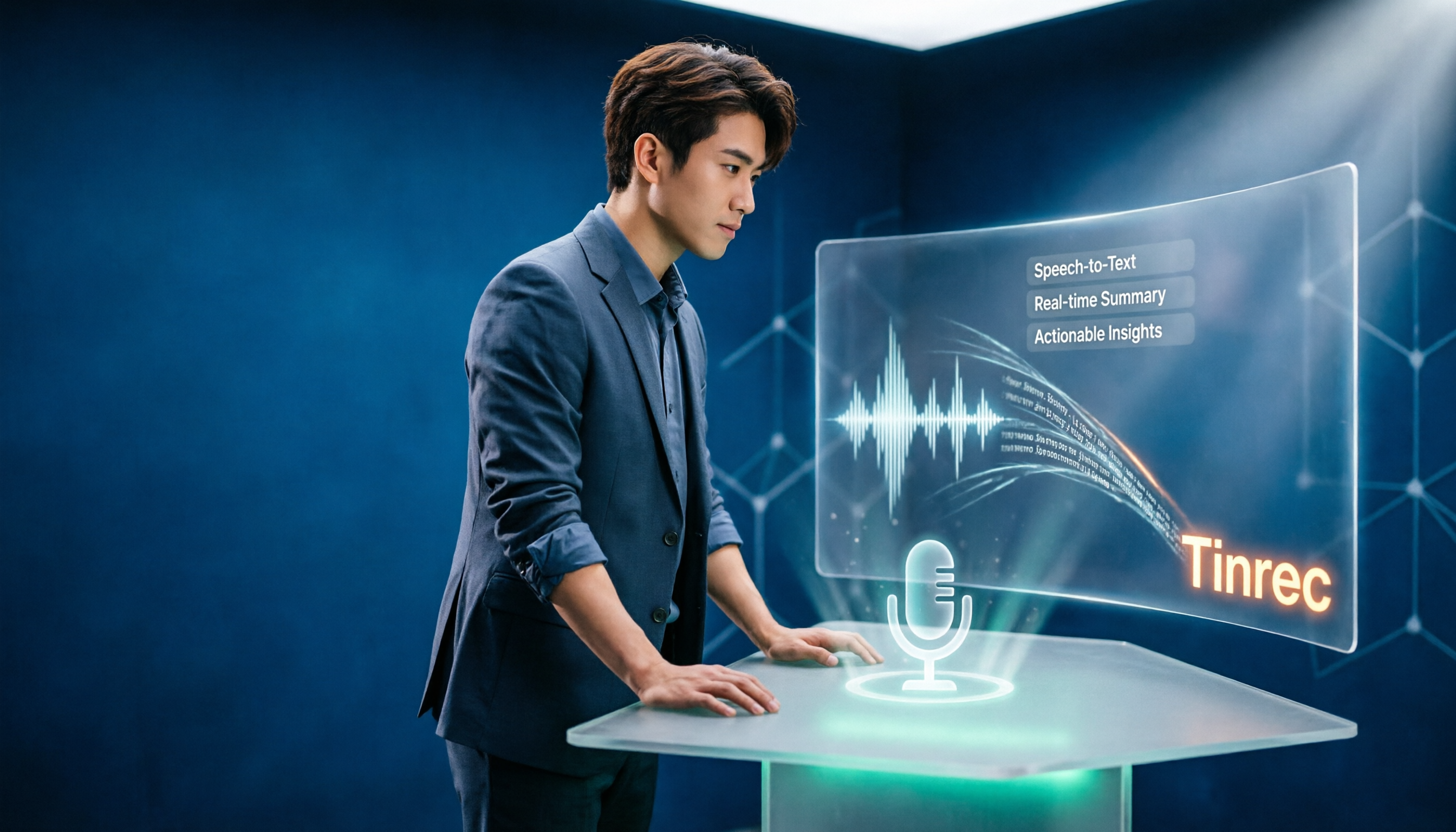
5 Google Speech-to-Text Tools Tested for 2026: Is the Free Version Enough?
Google Docs' built-in voice typing is free and handy, but it falls short for meeting notes and existing recordings. This article walks through a real workflow and compares five approaches—Google Docs, Google Cloud Speech-to-Text, Tinrec, Notta, and Otter.ai—breaking down input sources, post-meeting organization, team collaboration, and pricing to help you decide if the free version is enough and when to switch tools.

2026 Google Speech-to-Text Guide: 4 Tools Tested and Recommended
A breakdown of three common ways to convert audio to text with Google, plus a comparison of how Tinrec differs for meeting recording, post-meeting organization, and team collaboration, helping you choose the right tool for your use case.

6 Google Meet Speech-to-Text Tools Tested and Compared for 2026: How to Choose Between Free and Paid
How do you transcribe Google Meet calls? This guide covers six practical methods, from Google Meet's built-in transcription and Google Docs' free dictation to AI tools like Tinrec, Notta, TurboScribe, and Otter. We compare free tiers, use cases, and pricing to help you choose the right solution for your meeting needs.

5 Free Google Speech-to-Text Options in 2026: A Complete Guide
Want to turn recordings into transcripts without spending money? This guide covers 5 free speech-to-text options in the Google ecosystem in 2026, from Google Docs voice typing and Android Live Transcribe to the Gemini app, Gemini Notebook, and Google AI Studio. We explain the free limits, length caps, and best use cases for each, plus a practical method for better meeting notes.

2026 Google AI Studio Speech-to-Text Buyer's Guide: 4 Tools Tested and How to Choose
Can Google AI Studio really turn recordings into transcripts for free? This guide tackles common misconceptions and compares four speech-to-text approaches—Google AI Studio, Tinrec, Notta, and Otter.ai—covering audio length limits, post-transcription processing, and team collaboration differences to help you pick the right tool for your workflow.
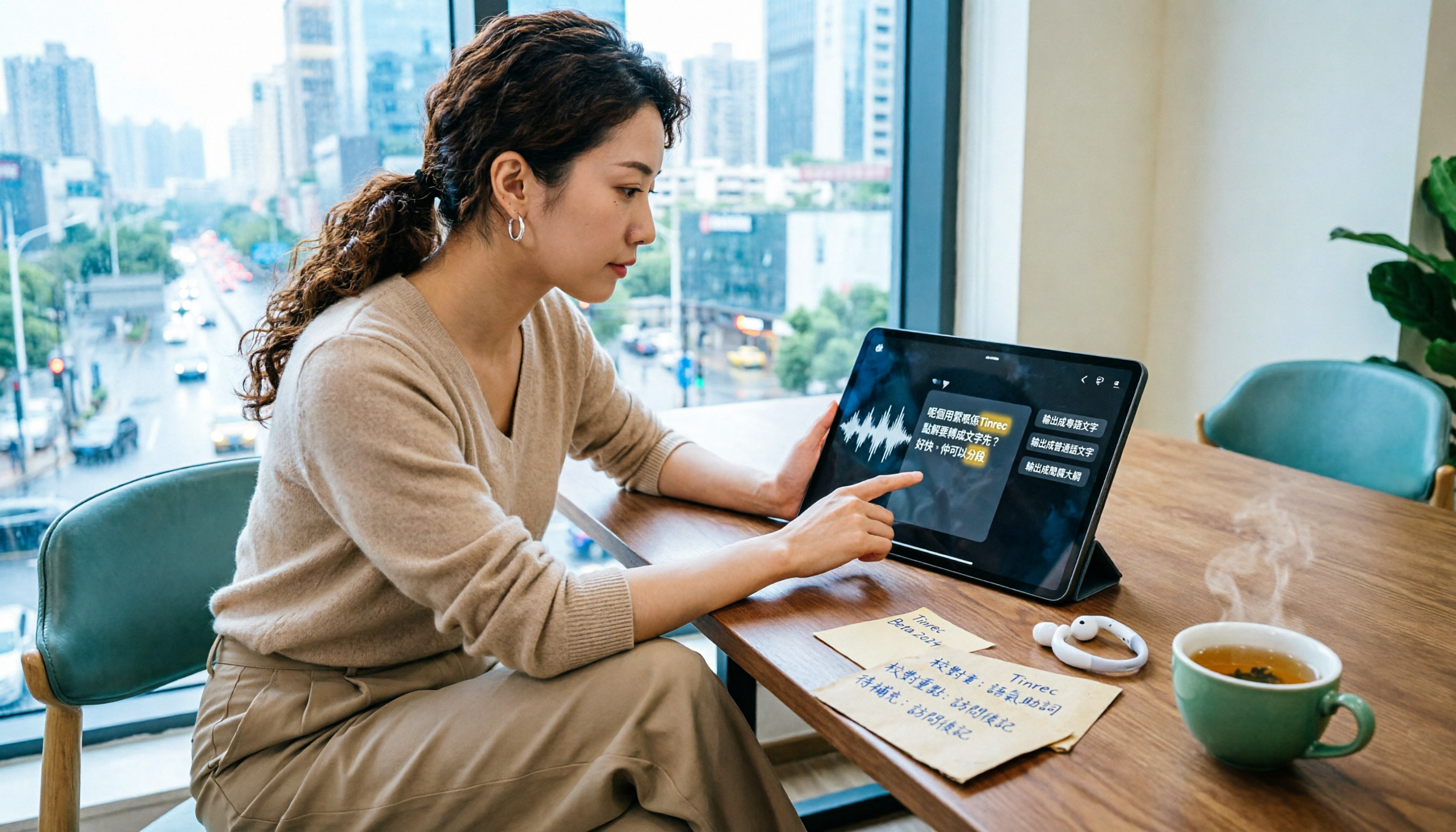
2026 Comparison of 4 Cantonese Speech-to-Text AIs: Which Saves the Most Time on Cantonese Transcripts?
Starting from the decision focus of 'what will this recording ultimately become,' this guide walks you through the complete Cantonese speech-to-text workflow: defining output format, ensuring recording quality, AI transcription, hotword proofreading, post-meeting organization, and export. It uses Tinrec's five-step process and explains the applicable boundaries of Cantonese-specific tools.

5 Cantonese Speech-to-Text Tools Tested for 2026: Free Tiers and Cantonese Accuracy Compared
We compare 6 Cantonese speech-to-text solutions in 2026, focusing on free quotas, Cantonese recognition, mixed Chinese-English, and spoken-to-written conversion. We list each tool's free limits and paid pricing to help you decide which one truly meets your needs.