
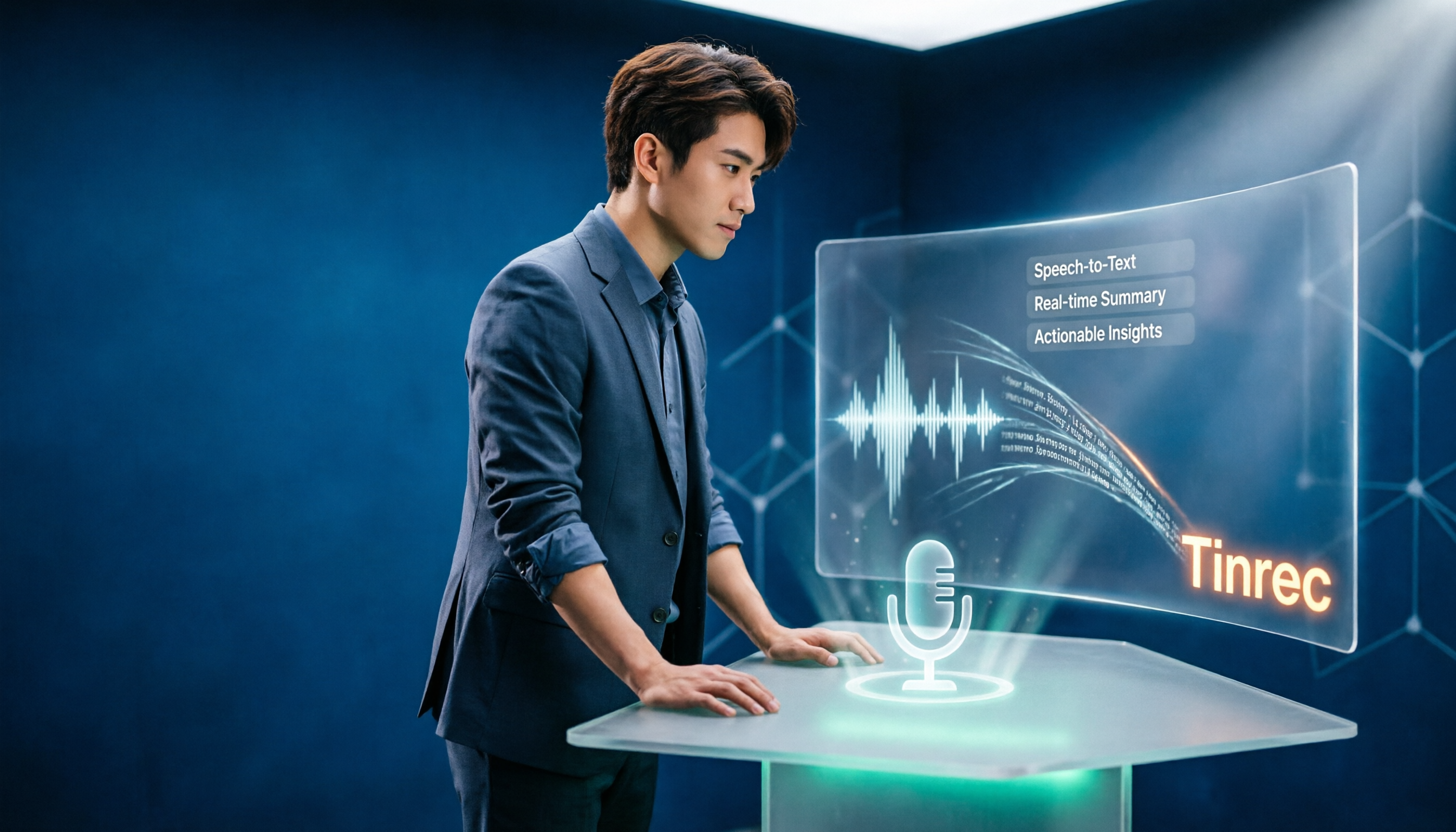
Turn recordings into transcripts and summaries in minutes
Upload audio or video for multilingual transcription, AI notes, and action items
Free Google speech-to-text is great, but most people get stuck after recording
"Can't Google Docs do speech-to-text?" That's one of the most common reader questions I get. And eight out of ten times, that's the end of the conversation.
The reason is simple. Google Docs' voice typing is indeed free, built-in, and ready to use—but it handles "you speaking into a microphone": you say a sentence, it types a sentence.
That's great for dictating drafts or writing reports. But if what you want is "turn a 40-minute meeting into reviewable material," there are several steps in between: Is the recording saved? Can you tell who said what? Who organizes the action items afterward?
Another common misconception is treating "transcription" as the end goal. The real time sink is never the transcription itself—it's the organizing that comes after.
This article puts Google's two approaches side by side with other practical tools, from the perspective of "what are you actually trying to solve?"
First, let me clarify what "tested" means here: I actually went through a complete workflow—dictation, uploading audio files, organizing, exporting—and cross-checked each vendor's public information. There are no lab-grade word error rate numbers in this article, because those only make sense in a controlled recording environment; the "98% accuracy" claims you see online usually don't hold up in a real conference room.
Before choosing a speech-to-text tool, understand these 4 key points
1. Does it accept "live dictation" or "existing audio files"?
These two are often conflated. Live dictation is when you speak into a microphone and the tool types in sync; existing audio is when you already have a recording or video and want to turn it into a transcript. Google Docs' voice typing is the former—it can't process that meeting recording on your phone. Figure out which one you need first, and you'll save yourself a lot of detours.
2. Will the recording be saved?
Many people only care about the transcript and later discover the original audio is gone. When you need to go back and check tone or confirm whether a number was misheard, having the recording to replay is much more reassuring. When choosing a tool, this is worth a look first.
3. Is there a next step after transcription?
A tool that only gives you a transcript is essentially handing the organizing work right back to you. Tools with summaries, chapters, action item extraction, and the ability to ask questions about the content typically save you that "hour after the meeting."
4. Is the quota "minutes per month" or "minutes per session"?
Free plan marketing numbers all look great, but the limits are often hidden in the details: some limit session length, some limit files per day, some only count in-app recordings and not uploaded files. Whether it's enough in practice depends on your usage pattern, not the biggest number.
Tinrec—my most recommended choice after going through a real workflow
Tinrec is an AI meeting notes and collaboration tool for individuals and teams, available on web, desktop, and mobile. It turns live recordings, online meetings, and audio/video files into searchable, queryable, and exportable data.
My first time using it was for an online interview. The desktop version captures your computer's system audio directly—the person on the other end of Zoom doesn't need to know I'm recording, and no bot needs to be invited into the meeting. While the meeting is happening, the transcript grows right beside it. This is especially practical for users in Taiwan—many meeting bots require you to add an unfamiliar account to the meeting, and clients will definitely ask "who is this?"
After the meeting ends, summaries, chapters, and action items are generated automatically. Who promised what and when it's due—no need to dig through a 40-minute transcript yourself.
The second biggest difference is AI Q&A. Last week I needed to confirm a budget figure from a previous meeting. Instead of replaying the recording, I simply asked in Tinrec, "What was the budget cap mentioned in this meeting?" It answered with a sentence, not a list of keywords. Not many tools in this price range have this feature.
Third is output. Transcripts, summaries, and action items can be exported to Notion, Google Docs, OneNote, or Dropbox for further use, or you can have it generate reports, tables, or meeting minutes directly. For anyone who has to submit meeting notes every week, this is more impactful than just another transcription engine.
Note: The free version gives you a basic quota, suitable for trying it out; for those with weekly meetings, the Pro plan makes more sense; only look at the team plan if you need multiple people sharing data. The team plan currently offers a 7-day trial (1 free seat, 300 minutes of shared team import quota), monthly USD 29.80 per paid seat, annual USD 199 per paid seat (about USD 16.58/month), with 2,000 minutes of shared team import quota per paid seat per month. Real-time recording is currently not deducted by minutes.
Stop organizing recordings by hand
Upload audio or video and automatically get a transcript, summary, and action items
Another easily misunderstood point: the team plan is "team-level sharing"—all active members can read team data, but you need a seat to upload, edit, and export. It's not a granular file-level permission system, so don't think of it as being able to set different viewing lists for each file.
Also, Tinrec does not promise a fixed accuracy rate. Recording quality, background noise, accents, and people talking over each other all affect results. For important numbers, it's still recommended to replay and verify with timestamps.
Who it's for: People who mainly have Chinese meetings, don't want bots joining meetings, need post-meeting summaries and action items, and want data to accumulate in the team rather than individual accounts.
Besides Tinrec, how to choose between Google and other tools?
Voice typing in Google Docs and Slides
Free and built-in. Open a document in the latest version of Chrome, Edge, or Safari, click "Tools" → "Voice typing," and a microphone box appears. In Slides, you can also turn speech into speaker notes and captions. It's smooth for dictating drafts, taking notes, and writing reports. The limitation is that it handles live dictation, not existing meeting recordings, and you need to keep the page open with a microphone and internet connection. Tinrec, on the other hand, can upload existing audio/video and keep the original audio after recording on the desktop version.
Google Cloud Speech-to-Text
An API for developers. It supports over 85 languages and dialects, has an enhanced phone call model tuned for telephone speech (8kHz sampling), can filter profanity, and offers a no-code tool to upload audio data for transcription, handling up to 8 hours per file; Google Cloud's page also mentions Gemini's speech input supports over 125 languages. The barrier is that you have to wire the API into a convenient workflow yourself—the average office worker won't do that. Tinrec, by contrast, integrates recording, transcription, summaries, action items, and export into one interface.
Notta
A competitor with significant overlap with Tinrec, offering multi-platform transcription, file import, translation, and team plans. Official figures: free plan 120 minutes per month, max 3 minutes per session; Pro annual billing about USD 8.17/month, 1,800 minutes per month. Suitable for those focused on file transcription and subtitle translation. But if what you want is "record online meetings without installing a bot," Tinrec's desktop version captures system audio directly—Notta doesn't match that.
Otter.ai
A veteran choice for English meetings. Free Basic plan 300 minutes per month; Pro annual billing about USD 8.49/user/month, 1,200 minutes of in-app recording plus 10 file imports per month. If you mainly have English meetings and zero budget, it's a good deal. But it doesn't focus on Chinese meetings, and mixed Chinese-English discussions can be a disadvantage; Tinrec has an edge in Chinese and mixed Chinese-English, with real-time bilingual translation.
Pitfall guide: 4 most common mistakes with Google speech-to-text
Pitfall 1: Thinking "has speech-to-text" equals "can organize meetings"
Google Docs' voice typing is live dictation—you speak, it types. Meeting notes require three things: recording + transcription + post-meeting organization. These are different levels of need. Figure out which one you need first, then choose a tool.
Pitfall 2: Only looking at minutes per month, not session length limits
Free plan limits are often hidden in the details: Notta's free version allows max 3 minutes per session; TurboScribe's free version allows 3 files per day, max 30 minutes per file. If you need to organize a 50-minute meeting, these quotas look good but are unusable.
Pitfall 3: Ignoring whether the recording will be saved
Granola's official documentation states it does not save meeting audio and does not support uploading pre-recorded audio files; it relies on the user's own notes plus AI enhancement. This design has its rationale, but if you need to go back and check the original audio, you must first confirm whether the tool supports it.
Pitfall 4: Treating "team sharing" as "everyone has the same permissions"
For team tools, distinguish between "roles" and "seats": roles determine who can manage members and settings; seats determine who can upload, edit, and export. Tinrec's team plan follows this logic—active members can read team data, but without a seat they cannot edit. Ask clearly before purchasing; it's easier than fixing later.
Conclusion: Which one should you choose?
Simply put, ask yourself one question: Do you want "turn speech into text" or "turn meetings into usable data"?
- Just dictating drafts, writing reports, taking class notes → Google Docs voice typing, free, no installation needed.
- You're a developer who wants to integrate speech recognition into your own system and process long audio files → Google Cloud Speech-to-Text, with the most complete model and language support.
- Mainly Chinese meetings, don't want bots joining, need post-meeting summaries and action items → Tinrec, desktop version records system audio directly, AI Q&A is a rare feature at this price point.
- Pure English meetings, zero budget → Otter.ai, free 300 minutes is very usable.
- You have a bunch of long audio files to batch transcribe into subtitles → TurboScribe, long files and batch processing are its strengths.
If you have meetings every day and submit notes every week, I suggest starting with Tinrec's free version and running through a complete workflow with a real meeting: record, review the transcript, ask it a question, export to a document. After one round, you'll have a good idea whether the free quota is enough, and then decide whether to upgrade—no need to pay upfront.
References
- Speech-to-Text: AI speech input and transcription | Google Cloud
- Convert speech to text | Gemini Enterprise Agent Platform | Google Cloud Documentation
- Using speech-to-text in Google Docs | Speechify
- Type and edit by voice - Google Docs Editor Help
- Google Docs speech recognition trick: Use "speech-to-text" to type transcripts and take notes! - Applealmond - Guoren iPhone/iOS/gadget recommendation tech media
Turn every recording into actionable outcomes
Get 60 free transcription minutes when you sign in. No credit card required.
Related Reading
You might also like
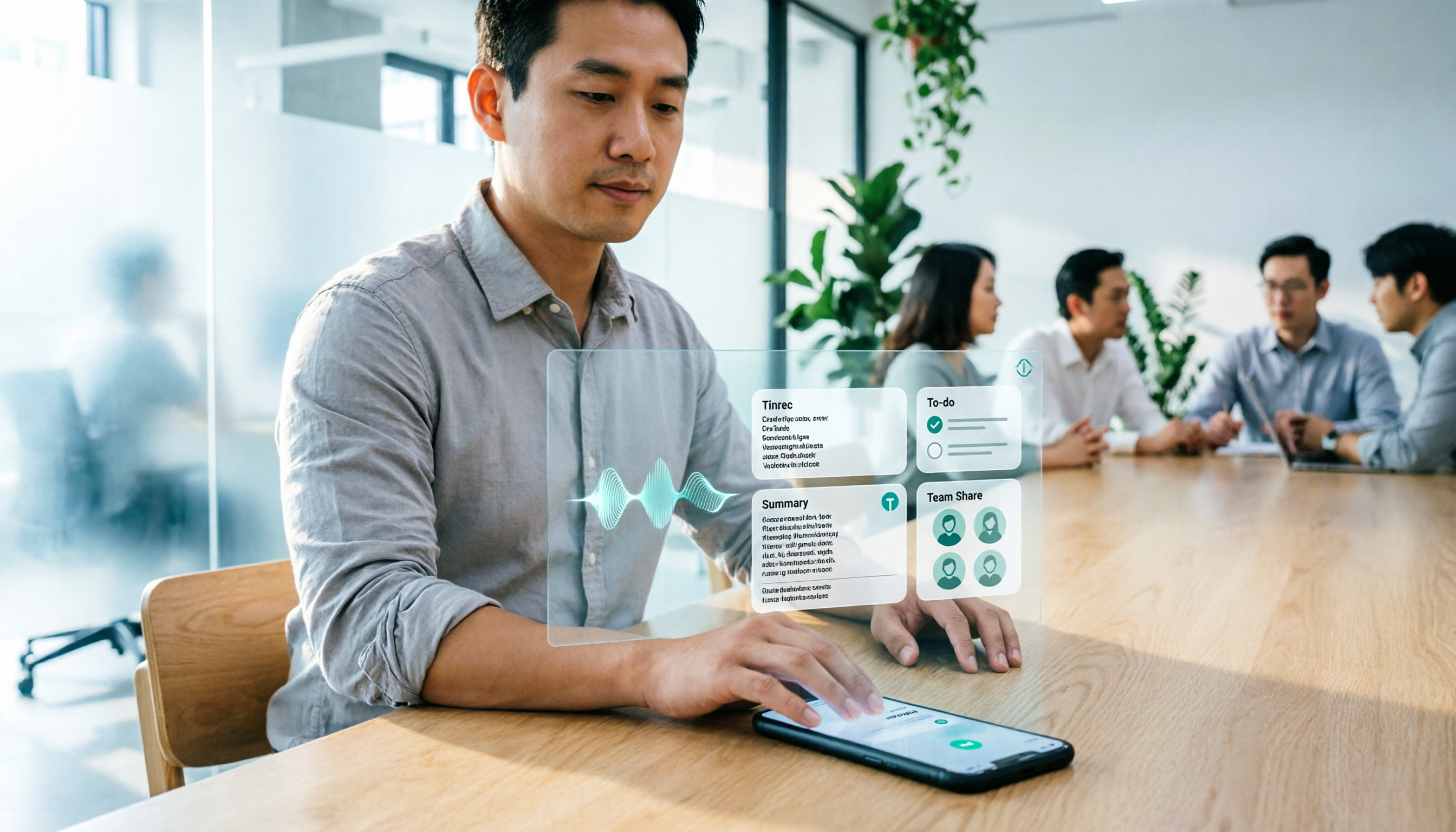
2026 iPhone Speech-to-Text Buying Guide: 3 Methods Tested and Recommended
Starting with the transcription limitations of iPhone Voice Memos, this guide outlines practical workflows for converting iPhone recordings into text files in 2026, and uses Tinrec to demonstrate how to build a sustainable meeting notes workflow from transcription and summarization to to-dos and team sharing.

4 Cantonese Speech-to-Text Tools Tested: Which Handles Mixed Chinese-English and Spoken-to-Written Conversion Best?
The real challenge of Cantonese speech-to-text isn't typing—it's converting spoken language to written form, handling mixed Chinese-English, and post-meeting organization all at once. Based on real workflows, this article breaks down 5 key purchasing criteria, compares Tinrec, Subanana, CantoSub, and Otter.ai for different scenarios, and lists 4 common pitfalls plus a 6-step starter checklist.

4 Google Speech-to-Text Apps Tested: Live Transcribe, Pixel Recorder, and Tinrec Compared (2026)
Most people searching for a "Google speech-to-text app" are really trying to solve the problem of never finishing meeting notes. This guide breaks down Google Live Transcribe, the Pixel Recorder app, Cloud Speech-to-Text API, and Tinrec based on real-world use cases, with buying criteria, pitfalls to avoid, and a post-meeting follow-up template to help you pick the one that actually saves you time.

2026 Google Speech-to-Text Guide: 4 Tools Tested and Recommended
A breakdown of three common ways to convert audio to text with Google, plus a comparison of how Tinrec differs for meeting recording, post-meeting organization, and team collaboration, helping you choose the right tool for your use case.

6 Google Meet Speech-to-Text Tools Tested and Compared for 2026: How to Choose Between Free and Paid
How do you transcribe Google Meet calls? This guide covers six practical methods, from Google Meet's built-in transcription and Google Docs' free dictation to AI tools like Tinrec, Notta, TurboScribe, and Otter. We compare free tiers, use cases, and pricing to help you choose the right solution for your meeting needs.

5 Free Google Speech-to-Text Options in 2026: A Complete Guide
Want to turn recordings into transcripts without spending money? This guide covers 5 free speech-to-text options in the Google ecosystem in 2026, from Google Docs voice typing and Android Live Transcribe to the Gemini app, Gemini Notebook, and Google AI Studio. We explain the free limits, length caps, and best use cases for each, plus a practical method for better meeting notes.

2026 Google AI Studio Speech-to-Text Buyer's Guide: 4 Tools Tested and How to Choose
Can Google AI Studio really turn recordings into transcripts for free? This guide tackles common misconceptions and compares four speech-to-text approaches—Google AI Studio, Tinrec, Notta, and Otter.ai—covering audio length limits, post-transcription processing, and team collaboration differences to help you pick the right tool for your workflow.
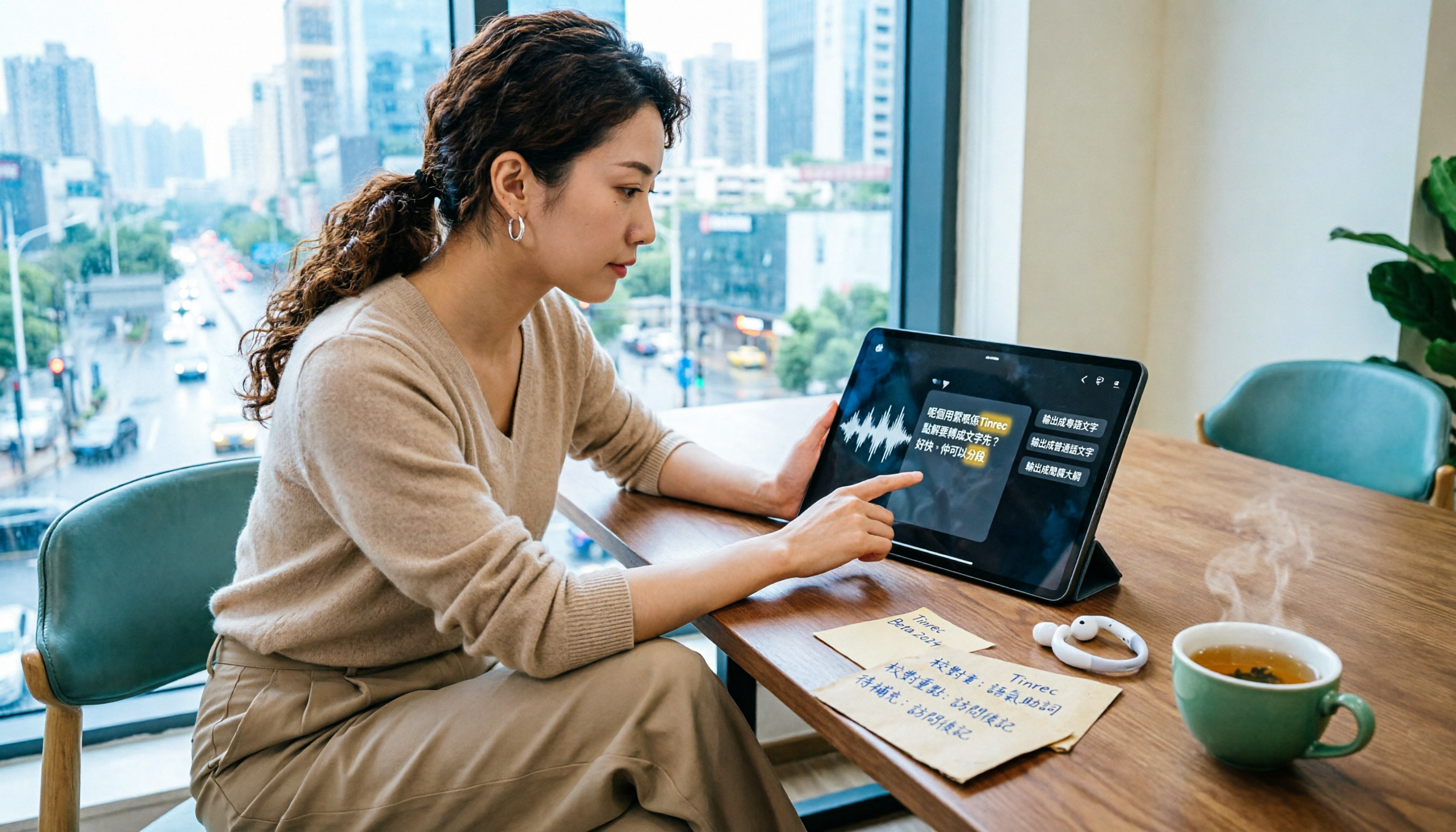
2026 Comparison of 4 Cantonese Speech-to-Text AIs: Which Saves the Most Time on Cantonese Transcripts?
Starting from the decision focus of 'what will this recording ultimately become,' this guide walks you through the complete Cantonese speech-to-text workflow: defining output format, ensuring recording quality, AI transcription, hotword proofreading, post-meeting organization, and export. It uses Tinrec's five-step process and explains the applicable boundaries of Cantonese-specific tools.

5 Cantonese Speech-to-Text Tools Tested for 2026: Free Tiers and Cantonese Accuracy Compared
We compare 6 Cantonese speech-to-text solutions in 2026, focusing on free quotas, Cantonese recognition, mixed Chinese-English, and spoken-to-written conversion. We list each tool's free limits and paid pricing to help you decide which one truly meets your needs.