
Turn recordings into transcripts and summaries in minutes
Upload audio or video for multilingual transcription, AI notes, and action items
3 Video-to-Text Tools Compared for 2026: How to Choose Between Speech Transcription and On-Screen OCR
There Are Two Types of Text in Videos—First Figure Out Whether You Need the "Speech" or the "Screen"
A meeting recording ends, and your boss asks, "Who mentioned the budget today?" You only remember it was somewhere in the middle of the video, but you have to drag the timeline from the beginning. Another situation: a tutorial video has slides, charts, and hardcoded subtitles. You want to capture the on-screen text for notes, but you can only pause and type manually. Both are called "extracting text from video," but the underlying methods are completely different: one converts speech into a transcript, the other applies OCR to static text in the video frames. If you don't distinguish them from the start, you'll use the wrong tool and waste more time.
A more common problem: the video clearly has a speaker talking, but you use screenshot OCR to capture it frame by frame; or the video's key points are actually in slide text cards, but you expect a speech-to-text tool to recognize them. Before choosing a tool, ask yourself: Do I need a transcript, summary, and action items, or do I need the subtitles, charts, and slide text from the screen? The answer determines the tool.
4 Key Points to Understand Before Choosing a Video-to-Text Tool
1. Is your video primarily audio or primarily visual? If the focus is interviews, meeting speeches, or course explanations, you need speech-to-text, i.e., converting the audio track into a transcript. If the focus is hardcoded subtitles, slides, charts, or whiteboard text on screen, you need OCR (optical character recognition). The two can complement each other but cannot replace each other.
2. Can the tool directly accept video files? Some tools only capture live audio, so you must play the video for the microphone to hear, and you can't switch windows during the process. Other tools can directly import video or audio files, making batch processing more stable. AI meeting notes tools like Tinrec focus on processing existing audio and video data and organizing the results into searchable, queryable content.
3. Can the output be used directly for work? Getting just a long transcript usually requires manual organization. A practical tool should provide timestamps, summaries, chapters, action items, or export formats. If a one-hour video only outputs plain text, the subsequent organization cost remains high.
4. Are quotas, privacy, and team collaboration clear? Free versions usually have minute or file limits; for team use, confirm member permissions, data ownership, and usage. To turn meeting recordings into team assets, besides transcription capability, check whether shared spaces, roles, and seat management are complete.
Tinrec—The Top Choice for Speech Transcripts and Post-Meeting Organization
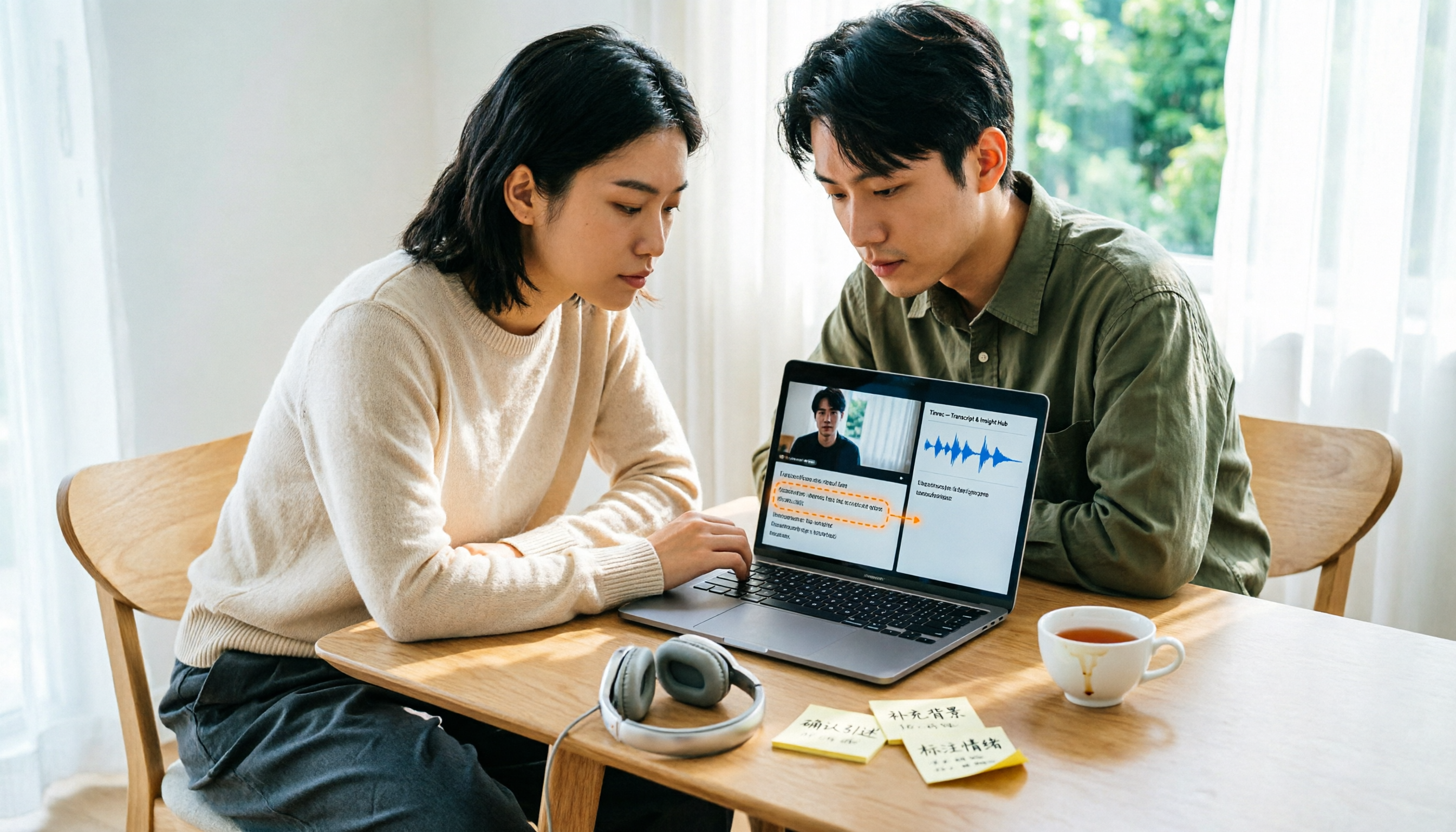
Tinrec is an AI meeting notes and collaboration tool for individuals and teams. It supports live recording, desktop bot-free recording of online meetings, audio and video file import, real-time translation, and can organize transcripts into summaries, chapters, action items, and mind maps. For "extracting text from video," it mainly handles the speech in the video, not on-screen OCR: after you upload existing interviews, courses, or meeting recordings, the system generates a transcript, which you can then query, export, or generate reports and tables. If the speech in the video is the data you need, this workflow is much more stable than "playing the video and using microphone live speech input."
In practice, the workflow can be broken into three steps. First, import the video or audio file, or directly record the online meeting audio playing on your computer using the desktop version. Second, after transcription is complete, review the transcript and timestamps to quickly verify names, technical terms, and key passages. Third, use AI summaries, chapters, and action items to condense long videos into readable material, then use AI Q&A to ask follow-up questions like "What were the three concerns the client mentioned?" or "What quotable material is in this interview?" This "transcribe first, then organize, then query" workflow is the biggest difference between Tinrec and simple speech input tools.
Its suitable scenarios are clear: quickly generating transcripts from meeting recordings, organizing quotes from interview recordings, capturing key points from course videos, and turning historical meetings into searchable data for teams. Limitations should also be stated clearly: Tinrec is not an OCR tool and cannot directly recognize hardcoded subtitles, slide text cards, or chart text from the screen; such needs require separate screen capture OCR. Additionally, this article did not conduct accuracy tests under fixed conditions; transcription quality will still be affected by recording quality, background noise, accents, overlapping speakers, and technical terminology. For important content, cross-check with the original video timestamps.
Stop organizing recordings by hand
Upload audio or video and automatically get a transcript, summary, and action items
If what you need is "what people said in the video," and you want to summarize, query, export, and share with your team after recording, Tinrec is a choice worth trying first. For team use, Tinrec's team plan offers independent team spaces, member roles and seats, shared import quotas, usage analytics, audit logs, and an audio recycle bin; the first eligible team trial is 7 days, 1 free seat, and 300 minutes of shared team import quota. Paid seats provide 2,000 minutes of shared import quota per month. Team monthly billing is USD 29.80 per paid seat per month, and annual billing is USD 199 per paid seat per year. Actual prices and benefits are subject to the official purchase page.
Besides Tinrec, What Other Options Are There?
Text Grab: A free, open-source OCR utility for Windows. You can select a video frame on screen to recognize Chinese and English text, and the result automatically goes to the clipboard. Suitable for capturing slides, charts, and hardcoded subtitles. But it only handles static on-screen text, cannot convert video audio tracks into transcripts, and does not retain audio or post-meeting summaries; Tinrec can directly import video files for speech transcription and then continue with summaries and Q&A.
Google Docs: Free voice typing. Play the video for the microphone to pick up sound, suitable for occasional small amounts in quiet environments. Drawbacks: you must stay in the Google Docs window, and it's live capture, not batch processing of uploaded videos; Tinrec can directly accept video files, retain recordings, and use AI Q&A to find key points after the meeting.
WPS: Use "screenshot text capture" to extract on-screen text, suitable for a few hardcoded subtitles or slide pages. But for long videos, you have to pause and screenshot repeatedly, which is very time-consuming and cannot handle people speaking; Tinrec can directly convert video audio tracks into transcripts, extract action items, and export without frame-by-frame screenshots.
Pitfall Guide: The 4 Most Common Mistakes in Extracting Video Text
Pitfall 1: Mixing up on-screen text and spoken text. Seeing subtitles in a video, you assume the text conversion tool will automatically capture them. In reality, hardcoded subtitles are part of the image and require OCR; spoken words require speech-to-text. Confirm which one you need first to avoid buying the wrong tool.
Pitfall 2: Using live speech input for long videos. Live speech input is great for quick notes, but for long videos you must play the entire segment without clicking other windows, and you cannot directly upload files. The longer the video, the higher the risk of interruption. For existing videos, prioritize tools that support file import.
Pitfall 3: Stopping once you have the transcript. A transcript is just raw material. If the tool can further produce summaries, chapters, action items, and Q&A, you can truly save post-meeting organization time. Tinrec's AI Q&A, for example, is suitable for quickly finding "who said what" and "what the conclusion was" in long interviews, closer to work needs than manual Ctrl+F.
Pitfall 4: Ignoring recording consent and data retention. Before processing meeting or interview videos, confirm participant consent and local regulatory requirements. For team sharing, also clarify member roles, seats, and data ownership; members without seats can usually only view, not upload or edit.
Summary: First Route by Scenario, Then Fill Gaps with Tools
| Your Situation | Recommended Method | Representative Tool |
|---|---|---|
| Spoken content in meetings, interviews, courses | Speech-to-text | Tinrec |
| Hardcoded subtitles, slides, charts in video | On-screen OCR | Text Grab, WPS screenshot text capture |
| Occasional small amounts, free live capture | Voice typing | Google Docs |
| Team-shared meeting recording transcripts | Team space + speech-to-text | Tinrec Team Plan |
If you need to capture people speaking, meeting speeches, interview quotes, and course key points, Tinrec is the top choice: upload video or audio to generate a transcript, then organize summaries, action items, and AI Q&A. If you need to capture hardcoded subtitles, slide text cards, and charts from the screen, use OCR methods like Text Grab or WPS. If it's just occasional small amounts in a quiet environment, Google Docs voice typing can serve as an emergency solution but is not suitable for batch processing long videos.
We recommend first clarifying whether your video is primarily audio or visual; if primarily audio, try Tinrec's free version on a video segment to confirm whether the transcript and summary fit your workflow before deciding whether to upgrade.
Data verification note: This article focuses on feature and workflow comparison and did not conduct accuracy tests under fixed conditions. Tinrec's capabilities and plans are subject to product announcements; competitor prices, benefits, and features are subject to their official pages. Please comply with local regulations and obtain necessary consent before recording and transcription.
References
- Video to Text, Two Methods to Achieve It Instantly!
- How to Extract Text Content from Videos? A Comprehensive Practical Methods Summary - Software Recommender - Enterprise Blog
- Text Grab: The Most Convenient OCR Computer Software, Essential for Turning Videos and Images into Text Notes
- Want to Extract Video Text? These Three Methods Easily Achieve Video Text Extraction - Tencent Cloud Developer Community - Tencent Cloud
- Super Practical Note Tool! Text Grab Converts Video and Image Content into Text, Efficiently Organizing Your Database | Meet Startup
Turn every recording into actionable outcomes
Get 60 free transcription minutes when you sign in. No credit card required.
Related Reading
You might also like

5 Best YouTube Transcript Tools in 2026: Built-in, Free, and AI Compared
There's more than one way to get a YouTube transcript. This comparison covers YouTube's built-in 'Show transcript' feature, free online extraction tools, Tinrec, Notta, TurboScribe, and Otter.ai—explaining which method fits which situation, the limits of free versions, and how to organize transcripts with minimal effort.
2026 Laptop Recording Tools Compared: 5 Options Tested — Is Free Enough, and Which Actually Saves You Time?
Recording on a laptop is easy; the hard part is what happens after. Starting from what you need the audio for, this article shares hands-on impressions of five laptop recording approaches, including built-in Windows and macOS recording, AI meeting note tools, and file transcription services. It honestly lists free quotas, paid pricing, and each option's limitations to help you pick the one that truly saves time.

3 iPhone Text-to-Speech Methods Tested and Compared in 2026: Which Saves the Most Time?
iPhone already has 3 built-in text-to-speech methods—no third-party apps needed. This article starts with common misconceptions and puts Speak Selection, Live Speech, and Shortcuts audio creation to the test. It also explains how to use Tinrec to turn meeting recordings into clean transcripts first, then let iPhone read them aloud, creating a complete "record → text → speech" workflow.
4 Word Recording Alternatives Compared for 2026: How to Choose from Built-in Transcription to Screen Recording
Word itself has no screen recording feature; it only offers dictation, transcription, and video insertion. This article compares four approaches—Word's built-in transcription, Community Clips, Tinrec, and Granola—explaining what each can and cannot record, along with quotas and limitations, to help you quickly choose the right tool based on whether you need visuals or text.

2026 Free Audio-to-Text Tools Compared: Tinrec vs cSubtitle, MyEdit, and Other Online Options
There are plenty of free audio-to-text tools, but free quotas and post-transcription organization capabilities vary widely. This article compares Tinrec with free online tools like cSubtitle, MyEdit, and Monica from real-world usage scenarios, explains how to evaluate free quotas and whether transcripts are directly usable, and includes plan details for Tinrec's free, personal, and team versions.

4 Call Recording Methods Tested for 2026: Which Is Easiest for Recording Calls on iPhone and Android?
Can you really record a phone call while you're on it? iPhone has built-in call recording starting with iOS 18.1, but it always notifies the other party; Android varies by brand and region. This article tests 4 call recording methods, compares notification mechanisms, audio quality, and post-call organization costs, and explains how to use Tinrec to quickly turn recorded calls into transcripts, summaries, and action items.
Video to Text in 2026: 3 Steps to a Transcript + AI Summary That Highlights Key Points
The hardest part of video-to-text isn't which button to press—it's whether the output is actually usable. Drawing on my real experience organizing meeting recordings and interview videos, this guide breaks down 4 key factors for choosing a tool, a hands-on 3-step workflow with Tinrec, who the 3 alternatives are best for, and the 4 most common pitfalls—so you can turn videos into editable, searchable transcripts in one go.

5 Best Audio-to-Text Apps in 2026: Free Tiers and Paid Thresholds Compared
Can free audio-to-text apps really work? Based on the real needs of a mid-level manager with 15 meetings per week, I break down five common free models on the market and use Tinrec to test real-time transcription, AI summaries, action item extraction, and team collaboration workflows. I organize free quotas, Chinese recognition, online meeting recording, and purchasing considerations to help you decide whether to use the free version or go straight to paid.
5 Real-Time Translation Apps Tested for 2026: Only a Few Can Actually Translate in Meetings
Many people search for "which app can translate in real time," but they confuse camera translation, conversation interpretation, and live bilingual meeting translation. This article starts with common misconceptions, compares the suitable scenarios of 5 tools, and breaks down Tinrec's complete workflow for recording and translating during cross-language meetings, with post-meeting query capabilities.