
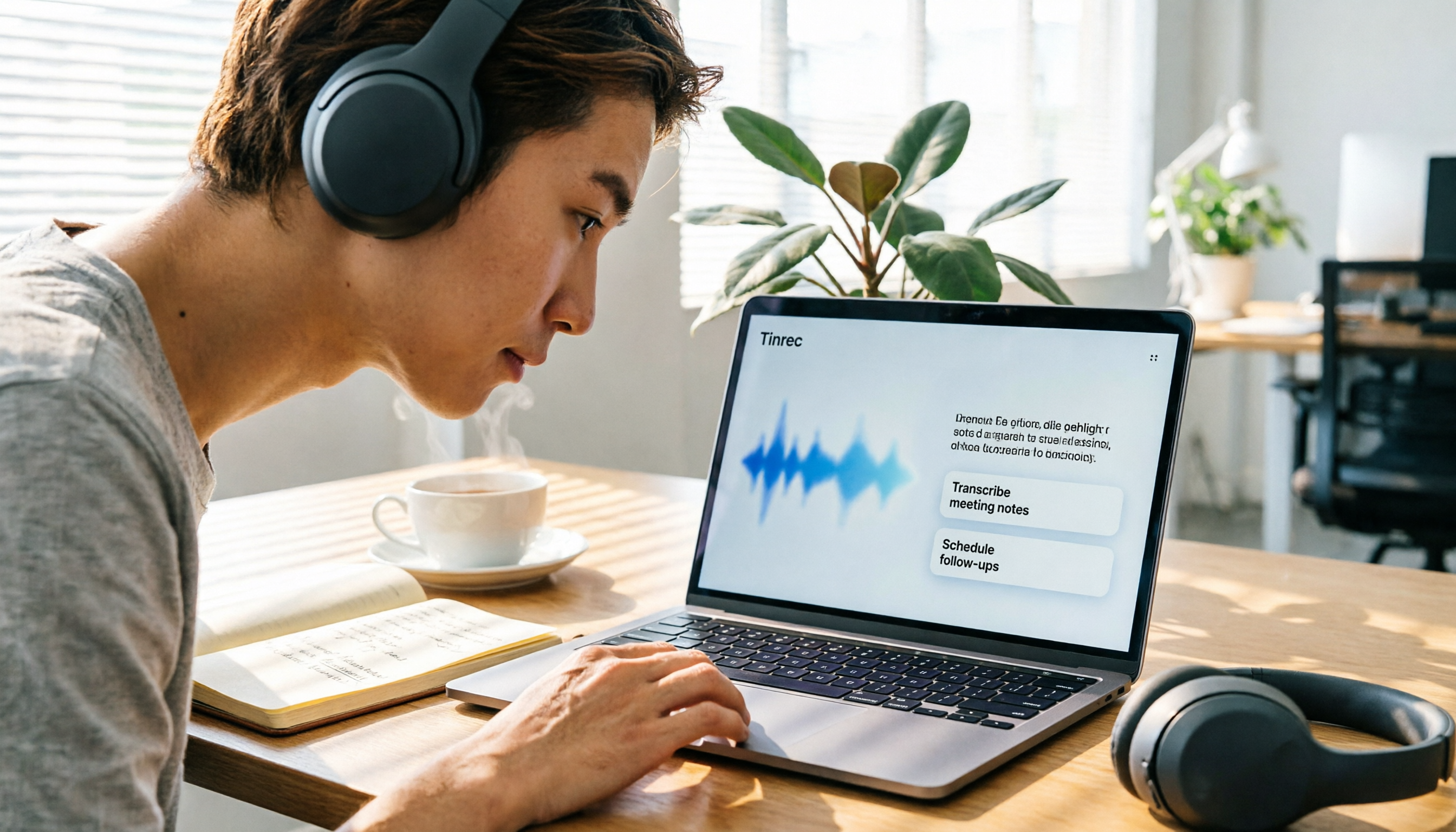
Turn recordings into transcripts and summaries in minutes
Upload audio or video for multilingual transcription, AI notes, and action items
2026 Laptop Recording Tools Compared: 5 Options Tested — Is Free Enough, and Which Actually Saves You Time?
Before you hit record, most people haven't really thought one thing through: once this audio file is done, how do you plan to use it?
If you just want a record to double-check later whether you misheard something, the built-in recorder on your laptop is enough.
But if you're recording a meeting that needs minutes, a class where you couldn't take notes fast enough, or an interview you'll need to quote from a transcript, then what you should be choosing isn't just "recording software" — it's a workflow that turns sound into usable data.
This article puts together five approaches I've actually used on my laptop. First how to choose, then which one I ultimately kept.
A one-hour meeting, another hour to re-listen — you don't need a recording app, you need a solution
After an online meeting ends, your manager asks "so what was the conclusion?" You only remember someone mentioned the budget, but you can't say who or in which part.
You open the audio file and drag the timeline to listen from the start. Forty minutes gone just like that.
Another case is an online course or lecture. You're busy taking notes at the time, then realize halfway through you missed a big chunk. You did record it, but to fill in that part you'd have to re-listen to the whole session.
Then there are interviews. You want to quote a certain sentence from the interviewee, so you type it out line by line, and after two hours you find you only actually used three sentences.
All three scenarios share the same thing: recording itself was never the problem. The problem is the time after recording — re-listening, organizing, and finding the key points again.
Pick the right tool and that time can shrink from an hour to a few minutes; pick the wrong one and you've just moved the audio file from one folder to another.
Before choosing a laptop recording tool, understand these 5 key points
First, are you recording the microphone or the sound coming from the computer?
On a laptop these are completely different input sources. Recording an in-person meeting relies on the microphone; recording an online meeting requires capturing system audio, and many tools can only do the former. Before buying, confirm whether it can handle audio from Zoom, Google Meet, Microsoft Teams, and similar meetings — otherwise what you record will be the ambient noise of the whole office.
Second, what comes after the transcript?
There are many tools that only give you text, but once the text volume gets large, you still have to read it all yourself. What really matters is whether after transcription there are summaries, chapters, action items, or even the ability to ask questions directly about the content. This layer of difference affects how much time you save more than transcription accuracy does.
Third, does it hold up with Chinese and mixed Chinese-English?
Meetings in Taiwan rarely use pure Chinese; it's usually sentences like "this campaign's budget we'll confirm next week." When choosing a tool, I suggest taking a recording of your own company's meeting and testing it directly — that's far more useful than looking at the accuracy rate the vendor claims.
Fourth, is the free quota "minutes per month" or "maximum length per recording"?
These two calculations differ a lot. Some tools give you 120 minutes per month, which looks sufficient, but each recording can only be 3 minutes — meaning you can't even finish one meeting. When looking at plans, read carefully which line the limitation is written on.
Fifth, whose hands does the data end up in?
For personal use it's not a big issue. But if you're the person in your department responsible for organizing meeting notes, think about this: after a colleague leaves, can those recordings still be found? Does the data follow individual accounts, or stay in the team space?
Tinrec — our top pick after hands-on testing
Tinrec is an AI meeting notes and collaboration tool for individuals and teams, available on web, desktop, iOS, and Android.
Its most direct difference is "how it records." The desktop version captures the computer's system audio directly, so when handling online meetings on Zoom, Google Meet, Microsoft Teams, or Webex, you don't need to invite a meeting bot into the room.
This makes a real difference in practice. You don't have to explain to the host "who that extra name on the list is," and you don't have to worry about the bot being stuck outside the waiting room.
Note that this is still a process where you actively press record — it doesn't automatically join all meetings from your calendar, so remember to start recording yourself.
While recording, Tinrec produces a live transcript, and for cross-language meetings you can turn on real-time translation and view the original, translation, or both.
After the meeting ends is where it really pulls ahead. The system automatically organizes summaries, chapters, and action items — who's responsible for what and when it's due, listed right there.
Even better is AI Q&A. After recording, you can directly ask it "who mentioned the budget in the last meeting," and it gives you an answer based on understanding, not a line-by-line keyword search result.
Stop organizing recordings by hand
Upload audio or video and automatically get a transcript, summary, and action items
My own workflow: after the meeting, first check the summary to confirm direction, then use Q&A to fill in details, and finally pull out the action items. The whole process takes about five minutes.
Export options are also complete. Transcripts, summaries, and mind maps can all be exported, and carried into Notion, Google Docs, OneNote, or Dropbox for further editing; if you need formal documents, you can also use Agent post-processing to generate reports, tables, and meeting minutes.
On pricing, the personal version has a free plan to try first, plus a weekly card, Pro monthly, and Pro annual — just choose based on whether you have "short-term intensive meetings" or "long-term steady use." You don't need to buy the longest plan from the start.
For team use, the Tinrec team version is a separate team space, not several people sharing one personal account. Currently it's USD 29.80 per paid seat per month, or USD 199 per paid seat per year (about USD 16.58 per month). Eligible teams can try 7 days with 1 free seat and 300 minutes of shared team import quota; each paid seat provides 2,000 minutes of shared team import quota per month.
One commonly misunderstood point about the team version: roles and seats are two different things. Roles determine who can manage members and team settings; seats determine who can record, upload, edit, and export. Members who are active but have no seat can still view, play, and download team data — they just can't perform editing operations.
Also, team data is currently shared mainly at the team level, without fine-grained per-file permission settings. You should know this before evaluating it.
**Who it's for:** People who frequently handle Chinese or mixed Chinese-English meetings, don't want to invite a meeting bot into the room, and want to find key points directly through Q&A after recording.
Besides Tinrec, what other options are there?
Built-in system recording (Windows Sound Recorder / macOS QuickTime) Zero cost, record as soon as you open it — convenient for sudden voice memos. But these tools only handle "keeping the sound"; transcription and action-item extraction are all on you, and the recorded files usually just sit quietly in a folder. If you only need a record, it's plenty; if you want organizable data, it won't help.
Notta A multi-platform transcription tool supporting meeting notes, file import, and translation. The Business plan offers unlimited transcription and usage reports (about USD 16.67 per seat per month, billed annually). The free version gives 120 minutes per month, but each item is capped at 3 minutes, so recording a full meeting basically requires paying. If you need pure file transcription, it does the job well; but post-meeting data management like a team audio recycle bin isn't its focus right now.
TurboScribe A cost-effective file transcription service focused on long files and batch processing. Unlimited is USD 120 per year (about USD 10 per month); the paid version supports files up to 10 hours each and uploading 50 files at once. Its strength is "turning already-recorded files into text," not real-time recording during meetings or action-item extraction — which is exactly where Tinrec comes in.
Otter.ai A mature choice for English meetings. The free version's 300 minutes per month is quite generous, and Pro is about USD 8.49 per user per month billed annually. If your meetings are entirely in English, it's a very reasonable option; but Chinese and mixed Chinese-English recognition isn't its home turf, and adjustments for Chinese terminology like custom team vocabulary (hotwords) are done more finely by Tinrec.
Prices above are based on each official pricing page as of August 2026. Plan details change, so it's worth confirming once more before ordering.
Pitfall guide: the 4 most common mistakes when choosing a laptop recording tool
Pitfall 1: Only confirming "can it record," not "what it records." Many people install the software and start recording an online meeting, only to capture the ambient noise of the whole office — not a single word from the other side. Before recording, do a 30-second test to confirm the audio track contains the sound you expect.
Pitfall 2: Being fooled by "free minutes per month." You see 120 minutes per month and think it's enough, without noticing the per-recording cap is only 3 minutes. When choosing a plan, read the "monthly quota" and "per-recording cap" lines together.
Pitfall 3: Treating the transcript as the finish line. Getting a 10,000-word transcript is actually about as troublesome as getting a one-hour audio file — you still have to read it all. The summary, chapters, and action items after transcription are the parts that truly save time. If you only use the tool as "audio-to-text," you're using only a third of what it can do.
Pitfall 4: The team keeps sharing one personal account. Colleagues logging in with the same credentials looks like it saves money short-term, but data ownership will cause problems: someone leaves, someone accidentally deletes something, someone uses up the quota — the whole team grinds to a halt together. For team use, use a team space and clearly separate roles, seats, and data ownership.
Conclusion: which one should you actually choose?
Go back to the question from the beginning — are you recording to keep a record, or to use it later?
If just keeping a record: Windows Sound Recorder or macOS QuickTime is enough; no need to spend money.
If meetings are mainly in English: Otter.ai's free quota and maturity are both worth considering.
If you have a batch of already-recorded long files to transcribe: TurboScribe's batch processing is a good deal.
If it's one Chinese meeting after another, mostly online, and you have to write minutes after every meeting: Tinrec is currently the closest fit for this need. No need to invite a bot into the meeting, live transcription while recording, summaries and action items right after, and you can ask questions about the recording.
For team use, I'd suggest going straight to the team version: data stays in the team space, resources can be handed over when members change, and managers can view usage and activity logs.
My advice is to first run a round of your own meeting recordings on the free version. Test it with the hardest segment you have on hand — the kind with accents, background noise, and mixed Chinese-English. Once you've tried it, you'll know whether that saved hour is real.
References
- 5 Laptop Recording Tools Tested: Language Support, Live Transcription, and AI Summaries at a Glance - Tinrec Blog
- Want to Nail Laptop Recording? 6 Computer Recording Apps to Quickly Produce High-Quality Audio and Transcripts - Tinrec Blog
- 2026 Laptop Recording Free Plans Roundup: 5 Options at a Glance - Tinrec Blog
- How to Record on a Laptop? A Complete Practical Guide and Free Popular Software Recommendations to Get High-Quality Audio and Meeting Transcripts in One Click - UpToGo
- [Super Simple] Computer Recording Solutions
Turn every recording into actionable outcomes
Get 60 free transcription minutes when you sign in. No credit card required.
Related Reading
You might also like

5 Best YouTube Transcript Tools in 2026: Built-in, Free, and AI Compared
There's more than one way to get a YouTube transcript. This comparison covers YouTube's built-in 'Show transcript' feature, free online extraction tools, Tinrec, Notta, TurboScribe, and Otter.ai—explaining which method fits which situation, the limits of free versions, and how to organize transcripts with minimal effort.
3 Video-to-Text Tools Compared for 2026: How to Choose Between Speech Transcription and On-Screen OCR
Video-to-text often gets stuck on distinguishing speech from on-screen text. This article breaks down the video text extraction workflow using two scenarios, compares when to use Tinrec, Text Grab, Google Docs, and WPS screenshot text capture, and outlines selection criteria, pitfalls to avoid, and team collaboration considerations.

3 iPhone Text-to-Speech Methods Tested and Compared in 2026: Which Saves the Most Time?
iPhone already has 3 built-in text-to-speech methods—no third-party apps needed. This article starts with common misconceptions and puts Speak Selection, Live Speech, and Shortcuts audio creation to the test. It also explains how to use Tinrec to turn meeting recordings into clean transcripts first, then let iPhone read them aloud, creating a complete "record → text → speech" workflow.
4 Word Recording Alternatives Compared for 2026: How to Choose from Built-in Transcription to Screen Recording
Word itself has no screen recording feature; it only offers dictation, transcription, and video insertion. This article compares four approaches—Word's built-in transcription, Community Clips, Tinrec, and Granola—explaining what each can and cannot record, along with quotas and limitations, to help you quickly choose the right tool based on whether you need visuals or text.

2026 Free Audio-to-Text Tools Compared: Tinrec vs cSubtitle, MyEdit, and Other Online Options
There are plenty of free audio-to-text tools, but free quotas and post-transcription organization capabilities vary widely. This article compares Tinrec with free online tools like cSubtitle, MyEdit, and Monica from real-world usage scenarios, explains how to evaluate free quotas and whether transcripts are directly usable, and includes plan details for Tinrec's free, personal, and team versions.

4 Call Recording Methods Tested for 2026: Which Is Easiest for Recording Calls on iPhone and Android?
Can you really record a phone call while you're on it? iPhone has built-in call recording starting with iOS 18.1, but it always notifies the other party; Android varies by brand and region. This article tests 4 call recording methods, compares notification mechanisms, audio quality, and post-call organization costs, and explains how to use Tinrec to quickly turn recorded calls into transcripts, summaries, and action items.

Video to Text in 2026: 3 Steps to a Transcript + AI Summary That Highlights Key Points
The hardest part of video-to-text isn't which button to press—it's whether the output is actually usable. Drawing on my real experience organizing meeting recordings and interview videos, this guide breaks down 4 key factors for choosing a tool, a hands-on 3-step workflow with Tinrec, who the 3 alternatives are best for, and the 4 most common pitfalls—so you can turn videos into editable, searchable transcripts in one go.

5 Best Audio-to-Text Apps in 2026: Free Tiers and Paid Thresholds Compared
Can free audio-to-text apps really work? Based on the real needs of a mid-level manager with 15 meetings per week, I break down five common free models on the market and use Tinrec to test real-time transcription, AI summaries, action item extraction, and team collaboration workflows. I organize free quotas, Chinese recognition, online meeting recording, and purchasing considerations to help you decide whether to use the free version or go straight to paid.

5 Real-Time Translation Apps Tested for 2026: Only a Few Can Actually Translate in Meetings
Many people search for "which app can translate in real time," but they confuse camera translation, conversation interpretation, and live bilingual meeting translation. This article starts with common misconceptions, compares the suitable scenarios of 5 tools, and breaks down Tinrec's complete workflow for recording and translating during cross-language meetings, with post-meeting query capabilities.