
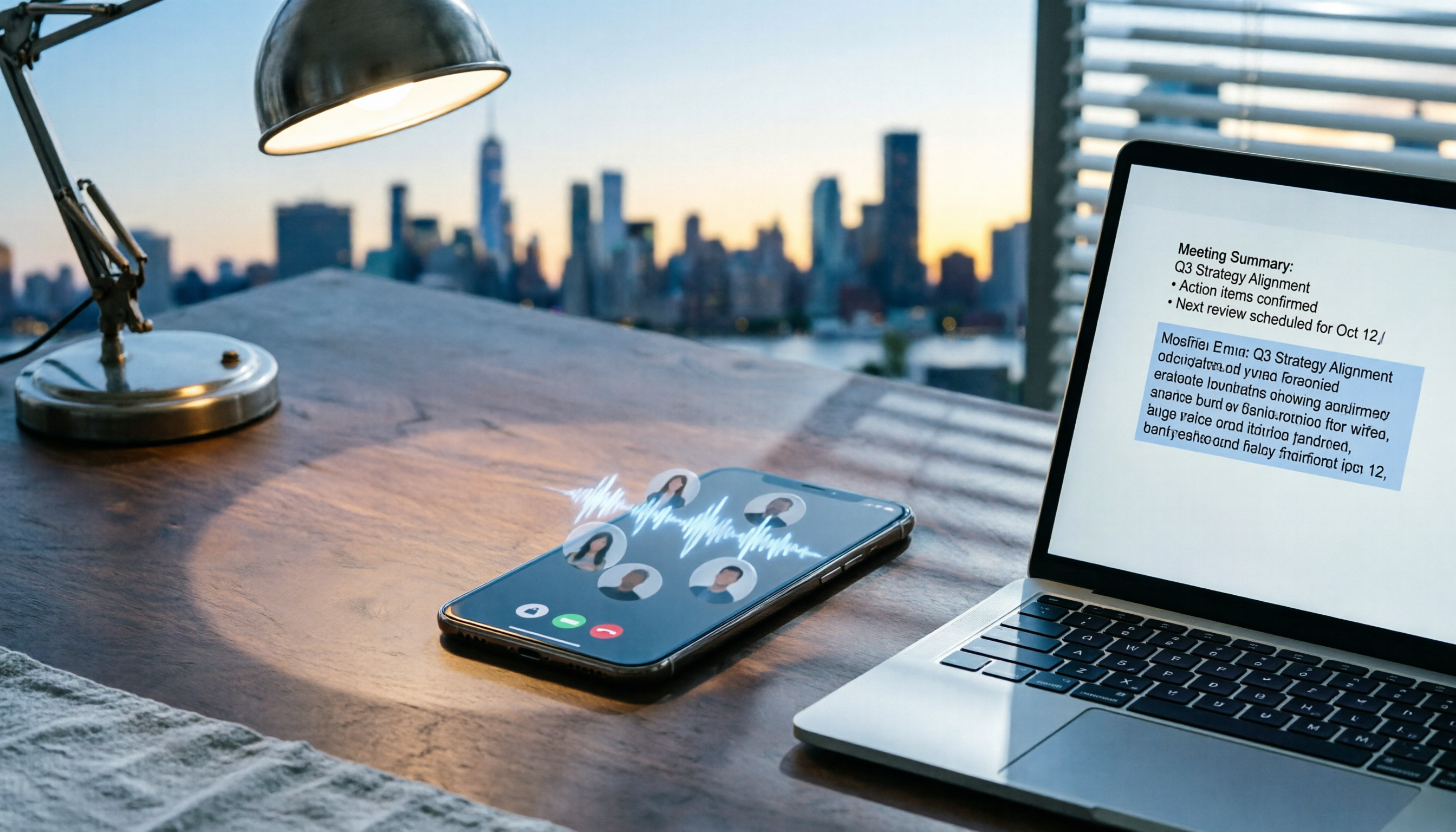
Turn recordings into transcripts and summaries in minutes
Upload audio or video for multilingual transcription, AI notes, and action items
During a recent corporate training session, a trainee asked me: "Coach, I use my iPhone for Google Meet meetings every day, but taking notes afterward takes forever. Is there a way to automatically turn meeting content into text and key points?"
His question is typical—most people don't lack tools; they don't know how to connect existing tools into a streamlined workflow.
So in this article, I'll walk you through the method I've tested myself: using an iPhone to record Google Meet content and then leveraging Tinrec to organize it into usable materials.
This guide uses Tinrec (also known as "Miao Ting Lu Yin") as an example—it's an AI-powered recording and audio/video organizing tool, perfect for meetings, studying, interviews, and content creation.
Before You Start: What You'll Need
• An iPhone (iOS 14 or later; Tinrec is free on the App Store)
• Download the Tinrec app and sign up quickly with your Google or Apple ID
• Install the Google Meet app (log in with your existing account)
• A stable internet connection (real-time transcription requires internet; download language packs for offline use)
• A quiet environment (or wear headphones to reduce echo)
Step 1: Record the Full Google Meet Content with Your iPhone
The goal of this step is to capture a clear meeting recording—the foundation for everything that follows.
My approach: open Tinrec before joining the Google Meet meeting.
Tap the record button on the main screen, then switch back to Google Meet and turn off your iPhone's "Do Not Disturb" mode to avoid notifications interrupting the recording.
Keep your phone close to you during recording, or place it on a stable surface. The closer it is, the clearer the audio.
For group discussions, I put the phone in the center of the conference table; for one-on-one, between me and the other person.
Why pay special attention to audio quality? Because AI transcription accuracy depends directly on audio quality—if the sound is muddy, even the best engine won't help.
After the meeting, return to Tinrec and tap Stop. The recording will appear on the main screen with its duration and file size displayed.
(Illustration: a person sitting at a desk, iPhone on a stand recording, screen shows Google Meet meeting, while Tinrec runs in the background)
Step 2: Let AI Transcribe for You
The goal here is to turn the audio file into searchable, editable text.
In Tinrec, tap the recording you just made, then select "Transcribe." The app will start processing.
Usually, a few minutes of meeting recording transcribes quickly; you don't need to watch the screen.
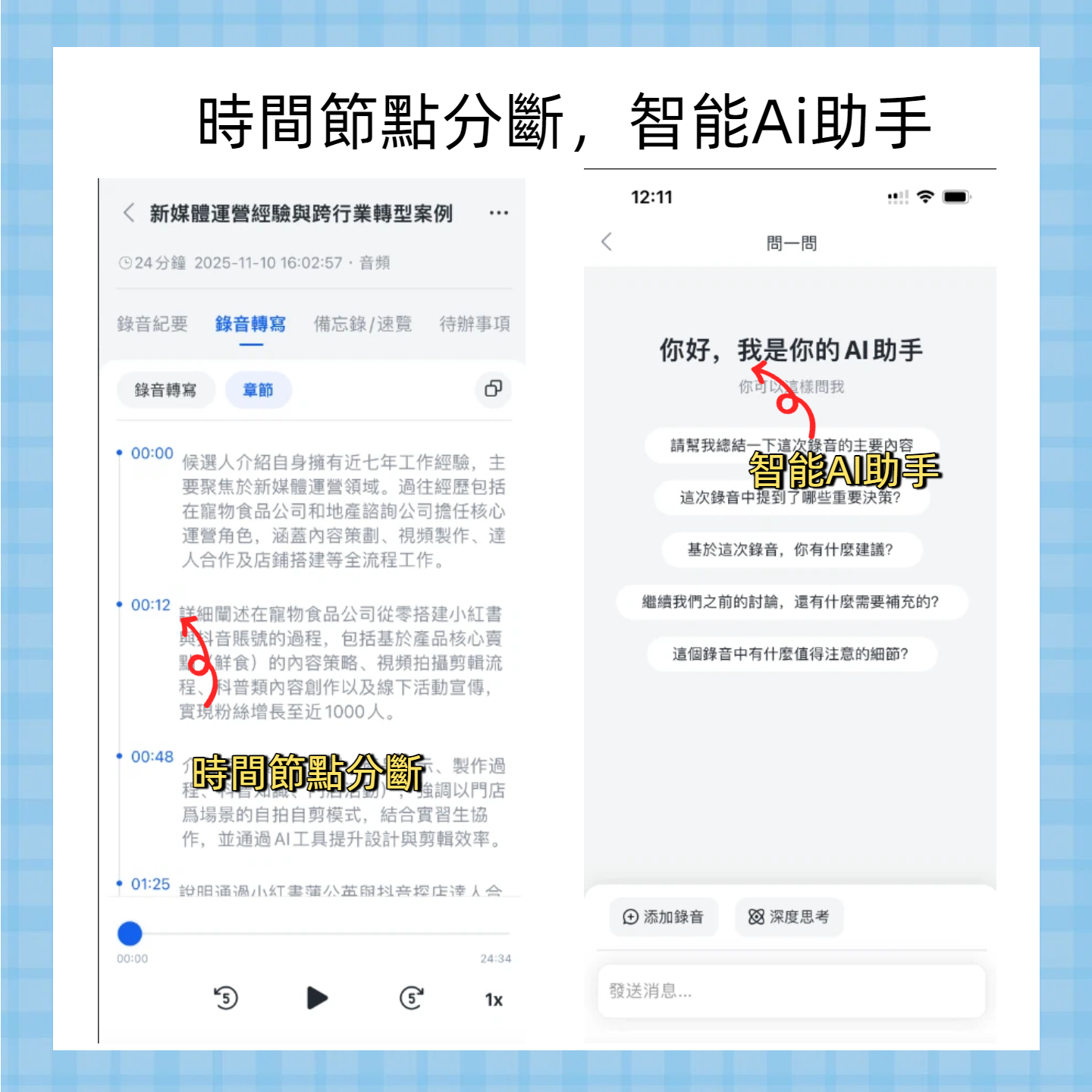
Once done, you'll see a transcript with time stamps and clear paragraphs.
What I particularly like about Tinrec is that it doesn't just output text—it also auto-segments and labels chapters, going beyond simple transcription tools.
(Illustration: phone screen showing a transcript with time markers, clear text, chapter markers on the right, with a modern office desktop background)
Step 3: Quickly Proofread the Transcript
The goal is to ensure key content is error-free and prevent inaccuracies in the summary.
I don't proofread word by word; I quickly scan important sections.
Check names, numbers, and decision points against the original recording.
Stop organizing recordings by hand
Upload audio or video and automatically get a transcript, summary, and action items
Tinrec has built-in smart noise reduction, so error rates are low in most cases. But multiple people speaking simultaneously or technical terms may still be misrecognized.
Rather than spending a lot of time proofreading later, spend an extra 30 seconds optimizing the recording position.
(Illustration: a person in front of a laptop, holding a phone showing the transcript, taking notes on the laptop, with a small checkmark icon indicating proofreading complete)
Step 4: Let AI Generate Meeting Minutes
The goal is to condense the long transcript into structured key points that can be shared directly as a document.
On the transcript page, tap "AI Summary." Tinrec will automatically produce a meeting summary, to-do items, and action lists.
You can also use the "AI Chat" feature to ask follow-up questions like: "What decisions were made in this meeting?" or "What action items were assigned to whom?"
It's like having a meeting assistant that extracts key info immediately after the session.
Why is this better than manual note-taking? Because the human brain can miss details, but AI scans every line and misses nothing.
Still, I quickly double-check the summary to ensure no misunderstandings.
(Illustration: phone screen showing meeting summary with bullet points on the left and to-do items on the right, set in a bright office environment for a productive feel)
Step 5: Export and Share
The goal is to move the organized material where you actually work—for example, email to the team or save into a note-taking app.
Tinrec supports multiple export formats: TXT, PDF, Word, and even direct sync to Notion or Google Docs.
My habit: export the meeting minutes as PDF and email to all attendees; save the transcript to Notion as a knowledge base.
If your company uses Slack or Teams, you can also share a link directly.
(Illustration: phone screen showing export menu with icons for different formats, plus a "Share" button; laptop screen shows received email)
FAQ and Troubleshooting
Q: The transcription has many errors. What should I do?
Usually caused by a noisy environment or being too far from the phone. Tinrec has built-in smart noise reduction—turn it on in settings before recording. If you're using an already recorded file, you can manually select "High Noise Environment" mode after importing—something many transcription tools lack.
Q: Google Meet audio is not being recorded?
iPhone records microphone input by default, but speaker output may be low. I recommend wearing headphones, or alternatively, log into Google Meet on iPad/computer and use your iPhone to record the external sound.
Q: Is the free version enough?
The free version of Tinrec provides basic monthly transcription credits, sufficient for typical meetings. If you have multiple meetings per week, consider the Pro plan.
Pro Tips: 3 Ways to Double Your Efficiency with Tinrec
1. Use AI Chat to Uncover Hidden Insights
After transcription, simply ask Tinrec: "Which part mentioned the budget?" or "What are the client's needs?"—this is a unique feature of Tinrec that general transcription tools can't do.
2. Cross-Platform Sync for Seamless Workflow
Record on your iPhone, then open the web version of Tinrec on your computer—everything syncs automatically. This is more convenient than hardware devices like PLAUD because you don't need to carry extra gear.
3. Directly Parse Google Meet Online Recordings
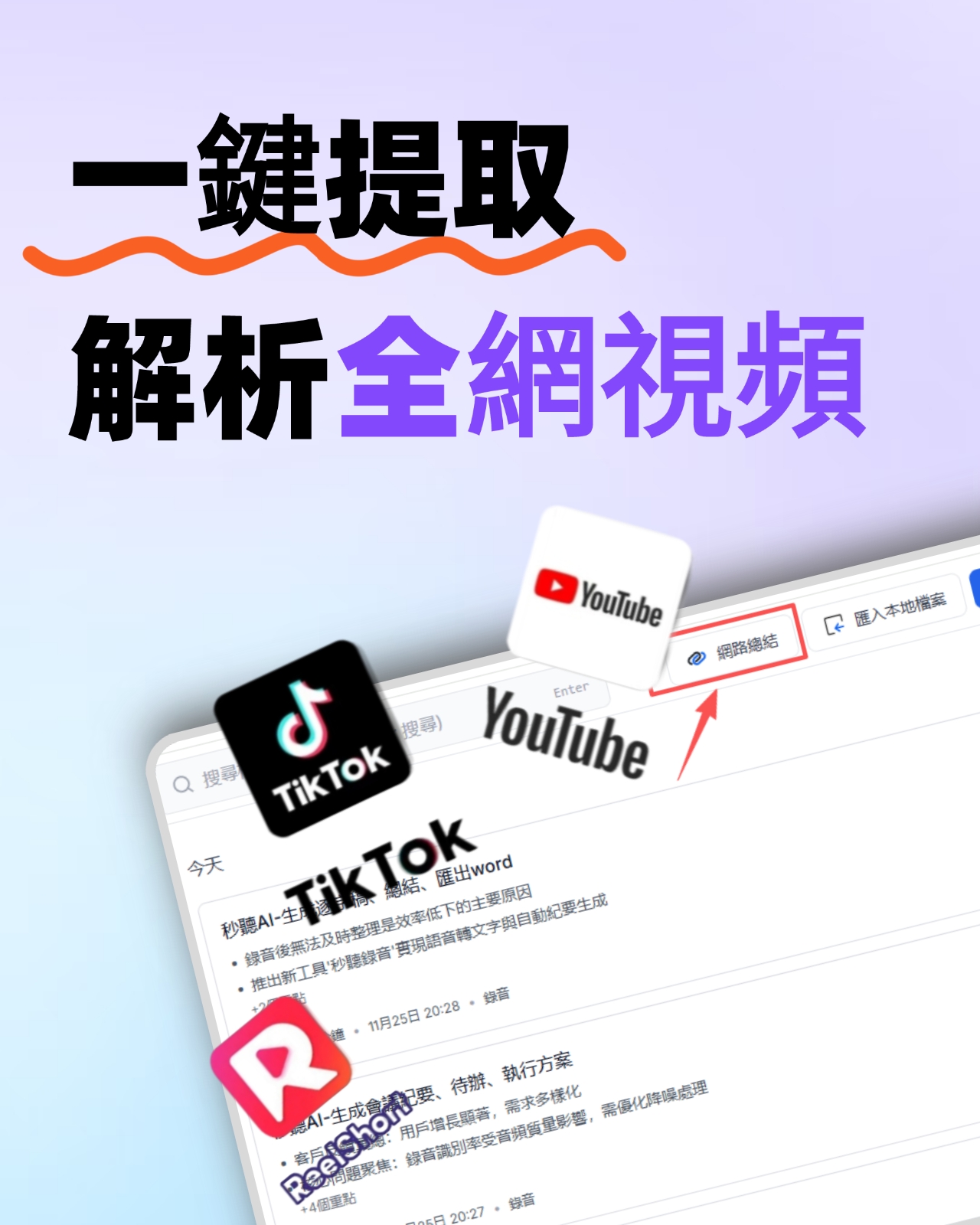
If you've recorded the meeting and stored it in the cloud, paste the video link into Tinrec—it can directly parse and transcribe it, saving you even manual recording.
If You Don't Use Tinrec, Here Are Alternatives
• Otter.ai: Great for teams with frequent online meetings, but weaker in Chinese transcription; mainly for English business meetings.
• Notta: Similar features, higher transcription credits, but lacks AI chat query and online video parsing.
In most cases, Tinrec better suits Chinese users and diverse source material processing.
Conclusion
You now know how to record a Google Meet meeting with your iPhone, then use Tinrec to turn the recording into a searchable transcript, a structured summary, and an action list—finally exporting it to your daily tools.
Next step: download the free version of Tinrec and try it on one of your meeting recordings. You'll find that the time spent on meeting notes can shrink from one hour to just ten minutes.
Test it step by step, and you'll gradually master this method.
Turn every recording into actionable outcomes
Get 60 free transcription minutes when you sign in. No credit card required.
Related Reading
You might also like

2026 Audio-to-Text Comparison: Tinrec vs Otter.ai for Chinese Meetings & Team Knowledge
How to choose an audio-to-text tool in 2026? This article compares Tinrec and Otter.ai across 5 dimensions: Chinese meeting transcription, bot-free online meeting capture, audio file organization, post-meeting workflows, and team data governance. Based on public features and pricing, it helps you decide which is better suited for meeting notes needs in Taiwan.

How to Choose an Online Audio-to-Text Tool in 2026: 5 Steps to Pick the Right One and Get a Transcript
How do you choose an online audio-to-text tool? This article reviews 6 online options—Tinrec, MyEdit, cSubtitle, CyberLink, Yating Transcript, and Monica—comparing free quotas, Chinese recognition, export formats, and team collaboration. It also walks you through 5 steps to turn an audio file into a transcript.
2024 Review of 4 Audio-to-Text Tools: Which Saves the Most Time on Chinese Meeting Transcripts and AI Summaries?
The 2024 audio-to-text comparison isn't just about transcription speed—it's about whether the tool can organize your meeting notes afterward. Based on real meetings and interviews, this review compares Tinrec, Notta, Granola, and PLAUD on audio sources, transcripts, AI summaries, action items, team collaboration, and pricing limits to help you choose the right tool.

4 Free Online Audio-to-Text Tools Compared (2026): Which Offers the Best Free Tier and Chinese Recognition?
A comparison of Tinrec, MyEdit, cSubtitle, and Monica's free online audio-to-text offerings, covering free quotas, Chinese recognition, export formats, and post-meeting AI organization to help you decide which suits meetings, interviews, and subtitles.

4 Free AI Audio-to-Text Tools Tested: Which Free Tier Is Enough in 2026?
There are many free AI audio-to-text tools, but free quotas, single-recording length limits, Chinese recognition, and post-meeting organization capabilities vary widely. This article compares the free plans and use cases of 4 tools, using Tinrec's no-bot recording, AI Q&A, and team spaces as selection references.

2026 Comparison of 2 Online Audio-to-Text Tools: Tinrec vs Otter.ai — Which Is Better for Chinese Meetings?
Starting from common misconceptions, this comparison examines Tinrec and Otter.ai in Chinese meetings, bot-free recording, post-meeting organization, real-time translation, and team data retention to help you decide which online audio-to-text tool fits your daily work.

2026 Comparison of 2 Audio-to-Text Platforms: Free Tiers, Chinese Recognition, and Post-Meeting Organization at a Glance
A side-by-side comparison of Tinrec and Notta across free tiers, Chinese recognition, online meeting recording, post-meeting organization, and team collaboration, helping you decide whether the free version is enough and when to upgrade.

iPhone Voice Memos vs Tinrec in 2026: 5-Dimension Comparison — Is Free Transcription Enough?
iPhone's built-in Voice Memos can now transcribe recordings for free, so do you still need a separate tool? This article compares iPhone's built-in features with Tinrec across 5 practical dimensions and honestly explains where the free limits are, helping you decide which approach fits your meeting volume.

4 Free Audio-to-Text Tools Tested for 2026: Which Free Tier Is Actually Enough?
There are plenty of free audio-to-text tools, but few can handle a full meeting. This hands-on comparison tests the free plans of Tinrec, Otter.ai, Notta, and TurboScribe—breaking down how limits are calculated, transcript post-processing, audio retention, and team collaboration—to help you decide which free version is truly usable.